


 Video Converter Ultimate
 Perekam Layar
 Perbaikan Video
 Unduhan Aman
Cara termudah untuk Menghapus Logo dari Video Menggunakan Windows Movie Maker
Bagaimana cara menghapus logo dari video menggunakan Windows Movie Maker? Ini adalah pertanyaan yang paling sering ditanyakan oleh orang-orang yang suka menonton film favorit, klip video, slideshow, dan lain-lain. Menonton video sambil melihat logo tentu kurang memuaskan. Namun, Anda tidak perlu khawatir lagi. Kami memiliki metode efektif untuk menghapus logo dari video Anda menggunakan Windows Movie Maker. Selain itu, ada juga alat lain yang bisa Anda gunakan untuk menghapus logo selain Windows Movie Maker. Jika Anda ingin mengetahui aplikasi lain tersebut dan metode mudah ini, lanjutkan membaca artikel ini.

Bagian 1: Cara Menghapus Logo dari Video Menggunakan Windows Movie Maker
Jika Anda pengguna Windows, Anda wajib mencoba Windows Movie Maker untuk menghapus logo dari video Anda. Selain itu, alat ini dapat menggunakan berbagai metode untuk menghapus elemen dari video Anda, seperti logo, watermark, teks, stempel, dan lain-lain. Selain itu, Windows Movie Maker adalah perangkat lunak penyuntingan video yang membantu pengguna membuat dan meningkatkan kualitas video. Antarmukanya juga sederhana sehingga prosesnya lebih mudah, sangat cocok bagi pengguna nonprofesional. Dalam menghapus logo, Anda bisa menggantinya dengan elemen lain seperti gambar atau teks. Selain itu, aplikasi ini memiliki banyak alat pengeditan yang bisa Anda nikmati, seperti memotong, menggabungkan, memutar, dan memotong (crop) video. Anda juga dapat menambahkan transisi, teks, efek, dan lain-lain. Jika Anda ingin mengetahui cara mudah ini, ikuti langkah-langkah di bawah ini.
Langkah 1: Langkah pertama, unduh Windows Movie Maker di komputer Windows Anda. Tunggu proses instalasi selesai, lalu buka aplikasinya.
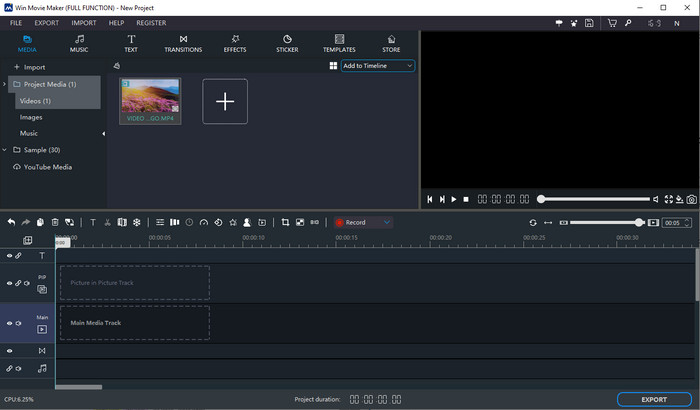
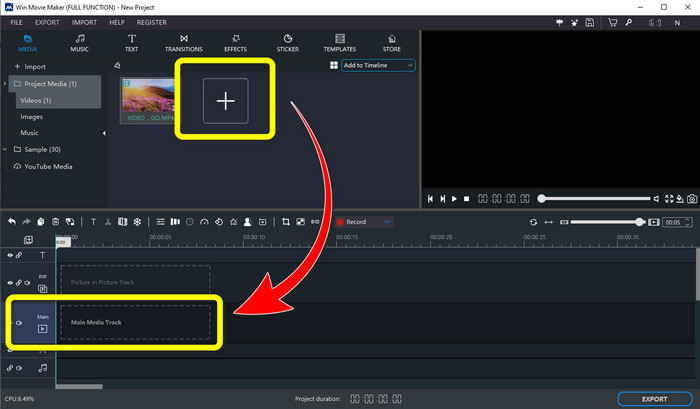
Langkah 2: Klik ikon tanda Plus untuk menambahkan video Anda yang memiliki logo. Setelah videonya terpasang, letakkan di Main Media Track dengan cara menyeretnya.
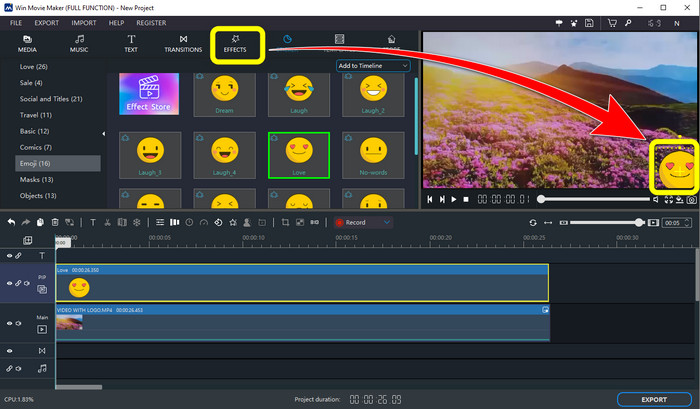
Langkah 3: Untuk mengganti logo, klik tombol Sticker. Lalu, pilih stiker atau elemen lain yang Anda inginkan, dan letakkan di area logo untuk menutupinya.
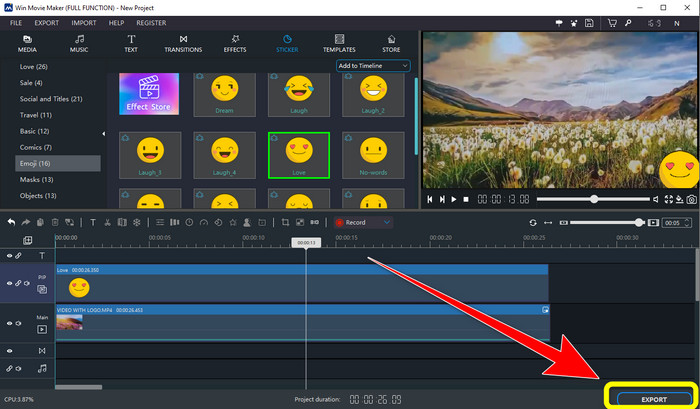
Langkah 4: Untuk langkah terakhir, jika Anda sudah selesai menutupi logo pada video, pilih tombol Export untuk menyimpan hasil akhirnya.
Bagian 2: Cara Alternatif Terbaik untuk Menghapus Logo dari Video
Video Converter Ultimate adalah salah satu alternatif terbaik selain Windows Movie Maker untuk menghapus logo dari video Anda dengan mudah. Aplikasi ini memungkinkan Anda menghapus elemen yang tidak diperlukan seperti watermark, logo, tanda tangan, stempel, dan lain-lain. Selain itu, Anda dapat menggunakan alat crop untuk menghapus logo yang berada di tepi atau sudut video. Video Converter Ultimate menawarkan antarmuka yang sederhana dan intuitif, cocok untuk pengguna nonprofesional. Selain menghapus logo dari video, perangkat lunak ini juga menyediakan berbagai alat pengeditan yang bisa Anda nikmati. Tersedia kompresor video, pengatur kecepatan video, pembuat GIF, pembuat kolase, penambah dan penghapus watermark, pemutar (rotator) video, dan banyak lagi. Aplikasi ini juga mendukung berbagai format file seperti MP4, MKV, FLV, MOV, XVID, DIVX, TRP, MTS, dan lain-lain. Terakhir, Video Converter Ultimate tersedia untuk Windows dan Mac, sehingga praktis bagi pengguna. Ikuti panduan terperinci berikut untuk menghapus logo dari video Anda menggunakan Video Watermark Remover dan pemotongan video (Video Cropping).
Menggunakan Fungsi Penghilang Tanda Air Video
Langkah 1: Pertama, unduh Video Converter Ultimate dan instal di Windows atau Mac Anda.
Unduh GratisUntuk Windows 7 atau yang lebih baruUnduhan Aman
Unduh GratisUntuk MacOS 10.7 atau yang lebih baruUnduhan Aman
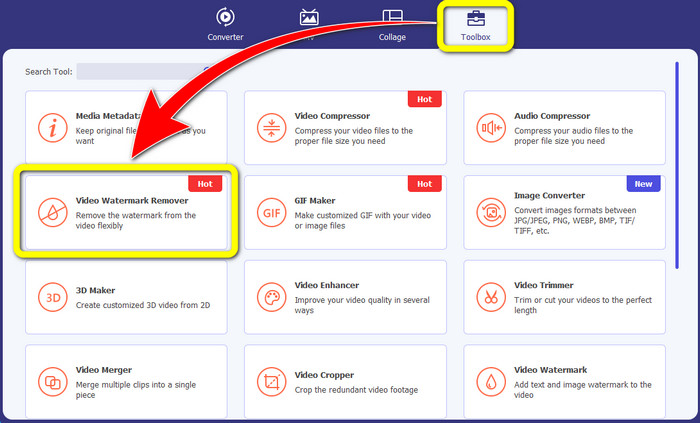
Langkah 2: Setelah meluncurkan aplikasi, buka panel Toolbox, cari Video Watermark Remover, lalu pilih.
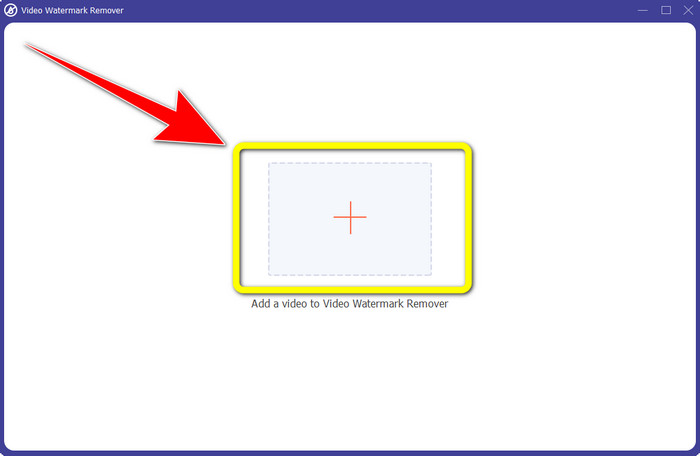
Langkah 3: Setelah itu, antarmuka lain akan muncul. Klik ikon tanda plus untuk menambahkan video yang ingin Anda hapus logonya.
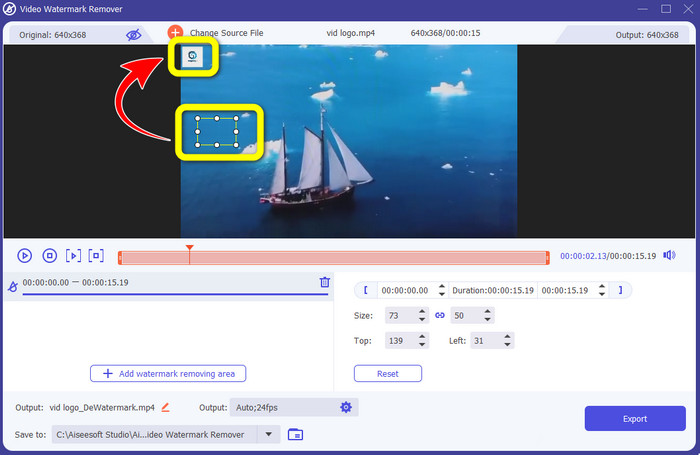
Langkah 4: Sebuah kotak mini akan muncul di layar setelah Anda menambahkan file. Seret kotak tersebut untuk menutupi logo.
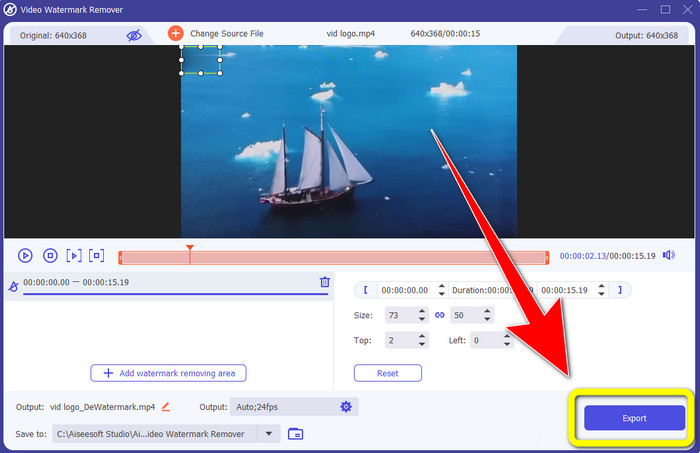
Langkah 5: Jika Anda sudah selesai menghapus logo dari video, pilih tombol Export untuk mengekspor dan menyimpan video Anda tanpa logo.
Menggunakan Fungsi Pemotong Video
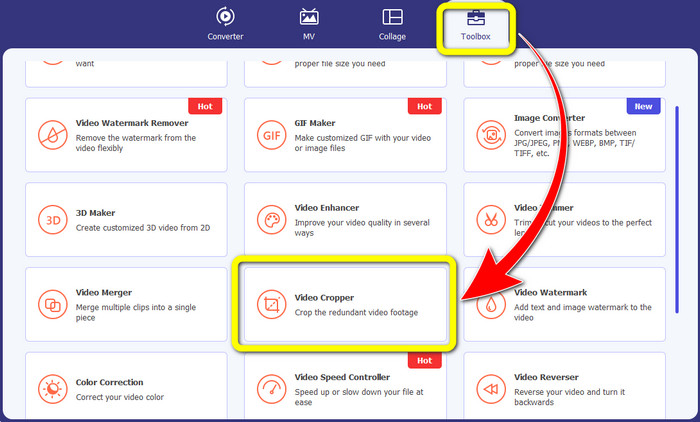
Langkah 1: Pertama, klik panel Toolbox. Setelah itu, temukan alat Video Cropper dan pilih.
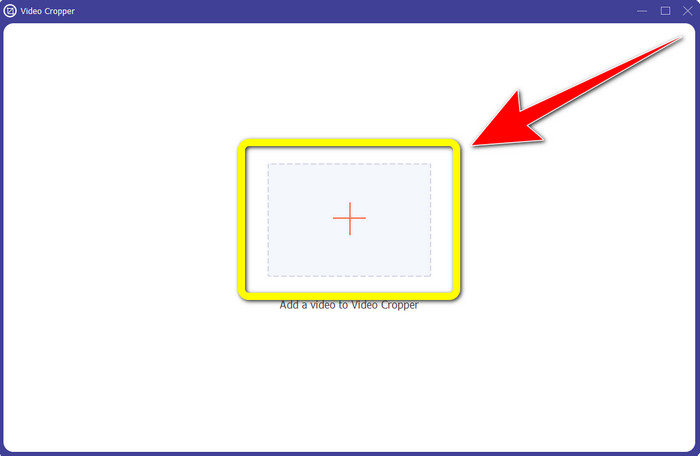
Langkah 2: Lalu, Anda bisa klik tombol tanda Plus untuk mengimpor video yang memiliki logo.
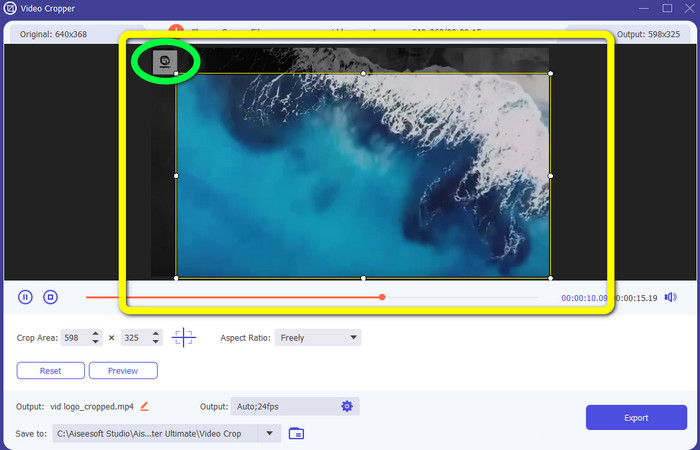
Langkah 3: Dalam fungsi ini, Anda dapat memotong kedua sisi, atau bagian atas dan bawah video untuk menghapus logo dari video Anda.
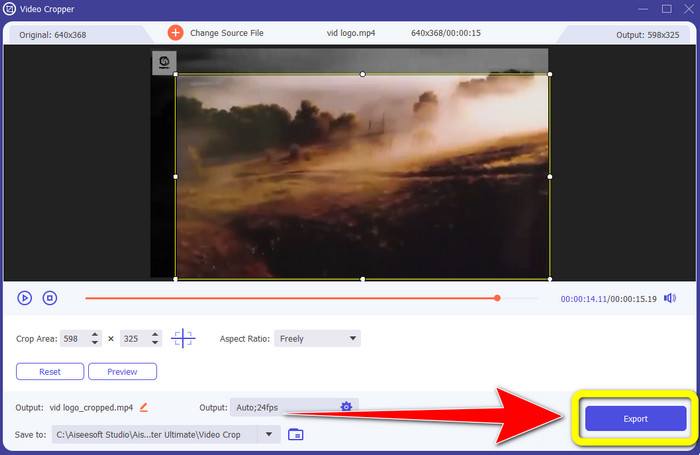
Langkah 4: Untuk langkah terakhir, klik tombol Export dan simpan video Anda ke komputer.
Bagian 3: FAQ tentang Menghapus Logo dari Video Menggunakan Windows Movie Maker
Berapa lama waktu yang dibutuhkan untuk mengekspor video saya di Windows Movie Maker setelah menghapus logo?
Dalam menggunakan Windows Movie Maker, Anda dapat mengekspor video Anda hanya dalam satu menit setelah menghapus logo.
Aplikasi mana yang terbaik saat menghapus logo dari video?
Jika Anda mencari aplikasi terbaik dan paling andal dengan fitur penghapus logo, Anda dapat menggunakan Video Converter Ultimate. Aplikasi ini memungkinkan Anda menikmati video setelah menghapus logo-logo dari video Anda.
Apakah ada aplikasi bermanfaat yang dapat saya gunakan untuk menghapus logo dari video menggunakan ponsel saya?
Tentu saja ada! Anda dapat menggunakan aplikasi PicLab. Aplikasi ini tersedia di Android maupun iPhone. Berikut panduan umumnya:
1. Unduh PicLab di ponsel Anda dan buka aplikasinya.
2. Lampirkan file Anda dan pilih alat marker.
3. Pilih bagian yang ingin dihapus, lalu tekan erase dan simpan.
Apakah mungkin untuk menghapus logo dari video tanpa kehilangan kualitas?
Ya, tentu! Aplikasi yang paling direkomendasikan untuk Anda gunakan adalah Video Converter Ultimate.
Apakah ada alat online yang dapat saya gunakan untuk menghapus logo dari video saya?
Tentu saja! Anda dapat menggunakan banyak alat daring untuk menghapus logo dari video Anda. Anda bisa menggunakan Apowersoft Online Watermark Remover. Berikut langkah sederhana menggunakan alat ini:
1. Buka situs web Apowersoft Online Watermark Remover dan klik tombol remove watermark from video.
2. Lampirkan file Anda. Gunakan kotak untuk menutupi logo.
3. Klik Erase dan unduh video Anda.
Kesimpulan
Artikel ini telah memberikan metode-metode yang sangat baik tentang cara menghapus logo dari video menggunakan Windows Movie Maker di komputer Anda. Selain menggunakan Windows Movie Maker, artikel ini juga menawarkan salah satu alternatif terbaik untuk menghapus logo dari video Anda, yaitu aplikasi andal Video Converter Ultimate. Perangkat lunak ini dapat membantu Anda menghapus logo dengan dua cara mudah. Yang pertama adalah alat Video Watermark Remover, dan yang lainnya adalah alat Video Cropper.
-
 Cara Menghilangkan Watermark Bandicam Dengan Mudah [3 Cara Efektif]
 Bagaimana cara menghilangkan tanda air Bandicam? Dengan alat, kami menambahkan di sini Anda akan tahu bagaimana menghadapinya secara efektif!
-
 Cara Menghilangkan Watermark iStock Dengan Cara Paling Efektif
 Bagaimana cara menghilangkan tanda air iStock pada video dan gambar? Jika Anda mencari jalan keluar untuk menghilangkan tanda air, baca ini!
-
 Hapus Tanda Air DaVinci Resolve pada Video yang Diekspor dengan Tutorial Lengkap
 Untuk menghapus tanda air Davinci Resolve, Anda perlu menggunakan alat atau membeli versi resminya, teruslah membaca ini untuk mengetahui lebih lanjut.
