


 Video Converter Ultimate
 Perekam Layar
 Perbaikan Video
 Unduhan Aman
Trik Terbaik tentang Cara Menghapus Teks Snapchat dari Tangkapan Layar
Apakah Anda ingin tahu cara menghapus teks Snapchat dari tangkapan layar? Anda berada di tempat yang tepat. Postingan ini akan memberikan metode termudah yang bisa Anda lakukan untuk menghapus teks Snapchat dari foto dan video Anda. Metode-metode ini sangat mudah diikuti, praktis, dan cocok untuk pengguna nonprofesional. Jika Anda tertarik dengan cara-cara mudah ini, sebaiknya hentikan dulu apa yang sedang Anda lakukan dan fokus membaca artikel informatif ini.

Bagian 1: Cara Menghapus Teks dan Keterangan Snapchat dari Gambar
Hal terbaik yang harus Anda lakukan untuk menghapus teks Snapchat dari sebuah foto adalah menggunakan penghapus watermark. Dengan cara ini, Anda bisa menghapus elemen apa pun dari foto Anda, seperti teks, logo, watermark, dan lain-lain. Jika Anda mencari alat yang bagus dan andal, Anda bisa menggunakan FVC Free Watermark Remover. Alat ini dapat membantu Anda menghapus teks Snapchat dari gambar secara online dengan instan. Anda dapat memahami aplikasi ini dengan mudah berkat antarmuka yang ramah pengguna, panduan yang detail, dan tombol-tombol yang sederhana.
Selain itu, FVC Free Watermark Remover mendukung format file gambar input dan output yang umum digunakan, seperti PNG, JPG, JPEG, BMP, dan lainnya. Selain itu, alat ini tersedia di Windows 7,8,10,11 dan macOS 10.7 ke atas. Terakhir, aplikasi ini berjanji untuk menjamin privasi setiap pengguna, jadi Anda tidak perlu khawatir tentang gambar atau informasi Anda. Jika Anda ingin menghapus teks Snapchat dari foto Anda, ikuti panduan sederhana di bawah ini.
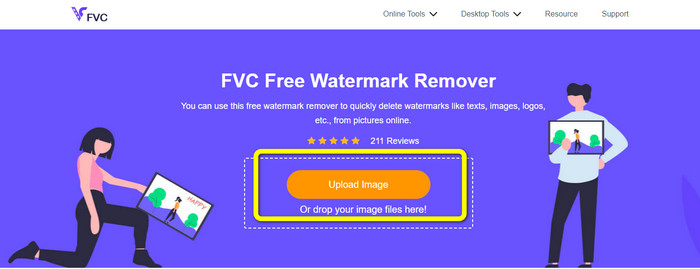
Langkah 1: Anda harus membuka situs web FVC Free Watermark Remover. Klik tombol Upload Image dan tambahkan foto yang berisi teks Snapchat yang ingin Anda hapus.
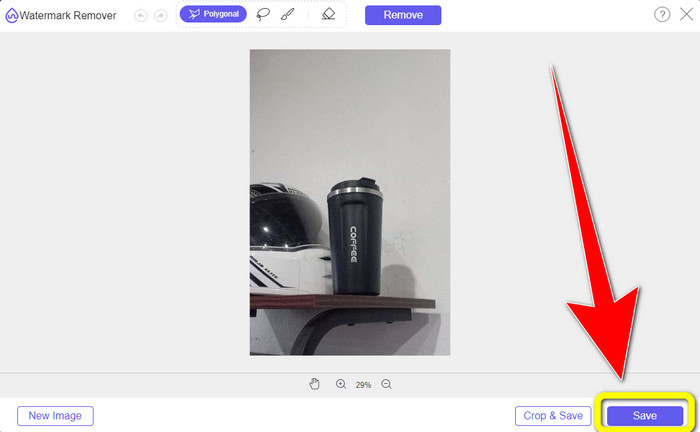
Langkah 2: Setelah Anda melampirkan foto, Anda dapat menggunakan opsi penghapus watermark: alat poligonal, alat lasso, dan alat kuas.
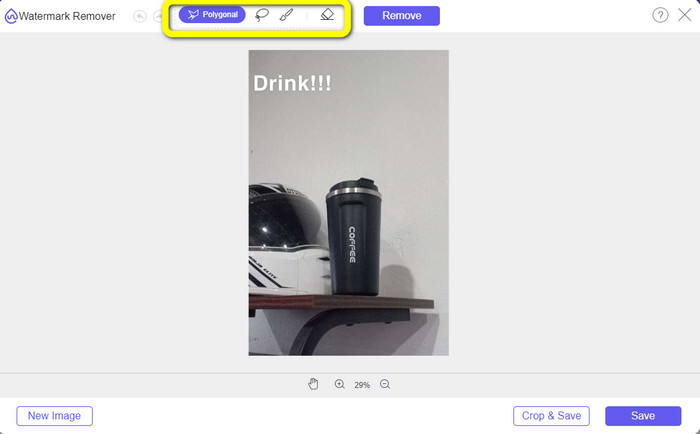
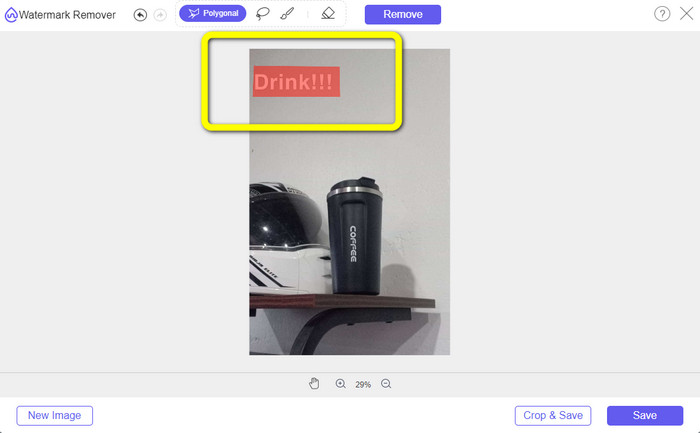
Langkah 3: Dengan menggunakan alat-alat ini, Anda dapat menandai teks yang ingin Anda hapus.
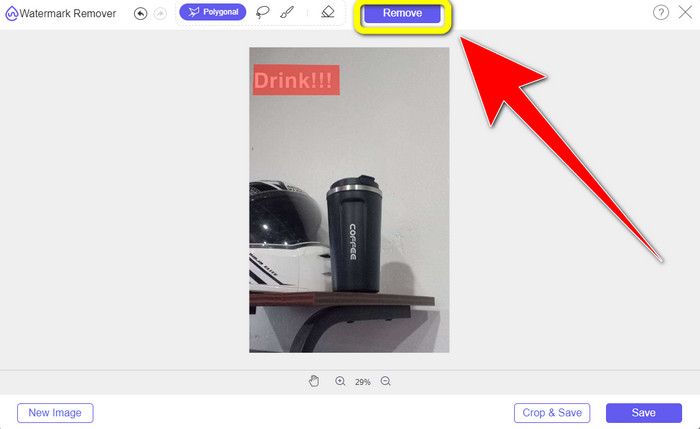
Langkah 4: Ketika Anda sudah selesai menandai teks pada foto, Anda bisa mengklik tombol Remove untuk menghilangkan teks dari foto Anda. Setelah itu, tunggu proses penghapusan selesai.
Langkah 5: Setelah menghapus teks dari foto Anda, sekarang Anda bisa mengklik tombol Save untuk mengunduh foto tanpa teks.
Bagian 2: Cara Menghapus Teks Snapchat dari Video
Setelah menghapus teks Snapchat dari foto Anda, kami juga bisa membantu Anda mempelajari cara menghapus teks Snapchat dari video. Pada bagian ini, aplikasi terbaik yang harus Anda gunakan adalah Video Converter Ultimate. Aplikasi ini dapat membantu menghapus objek yang tidak diperlukan dari video Anda, seperti teks, watermark, logo, dan sebagainya. Anda juga dapat menggunakannya untuk menghapus teks dengan dua cara mudah: menggunakan alat video watermark remover dan menggunakan alat pemotong (cropper) video. Jika teks Snapchat berada di sudut atau tepi video, Anda dapat menggunakan alat pemotong video. Jika teks berada di bagian tengah video, Anda dapat menggunakan alat video watermark remover.
Selain itu, aplikasi ini memiliki berbagai alat pengeditan yang dapat Anda nikmati, seperti penambah video, kompresor video, pembalik video, menambah dan menghapus tanda air, pemangkas video, pemangkas, rotator, pembuat GIF, dan lainnya. Ini juga mendukung berbagai format file video, seperti MP4, FLV, MKV, MOV, dll. Selain itu, Anda dapat menggunakan aplikasi ini di Mac dan Windows, yang nyaman bagi pengguna. Jika Anda ingin menghapus teks Snapchat dari video Anda menggunakan dua cara mudah, Anda harus mengikuti langkah-langkah sederhana di bawah ini.
Menggunakan Fungsi Penghilang Tanda Air Video
Langkah 1: Unduh Video Converter Ultimate di komputer Windows atau Mac Anda. Jalankan aplikasi setelah proses instalasi selesai.
Unduh GratisUntuk Windows 7 atau yang lebih baruUnduhan Aman
Unduh GratisUntuk MacOS 10.7 atau yang lebih baruUnduhan Aman
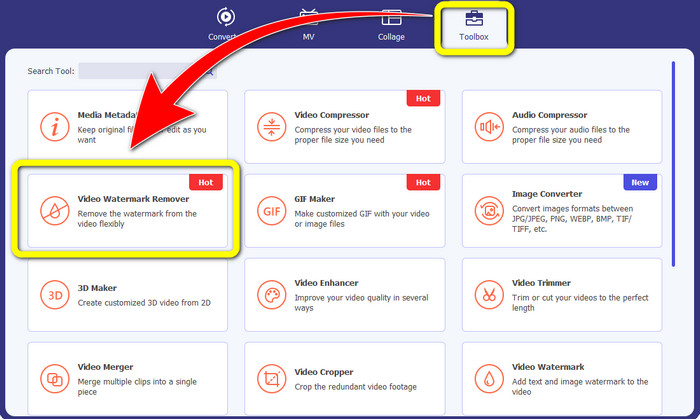
Langkah 2: Setelah itu, ada empat opsi di bagian atas antarmuka. Klik panel Toolbox dan pilih alat Video Watermark Remover.
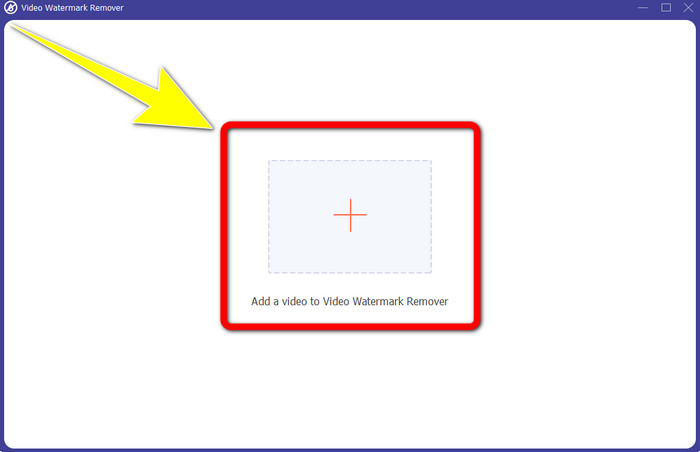
Langkah 3: Setelah itu, jendela lain akan muncul di layar Anda. Klik ikon + dan masukkan video yang memiliki teks Snapchat.
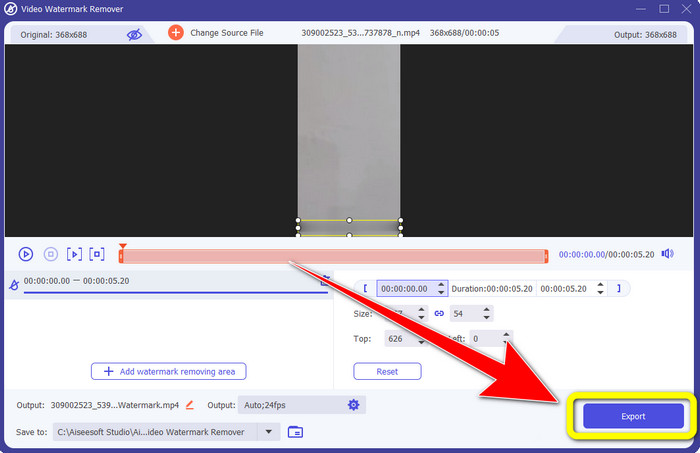
Langkah 4: Setelah Anda selesai memasukkan video, klik fungsi Add Watermark Removing Area. Sebuah kotak kecil akan muncul di video Anda, lalu seret kotak tersebut untuk menutupi teks Snapchat.
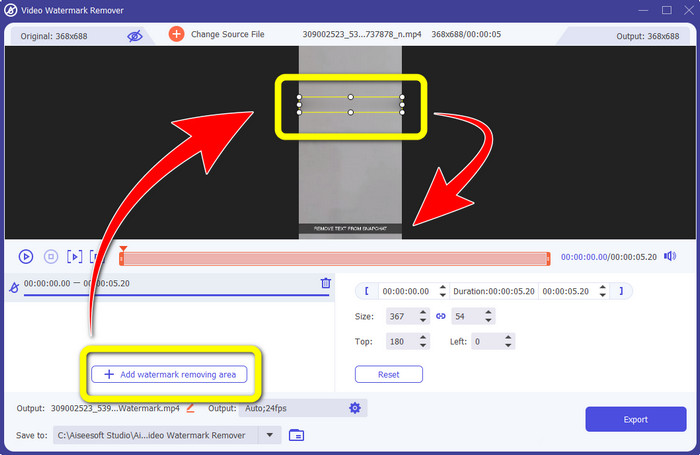
Langkah 5: Setelah menyeret kotak kecil tersebut ke area teks Snapchat, Anda dapat melihat bahwa teksnya sudah hilang. Klik tombol Export untuk menyimpan video Anda sepenuhnya.
Menggunakan Fungsi Pemotong Video
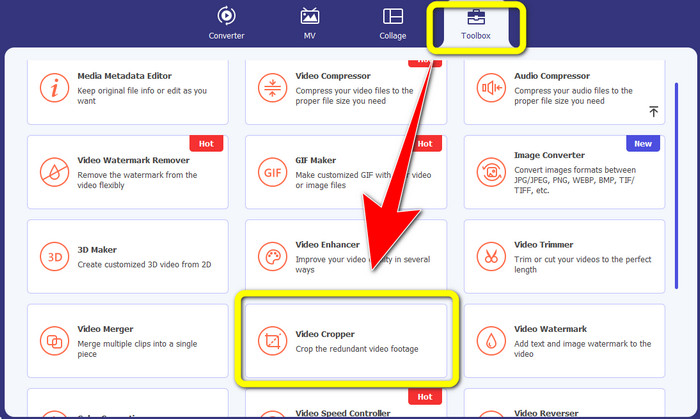
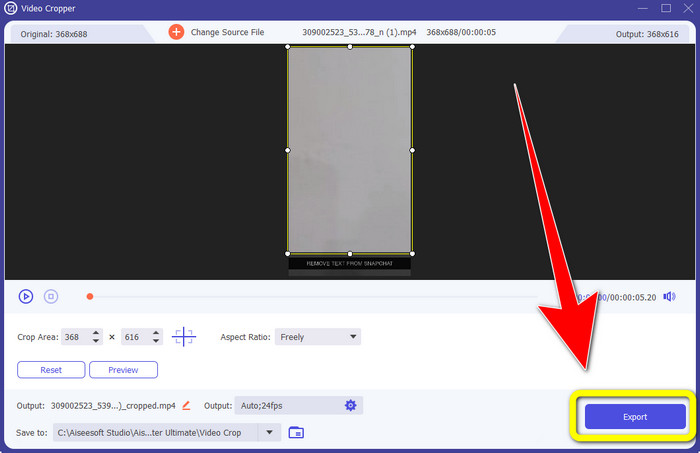
Langkah 1: Luncurkan Video Converter Ultimate di komputer Anda. Pilih panel Toolbox dan buka alat Video Cropper.
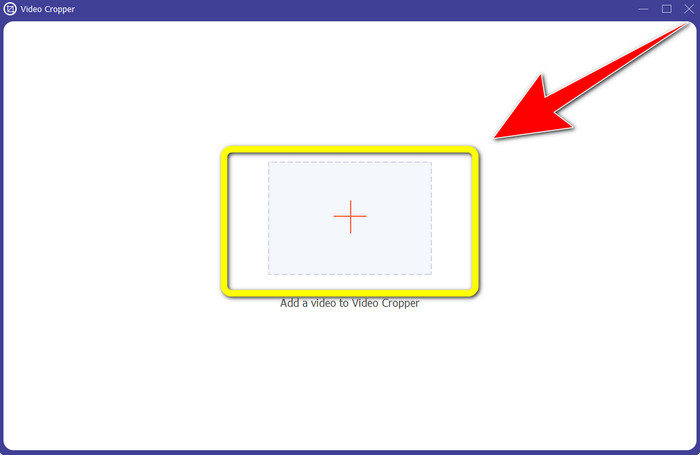
Langkah 2: Setelah mengklik alat Video Cropper, antarmuka lain akan muncul di layar Anda. Klik tombol + untuk mengimpor video yang memiliki teks Snapchat yang ingin Anda hapus.
Langkah 3: Pada bagian ini, Anda dapat memotong (crop) video untuk menghapus teks Snapchat dengan menggunakan mouse untuk menyeret garis batas. Anda dapat memotong bagian tepi video Anda.
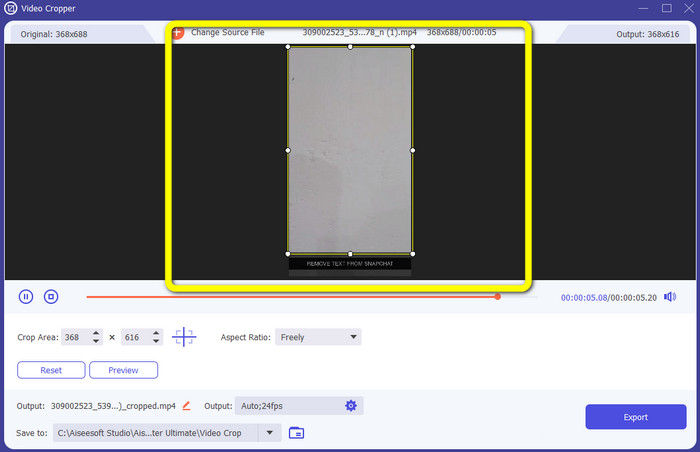
Langkah 4: Pada langkah terakhir, Anda sudah bisa mengklik tombol Export untuk menyimpan video tanpa teks Snapchat.
Bagian 3: FAQ tentang Menghapus Teks Snapchat dari Foto dan Video
Bisakah saya juga menghapus teks Snapchat dari foto menggunakan ponsel saya?
Ya kamu bisa. Anda dapat menggunakan banyak aplikasi dengan penghapus watermark, seperti PicLab, Photo Retouch-Object Removal, Airbrush, dan banyak lagi.
Bisakah saya menghapus teks Snapchat dari foto saya tanpa kehilangan kualitas gambar saya?
Jika Anda tidak ingin kehilangan kualitas foto setelah menghapus teks Snapchat, maka Anda harus menggunakan FVC Free Watermark Remover. Setelah proses penghapusan, Anda tetap bisa mendapatkan kualitas asli gambar Anda.
Bagaimana cara mematikan keterangan Snapchat?
Teks Snapchat diunggah secara manual oleh penerbit, memungkinkan akurasi teks yang lebih baik. Sakelar gelembung ucapan di bagian bawah layar dapat digunakan untuk mengaktifkan atau menonaktifkan teks.
Apa aplikasi terbaik dengan penghapus tanda air yang dapat saya gunakan untuk desktop saya?
Jika Anda mencari sebuah aplikasi, Anda dapat menggunakan Video Converter Ultimate. Aplikasi ini memungkinkan Anda menghapus watermark dari video dengan mudah. Selain itu, aplikasi ini memiliki banyak fitur yang bisa Anda nikmati.
Apa tanda air di foto atau video?
Tanda air adalah tanda tangan, logo, dan teks yang dapat Anda lihat di foto atau video. Ini hanya memberi tahu orang lain siapa pemilik sebenarnya dari gambar atau video tersebut. Tanda air adalah salah satu cara terbaik untuk mengamankan foto dan mempromosikan beberapa nama produk.
Kesimpulan
Seperti yang Anda lihat, cara terbaik untuk menghapus teks Snapchat dari foto dan video Anda adalah dengan menggunakan aplikasi yang bagus dengan fitur penghapus watermark. Artikel ini menunjukkan cara menghapus teks Snapchat dari foto dengan memanfaatkan FVC Free Watermark Remover. Selain itu, artikel ini juga menunjukkan cara menghapus teks Snapchat dari video menggunakan Video Converter Ultimate, yang memiliki dua cara luar biasa, yaitu menggunakan alat video watermark remover dan alat video cropper.
-
 Cara Menghapus Logo dari Video Menggunakan Windows Movie Maker
 Jika Anda ingin mempelajari cara menghapus logo dari video menggunakan Windows Movie Maker dan cara alternatif lainnya, baca artikel ini. Kami punya cara mudah untuk Anda.
-
 Cara Menghapus Logo VideoScribe dari Video dengan Mudah
 Anda tidak perlu lagi khawatir tentang menghapus logo VideoScribe dari video Anda. Artikel ini akan memberikan metode bebas masalah. Baca posting ini untuk mempelajari lebih lanjut
-
 Cara Tercepat untuk Menghapus Logo dari Video di Adobe Premiere Pro
 Cobalah cara mudah dan tercepat ini untuk menghapus logo dari video di Adobe Premiere Pro. Artikel ini akan menawarkan cara terbaik untuk mencoba menggunakan perangkat Anda.
