


 Video Converter Ultimate
 Perekam Layar
 Perbaikan Video
 Unduhan Aman
Dapatkan Prosedur Utama tentang Cara Mengonversi NEF ke JPG
Dalam mengambil foto, kita selalu ingin mengabadikan momen-momen berkesan dalam hidup kita dengan kualitas gambar terbaik. Itulah alasan mengapa orang membeli kamera berkualitas tinggi yang menawarkan hasil yang bagus. Namun, Anda bisa mendapatkan kualitas gambar terbaik dengan menyimpan gambar mentah (raw). Hanya saja, hal ini juga bisa menimbulkan banyak masalah. NEF adalah singkatan dari Nikon Electronic Format. Nikon, salah satu produsen kamera paling populer, menggunakan format gambar mentah. Ada kalanya Anda tidak dapat melihat file tersebut di komputer. Format ini memerlukan program profesional yang biasanya mahal dan sulit digunakan. Dalam situasi seperti ini, solusi terbaik adalah mengonversi file NEF ke format gambar universal, seperti JPG. Fleksibilitas format ini memungkinkan Anda melihat foto di hampir semua perangkat. Pada saat yang sama, format ini juga dapat menghemat ruang penyimpanan Anda. Jika Anda ingin mengonversi file Anda ke file JPG, bacalah panduan ini dan pelajari konverter NEF ke JPG terbaik yang dapat Anda gunakan.

Bagian 1. NEF vs. JPG
| Format File | NEF | JPG/JPEG |
| Ekstensi Nama File | .nef | .jpg / .jpeg |
| Nama lengkap | Format Elektronik Nikon | Kelompok Pakar Fotografi Bersama |
| Dikembangkan oleh | Nikon | Kelompok Pakar Fotografi Bersama |
| Keterangan | File Nikon Raw Image dikenal sebagai NEF file. Seperti file gambar RAW lainnya, file NEF menyimpan semua informasi yang direkam kamera sebelum diproses. Ini mencakup metadata seperti model kamera dan lensa. Foto NEF menawarkan kualitas gambar yang luar biasa tinggi. | Kelompok Pakar Fotografi Bersama menciptakan JPG format pada akhir 1980. Ini juga termasuk menyimpan gambar di kamera digital dan alat reproduksi lainnya. Metode kompresi lossy file JPEG menggunakan warna hingga 24-bit dan lebih banyak penyimpanan gambar. |
| Kompresi | Lossy | Lossy |
| Program/Browser Terkait | Adobe Lightroom IrfanView Graphic Viewer Adobe Photoshop ViewNX 2 Pics.io | IrfanView Graphic Viewer Photos Program Paint Adobe Photoshop Google Chrome Internet Explorer Microsoft Edge Mozilla Firefox |
Bagian 2. Cara Mengonversi NEF ke JPG di Web
Cara Mengonversi NEF ke JPG di Safeimageconverter
Gunakan Safeimageconverter untuk mengonversi secara online dari format gambar JPF ke NEF dengan cepat. Dengan alat online sederhana ini, Anda dapat dengan mudah mengubah format file. Konverter gambar ini gratis, berbasis web, dan tidak memerlukan instalasi, sehingga Anda dapat menggunakannya sesering yang Anda mau tanpa mengeluarkan biaya apa pun. Anda hanya perlu mengunggah file asli ke alat ini untuk mendapatkan file gambar yang sudah diubah ke format NEF. Selain itu, alat ini sangat membantu dan memungkinkan kita menghemat waktu yang penting. Kita dapat dengan cepat dan mudah mengonversi dari jpg ke format NEF. Anda dapat mengonversi file langsung di peramban. Namun, saat mengonversi file gambar, banyak iklan mengganggu yang muncul di layar. Selain itu, ada beberapa kondisi ketika alat online ini menampilkan kesalahan setelah proses konversi selesai. Koneksi internet juga diperlukan saat menggunakan alat online ini.
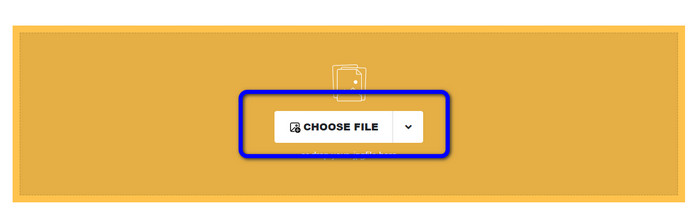
Langkah 1. Buka situs web Safeimageconverter. Lalu, klik tombol Choose File untuk mengunggah file NEF yang ingin Anda konversi.
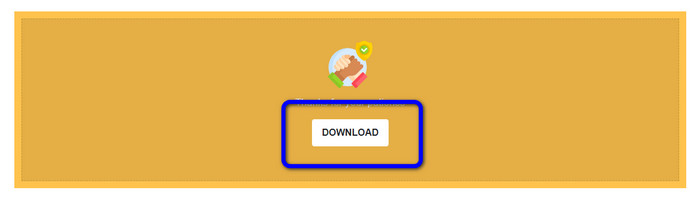
Langkah 2. Setelah diunggah, konverter gambar akan mengonversi file gambar secara otomatis. Setelah proses konversi selesai, klik tombol Download. Dengan cara ini, Anda dapat menyimpan gambar yang sudah dikonversi ke komputer Anda.
Bagian 3. Metode Praktis untuk Mengonversi NEF ke JPG di Mac dan Windows
Jika Anda lebih suka menggunakan Windows atau Mac untuk mengonversi NEF ke JPG, gunakan Photoshop. Adobe Photoshop tidak hanya bagus untuk mengedit gambar. Program ini juga andal untuk mengonversi berbagai jenis file, termasuk NEF. Selain itu, Anda dapat melakukan konversi batch NEF ke JPG di Photoshop. Proses konversinya juga cepat sehingga cocok untuk semua pengguna. Selain itu, program offline ini dapat mempertahankan kualitas gambar Anda. Dengan demikian, setelah mengonversi file, program ini akan memastikan foto tetap memiliki kualitas yang memuaskan. Namun, Adobe Photoshop tidak sepenuhnya gratis. Anda harus membeli paket berlangganan untuk menggunakan program ini. Program ini hanya menawarkan versi uji coba gratis selama 7 hari. Selain itu, proses instalasinya cukup rumit.
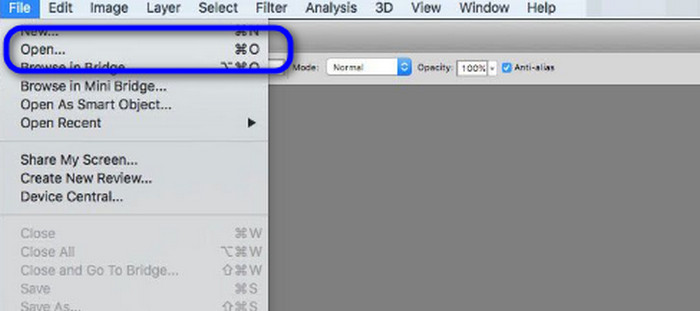
Langkah 1. Unduh Adobe Photoshop ke komputer Anda. Setelah menginstal program, jalankan untuk melihat antarmukanya. Setelah itu, buka menu File dan pilih Open untuk memasukkan file gambar NEF.
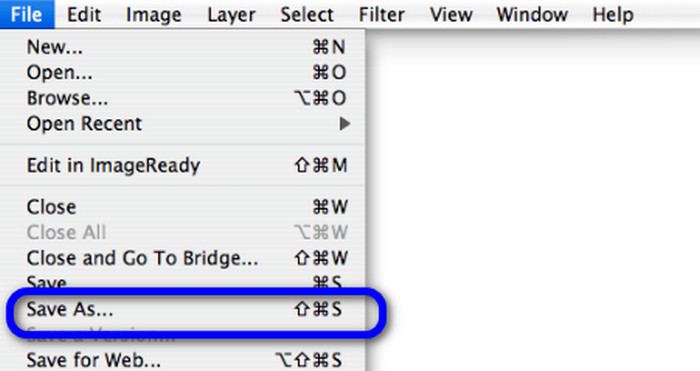
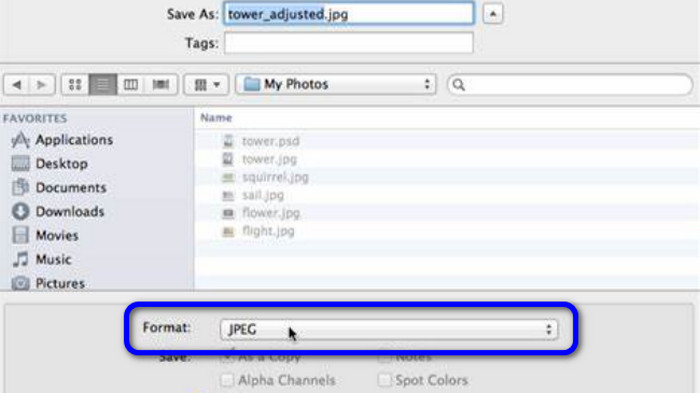
Langkah 2. Setelah Anda memasukkan gambar NEF ke dalam antarmuka, buka kembali menu File dan pilih opsi Save as.
Langkah 3. Lalu, pilih JPG dari opsi format dan klik Save.
Bagian 4. Pengonversi Gambar yang Direkomendasikan
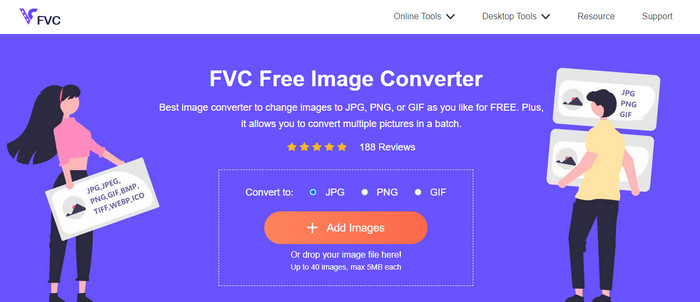
Pada bagian ini, jika Anda mencari konverter gambar lain untuk mengonversi format gambar lain secara online, menggunakan FVC Free Image Converter adalah solusi terbaik untuk Anda. Konverter gambar online ini dapat mengonversi berbagai format dengan mudah. FVC Free Image Converter mendukung JPG, PNG, GIF, BMP, TIFF, dan lainnya. Selain itu, Anda dapat mengakses konverter gambar ini di berbagai peramban, seperti Google, Explorer, Edge, Firefox, dan lainnya. Di samping itu, Anda dapat menyelesaikan proses konversi hanya dalam beberapa detik, sehingga sangat praktis bagi semua pengguna. Anda juga dapat mengunggah banyak gambar sekaligus di alat online ini. Dengan fitur konversi batch, Anda dapat mengunggah hingga 40 gambar secara bersamaan. Selain itu, saat mengunduh gambar yang sudah dikonversi, Anda dapat mengunduh semuanya hanya dengan satu klik.
Bagian 5. FAQ tentang Mengonversi NEF ke JPG
1. Apakah mungkin mengubah JPG ke NEF?
Sayangnya, Anda tidak dapat mengonversi file JPG ke NEF. Ini karena NEF adalah bidikan sebenarnya yang diambil dengan kamera Nikon. Format NEF digunakan setiap kali seorang fotografer menggunakan kamera Nikon dan mengunggah file digital.
2. Bagaimana cara membuka file NEF?
Anda dapat dengan mudah membuka file NEF jika Anda memiliki codec yang tepat di Windows Anda. Namun, jika Anda tidak dapat membuka file NEF, Anda memerlukan bantuan program yang dapat diunduh. Anda dapat menggunakan Microsoft Camera Codec Pack, Adobe Photoshop, Irfan View, GIMP, dan lainnya.
3. Mengapa Anda harus mengonversi dari NEF ke JPG?
Penting untuk mengonversi NEF ke JPG karena beberapa program dan editor gambar tidak mendukung file NEF. Selain itu, NEF memiliki ukuran file besar yang menghabiskan terlalu banyak penyimpanan di perangkat. Jadi, pilihan terbaik adalah mengubah file NEF menjadi JPG.
Kesimpulan
File NEF dapat memberikan gambar berkualitas tinggi. Namun, beberapa peramban dan program tidak mendukung file ini, yang tentu saja membuat frustrasi. Untungnya, artikel ini memberikan solusi yang sangat baik untuk mengonversi NEF ke JPG. Selain itu, artikel ini juga memperkenalkan konverter gambar online lain yang dapat Anda gunakan untuk mengonversi format gambar lain, yaitu FVC Free Image Converter. Anda dapat menggunakan konverter online ini untuk mengonversi berbagai format gambar.
-
 4 Pendekatan Tepercaya untuk Mengonversi JFIF ke JPG dengan Mudah
 Panduan ini akan memberi tahu Anda segalanya tentang mengonversi JFIF ke JPG online dan offline. Jika Anda ingin mempelajari metode paling efektif, segera baca postingan ini!
-
 Cara Convert GIF ke JPG Tanpa Kehilangan Kualitas
 Baca dan dapatkan metode paling efektif untuk mengonversi GIF ke JPG secara profesional. Anda akan belajar mengonversi file gambar dengan panduan pengonversi gambar yang sempurna
-
 Prosedur yang Mudah Diikuti untuk Mengonversi Gambar ke Vektor
 Berikut adalah beberapa cara luar biasa tentang cara membuat vektor gambar. Selain itu, Anda akan mendapatkan pengetahuan yang cukup tentang pengonversi gambar yang dapat Anda manfaatkan.
