


 Video Converter Ultimate
 Perekam Layar
 Perbaikan Video
 Unduhan Aman
Cara Luar Biasa Cara Memotong Video di Snapchat [termasuk Cara Offline]
Aplikasi Snapchat adalah aplikasi lain yang belakangan ini menjadi populer. Fokus utama Snapchat awalnya adalah untuk bertukar foto pribadi yang dipersonalisasi. Namun kini, Anda bisa menggunakannya untuk berbagai hal, seperti mengirim video dan mengikuti panggilan video langsung. Di sisi lain, Anda juga dapat menggunakan aplikasi ini untuk memotong video. Seperti yang kita tahu, Snapchat hanya menerima video hingga 60 detik. Memangkas video adalah solusi terbaik jika Anda berencana mengunggah atau memposting video di aplikasi seluler ini. Dalam hal ini, baca artikel ini untuk melihat metode terperinci yang bisa Anda coba tentang cara memotong video di Snapchat dan memotong video untuk Snapchat.

Bagian 1. Cara Memangkas Video untuk Snapchat Menggunakan PC
Snapchat memiliki batasan durasi saat memposting video. Salah satu solusi terbaik untuk masalah ini adalah mempersingkat video. Dengan begitu, ketika Anda memangkas atau memotong video, Anda sudah bisa menambahkan video tersebut ke Snapchat. Jika Anda menginginkan perangkat lunak penyunting video terbaik untuk memotong video yang panjang agar sesuai dengan Snapchat, gunakan Video Converter Ultimate. Program ini memiliki fitur pemisahan yang sangat baik untuk membagi video Anda menjadi beberapa bagian. Selain itu, prosedur pemisahan videonya sangat cocok untuk pengguna non-profesional. Anda bisa membagi video hanya dalam beberapa klik. Tata letaknya juga ramah pengguna, sehingga Anda dapat dengan mudah memahami setiap opsi. Selain itu, masih banyak fitur hebat lainnya selain pemisahan video. Video Converter Ultimate memungkinkan Anda memotong (crop), memutar (rotate), dan meningkatkan kualitas video sesuai preferensi Anda. Program ini juga mendukung berbagai format video, termasuk MP4, MOV, MKV, AVI, dan lainnya. Lebih jauh lagi, baik pengguna Windows maupun Mac dapat mengakses program ini karena tersedia untuk komputer Mac dan Windows.
Langkah 1. Klik tombol Download di bawah ini untuk mengunduh Video Converter Ultimate. Karena program ini tersedia untuk komputer Mac dan Windows, ada dua tombol di bawah. Klik tombol sesuai perangkat yang Anda gunakan. Setelah itu, jalankan programnya.
Unduh GratisUntuk Windows 7 atau yang lebih baruUnduhan Aman
Unduh GratisUntuk MacOS 10.7 atau yang lebih baruUnduhan Aman
Langkah 2. Klik panel Toolbox pada antarmuka bagian atas. Ketika berbagai alat muncul di bawah Toolbox, pilih alat Video Trimmer.
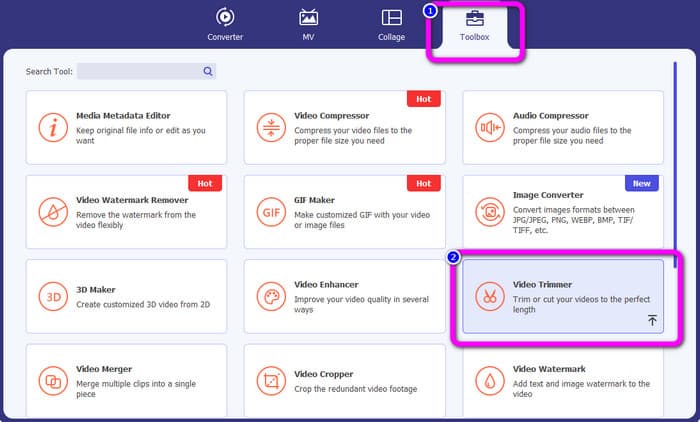
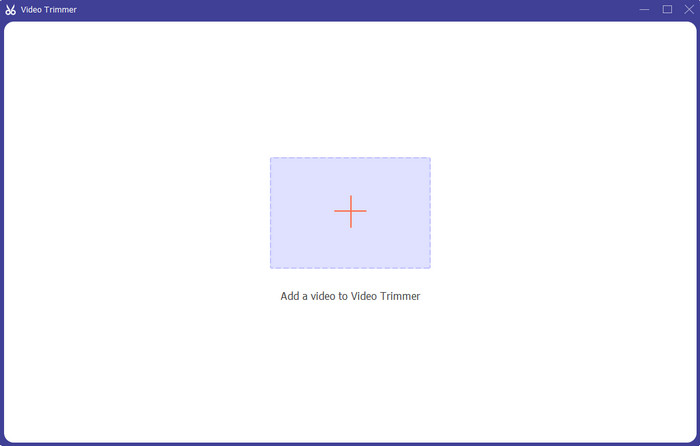
Langkah 3. Klik simbol Plus di bagian tengah antarmuka. Setelah itu, pilih video yang ingin Anda potong dari folder file.
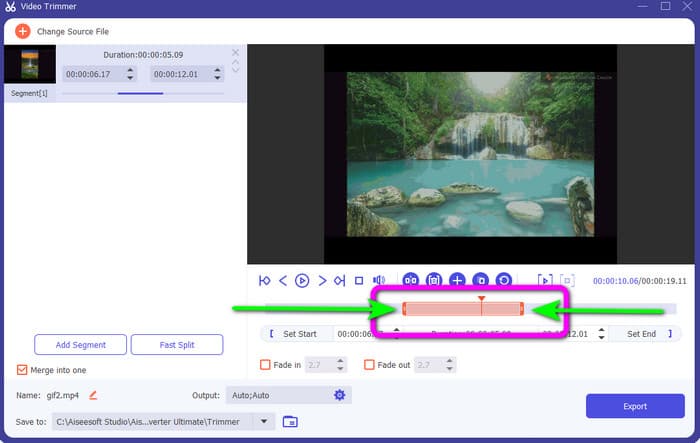
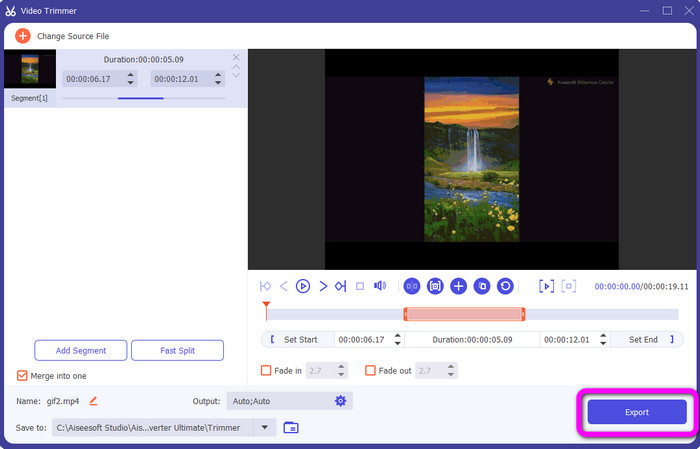
Langkah 4. Anda dapat memotong video dengan menyesuaikan bilah oranye yang terlihat di bagian bawah video. Bilah ini memiliki sisi tepi di kedua ujungnya. Sesuaikan tepi bilah untuk memangkas bagian video yang ingin Anda edit.
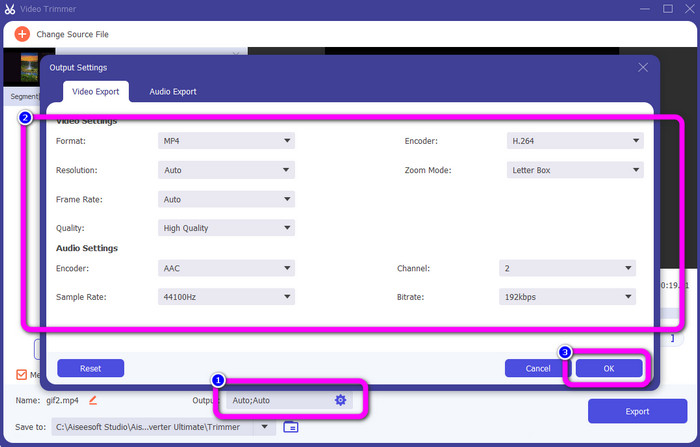
Langkah 5. Dengan mengklik opsi Output Settings, Anda dapat mengubah frame rate, kualitas, resolusi, dan mode zoom video untuk penyesuaian tambahan. Anda juga dapat mengubah sample rate dan bitrate audio. Lalu klik OK.
Langkah 6. Untuk langkah terakhir, klik tombol Export. Tunggu proses akhirnya, dan setelah beberapa detik, Anda dapat menyimpan video final yang telah diedit ke komputer Anda.
Bagian 2. Cara Memotong Video di Snapchat
Di bagian ini, Anda akan belajar cara memangkas video di Snapchat. Aplikasi seluler ini sangat bagus untuk mengambil foto dan video. Ini memberi Anda banyak efek untuk menyempurnakannya dan memuaskan pengguna. Itu juga dianggap sebagai platform komunikasi untuk orang lain. Selain itu, Snapchat tidak hanya mampu melakukan hal semacam itu. Aplikasi seluler juga memungkinkan Anda memotong atau memangkas video dengan mudah. Selain itu, Snapchat memungkinkan Anda mengedit video dengan mengubah filter, menambahkan efek, memotong, dan lainnya. Namun, seperti aplikasi lainnya, Snapchat berfokus pada pengambilan foto dan video. Jadi, Anda tidak dapat menggunakan alat pengeditan lanjutan dari aplikasi. Selain itu, hanya menerima video pendek, yang tidak memuaskan pengguna yang ingin mengunggah video panjang. Lihat prosedur di bawah ini tentang cara mempersingkat video di Snapchat.
Potong Video Setelah Merekam
Langkah 1. Unduh Snapchat dari App Store atau Google Play Store. Setelah menginstal aplikasi seluler tersebut, buka di ponsel Anda.
Langkah 2. Setelah itu, rekam video menggunakan Snapchat Anda. Setelah selesai merekam, akan muncul klip kecil di bagian bawah layar. Klik klip tersebut untuk mulai melakukan pemangkasan.
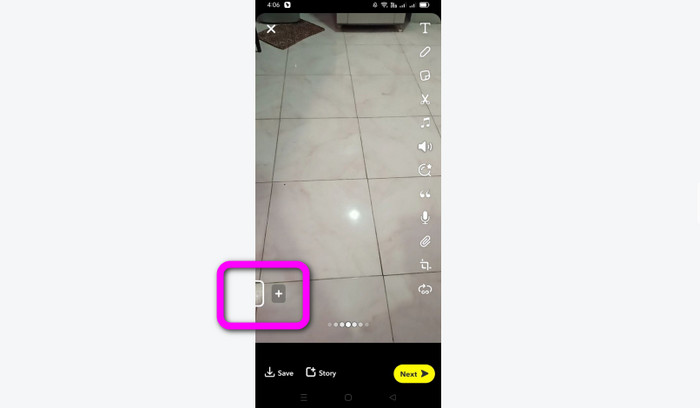
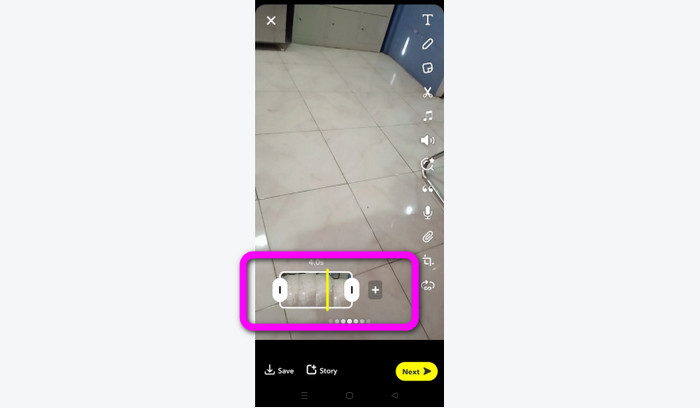
Langkah 3. Anda bisa melanjutkan proses ketika klip muncul di layar. Seret tepi klip dan pangkas video sesuai keinginan Anda.
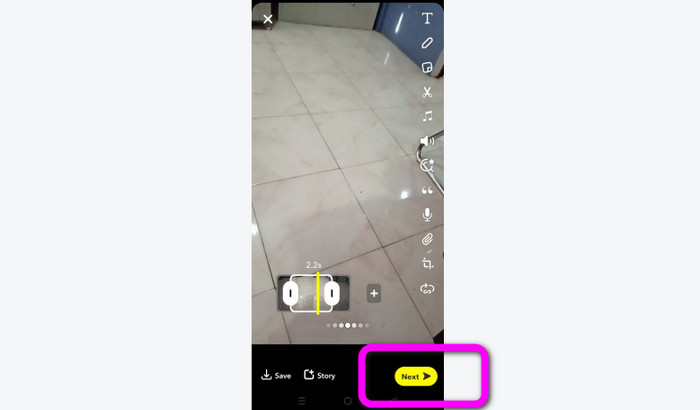
Langkah 4. Lalu, ketika Anda sudah puas dengan hasil akhirnya, tekan tombol Next di pojok kiri bawah antarmuka. Dengan cara ini, Anda dapat menyimpan video yang sudah dipangkas.
Potong Video dari Kenangan
Langkah 1. Buka aplikasi Snapchat di ponsel Anda. Setelah itu, masuk ke bagian Memories. Di bagian ini, Anda dapat melihat video Anda. Tahan video selama beberapa detik dan klik opsi Edit.
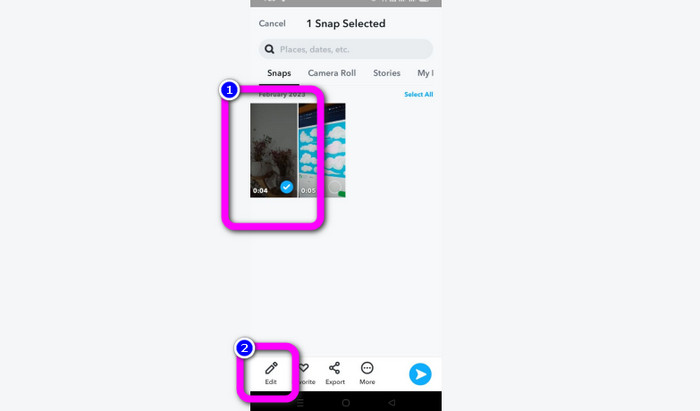
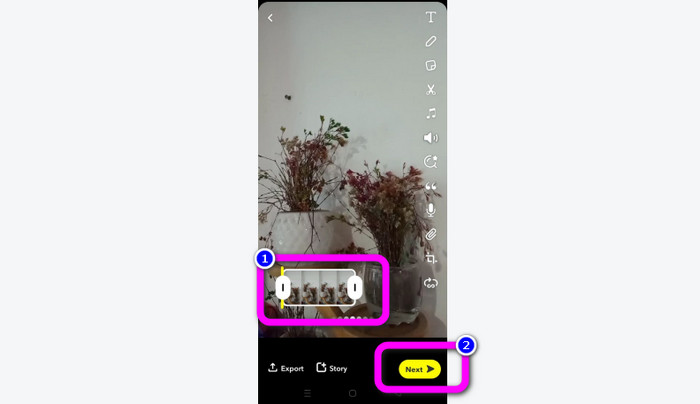
Langkah 2. Kemudian, Anda akan melihat video di bagian bawah layar. Pada bagian ini, Anda dapat menyesuaikan tepi video untuk mulai memangkas. Setelah selesai memangkas, klik tombol Next untuk menyimpan video final Anda.
11 Pemangkas Video Luar Biasa yang Dapat Digunakan [Gratis dan Berbayar]
Cara-Cara Hebat untuk Memotong Video Online dengan Praktis
Bagian 3. FAQ tentang Cara Memotong Video di Snapchat
1. Apa artinya memangkas video di Snapchat?
Memangkas video adalah membuat potongan yang menetapkan bagian tertentu sebagai awal dan bagian tertentu sebagai akhir klip video. Opsi ini memungkinkan Anda memilih posisi awal dan akhir video di Snapchat. Opsi ini ideal jika Anda ingin mengupload bagian video yang awalnya berdurasi lebih dari 10 detik.
2. Apakah bisa menggunakan fitur split di snapchat?
Anda tidak dapat menggunakan fitur ini jika mengunggah video dari Rol Kamera. Jika Anda menggunakan kamera Snapchat untuk merekam, Anda dapat melakukannya. Anda dapat menggunakan alat Split untuk memisahkan film menjadi potongan-potongan yang dapat diedit dan menghapus bagian yang tidak ingin Anda pertahankan.
3. Berapa ukuran video maksimum untuk satu video snapchat?
Jika Anda mengirim foto atau video dari rol kamera ke Snapchat, Anda hanya dapat mengirim satu video hingga 2,5 MB. File Anda dikompresi sebelum dikirimkan.
Kesimpulan
Jika Anda menggunakan Snapchat untuk memangkas video, artikel ini cocok untuk Anda. Artikel ini memberikan cara terbaik tentang bagaimana memotong video di Snapchat. Selain itu, jika Anda lebih suka memangkas video untuk Snapchat di komputer, ada program yang bisa Anda gunakan. Video Converter Ultimate adalah program yang sangat baik untuk memangkas video menggunakan komputer. Program ini memiliki antarmuka yang intuitif dan benar-benar gratis.
-
 6 Filter Snapchat Animasi Snapchat Pilihan Favorit di Snapchat
 Ingin tahu cara terbaik untuk menambahkan filter pada video Snapchat? Nah, Anda dapat mengklik ini dan mempelajari berbagai filter yang dapat Anda gunakan untuk diterapkan pada video Snapchat.
-
 Cara Memperlambat Video di Snapchat dengan Mudah di Semua Perangkat
 Cara terbaik untuk memperlambat video di Snapchat sudah ada di sini. Untuk mengetahui apa saja teknik untuk memperlambat video, ikuti dengan seksama.
-
 Cara termudah tentang Cara Menghapus Teks Snapchat dari Tangkapan Layar
 Mari hapus teks Snapchat dari foto dan video menggunakan alat yang andal secara online dan offline. Kami akan menawarkan cara mudah. Cobalah sekarang, dan mari kita mencobanya!
