


 Video Converter Ultimate
 Perekam Layar
 Perbaikan Video
 Unduhan Aman
Perekam AVI Gratis - 4 Cara Terbaik untuk Merekam Video Layar sebagai Format AVI
Saat Anda ingin menangkap apa yang ada di desktop komputer Anda dan menyimpannya sebagai video AVI berkualitas tinggi, apa perekam AVI gratis terbaik? AVI adalah file yang sering digunakan yang menyimpan audio dan video menggunakan berbagai codec, seperti DivX dan XviD. Untuk membagikan rekaman layar untuk beberapa tujuan bisnis, perekam layar AVI gratis harus menjadi pilihan awal. Artikel ini mengidentifikasi dan membagikan 4 perekam layar AVI gratis teratas. Temukan saja alat yang paling sesuai.

Bagian 1: 4 Perekam Layar AVI Gratis Teratas
Top 1: Perekam Layar Gratis FVC
FVC Free Screen Recorder adalah perekam layar AVI online gratis yang sangat baik untuk Windows dan Mac. Cukup luncurkan perekam layar berbasis web ini untuk merekam aktivitas apa pun di layar dalam format AVI. Ini menyediakan berbagai opsi kustom untuk menyesuaikan format video, seperti codec video, frame rate, kualitas video, dan lainnya.
1. Rekam video layar dalam format AVI, MP4, WMV, dan lainnya.
2. Menghasilkan rekaman layar berkualitas tinggi tanpa lag.
3. Gratis tanpa watermark atau batas panjang.
4. Kompatibel dengan Chrome, Firefox, Safari, dan lainnya.
Cara Merekam Layar ke AVI Secara Gratis Secara Online
Langkah 1: Saat Anda perlu merekam layar dalam video berkualitas tinggi, buka peramban web dan kunjungi perekam layar AVI gratis. Tekan tombol Enter untuk meluncurkan program, lalu klik tombol Start Recording dan ikuti petunjuk untuk mendapatkan peluncurnya.
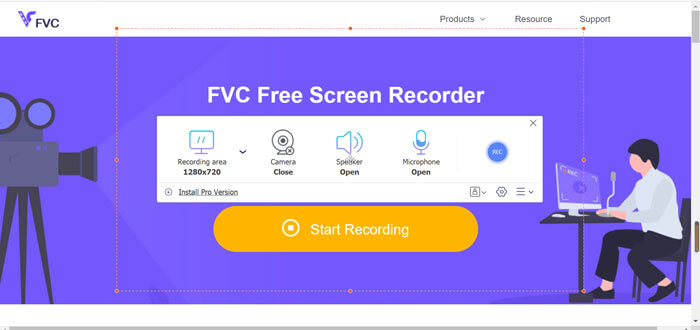
Langkah 2: Klik menu Recording area untuk merekam layar penuh atau area kustom. Aktifkan menu Speaker untuk merekam layar beserta audionya. Tentu saja, Anda dapat menambahkan suara narasi dengan opsi Camera dan opsi Microphone sesuai kebutuhan Anda.
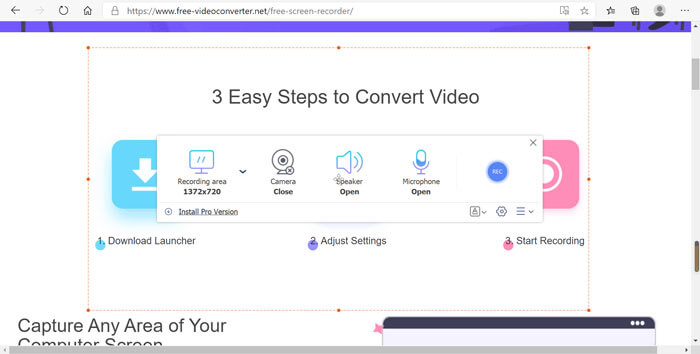
Langkah 3: Buka tombol Settings di kanan bawah untuk memilih format AVI yang diinginkan. Ini memungkinkan Anda menyesuaikan format video, codec video, kualitas video, dan frame rate. Anda juga dapat memilih folder tujuan untuk menyimpan video yang direkam dalam format AVI.
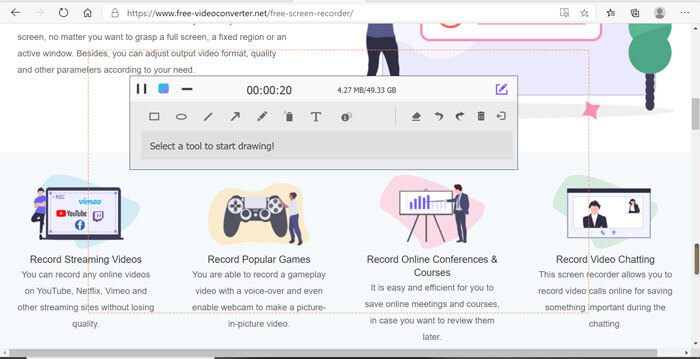
Langkah 4: Klik tombol REC untuk memulai proses perekaman setelah hitungan mundur. Saat Anda menekan tombol Stop, riwayat rekaman akan ditampilkan. Lalu Anda dapat mengunduh rekaman, mengganti nama, menghapus, atau membagikannya langsung ke situs media sosial.
2 Teratas: CamStudio
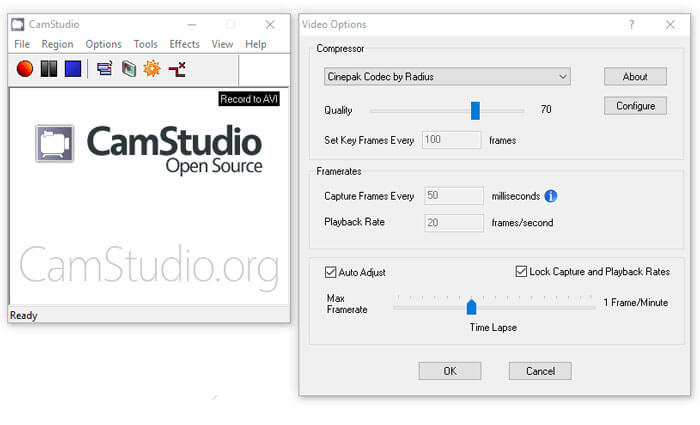
Apa itu CamStudio? Ini adalah perangkat lunak perekam layar AVI gratis untuk pengguna PC. Saat Anda ingin merekam sesuatu di desktop Anda, seperti presentasi, konferensi online, rekam tutorial. Camstudio harus menjadi cara yang diinginkan. Selain itu, gratis untuk diunduh.
Pro
- 1. Sumber terbuka dan gratis untuk digunakan tanpa registrasi.
- 2. Tidak ada batasan waktu perekaman.
- 3. Sangat mudah dimengerti dan digunakan.
- 4. Sangat dapat disesuaikan dengan banyak pilihan.
- 5. Menghasilkan keluaran berkualitas tinggi.
Kontra
- 1. Penginstal berisi perangkat lunak tambahan yang berpotensi, seperti OpenCandy.
- 2. Ukuran file keluaran sangat besar.
- 3. Ini hanya dapat menyimpan rekaman dalam AVI atau SWF. (Konversi SWF ke MP4 sini)
- 4. Perekam AVI gratis ini dapat menggunakan banyak sumber daya CPU Anda.
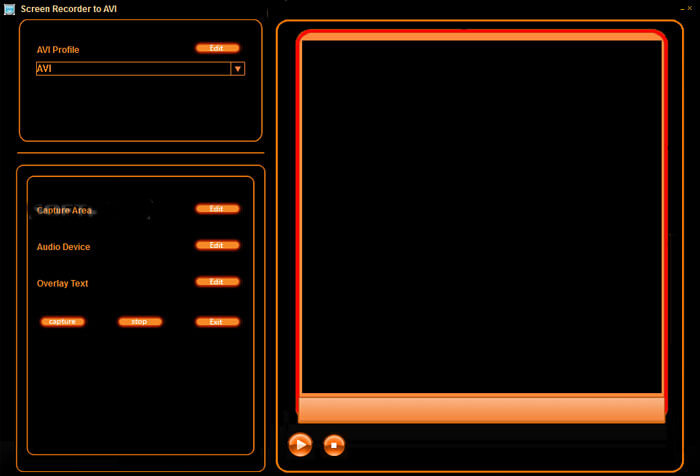
Top 3: Perekam Layar ke AVI
Seperti namanya, perekam layar AVI gratis ini dapat menangkap layar monitor apa pun dari sistem multi-monitor bersama dengan audio dan menyimpannya sebagai video AVI. Selain itu, dapat merekam aktivitas layar dan gerakan mouse Anda. Ini menyematkan pemutar video dan banyak opsi khusus.
Pro
- 1. Tidak ada persyaratan tambahan codec yang diinstal.
- 2. Mengintegrasikan antarmuka pengguna yang baik dan mudah digunakan.
- 3. Pratinjau rekaman layar dengan pemutar video built-in.
- 4. Tambahkan teks atau gambar watermark ke perekaman layar.
- 5. Ringan dan bekerja dengan lancar.
Kontra
- 1. Perekam AVI gratis ini hanya mendukung Windows XP / Vista / 7/8.
- 2. GUI-nya sederhana, hanya mengintegrasikan beberapa opsi.
- 3. Tidak memiliki manual bantuan atau hal serupa.
- 4. Ini menampilkan iklan selama berjalan.
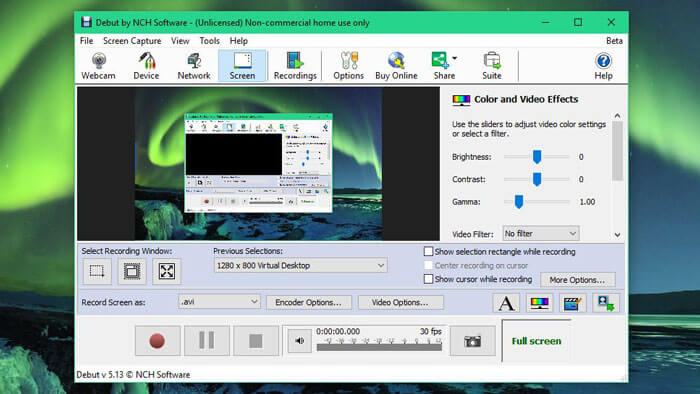
4 Teratas: Pengambilan Video Debut
Debut Video Capture adalah perekam video AVI sekaligus perekam layar untuk PC. Ini juga menyediakan versi pro, tetapi versi gratisnya sudah cukup untuk merekam layar Anda ke dalam video AVI. Perangkat ini dapat merekam dan menangkap video dari hampir semua sumber, seperti layar komputer Anda, webcam, atau bahkan kaset VHS. Kemudian menyimpannya sebagai AVI, FLV, dan WMV.
Pro
- 1. Rekam video 4: 3 atau 16: 9.
- 2. Tambahkan keterangan teks atau cap waktu ke perekaman layar.
- 3. Sesuaikan ukuran, resolusi, dan kecepatan bingkai.
- 4. Sorot mouse saat merekam layar.
- 5. Mendukung perekaman video selang waktu.
Kontra
- 1. Antarmuka terlihat agak ketinggalan jaman.
- 2. Konfigurasi tersebut cukup sulit dipelajari untuk pemula.
- 3. Kurangnya beberapa fitur pengeditan lanjutan.
- 4. Tidak tersedia untuk Mac.
Bagian 2: Tanya Jawab tentang AVI Screen Recorder
1. Mengapa Anda Harus Merekam Video Layar sebagai AVI?
Seperti yang disebutkan di atas, format AVI menggunakan beberapa codec video lossless, seperti DivX dan XviD. Saat Anda ingin merekam video layar dengan kualitas asli, perekam layar AVI adalah pilihan bagus yang harus Anda pertimbangkan.
2. Dapatkah Saya Menggunakan Game Bar sebagai Perekam Layar AVI Default untuk Windows?
Tidak. Saat Anda ingin merekam video layar pada Windows 10, Game Bar harus menjadi pilihan terbaik. Tetapi video disimpan sebagai file MP4, dan tangkapan layar disimpan sebagai file PNG.
3. Bagaimana cara merekam Video AVI di VLC Media Player?
VLC Media Player menawarkan fitur Record. Anda dapat melakukan streaming video online dan merekamnya dengan menekan tombol Record. Namun terkadang perangkat ini hanya menangkap layar hitam dengan audio karena masalah hak cipta. Tentu saja, Anda bisa langsung memilih perekam layar AVI online sebagai alternatif.
Kesimpulan
Berdasarkan pembagian di atas, Anda harus memahami cara merekam layar di AVI secara gratis. Artikel tersebut telah mencantumkan 4 perekam layar AVI gratis teratas untuk membantu Anda melakukan pekerjaan tanpa membayar sepeser pun. FVC Free Screen Recorder adalah pilihan yang sangat baik untuk merekam video dalam format AVI.
-
 Gratis & Online 7 Cara Mengonversi MTS ke AVI di Komputer Mac / Windows
 Bagaimana cara mengubah MTS ke AVI dengan mudah? Dalam panduan ini, Anda akan menemukan 7 cara gratis dan mudah untuk mengonversi file MTS ke AVI di Windows atau Mac tanpa kehilangan kualitas.
-
 Tutorial untuk Mengkonversi File MP4 ke AVI dengan 7 Pengonversi Video Gratis
 Ingin mendapatkan semua cara gratis untuk mengonversi video AVI ke MP4? Anda tidak boleh melewatkan artikel ini. Berikut adalah 7 cara untuk mengkonversi file AVI ke MP4 secara gratis di Windows, Mac, iPhone, Android dan online.
-
 6 Perekam WAV Terbaik yang Tidak Boleh Anda Lewatkan di Desktop dan Online
 Perangkat lunak perekaman WAV terbaik yang kami bagikan dalam artikel ini memiliki berbagai fitur berguna, yang membantu Anda menangkap audio dan suara seperti profesional.
