


 Video Converter Ultimate
 Perekam Layar
 Perbaikan Video
 Unduhan Aman
Tutorial Cara Menangkap Layar GIF di Komputer Anda
Ruang online telah secara tak terbantahkan mengubah sebagian besar aktivitas kita menjadi serba virtual. Baik Anda sedang menyiapkan rapat, membuat presentasi, atau bahkan ingin menjangkau ribuan orang dengan mengajarkan cara memasak, merekam layar adalah solusi efisien untuk menangkap semua kebutuhan tersebut. Namun, merekam layar dengan alat bawaan di perangkat Anda, seperti Xbox Game Bar dan perekam layar QuickTime, memiliki batasan dalam memaksimalkan kebutuhan screencasting Anda. Dalam posting ini, kami telah mengkurasi perangkat lunak kelas atas yang membawa kemampuan merekam layar ke GIF ke tingkat selanjutnya.

Bagian 1: Cara Merekam Layar ke GIF di Windows/Mac Gratis
1. Perekam Layar Gratis FVC
Hanya dengan beberapa klik, merekam layar ada dalam jangkauan Anda melalui FVC Free Screen Recorder. Solusi online ini menawarkan berbagai kebutuhan dasar perekaman layar, sehingga meninggalkan kesan luar biasa di antara penggunanya. FVC Free Screen Recorder dapat menangkap aktivitas layar Anda seperti permainan, video, dan konferensi online tanpa memberikan watermark pada output Anda. Selain itu, alat ini mampu menangkap aktivitas layar komputer Anda bersamaan dengan suara sistem dan mikrofon. Dengan cara ini, Anda dapat membiarkan perangkat Anda merekam dan memutarnya saat diperlukan. Di bawah ini, kami telah membuat panduan tentang cara merekam GIF di Mac dan Windows menggunakan FVC Free Screen Recorder.
Langkah 1. Buka Perekam Layar Online Terbaik
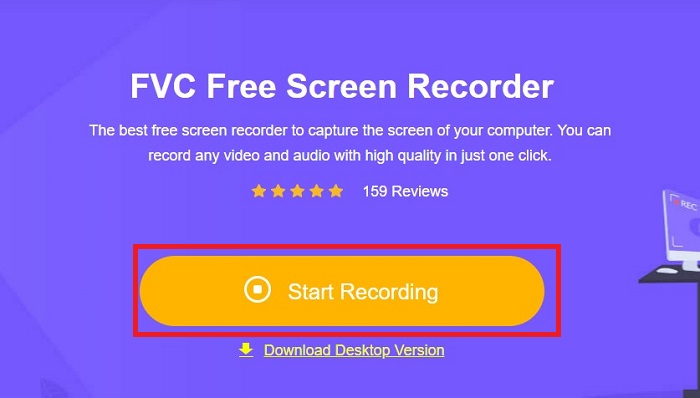
Buka mesin pencari di perangkat Anda dan ketik FVC Free Screen Recorder pada kolom pencarian. Setelah alat diaktifkan, klik tombol Start Recording di tengah untuk mengakses alat perekaman.
Langkah 2. Atur Perekaman
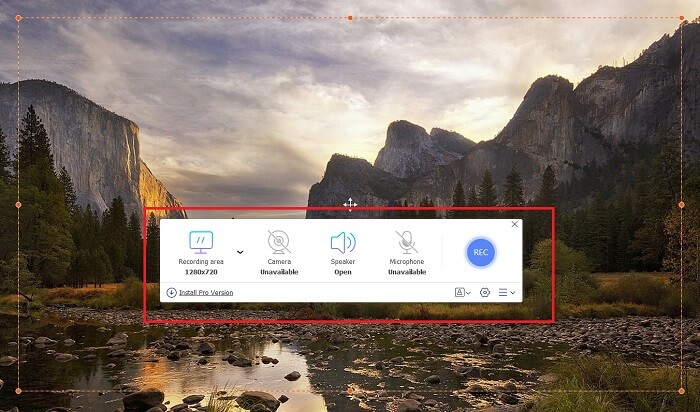
Atur kebutuhan perekaman Anda pada Recording Area, System Sound, dan Camera. Setelah semua kebutuhan terpenuhi, tekan tombol REC untuk memulai perekaman layar.
Langkah 3. Berikan Anotasi saat Merekam
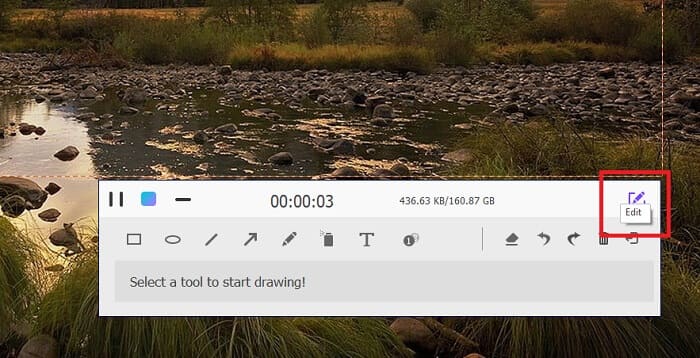
Setelah hitungan mundur 3 detik, Anda sekarang merekam layar Anda. Jika Anda perlu menambahkan anotasi seperti teks, bentuk, sorotan, dan pena, klik tombol Edit di sudut kiri bawah kotak rekaman.
Langkah 4. Simpan Output
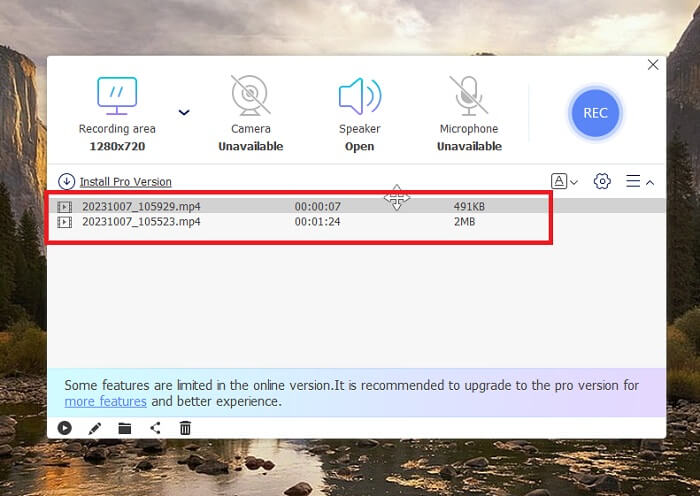
Untuk menyimpan video yang Anda rekam, tekan tombol Stop pada FVC Free Screen Recorder. Setelah proses penyimpanan selesai, Anda akan diarahkan ke panel Recorded dari alat tersebut. Anda juga dapat mengklik tombol Folder untuk membuka direktori lokal tempat output Anda tersimpan.
Fitur:
◆ Program ini adalah alat terbaik untuk menambahkan anotasi real-time saat melakukan screencasting.
◆ Perekam Layar Gratis FVC menawarkan format keluaran yang sangat kompatibel, termasuk MP4 dan WMV.
◆ Alat ini memberikan efek gambar-dalam-gambar untuk menampilkan kamera web di layar Anda.
◆ Alat ini adalah perangkat lunak screencasting tanpa batas waktu.
2. Chrome Capture - alat tangkapan layar & gif
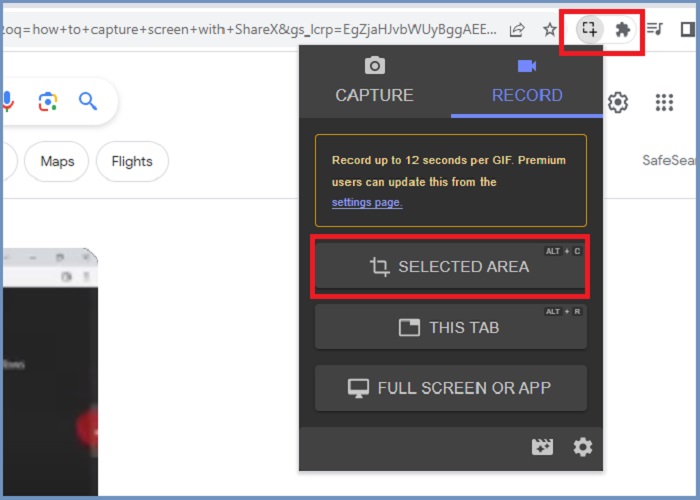
Chrome Capture adalah alat ekstensi Google yang mengubah rekaman layar menjadi GIF. Aplikasi browser web ini memungkinkan Anda menangkap layar di area tertentu, tab, atau aktivitas layar penuh. Selain itu, Chrome Capture adalah opsi terbaik untuk mengambil tangkapan layar web satu halaman penuh, sehingga Anda akan mendapatkan semua informasi yang dibutuhkan. Beberapa pengguna terpikat pada alat ini karena antarmuka yang mudah digunakan dan fitur intuitif seperti alat pemangkasan dan anotasi. ChromeCapture membuat perekaman layar menjadi lebih mudah dengan menawarkan tombol pintasan untuk mengambil tangkapan layar atau menghentikan perekaman itu sendiri. Buat GIF dari rekaman layar menggunakan Chrome Capture dengan mengikuti panduan di bawah ini.
Langkah 1. Pertama, buka halaman yang ingin Anda rekam di Google Chrome. Setelah itu, klik ikon Chrome Capture pada alat ekstensi di pojok kanan atas mesin pencari Anda.
Langkah 2. Sekarang, buka tab perekaman Chrome Capture dan pilih jenis perekaman yang Anda inginkan, seperti area yang dipilih, tab, atau seluruh layar. Setelah pilihan Anda diklik, perekaman akan dimulai. Jika sudah selesai, tekan tombol Stop untuk lanjut ke proses penyimpanan.
Langkah 3. Untuk membuat GIF dari rekaman layar, klik tombol Save dan pilih GIF sebagai format file output Anda. Anda juga boleh mengganti nama file untuk memudahkan pencarian.
Fitur:
◆ Chrome Capture menawarkan format keluaran seperti WebM dan GIF.
◆ Alat ini mempermudah berbagi rekaman video Anda secara online.
◆ Alat Edit pada program ini memungkinkan Anda menambahkan teks, menggambar panah, mengubah kecepatan rekaman, dan banyak lagi.
Bagian 2: Cara Merekam dan Mengedit Rekaman GIF di Mac dan Windows
1. BagikanX
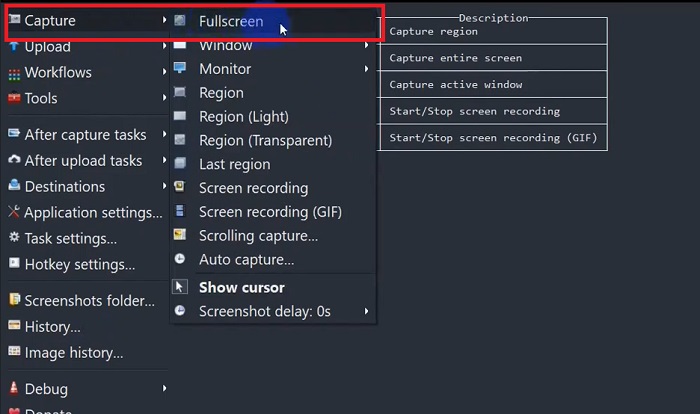
Dalam hal memiliki screen grabber yang efisien dan, pada saat yang sama, bebas biaya, ShareX tetap ada dalam daftar. Alat ini adalah alat perekam layar sumber terbuka untuk sistem operasi Windows. Selain itu, ia menawarkan perekaman wilayah khusus, di mana Anda dapat memilih area tertentu di layar untuk diambil gambarnya. Selain itu, ShareX dilengkapi alat tangkap bergulir, yang memungkinkan pengguna mengambil tangkapan layar konten sekaligus, bukan beberapa tangkapan layar. Jika Anda ingin mempelajari bagaimana kinerja ShareX untuk merekam jendela GIF, berikut adalah tutorial langkah demi langkah.
Langkah 1. Pertama, buka ShareX di perangkat Windows Anda. Lalu, buka menu Capture dan pilih jenis perekaman yang Anda inginkan.
Langkah 2. Setelah kotak seleksi muncul, gerakkan kursor Anda untuk menyorot area layar yang ingin Anda rekam. Setelah itu, klik Start.
Langkah 3. Setelah perekaman selesai, tekan tombol Stop. Setelah itu, opsi perekaman layar akan muncul kembali untuk memungkinkan Anda memilih format output Video dan Audio. Terakhir, tekan tombol Download untuk menemukan file rekaman di komputer Anda.
Fitur:
◆ Menawarkan hotkey khusus untuk mengontrol aktivitas perekaman layar Anda dengan mudah.
◆ ShareX memungkinkan pengguna mengonversi rekaman layar menjadi GIF.
◆ Alat ini memiliki tiga jenis pengambilan layar di wilayah mana pun: persegi panjang, elips, atau tangan bebas.
2. Rekam
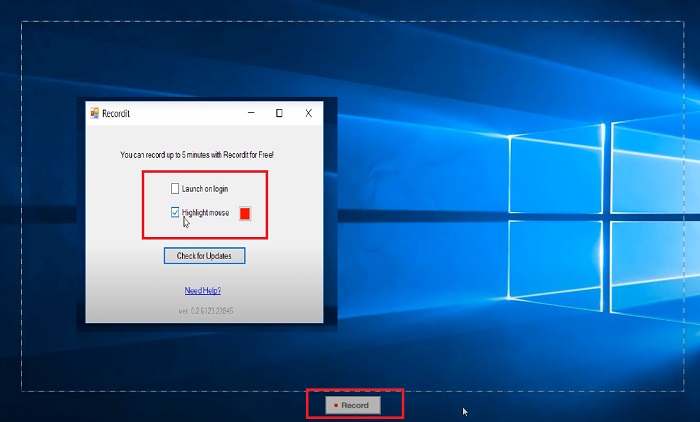
Recordit adalah perangkat lunak teladan lainnya yang memungkinkan Anda memantau aktivitas layar Anda. Alat ini merupakan alat perekam berbasis GIF dan kompatibel dengan perangkat Windows dan Mac. Namun, uji coba gratis program ini hanya dapat merekam hingga maksimal lima menit, dan Anda harus meningkatkan ke versi premium perangkat lunak untuk melampaui batasan ini. Sekarang, mari pelajari cara menangkap layar GIF dengan program ini.
Langkah 1. Setelah menginstal Recordit di perangkat Anda, Anda akan melihat ikonnya di System Tray.
Langkah 2. Selanjutnya, tunggu hingga alat tersebut tampil di layar Anda. Seret area layar yang ingin direkam, dan setelah ditentukan, klik Start untuk mulai merekam.
Langkah 3. Terakhir, tekan tombol Stop setelah perekaman selesai. Klik GIF untuk menemukan output Anda dengan ekstensi file GIF pada pengaturan.
Fitur:
◆ Recordit menyediakan Log Historis rekaman layar Anda terkini dan sebelumnya.
◆ Alat ini memungkinkan pengguna menyesuaikan aktivitas perekaman layar mereka di berbagai wilayah.
3. LayarToGIF
Screengrabber lain yang tidak boleh Anda lepaskan adalah alat ScreentoGIF. Seperti namanya, software ini memungkinkan pengguna langsung membuat GIF dari rekaman layar mereka. Selain itu, ini dianggap sebagai alat sumber terbuka, artinya Anda tidak perlu mengeluarkan uang untuk memilikinya. ScreenToGIF dapat mengambil tangkapan layar dan mengekspor keluaran Anda ke PNG, PSD, dan video. Tentu saja, jika Anda ingin membagikan file GIF Anda secara online, ScreenToGIF dapat dengan mudah mengunggahnya di Imgur dan Gfycat.
Langkah 1. Buka ScreenToGIF di perangkat Anda untuk merekam GIF di Mac atau Windows.
Langkah 2. Untuk mulai menangkap layar Anda, buka Toolbox dari alat tersebut dan pilih Recorder. Selanjutnya, gerakkan ikon crosshair ke area tertentu yang ingin direkam.
Langkah 3. Setelah itu, tekan F8 pada keyboard Anda untuk menghentikan perekaman.
Fitur:
◆ Memungkinkan hamparan webcam untuk merekam diri Anda dan layar Anda secara bersamaan.
◆ Dengan menggunakan Sketchboard, Anda dapat merekam gambar Anda secara real time.
Bacaan Lanjutan:
Panduan Langkah demi Langkah Mengonversi MP4 ke GIF di Desktop atau Online
5 Cara Terbaik Mengubah Gambar menjadi GIF Animasi [Update 2023]
Bagian 3: FAQ tentang Rekam Layar ke GIF
Apakah Mac memiliki alat bawaan untuk mengubah rekaman layar menjadi GIF?
Dalam hal perekam layar internal, perangkat Mac memiliki satu yang ditawarkan di aplikasi QuickTime. Namun, keluaran rekaman diatur dalam MOV secara default, dan Anda mungkin memerlukan perangkat lunak pihak ketiga untuk mengonversinya menjadi GIF.
Apakah ada alat untuk merekam GIF di iPhone dan Android?
Pasti ya! Perangkat iPhone dan Android Mobile dilengkapi dengan perekam layar asli. Mereka juga dapat menangkap suara sistem dan suara Anda melalui mikrofon.
Apakah ScreentoGIF aman?
Tentu saja, ScreenToGIF adalah perangkat lunak gratis di perangkat Windows dan bebas dari perangkat lunak berbahaya.
Bisakah Anda mengatur GIF untuk layar beranda di Mac?
Menjadikan file GIF sebagai layar beranda Mac Anda bisa dilakukan tanpa perlu aplikasi lain. Anda hanya perlu membuka Settings > System Preferences > Desktop and Screen Saver, lalu pilih GIF yang tersedia.
Bisakah layar kunci Windows menjadi GIF?
Sebagian besar wallpaper Windows bersifat statis, tidak seperti perangkat Mac. Anda mungkin memerlukan aplikasi pihak ketiga, seperti Lively Wallpaper, untuk meluncurkan wallpaper GIF di perangkat Windows Anda.
Kesimpulan
Baik Anda ingin merekam layar ke GIF atau yang statis, menambahkan anotasi dan overlay webcam, misi screencasting Anda sangat mungkin terwujud dengan alat-alat yang disebutkan di atas. Solusi online paling cocok untuk perekaman yang siap pakai. Namun, perangkat lunak offline sangat direkomendasikan jika Anda ingin menghindari gangguan dan lag yang tidak diinginkan pada koneksi internet Anda.
-
 Pangkas GIF: Alat Online, Desktop, dan Seluler Terbaik untuk Memangkas GIF
 Apakah Anda ingin mengambil bagian GIF untuk menyampaikan emosi dan reaksi Anda secara tepat? Di sini, mari temukan dan optimalkan berbagai alat untuk memangkas GIF animasi.
-
 6 Aplikasi GIF Menakjubkan Teratas untuk iPhone pada tahun 2023 (Ulasan)
 Posting ini akan memandu Anda melalui aplikasi pembuat GIF terbaik untuk iPhone dan komputer. Periksa mereka dan pelajari apa yang mereka tawarkan.
-
 Program Pembuat GIF 3D Terbaik yang Tidak Ingin Anda Lewatkan
 Harus menemukan dan menilai setiap aplikasi Pembuat GIF 3D yang Anda lihat dapat memakan waktu. Untungnya, kami telah menyusun daftar yang dapat Anda baca.
