


 Video Converter Ultimate
 Perekam Layar
 Perbaikan Video
 Unduhan Aman
Bakar MP4 ke DVD: Ubah Video Terbaik Anda menjadi DVD Secara Efisien di PC
Memang, menggunakan DVD untuk menyimpan video dan file adalah langkah cerdas untuk mencadangkan data Anda. Bukan hanya menyediakan solusi penyimpanan yang andal, DVD juga menawarkan kualitas video dan audio yang lebih baik saat memutar konten Anda. Tentu saja, alasan‑alasan ini tidak terbatas pada jenis video atau media tertentu saja. Anda juga dapat memilih untuk mengubah video terbaik Anda dalam format MP4 ke sebuah disc, khususnya DVD. Jadi, jika Anda tertarik memanfaatkan keuntungan tersebut tetapi masih belum tahu burner MP4 ke DVD terbaik yang harus digunakan, kami siap membantu! Dalam artikel ini, kami telah mengumpulkan pilihan software dan hardware terbaik untuk Windows dan Mac, beserta panduan langkah demi langkah untuk membakar video Anda ke DVD. Karena itu, mari mulai menjelajahinya dengan membaca konten di bawah ini.

Bagian 1. Bakar File MP4 Anda ke DVD di macOS dengan iMovie melalui iTunes
iMovie adalah editor video sederhana untuk Mac, biasanya disertakan secara gratis dengan perangkat Mac. Namun ia mempunyai keterbatasan, terutama bagi mereka yang ingin membakar proyek ke DVD. iMovie tidak memiliki fitur ini, dan banyak program pembuat DVD tidak mendukung proyek iMovie, sehingga membuatnya rumit. Untungnya, ada metode efektif yang tersedia, dan salah satunya adalah iTunes. Bagi yang belum tahu, iTunes menyediakan fitur untuk membakar DVD. Ini memberi Anda kemampuan untuk membuat berbagai jenis disk, seperti disk data, DVD video, atau CD audio. Namun, penting untuk diperhatikan bahwa DVD yang dibakar melalui iTunes mungkin tidak kompatibel dengan pemutar DVD standar. Ini berarti DVD yang Anda buat dengan iTunes hanya dapat diputar di komputer atau perangkat dengan kemampuan pemutaran DVD. Sementara itu, mari bakar MP4 ke DVD di Mac dengan iMovie!
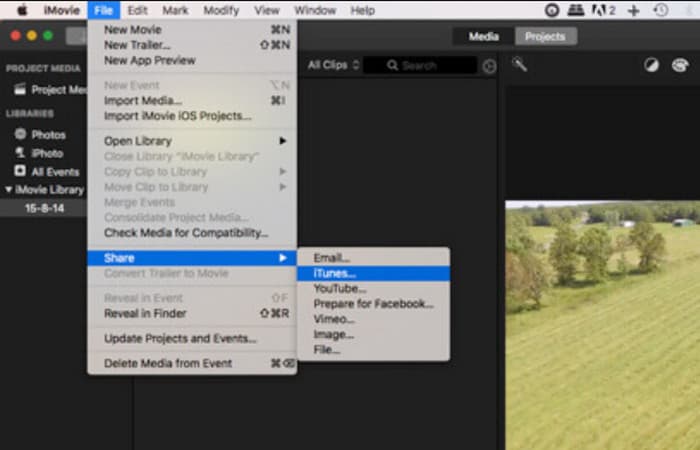
Langkah 1. Buka aplikasi iMovie Anda dan unggah file MP4 yang ingin Anda bakar. Jadikan file tersebut sebagai salah satu proyek Anda. Setelah terbuka, masuk ke File > Share > iTunes agar file tersebut terlihat di iTunes.
Langkah 2. Di iTunes, arahkan ke bagian Movie > Library > Home Videos dan cari video MP4 yang baru saja Anda bagikan.
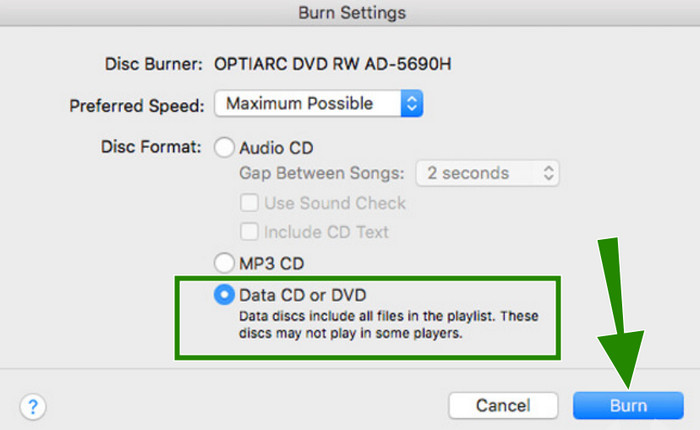
Langkah 3. Sekarang Anda dapat memasukkan DVD ke dalam drive disc Mac Anda, lalu lanjut ke proses pembakaran. Untuk melakukannya, buka menu File dan pilih opsi Burn Playlist to Disc. Pada jendela yang muncul, aktifkan opsi Data CD or DVD, kemudian klik tombol Burn.
Bagian 2. Gunakan HandBrake untuk Membakar DVD dari File MP4 untuk Windows/Mac
Software berikutnya yang dapat membantu Anda membakar MP4 ke DVD adalah HandBrake. Alat ini juga praktis. HandBrake tidak hanya untuk burning, tetapi juga untuk meng‑encode video, dan mendukung berbagai format seperti MOV dan AVI selain MP4. Lebih jauh lagi, HandBrake dapat menghidupkan kembali video lama Anda dengan memulihkan kualitas aslinya, sehingga Anda dapat bernostalgia dengan resolusi yang lebih baik. Selain itu, Anda dapat melakukan konversi ini secara gratis. Ditambah lagi, Anda juga bisa menggunakan HandBrake untuk me‑rip DVD dan menyesuaikan pengaturan audio seperti volume dan rentang dinamis, serta menangani subtitle dengan sangat baik. Program ini mempertahankan subtitle yang sudah ada dan memungkinkan Anda menambahkan subtitle sendiri tanpa hambatan! Sementara itu, Anda dapat mengikuti langkah‑langkah sederhana di bawah ini untuk menggunakan HandBrake dalam proses burning dengan sukses.
Langkah 1. Buka HandBrake yang telah Anda pasang di komputer. Anda juga mungkin perlu memasukkan DVD kosong ke dalam drive sekarang.
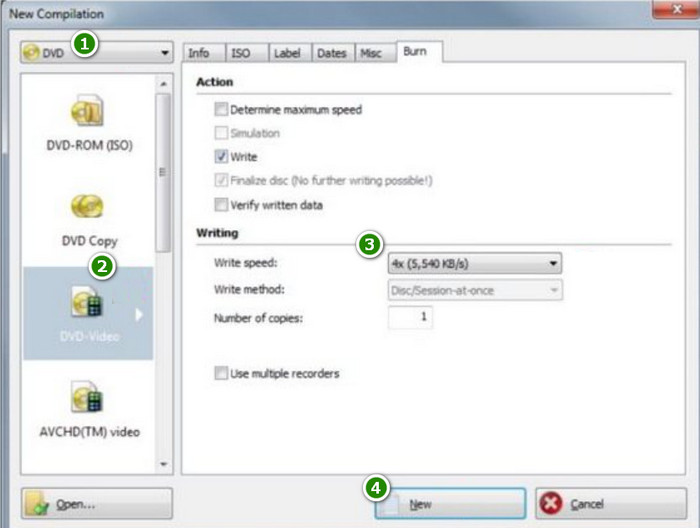
Langkah 2. Saat program dijalankan, buka menu Source dan pilih DVD-Video. Lalu, unggah file MP4 yang perlu Anda bakar.
Langkah 3. Sekarang Anda dapat mulai membakar dengan mengklik tombol New.
Bagian 3. Rekam DVD dari MP4 dengan Freemake Video Converter untuk Windows 10/8/7
Jika Anda memiliki desktop dengan OS Windows 10, 8, atau 7, maka Freemake Video Converter ini adalah alat yang wajib Anda gunakan. Ini adalah alat gratis yang memungkinkan Anda mengonversi file media, mengedit, dan, tentu saja, membakar file MP4 ke DVD di Windows 10. Dengan Freemake, Anda mendapatkan opsi pengeditan dasar seperti memotong dan memangkas, dan Anda dapat mengubah pengaturan agar sesuai dengan kebutuhan Anda. . Namun, tidak seperti alat pembakar khusus lainnya, Freemake membakar dengan lambat dan sering diperbarui, sehingga dapat mengganggu. Tetap saja, itu menyelesaikan pekerjaan yang penting!
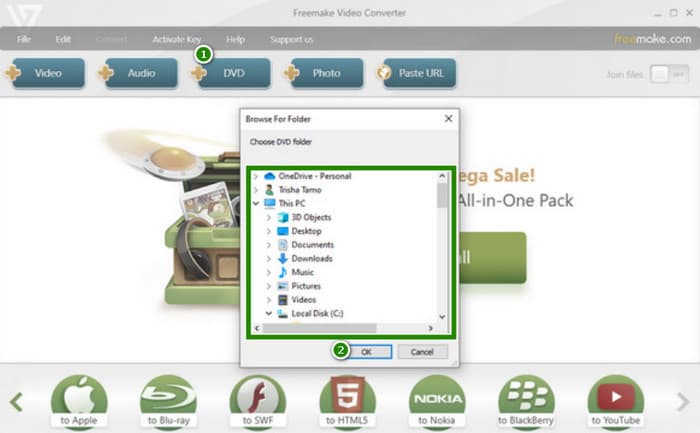
Langkah 1. Klik tab menu DVD saat Anda meluncurkan Freemake Video Converter di desktop Anda. Kali ini, Anda juga perlu menyiapkan DVD kosong dan memasukkannya ke dalam drive.
Langkah 2. Setelah mengklik tab menu, pilih file MP4 yang akan dibakar, lalu lanjutkan dengan mengklik tombol OK.
Langkah 3. Setelah itu, alat ini akan memberi Anda beberapa preset yang dapat disesuaikan. Jika tidak ingin mengubahnya, klik tombol Burn untuk memulai proses.
Bagian 4. Tip: Cara Menonton DVD Online Gratis
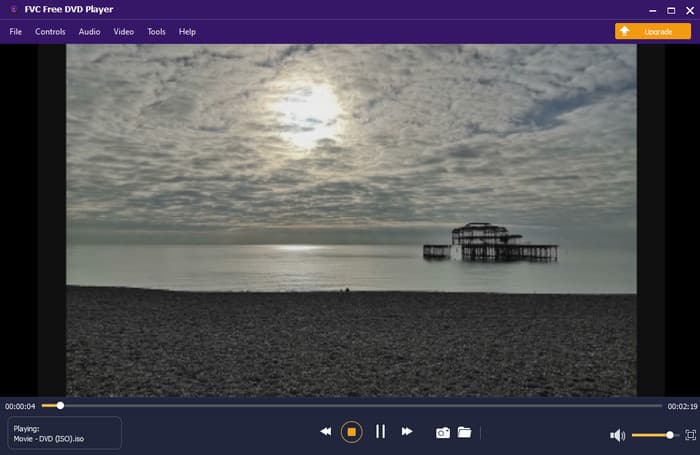
Anda baru saja mengetahui burner DVD hebat yang dapat digunakan di PC. Sekarang, izinkan kami merekomendasikan pemutar DVD online terbaik yang dapat Anda gunakan secara gratis di PC! FVC Free DVD Player adalah alat praktis yang memungkinkan Anda menonton DVD langsung di browser web tanpa harus mengunduh software pemutar media yang besar.
Ini adalah alternatif terbaik Anda untuk pemain populer karena memberi Anda pengalaman menonton film tingkat baru. Hebatnya, antarmukanya yang sederhana, bersama dengan dukungan kontrol menu tambahan dan pengaturan pemutaran, pasti akan meningkatkan perjalanan menonton DVD Anda. Selain itu, Anda pasti akan menghargai visual dan audio berkualitas tinggi yang diberikannya.
Berkat teknologi pengkodean video yang canggih. Selain itu, ia mendukung format audio terbaik seperti DTS-HD dan Dolby TrueHD, memastikan Anda menikmati efek suara yang menakjubkan tanpa kompromi apa pun!
Bagian 5. FAQ tentang Pembakaran DVD dari File MP4
Mengapa saya membakar file MP4 saya ke DVD?
Ada beberapa alasan mengapa Anda mungkin membakar MP4 ke DVD. Yang paling umum adalah untuk membuat cadangan file dalam disk dan membuatnya kompatibel untuk diputar di pemutar DVD.
Apa yang saya perlukan untuk membakar MP4 ke DVD?
Untuk membakar DVD, Anda perlu menyiapkan komputer dengan drive disk, DVD kosong, dan perangkat lunak pembakar.
Berapa lama MP4 bisa muat di DVD?
Itu tergantung pada kapasitas DVD Anda dan ukuran data MP4 Anda. Ingat, MP4 dengan resolusi lebih tinggi membutuhkan lebih banyak ruang. DVD standar dapat menampung sekitar 4,7 GB data.
Kesimpulan
Setelah membaca artikel ini, sekarang Anda pasti memahami proses yang tepat untuk membakar video ke DVD. Berkat burner MP4 ke DVD yang dipilih dalam artikel ini, Anda dapat bebas menggunakan Mac atau desktop untuk melakukan konversi jenis ini. Lalu, jika Anda ingin menonton DVD tanpa perangkat pemutar DVD, silakan gunakan FVC Free DVD Player!
-
 Unduhan Gratis Perangkat Lunak Pemutar DVD untuk Mac 2025
 Bagaimana cara memutar DVD di Mac tanpa drive DVD? Bagaimana cara menggunakan pemutar DVD eksternal dengan Mac saya? Posting ini membagikan 5 pemutar DVD gratis untuk Mac.
-
 2 Solusi Terbaik untuk Mengatasi Windows Media Player Tidak Memutar DVD
 Saat Anda ingin memutar video DVD melalui Windows Media Player tetapi hanya menerima kesalahan "Jenis file tidak didukung", Anda dapat mempelajari 3 cara mudah untuk memperbaiki Windows Media Player tidak memutar DVD.
-
 [Solusi] VLC Tidak Memutar DVD, Cara Memperbaikinya
 Bisakah VLC memutar DVD? Mengapa VLC tidak mau memutar DVD saya? Bagaimana cara mendapatkan VLC untuk memutar DVD di Windows 10? Posting ini membagikan 3 tips untuk memperbaiki masalah VLC tidak memutar DVD.
