


 Video Converter Ultimate
 Perekam Layar
 Perbaikan Video
Cara Mengonversi RAR ke MP4: Buka kemasan dan Ubah File RAR ke MP4 dengan Benar
Jika Anda seorang yang melek teknologi, Anda pasti tahu bahwa file RAR dan MP4 sangat umum dalam rutinitas sehari-hari. Pada dasarnya, file RAR ibarat bundel terkompresi yang dapat berisi berbagai macam hal – video, gambar, dan lain-lain. Nah, pernahkah Anda terpikir untuk mengubah file RAR menjadi MP4 demi kompatibilitas yang lebih luas? Pertanyaan ini biasanya muncul saat Anda mengunduh film berlabel RAR dari web atau menerima video yang dikemas dalam RAR melalui email, bukan? Jadi, untuk mengubahnya menjadi MP4, Anda harus mengekstrak atau men-zip keluar isi RAR tersebut dan kemudian mengonversi video-videonya ke format MP4. Karena itu, simak terus postingan ini untuk mengetahui dua cara sederhana, offline dan online, untuk mewujudkan konversi RAR ke MP4 ini.

Bagian 1. Konversi RAR ke MP4 Online dengan ezyZip
Dimulai dengan konverter online yang direkomendasikan yang dapat menangani file RAR secara efisien. Ezyzip adalah sekutu Anda kapan pun Anda berada dalam keadaan darurat dengan konversi file. Ini adalah pilihan online terbaik untuk mengekstrak file MP4 dari arsip RAR dengan cara yang tidak merepotkan. Anda tidak perlu mengacaukan perangkat komputer Anda dengan perangkat lunak pengonversi MP4 tambahan. Ini karena ezyZip beroperasi langsung di browser Anda, sehingga Anda tidak perlu repot melakukan instalasi. Selain itu, alat ini tidak hanya terbatas pada mengonversi file RAR ke MP4 online secara gratis karena alat ini juga mendukung berbagai opsi ekstraksi dan konversi file lainnya.
Apa yang membedakan ezyZip dari konverter online lainnya adalah pendekatannya yang unik. Itu menjaga file Anda tetap aman dan sehat dengan memproses semuanya secara lokal di dalam browser Anda. Artinya, tidak diperlukan proses pengunggahan atau pengunduhan yang membosankan ke server eksternal, sehingga menghasilkan konversi secepat kilat. Hebatnya, Anda mungkin lupa tentang batasan ukuran saat menggunakan ezyZip karena alat ini tidak memberikan batasan apa pun. Ini juga berarti privasi Anda tetap utuh karena file Anda tidak pernah keluar dari browser Anda! Sekarang, kami tidak akan membiarkan slide ini berlalu tanpa mengajari Anda proses ezyZip untuk mengonversi file Anda dari RAR ke MP4. Oleh karena itu, panduan di bawah ini diberikan.
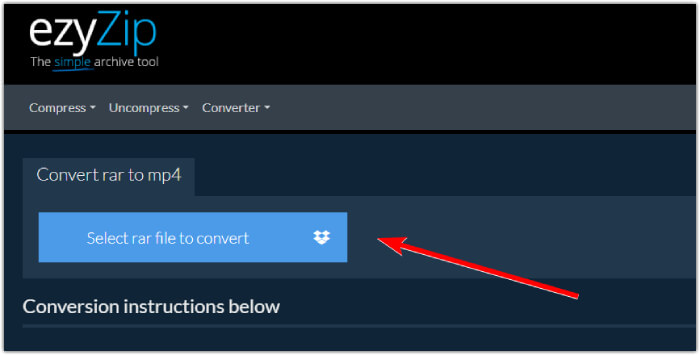
Langkah 1. Kunjungi situs resmi konverter dan impor file RAR Anda dengan mengklik tombol Select rar file to convert.
Langkah 2. Saat file dimuat, alat ini akan secara otomatis mengonversinya untuk Anda dari dalam arsip RAR. Sekarang klik tombol Save untuk menyimpan setiap file MP4 ke lokasi tujuan file yang Anda inginkan.
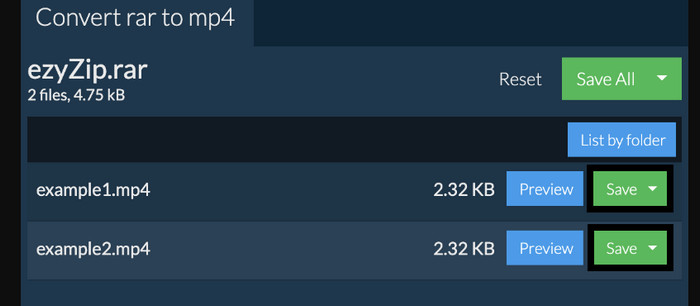
Langkah 3. Jika, seandainya, tombol Save dinonaktifkan, itu berarti peramban yang Anda gunakan tidak didukung oleh konverter. Jika tidak, ketika file berhasil disimpan, Anda akan diberi opsi untuk melihat file yang telah dikonversi.
Bagian 2. Konversi RAR ke MP4 Offline dengan WinRAR
Ada cara offline yang bagus untuk mengonversi RAR ke MP4 dengan WinRAR. WinRAR adalah perangkat lunak populer yang dirancang khusus untuk pengguna Windows. Ini adalah perangkat lunak yang menawarkan berbagai fitur berguna untuk mengelola file terkompresi. Selain itu, program ini menyederhanakan proses membuka ritsleting atau mendekompresi file RAR agar dapat diekstraksi dan diakses. Apalagi lanjutnya WinRAR karena juga menyediakan kemampuan untuk mengkonversi file RAR ke berbagai format video seperti MP4 atau M4V. Fungsionalitas ini terbukti sangat berharga bagi pengguna yang perlu bekerja dengan konten multimedia yang disimpan dalam arsip RAR. Jadi, jika Anda ingin mengetahui cara membongkar dan mengubah file RAR ke MP4 dengan WinRar, teruslah membaca petunjuk langkah demi langkah di bawah ini.
Langkah 1. Pertama, unduh program pakar RAR populer di desktop Anda. Gunakan sumber yang tepercaya saat mengunduhnya. Lalu, setelah instalasi selesai, segera luncurkan program tersebut untuk memulai proses konversi.
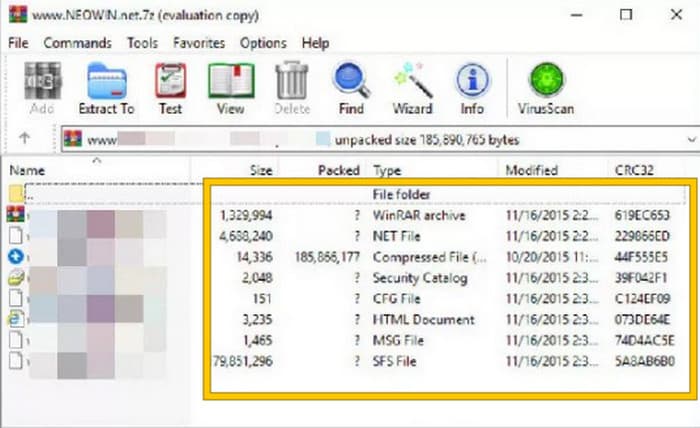
Langkah 2. Setelah program terbuka, Anda dapat langsung membuka atau mengunggah file RAR yang ingin Anda ubah menjadi MP4. Anda akan tahu apakah file sudah dimuat atau belum, karena file tersebut akan tampil di tengah antarmuka.
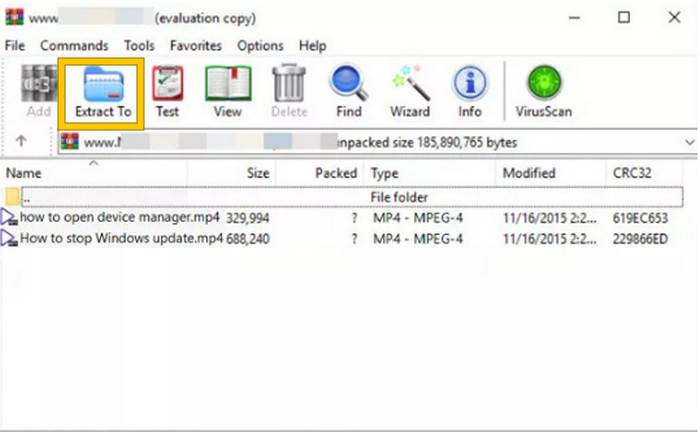
Langkah 3. Terakhir, untuk memulai proses konversi atau ekstraksi, klik tombol Extract To pada daftar tab menu. Setelah selesai, Anda dapat langsung membuka file yang telah dikonversi di dalam antarmuka.
Bagian 3. Tip Bonus: Cara Terbaik untuk Mengonversi Audio/Video Apa Pun ke MP4 Online
Izinkan kami memberi Anda tips bonus di mana Anda dapat mengonversi file video dan audio apa pun ke MP4 dengan cara terbaik dan paling cepat! Kenali FVC Free Video Converter Online, sebuah konverter yang membuat pengubahan video dan file audio ke berbagai format seperti MP4 menjadi sangat mudah dan sepenuhnya gratis. Selain itu, Anda dapat mengalihkan video definisi tinggi ke format-format populer dengan cepat sambil tetap mempertahankan kualitas atau ketajaman aslinya. Lebih jauh lagi, Anda juga akan menyukai prosesnya yang sangat cepat, yang memungkinkan Anda mengonversi banyak file sekaligus dalam waktu singkat!
Masih ada lagi! Pengonversi Video Online Gratis FVC ini juga memungkinkan Anda mengubah video dan audio sesuai keinginan Anda. Ini karena konverter ini memungkinkan Anda menyesuaikan hal-hal seperti resolusi, kecepatan bingkai, kecepatan bit, dan bahkan pengaturan audio seperti volume dan kecepatan bit ke pengaturan pilihan Anda. Ini berarti Anda dapat menyesuaikan media sesuai keinginan Anda dan mengekspornya dengan mudah. Jadi, jika Anda bertanya-tanya bagaimana cara mengonversi file video atau audio Anda menjadi MP4 online, ikuti langkah-langkah sederhana yang ditunjukkan di bawah ini.
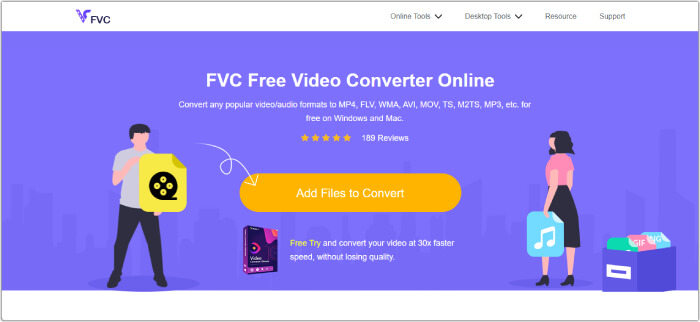
Langkah 1. Mulailah dengan mengunjungi situs resmi FVC Free Video Converter Online. Setelah Anda tiba di sana, klik tombol Add Files to Convert untuk mendapatkan peluncurnya dan mengunggah file awal.
Langkah 2. Setelah file diunggah, Anda dapat menambahkan lebih banyak file media dengan mengklik tombol Add File di ruang kerja utama. Lalu, atur semuanya ke MP4 dengan mengklik file-file tersebut dan kemudian memilih format MP4 di bagian bawah.
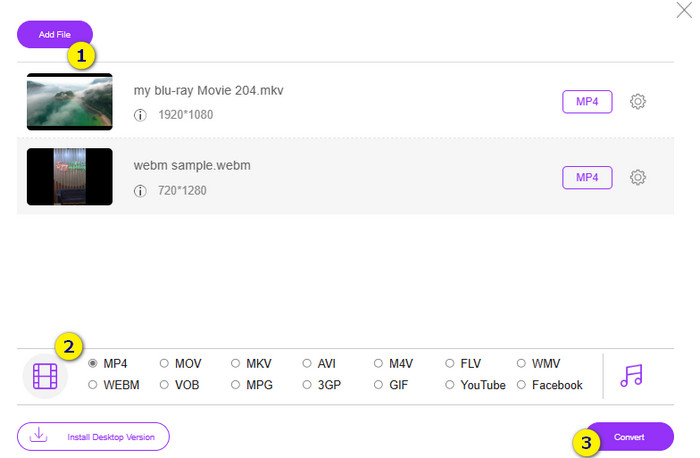
Langkah 3. Setelah itu, saatnya memulai konversi cepat dan massal dengan mengklik tombol Convert di bagian bawah.
Bacaan Lanjutan:
MOV VS MP4 – Mana yang Anda Pilih?
Editor MP4 Terbaik untuk Windows dan Mac pada 2025
Bagian 4. FAQ tentang Konversi RAR dan MP4
Apa itu file RAR?
File RAR dikompresi dalam format file arsip. Ini memungkinkan Anda menyimpan banyak file dalam satu wadah sekaligus mengurangi ukuran keseluruhannya.
Bagaimana cara mengonversi RAR ke MP4 di Mac?
Untuk mengonversi RAR ke MP4 di Mac, Anda bisa menggunakan perangkat lunak ekstraksi seperti Unarchiver untuk mengekstrak isi arsip RAR terlebih dahulu. Lalu, file video apa pun yang kompatibel di dalam hasil ekstraksi tersebut dapat dikonversi ke format MP4 menggunakan konverter yang andal. Untuk melakukannya, Anda dapat menggunakan FVC Video Converter Ultimate.
Bisakah file RAR berisi video?
File RAR seperti folder zip yang dapat menampung segala jenis file. Jadi ya, file RAR bisa berisi video.
Kesimpulan
Postingan ini sangat cocok untuk tugas konversi RAR ke MP4 Anda karena memberikan cara-cara terbaik untuk melakukannya di perangkat Anda. Untungnya, ada konverter video dan audio online terbaik yang membuat Anda bekerja bak seorang profesional!
-
 Cara Kompres Video Online untuk Mengurangi Ukuran File Video
 Jika Anda mencari kompresor video online, tidak perlu menemukannya lagi karena kami siap membantu Anda! Berikut beberapa alat paling nyaman yang dapat Anda gunakan.
-
 Cara Mengompres Video MP4 ke Ukuran yang Lebih Kecil
 Video MP4 terlalu besar untuk diunggah? Ingin memperkecil ukuran video? Berikut adalah 3 cara efisien untuk mengompres file MP4 ke ukuran yang lebih kecil tanpa batas.
-
 Cara Mengompres Video Secara Gratis / Coba 7 Kompresor Video Online Ini
 Baca dan dapatkan 7 cara untuk mengompres video secara gratis di komputer atau ponsel Anda. Anda dapat mengurangi video besar menjadi ukuran file kecil untuk email, Twitter, Instagram, YouTube, WhatsApp, dan lainnya dengan mudah.
