


 Video Converter Ultimate
 Perekam Layar
 Perbaikan Video
 Unduhan Aman
Konversi JPG ke MP4 di Windows/Mac Tanpa Kehilangan Kualitasnya
JPG adalah format gambar yang paling umum, dan kita menggunakannya untuk berbagai keperluan, mulai dari berbagi foto daring hingga menyimpan foto digital di perangkat kita. Dengan kompatibilitasnya yang luas dan ukuran berkas yang relatif kecil, JPG telah menjadi pilihan utama untuk menangkap dan menyimpan kenangan visual dalam kehidupan sehari-hari.
Namun saat ini, membuat video dari kumpulan gambar sedang menjadi tren. Ini juga merupakan cara lain untuk menyimpan kenangan dengan lebih kreatif dan penuh ekspresi. Anda bisa menambahkan audio, transisi, atau sekadar membuat video slideshow MP4 sederhana dengan musik favorit sebagai latar belakang. Jadi, jika Anda tertarik dan berencana mengubah JPG ke MP4, lanjutkan membaca artikel ini dan pelajari cara mengonversinya dengan 4 metode berbeda tanpa menurunkan kualitas. Keluarkan kreativitas yang tersimpan dalam diri Anda sekarang juga!

Bagian 1: Cara Terbaik Mengonversi JPG ke MP4 di Windows/Mac [Terbaik untuk Pemula]
Cara terbaik untuk mengonversi JPG ke MP4 adalah dengan menggunakan FVC Video Converter Ultimate. Alat ini memiliki fitur khusus bernama MV, yang memungkinkan pengguna membuat video MP4 berkualitas bagus dari foto JPG mereka. Di dalamnya sudah tersedia tema siap pakai yang bisa Anda gunakan secara bebas serta berbagai efek dan filter. Selain itu, Anda dapat dengan mudah memutar dan memotong (crop) file JPG sesuai kebutuhan sebelum mengekspornya menjadi MP4. Hal yang paling menyenangkan dari alat ini adalah Anda bisa mengimpor audio sendiri, mempersonalisasikannya dengan watermark, dan banyak lagi. Terakhir, alat ini tidak rumit digunakan karena memiliki antarmuka yang sangat intuitif dan ramah pengguna. Untuk melakukannya, ikuti langkah-langkah di bawah ini:
Langkah 1. Pertama, Anda perlu mendapatkan perangkat lunaknya, baik di Windows maupun Mac, lalu unduh dan instal.
Unduh GratisUntuk Windows 7 atau yang lebih baruUnduhan Aman
Unduh GratisUntuk MacOS 10.7 atau yang lebih baruUnduhan Aman
Langkah 2. Setelah itu, buka alatnya, dan dari 4 tab di bagian atas, klik MV.

Langkah 3. Sekarang, ketika Anda sudah berada di antarmuka utama MV, klik tombol Add File untuk menambahkan file JPG yang ingin Anda konversi ke MP4.

Langkah 4. Untuk menambahkan, mengedit, dan memotong (trim) video MP4 Anda, klik tombol di bagian atas tombol Add File. Selain itu, Anda dapat memilih tema siap pakai dengan mengklik tab Theme di bagian atas.

Langkah 5. Sementara itu, untuk memotong dan memutar gambar, menambahkan filter dan efek, serta menambahkan watermark agar lebih personal, cukup klik ikon Edit di bawah, dan Anda akan dibawa ke jendela lain.

Langkah 6. Jika semuanya sudah siap, klik tombol Export, di mana Anda bisa mengubah format menjadi MP4 dan mengatur frame rate, resolusi, serta kualitas. Anda juga dapat menentukan di folder mana hasil konversi JPG ke MP4 akan disimpan. Terakhir, untuk menyimpan file Anda, klik tombol Start Export.

FVC Video Converter Ultimate menyederhanakan pengubahan JPG ke MP4 dengan antarmuka yang mudah digunakan, fitur yang dapat disesuaikan, tema yang telah ditetapkan, alat penyuntingan, hasil berkualitas tinggi, dan kompatibilitas dengan sistem operasi Windows dan Mac. Ini memang cara terbaik untuk mengubah foto yang membosankan menjadi video yang menyenangkan dan kreatif.
Bagian 2: Konversi JPG ke MP4 di Windows 11/10 dengan Foto Alat Default
Pada Windows 10 dan 11, Clipchamp kini terintegrasi dengan aplikasi Photos, yang memungkinkan pengguna mengonversi file JPG ke MP4. Integrasi ini memudahkan pengeditan yang kemudian dapat disimpan ke MP4. Jadi, untuk memandu Anda, ikuti proses langkah demi langkah di bawah ini:
Langkah 1. Di Windows Anda, buka Start Menu lalu klik Photos.
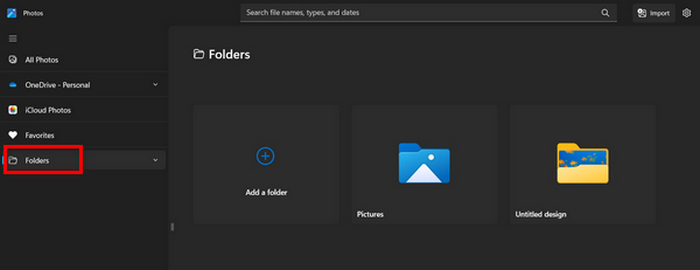
Langkah 2. Di aplikasi Photos, buka bagian Folders pada tab sebelah kiri. Anda akan diminta menambahkan folder atau Anda bisa langsung memilih foto dari Pictures yang ingin diubah menjadi MP4.
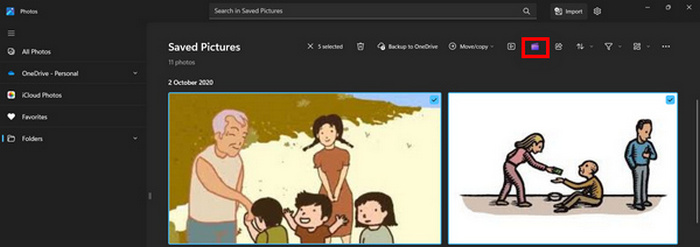
Langkah 3. Setelah memilih gambar JPG yang ingin dikonversi, klik ikon Create a video.
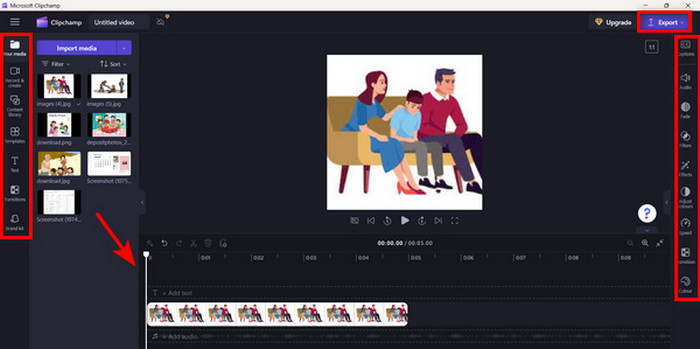
Langkah 4. Di Window baru, Anda akan diminta menambahkan file media ke video ini. Klik Yes to Add Video.

Langkah 5. Sekarang, seret media yang sudah diimpor ke timeline. Anda bisa memanfaatkan opsi pengeditan pada tab kiri, di mana Anda bisa menambahkan teks, memilih template, dan lainnya. Pada tab Right, Anda dapat menambahkan audio, efek, filter, dan sebagainya. Setelah selesai, cukup klik tombol Export, dan file MP4 akan langsung tersimpan di komputer Anda.
Jika Anda pengguna Windows, metode ini membuat konversi JPG ke MP4 menjadi sangat cepat. Namun, metode ini bisa jadi lebih mudah dibandingkan dengan alat lain. Selain itu, Anda tidak dapat mengekspor resolusi video 2K/4K menggunakan versi gratisnya dan tidak memiliki akses ke efek dan filter bagus lainnya dibandingkan dengan alat konversi lainnya.
Bagian 3: Mengonversi JPG ke MP4 di Mac dengan iMovie
Jika Anda pengguna Mac, ada solusi praktis untuk mengonversi JPG ke MP4. Mac memiliki aplikasi bawaan bernama iMovie. Ini adalah aplikasi penyuntingan video yang menawarkan penyuntingan dasar bagi penggunanya, tetapi selain itu, aplikasi ini juga dapat digunakan untuk mengubah berkas JPG menjadi MP4. Pengguna hanya perlu mengimpor gambar, menambahkan beberapa efek dan filter, lalu menyimpannya sebagai MP4.
Langkah 1. Di Mac Anda, jalankan aplikasi iMovie dan klik Create New.
Langkah 2. Setelah itu, tambahkan file JPG Anda ke aplikasi dengan mengklik tombol Import Media pada antarmuka utama.
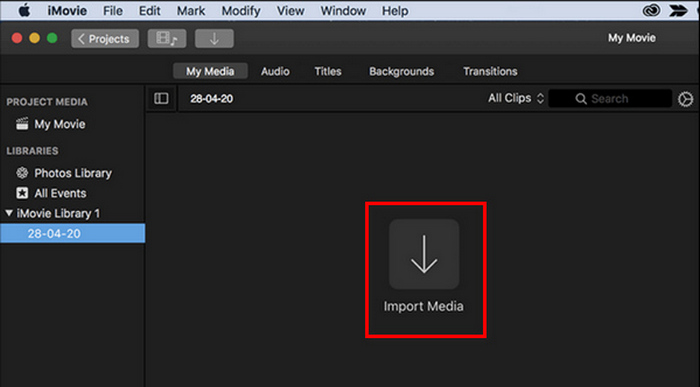
Langkah 3. Sekarang, cari file JPG yang ingin Anda konversi ke MP4.
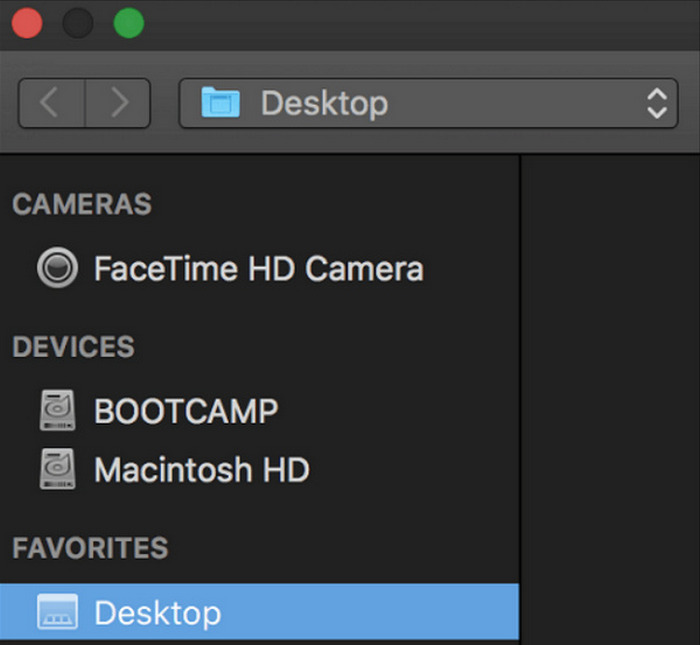
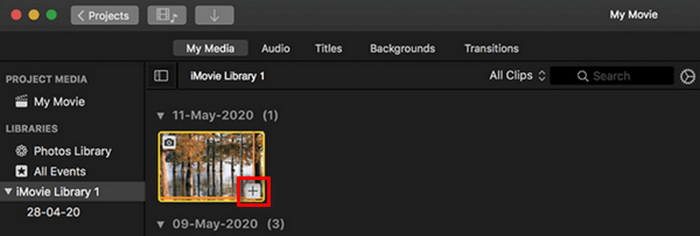
Langkah 4. Setelah JPG Anda muncul di antarmuka aplikasi, pilih file tersebut dan Anda akan melihat ikon Plus. Klik ikon itu untuk menambahkan foto ke timeline.
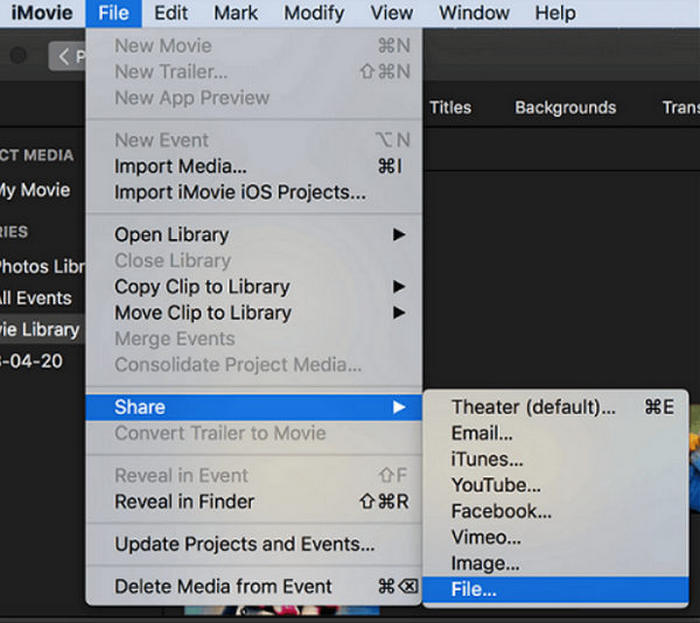
Langkah 5. Setelah menambahkan file JPG ke timeline, Anda dapat menyeret sudut klip untuk memperpanjang durasi file MP4 akhir Anda. Lalu, klik menu File di bagian atas, pilih Share, dan pilih File untuk mengekspor file Anda.
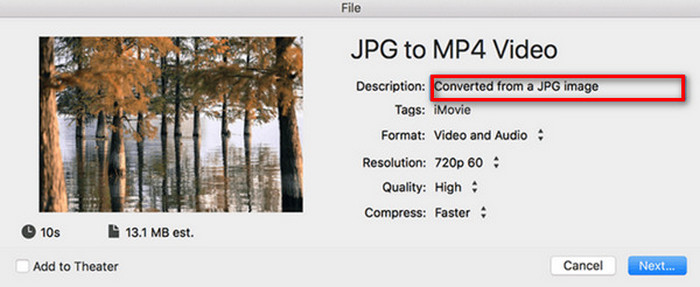
Langkah 6. Terakhir, beri nama file MP4 Anda di bagian atas, isi kolom metadata lain untuk file video, lalu klik Next. Pilih lokasi yang diinginkan untuk menyimpan file MP4 yang ingin Anda konversi. Setelah Anda memilih lokasi, proses konversi akan dimulai.
iMovie menawarkan cara yang praktis bagi pengguna Mac untuk mengonversi file JPG ke MP4 dengan antarmuka yang ramah pengguna dan alat pengeditan yang terintegrasi. Namun, iMovie mungkin tidak memiliki fitur-fitur lanjutan seperti alat konverter lainnya, sehingga opsi kustomisasi dan efek menjadi terbatas. Meskipun cocok untuk pengeditan dasar, pengguna sekarang semakin kompetitif dan kreatif, sehingga mencari alat yang benar-benar dapat memenuhi kebutuhan dan ekspektasi semua orang. Selain itu, alat ini tidak dapat digunakan di Windows. Jika Anda menyukai iMovie, temukan alat iMovie untuk Windows di sini.
Bagian 4: Konversi JPG ke MP4 Online
Nah, jika Anda mencari cara lain untuk mengonversi JPG ke MP4, maka mengonversinya secara daring mungkin cocok untuk Anda. Salah satu konverter daring terbaik untuk ini adalah Online Convert.com. Anda dapat menjalankan alat ini dari berbagai peramban di komputer Anda, dan alat ini dapat digunakan dengan mudah karena antarmuka penggunanya yang intuitif.
Langkah 1. Di browser Anda, cari situs Online Convert.com.
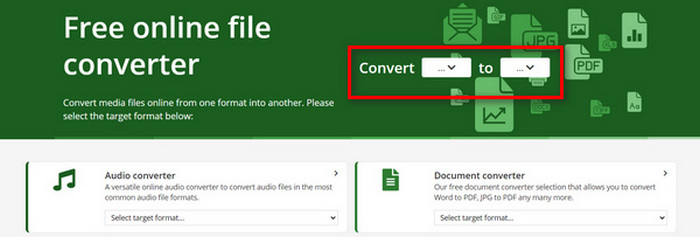
Langkah 2. Setelah Anda berada di situs mereka, pilih format yang sesuai. Karena Anda akan mengonversi JPG ke MP4, pilih JPG dari tombol tarik-turun Convert dan MP4 dari tombol tarik-turun To.
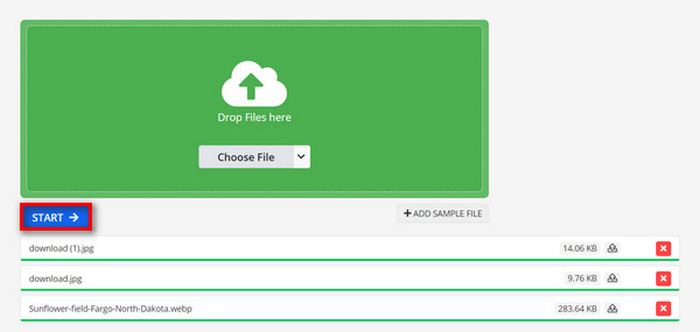
Langkah 3. Setelah itu, unggah file JPG yang ingin Anda konversi dengan mengklik tombol tarik-turun Choose File, di mana Anda dapat mengimpor file dari Perangkat (Device), Dropbox, Google Drive, bahkan dari URL.

Langkah 4. Selanjutnya, setelah mengunggah file JPG yang ingin dikonversi ke MP4, klik tombol Start.
Langkah 5. Terakhir, unduh file MP4 Anda dengan mengklik tombol Download.
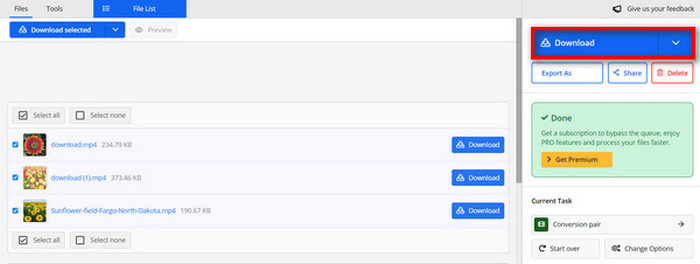
Hasil konversi dari alat ini merupakan hasil dari pengaturan video yang telah ditetapkan sebelumnya yang disesuaikan secara manual oleh pengguna sebelum mengonversi file. Meskipun alat ini dapat dengan mudah mengubah JPG menjadi MP4, Anda tidak dapat secara langsung menyempurnakan video yang dikonversi berdasarkan gaya kreatif Anda.
Bagian 5: FAQ tentang Konversi JPG ke MP4
Apakah JPEG sama dengan JPG?
JPEG dan JPG pada dasarnya adalah format gambar digital yang sama, dengan kedua ekstensi file tersebut mengacu pada format JPEG yang dibuat oleh Joint Photographic Experts Group atau JPEG. Pelajari di sini cara mengonversi JPEG ke JPG.
Kapan saya harus mengonversi JPG ke MP4?
Anda harus mengonversi JPG ke MP4 saat ingin membuat presentasi visual atau membagikan serangkaian gambar sebagai video, seperti membuat tayangan slide, album foto digital, atau slide video. Selain itu, jika Anda ingin berkreasi dengan cara file JPG Anda ditampilkan, mengonversinya ke MP4 adalah cara terbaik untuk menambahkan transisi, musik, hamparan teks, dan elemen multimedia lainnya.
Bagaimana cara menggabungkan JPG dan MP4?
Satu-satunya cara untuk menggabungkan JPG dan MP4 adalah dengan menggunakan alat penyunting video. Dengan pendekatan ini, Anda memiliki kendali penuh atas pengaturan, pengaturan waktu, dan penyesuaian gambar dan video yang ingin Anda gabungkan.
Kesimpulan
Sekarang giliran Anda! Mengonversi JPG ke MP4 adalah cara lain untuk menyimpan kenangan secara kreatif. Jadi, jika Anda memiliki file JPG dan ingin mengonversinya, ikuti semua metode yang telah dipaparkan di artikel ini dan pilih yang paling sesuai dengan Anda. Mulailah hari ini dan lihat sendiri keajaibannya!
-
 5 Tutorial Terkemuka untuk Mengonversi PNG ke JPG dengan Cepat
 Jika Anda perlu mengonversi file PNG ke format JPG, Anda dapat mempelajari cara terbaik di sini. Anda juga akan mempelajari perbedaan antara format file PNG dan JPG.
-
 Metode Mudah tentang Cara Mengonversi Format SVG ke JPG
 Menemukan cara terbaik untuk mengonversi SVG ke JPG? Posting ini akan memberikan beberapa tutorial jitu yang bisa Anda coba. Anda juga akan menemukan konverter SVG ke JPG untuk Anda.
-
 Metode Berguna tentang Cara Mengonversi TIFF ke JPG/PNG dengan Mudah
 Jangan lewatkan cara luar biasa ini untuk mengubah format TIF ke JPG/PNG. Posting ini akan memberikan informasi yang perlu Anda ketahui. Termasuk perbedaan mereka.
