


 Video Converter Ultimate
 Perekam Layar
 Perbaikan Video
 Unduhan Aman
Cara Mengonversi WebP ke MP4 di PC untuk Output Video Animasi
There are various reasons why we convert WebP to MP4. One of the main reasons is that when you have a collection of animated pictures in the WebP format, your devices do not support it. It is frustrating to know that you cannot enjoy your own files on your own device. For that reason, most users in the same situation chose to transform their WebP files into a format such as MP4 to make their digital stuff more compatible and smaller. But how will you do it for the first time? Fortunately, this post gathered the decent converters that will help you on this big time. Also, we added a professional approach to help you on this matter as well.

Bagian 1. Cara Mengonversi WebP ke MP4 Online
Bagian ini akan memperkenalkan 3 solusi terbaik kami untuk mengonversi WebP ke MP4 daring.
1.EZGIF
Solusi daring teratas yang pertama adalah EZGIF. Ini adalah alat praktis tanpa biaya yang dapat Anda akses di web. Alat ini membantu Anda membuat, mengubah, dan menyempurnakan GIF. Namun, alat ini tidak hanya menangani GIF karena alat ini juga menangani format WebP, AVIF, dan APNG. Lebih jauh lagi, EzGIF memungkinkan Anda mengganti format-format ini dengan GIF, JPG, PNG, dan, tentu saja, MP4. Seperti namanya, EZGIF bertujuan untuk mempermudah segalanya. Baik Anda ingin membuat gambar animasi atau mengubah animasi menjadi video, alat ini siap membantu Anda. Dengan demikian, Anda juga dapat menggunakannya untuk mengganti file WebP, baik yang diam maupun yang bergerak, ke MP4. Oleh karena itu, berikut adalah langkah-langkah mudah yang dapat diikuti dengan EZGIF.
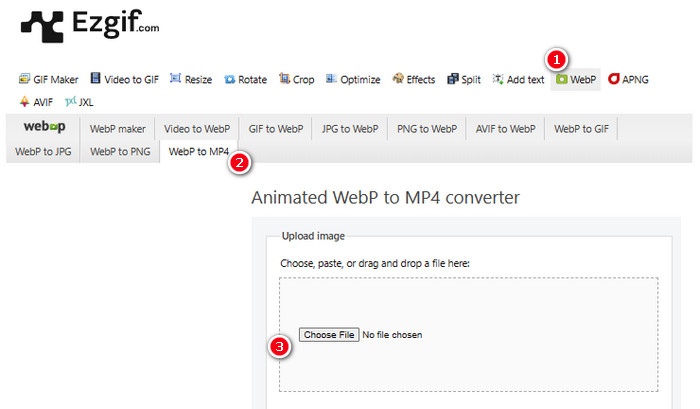
Step 1. On the EZGIF website, navigate to the WebP>WebP to MP4 tool to access its WebP to MP4 converter. Once there, click the Choose File button to upload your WebP file.
Step 2. After uploading the WebP file, you may now proceed to the conversion process. Click the Convert button to start.
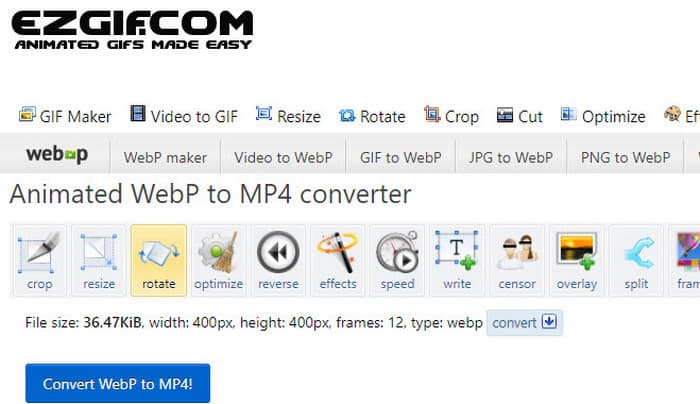
Step 3. When done, download your newly converted file.
2. MConverter
Alat berikutnya adalah MConverter. Konverter ini adalah alat yang sangat praktis di web yang membantu Anda mengubah berkas dari satu jenis ke jenis lainnya. Hebatnya, jika Anda memiliki banyak gambar WebP yang ingin diubah menjadi video MP4, MConverter memungkinkan Anda melakukannya sekaligus. Bukankah ini menghemat banyak waktu? Selain itu, alat ini memiliki banyak format yang dapat ditanganinya - seperti video, lagu, gambar, subtitel, dll. Namun, ada kendala dengan versi gratisnya - alat ini hanya memungkinkan Anda mengonversi berkas hingga ukuran 200MB. Sementara itu, mari kita lihat cara kerja MConvert saat Anda mengonversi WebP ke MP4 dengannya.
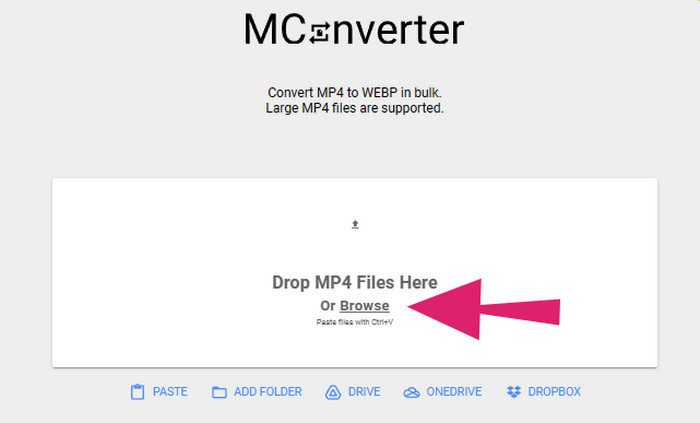
Step 1. On the online tool, click the Browse button to upload the WebP files you need to convert.
Step 2. When the file is successfully uploaded, click the MP4 format among the selections given.
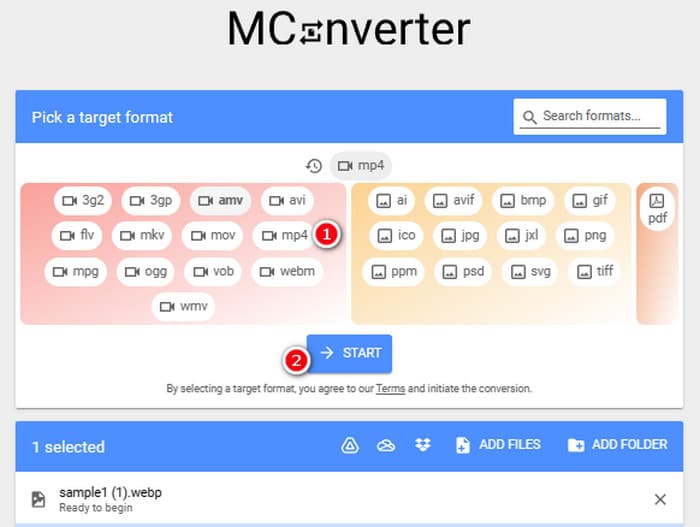
Step 3. Then, click the START button to execute the conversion.
3. Konversi Online
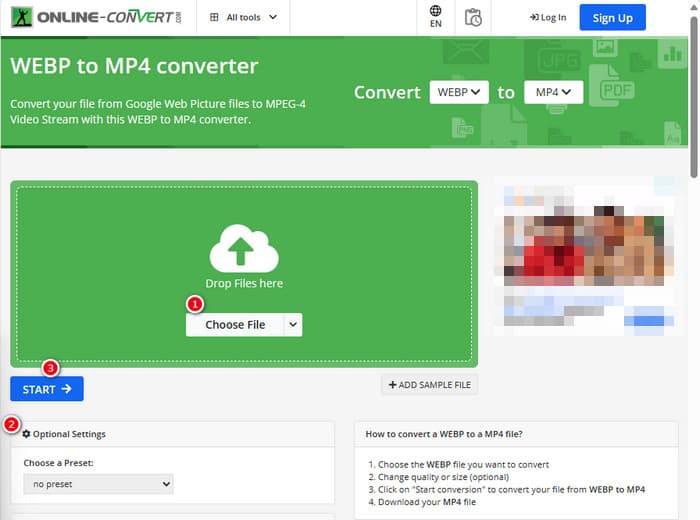
Terakhir, biarkan Online Convert mengisi posisi online terakhir. Online Convert ini adalah konverter luar biasa yang dapat mengubah hampir semua jenis berkas media untuk Anda. Meskipun demikian, Anda tidak akan dikenai biaya sepeser pun untuk konversi apa pun yang ingin Anda lakukan selama alat ini mendukungnya. Selain itu, alat ini bekerja cukup cepat, kecuali saat internet Anda bermasalah. Sekarang, jika Anda ingin mengubah berkas WebP menjadi MP4, Anda dapat melakukannya di situs web mereka. Tidak hanya itu, Anda dapat mengubah parameter video seperti ukuran, frame rate, dan kualitasnya, bahkan membaliknya, memangkasnya, atau memotong bagian yang tidak Anda perlukan. Jadi, jika berkas WebP Anda siap untuk diubah, segera ikuti langkah-langkah di bawah ini.
Step 1. Make sure to use the WebP to MP4 converter tool once you reach the official website.
Step 2. Click the Choose File button and bring the Webp file in. Then, you may choose to tweak it by using the settings given in the interface.
Step 3. Otherwise, click the START button to initiate the conversion process.
Bagian 2. Pendekatan Profesional untuk Mengonversi File WebP Menjadi MP4: FFmpeg
For an expert approach to converting an image file into a video, you can use FFmpeg. It is a powerful software tool used for processing multimedia files. This program allows you to convert audio, video, and image formats between a wide variety of codecs. However, it works with a command line approach, making it punishing for beginners. Hence, here are the simplified steps that you can follow. For your information, FFmpeg, as a professional video transcoder, can even repair corrupted videos as well.
Step 1. Open the FFmpeg after installing it on your PC. Then, start by pressing CD to initiate the command prompt.
Step 2. You can now navigate to the directory that contains the WebP file. Then, use the command ffmpeg -i input.webp output.mp4.
Step 3. Start the conversion process by pressing the ENTER key from your keyboard.

Bagian 3. Tip Bonus: Cara Terbaik Mengonversi File MP4 ke Jenis Video/Audio Apa Pun Secara Online
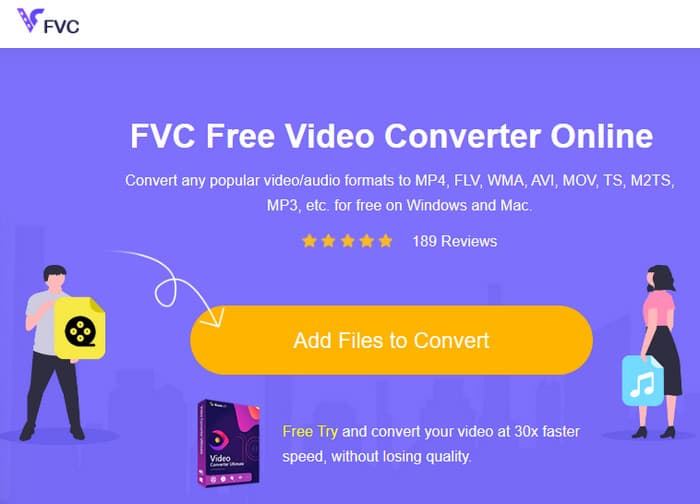
How about converting your MP4 files to your desired video and audio formats online? Well, that would be simple, quick, and efficient if you use FVC Free Video Converter Online. It is your free solution that lets you change your videos in MP4 format into different video and audio formats like WMV, MOV, FLV, AVI, MKV, AAC, MP3, WAV, and more. Also, you can easily convert your high-definition videos to smaller MP4s without losing quality. Even better, you can convert multiple files at once while enjoying the entire process to be easy and fast. Plus, there's no need to worry about watermarks on your videos or losing any data during the conversion because this online converter commits to providing you with clean and safe outputs! Here are the three easy steps to convert your MP4 files to various format types.
Step 1. Click the Add Files to Convert tab upon reaching the website. This will enable you to upload the MP4 files.
Step 2. After the file importation process, set the files to your desired output format.
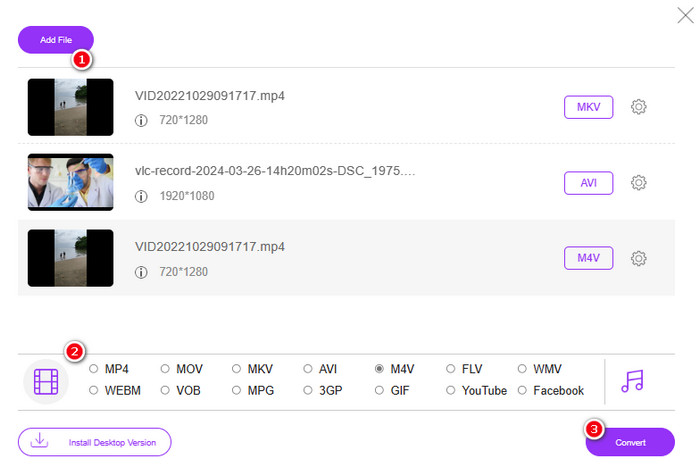
Step 3. As soon as they are set, click the Convert button to begin the conversion.
Berikut ini beberapa tips untuk konversi gambar ke MP4.
Extended Reading
How to Convert VLC to MP4: the Fastest Procedures to Master
Effortlessly Convert iPhone Videos to MP4 on PC Without Quality Loss
Bagian 4. FAQ tentang Konversi Webp dan MP4
Mengapa saya harus mengonversi berkas gambar seperti WebP ke video seperti MP4?
-Anda harus mengubah gambar menjadi video demi kompatibilitas yang lebih luas dan tujuan pelestarian.
Bisakah gambar dalam format WebP ditampilkan di semua peramban web?
-Tidak. Beberapa browser lama, khususnya Internet Explorer, tidak mendukung WebP secara bawaan. Namun, browser modern mendukung untuk menampilkannya.
Bagaimana cara mengonversi gambar ke WebP?
-Anda harus menggunakan pembuat WebP khusus. Selain itu, ada beberapa alat dan pustaka yang tersedia untuk mengonversi gambar ke format WebP.
Kesimpulan
With the WebP to MP4 converters presented above, your conversion experience will now be straightforward. Thus, the three commonly employed methods are used to achieve the desired conversion. If you encounter difficulties managing the process in one of them, feel free to do the conversion with the rest.
-
 Pelajari Pendekatan termudah untuk Mengonversi WebP ke JPG dengan Cepat
 Mari kita semua mempelajari cara efektif untuk mengonversi gambar Web ke JPG dengan mudah. Artikel ini akan memberi Anda pengonversi gambar luar biasa yang dapat Anda gunakan untuk mengonversi file gambar.
-
 Metode Sempurna untuk Mengonversi WebP ke PNG dengan Mudah
 Ketahuilah tentang metode luar biasa untuk mengonversi WebP ke PNG. Panduan ini akan memberi Anda pengonversi gambar paling berguna yang dapat Anda coba.
-
 Metode Utama tentang Cara Mengonversi WebP ke GIF dengan Sempurna
 Apakah Anda ingin mengonversi WebP ke GIF tetapi tidak tahu apa yang harus dilakukan? Untungnya, postingan ini akan menyajikan berbagai cara tentang cara mengonversi WebP ke GIF secara instan.
