


 Video Converter Ultimate
 Perekam Layar
 Perbaikan Video
 Unduhan Aman
Panduan Lengkap Mengekspor DaVinci Resolve sebagai MP4
DaVinci Resolve adalah editor video terkemuka di industri yang terkenal karena fitur-fitur canggihnya dalam gradasi warna dan efek visual. Ini adalah pilihan utama bagi banyak studio pascaproduksi profesional karena kemampuan renderingnya yang luar biasa, memastikan video dihasilkan dalam kualitas terbaik.
Namun, meskipun DaVinci Resolve adalah alat yang sangat kuat, fitur kelas profesional dan pengaturan ekspor yang kompleks sering kali terasa membingungkan bagi pengguna. Jika Anda kesulitan menavigasi opsi ekspornya atau berakhir dengan file yang tidak bisa dibuka oleh pemutar media biasa, Anda tidak sendirian. Namun jangan khawatir! Dalam panduan ini, kami akan memandu Anda melalui proses cara mengekspor DaVinci Resolve ke MP4.
Mari selami dan pastikan video Anda siap diputar lancar di perangkat apa pun!

Bagian 1: Cara Mengekspor DaVinci Resolve sebagai MP4
Ada dua cara untuk mengekspor proyek DaVinci Resolve sebagai file MP4, masing-masing dengan manfaat dan pertimbangannya sendiri. Memahami metode ini sangat penting bagi siapa pun yang bekerja dengan DaVinci Resolve, karena metode ini memastikan video akhir Anda kompatibel dan dapat diputar dengan berbagai perangkat dan platform.
Metode 1: Ekspor MP4 Secara Langsung
Dengan metode ini, Anda tidak perlu menavigasi melalui pengaturan ekspor lanjutan. Sebaliknya, DaVinci Resolve menawarkan opsi praktis untuk mengekspor proyek Anda dengan cepat langsung ke format MP4. Ikuti langkah-langkah berikut:
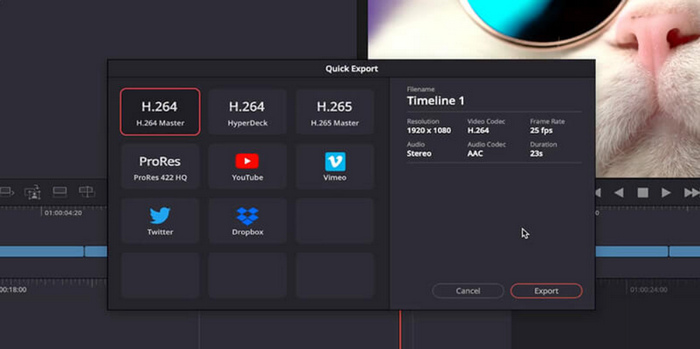
Langkah 1. Klik tab File di bilah menu DaVinci Resolve.
Langkah 2. Pilih Quick Export dari menu dropdown.
Langkah 3. Terakhir, pilih lokasi penyimpanan dan beri nama file tersebut.
Jadi, jika Anda mencari cara cepat untuk mengekspor video DaVinci Resolve Anda, yang tidak memerlukan modifikasi dan manipulasi apa pun untuk hasil kualitas output, maka metode ini mungkin ideal untuk Anda. Namun, ini hanya tentang penyimpanan cepat file dan tidak menjamin kompatibilitas saat diputar ke pemutar media dan platform lain.
Selain itu, jika Anda tidak berlangganan DaVinci Resolve, akan ada watermark pada file yang diekspor. Untuk menghilangkan watermark DaVinci Resolve, silakan lihat postingan ini.
Metode 2: Ubah Pengaturan Ekspor
Sementara itu, mengekspor DaVinci Resolve sebagai MP4 dengan mengubah pengaturan ekspor memungkinkan kustomisasi dan kontrol yang lebih besar atas hasil akhir. Berikut cara melakukannya:
Langkah 1. Pertama, pergi ke bagian bawah layar Anda dan klik tab Delivery.
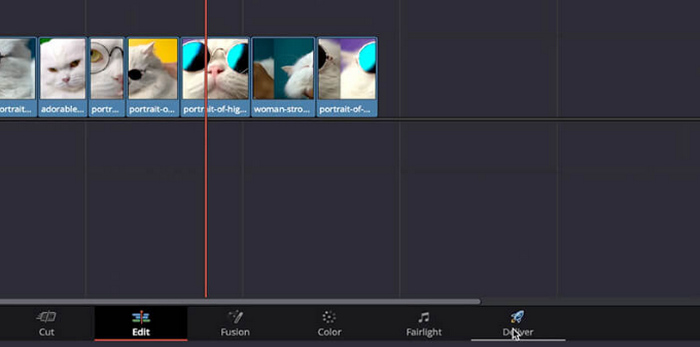
Langkah 2. Selanjutnya, klik tombol Custom Export. Dari sana, ketik nama file Anda dan pilih lokasinya.
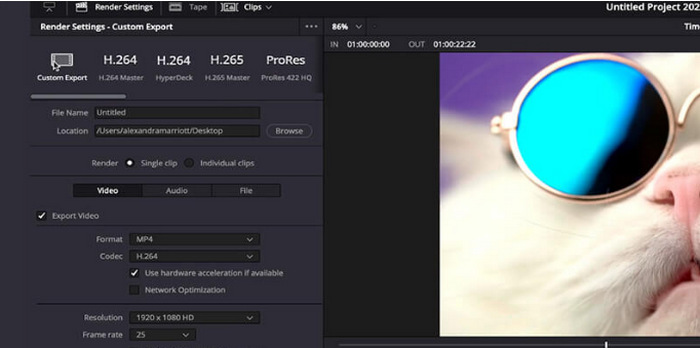
Langkah 3. Setelah itu, pergi ke Format dan buka menu dropdown. Pilih MP4 dari opsi format yang tersedia.
Langkah 4. Pada bagian format, Anda akan menemukan berbagai opsi sehingga Anda bisa memilih antara resolusi 1920 hingga 4K, sesuai pilihan Anda.
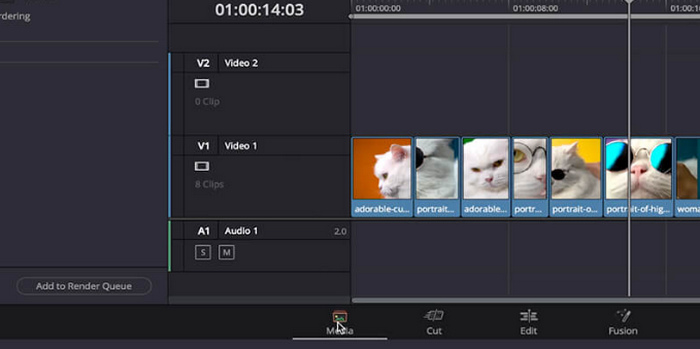
Langkah 5. Setelah itu, untuk mengubah bitrate, pergi ke bagian Quality dan klik Restrict.
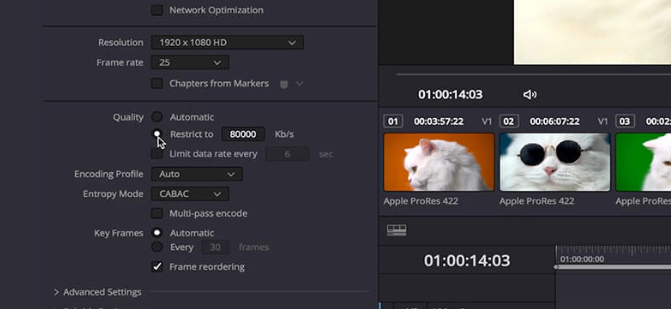
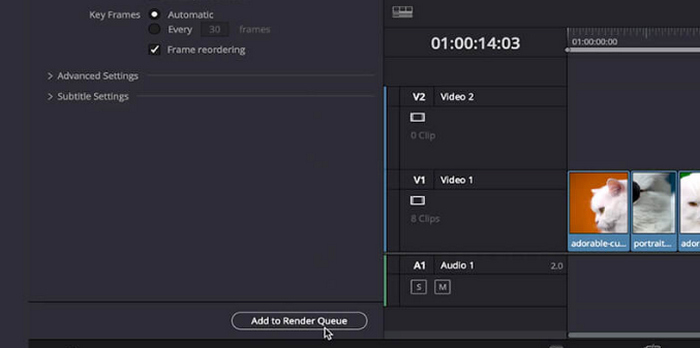
Langkah 6. Sekarang, klik Add Render Queue.
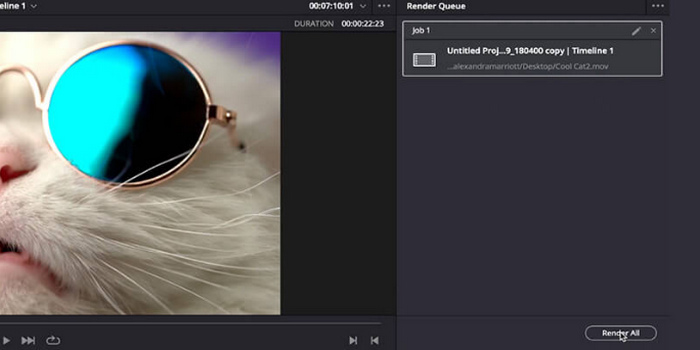
Langkah 7. Terakhir, klik Render All, dan video Anda akan mulai diekspor.
Meskipun ini mungkin menawarkan banyak hal dalam menyesuaikan hasil proyek Anda, metode ini mungkin sedikit rumit bagi mereka yang baru menggunakan alat ini.
Bagian 2: Apa yang Harus Dilakukan Saat DaVinci Resolve Tidak Mengekspor MP4
Ketika DaVinci Resolve gagal mengekspor ke MP4, cara terbaik untuk mengatasinya adalah dengan menggunakan alat konverter. FVC Free Video Converter Online adalah alat konverter video dan audio gratis yang digunakan pengguna untuk mengonversi file ke format keluaran yang diinginkan. Selain itu, alat ini mendukung berbagai format seperti MP4, jadi jika Anda perlu mengonversi video DaVinci ke format lain, alat ini akan sangat bermanfaat. Lebih lanjut, Anda dapat mengatur resolusi hingga 1080p, sehingga memastikan kualitas tetap terjaga selama dan setelah proses konversi.
Langkah 1. Pertama, impor video DaVinci Resolve yang tidak bisa diekspor sebagai MP4 dengan mengklik tombol Add Files to Convert.
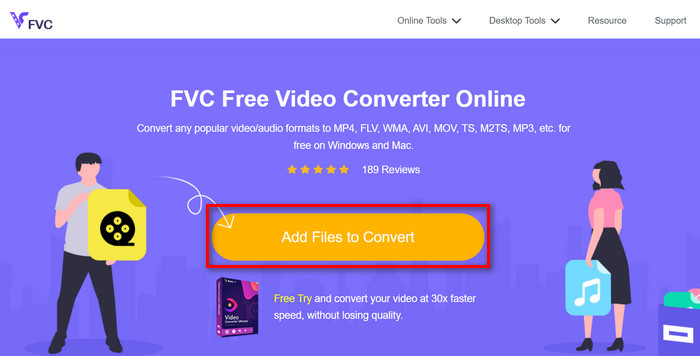
Langkah 2. Selanjutnya, pilih MP4 sebagai format keluaran yang Anda inginkan di samping opsi dropdown output di sisi kanan. Sementara itu, jika Anda ingin mengatur resolusi, video encoder, bitrate, dan lain-lain secara manual, cukup klik ikon Gear di samping format keluaran. Setelah selesai, klik tombol OK.
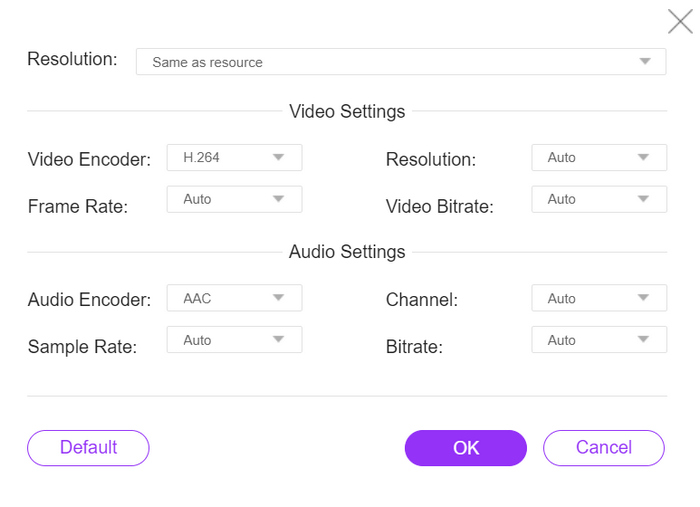
Langkah 3. Terakhir, untuk memulai proses konversi, klik tombol Convert.
FVC Free Video Converter Online memang merupakan alternatif terbaik saat DaVinci Resolve export MP4 tidak berfungsi. Dibandingkan dengan alat konverter gratis lainnya, alat ini benar-benar berfungsi dengan baik.
Bagian 3: FAQ tentang Mengekspor DaVinci Resolve sebagai MP4
Berapa lama waktu yang dibutuhkan untuk mengekspor video dari DaVinci Resolve sebagai MP4?
Waktu ekspor bervariasi tergantung pada beberapa faktor seperti panjang video, resolusi, dan daya pemrosesan komputer Anda. Umumnya, mengekspor video dari DaVinci Resolve ke format MP4 dapat memakan waktu mulai dari beberapa menit hingga beberapa jam untuk proyek yang lebih besar.
Apa yang harus saya lakukan jika file MP4 yang saya ekspor dari DaVinci Resolve tidak dapat diputar di perangkat saya?
Jika Anda mengalami masalah pemutaran dengan berkas MP4 yang diekspor, coba gunakan pemutar media lain atau konversi berkas video ke format lain menggunakan alat konverter video, seperti FVC Video Converter Ultimate. Selain itu, pastikan perangkat lunak perangkat Anda mutakhir dan kompatibel dengan format MP4.
Apakah ada cara untuk mengoptimalkan pengaturan ekspor di DaVinci Resolve agar proses rendering lebih cepat?
Ya, Anda dapat mengoptimalkan pengaturan ekspor di DaVinci Resolve untuk mengurangi waktu rendering. Pertimbangkan untuk menurunkan resolusi video, menyesuaikan pengaturan bitrate, dan menonaktifkan efek atau penyempurnaan yang tidak diperlukan untuk memperlancar proses ekspor.
Dapatkah saya mengekspor proyek DaVinci Resolve saya langsung ke platform media sosial?
Ya, DaVinci Resolve menawarkan integrasi bawaan dengan platform media sosial populer seperti YouTube dan Twitter. Setelah memilih opsi Ekspor Cepat, Anda dapat memilih untuk mengunggah video Anda langsung ke platform ini dari dalam jendela ekspor, sehingga menghemat waktu dan kerepotan Anda.
Kesimpulan
Selesai! Sekarang Anda sudah mengetahui cara mengekspor DaVinci Resolve ke MP4. Baik Anda memilih metode quick export yang sederhana maupun pengaturan ekspor yang lebih mendetail untuk kustomisasi, Anda sudah siap membuat video MP4 berkualitas tinggi yang sesuai dengan kebutuhan Anda. Dan jika sewaktu-waktu DaVinci Resolve mengalami kendala saat mengekspor, Anda kini memiliki solusinya melalui FVC Free Video Converter Online.
Apa yang Anda tunggu? Ikuti panduan ini sekarang!
-
 DaVinci Resolve Speed Editor – Ulasan, Fitur, dan Alternatif
 DaVinci Resolve Speed Editor adalah editor kecepatan video terbaik yang dapat Anda temukan. Baca artikel ini untuk mengetahui fungsi, harga, dan alternatif alat ini.
-
 Pengonversi VOB ke MP4 Fantastis yang Tidak Harus Anda Lewatkan
 Temukan konversi VOB ke MP4 tanpa hambatan menggunakan program yang kuat dan efektif. Dengan mudah mengonversi file video Anda dari format VOB ke MP4 yang kompatibel secara universal.
-
 Konverter MPG ke MP4 Gratis Terbaik Tahun 2025 (Ulasan Mendalam)
 Mengapa Anda perlu mengubah MPG ke MP4? Dapatkan jawabannya di posting ini dan ketahui pengonversi MPG ke MP4 peringkat tinggi di pasar.
