


 Video Converter Ultimate
 Perekam Layar
 Perbaikan Video
 Unduhan Aman
Cara Mengonversi File Video FLV Anda ke Format AVI di PC / Mac
Panduan ini berfokus pada cara mengonversi FLV ke AVI dengan perangkat lunak desktop dan aplikasi online. Ada banyak alasan mengapa Anda perlu mengonversi video FLV Anda. FLV dikembangkan untuk mendistribusikan konten video secara online, tetapi bukan untuk diputar di perangkat digital. Saat Anda ingin menonton FLV di komputer, Anda harus mengubahnya ke format video lain. Selain itu, mengonversi FLV ke format video tidak terkompresi adalah ide yang baik untuk mengedit file video Anda.

Bagian 1: Top 2 Cara Gratis untuk Mengkonversi FLV ke AVI
Metode 1: Konversi FLV ke AVI dengan Konverter FLV Gratis
Saat mengonversi FLV ke AVI, Anda mungkin khawatir tentang beberapa faktor, seperti kualitas output, kemudahan penggunaan, dan lain-lain. FVC Free FLV Converter adalah pilihan terbaik. Meskipun gratis, Anda akan mendapatkan banyak fitur setingkat profesional tanpa perlu keterampilan teknis yang rumit. Selain itu, ia menyediakan banyak alat bonus, seperti pengeditan video.
Fitur Utama Konverter FLV Terbaik Best
- 1. Mengkonversi video FLV ke format multimedia lainnya dengan mudah.
- 2. Mendukung hampir semua format video, seperti AVI, MP4, MKV, dll.
- 3. Proses batch ratusan file FLV per konversi.
Unduh GratisUntuk Windows 7 atau yang lebih baruUnduhan Aman
Unduh GratisUntuk MacOS 10.7 atau yang lebih baruUnduhan Aman
Cara Mengonversi FLV ke AVI di Desktop Gratis
Langkah 1: Tambahkan file FLV
Setelah Anda memasang konverter FLV gratis terbaik di komputer, jalankan program tersebut. Perangkat lunak ini kompatibel dengan PC dan Mac. Klik menu Add File(s) di sudut kiri atas untuk membuka kotak dialog pilih file. Lalu cari dan pilih video FLV di komputer Anda, dan klik tombol Open untuk menambahkannya.

Langkah 2: Edit video dan atur format
Jika Anda ingin mengubah file video, pilih file FLV dan klik menu Edit. Lalu Anda akan dibawa ke jendela editor video. Ikuti petunjuk di layar untuk mengeditnya dan kemudian kembali ke antarmuka utama.
Klik menu tarik-turun Format keluaran di bagian bawah antarmuka utama untuk membuka dialog profil. Kemudian cari AVI dan pilih di tab General Video.

Langkah 3: Konversi FLV ke AVI
Klik ikon tiga titik di sebelah kolom Output folder dan pilih folder tertentu untuk menyimpan file AVI. Terakhir, klik tombol Convert untuk mulai mengonversi FLV ke AVI segera.

Metode 2: Cara Mengonversi FLV ke AVI dengan VLC
VLC jauh lebih dari sekadar pemutar media sederhana. Anda dapat menemukan banyak fitur berguna termasuk konversi video. Sebagai proyek sumber terbuka, VLC memungkinkan Anda mengonversi FLV ke AVI secara gratis. Selain itu, VLC mampu memperbaiki video AVI yang rusak.
Langkah 1: Buka konverter FLV gratis. Jika Anda belum memiliki VLC, unduh terlebih dahulu secara gratis dari situs resminya.
Langkah 2: Buka menu Media dari pita menu di bagian atas dan pilih Convert/Save. Pilih Convert/Stream dari menu File di Mac.
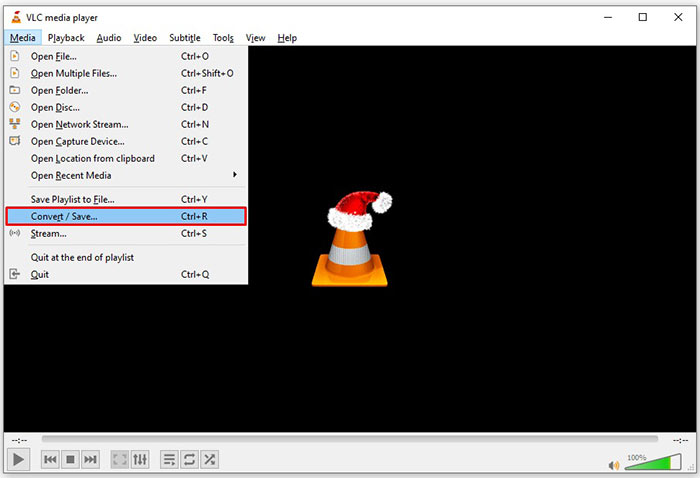
Langkah 3: Klik tombol Add pada dialog media yang terbuka dan tambahkan file FLV yang ingin Anda konversi.
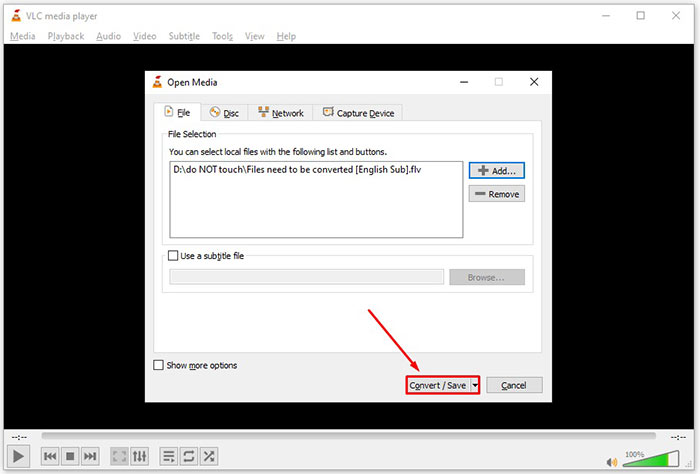
Langkah 4: Lalu klik tombol Convert/Save untuk masuk ke dialog berikutnya.
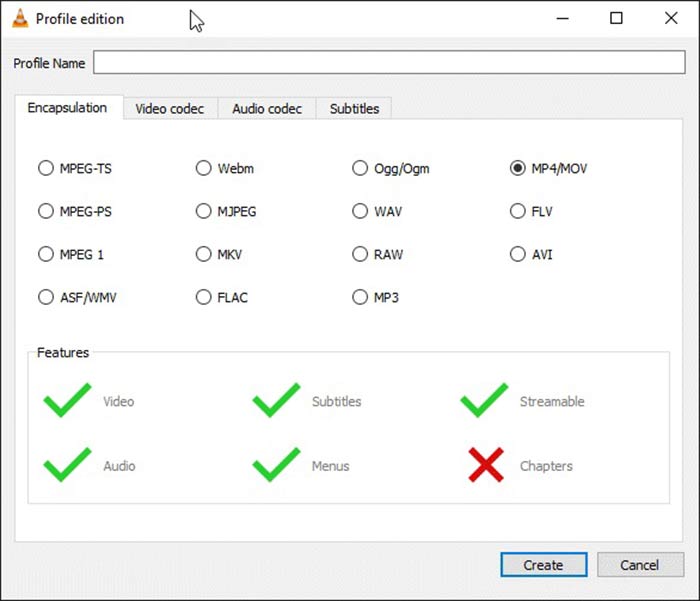
Langkah 5: Buka daftar dropdown Profile dan pilih AVI. Jika Anda tidak dapat menemukannya, klik tombol ketiga di sebelah Profile. Ini akan membuka dialog Profile edition. Pilih AVI dan tuliskan sebuah Profile Name. Klik Create untuk mengonfirmasi. Lalu pilih item baru dari Profile.
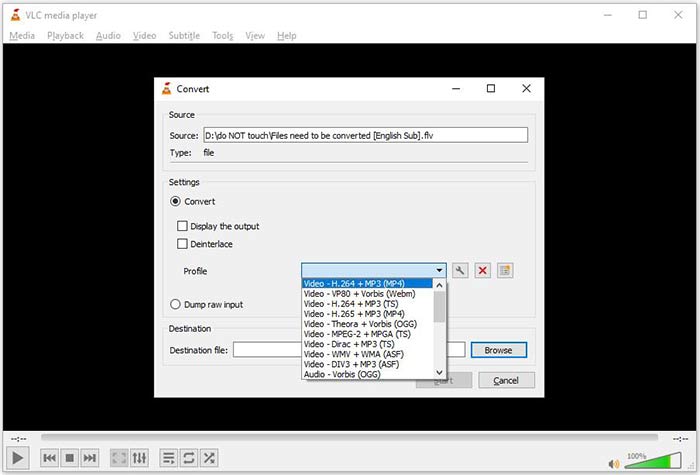
Langkah 6: Atur folder keluaran dengan menekan tombol Browse. Klik tombol Start dan VLC akan mengonversi FLV ke AVI.
Jangan Lewatkan:
- • 3 Cara Teratas untuk Mengonversi FLV ke MOV
- • Cara Mengkonversi Video FLV Anda ke File Audio MP3 di Desktop dan Online
Bagian 2: Cara Mengonversi FLV ke AVI Online
Terkadang, Anda hanya perlu mengonversi FLV ke AVI secara online sesekali. Selain itu, sebagian orang tidak suka memasang perangkat lunak. FVC Free Online Video Converter dapat memenuhi kebutuhan Anda. Alat ini bekerja secara online, namun sudah cukup untuk mengonversi beberapa file FLV ke AVI. Berbeda dengan aplikasi web lain, alat ini tidak memiliki batasan ukuran file, watermark, dan sebagainya.
Langkah 1: Kunjungi https://www.free-videoconverter.net/free-online-video-converter/ di browser ketika Anda perlu mengonversi video. Klik tombol Add Files to Convert dan unduh launchernya.
Unduh Versi Desktop untuk mengonversi file secara batch.
Langkah 2: Setelah diunduh, launcher akan muncul secara otomatis. Klik tombol Add File di sisi kiri atas dan unggah file FLV yang ingin Anda konversi. Lalu pilih AVI di bagian bawah.
Untuk mengubah resolusi, frame rate, dan parameter lainnya, klik ikon Gear untuk membuka dialog profil.
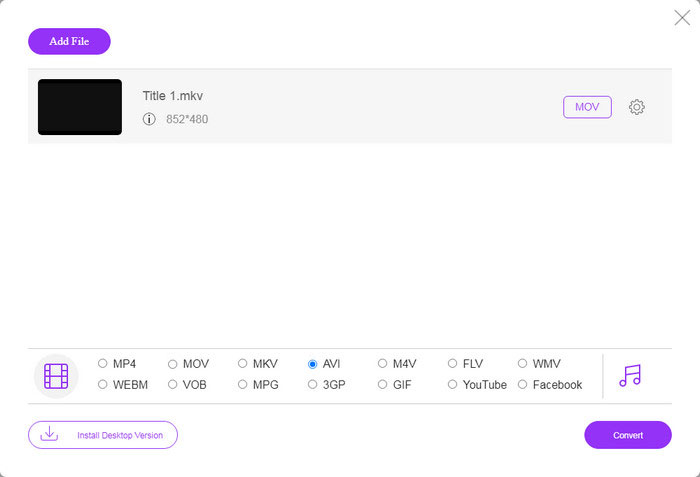
Langkah 3: Setelah Anda mengklik tombol Convert, aplikasi web akan bekerja sesuai keinginan Anda. Saat diminta, unduh file video AVI ke hard drive Anda.
Dibandingkan dengan pengonversi video web lainnya, Pengonversi Video Online Gratis bekerja dengan cepat, tetapi Anda juga memerlukan koneksi internet yang baik.
Format FLV dan AVI
Adobe Flash Player menggunakan FLV untuk mengirimkan konten video seperti film dan acara TV. Saat ini, Adobe tidak lagi mengembangkan pemutar dan merekomendasikan pengguna untuk menghapusnya karena alasan keamanan. Namun, Anda masih dapat menggunakan format FLV di banyak program non-Adobe/Macromedia.
Berdasarkan Resource Interchange File Format (RIFF), format AVI diperkenalkan oleh Microsoft pada tahun 1992. Ini dapat menyimpan video/audio berkualitas tinggi karena menggunakan lebih sedikit kompresi. Tapi itu juga menyebabkan ukuran file yang besar dari file AVI, yang mungkin menjadi masalah ketika ada ruang terbatas.
Bagian 3: FAQ tentang FLV ke AVI
Berapa lama saya harus menunggu untuk mengonversi FLV ke AVI?
Hal ini tergantung pada situasi Anda. Secara umum, sangat cepat untuk mengonversi video di desktop. Untuk alat online, koneksi internet Anda akan menentukan efisiensi.
Apakah aman untuk mengonversi FLV ke AVI secara online?
Sebagian besar aplikasi konverter FLV online berjanji untuk menghapus video Anda setelah mengonversi. Namun, Anda tidak boleh mengunggah video pribadi secara online kecuali Anda yakin aplikasi web 100% aman untuk digunakan.
Apakah AVI lebih baik dari FLV?
FLV adalah format video lossy sedangkan AVI adalah format video yang tidak terkompresi. Artinya file FLV lebih kecil dari AVI dalam kondisi yang sama. Namun, AVI memberikan kualitas video yang lebih baik. FLV digunakan untuk berbagi video secara online, sedangkan AVI adalah pilihan yang baik untuk mengedit video.
Kesimpulan
Panduan ini telah membagikan tiga cara untuk mengonversi file video FLV ke format AVI dengan perangkat lunak desktop dan aplikasi web. VLC adalah pemutar media dan pengonversi video gratis, meskipun sulit digunakan. Selain itu, Anda dapat melakukan pekerjaan secara online tanpa menginstal perangkat lunak apa pun. Namun, kami menyarankan Anda untuk mencoba FVC Free FLV Converter karena kualitas outputnya luar biasa. Plus, ini cukup mudah digunakan dan dinavigasi. Jika Anda memiliki pertanyaan lain terkait dengan konversi FLV ke AVI, silakan tinggalkan pesan di bawah posting ini.
-
 3 Cara Gratis untuk Mengonversi FLV ke WAV
 Bagaimana cara mengonversi file FLV? Bisakah VLC mengonversi FLV ke WAV? Posting ini memberi tahu 3 cara gratis untuk mengonversi FLV ke WAV tanpa kehilangan kualitas.
-
 3 Cara Gratis untuk Mengonversi FLV ke MPG
 Bagaimana cara mengubah FLV ke MPEG? Bisakah saya mengonversi FLV ke MPG secara gratis? Posting ini membagikan 3 konverter video gratis untuk membantu Anda mengonversi FLV ke MPG tanpa kehilangan kualitas.
-
 3 Cara Gratis untuk Mengonversi FLV untuk Bermain di Xbox
 Tidak dapat memutar file FLV di Xbox One atau Xbox 360? Perlu mengonversi format yang didukung FLV ke Xbox seperti MP4, AVI, MOV, atau WMV? Posting ini mencantumkan 3 konverter FLV ke Xbox gratis untuk Anda mainkan FLV di Xbox.

