


 Video Converter Ultimate
 Perekam Layar
 Perbaikan Video
 Unduhan Aman
Cara Mendapatkan Audio dari DVD [Metode Online dan Offline]
Jika Anda ingin mendengarkan trek audio favorit di DVD Anda tetapi dibatasi oleh kurangnya dukungan untuk formatnya oleh berbagai perangkat, jangan khawatir karena kami siap membantu Anda!
Kami memahami pentingnya mengonversi DVD ke MP3, karena DVD pernah menjadi format yang umum digunakan untuk menyimpan dan memutar konten audio. Namun, penggunaan cakram fisik terus menurun, dan format digital seperti MP3 telah menjadi pilihan yang lebih disukai karena fleksibilitasnya, kompatibilitasnya dengan berbagai perangkat, dan kemudahan penyimpanannya.
Oleh karena itu, jika Anda memiliki koleksi DVD lama yang ingin Anda digitalkan untuk keperluan pelestarian atau akses yang lebih mudah, mengonversinya ke MP3 adalah solusi terbaik. Dalam panduan ini, pelajari cara mendapatkan audio dari DVD secara efisien. Baik Anda lebih menyukai alat online yang cepat maupun solusi desktop yang lebih canggih, kami telah mengumpulkan opsi terbaik untuk membantu Anda memulai. Mari jelajahi berbagai cara untuk mengonversi audio DVD ke MP3!

Bagian 1. FVC memilih AnyMP4 DVD Ripper
Cara terbaik untuk mengonversi DVD ke MP3 adalah dengan AnyMP4 DVD Ripper pilihan FVC. Perangkat lunak konverter berfitur lengkap ini memungkinkan pengguna untuk menyalin musik dari DVD dengan mudah. Dengan dukungannya untuk berbagai format audio seperti MP3, AAC, AC3, AIFF, M4R, WAV, WMA, AMR, AU, FLAC, MP2, M4A, dan OGG, pengguna dapat menjamin kompatibilitas dengan berbagai perangkat dan pemutar media.
Selain dukungan formatnya yang luas, alat konverter DVD ke MP3 ini menawarkan konversi batch, yang memungkinkan pengguna menyalin beberapa trek audio DVD secara bersamaan. Perangkat lunak ini juga menyediakan opsi kustomisasi yang memungkinkan pengguna menyesuaikan bitrate, laju sampel, dan saluran audio dari konten audio DVD mereka. Terakhir, alat ini memiliki antarmuka yang ramah pengguna, sehingga proses konversi menjadi mudah bahkan bagi pemula.
Berikut cara mendapatkan audio dari DVD menggunakan AnyMP4 DVD Ripper pilihan FVC:
Unduh GratisUntuk Windows 7 atau lebih baruUnduhan Aman
Unduh GratisUntuk MacOS 10.7 atau lebih baruUnduhan Aman
Langkah 1. Pertama, Anda perlu mengunduh dan memasang perangkat lunak ini di komputer Anda. Selanjutnya, pastikan Anda sudah memasukkan DVD ke dalam drive DVD sebelum melanjutkan ke langkah berikutnya.
Langkah 2. Setelah DVD terbaca oleh perangkat Anda, luncurkan AnyMP4 DVD Ripper pilihan FVC dan klik tombol Getting Started yang ditandai dengan ikon plus di tengah untuk memuat DVD.
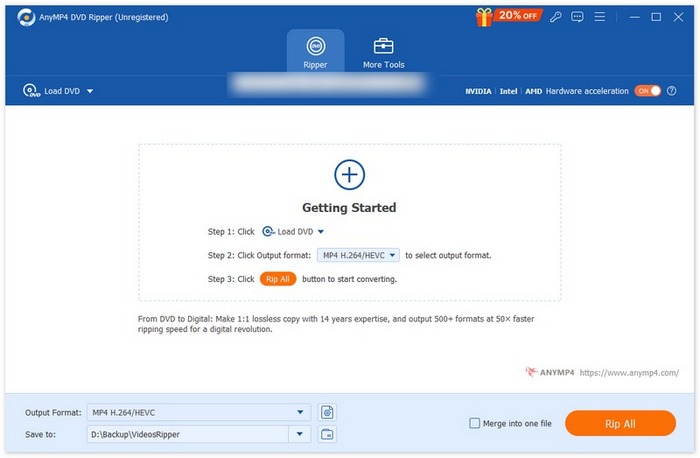
Langkah 3. Setelah itu, buka bagian Output Format di bawah, klik tab Audio, lalu pilih format audio sebagai MP3. Setelah dipilih, klik tombol Convert All untuk mengekstrak musik dari DVD.
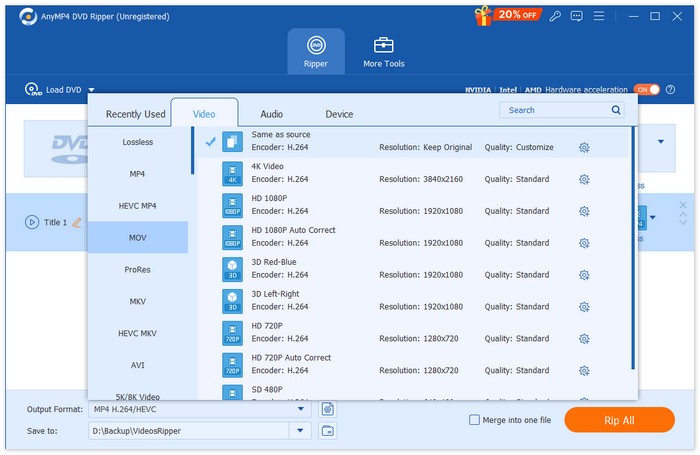
Selesai, hanya dengan beberapa klik, Anda dapat dengan mudah mengimpor berkas DVD, memilih format keluaran yang diinginkan, dan memulai ekstraksi. Oleh karena itu, FVC memilih AnyMP4 DVD Ripper sebagai metode terbaik untuk mengonversi DVD ke MP3.
Bagian 2. Konversi DVD ke MP3 [Gratis]
Sekarang, jika Anda mencari konverter DVD ke MP3 gratis, ada 2 alat yang dapat Anda periksa untuk kebutuhan ekstraksi audio Anda.
VLC Media Player
VLC Media Player pasti sudah tidak asing lagi bagi Anda. Alat ini dikenal karena kemampuannya memutar berbagai konten media, tetapi selain itu, ia juga mampu mengonversi DVD ke MP3. VLC mendukung sejumlah format audio seperti AAC, AC-3, DV Audio, FLAC, MP3, Speex, dan Vorbis. Namun, dibandingkan dengan alat konverter DVD ke MP3 khusus lainnya, proses di VLC mungkin terasa agak rumit, terutama bagi pemula. Meskipun demikian, alat gratis ini merupakan alternatif yang sangat baik untuk menyalin musik dari DVD.
Berikut cara mendapatkan audio dari DVD menggunakan VLC Media Player:
Langkah 1. Pertama, jika Anda belum memiliki alat ini di perangkat Anda, unduh dan pasang terlebih dahulu.
Langkah 2. Setelah itu, luncurkan alatnya, klik tab Media, lalu pilih Convert/Save dari opsi yang muncul.
Langkah 3. Di panel Open Media, klik Discs dan pilih DVD.
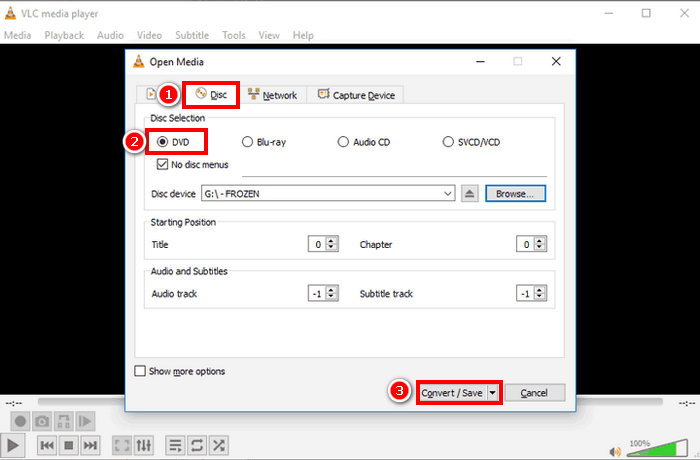
Langkah 4. Sekarang, klik tombol Convert/Save dan pilih format audio yang Anda inginkan.
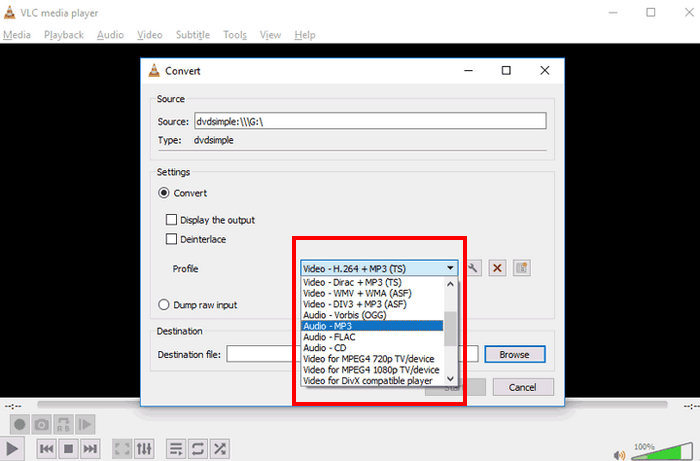
Langkah 5. Terakhir, klik tombol Browse untuk memilih folder tempat Anda ingin menyimpan audio hasil ekstraksi. Setelah itu, klik tombol Start untuk memulai proses ripping.
Meskipun proses mengonversi DVD ke MP3 dengan VLC memerlukan lebih banyak waktu dan langkah, dan format audio keluaran yang didukung mungkin terasa terbatas dibandingkan dengan alat konverter khusus lainnya, ini tetap merupakan alternatif hebat bagi mereka yang mencari alat konverter gratis, mengingat kemampuan dan fiturnya.
Tips: klik di sini untuk mempelajari lebih lanjut tentang perekaman audio dengan VLC jika Anda tertarik.
HandBrake
Alat konverter DVD ke MP3 gratis lainnya yang bisa Anda coba adalah HandBrake. Alat ini dikenal karena sifatnya yang gratis dan bersumber terbuka, memungkinkan pengguna mengonversi DVD ke berbagai format tanpa biaya. Meskipun utamanya dirancang untuk konversi video, alat ini juga memungkinkan pengguna mengekstrak audio dari DVD dengan menyesuaikan pengaturan output.
Berikut cara mendapatkan audio dari DVD menggunakan HandBrake:
Langkah 1. Pertama, di situs resmi mereka, unduh dan pasang HandBrake.
Langkah 2. Selanjutnya, masukkan DVD ke dalam drive DVD komputer Anda. Setelah terdeteksi, luncurkan alatnya.
Catatan: Setelah Anda meluncurkan alat ini, Anda seharusnya bisa melihat DVD Anda sedang dibaca.
Langkah 3. Sekarang, buka opsi Format dan pilih MKV, karena HandBrake tidak dapat langsung mengekstrak DVD ke format audio. Namun, format MKV adalah format terbuka yang mampu mendukung berbagai codec video dan audio.
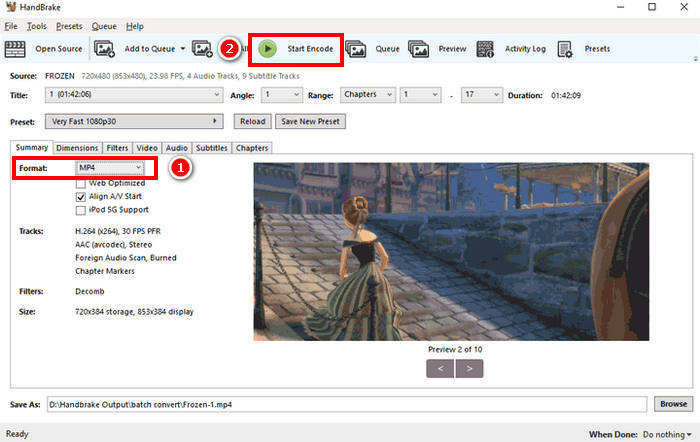
Langkah 4. Terakhir, klik Start Encode untuk mulai mengekstrak DVD Anda.
Masalahnya dengan HandBrake adalah ia tidak mendukung format keluaran audio langsung apa pun. Oleh karena itu, pengguna perlu menyesuaikan pengaturan keluaran atau menggunakan MKV sebagai format alternatif, karena mendukung beragam codec audio.
Bagian 3. Cara Mendapatkan MP3 dari DVD [Online]
Sementara itu, jika Anda lebih suka menghemat ruang penyimpanan di perangkat dan menginginkan kemudahan menyalin musik dari DVD tanpa perlu menginstal aplikasi perangkat lunak, metode daring mungkin cocok untuk Anda. Namun, satu masalah umum dengan metode daring adalah kebanyakan metode tidak dapat menangani DVD dan hanya mendukung berkas VOB.
Konversi Online Zamzar
Zamzar adalah alat konversi file online gratis yang memungkinkan pengguna mengonversi berbagai file media, termasuk DVD ke MP3. Konverter online ini mendukung format keluaran audio seperti MP3, AAC, M4A, WAV, OGG, dan lainnya. Selain itu, antarmuka penggunanya intuitif, sehingga proses konversi menjadi lebih mudah.
Berikut cara mendapatkan audio dari DVD menggunakan Zamzar Online Conversion:
Langkah 1. Pertama, buka situs resmi Zamzar Online Conversion.
Langkah 2. Setelah berada di antarmuka utama alat ini, klik tombol Choose Files untuk mengimpor file VOB dari DVD.
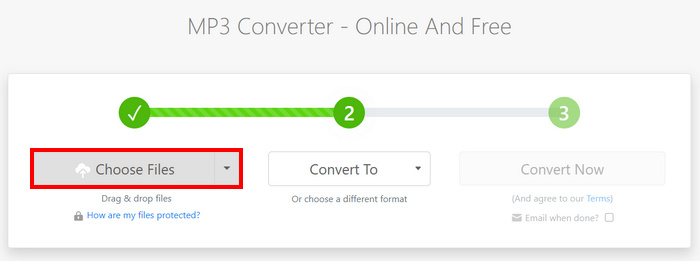
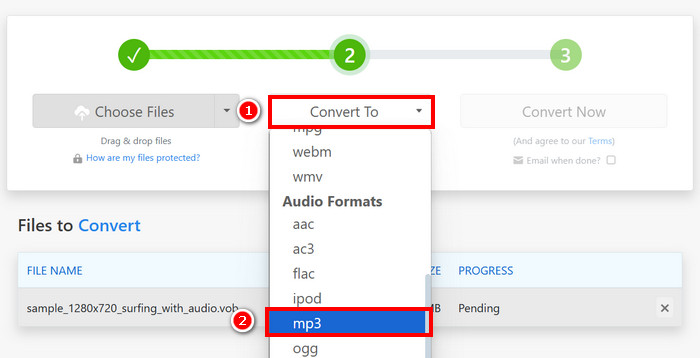
Langkah 3. Selanjutnya, klik tombol Convert To dan pilih format audio dari daftar di bawah.
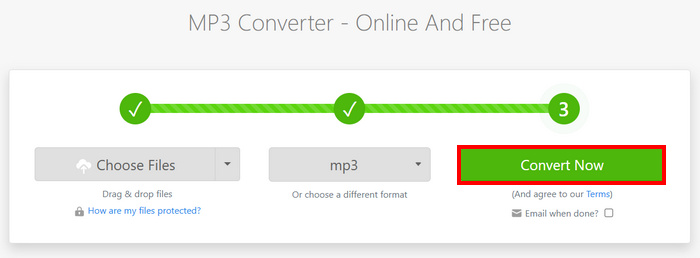
Langkah 4. Terakhir, klik tombol Convert Now untuk mulai mengekstrak musik dari DVD.
Catatan: Jika file Anda melebihi batas unggah 50 MB, perangkat lunak akan meminta Anda membuat akun untuk mengonversi file yang lebih besar.
Konverter Video Online Gratis Apowersoft
Apowersoft Free Online Video Converter mirip dengan Zamzar karena juga dapat mengonversi berkas DVD VOB ke MP3, FLAC, WAV, WMA, AAC, dan lainnya. Namun, Anda mungkin perlu menginstal applet Java terlebih dahulu untuk menggunakan situs web online ini.
Berikut cara mendapatkan audio dari DVD menggunakan Apowersoft Free Online Video Converter:
Langkah 1. Pertama, di situs resmi mereka, pasang Download Launcher untuk mengakses layanan online mereka.
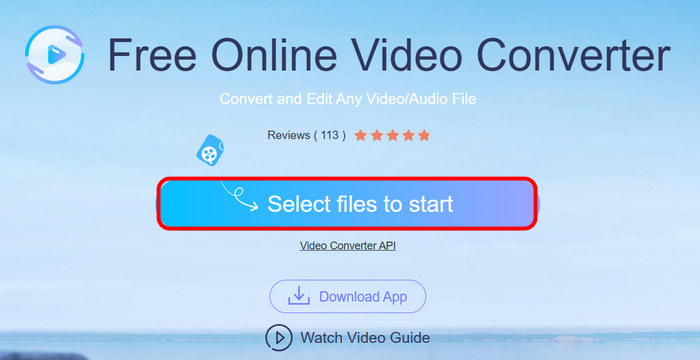
Langkah 2. Klik Select Files to Start untuk mengimpor file VOB.
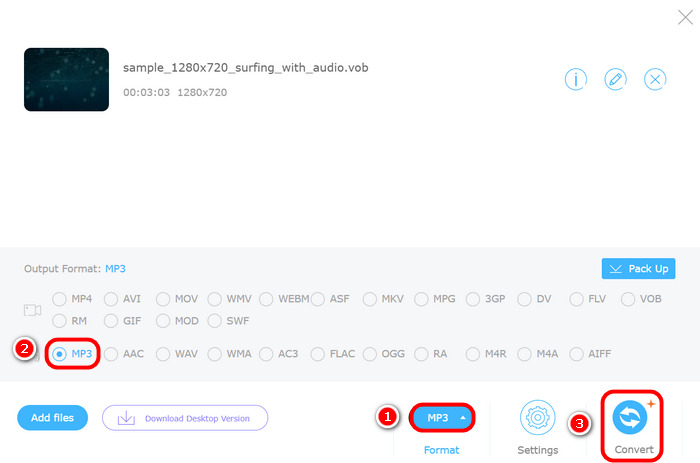
Langkah 3. Sekarang, klik Format dan pilih format audio yang Anda inginkan. Setelah selesai, klik tombol Convert.
Sama seperti Zamzar, kekurangan Apowersoft Online Video Converter adalah kemampuannya untuk menangani DVD sebagai cakram. Namun, ia hanya dapat menangani berkas VOB, yang berarti Anda perlu mengekstraknya secara manual dari DVD sebelum mengunggahnya ke konverter.
Bagian 4. FAQ tentang Konversi DVD ke MP3
Bisakah saya mengonversi DVD ke MP3 tanpa kehilangan kualitas audio?
Ya. Anda dapat mengonversi DVD ke MP3 sambil mempertahankan kualitas audio yang tinggi menggunakan perangkat lunak DVD ripper profesional seperti FVC Video Converter Ultimate. Alat ini memungkinkan Anda menyesuaikan pengaturan yang diperlukan, seperti bitrate, sample rate, dan kanal audio, untuk mempertahankan suara asli. Namun, menggunakan konverter gratis atau daring dapat mengakibatkan sedikit penurunan kualitas akibat kompresi.
Mengapa saya tidak dapat langsung mengonversi DVD saya ke MP3 menggunakan alat daring?
Kebanyakan alat daring, seperti Zamzar dan Apowersoft, hanya mendukung berkas VOB, bukan DVD utuh. Ini berarti Anda perlu mengekstrak berkas VOB secara manual dari DVD sebelum mengonversinya.
Bisakah saya menyalin beberapa track audio DVD sekaligus?
Ya, konversi batch didukung oleh alat seperti FVC Video Converter Ultimate, yang memungkinkan Anda mengekstrak beberapa trek audio secara bersamaan.
Kesimpulan
Sekarang setelah Anda mengetahui cara mendapatkan audio dari DVD, akan mudah bagi Anda untuk mengonversi DVD ke MP3 dan format audio lainnya. Untuk itu, cukup ikuti 5 metode di atas dan temukan mana yang paling cocok untuk Anda. Siap mendigitalkan audio dalam koleksi DVD Anda? Mulailah proses konversi sekarang!
-
 Ubah M4A ke MP3: 5 Konverter Terbaik yang Harus Anda Ketahui
 Jika Anda ingin mengonversi M4A ke MP3 untuk pemutaran dan pengeditan yang mudah, silakan lihat 5 konverter yang kami sediakan. Anda akan mendapatkan panduan langkah-langkah yang paling terperinci.
-
 Cara Mengonversi WMA ke MP3 di Desktop/Online: 5 Solusi
 Untuk mempelajari cara mengonversi WMA ke MP3, jangan lewatkan panduan ini. Kami memiliki 5 konverter untuk berbagai platform yang dijamin akan memuaskan pengguna dengan berbagai kebutuhan.
-
 5 Splitter MP3 Paling Praktis: Mana yang Harus Dipilih?
 Ingin membagi audio MP3 Anda yang panjang? Jika Anda membutuhkannya, baca konten kami. Kami akan memberikan 6 pemisah MP3 canggih dan mengajarkan Anda cara menggunakannya.
