


 Video Converter Ultimate
 Perekam Layar
 Perbaikan Video
 Unduhan Aman
Cara Mengonversi File Video FLV Anda ke Format 3GP Gratis
Artikel ini akan menunjukkan kepada Anda cara terbaik untuk mengonversi FLV ke 3GP. Menurut survei, ada banyak sekali format file video di pasaran. Para pengembang merilisnya untuk tujuan yang berbeda-beda. FLV, misalnya, singkatan dari Flash Video, digunakan untuk menyimpan konten visual agar dapat diputar di Adobe Flash Player melalui internet.
3GP, di sisi lain, adalah format multimedia yang dibuat oleh Third Generation Partnership Project untuk menghemat bandwidth dan penggunaan data pada perangkat seluler. Dengan kata lain, Anda sebaiknya mengonversi FLV ke 3GP dan menonton video di handset.

Bagian 1: Cara Terbaik untuk Mengkonversi FLV ke 3GP di Desktop
FVC Free FLV Converter adalah konverter video yang kuat. Seperti namanya, alat ini memungkinkan Anda mengonversi FLV ke 3GP tanpa mengeluarkan biaya sepeser pun. Selain itu, ia menawarkan banyak fungsi berguna, seperti pengeditan video dan audio. Yang lebih penting, antarmuka yang ramah pengguna memudahkan Anda menemukan apa yang Anda butuhkan dengan cepat.
Fitur Utama dari Konverter FLV Gratis Terbaik
- 1. Konversi video FLV ke format multimedia apa pun, seperti 3GP.
- 2. Batch menangani beberapa file video secara bersamaan.
- 3. Transcode file FLV untuk diputar di perangkat seluler.
Unduh GratisUntuk Windows 7 atau yang lebih baruUnduhan Aman
Unduh GratisUntuk MacOS 10.7 atau yang lebih baruUnduhan Aman
Cara Mengonversi FLV ke 3GP Gratis
Jalankan konverter FLV gratis terbaik setelah Anda menginstalnya di komputer Anda. Perangkat lunak ini kompatibel dengan Windows 10/8/7 dan Mac OS X. Klik tombol Add File(s) untuk memunculkan dialog buka file. Pilih file FLV yang ingin Anda konversi dan klik Open. Lalu video akan muncul di area pustaka.

Langkah 2: Atur format keluaran
Klik dan perluas menu dropdown Profile format di bagian bawah dan Anda akan melihat kotak profil. Masukkan 3GP di kotak Search Profile dan tekan tombol Enter pada keyboard Anda. Setelah itu pilih format keluaran. Jika Anda ingin memutar video di perangkat seluler, pilih produsennya dan langsung pilih model yang tepat.

Langkah 3: Konversi FLV ke 3GP
Atur direktori khusus untuk menyimpan hasil keluaran dengan menekan tombol Open Folder di bagian bawah. Terakhir, klik tombol Convert untuk mulai mengonversi FLV ke 3GP. Beberapa menit kemudian, Anda akan menemukan file 3GP di hard drive Anda.

Bagian 2: Bagaimana Mengkonversi FLV ke 3GP Online
Aplikasi konverter video web adalah cara populer lainnya untuk mengonversi FLV ke 3GP secara gratis. Namun, sebagian besar memiliki berbagai kekurangan, seperti batas ukuran file, watermark, masalah keamanan, dan lainnya. Untungnya, FVC Free Online Video Converter dapat membantu Anda mengatasi masalah tersebut. Layanan ini gratis tanpa batasan apa pun. Kualitas keluarannya sangat baik.
Langkah 1: Kunjungi https://www.free-videoconverter.net/free-online-video-converter/ di browser web dan klik tombol Add Files to Convert untuk mendapatkan peluncurnya. Ini tidak akan memakan ruang lokal di komputer Anda.
Unduh Versi Desktop untuk mengonversi file secara batch.
Langkah 2: Klik menu Add File dan unggah file FLV yang ingin Anda konversi. Aplikasi web ini memungkinkan Anda mengonversi banyak video sekaligus secara batch.
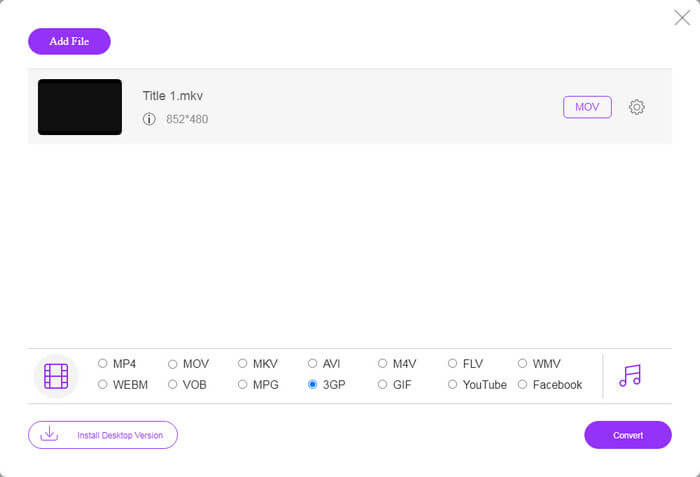
Langkah 3: Pergi ke bagian bawah dan pilih 3GP di bagian profil. Klik tombol Convert untuk mulai mengonversi FLV ke 3GP secara online. Jika jaringan Anda cepat, prosesnya akan selesai dalam beberapa detik. Lalu unduh file 3GP ke hard drive Anda.
Jangan Lewatkan:
Bagian 3: Cara Mengonversi FLV ke 3GP dengan VLC
Terkadang, freeware sama kuatnya dengan perangkat lunak profesional. VLC, misalnya, adalah pemutar media sumber terbuka yang populer. Hal ini dapat mengkonversi FLV ke 3GP pada Windows, Mac dan Linux secara gratis. Tentu saja, biayanya jelas, seperti sulit digunakan. Oleh karena itu, berikut kami bagikan langkah-langkahnya
Langkah 1: Jalankan konverter FLV ke 3GP gratis di komputer Anda. Anda perlu menginstalnya terlebih dahulu. Situs resmi menyediakan penginstal yang aman.
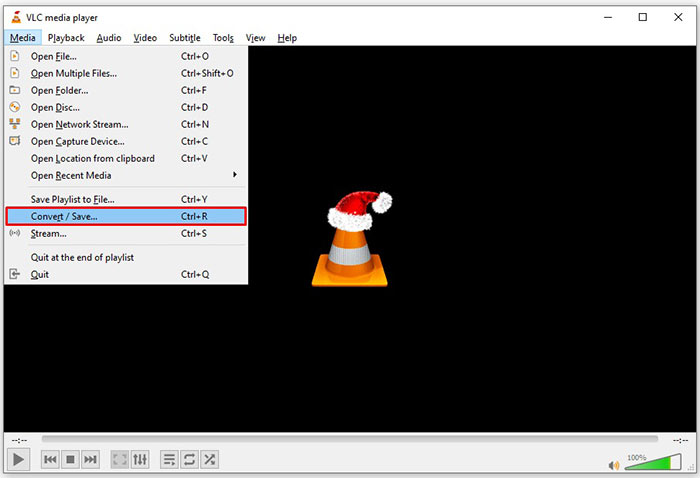
Langkah 2: Buka menu Media di pita menu bagian atas dan pilih Convert/Save. Lalu dialog media terbuka akan muncul.
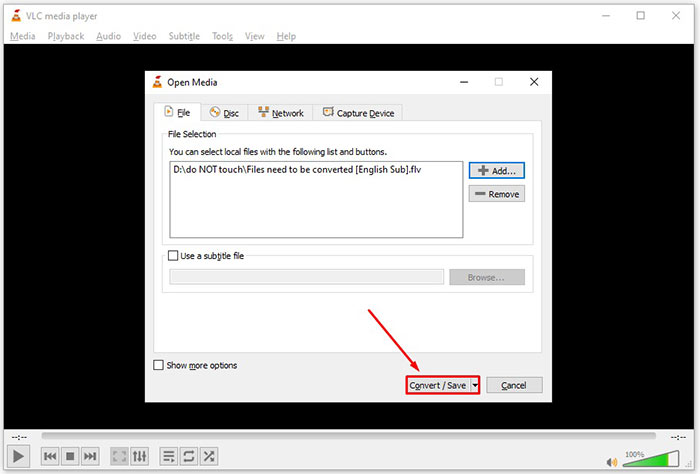
Langkah 3: Klik tombol Add, cari file FLV yang perlu Anda konversi dan pilih, kemudian klik Open. Tekan tombol Convert/Save untuk beralih ke jendela berikutnya.
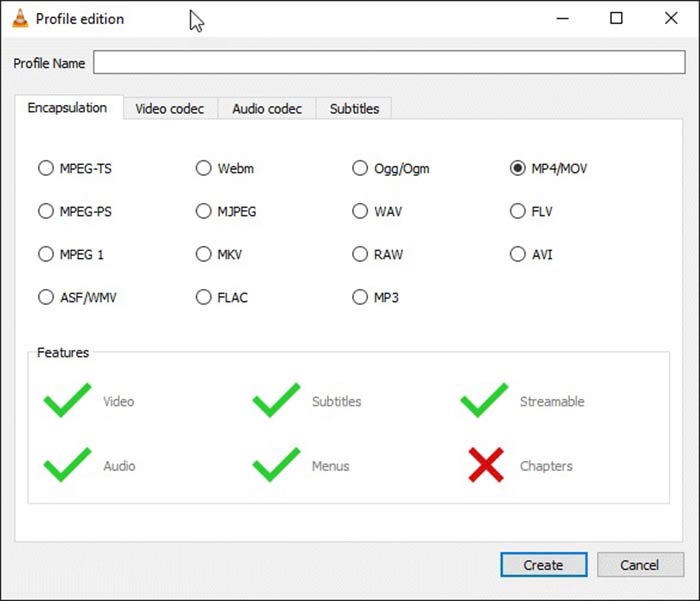
Langkah 4: Buka daftar dropdown di sebelah Profile dan pilih 3GP atau format video terkait. Jika Anda ingin mengubah codec video atau parameter lain, klik tombol Profile Edit di sebelah daftar dropdown dan tambahkan 3GP.
Langkah 5: Klik tombol Browse dan pilih folder tertentu untuk menyimpan file 3GP keluaran di bagian Destination.
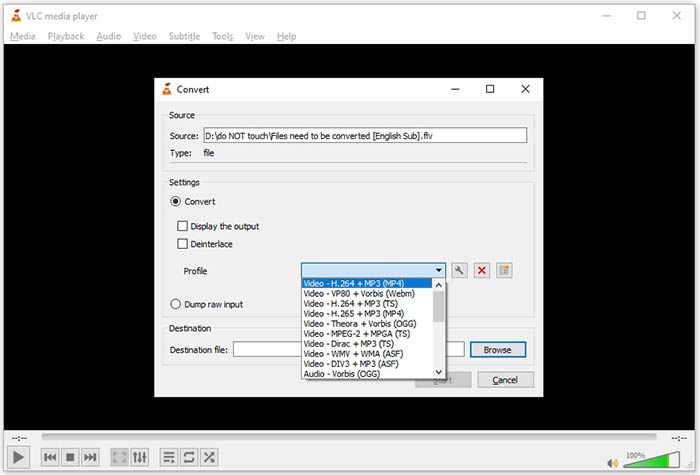
Langkah 6: Setelah Anda mengklik tombol Start, VLC akan mulai mengonversi FLV ke 3GP.
Dibutuhkan beberapa saat untuk menyelesaikan konversi karena VLC melakukan pekerjaan dengan merekam video asli. Ini berarti bahwa proses menghabiskan selama durasi video FLV Anda.
FLV vs.3GP
Adobe Flash Player menggunakan FLV untuk mengirimkan konten video seperti film dan acara TV. Saat ini, Adobe tidak lagi mengembangkan pemutar dan merekomendasikan pengguna untuk menghapusnya karena alasan keamanan. Namun, Anda masih dapat menggunakan format FLV di banyak program non-Adobe/Macromedia.
Proyek Kemitraan Generasi ke-3 (3GPP) menghasilkan format 3GP/3GPP sebagai format wadah multimedia. Ini sebenarnya didasarkan pada format file media ISO. Kami sering menggunakannya untuk menyimpan streaming video/audio yang dikirimkan antara ponsel 3G dan online.
Bagian 4: FAQ tentang Mengonversi FLV ke 3GP
Apakah mengonversi FLV ke 3GP akan merusak kualitas video?
Secara umum, konversi video akan kehilangan kualitas. Namun, program konverter video yang kuat mampu memperbaiki masalah ini dan mengoptimalkan kualitas video menggunakan teknologi canggih.
Berapa lama waktu yang dibutuhkan untuk mengonversi video FLV?
Ini ditentukan oleh beberapa faktor, seperti durasi video, perangkat lunak pengonversi video yang Anda gunakan, kinerja perangkat keras Anda, dan banyak lagi. Jika Anda menggunakan konverter video web, koneksi internet Anda merupakan elemen penting.
Mengapa FLV tidak diputar di iPhone saya?
iPhone mendukung MOV, bagian dari MP4, ASF dan AVI. Oleh karena itu, Anda tidak dapat membuka FLV di iPhone secara langsung. Namun, ada cara untuk menonton FLV di perangkat seluler. Jika file FLV Anda dihosting oleh layanan internet, seperti Google Drive, pemutar media bawaan tersedia. Plus, Anda dapat menggunakan pemutar media lain, seperti VLC.
Kesimpulan
Panduan ini telah memberi tahu Anda tiga cara gratis untuk mengonversi file video FLV ke format 3GP di komputer atau online. Jika Anda bersiap untuk menonton video FLV di perangkat seluler, Anda sebaiknya mengonversinya ke 3GP atau format video ramah seluler lainnya dengan FVC Free FLV Converter. Tidak hanya mudah digunakan, tetapi juga mampu melindungi kualitas video Anda. Lebih banyak pertanyaan? Silakan tinggalkan pesan di bawah ini.
-
 Cara Mengkonversi File Video FLV Anda ke MP4 tanpa Membayar sepeser pun
 Panduan ini membagikan empat metode gratis untuk mengonversi file video FLV Anda ke format MP4 di Windows 10/8/7 / XP dan Mac OS X, sehingga Anda dapat menikmati video di perangkat apa pun.
-
 Cara Mengkonversi Video FLV Anda ke File Audio MP3 di Desktop dan Online
 Bagaimana cara mengonversi FLV ke file MP3? Yang perlu Anda lakukan adalah membaca artikel ini dengan cermat, temukan metode favorit Anda, dan ikuti panduan langkah demi langkah kami untuk mendapatkan yang Anda inginkan.
-
 3 Cara Teratas untuk Mengonversi FLV ke MOV
 Bagaimana cara mengubah FLV ke MOV? Bagaimana cara mengonversi FLV ke MOV di Mac? Apakah ada cara gratis untuk mengonversi FLV ke MOV online? Posting ini membagikan 3 konverter FLV ke MOV untuk mengubah file FLV ke MOV.

