


 Video Converter Ultimate
 Perekam Layar
 Perbaikan Video
 Unduhan Aman
Cara Mengonversi File TS Anda ke Format FLV tanpa Kehilangan Kualitas
Panduan ini berfokus pada cara mengonversi TS ke FLV. Secara umum, ada dua jenis format video: format yang umum digunakan dan format lainnya. FLV adalah salah satu format video yang umum digunakan dan dikembangkan untuk internet, sementara TS termasuk jenis yang kedua. TS, singkatan dari Video Transport Stream, digunakan untuk menyimpan data video MPEG-2. Format ini sering ditemukan pada DVD. Baiklah, mari kita mulai sekarang.

Bagian 1: Top 3 Cara Mudah untuk Mengkonversi TS ke FLV di Desktop
Cara 1: Konversikan TS ke FLV dengan Konverter FLV Gratis
Seperti yang ditunjukkan oleh namanya, FVC Free FLV Converter adalah konverter FLV yang Anda perlukan untuk mengubah TS ke FLV, sehingga Anda dapat menonton file Anda atau membagikannya di media sosial. Alat ini sepenuhnya gratis digunakan tanpa watermark atau batasan lainnya. Bahkan, ia menyediakan beberapa fitur yang biasanya hanya ada pada perangkat lunak berbayar.
Fitur Utama Konverter FLV Terbaik Best
- 1. Mengkonversi antara FLV dan format video lainnya dengan mudah.
- 2. Lindungi kualitas video dan audio saat mengonversi.
- 3. Batch menangani beberapa file video TS secara bersamaan.
Unduh GratisUntuk Windows 7 atau yang lebih baruUnduhan Aman
Unduh GratisUntuk MacOS 10.7 atau yang lebih baruUnduhan Aman
Cara Mengonversi File TS ke FLV Gratis
Langkah 1: Impor file TS
Luncurkan konverter FLV terbaik setelah Anda menginstalnya di komputer Anda. Kemudian klik tombol Add File(s) untuk mengimpor semua file TS dari DVD atau komputer Anda. Kemudian video akan muncul di area perpustakaan.

Langkah 2: Atur format keluaran
Jika Anda perlu mengedit video, klik tombol Edit untuk membuka jendela editor video. Jika tidak, pergi ke bagian bawah, klik dan bentangkan opsi Output format. Lalu cari FLV di tab General Video dan pilih format tersebut.

Langkah 3: Konversi TS ke FLV
Selanjutnya, tentukan folder khusus untuk menyimpan file keluaran FLV dengan menekan tombol Browse. Terakhir, klik tombol Convert di pojok kanan bawah untuk mulai mengonversi TS ke FLV.

Cara 2: Cara Mengonversi TS ke FLV dengan VLC
VLC adalah cara lain untuk mengonversi TS ke FLV secara gratis karena ini adalah proyek sumber terbuka. Ini tersedia untuk PC, Mac dan Linux. Biayanya jelas. Kualitas outputnya tidak terlalu bagus, dan prosedurnya rumit. Jika Anda tidak keberatan, lakukan langkah-langkah di bawah ini.
Langkah 1: Buka VLC, klik menu Media dan pilih Convert/Save. Dialog open-media akan muncul.
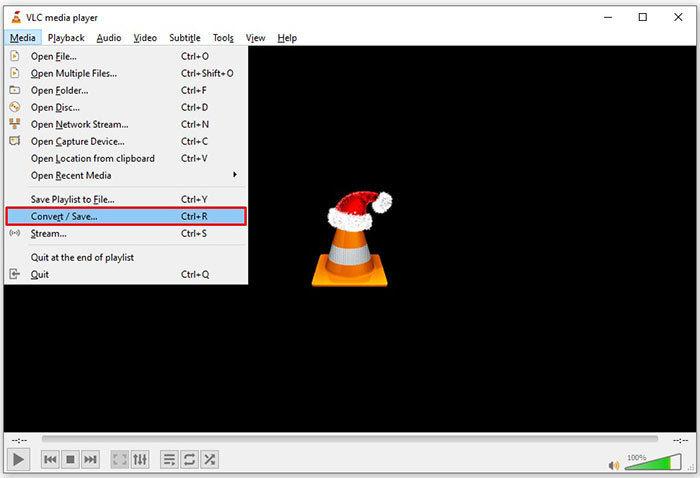
Langkah 2: Klik tombol Add dan tambahkan satu file TS ke VLC. Tekan tombol Convert/Save untuk lanjut.
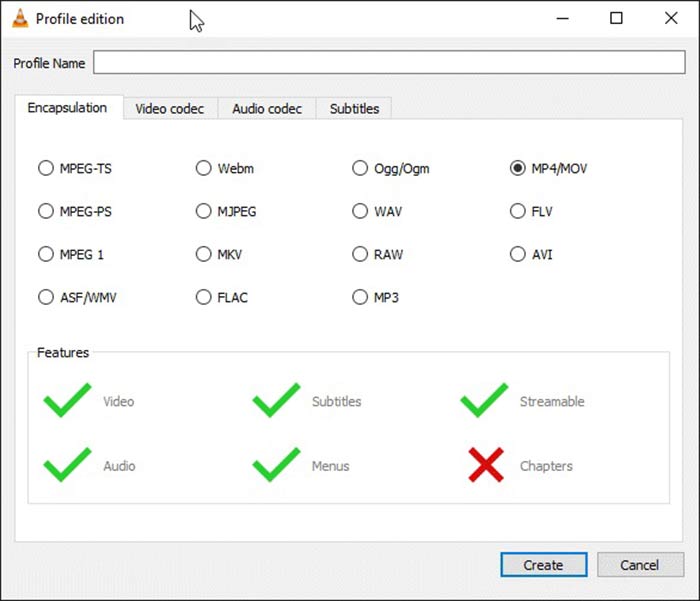
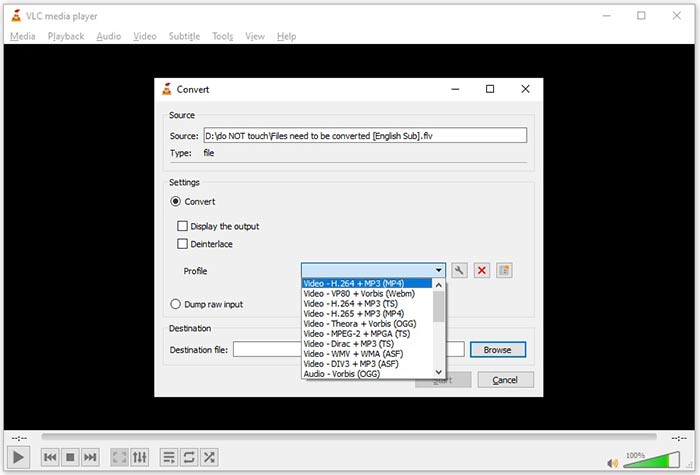
Langkah 3: Buka opsi Profile dan pilih format keluaran. Jika Anda tidak dapat menemukan FLV di Profile, klik tombol Profile Edit, masukkan FLV di kotak Profile Name, pilih FLV dan klik Create. Lalu pilih FLV dari Profile.
Langkah 4: Tekan tombol Browse untuk mengatur folder tujuan dan klik tombol Start.
Cara 3: Cara Mengonversi TS ke FLV melalui FormatFactory
FormatFactory adalah program konversi file gratis untuk PC. Ini memungkinkan Anda untuk mengonversi file TS ke FLV tanpa membayar sepeser pun. Namun, itu hanya mendukung konversi lossy. Ini berarti kualitas video Anda akan diturunkan. Plus, itu tidak tersedia di Mac atau Linux.
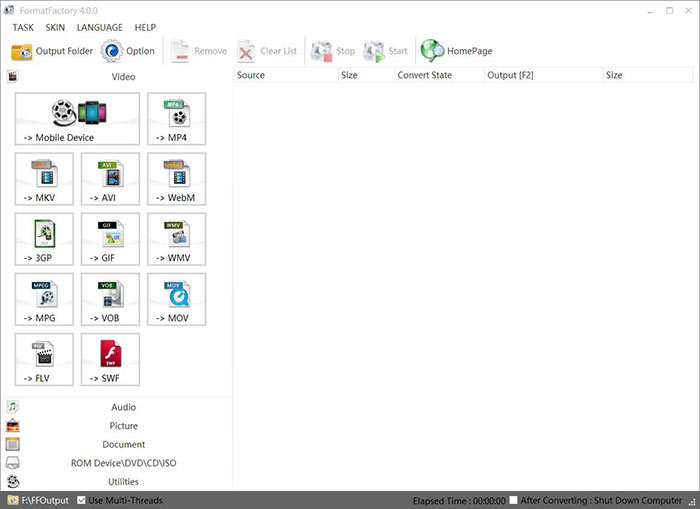
Langkah 1: Jalankan konverter TS ke FLV gratis, masuk ke bagian Video dan pilih FLV.
Langkah 2: Klik tombol Add File dan impor file video TS dari komputer Anda. Tekan OK untuk mengonfirmasinya.
Langkah 3: Selanjutnya, klik tombol Start untuk mulai mengonversi TS ke FLV di PC. Proses ini memakan waktu karena freeware tersebut cukup lambat. Setelah selesai, Anda dapat pergi ke direktori di bawah bagian Output untuk menemukan file FLV.
Bagian 2: Bagaimana Mengkonversi TS ke FLV Online
VLC dan perangkat lunak pengonversi video lainnya semuanya perlu dipasang di hard disk Anda. Itu akan memakan ruang memori internal Anda. Anda mungkin bertanya-tanya apakah Anda bisa mengonversi TS ke FLV tanpa memasang perangkat lunak. Jawabannya adalah FVC Free Online Video Converter. Alat ini bekerja secara online dan gratis. Meskipun tidak menyediakan fitur tambahan, namun sudah cukup untuk memenuhi kebutuhan dasar Anda dalam mengonversi video.
Langkah 1: Buka https://www.free-videoconverter.net/free-online-video-converter/ di peramban web dan klik tombol Add Files to Convert untuk mengunduh peluncurnya.

Langkah 2: Setelah pengunduhan selesai, peluncur akan muncul. Klik tombol Add File untuk mengunggah file TS. Aplikasi web ini mendukung konversi batch. Pergi ke bagian bawah dan pilih FLV di bagian bawah.
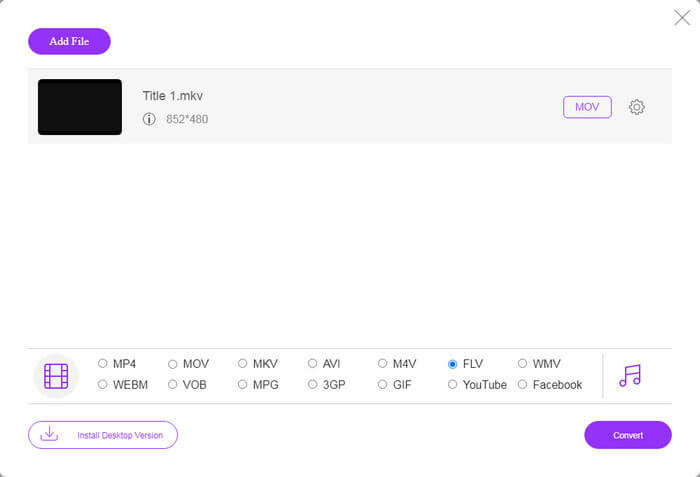
Langkah 3: Jika sudah siap, klik tombol Convert untuk memulai konversi TS ke FLV. Aplikasi ini bekerja dengan cepat, tetapi waktu sebenarnya ditentukan oleh koneksi internet Anda. Tunggu hingga proses konversi selesai dan unduh keluaran FLV.
Jangan Lewatkan:
- • Panduan Lengkap tentang Cara Mengonversi TS ke MP4
- • Cara Mengonversi File TS ke MP3, AIFF, ALAC, FLAC, dan Format Audio Lainnya di Windows / Mac
Bagian 3: FAQ tentang Mengonversi TS ke FLV
Mengapa saya tidak dapat mengonversi TS ke format lain?
TS adalah format file video untuk DVD. Kebanyakan DVD komersial dienkripsi dan dilindungi oleh hak cipta. Itu juga menghalangi Anda untuk mengonversi file TS jika Anda tidak memiliki perangkat lunak pengonversi video yang tepat.
Bisakah saya membuka TS di Windows Media Player?
Windows Media Player tidak dapat membuka file DVD atau TS, jadi Anda tidak dapat memutar TS di WMP. Atau, Anda dapat menggunakan pemutar video pihak ketiga, seperti VLC. Atau Anda perlu menginstal paket codec tambahan untuk WMP.
Bagaimana cara menonton file TS?
Hanya beberapa pemutar media yang mendukung file TS, seperti VLC. Pemutar media internal pada PC dan Mac, Windows Media Player dan QuickTime Player, tidak kompatibel dengan TS. Cara lain untuk menonton file TS adalah dengan membakarnya di DVD.
Kesimpulan
Sekarang, Anda harus mempelajari setidaknya empat cara untuk mengonversi file TS ke video FLV untuk dibagikan secara online atau diputar di perangkat digital. Sebagai format video untuk film DVD, TS tidak banyak digunakan di komputer atau perangkat seluler. Masuk akal bahwa sebagian besar pemutar media tidak dapat membukanya. Konverter FLV Gratis FVC; namun, membantu Anda mengubah TS ke FLV dengan mudah. Lebih banyak pertanyaan? Silakan tulis di bawah posting ini dan kami akan membalasnya.
-
 3 Langkah Mudah untuk Membakar File / Folder TS Video ke DVD di Mac / Windows
 Bagaimana cara mengonversi dan membakar file TS ke disk DVD? Panduan langkah demi langkah ini akan menunjukkan cara menyalin file dan folder TS ke DVD pada Windows / Mac sehingga Anda dapat menonton file TS di pemutar DVD atau TV.
-
 6 Cara Mudah untuk Mengonversi TS ke AVI / MKV / MOV / WMV di Windows / Mac
 Ingin mengonversi file TS ke AVI / MKV / MOV / WMV dengan cepat? Artikel ini menunjukkan konverter video online dan offline dengan panduan lengkap. Mungkin Anda bisa mendapatkan konverter TS gratis terbaik di sini.
-
 Kompres File Video TS - Cara Mengompres File TS ke Ukuran yang Lebih Kecil
 Saat Anda ingin menyimpan file video TS definisi tinggi di perangkat Anda, Anda harus mempelajari lebih lanjut tentang cara mengompres file video TS menjadi ukuran yang lebih kecil dari artikel ini.
