


 Video Converter Ultimate
 Perekam Layar
 Perbaikan Video
 Unduhan Aman
Gabungkan File WAV dengan Mudah dengan Perangkat Lunak dan Tips
Baik Anda pemula dalam pengeditan audio maupun profesional, untuk menggabungkan file WAV dengan kualitas lossless, penggunaan alat dan teknik yang tepat sangat diperlukan agar dua file WAV yang berbeda dapat digabung dan diekspor tanpa penurunan kualitas. Di sisi lain, mencari alat yang tepat dapat memakan waktu dan tenaga pengguna. Namun, dengan bantuan artikel ini, kita akan menjelajahi berbagai alat beserta langkah-langkah untuk menavigasi alat tersebut secara efektif dan tips agar Anda dapat mulai menggunakannya serta membuat prosesnya lebih sederhana dan efisien.

Bagian 1. Gabungkan File WAV Tanpa Kehilangan dalam Hitungan Detik [Dengan Akselerasi GPU]
Ketika Anda ingin menggabungkan dua file WAV menjadi satu file ekspor, cara terbaik dan termudah adalah menggunakan Video Converter Ultimate pilihan FVC. Perangkat lunak dari Aiseesoft ini dapat diakses semua jenis pengguna karena sepenuhnya gratis diunduh dari situs resminya. Alat ini memiliki fitur pengeditan video dan audio dengan kemampuan untuk menggabungkan beberapa file WAV menjadi satu file. Selain itu, perangkat lunak ini dilengkapi teknologi pemrosesan berkecepatan tinggi yang membuat proses penggabungan file WAV dan ekspornya jauh lebih efisien di sisi pengguna. Untuk memudahkan Anda menavigasi tugas penggabungan file WAV, silakan ikuti panduan di bawah ini.
Langkah 1. Unduh dan instal penggabung file WAV di desktop Anda, lalu buka aplikasinya.
Unduh GratisUntuk Windows 7 atau yang lebih baruUnduhan Aman
Unduh GratisUntuk MacOS 10.7 atau yang lebih baruUnduhan Aman
Langkah 2. Setelah Anda berada di antarmuka perangkat lunak, klik tombol Add Files di pojok kiri atas. Lalu buka dan pilih file WAV yang ingin Anda gabungkan menjadi satu file dan lanjutkan dengan mengklik tombol Open.
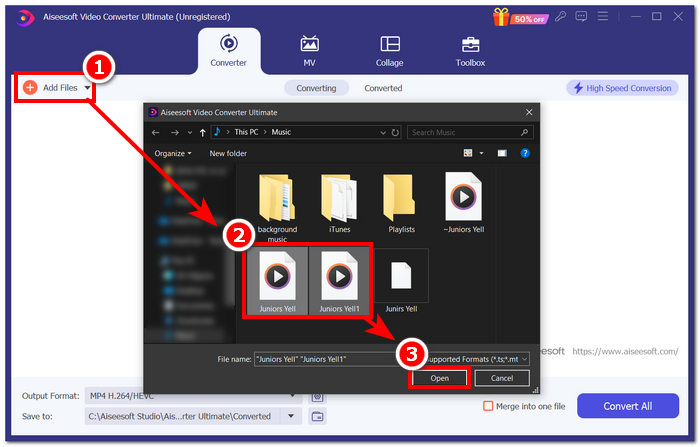
Langkah 3. Setelah Anda mengunggah file WAV yang ingin digabung dalam perangkat lunak, beri tanda centang pada menu Merge into one file yang terletak di samping tombol Convert All di bagian kanan bawah antarmuka perangkat lunak.
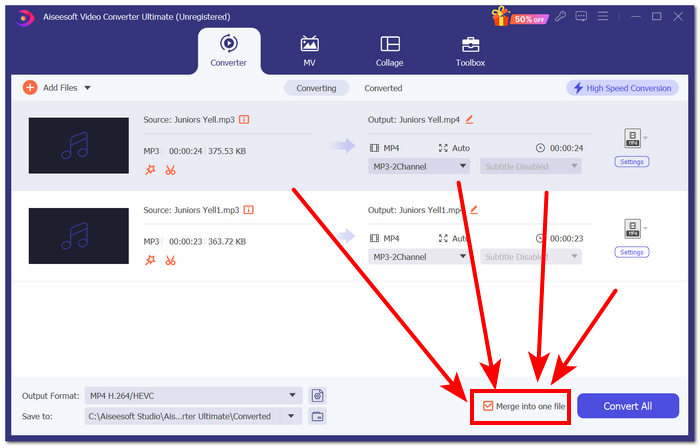
Langkah 4. Klik tombol Convert All untuk memulai proses penggabungan dan secara otomatis mengekspornya ke folder unduhan Anda.

Tips
• Anda dapat menggabungkan beberapa berkas WAV dalam perangkat lunak ini secara bersamaan.
• Di sudut kiri bawah antarmuka perangkat lunak, Anda dapat mengontrol format keluaran ke format file yang paling Anda inginkan sebelum mengekspornya.
• Anda juga dapat mengubah tujuan file WAV gabungan Anda dengan mengakses dan memilih folder tujuan yang terletak di sudut kiri bawah antarmuka perangkat lunak.
• Untuk memaksimalkan teknologi pemrosesan berkecepatan tinggi saat menggabungkan dan mengekspor file WAV Anda, aktifkan pengaturan Konversi Kecepatan Tinggi yang terletak di sudut kanan atas antarmuka perangkat lunak.
• Selain itu, alat ini juga mendukung berbagai format, dan Anda dapat menggabungkan MP4, MKV, FLV, MP3, FLAC, dan masih banyak format lainnya.
Bagian 2. Gabungkan File WAV Secara Online
Jika Anda merasa cukup sulit menggabungkan file WAV melalui perangkat lunak, solusi daring mungkin adalah solusi yang Anda butuhkan. Descript adalah perangkat berbasis web yang berfungsi sebagai alat penyunting audio, video, dan transkriptor sekaligus. Menggabungkan file WAV relatif mudah karena perangkat berbasis web ini menggunakan AI untuk menggabungkan file WAV masukan Anda secara otomatis saat Anda mengunggahnya dan memungkinkan pengguna untuk melihat pratinjau sebelum mengunduhnya.
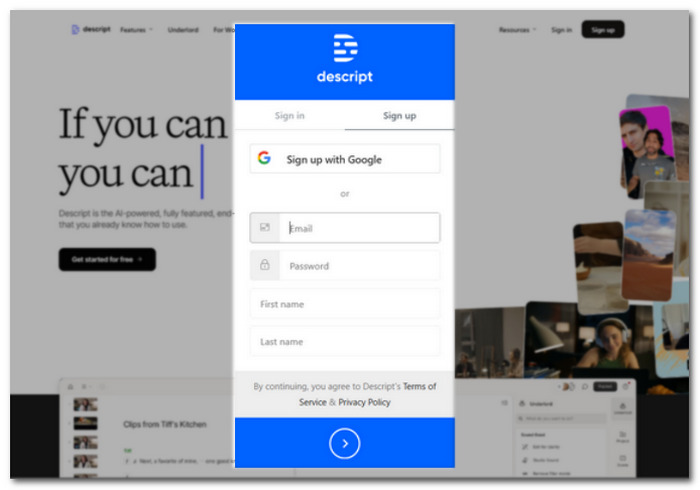
Langkah 1. Kunjungi situs resmi Descript dan buat akun agar Anda dapat menggunakan perangkat lunak ini untuk menggabungkan file WAV Anda.
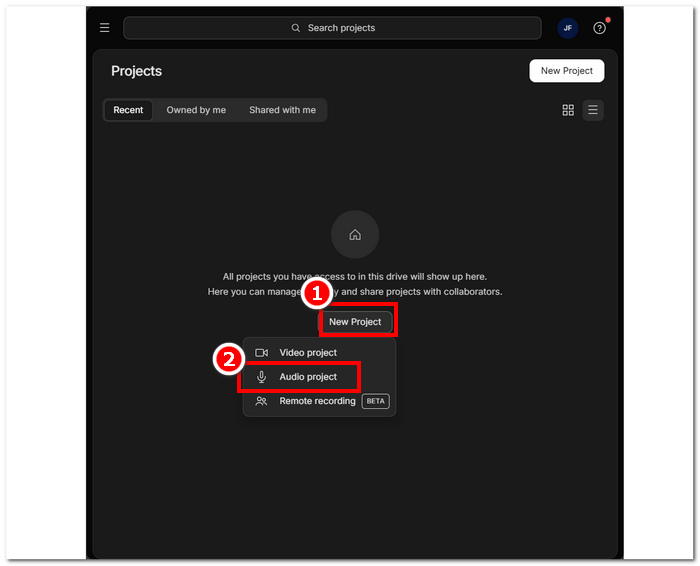
Langkah 2. Setelah Anda masuk ke antarmuka alat, klik New Project > Audio Project.
Langkah 3. Unggah file WAV yang ingin Anda gabungkan menjadi satu file pada kolom Upload a file yang tersedia di antarmuka alat.
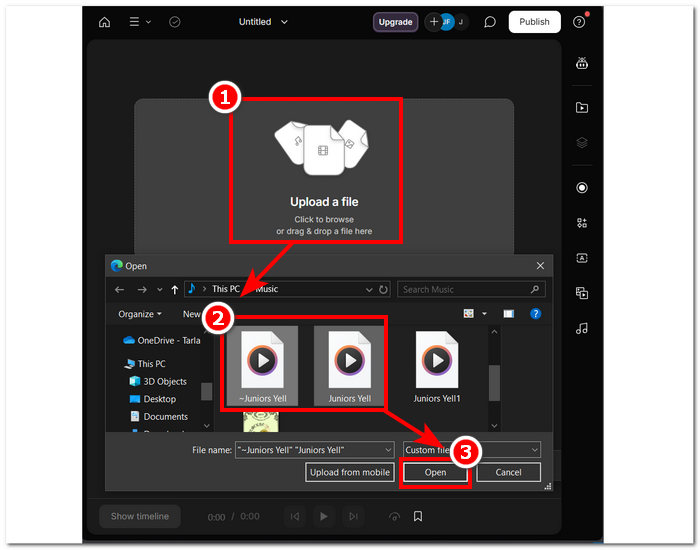
Langkah 4. Saat file WAV Anda sedang diunggah di antarmuka alat, akan muncul sebuah jendela. Jendela ini akan menanyakan apakah Anda ingin file tersebut digabung secara otomatis. Beri tanda centang untuk mengaktifkan proses penggabungan oleh AI, lalu klik tombol Done.
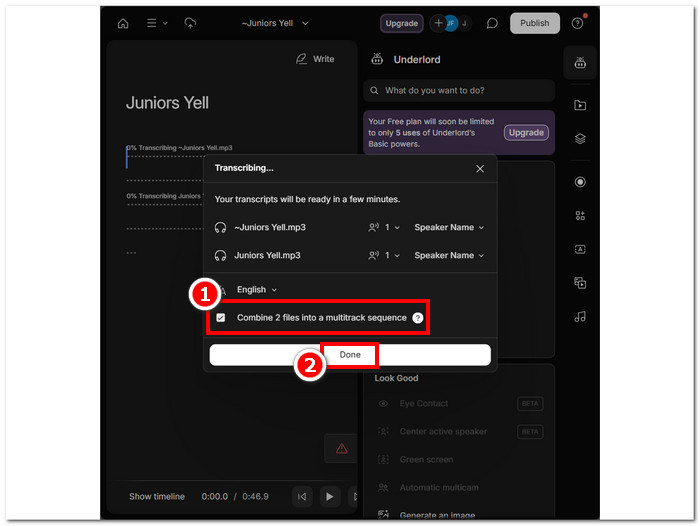
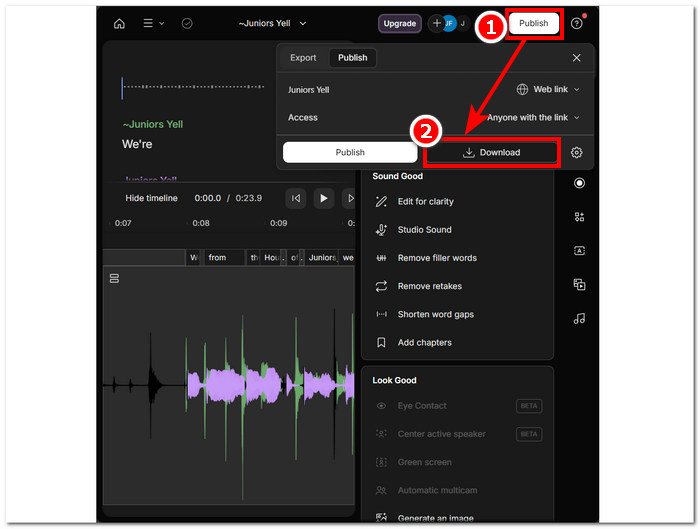
Langkah 5. Tunggu hingga alat selesai menggabungkan file WAV Anda. Setelah selesai, Anda dapat memutar hasil akhirnya untuk meninjau apakah AI sudah menggabungkan file WAV Anda dengan baik dan melakukan penyesuaian jika diperlukan. Jika sudah puas, lanjutkan dengan mengklik tombol Publish > Download untuk mengunduh file WAV gabungan ke desktop Anda.
Tips
• Sebelum mengunduh berkas WAV gabungan Anda, pastikan untuk memeriksa trek audio secara menyeluruh guna menghindari terjadinya pemotongan.
• Mengetahui alat ini dapat membantu mempercepat proses penggabungan berkas WAV Anda secara efektif.
Bagian 3. Gabungkan File WAV dengan Audacity
Sebagai editor audio open-source, Audacity juga dapat menggabungkan track seperti file WAV tanpa biaya tambahan. Perangkat lunak gratis ini telah membantu banyak pengguna dalam tugas pengeditan audio dan membuat proses penggabungan file WAV jauh lebih mudah. Audacity memungkinkan pengguna menambahkan beberapa file WAV sekaligus dan juga mendukung impor berbagai format audio lain. Selain itu, ada fitur cepat untuk menyusun setiap track secara rapi dari akhir track sebelumnya, sehingga proses penggabungan menjadi jauh lebih mudah tanpa perlu khawatir saling menimpa. Maka dari itu, mengikuti panduan lengkap di bawah ini akan membantu Anda menavigasi perangkat lunak ini dengan lebih baik.
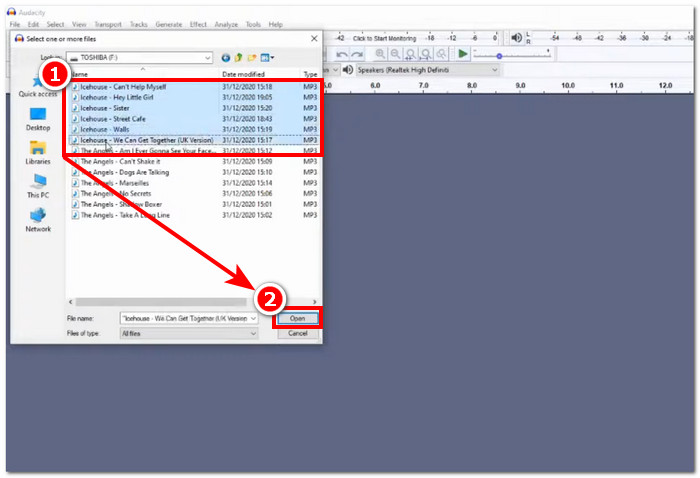
Langkah 1. Unduh perangkat lunak Audacity ke desktop Anda. Setelah terpasang, buka Audacity dan muat file WAV yang ingin Anda gabungkan menjadi satu file.
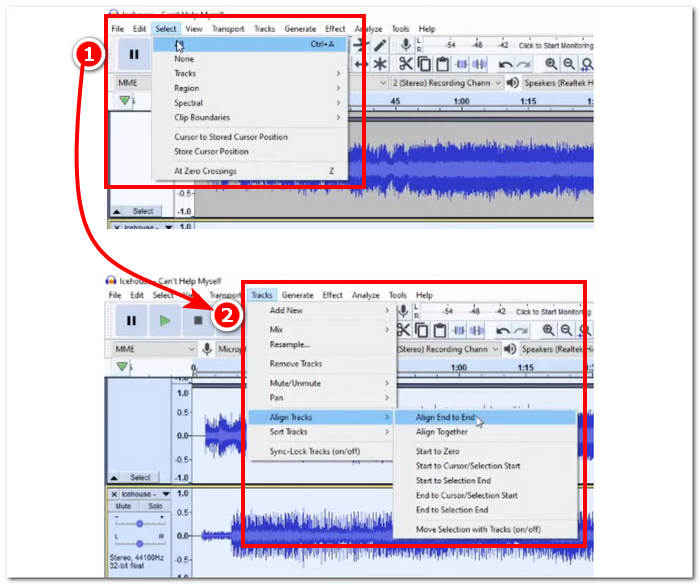
Langkah 2. Setelah file WAV Anda dimuat di antarmuka alat, mulailah dengan memilih semua track dengan mengeklik opsi Select > All yang terletak di menu paling atas. Berikutnya, untuk menyelaraskan track WAV yang dipilih, klik bagian Track, lalu di bawah Align Tracks, klik Align End to End.
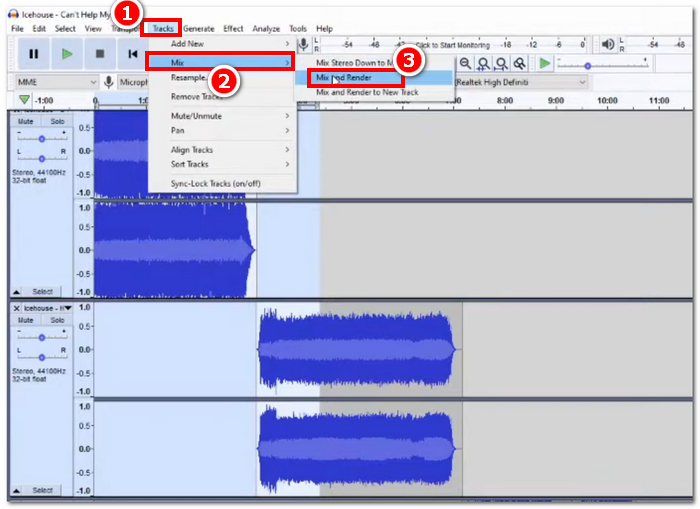
Langkah 3. Setelah file WAV Anda tersusun dari akhir tiap track, klik bagian Track, lalu di bawah fitur Mix, klik fitur Mix and Render untuk memulai proses penggabungan.
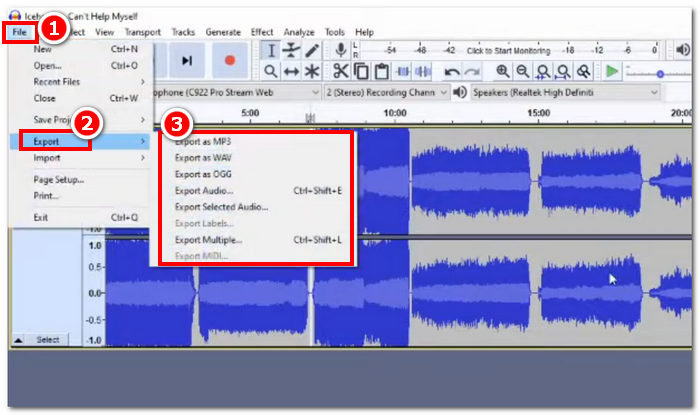
Langkah 4. Setelah proses penggabungan selesai, Anda dapat mengekspor file WAV dengan mengeklik File > Export, lalu silakan pilih format keluaran yang Anda inginkan dari opsi yang tersedia.
Tips
• Saat mengekspor file WAV gabungan Anda, pilih untuk mengekspor sebagai WAV, karena kualitas audio asli tetap dipertahankan.
Bagian 4. Gabungkan File WAV Menggunakan FFmpeg
Perkakas perangkat lunak sumber terbuka lainnya untuk manipulasi audio dan video adalah FFmpeg. Kerangka kerja multimedia yang hebat ini dapat digunakan sebagai konverter dan untuk penyuntingan multimedia, seperti video, audio, dan berkas media lainnya. Dalam menangani tugas-tugas seperti menggabungkan berkas WAV, perangkat lunak memasukkan kode tertentu dalam prompt perintah untuk memulai proses penggabungan yang disebut penggabungan berkas WAV menjadi satu berkas keluaran. Berikut adalah panduan terperinci tentang cara menggunakan FFmpeg sebagai penggabungan berkas WAV.
Langkah 1. Kunjungi situs web FFmpeg dan instal program tersebut sesuai dengan perangkat yang Anda gunakan.
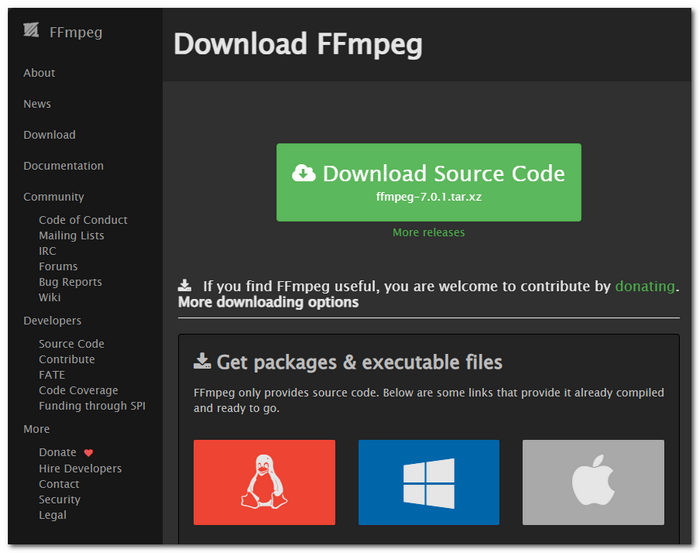
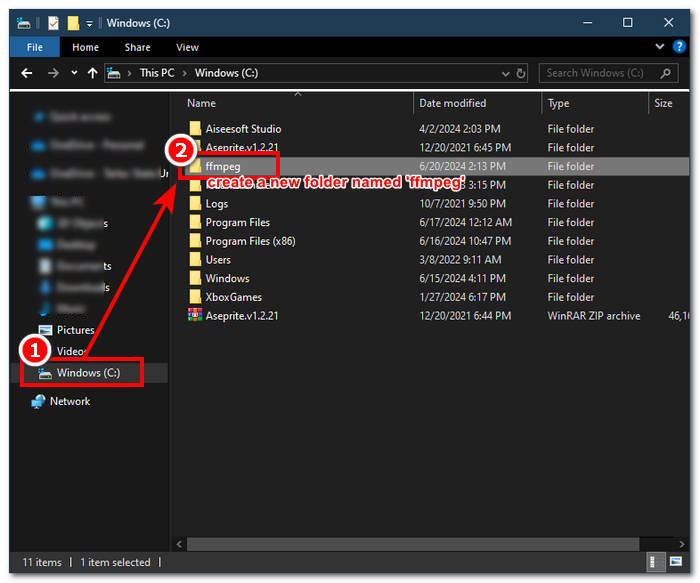
Unduh file zip dari situs web dan buat folder baru di jalur sistem Anda untuk menyimpan semua file FFmpeg yang dapat dieksekusi, termasuk memindahkan file zip ke folder tersebut.
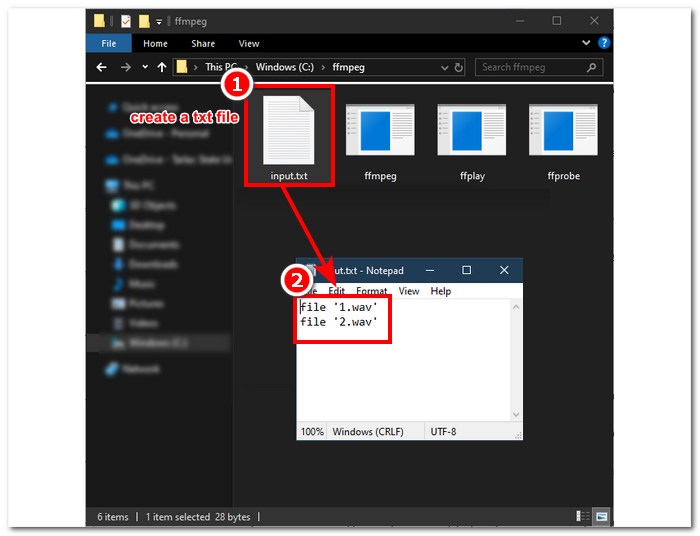
Langkah 2. Pindahkan file WAV Anda ke folder ffmpeg yang baru saja Anda buat dan siapkan file WAV itu dengan mengganti namanya menjadi ‘input1.wav’ dan ‘input2.wav’ di direktori tersebut.

Catatan: Lalu, di folder yang sama, buat file bernama ‘input.txt’ dan masukkan konten berikut:;
file 'input1.wav'
file 'input2.wav'
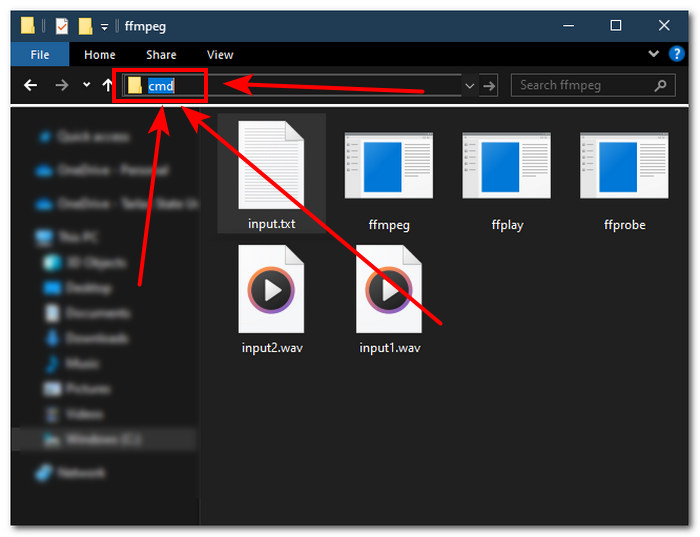
Langkah 3. Jalankan command prompt FFmpeg dengan mengetik ‘cmd’ di kolom lokasi folder (address bar) di bagian atas jendela dan tekan Enter.
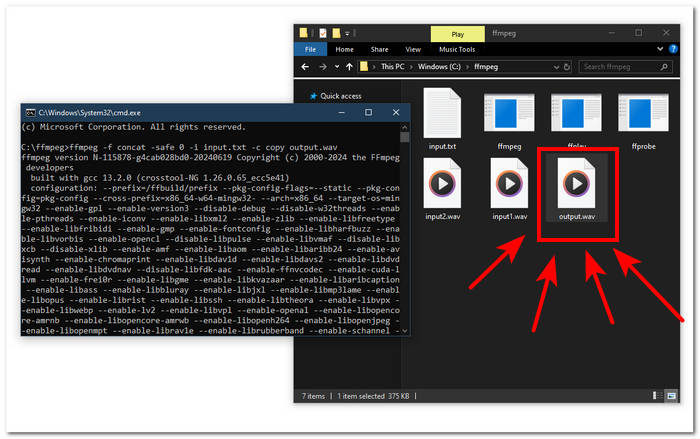
Langkah 4. Setelah Anda berada di command prompt FFmpeg, masukkan perintah berikut dan tekan Enter:;
ffmpeg -f concat -safe 0 -i input.txt -c copy output.wav
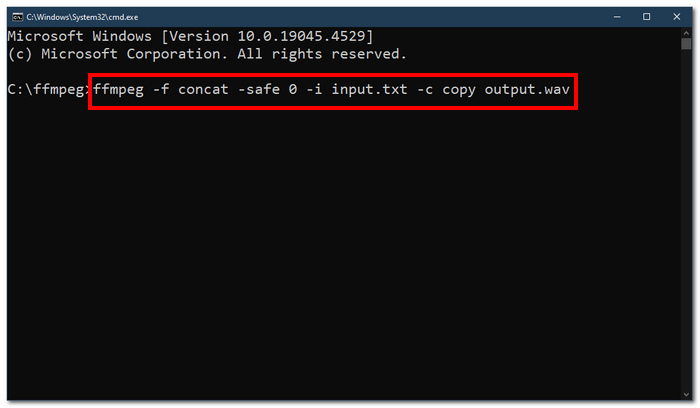
Langkah 5. Sebuah file WAV baru akan muncul di folder Anda, yang menandakan bahwa Anda telah berhasil menggabungkan file WAV menjadi satu file.
Tips
• Karena alat ini berbasis baris perintah, penting untuk memahami dan mengetahui baris perintah dasar agar dapat menavigasi alat ini secara efektif.
• Simpan semua folder dan file terkait FFmpeg di bawah satu folder agar terorganisasi dan mudah diakses.
• Tonton tutorial dan baca panduan di internet ketika Anda ingin melakukan tugas selain menggabungkan file WAV.
Bagian 5. FAQ tentang Cara Menggabungkan File WAV
Bisakah Anda mencampur berkas WAV?
Ya, Anda dapat mencampur berkas WAV menggunakan perangkat lunak pihak ketiga yang dibuat untuk menggabungkan berkas WAV, seperti Video Converter Ultimate dan Audacity pilihan FVC.
Bisakah VLC menggabungkan berkas audio?
Pemutar media VLC tidak memiliki kemampuan untuk menggabungkan berkas WAV karena hanya dibuat untuk streaming media dan konversi media.
Bagaimana cara menggabungkan berkas video di Windows Media Player?
Windows Media Player tidak mendukung penyuntingan berkas WAV apalagi penggabungan berkas WAV. Windows Media Player adalah perangkat lunak yang dibuat untuk perangkat Windows yang dirancang untuk memutar konten media.
Apa cara termudah untuk menggabungkan berkas audio?
Cara termudah untuk menggabungkan berkas WAV adalah dengan menggunakan Video Converter Ultimate pilihan FVC; perangkat lunak ini dirancang dengan teknologi pemrosesan kecepatan tinggi agar nyaman bagi pengguna dengan sedikit pengalaman dalam tugas pengeditan audio, seperti menggabungkan berkas WAV.
Bisakah menggabungkan berkas WAV memengaruhi kualitas audio?
Ya, perangkat lunak dapat sangat memengaruhi kualitas berkas WAV, tergantung pada kualitas perangkat lunak yang Anda gunakan. Kualitas berkas WAV dapat menjadi yang terburuk jika menggunakan perangkat lunak yang tidak jelas. Jika Anda menggunakan perangkat lunak tepercaya dan andal seperti Video Converter Ultimate, Audacity, dan lainnya yang dipilih oleh FVC, kualitas asli berkas WAV dapat dipertahankan.
Kesimpulan
Sebagai penutup, gabungkan file WAV menggunakan perangkat lunak yang disarankan untuk mengombinasikannya secara efektif dan mengekspornya dengan kualitas lossless. Perlu diingat bahwa menemukan alat yang tepat dan mempelajari cara menggunakannya adalah bagian krusial dari proses ini. Oleh karena itu, mulai dari penggunaan perangkat lunak lengkap seperti Video Converter Ultimate pilihan FVC hingga alat lanjutan berbasis command-line seperti FFmpeg, artikel ini telah mencantumkan langkah-langkah dan tips bermanfaat sehingga yang perlu Anda lakukan hanyalah mengikutinya dengan benar untuk mendapatkan proses penggabungan yang mudah dan bebas repot.
-
 Bagaimana cara mengonversi MP4 ke WAV Online secara Gratis
 Berusaha keras untuk mengonversi MP4 ke WAV? Tidak tahu konverter mana yang dapat membantu Anda dengan sempurna tanpa membayar sepeser pun? Baca posting ini dan semua pertanyaan Anda akan dijawab.
-
 Review dari 10 Pemutar Musik MP3 Gratis Terbaik
 Apa pemutar musik MP3 terbaik? Bagaimana cara memasang musik pada pemutar MP3? Bagaimana cara mengunduh pemutar musik MP3? Posting ini memberi Anda ulasan terperinci tentang 10 pemutar MP3 gratis terbaik untuk PC Windows dan Mac.
-
 8 Pemutar MOV Terbaik untuk PC dan Mac untuk Memutar File Video MOV QuickTime
 Pelajari lebih lanjut tentang 8 pemutar MOV terbaik yang tersedia untuk Windows dan Mac. Anda dapat memilih yang diinginkan dan sesuai untuk memutar file MOV dengan kualitas asli.
