


 Video Converter Ultimate
 Perekam Layar
 Perbaikan Video
 Unduhan Aman
Memotong File WMA: Panduan Lengkap untuk Pengguna Windows dan Mac
Mengedit file audio itu menyenangkan, sampai kamu harus berurusan dengan trek WMA yang panjang dan terasa mustahil untuk dipotong. Baik kamu seorang podcaster, musisi, atau hanya seseorang yang suka mengutak-atik audio, memotong file WMA bisa terasa menakutkan tanpa alat dan pengetahuan yang tepat. Artikel ini bertujuan untuk menyederhanakan proses tersebut bagi pengguna Windows dan Mac, dengan memberikan panduan langkah demi langkah serta rekomendasi alat terbaik yang tersedia agar perjalanan pengeditan audiomu menjadi lebih lancar dan efisien. Baca artikel ini sampai selesai untuk tahu lebih banyak.

Bagian 1: Cara Terbaik Memotong File WMA di Windows/ Mac
Cara terbaik dan paling ampuh untuk memotong file WMA baik di Windows maupun Mac adalah dengan menggunakan Video Converter Ultimate pilihan FVC. Alat konverter video dan audio serba bisa ini bekerja sangat baik untuk format WMA, terutama dalam hal pemotongan. Tool ini memiliki fitur khusus yang dapat memangkas file audio dengan mudah. Ini sangat membantu, terutama bagi kamu yang perlu memotong file WMA yang tidak praktis karena terlalu panjang atau yang berisi bagian-bagian atau segmen yang tidak diinginkan. Selain itu, dengan alat ini, kamu bisa memilih sendiri bagian file WMA yang ingin dipotong secara manual, atau memotongnya secara otomatis dengan fitur fast slip miliknya.
Langkah 1. Pertama, di komputer Mac atau Windows kamu, unduh dan instal Video Converter Ultimate.
Unduh GratisUntuk Windows 7 atau yang lebih baruUnduhan Aman
Unduh GratisUntuk MacOS 10.7 atau yang lebih baruUnduhan Aman
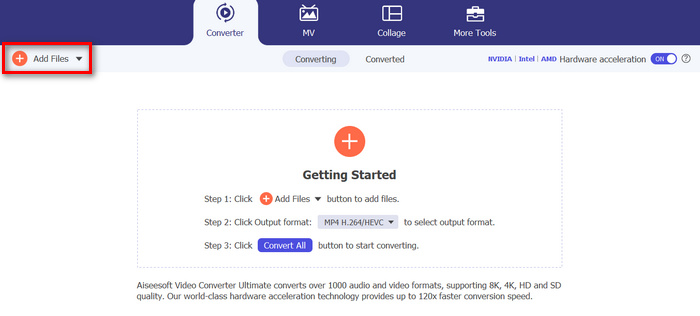
Langkah 2. Untuk mengimpor file WMA yang ingin kamu potong, klik tombol Add Files.
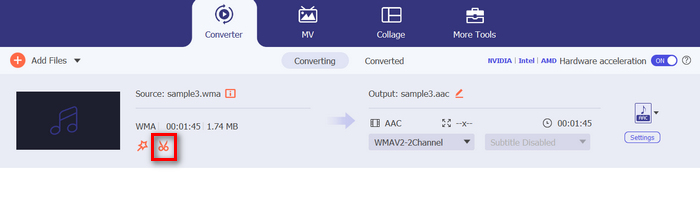
Langkah 3. Setelah itu, klik tombol Cut.
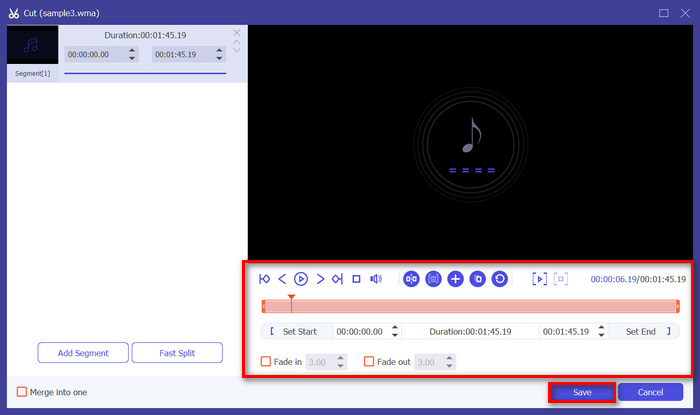
Langkah 4. Untuk memangkas file WMA, kamu bisa melakukannya secara manual dengan menyesuaikan atau menggeser bilah awal dan akhir pada klip dengan cara menariknya dari kiri ke kanan, atau dengan mengetikkan waktu mulai dan waktu selesai dari bagian file WMA yang ingin kamu potong.
Proses itu secara otomatis memotong bagian audio berdasarkan waktu saat Anda ingin memulai dan mengakhiri pemotongan.
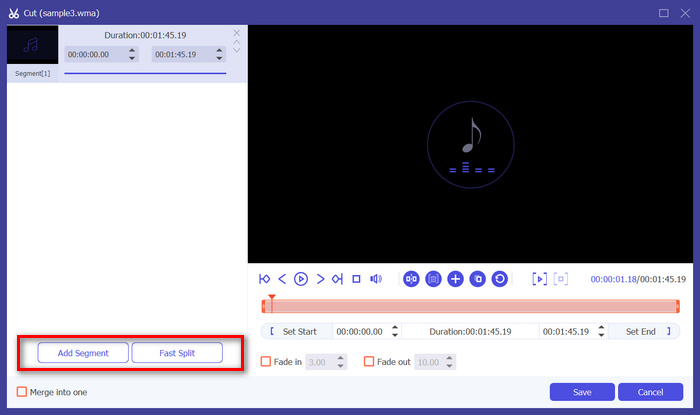
Langkah 5. Sementara itu, jika kamu ingin memotong dengan fitur Fast Slip trimmer, kamu hanya perlu mengklik tombol Fast Slip di sebelah tombol Add Segment. Selanjutnya, pilih mode pemotongan segmen yang kamu inginkan. Jika kamu memilih Split by average, cukup masukkan jumlahnya, tetapi jika kamu ingin memotong berdasarkan waktu, masukkan durasinya. Setelah itu, klik tombol Save.
Langkah 6. Terakhir, untuk mengekspor file WMA yang sudah dipangkas, klik tombol Convert All.
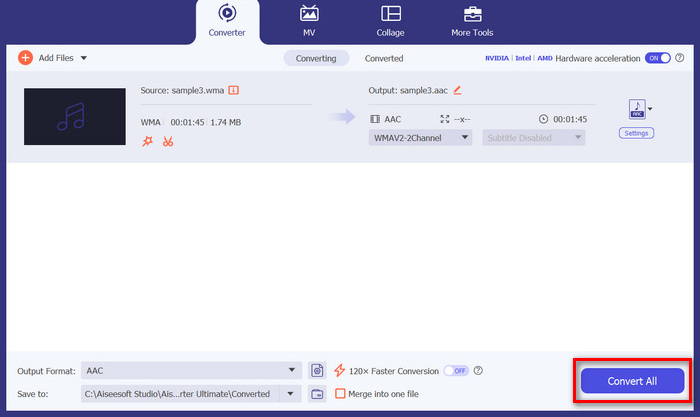
Jika berbicara tentang pemotongan berkas WMA, Video Converter Ultimate yang dipilih FVC ini memang merupakan solusi yang wajib dimiliki. Antarmukanya yang sederhana dan mudah digunakan memastikan bahwa Anda dapat memangkas berkas WMA dengan mudah dan tepat, dan berbagai opsi pemangkasannya memberi Anda fleksibilitas tentang cara yang Anda inginkan untuk memotong berkas audio dengan mudah.
Bagian 2: Potong File WMA Online Gratis
Audio Trimmer adalah alat gratis yang memungkinkan pengguna untuk memangkas berkas audio dengan cepat. Alat ini mendukung berbagai format audio populer, termasuk WMA, yang menjadikan alat ini salah satu alternatif terbaik jika Anda lebih suka memotong berkas WMA secara daring.
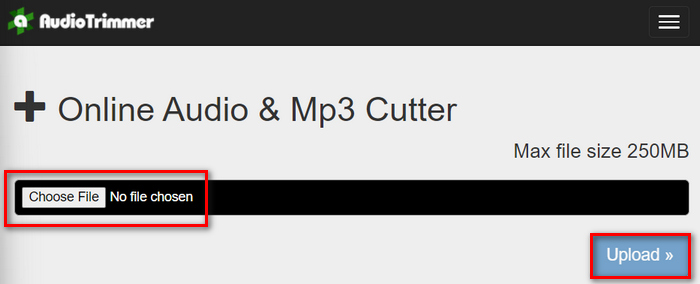
Langkah 1. Untuk mengimpor file WMA yang ingin kamu potong, klik tombol Choose File lalu klik tombol Upload.
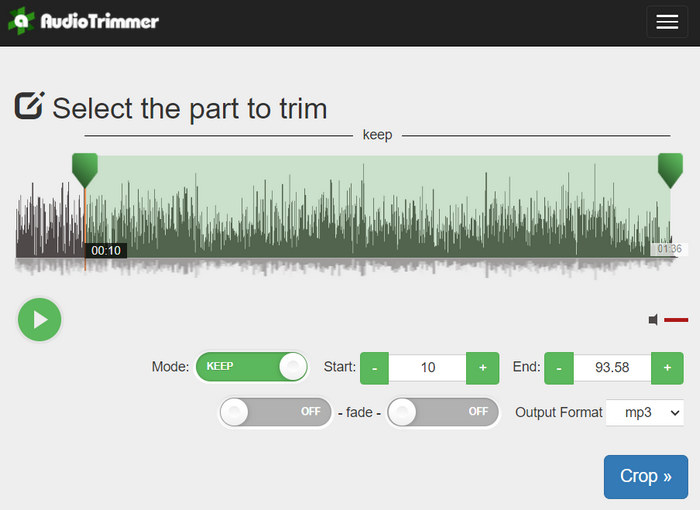
Langkah 2. Sekarang, cukup geser bilahnya ke bawah dan pilih bagian trek audio yang ingin kamu potong. Setelah selesai, klik tombol Crop.
Langkah 3. Terakhir, untuk menyimpan file WMA yang sudah dipangkas, cukup klik tombol Download.
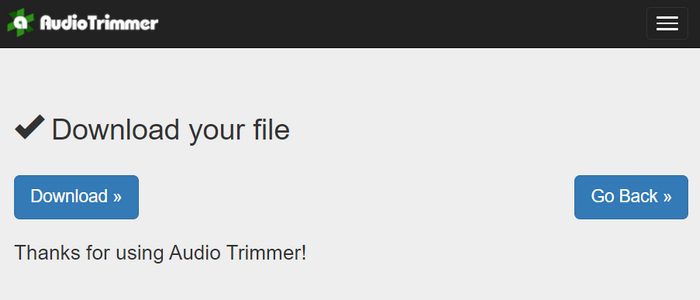
Selesai, dan kamu bisa menonton klipmu dengan pemutar WMA untuk memastikan apakah potongannya sudah benar. Dengan antarmuka yang sederhana dan sangat intuitif, memotong file WMA hanya membutuhkan 3 langkah. Meski menawarkan kemudahan dalam memangkas file audio, tidak semua pengguna bisa menikmati tool online gratis ini karena dibatasi hanya dapat memproses file di bawah 250MB.
Bagian 3: Memotong WMA dengan VLC Media Player
VLC Media Player merupakan pemutar media sumber terbuka yang banyak digunakan karena keserbagunaannya. Alat ini mendukung berbagai macam format audio dan video, termasuk berkas WMA. Selain fitur-fiturnya untuk memutar, mengalirkan, dan merekam media, alat ini juga dapat digunakan untuk memotong berkas WMA. Dengan ini, pengguna dapat dengan mudah memotong bagian-bagian dengan merekam secara langsung tanpa perlu mengubah waktu pemutaran secara manual.
Langkah 1. Buka VLC Media Player. Cukup seret dan jatuhkan file WMA yang ingin kamu potong.
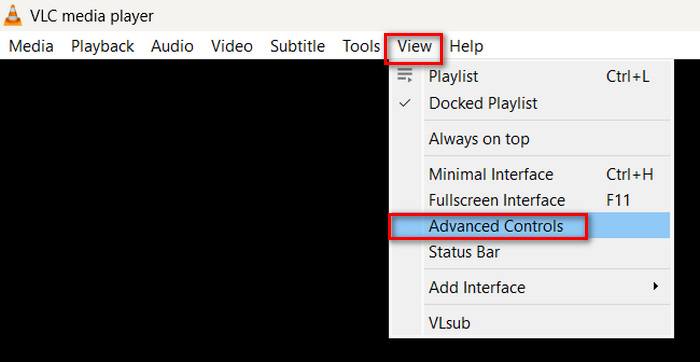
Langkah 2. Audio akan mulai diputar secara otomatis. Jeda dulu sejenak, lalu klik tombol View dan centang opsi Advanced Controls. Sekarang kamu akan melihat empat tombol baru muncul di atas ikon pemutaran.
Langkah 3. Seret bilah progres ke titik di mana kamu ingin memulai klip. Sekarang, atur bilah ke bagian yang ingin kamu jadikan awal pemangkasan file WMA. Setelah itu, putar dan klik tombol Record.
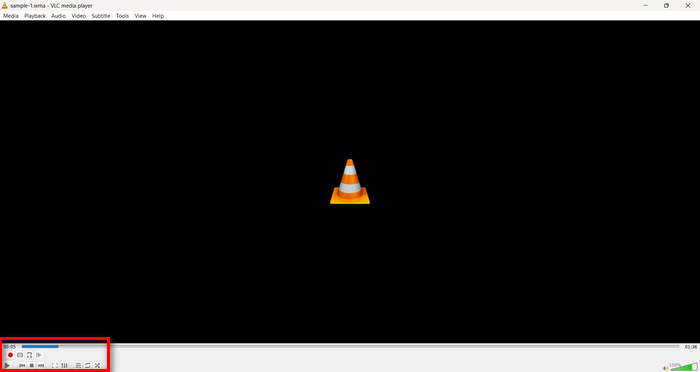
Langkah 4. Saat kamu sudah mencapai akhir bagian yang ingin disimpan, klik tombol Record lagi untuk menghentikan perekaman.
Hindari menyeret bilah progres untuk mengubah waktu pemutaran saat sedang merekam, karena VLC perlu merekam segmen tersebut secara real time. Jika kamu menyukai tool ini, jangan lewatkan alternatif VLC di sini.
Bagian 4: Tanya Jawab tentang Pemotongan WMA
Bagaimana cara memotong bagian dari berkas audio?
Untuk memotong bagian tertentu dari berkas audio, Anda dapat menggunakan alat seperti Video Converter Ultimate. Untuk melakukannya, Anda hanya perlu mengimpor berkas WMA, klik tombol Potong, dan sesuaikan waktu mulai dan berakhir.
Apakah WMA lebih baik dari MP3?
WMA sering kali memiliki kualitas suara yang lebih baik pada bit rate rendah dibandingkan MP3, sehingga menghasilkan ukuran file yang lebih kecil dengan kualitas audio yang tetap bagus. Namun, MP3 lebih luas dukungannya di berbagai perangkat dan platform. Pilihan antara WMA dan MP3 bergantung pada kebutuhanmu akan kualitas dan kompatibilitas. Kamu juga bisa mengubah WMA ke MP3 dengan alat konverter WMA ke MP3 agar prosesnya lebih cepat.
Bagaimana cara memotong berkas audio di Windows Media Player?
Untuk memangkas berkas audio di Windows Media Player, Anda perlu menggunakan plugin bernama SolveigMM WMP Trimmer Plugin Home Edition. Plugin ini memungkinkan pengguna memangkas berkas audio secara mudah langsung di dalam antarmuka Windows Media Player, sehingga memberikan solusi praktis untuk tugas penyuntingan audio.
Kesimpulan
Memotong file WMA tidak harus membuat stres. Baik kamu lebih suka menggunakan software seperti Video Converter Ultimate, tool online seperti Audio Trimmer, maupun VLC Media Player yang serbaguna, ada berbagai metode efisien yang tersedia untuk pengguna Windows dan Mac. Pilih metode yang paling cocok untukmu dan mulailah mengedit file audiomu dengan mudah. Siap mempermudah pengeditan audio? Coba salah satu metode ini hari ini!
-
 2 Metode untuk Mengonversi Audio FLV ke WMA [Gratis & Daring]
 Ingin mengekstrak audio WMA dari video FLV? Berikut adalah 2 ekstraktor audio WMA gratis untuk mengonversi FLV (Flash Video) ke WMA (Windows Media Audio) dengan kecepatan konversi cepat di Mac OS X dan Windows 10/8/7.
-
 Pilihan Teratas Editor Metadata WMA yang Tidak Boleh Anda Lewatkan [2024]
 Mengapa saya tidak dapat mengedit tag WMA? Masalah ini biasa terjadi pada pengguna' pertanyaan. Namun hari ini kami akan memberikan Anda editor meta WMA yang dapat Anda gunakan pada tahun 2024.
-
 8 Cara Mengonversi Audio MP4 ke MP3 (Konversi Batch & Ukuran Besar)
 Jika Anda ingin mengekstrak audio MP3 dari video MP4, Anda dapat memeriksa artikel ini dan mendapatkan 8 solusi. Ada cara online dan offline untuk mengonversi MP4 ke MP3 di ponsel atau komputer Anda dengan mudah.
