


 Video Converter Ultimate
 Perekam Layar
 Perbaikan Video
 Unduhan Aman
Membuat Nada Dering di iPhone Menggunakan GarageBand dan Alternatifnya
Bosankah kamu sudah bosan bangun dengan nada dering iPhone yang itu-itu saja? Meski iPhone membatasi akses ke nada dering yang lagi tren, bukan berarti kamu tidak bisa mencoba. Karena nada dering sudah menjadi bagian dari hidup kita, baik untuk notifikasi sederhana maupun alarm, kemampuan untuk menggunakannya atau menggantinya sedikit banyak mencerminkan kepribadian dan selera kita. Jadi, siapa yang tidak ingin diberi notifikasi atau dibangunkan dengan nada pilihan sendiri, bukan? Meski tampak sulit, kami akhirnya menemukan cara untuk membuat nada dering dengan GarageBand. Pelajari cara membuat, mengubah nada yang sudah ada, dan memasangnya di iPhone kamu menggunakan GarageBand dan alternatifnya hari ini, lalu mulai tunjukkan kepribadian dan seleramu melalui nada dering yang catchy.

Bagian 1. Cara Membuat Nada Dering di GarageBand
Sebelum kami menunjukkan cara membuat nada dering di GarageBand, penting untuk mengetahui terlebih dahulu apa itu GarageBand. GarageBand adalah stasiun audio digital yang dikembangkan oleh Apple khusus untuk iOS, macOS, dan iPadOS. Dengan demikian, GarageBand sangat mudah digunakan dan dapat digunakan secara gratis di sistem operasi tersebut.
Langkah 1. Buka GarageBand di Mac kamu, atau unduh dulu di iPhone atau perangkat Apple lain pilihanmu.
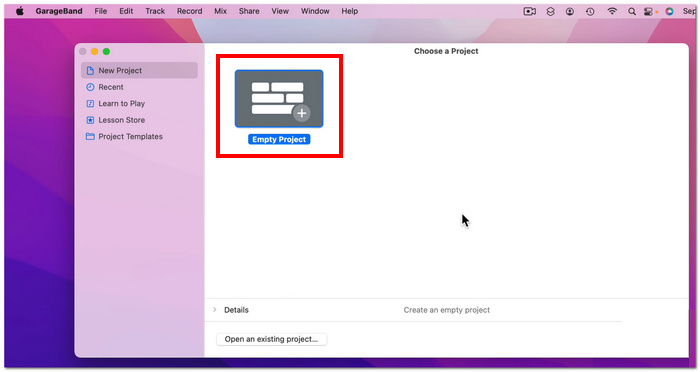
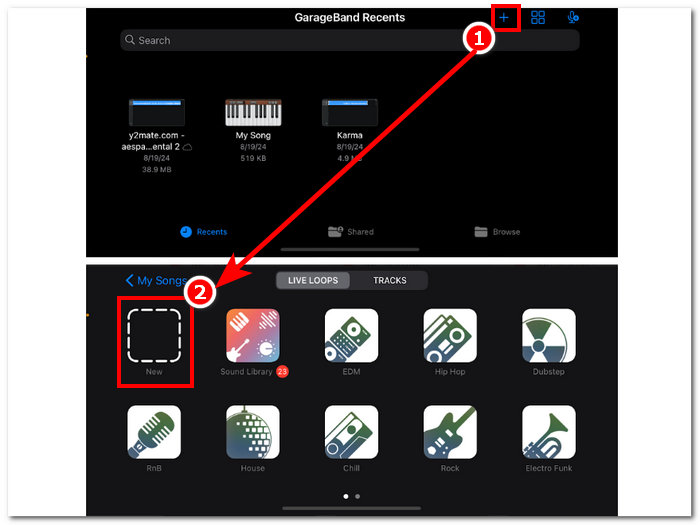
Langkah 2. Di antarmuka aplikasi, ketuk tombol + lalu lanjutkan dengan memilih opsi Proyek baru (New project).
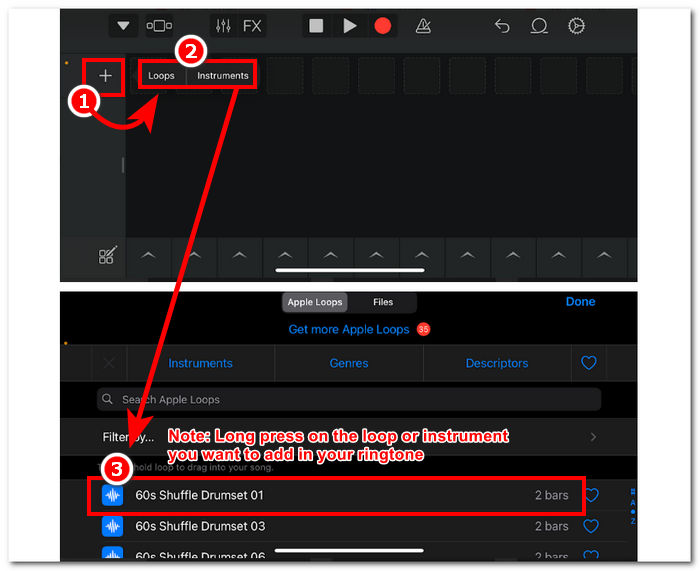
Langkah 3. Kamu kemudian akan diarahkan ke timeline GarageBand. Di sana, tambahkan Instrumen atau Loop yang ingin kamu masukkan ke nada dering; cukup ketuk tombol +, lalu tekan lama loop atau instrumen tertentu yang ingin kamu tambahkan ke timeline.
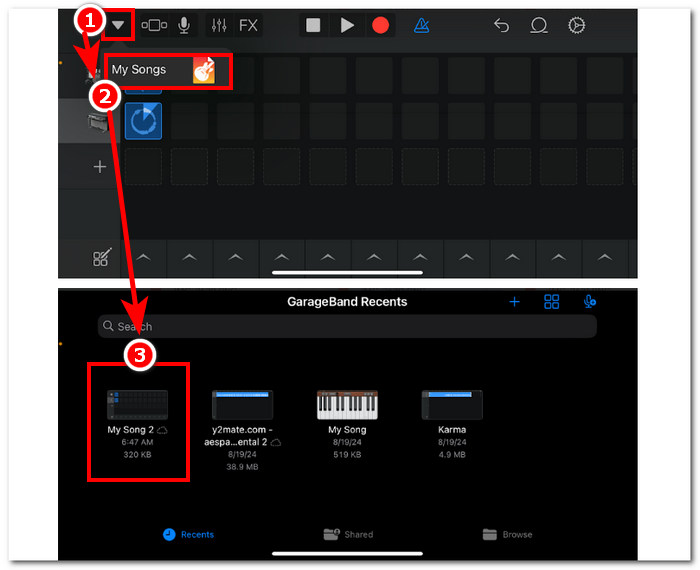
Langkah 4. Terakhir, untuk menyimpan nada dering barumu, ketuk tombol panah ke bawah di pojok kiri atas layar dan ketuk My Songs. File kamu akan otomatis tersimpan di penyimpanan file.
Bagian 2. Cara Membuat Lagu yang Sudah Ada Menjadi Nada Dering di GarageBand
Untuk membuat lagu yang menarik menjadi nada dering Anda, kami memilih musik dari Apple Music karena ada batasan tertentu yang melarang penggunaan musik di iPhone, seperti yang disebut perlindungan DRM.
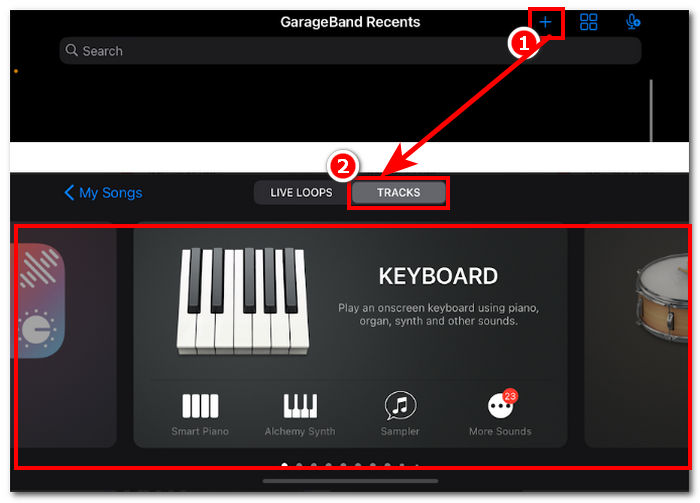
Langkah 1. Buka aplikasi GarageBand di iPhone kamu, tekan tombol +, dan pilih instrumen apa saja yang kamu inginkan.
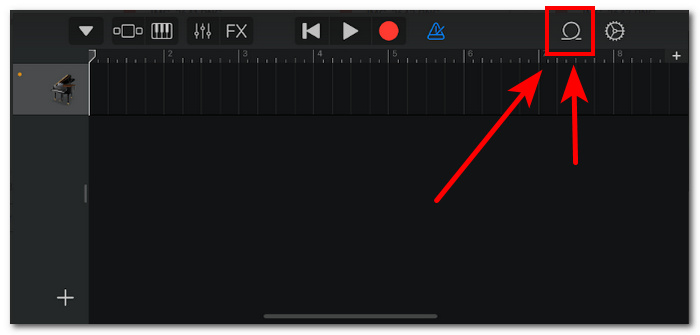
Langkah 2. Setelah berada di tampilan multitrack aplikasi, ketuk ikon Loop di pojok kanan atas layar.
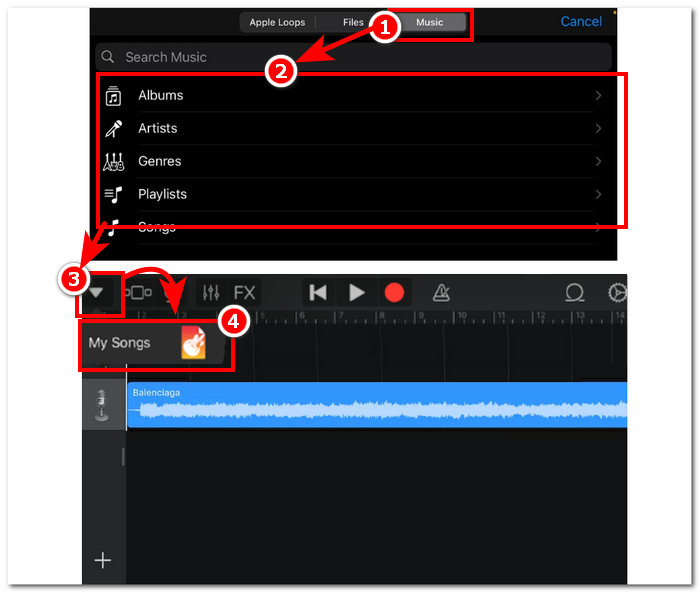
Langkah 3. Di bagian loop, ketuk bagian Music, lalu pilih lagu yang ingin kamu jadikan nada dering. Tambahkan ke timeline dengan mengetuk atau menekannya lama. Setelah masuk ke timeline, silakan ketuk tombol panah ke bawah dan masuk ke My Songs.
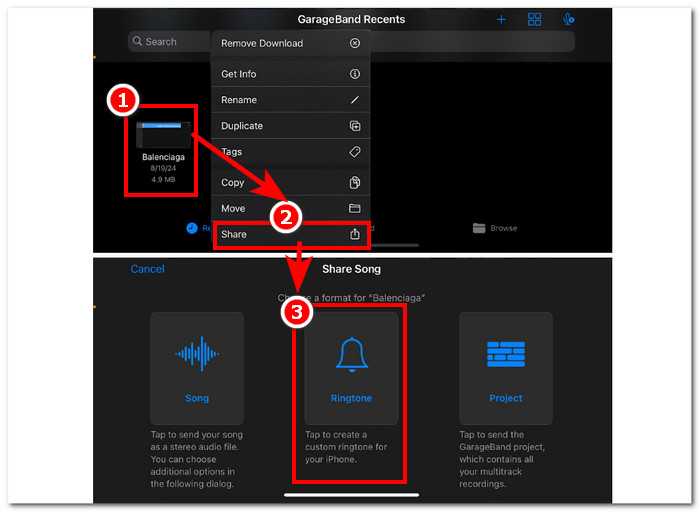
Langkah 4. Tekan lama nada dering yang baru saja kamu buat, ketuk Share, lalu pilih Ringtone untuk menjadikannya nada dering kustom di iPhone kamu.
Bagian 3. Alternatif GarageBand untuk Membuat Nada Dering
Alat berbasis perangkat lunak adalah pilihan terbaik jika kamu ingin membuat nada dering dan mempersonalisasikannya agar lebih unik. Dengan dukungan hingga 1000 jenis file, FVC-picked Video Converter Ultimate adalah program serba ada yang tidak hanya untuk membuat nada dering, tetapi juga dapat mengonversi, mengedit, meningkatkan, dan mengompres video serta audio. Alat ini sempurna untuk menyesuaikan nada dering, tidak seperti GarageBand yang agak kurang fitur kustomisasi. Selain itu, teknologi pemrosesan berkecepatan tinggi telah terintegrasi dengan sistem FVC-picked Video Converter Ultimate untuk menjamin kualitas audio tanpa kehilangan dan kecepatan konversi yang cepat.
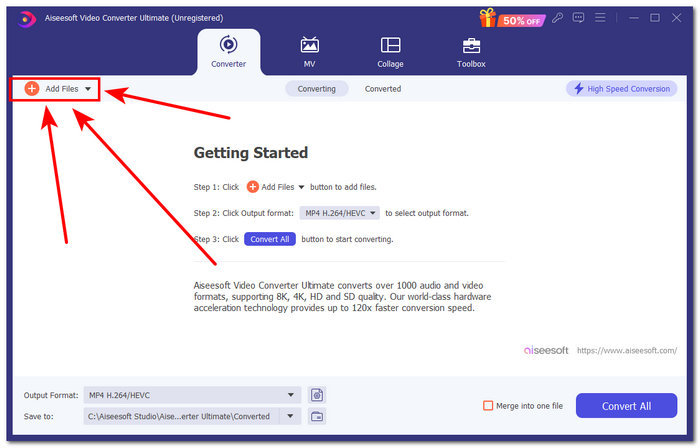
Langkah 1. Menggunakan Mac kamu, unduh dan instal FVC-picked Video Converter Ultimate. Buka program di perangkatmu, muat audio/lagu yang ingin kamu buat dan kustomisasi sebagai nada dering dengan mengeklik tautan Add Files di bagian kiri atas antarmuka.
Unduh GratisUntuk Windows 7 atau yang lebih baruUnduhan Aman
Unduh GratisUntuk MacOS 10.7 atau yang lebih baruUnduhan Aman
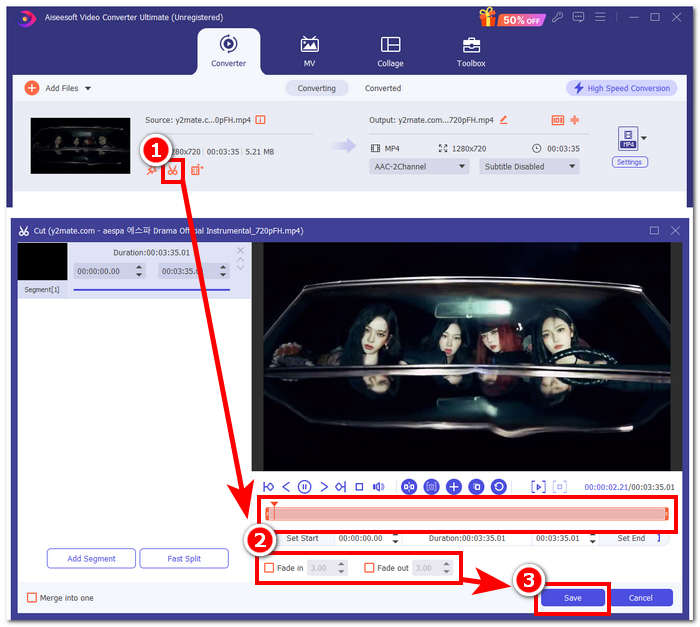
Langkah 2. Klik ikon gunting di dekat thumbnail file audio kamu. Jendela baru akan muncul di layar, memungkinkanmu menambahkan efek fade dan memotong file audio. Jika sudah puas dengan kustomisasinya, cukup klik tombol Save untuk menyelesaikan proses.
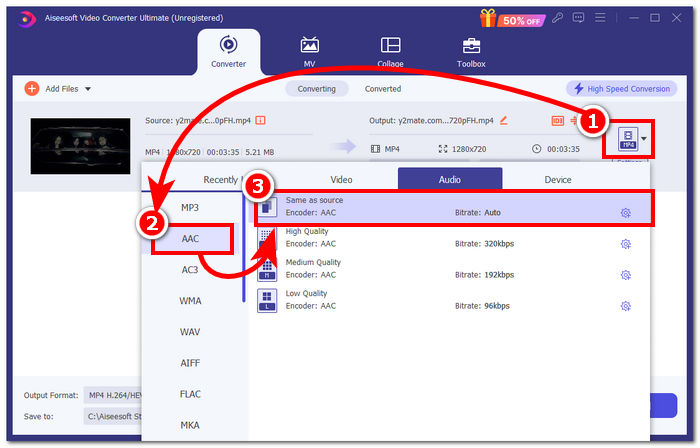
Langkah 3. Setelah kamu melakukan perubahan pada audio, ubah format filenya dari MP4 atau MP3 menjadi AAC, yang digunakan iPhone untuk nada deringnya.
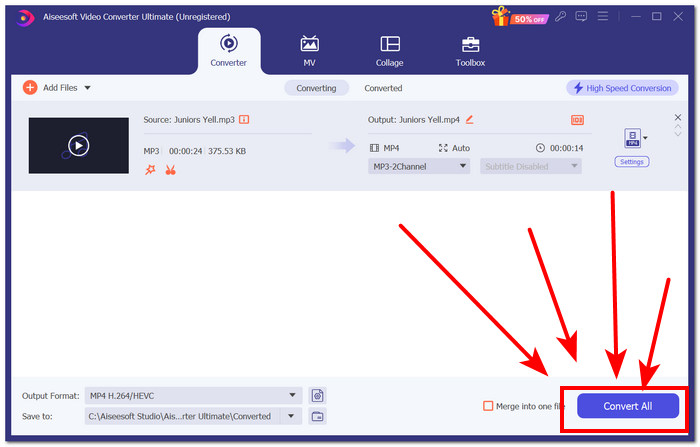
Langkah 4. Klik tombol Convert All, dan nada deringmu akan otomatis tersimpan di perangkat. Setelah konversi selesai, kamu dapat menemukan nada dering di folder unduhan.
Bagian 4. Cara Mengatur Nada Dering di iPhone Dari File Dengan GarageBand
Untuk menyetel lagu sebagai nada dering menggunakan GarageBand dari File Anda bisa jadi merupakan proses yang cukup panjang. Ini berarti Anda harus mengunduh lagu terlebih dahulu, lalu memutarnya melalui aplikasi RingtoneMaker, yang harus Anda instal di perangkat Anda.
Langkah 1. Unduh lagu pilihanmu ke perangkat.
Anda dapat mencari lagu di YouTube dan mengunduhnya menggunakan pengunduh YouTube ke MP3 daring.
Langkah 2. Untuk mengubah lagu menjadi nada dering, luncurkan aplikasi RingtoneMaker dan impor lagu yang sudah diunduh ke dalam aplikasi. Setelah dimuat, ketuk tombol Make Ringtone dan lanjutkan dengan memilih aplikasi GarageBand.
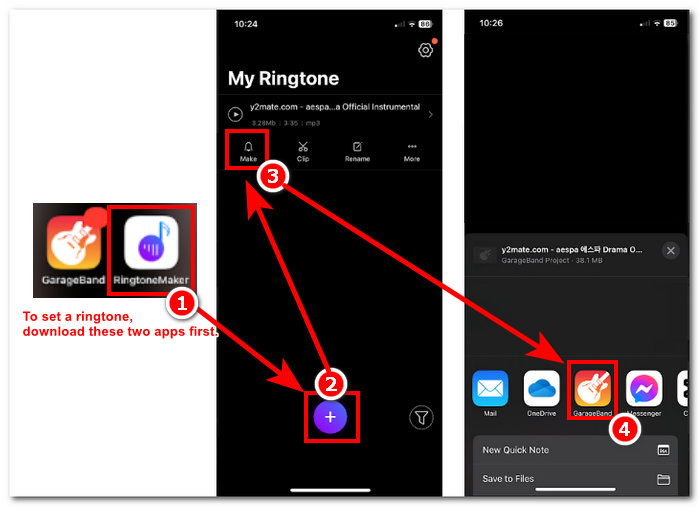
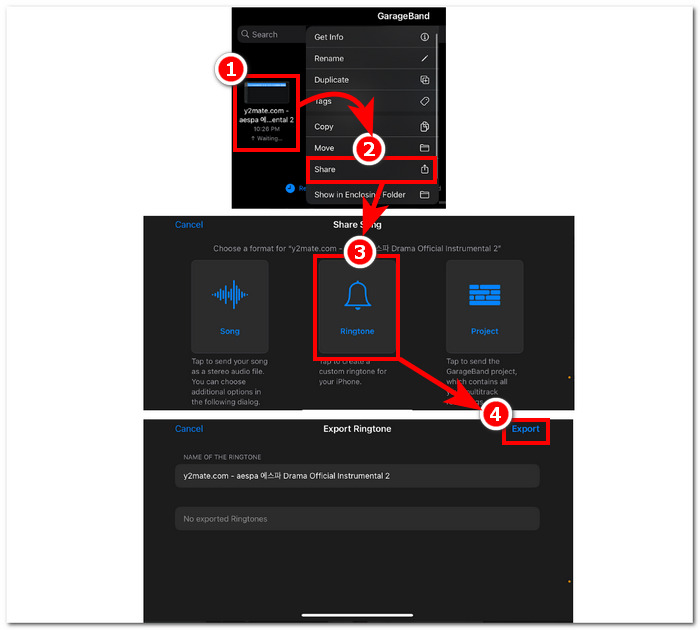
Langkah 3. Setelah kamu dialihkan ke aplikasi GarageBand, cari lagu yang kamu impor dan ketuk. Lalu ikuti jalur navigasi berikut: Share > Ringtone > Export. Dengan begitu saja, kamu telah berhasil mengubah lagu yang sudah ada menjadi nada dering.
Bagian 5. FAQ tentang Cara Membuat Nada Dering di GarageBand
Apakah GarageBand cukup bagus untuk pemula?
Ya, GarageBand adalah pembuat nada dering yang bagus, jika tidak lebih baik, untuk ekosistem Apple. Antarmukanya yang sederhana sangat cocok untuk semua jenis pengguna, dari pemula hingga profesional. Alat bawaan yang dibuat khusus untuk menciptakan nada yang menarik dan trendi serta berbagai tutorial yang tersedia secara daring menjadikannya alat yang ramah bagi pemula.
Apakah nada dering Garage gratis?
Ya, GarageBand gratis untuk digunakan dan diunduh ke semua perangkat Apple. Pengguna dapat menggunakan fitur-fiturnya untuk membuat, menyusun, dan mengekspor tanpa biaya atau langganan tambahan.
Apakah ada aplikasi nada dering gratis?
Ya, ada banyak aplikasi nada dering yang bisa Anda coba. Beberapa pilihannya adalah RingtoneMaker, Sedge, Audiko, dan masih banyak lagi. Jadi, penggunaan semua jenis aplikasi dan perangkat lunak terserah kepada pengguna. Kami sarankan pengguna melakukan riset tentang jenis aplikasi nada dering yang mereka inginkan.
Kesimpulan
Apple menetapkan batasan tertentu tentang bagaimana pengguna dapat membuat dan menyetel nada dering mereka dengan menggunakan aplikasi GarageBand mereka sendiri. Entah bagaimana aplikasi itu bekerja dengan efektif, terutama saat menyetel lagu yang sudah diunduh di iPhone Anda. Namun, aplikasi itu mungkin tidak memiliki beberapa fitur penyesuaian seperti yang dapat dilakukan Video Converter Ultimate yang dipilih FVC untuk membuatnya lebih personal. Namun, aplikasi itu tetap efektif dan merupakan satu-satunya cara pengguna iOS dapat membuat nada dering di perangkat mereka.
-
 Panduan Terbaik Cara Mengonversi WAV ke Nada Dering dalam Waktu Singkat
 Ingin mengubah WAV menjadi nada dering dengan mudah? Alat kami yang mudah digunakan menyelesaikan pekerjaan! Nikmati konversi audio berkualitas tinggi dalam sekejap - tanpa kerumitan teknis. Cobalah hari ini!
-
 Cara Membuat Memo Suara Menjadi Nada Dering di iPhone & Android
 Jika Anda ingin mengubah memo suara menjadi nada dering, baca artikel ini. Baik Anda pengguna iPhone atau Android, Anda dapat menemukan solusinya dalam konten kami.
-
 5 Pemotong MP3 untuk Memotong Audio Apa Pun dengan Mudah [Diperbarui 2024]
 Apakah Anda memerlukan pemotong MP3 untuk memotong audio? Dalam hal ini, baca artikel ini karena kami menyediakan alat yang dapat diandalkan untuk memudahkan pemotongan audio.
