


 Video Converter Ultimate
 Perekam Layar
 Perbaikan Video
 Unduhan Aman
Panduan Rinci tentang Cara Membalikkan Audio di Audacity [2024]
Membalikkan trek audio dapat menambahkan dimensi dan warna yang unik pada produksi musik Anda, menghasilkan efek suara yang memikat untuk penceritaan yang kreatif. Gaya ini banyak digunakan dan semakin populer dalam hal memperkaya proyek audio dengan kedalaman dan orisinalitas. Jadi, jika Anda mengedit audio di Audacity dan ingin menambahkan sentuhan dengan membalikkannya, Anda berada di tempat yang tepat!
Dalam artikel ini, kami akan memandu Anda melalui langkah-langkah terperinci tentang cara membalikkan audio di Audacity dan berbagi kiat-kiat berharga untuk membantu Anda memanfaatkan fitur ini sebaik-baiknya. Di akhir panduan ini, Anda akan siap untuk membalikkan trek audio dan menjelajahi cakrawala kreatif baru dengan mudah. Jadi, bersiaplah untuk mengubah proyek audio Anda dan temukan potensi audio terbalik yang menarik!

Bagian 1. Cara Membalikkan Audio di Audacity
Audacity adalah program yang dirancang untuk memberdayakan pengguna dalam mengedit berkas audio tanpa memerlukan alat premium yang mahal, memastikan keluaran berkualitas tinggi tanpa biaya. Sebagai alat sumber terbuka, alat ini dapat diakses secara bebas oleh semua orang dan menawarkan daftar panjang fitur yang biasanya ditemukan dalam perangkat lunak berbayar. Di antara berbagai kemampuannya, Audacity menonjol dengan kemampuannya untuk membalikkan trek audio. Fitur ini memungkinkan pengguna untuk berkreasi dengan cara mereka ingin audio mereka berbunyi. Biasanya, editor membalikkan audio mereka karena menambahkan efek unik pada proyek mereka.
Berikut cara membalik (reverse) audio di Audacity.
Langkah 1. Unduh dan instal Audacity di komputer Anda.
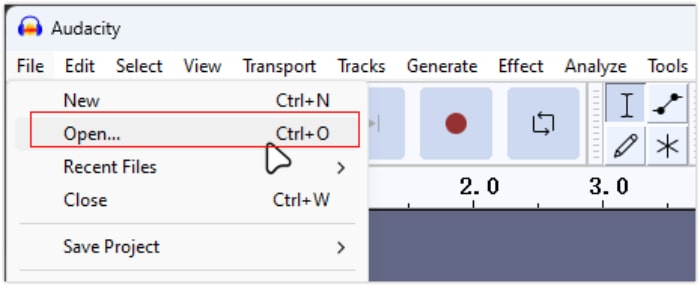
Langkah 2. Jalankan alatnya, pergi ke menu File di pojok kiri atas, lalu pilih Open. Dari sana, telusuri komputer Anda untuk menemukan dan memilih file audio, atau seret dan jatuhkan file audio yang ingin Anda balik ke dalam program.
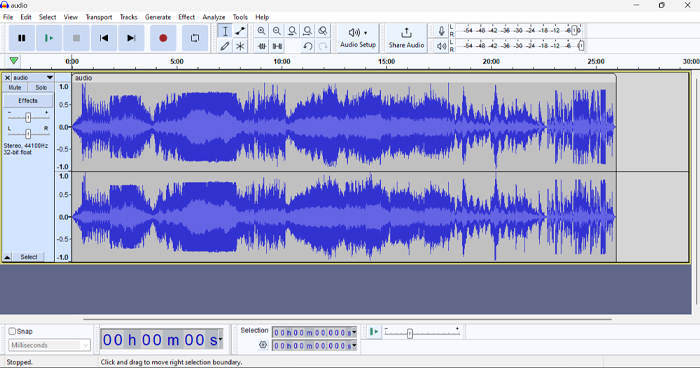
Langkah 3. Sekarang, klik pada track audio, pergi ke tab Select, lalu pilih All untuk memilih seluruh file audio.
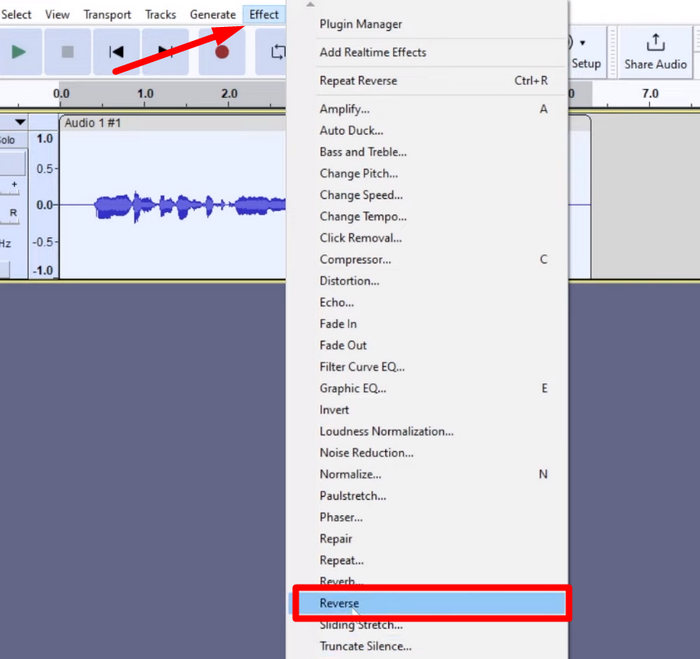
Langkah 4. Untuk membalik Audio, pergi ke tab Effect dan pilih Reverse dari menu drop-down. Audacity akan memproses dan membalik klip audio yang dipilih.
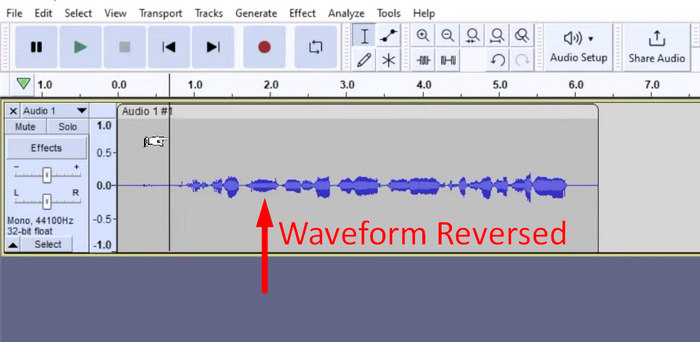
Langkah 5. Anda dapat mempratinjau audio yang sudah dibalik dengan menekan tombol Spasi pada keyboard. Atau, gunakan kontrol pemutaran di kiri atas jendela Audacity dan klik tombol Play.
Langkah 6. Terakhir, untuk mengekspor file audio yang sudah dibalik, kembali ke menu File, lalu di bawahnya pilih Export. Dengan begitu, audio Anda akan disimpan sebagai file baru. Sementara itu, jangan lupa memilih format file audio yang Anda inginkan sebelum mengekspornya.
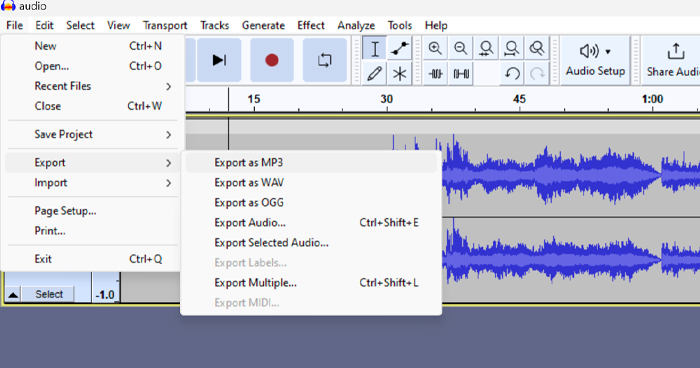
Karena beberapa masalah terkait kehilangan pekerjaan secara tiba-tiba, simpan proyek Anda secara berkala saat mengedit untuk mencegah hilangnya kemajuan. Anda dapat menyimpan pekerjaan dengan cepat menggunakan Ctrl + S di Windows atau Cmd + S di Mac. Selain itu, pertimbangkan untuk menggunakan nama file yang deskriptif dan mengatur file Anda dalam folder khusus agar proyek Anda tetap terorganisasi dengan baik dan mudah diakses.
Bagian 2. Cara Membalik Bagian Audio di Audacity
Ada kalanya pengguna hanya ingin membalikkan bagian audio di Audacity, mungkin karena hanya ada bagian tertentu yang ingin mereka tekankan atau ciptakan efek yang berbeda. Langkah-langkah di bawah ini hampir sama dengan cara membalikkan seluruh trek. Namun, memilih bagian audio agak rumit dan perlu ditekankan dalam langkah-langkahnya untuk menghindari kebingungan, terutama bagi pemula.
Berikut cara membalik sebagian audio di Audacity.
Langkah 1. Saat Anda berada di antarmuka utama alat ini, buka menu File di pojok kiri atas dan pilih Open. Dari sana, telusuri komputer Anda untuk menemukan dan memilih file audio, atau seret dan jatuhkan file audio yang ingin Anda balik ke dalam program.
Langkah 2. Sekarang, untuk memilih bagian audio yang ingin dibalik, gunakan fitur Zoom untuk memperbesar tampilan gelombang audio, lalu seret mouse Anda untuk memilih bagian atau segmen audio yang hanya ingin Anda balik.
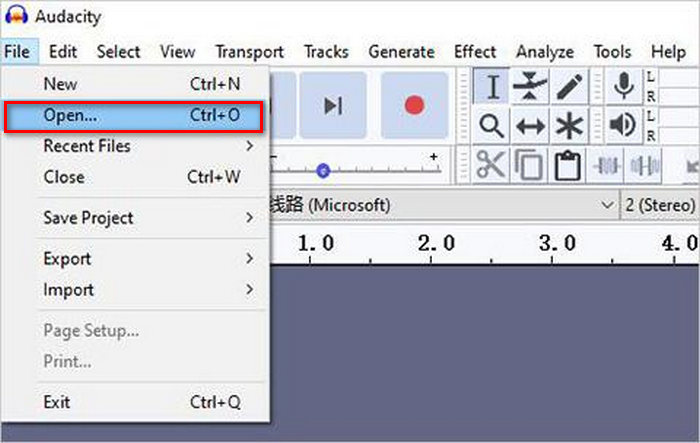
Langkah 3. Untuk membalik Audio, pergi ke tab Effect dan pilih Reverse dari menu drop-down. Audacity akan memproses dan membalik klip audio yang dipilih.
Langkah 4. Anda dapat mempratinjau audio yang sudah dibalik dengan menekan tombol Spasi pada keyboard. Atau, gunakan kontrol pemutaran di kiri atas jendela Audacity dan klik tombol Play.
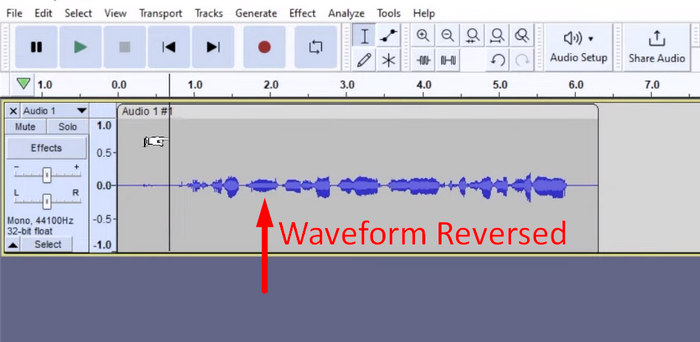
Langkah 5. Terakhir, untuk mengekspor file audio yang sudah dibalik, pilih Export di bawah menu File. Pilih Export as dan tentukan format file audio yang Anda inginkan sebelum akhirnya mengekspornya.
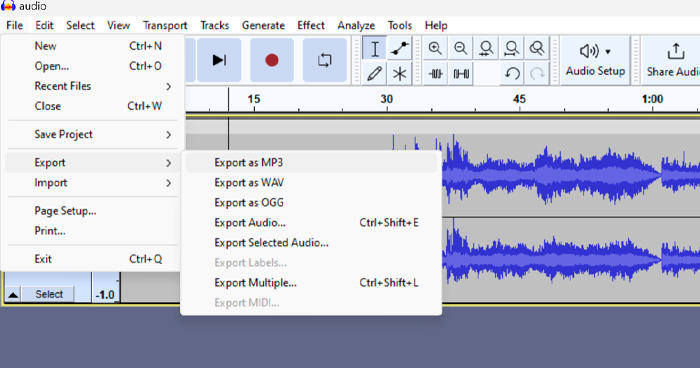
Saat memilih bagian tertentu dari audio untuk dibalik di Audacity, pastikan Anda memperbesar tampilan gelombang (waveform) dengan akurat agar bisa melihat dengan jelas di mana bagian tersebut mulai dan berakhir. Hal ini membantu dalam membuat seleksi yang presisi dan menghindari tercantumnya bagian audio yang tidak diinginkan. Selain itu, sebelum membalik, gunakan alat Clip Split bila perlu untuk membagi audio menjadi beberapa segmen, misalnya seperti memotong audio MP3, sehingga lebih mudah untuk memanipulasi dan mengedit bagian-bagian tertentu secara terpisah. Pendekatan ini meningkatkan kendali atas proses pengeditan dan memastikan audio yang dibalik menghasilkan efek yang diinginkan secara mulus.
Bagian 3. Membalikkan Audio/Video dengan Alternatif Audacity
Sementara itu, jika Anda lebih menyukai cara yang lebih sederhana dan mudah untuk membalik audio atau video, Anda dapat menggunakan alternatif Audacity ini, yaitu Video Converter Ultimate pilihan FVC. Paket lengkap alat video dan audio ini mungkin dikenal karena kemampuan konversinya yang kuat, tetapi selain itu, alat ini juga sangat cocok bagi pengguna yang membutuhkan cara praktis untuk membalik audio atau video.
Langkah 1. Di komputer Anda, unduh dan instal Video Converter Ultimate pilihan FVC.
Unduh GratisUntuk Windows 7 atau yang lebih baruUnduhan Aman
Unduh GratisUntuk MacOS 10.7 atau yang lebih baruUnduhan Aman
Langkah 2. Jalankan alatnya dan pergi ke tab Moretools. Dari sana, pilih Video Reverser.
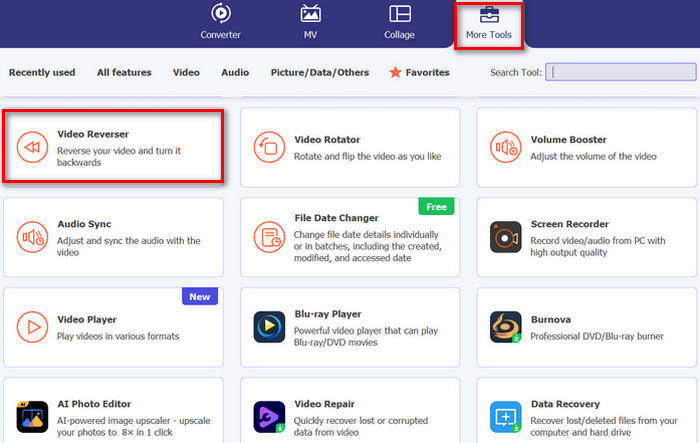
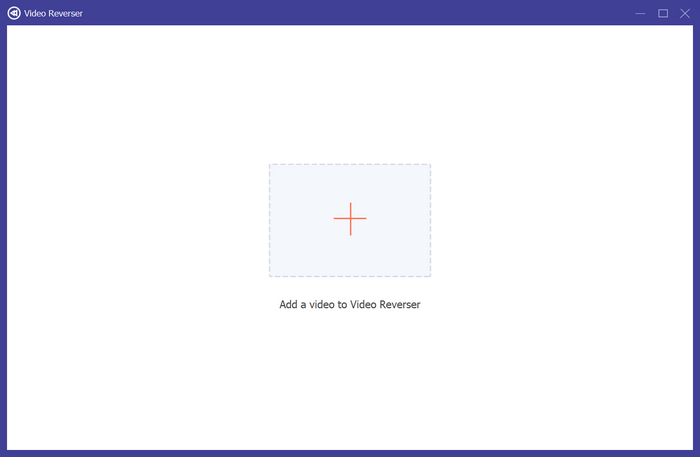
Langkah 3. Sekarang, impor audio atau video yang ingin Anda balik dengan mengklik tombol Add a Video to Video Reverser.
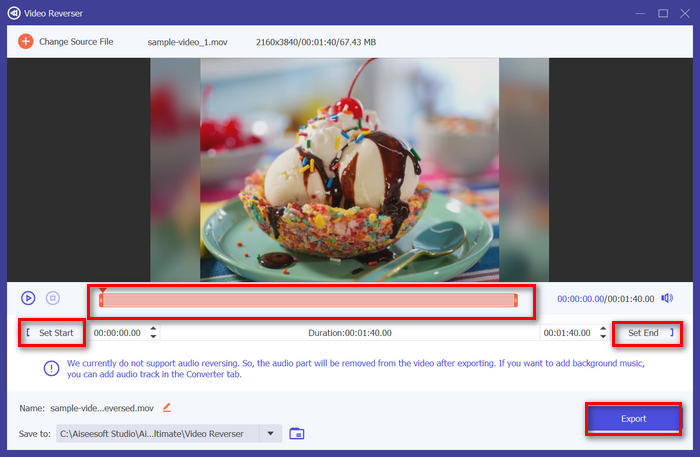
Langkah 4. Setelah Anda berada di antarmuka Video Reverser, jika Anda ingin membalik seluruh track, Anda cukup menuju ke tombol Export untuk secara otomatis membalik file Anda. Namun jika Anda hanya ingin membalik sebagian, Anda dapat menggeser bilah dan dengan cermat memilih bagian audio atau video yang ingin Anda balik. Atau, Anda juga bisa memasukkan waktu mulai dan waktu akhir dari bagian file yang ingin Anda balik. Setelah selesai, klik saja tombol Export.
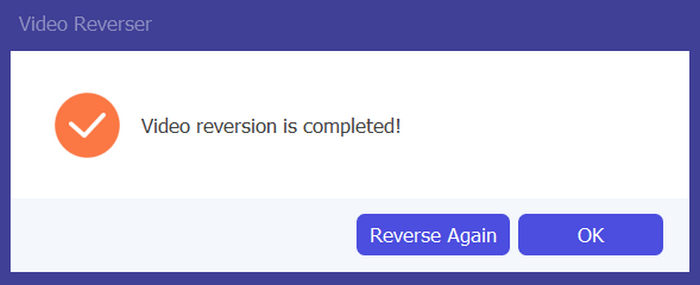
Langkah 5. Setelah proses ekspor selesai, Anda akan menerima pesan ini, dan Anda dapat mengakses video yang sudah dibalik di folder di komputer Anda.
Nah, itu dia! Mudah sekali, bukan? Anda tidak perlu bingung dengan antarmuka yang rumit. Dengan Video Converter Ultimate pilihan FVC, semua yang Anda butuhkan ada di ujung jari Anda.
Bagian 4. Tanya Jawab tentang Membalikkan Audio di Audacity
Bagaimana cara membatalkan efek audio terbalik di Audacity?
Jika Anda telah membalikkan perintah di Audacity dan ingin membatalkannya, Anda dapat dengan mudah mengembalikannya ke audio asli. Cukup buka menu Edit di sudut kiri atas antarmuka Audacity dan pilih Batalkan Pembalikan. Selain itu, Anda dapat menggunakan pintasan keyboard Ctrl + Z untuk Windows atau Cmd + Z untuk Mac untuk membatalkan tindakan terakhir. Ini akan mengembalikan audio ke keadaan aslinya sebelum efek pembalikan diterapkan.
Format audio apa yang didukung Audacity untuk membalikkan audio?
Audacity mendukung berbagai format audio populer, seperti WAV, MP3, FLAC, AIFF, dan OGG.
Bisakah Anda mendistorsi audio di Audacity?
Ya. Anda dapat mendistorsi audio di Audacity. Audacity menawarkan beberapa efek dan alat yang memungkinkan Anda menerapkan distorsi pada trek audio Anda. Untuk menambahkannya, buka Effect, klik Distortion and Modulation, lalu pilih Distortion.
Bisakah Anda mengonversi audio di Audacity?
Ya, bisa. Audacity mendukung banyak format audio. Jika Anda mendapati ada file audio yang tidak kompatibel dengan perangkat Anda, misalnya, Anda dapat menggunakan Audacity untuk mengonversi AIFF ke MP3 dengan mudah.
Kesimpulan
Sebagai kesimpulan, mempelajari cara membalik audio di Audacity itu sederhana dan dapat menambahkan efek unik pada proyek audio atau video Anda. Ikuti langkah-langkah rinci di atas untuk mulai membalik track audio Anda sekarang. Untuk alternatif yang lebih mudah, coba Video Converter Ultimate pilihan FVC. Siap berkreasi? Coba salah satu metode ini sekarang juga!
-
 Bergabunglah dengan MOV Gratis - Cara Menggabungkan Dua File MOV Menjadi Satu
 Mungkin sulit bagi pemula untuk menggabungkan beberapa klip video MOV bersama-sama. Jadi, apakah ada cara sederhana dan cepat untuk menggabungkan file MOV? Jika ada, lalu bagaimana cara menggunakannya? Posting ini akan membantu Anda mendapatkan jawaban ini.
-
 4 Cara untuk Menggabungkan Video secara Gratis di Windows / Mac / Online
 Berikut adalah 4 cara cepat untuk menggabungkan video menjadi satu video baru. Tidak ada ukuran file video atau batas format. Anda dapat bergabung dengan 2, 3, 4 dan bahkan lebih banyak klip video dalam format dan resolusi yang berbeda dengan sukses.
-
 Panduan Konkrit untuk Bergabung dengan File M4V di Windows dan Mac Gratis
 Jika Anda mencari solusi untuk menggabungkan file video M4V menjadi satu, jangan lewatkan bagian ini. Di sini kita akan berbicara tentang dua metode terbaik untuk menggabungkan file video M4V.
