


 Video Converter Ultimate
 Perekam Layar
 Perbaikan Video
 Unduhan Aman
Cara Mengonversi .TS ke MP4 di Windows/Mac/Online [10 Cara]
Jika Anda pernah mencoba menonton file .TS di pemutar media favorit Anda atau melakukan streaming di perangkat Anda, Anda tahu bahwa terkadang hal itu bisa merepotkan. Format .TS, meskipun sangat baik untuk penyiaran dan streaming, tidak didukung secara luas untuk pemutaran di berbagai perangkat. Mengonversi file .TS Anda ke format .MP4 yang lebih umum dapat membuatnya lebih kompatibel tanpa kehilangan kualitas aslinya. Namun, hanya mengubah ekstensi file dari .ts menjadi .mp4 secara manual biasanya gagal karena struktur "wadah" internal tetap berbeda, yang menyebabkan kesalahan "File Rusak" atau "Tidak Ada Audio". Anda memerlukan konverter khusus untuk melakukan remux (pengemasan ulang) atau pengkodean ulang data.
This guide walks you through several ways to convert .TS files into .MP4 - without quality loss - using both online and desktop tools. Whether you’re looking for a quick online solution or a robust desktop converter with advanced features, we've got you covered with step-by-step instructions and expert recommendations.

How We Test and Use
- Kami telah menguji semuanya berkas video TS konverter pada berbagai komputer, termasuk Windows, Mac, dan Linux, untuk menilai kinerja dan kompatibilitas di berbagai konfigurasi perangkat keras.
- Kami juga telah menguji program-program ini dari segi kemudahan penggunaan timeline, dukungan format, serta fitur dasar dan lanjutan, termasuk konversi batch, pengeditan dasar, output berkualitas tinggi, dan sebagainya.
- Kami juga telah menilai stabilitas dan kinerja, kecepatan rendering, dan kualitas keluaran alat-alat ini.
- Kami juga mempertimbangkan kemudahan penggunaan, harga, dan ketersediaan platform untuk memberikan evaluasi pengalaman pengguna secara keseluruhan.
Pilihan Cepat: 10 Metode Terbaik untuk Mengonversi TS ke MP4
| metode | Peron | Kualitas Keluaran yang Didukung | Harga | Batas Panjang Video Keluaran | Format output | Kecepatan Konversi | Fitur lainnya | Terbaik untuk |
| FVC Video Converter Ultimate | Windows, Mac | 4K, 1080p, HD | $14.50 per bulan | Tak terbatas | Lebih dari 1000 format media, seperti MP4, MKV, AVI… | Memproses video berdurasi 5 menit dalam waktu kurang dari 3 detik. | Konversi tanpa kehilangan kualitas, pemrosesan batch, peningkatan video berbasis AI. | Konversi massal berkualitas tinggi dan cepat. |
| VLC Media Player | Windows, Mac, Linux | HD Standar/HD Penuh | Gratis | Tidak ada batas | MP4, AVI, MKV, dan banyak lagi | Sedang | Alat pengeditan dasar, gratis, dan sumber terbuka. | Pengguna dasar, solusi gratis |
| FFmpeg (Tingkat Lanjut) | Windows, Mac, Linux | 4K, 1080p, HD | Gratis | Tidak ada batas | MP4, AVI, MOV, MKV, dan lainnya | Cepat (Baris Perintah) | Sumber terbuka, sangat dapat disesuaikan, mendukung banyak format video, pemrosesan batch. | Pengguna tingkat lanjut, melek teknologi |
| Clipchamp | Windows, berbasis web (Browser) | Resolusi HD 1080p | Gratis (dengan fitur premium) | 30 menit (versi gratis) | MP4, MOV, AVI, dan lainnya | Sedang | Antarmuka sederhana, editor bawaan, opsi penyimpanan berbasis cloud. | Pengguna Windows (Tidak perlu instalasi) |
| iMovie | macOS, iOS | 4K, 1080p, HD | Gratis | Tidak ada batasan (tergantung pada penyimpanan perangkat) | MP4, MOV | Sedang | Antarmuka yang ramah pengguna, alat pengeditan dasar, templat, integrasi dengan aplikasi Apple lainnya | Pengguna macOS/iOS, pemula dalam pengeditan video |
| HandBrake | Windows, Mac, Linux | 4K, 1080p, HD | Gratis | Tidak ada batas | MP4, MKV | Sedang | Sumber terbuka, sangat dapat disesuaikan, pemrosesan batch, dukungan untuk berbagai codec. | Pengguna yang mencari konversi gratis berkualitas tinggi dengan fitur canggih. |
| Konverter TS Gratis FVC | Windows, Mac | HD, 4K | Gratis | Tidak ada batas | MP4, MKV, dll. | Cepat | Konversi batch, kompresi file | Pemrosesan TS khusus |
| FreeConvert | Berbasis web (Browser) | 1080p, HD | Gratis (dengan opsi premium) | 1GB/Hari | MP4, AVI, MOV, dan lainnya | Lambat | Layanan online, tidak perlu instalasi perangkat lunak, mendukung berbagai format. | Konversi file online cepat |
| Konversi Awan | Berbasis web (Browser) | 1080p, HD | Gratis (dengan opsi premium) | 1GB/Hari (Gratis) | 200+ Format | Sedang | Layanan online, tidak perlu instalasi perangkat lunak, mendukung banyak jenis file. | Konversi online cepat, dukungan multi-format. |
| Konverter Video Online Aiseesoft | Berbasis web (Browser) | 1080p, HD | Gratis | Terbatas (memproses video hingga 100MB berdurasi 15 menit) | Mendukung 20+ format media | Luangkan 1,5 menit untuk memproses video berdurasi 5 menit. | Pemangkasan tingkat lanjut, ekspor trek audio. | Ekspor video pendek atau audio tanpa kehilangan kualitas secara online. |
Cara Mengonversi .TS ke .MP4 di Windows/Mac
FVC Video Converter Ultimate (Terbaik untuk Kualitas Tanpa Kehilangan Data & Kecepatan Tinggi)
FVC Video Converter Ultimate is a heavy-duty desktop application designed for high-speed batch conversion. It uses hardware acceleration (AI-powered) to process large 4K/8K TS files without crashing or losing quality. In addition to basic conversion, it also supports AI video enhancement (especially when your converted TS file is blurry, AI vocal isolation, and more tools.) Below are the steps to convert a.TS file to an .MP4 in FVC Video Converter Ultimate.
Step 1. Download and install FVC Video Converter Ultimate.
Unduh GratisUntuk Windows 7 atau yang lebih baruUnduhan Aman
Unduh GratisUntuk MacOS 10.7 atau yang lebih baruUnduhan Aman
Step 2. Click "Add Files" to add your TS file.

Step 3. Choose "MP4" under the "Video" tab
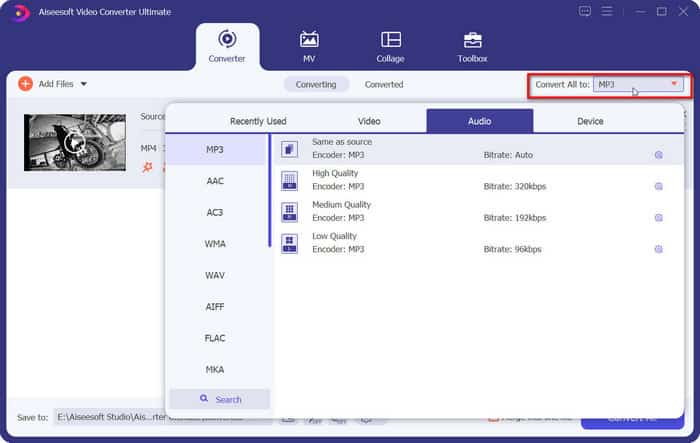
Step 4. Click "Convert All" to export your video after adjusting its settings, save folder, etc. You can also check the "Merge into one file" box to combine multiple videos.

Editor's Verdict: FVC Video Converter Ultimate is ideal for users who need fast, high-quality conversions. It stands out for its lossless quality and hardware acceleration, making it the best option for professional use or for users with large files. If you want to remux instead of transcode the video, just enable the "120× Faster Conversion" option.
VLC Media Player (Aplikasi Gratis)
VLC Media Player adalah pemutar media sumber terbuka gratis yang banyak digunakan dan juga dapat menangani konversi video dasar, termasuk .TS ke .MP4. Meskipun bukan alat konversi tercepat atau tercanggih, ini adalah pilihan yang nyaman bagi mereka yang mencari solusi gratis dan mudah digunakan.
Step 1. Go to "Media" > "Convert/Save".
Step 2. Click "Add" to load your TS file, then click "Convert/Save".
Step 3. Select "Video - H.264 + MP3 (MP4)" from the "Profile" dropdown.
Step 4. Set a destination folder by clicking "Browse" and hit "Start".
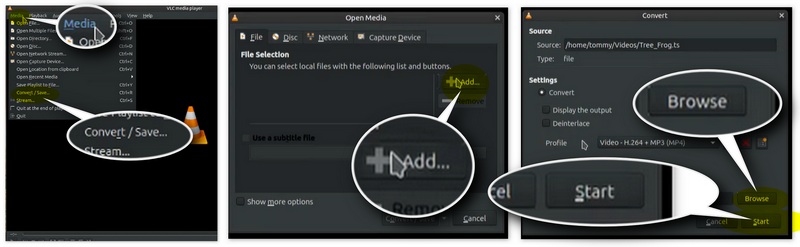
Editor's Verdict: VLC is a great free option for basic .TS to .MP4 conversion. However, it lacks advanced customization and speed, and conversion times can be slower compared to dedicated converters. It’s best for simple tasks but may not meet the needs of professional video editors.
FFmpeg (Pilihan Profesional di Bidang Teknologi)
FFmpeg adalah alat baris perintah yang disukai oleh para profesional dan pengguna yang paham teknologi. Alat ini memberikan kontrol penuh atas konversi video dan audio, sehingga ideal bagi pengguna dengan kebutuhan khusus. FFmpeg mendukung konversi berkualitas tinggi dan tanpa kehilangan data (lossless), serta sangat cocok untuk memproses file besar secara massal.
Step 1. If you have FFmpeg installed on your computer, you can open "Terminal" or "Command Prompt".
Step 2. Place the ts video in the directory showed in Command Prompt. Type: ffmpeg -i input.ts -c copy output.mp4
Catatan: "input.ts" adalah nama file Anda.
Step 3. Press "Enter".
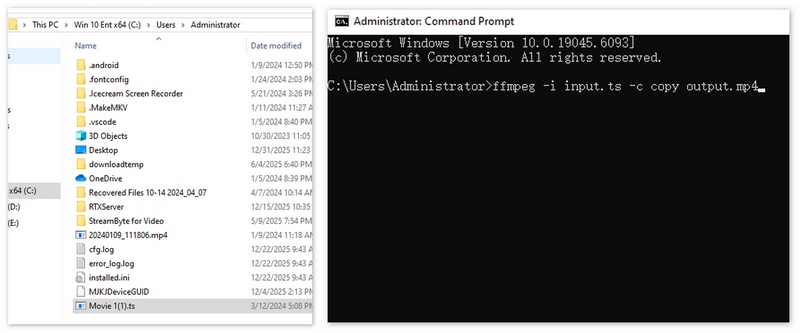
Editor's Verdict: Very user-friendly, but it will re-encode the video, which takes time and might slightly alter the original file's metadata. The fastest and only 100% lossless method. Because it uses -c copy, it finishes in seconds. Best for those comfortable with code. However, it requires technical knowledge of command-line operations. For users comfortable with its interface, it’s unmatched in versatility and power.
Clipchamp (Windows Native)
Clipchamp adalah aplikasi Windows asli yang menyediakan antarmuka ramah pengguna untuk pengeditan dan konversi video. Aplikasi ini mendukung konversi .TS ke .MP4 dan memungkinkan pengeditan video dasar sebelum konversi. Alat ini cocok untuk pengguna Windows yang membutuhkan solusi sederhana dan cepat.
Step 1. Open Clipchamp and click "Create a new video".
Step 2. Click "Import media" to import your TS file and drag it to the timeline.
Step 3. Click "Export" and select "1080p". Your video will auto-save as MP4.
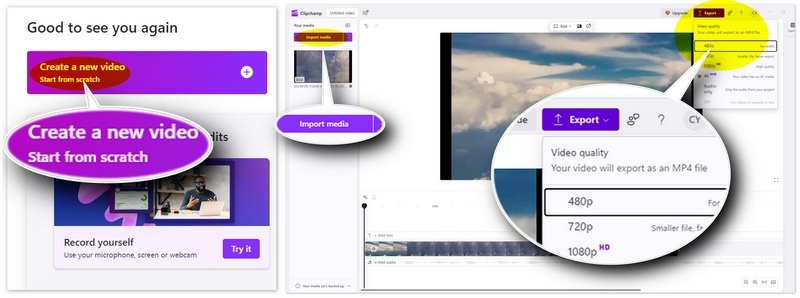
Editor's Verdict: It’s not as feature-packed as professional converters, but it’s excellent for basic needs. It is very user-friendly, but it will re-encode the video, which takes time and might slightly alter the original file's metadata.
iMovie (Versi Asli Mac)
iMovie adalah editor video bawaan Apple. Aplikasi ini sangat dioptimalkan untuk perangkat keras macOS. Mudah digunakan dan menyediakan fitur konversi dan pengeditan video dasar. Meskipun iMovie tidak menawarkan opsi lanjutan seperti konversi lossless, ini adalah pilihan yang sangat baik bagi pengguna Mac yang mencari solusi gratis dan mudah digunakan.
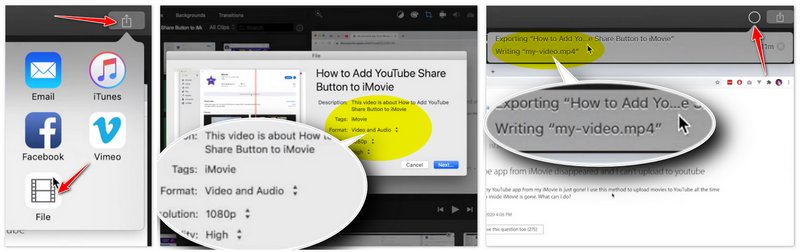
Step 1. Open iMovie and start a new project by clicking "Create New" > "Import Media".
Step 2. On the top-right corner, click the "Share" button.
Step 3. Click "File".
Step 4. Set the "Resolution" to "720p" and "Quality" to "High".
Step 5. Click "Next" to name your file and click "Save". Now, you will find your file’s extension named MP4.
Editor's Verdict: Excellent for Mac users, though iMovie can be picky about certain TS codecs (you may need to "Prepare for Media" first). The process is not easy for new beginners.
HandBrake (Kompresi Sumber Terbuka)
HandBrake adalah transcoder video sumber terbuka yang berfungsi dengan baik untuk konversi .TS ke .MP4. Dikenal karena kemampuan kompresinya, HandBrake memungkinkan pengguna untuk mengkonversi video ke ukuran yang lebih kecil tanpa banyak mengorbankan kualitas. Ini adalah alat andalan jika file TS Anda terlalu besar dan Anda ingin mengecilkannya sambil tetap mempertahankan kualitas HD.
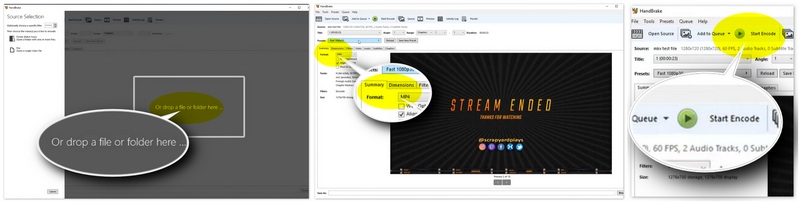
Step 1. Open HandBrake and drop your TS file in.
Step 2. In the "Summary" tab, ensure the format is "MP4". You can also adjust its dimensions, video quality, audio & subtitle & chapters settings.
Step 3. Click "Start Encode".
Editor's Verdict: Best for compressing TS. It provides more granular control over bitrates than any other free tool.
Konverter TS Gratis FVC (Desktop)
FVC Free TS Converter is a free desktop tool specifically designed for converting .TS files to .MP4. While it’s straightforward and simple to use, it doesn’t offer advanced features, making it best for users who need a basic solution.

Konverter TS Gratis
30000+ Unduhan- Konversi TS ke video dalam format MP4, MKV, AVI, MOV, MP3, AAC, AIFF, dll.
- Ekspor video HD MP4 dan file audio lossless dari file TS dalam 1-klik.
- Izinkan pengguna untuk mengedit kata, judul, penulis, waktu untuk menyempurnakan video.
- File yang dikonversi dapat dimainkan di pemain, iPhone, Samsumg, PSP, dll.
Unduh GratisUntuk Windows 7 atau yang lebih baruUnduhan Aman
Unduh GratisUntuk MacOS 10.7 atau yang lebih baruUnduhan Aman
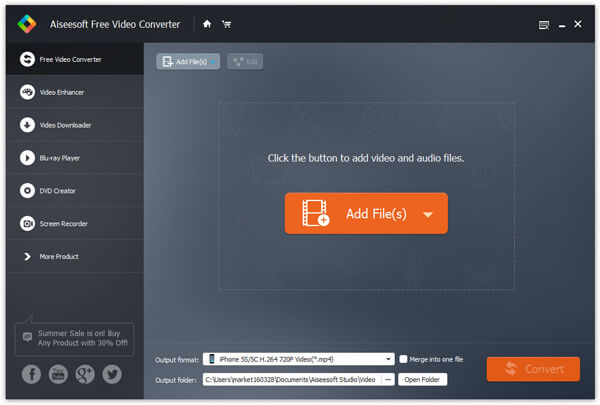
Step 1. After you download FVC Free Video Converter, run and install it on your computer. Click Add File(s) button in the main interface to import TS file into the program. This free tool supports batch conversion, so you can add more than one TS file for converting.
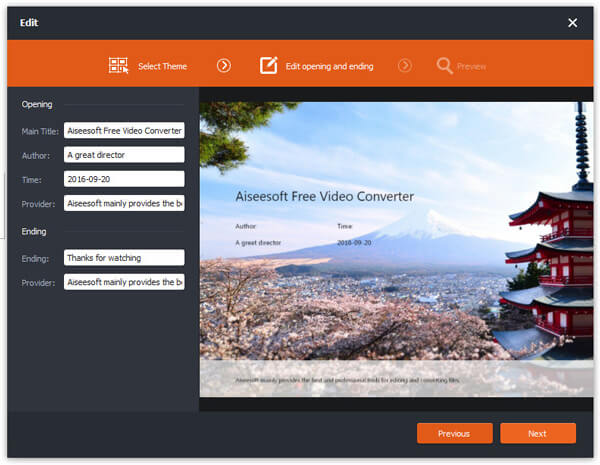
Step 2. You can customize the video by clicking Edit button to add opening and ending theme and title to your video. Then, click Next to move on.
Step 3. Click the dropdown button of Output format and select MP4 file format. After that, click Convert button to convert TS file to MP4.
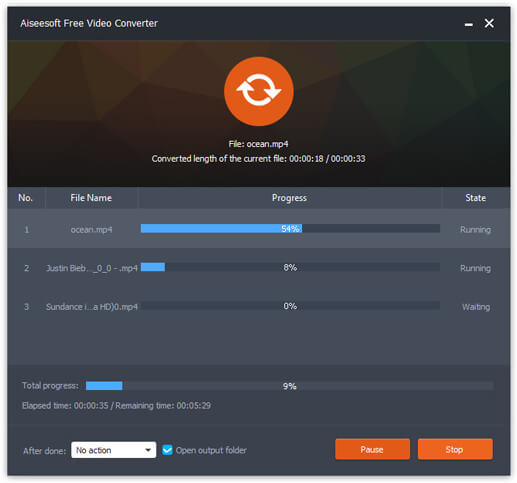
Editor's Verdict: Excellent if you want a simple, clean interface without the complexity of HandBrake or the cost of pro suites.
Cara Mengonversi TS ke MP4 Secara Online
FreeConvert (Online – File Kecil)
FreeConvert adalah alat online yang menyediakan konversi sederhana tanpa perlu instalasi. Alat ini bekerja dengan baik untuk file berukuran kecil dan mendukung berbagai format, termasuk .TS ke .MP4. Ini adalah pilihan tepat ketika Anda membutuhkan konversi cepat tanpa perlu khawatir tentang instalasi perangkat lunak.
Step 1. Click "Choose Files" to upload your TS file to the website.
Step 2. Select "MP4" as the target format. Click the gear icon to adjust the advanced settings like resize parameters, frame rate, rotating angle, subtitle settings, and more.
Step 3. Click "Convert" and download when ready.
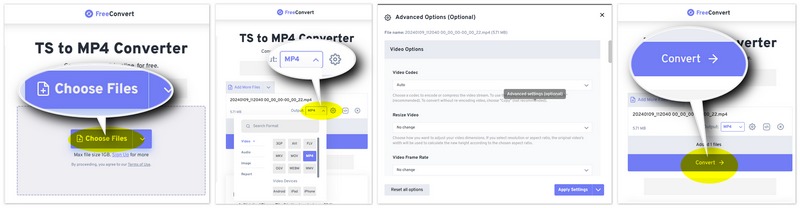
Editor's Verdict: Highly convenient but limited by a 50MB file cap for free users. Only use this for very short clips. One of its highlights is that you can adjust the fading in and out of the audio tracks in the video.
CloudConvert (Online – Profesional)
CloudConvert adalah alat online profesional yang mendukung konversi file berkualitas tinggi, termasuk .TS ke .MP4. Ia menawarkan lebih banyak pilihan daripada Zamzar, dan versi gratisnya memiliki batas ukuran file yang lebih tinggi, tetapi tetap ditujukan bagi pengguna yang membutuhkan solusi konversi online yang andal.
Step 1. Open CloudConvert’s TS to MP4 Converter and click "Select File" to add your file.
Step 2. You can also edit the resolution, video codec, CRF, audio settings, trimming, subtitles, add a watermark accordingly. Set the output to "MP4".
Step 3. Click "Convert" and wait for the download link.
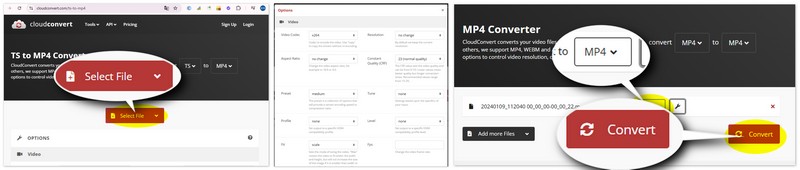
Editor's Verdict: More powerful than ordinary online converter, offering up to 1GB per day for free. It’s the best online choice for privacy and options.
Aiseesoft Online Video Converter (Gratis dan Ekspor Video & Audio)
Aiseesoft Online Video Converter adalah alat gratis yang menyediakan konversi online cepat untuk file .TS ke .MP4. Ini adalah pilihan tepat bagi pengguna yang menginginkan solusi online yang mudah digunakan dengan opsi untuk mengkonversi video dan audio.
Step 1. Click "Add a File" on the site: aiseesoft.com/free-online-video-converter/.
Step 2. Select your TS file and choose "MP4" from the "Format" drop-down menu.
Step 3. Choose your encoder, resolution, quality, anc click "Convert".
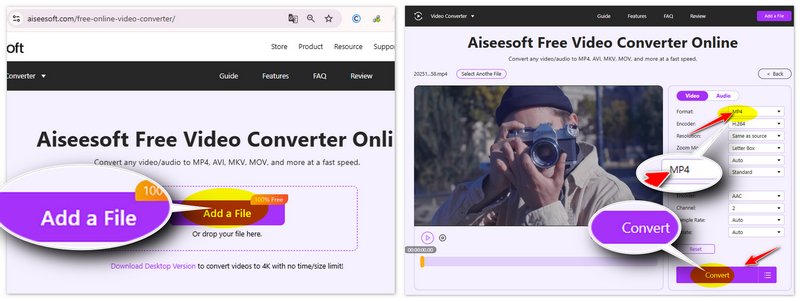
Editor's Verdict: The best "Online" option for TS-to-audio conversion. It allows you convert 10 files per day.
Pertanyaan yang Sering Diajukan (FAQ) tentang Konversi TS ke MP4
Mengapa file TS saya jauh lebih besar daripada file MP4?
File TS berisi data tambahan untuk koreksi kesalahan selama siaran. Konversi ke MP4 menghilangkan data "pengisi" ini tanpa mengurangi kualitas.
Bisakah saya mengkonversi TS ke MP4 tanpa melakukan pengkodean ulang?
Ya, menggunakan perintah "copy" FFmpeg atau fungsi "Rewrap" Shutter Encoder. Jika Anda menginginkan opsi yang lebih praktis, cukup pilih FVC Video Converter Ultimate dan aktifkan opsi "Konversi 120× Lebih Cepat", yang akan melakukan remux sebagai MP4 tanpa benar-benar melakukan encoding.
Mengapa tidak ada suara setelah konversi TS ke MP4?
File TS sering menggunakan audio AC3. Pastikan konverter Anda diatur ke audio "AAC" atau "MP3" untuk kompatibilitas MP4 maksimal.
Kesimpulan
Finding the right way to convert .ts to .mp4 depends on your priority: speed, quality, or convenience. HandBrake is ideal for compressing bulky files, while VLC and FVC Free TS Converter provide reliable, no-cost solutions for Windows and Mac. For small files or quick fixes, Aiseesoft Online and CloudConvert offer the most flexible browser-based experiences without the need for installation. For tech-savvy users, FFmpeg offers the fastest "remuxing" without re-encoding. FVC Video Converter Ultimate is the premier choice for handling large 4K recordings with hardware acceleration.
-
 6 Cara Mudah untuk Mengonversi TS ke AVI / MKV / MOV / WMV di Windows / Mac
 Ingin mengonversi file TS ke AVI / MKV / MOV / WMV dengan cepat? Artikel ini menunjukkan konverter video online dan offline dengan panduan lengkap. Mungkin Anda bisa mendapatkan konverter TS gratis terbaik di sini.
-
 Cara Mengonversi File TS ke MP3, AIFF, ALAC, FLAC, dan Format Audio Lainnya di Windows / Mac
 Bagaimana cara mengonversi file TS ke MP3 secara gratis? Dalam panduan ini, Anda akan menemukan 11 cara mudah untuk mengekstrak audio dari file TS dengan TS ke freeware audio dan alat konverter online.
-
 Cara Mengonversi MXF ke MP4 melalui Konverter Gratis
 Posting ini adalah panduan rinci untuk mengubah MXF ke MP4 di komputer. Anda bisa mendapatkan 4 konverter MXF ke MP4 gratis untuk transcode camcorder MXF ke MP4 dalam langkah sederhana.
