


 Video Converter Ultimate
 Perekam Layar
 Perbaikan Video
 Unduhan Aman
Cara Mengonversi File FLV ke Video iPhone tanpa Kehilangan Kualitas
Sudah diketahui luas bahwa iPhone dan iPad dilengkapi dengan layar generasi terbaru. Wajar jika menonton film di perangkat iOS menjadi aktivitas yang populer. Namun, pengguna iOS selalu menghadapi hambatan format saat memutar film. Misalnya, file FLV yang cukup umum tidak didukung oleh perangkat lunak bawaan Apple. Itulah mengapa kami membagikan panduan ini untuk membantu Anda mengonversi FLV ke format video iPhone di desktop atau secara online dengan mudah.

Bagian 1: Freeware Terbaik untuk Mengkonversi FLV ke Video iPhone
Secara bawaan, iPhone hanya mendukung M4V, sebagian format MP4, MOV, dan sebagian AVI. Hal ini membuat konversi FLV ke format iPhone menjadi sulit. FVC Free FLV Converter adalah alat yang kuat. Perangkat lunak ini menyediakan preset untuk mengonversi berkas multimedia langsung ke format iPhone. Yang lebih penting, perangkat ini sepenuhnya gratis digunakan.
Fitur Utama Konverter FLV ke Video iPhone Gratis Terbaik
- 1. Mengkonversi file FLV ke format video iPhone dengan mudah.
- 2. Sertakan banyak preset untuk iPhone, iPad, dan lainnya.
- 3. Menawarkan fitur bonus yang luas, seperti peningkatan video.
Unduh GratisUntuk Windows 7 atau yang lebih baruUnduhan Aman
Unduh GratisUntuk MacOS 10.7 atau yang lebih baruUnduhan Aman
Cara Mengonversi FLV ke Video iPhone dalam Batch
Langkah 1: Tambahkan file FLV
Jalankan konverter FLV ke video iPhone gratis terbaik setelah Anda menginstalnya di komputer. Lalu klik tombol Add File(s) untuk memunculkan kotak dialog buka-berkas. Temukan dan pilih semua file FLV yang ingin Anda putar di iPhone dan klik Open. Konverter ini mendukung konversi batch.

Langkah 2: Setel format keluaran
Setelah FLV dimuat, Anda akan melihat semuanya di area pustaka. Pergi ke area bawah, klik dan buka opsi Output format. Pilih Apple iPhone pada daftar dan pilih model perangkat Anda. Setelah itu perangkat lunak akan mengoptimalkan parameter secara otomatis. Format keluaran akan ditetapkan untuk semua file FLV. Jika Anda ingin mengubah parameter tertentu, klik ikon Gear untuk membuka dialog profil.

Langkah 3: Konversi FLV ke video iPhone
Selanjutnya, klik tombol Open Folder, pilih folder tujuan dan konfirmasi. Secara default, perangkat lunak akan menyimpan video iPhone ke pustaka video Anda, tetapi Anda dapat mengubahnya sesuai preferensi. Terakhir, klik tombol Convert untuk mulai mengonversi FLV ke video iPhone.

Selain itu, program ini juga mendukung konversi video FLV ke Xbox, PS4, Samsung, Apple TV, atau perangkat populer lainnya.
Bagian 2: Bagaimana Mengkonversi FLV ke iPhone Format Online
Sebagian orang tidak suka memasang perangkat lunak di hard disk mereka. Kadang kala, Anda mungkin hanya perlu mengonversi FLV ke video iPhone sesekali. Dalam kondisi seperti ini, aplikasi konverter video web, seperti FVC Free Online Video Converter, adalah pilihan yang praktis. Aplikasi ini dapat memenuhi kebutuhan Anda tanpa menginstal perangkat lunak apa pun. Selain itu, tidak memerlukan pembayaran atau pendaftaran. Berbeda dengan aplikasi web lain, aplikasi ini juga tidak memiliki batas ukuran berkas, sehingga Anda dapat mengunggah file FLV tanpa batas untuk dikonversi.
Langkah 1: Buka https://www.free-videoconverter.net/free-online-video-converter/ di peramban web untuk membuka halaman utama. Tekan tombol Add Files to Convert dan unduh peluncurnya.

Langkah 2: Setelah proses unduhan selesai, peluncur akan muncul secara otomatis. Lalu klik tombol Add File di pojok kiri atas dan unggah file FLV yang ingin Anda putar di iPhone.
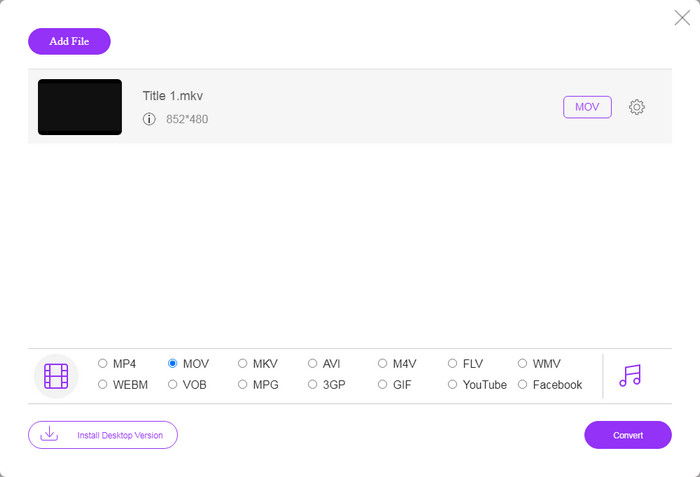
Langkah 3: Cari area format di bagian bawah dan pilih MOV, yang merupakan format video paling dapat diterima untuk perangkat iOS. Klik tombol Convert dan aplikasi web akan melakukan konversi FLV ke format iPhone secara online. Tunggu hingga proses selesai dan unduh hasilnya ke hard drive Anda.
Jika Anda ingin mengatur ulang opsi, klik ikon Pengaturan dan Anda akan menemukannya di dialog Pengaturan, seperti resolusi, codec, dll.
Bagian 3: FAQ tentang Konversi FLV ke Video iPhone
Bisakah Anda memutar file FLV di iPhone tanpa mengonversi?
Satu-satunya cara untuk memutar file FLV di iPhone tanpa konversi adalah dengan memasang pemutar FLV pihak ketiga, seperti VLC untuk iOS. Dengan begitu Anda dapat dengan mudah menonton film favorit Anda.
Di mana video disimpan di iPhone?
Video yang Anda rekam dan transfer di iPhone akan disimpan di aplikasi Foto. Jika Anda mengunduh video menggunakan aplikasi, itu akan disimpan ke dalam aplikasi. Bagaimanapun, Anda tidak dapat mengakses sistem file di iPhone atau iPad.
Jenis file apa yang digunakan iPhone untuk video?
Di iPhone, H.264 adalah satu-satunya codec video yang didukung. Dalam hal format video, MOV dan MP4 terkait erat. Untuk perekaman video di iOS, Apple menggunakan codec video H.265 atau HEVC yang lebih baru.
Kesimpulan
Sekarang, Anda harus memahami cara membuka dan memutar file FLV di iPhone. Rupanya, Anda tidak dapat membuka video FLV di iPhone secara langsung. Cara terbaik adalah mengonversi file Anda ke format yang didukung iPhone, seperti MOV. Kemudian Anda dapat memutar video dengan lancar. FVC Free FLV Converter adalah salah satu pengonversi video FLV ke iPhone gratis terbaik. Tidak hanya mudah digunakan, tetapi juga mampu menghasilkan kualitas output yang sangat baik. Lebih banyak pertanyaan? Silakan tulis di bawah.
-
 3 Metode Mudah untuk Mengonversi FLV ke AVI di Desktop dan Online
 1. Mengkonversi video FLV ke format multimedia lainnya dengan mudah. 2. Mendukung hampir semua format video, seperti AVI, MP4, MKV, dll. 3. Proses batch ratusan file FLV per konversi.
-
 3 Cara Teratas untuk Mengonversi FLV ke WMV di Windows dan Mac
 Mencari cara terbaik untuk mengonversi FLV ke WMV tanpa kehilangan kualitas di PC atau Mac? Anda beruntung karena di sini kami membagikan tiga metode untuk melakukan pekerjaan dengan mudah.
-
 Panduan Konkrit untuk Mengunggah Video FLV Anda ke YouTube
 Unggah FLV ke YouTube tetapi gagal? Anda dapat menyelesaikan masalah ini sendiri dan mengonversi FLV ke codec yang didukung YouTube dengan mengikuti panduan langkah demi langkah kami.
