


 Video Converter Ultimate
 Perekam Layar
 Perbaikan Video
2 dari Pengonversi M4V ke FLV Terbaik untuk Windows/Mac/Online
Sebuah kontainer video dan audio yang terutama dibuat untuk digunakan di seluruh Apple iTunes, M4V. Format ini diproteksi untuk menghindari masalah hak cipta dengan perlindungan hak cipta DRM. Dalam kasus ini, file akan sulit diputar jika Anda tidak memiliki akun iTunes dengan kredensial yang sesuai. Jadi jika Anda ingin menonton video di PC atau ponsel Android, Anda harus mengonversinya menjadi FLV yang dapat diputar. Untuk mengetahui cara mengonversi M4V ke FLV, baca artikel ini dan dapatkan gambaran singkat tentang M4V dan FLV.

Bagian 1. Pilihan Pertama dalam Mengonversi M4V ke FLV di Mac & PC
Ini adalah konverter yang paling efisien yang akan Anda sukai, terutama jika Anda mengonversi M4V ke FLV di Mac atau PC. FVC Video Converter Ultimate adalah konverter yang paling banyak dipilih dan sudah diandalkan banyak pengguna. Selain itu, jika Anda ingin memiliki alat serbaguna yang memberikan keluaran yang fenomenal, ini adalah pilihan wajib. Anda juga dapat mengonversi file media apa pun di sini dan mengatur kualitas ke SD, HD, 1080 bahkan video 4K. Harapkan hasil terbaik saat Anda mengunduh alat ini ke drive Anda karena seperti namanya, alat ini bersifat ultimate. Lebih jauh lagi, ikuti tutorial di bawah ini jika Anda ingin merasakan kapasitas konversi maksimal dari alat ini.
Cara Mengonversi M4V ke FLV dengan Bantuan FVC Video Converter Ultimate:
Langkah 1. Klik tombol unduh di bawah ini, pilih OS yang saat ini Anda gunakan. Setelah selesai mengunduh, klik Install, dan antarmuka sambutan akan muncul, lalu tekan Start Now.
Unduh GratisUntuk Windows 7 atau yang lebih baruUnduhan Aman
Unduh GratisUntuk MacOS 10.7 atau yang lebih baruUnduhan Aman
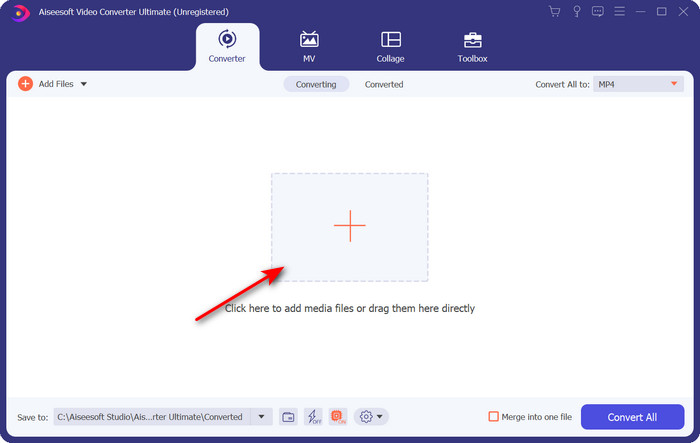
Langkah 2. Jalankan alatnya, klik tanda + di tengah antarmuka dan pilih file .m4v pada folder yang muncul, klik lalu tekan Open.
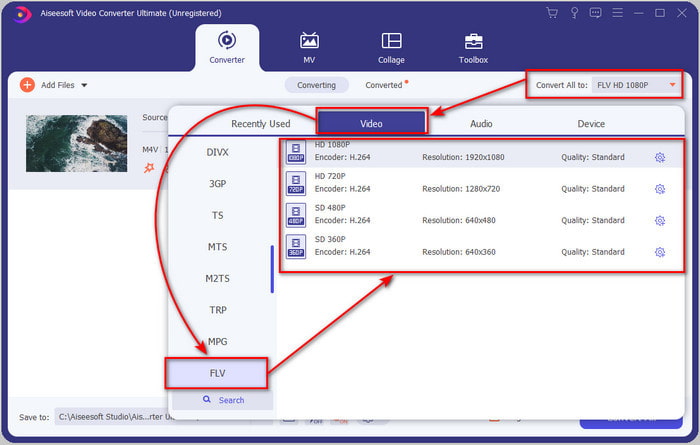
Langkah 3. Setelah file .m4v ada di antarmuka, klik Convert All to dan cari format FLV.
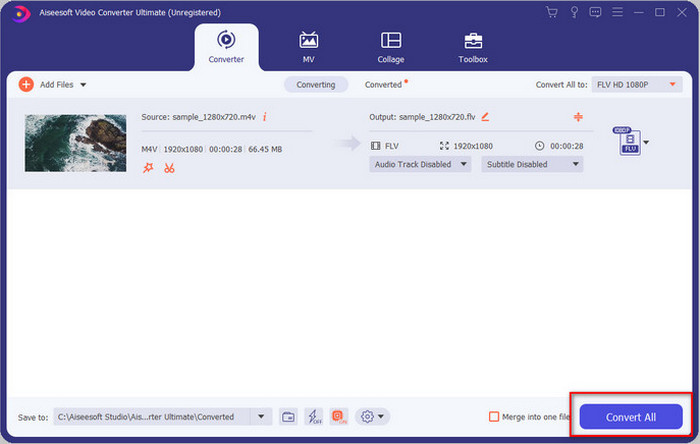
Langkah 4. Silakan klik Convert All untuk mulai mengubah M4V menjadi FLV.
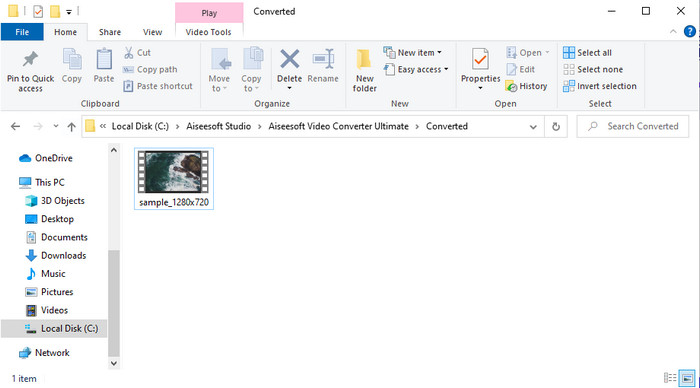
Langkah 5. Proses konversi file akan memakan waktu kurang dari satu menit karena kecepatan konversi tinggi yang diberikan alat ini. Sebuah folder akan muncul menampilkan file yang sudah dikonversi; klik file tersebut untuk menontonnya atau membagikannya secara online.
Pro
- Konversi cepat dan Akselerasi Perangkat Keras tersedia untuk pengalaman terbaik.
- Tersedia di semua platform seperti PC atau Mac.
- Melakukan pengeditan video untuk membuatnya luar biasa dapat dikalahkan di sini.
Kontra
- Pembayaran sebelum digunakan tetapi harganya terjangkau.
- Unduh perangkat lunak sebelum digunakan.
Bagian 2. Pilihan Kedua untuk Mengonversi M4V ke FLV Gratis via Online
Mengonversi file Anda secara online dapat dilakukan dengan efisien jika Anda menggunakan konverter M4V ke FLV online yang tepat dengan bantuan FVC Free Video Converter Online. Alat daring ini adalah konverter terbaik yang dapat Anda akses di semua browser web selama Anda memiliki koneksi internet. Selain itu, Anda dapat mengonversi tanpa batasan ukuran, namun Anda tidak dapat melakukan konversi batch di sini. Walaupun perangkat lunak online ini sangat baik, tetap saja koneksi internet dibutuhkan, jadi jika Anda tidak memilikinya maka alat ini bukan pilihan, sama seperti konverter web lainnya. Namun, jika Anda memiliki koneksi internet dan ingin merasakan pengalaman konversi gratis yang maksimal secara online, Anda harus mengikuti langkah-langkah di bawah ini.
Cara Mengonversi M4V ke FLV dengan Bantuan FVC Free Video Converter Online:
Langkah 1. Klik tautan ini untuk masuk ke konverter online gratis yang disediakan FVC untuk Anda.
Langkah 2. Pada antarmuka web, klik Add Files to Convert untuk mengunduh penginstal. Setelah proses pengunduhan penginstal selesai, tekan Add Files to Convert lagi dan sebuah folder akan muncul, lalu pilih file M4V.
Unduh Versi Desktop untuk mengonversi file secara batch.
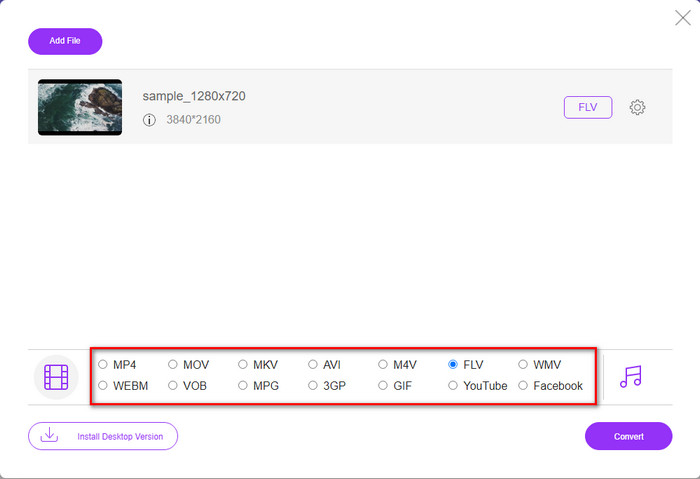
Langkah 3. Sebuah antarmuka web baru akan muncul, di bagian bawah pilih format FLV dengan mengkliknya.
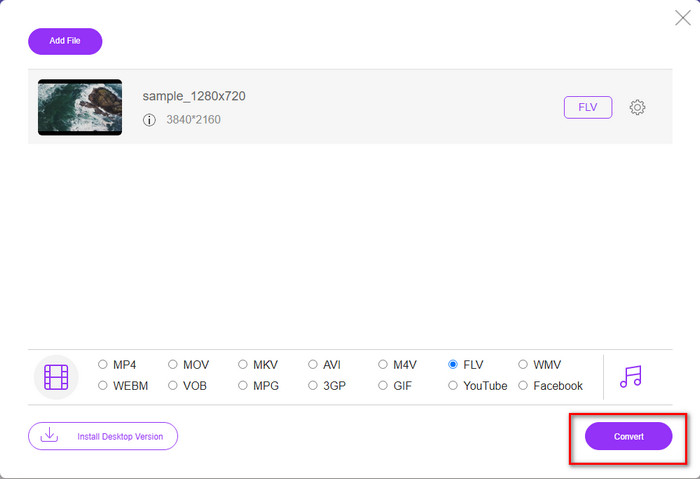
Langkah 4. Untuk mulai mengonversi M4V ke FLV secara gratis, klik Convert.
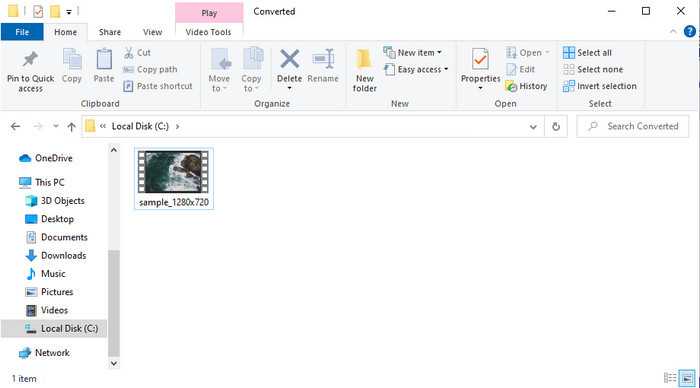
Langkah 5. Setelah proses konversi selesai, sebuah folder akan muncul di antarmuka; klik file tersebut untuk memutarnya di pemutar media lokal Anda.
Pro
- Gratis dan kompatibel di semua browser web.
- Ukuran dan konversi file tidak terbatas.
- Aman dan tidak ada iklan di alat web utama.
Kontra
- Perlu konektivitas internet untuk menggunakan alat ini.
- Format yang kurang didukung untuk diunggah dan dikonversi.
Bagian 3. Perbedaan Antara Format M4V dan FLV
M4V menyimpan kualitas video tertinggi yang diunduh di Apple iTunes store Anda. Format ini mirip dengan MP4 karena menggunakan codec MPEG-4 sebagai kompresor. Tetapi video M4V dilindungi di bawah perlindungan hak cipta Apple FairPlay DRM. Jadi, memutar video dalam format ini sulit karena tidak akan langsung diputar jika Anda memasukkannya ke pemutar media selain iTunes atau Quicktime Player. File M4V yang tidak dilindungi dapat diakses di pemutar media Anda dengan mengubah ekstensi file ke .mp4.
Sebaliknya, FLV digunakan untuk mentransfer data video dan audio melalui web secepat mungkin. Flash Video adalah format paling disukai yang ada di setiap situs web HTML 5. Namun, format ini dihentikan karena Adobe Flash telah dihentikan. Namun, Anda masih dapat memainkannya di plug-in pemutar media yang diperlukan setelah Anda mengunduhnya atau mengonversinya.
M4V vs.FLV
M4V dikembangkan oleh Apple, yang juga menggunakan MPEG 4. File M4V sering digunakan untuk menyimpan video yang diunduh dari Apple iTunes store, seperti video musik, episode TV, dll. Anda mungkin menemukan beberapa file M4V dilindungi dari salinan karena menggunakan Perlindungan hak cipta DRM FairPlay Apple.
Adobe Flash Player menggunakan FLV untuk mengirimkan konten video seperti film dan acara TV. Saat ini, Adobe tidak lagi mengembangkan pemutar dan merekomendasikan pengguna untuk menghapusnya karena alasan keamanan. Namun, Anda masih dapat menggunakan format FLV di banyak program non-Adobe/Macromedia.
Bagian 4. FAQ tentang Konversi M4V ke FLV
Mana yang lebih baik; MP4 atau M4V?
Jika Anda ingin melindungi file Anda, maka M4V adalah format yang harus Anda gunakan karena ini hanya tersedia di Apple dan dilindungi. Tetapi misalkan Anda menginginkan format yang kompatibel dengan semua pemutar media, editor, dan banyak lagi. Dalam hal ini, MP4 adalah format media universal yang ingin Anda gunakan.
Bisakah saya memainkan M4V di VLC?
VLC gratis digunakan dan kompatibel dengan semua platform; selain itu, VLC dapat memutar hampir semua format media. Namun M4V yang diproteksi tidak dapat diputar di sini karena adanya perlindungan. Jadi sekarang, jika Anda ingin menonton .m4v di VLC, Anda harus mengonversi file M4V menjadi MP4 atau AVI.
Apakah saya kehilangan kualitas setelah mengonversi M4V?
Setelah mengonversi M4V, kualitasnya harus mempertahankan tingkat standar kualitas M4V asli. Namun, beberapa konverter tidak mendukung konversi video menjadi HD, 1080, atau 4k. Jadi, Anda lebih baik memilih alat yang sempurna dan bukan alat yang oke yang akan mencukupi kebutuhan Anda dalam mengonversi tanpa kehilangan kualitasnya.
Kesimpulan
Secara keseluruhan, dua alat online dan offline yang disajikan di sini memang unggul, terutama jika Anda ingin mengonversi M4V ke FLV. Kita juga mendapat wawasan tentang dua format, M4V dan FLV. Meskipun mengubah M4V itu perlu untuk menonton file yang diproteksi, memilih alat yang tepat untuk tugas yang tepat tidak selalu mudah. Karena itu, kami menyajikan dua alat yang dapat Anda gunakan untuk mengonversi format secara gratis dengan menggunakan FVC Free Video Converter Online. Atau Anda bisa merasakan level baru dalam mengonversi dengan menggunakan FVC Video Converter Ultimate. Jadi, apa yang Anda tunggu jika ingin menonton M4V Anda secara gratis? Pilih salah satu alat di atas, ikuti langkah-langkah cepat dan mudah yang telah dijelaskan, dan voila, nikmati videonya.
-
 [Panduan] Cara Mengonversi Video M4V ke GIF Animasi di Windows/Mac
 Jika Anda ingin membuat file GIF animasi dari video M4V favorit Anda, Anda dapat mempelajari tentang 2 cara mudah dan efisien untuk mengonversi video M4V ke GIF dengan pengaturan yang disesuaikan.
-
 3 Program Konverter Video yang Digunakan untuk Mengonversi iTunes M4V ke AVI di Mac
 Tidak tahu cara mengonversi MKV ke format AVI? Saat kami melanjutkan membaca artikel ini, kami akan mengetahui 3 alat yang dapat membantu Anda mengonversi format file ini.
-
 Konverter M4V ke MOV Gratis – Cara Mengonversi M4V ke MOV
 Jika pemutar media Anda tidak mendukung M4V, pernahkah Anda kesulitan menonton film di iPhone? Topik utama artikel ini adalah mengubahnya menjadi file video MOV.

