


 Video Converter Ultimate
 Perekam Layar
 Perbaikan Video
 Unduhan Aman
Langkah Cepat dan Mudah Cara Memutar dan Membalik GIF Menggunakan Offline dan Online
Anda sedang mengedit video dengan tata letak lanskap, dan Anda ingin menambahkan beberapa efek video menggunakan GIF. Namun, GIF yang Anda buat dan unduh memiliki tata letak potret, dan karena tata letaknya potret, GIF tersebut tidak pas. Sekarang Anda ingin memutarnya dan membalik beberapa bagiannya. Sementara itu, mengunduh dari situs yang tidak tepercaya secara online menyulitkan Anda, dan situs-situs tersebut dapat membawa virus ke perangkat Anda. Jangan khawatir! Karena artikel ini akan membantu Anda menggunakan alat terbaik untuk memutar dan membalik GIF secara online maupun offline.

Bagian 1: Cara Memutar dan Membalik GIF dengan Alat Terbaik [Offline]
1. Video Converter Ultimate
Ini adalah salah satu alat terbaik yang direkomendasikan artikel ini di antara semua cara online dan perangkat lunak untuk membantu menyelesaikan masalah tersebut. Instal FVC Video Converter Ultimate di komputer Anda, sebuah program dengan banyak fitur peningkat video. Salah satu fitur yang ditawarkan dapat memutar dan membalik GIF sesuai pola yang Anda inginkan tanpa menurunkan kualitasnya. Lihat langkah-langkah di bawah ini untuk mempelajari cara menggunakan perangkat lunak tersebut:
Langkah 1. Dapatkan programnya
Klik tombol Free Download untuk mengunduh perangkat lunak ke desktop Anda. Lalu instal perangkat lunak dan sesuaikan pengaturannya sesuai keinginan. Jika semuanya sudah beres, jalankan perangkat lunak setelah pemasangan dan klik Start Now.
Free DownloadUntuk Windows 7 atau yang lebih baruUnduhan Aman
Free DownloadUntuk MacOS 10.7 atau yang lebih baruUnduhan Aman
Langkah 2. Akses Video Rotator
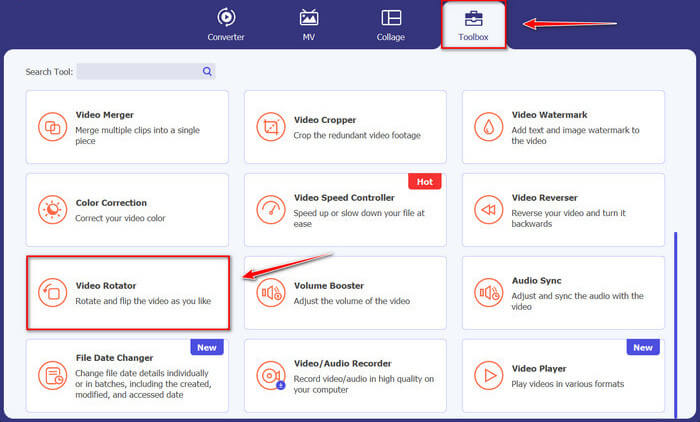
Kemudian, dengan mengklik fitur Toolbox, gulir layar ke bawah dan pilih Video Rotator.
Langkah 3. Impor file GIF
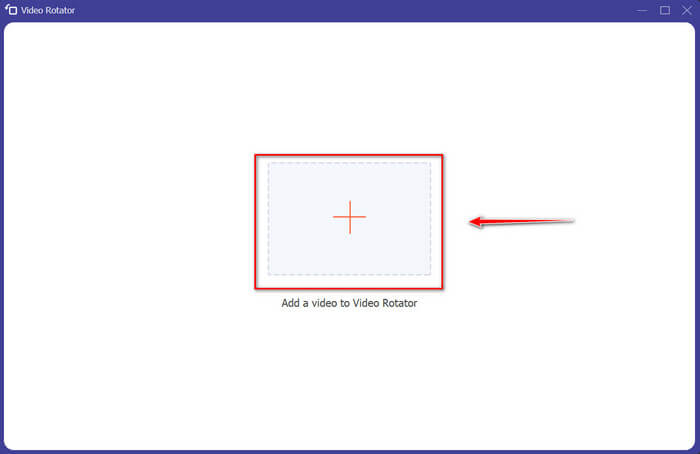
Impor file yang ingin Anda putar dan balikkan dengan menyeret file ke antarmuka, Anda juga dapat mengklik tombol +, dan memilih file ke komputer Anda.
Langkah 4. Putar GIF
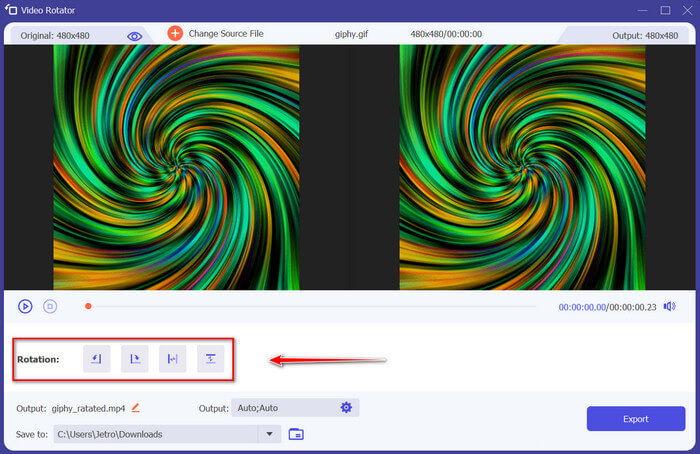
Pilih bagaimana Anda akan membalik dan memutar GIF Anda. Anda dapat memutarnya 90 derajat ke kiri atau kanan dan membalikkannya secara vertikal atau horizontal.
Langkah 5. Unduh GIF yang sudah diputar
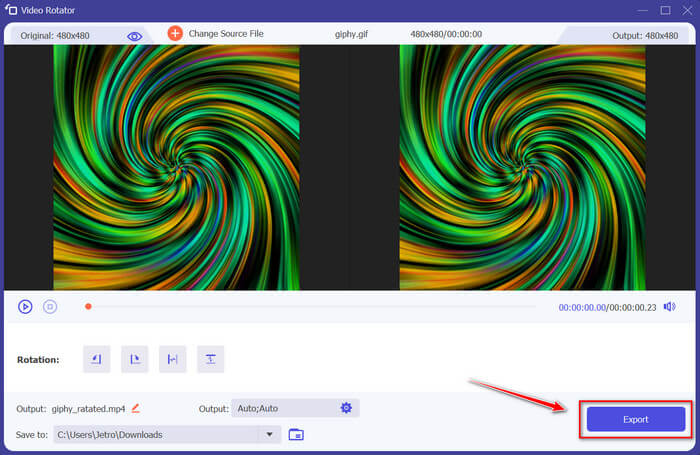
Unduh file Anda dengan mengeklik Export di sudut kanan bawah antarmuka. Setelah itu, sebuah jendela akan muncul di layar Anda. Klik Rotate Again untuk memutar klip video lain atau Okay jika Anda sudah selesai.
2. Photoshop
Alat luring hebat lainnya yang direkomendasikan untuk digunakan akan membantu Anda mempelajari cara memutar dan membalik GIF. Alat ini berukuran besar dan lebih rumit untuk digunakan, tetapi memiliki fitur yang sama dengan FVC Video Converter Ultimate. Dengan Photoshop, Anda dapat memutar dan membalik GIF seperti profesional tanpa merusak kualitasnya. Ikuti metode yang diberikan di bawah ini untuk mendapatkan pengetahuan tentang fitur dan teknisnya.
Langkah 1. Unduh dan buka Photoshop di komputer Anda. Setelah itu, klik Hand Tool pada daftar fitur di Toolbar. Hand Tool terlihat secara bawaan, dengan Rotate View Tool tersembunyi di belakangnya. Klik dan tahan ikon Hand Tool hingga menu muncul ke luar untuk memilih Rotate View Tool. Lalu, dari menu tersebut, pilih Rotate View Tool.
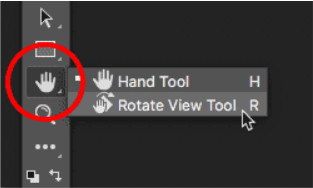
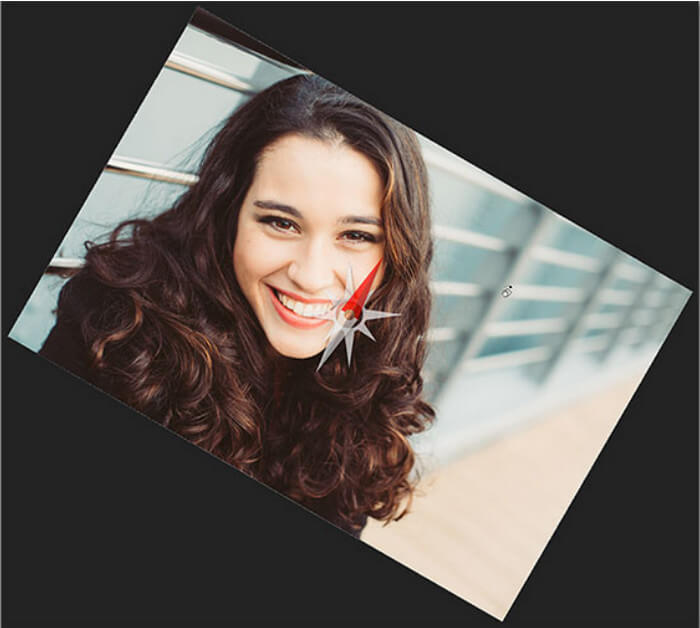
Langkah 2. Tahan tombol kiri mouse sambil mengeklik gambar dengan Rotate View Tool. Lalu, sebuah kompas akan muncul di bagian tengah. Setelah itu, penanda arah merah di bagian atas kompas selalu menunjuk ke bagian atas sebenarnya dari gambar, sehingga meskipun Anda memutar sudutnya, Anda akan selalu tahu mana arah atas.

Langkah 3. Tahan tombol mouse dan seret gambar untuk memutar tampilan. Seret searah atau berlawanan arah jarum jam sesuai kebutuhan. Saat Anda memutar tampilan, kompas akan menunjuk ke bagian atas sebenarnya dari gambar. Photoshop secara bawaan memungkinkan Anda memutar sudut secara bebas. Namun, jika Anda menekan dan menahan tombol Shift saat menyeret, tampilan akan berputar per 15 derajat.
3. Foto
Terkadang masalah sederhana hanya membutuhkan solusi sederhana. Dengan alat ini, Anda tidak perlu mengunduh perangkat lunak dan menginstal aplikasi ke perangkat hanya untuk memutar dan membalik GIF. Dengan menggunakan ponsel android Anda, kini Anda dapat memutar dan membalik GIF sesuai keinginan Anda. Jika Anda tidak yakin bagaimana melakukannya, ikuti semua langkah yang diberikan di bawah ini:
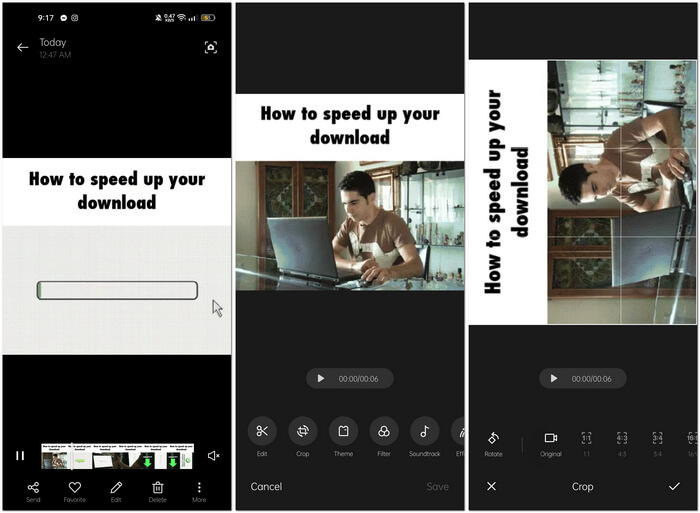
Langkah 1. Buka ponsel Anda dan cari folder Photos atau Image. Pilih GIF yang ingin Anda putar dan balik. Pilih Edit untuk mulai mengedit GIF Anda.
Langkah 2. Di bagian bawah layar, pilih Crop setelah memilih klip.
Langkah 3. Putar GIF Anda dengan mengeklik Rotate. Anda hanya dapat menyesuaikan GIF secara vertikal atau horizontal. Setelah itu, klik ikon Check untuk menyimpan GIF yang sudah disesuaikan.
Bagian 2: Alat Alternatif Online Terbaik untuk Memutar dan Membalik GIF
1.LunaPic
Alat web ini adalah editor beranggaran rendah yang mencakup berbagai alat yang tersedia untuk alat web gratis yang dapat memberi Anda perspektif pengeditan seperti profesional. Karena alat web ini mencakup sebagian besar format dan media sosial yang tersedia, pengeditan menjadi sangat mudah, memberikan pengalaman luar biasa bagi beberapa editor profesional. Anda akan melihat alat yang tidak disediakan alat web lain, terutama yang membantu Anda memutar dan membalik GIF. Antarmukanya sederhana dan dapat disesuaikan dengan preferensi masing-masing pengguna. Ikuti langkah-langkah yang disediakan di bawah ini untuk menggunakan alat online yang luar biasa ini.
Langkah 1. Klik tab Upload di sudut kiri atas antarmuka web dan tambahkan file dengan mengeklik Choose file.
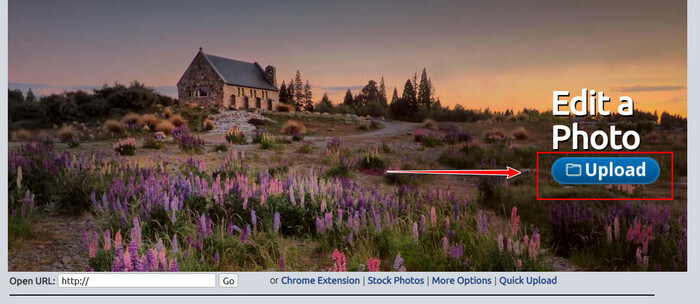
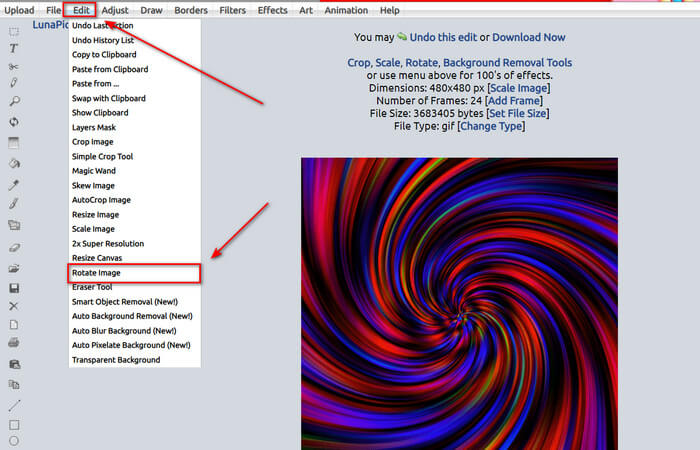
Langkah 2. Anda dapat mengedit GIF Anda pada antarmuka pertama setelah mengunggah file. Namun, jika Anda ingin menyesuaikan rotasi GIF, lanjutkan dengan mengeklik tab Edit lalu Rotate Image.
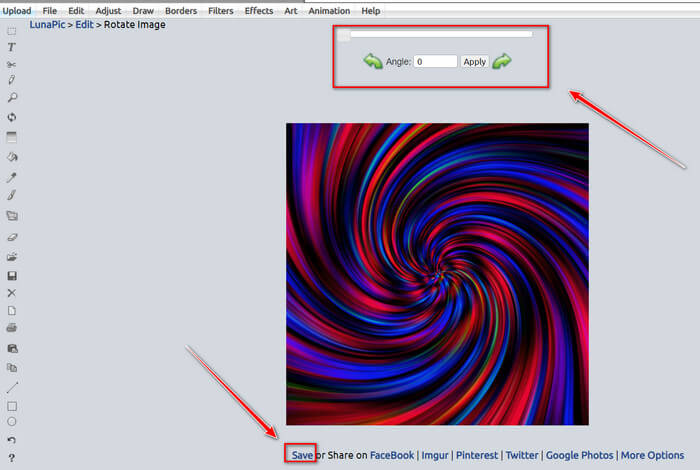
Langkah 3. Sesuaikan rotasi GIF Anda dengan memasukkan derajat tertentu atau dengan mengeklik panah kiri dan kanan. Lalu, unduh dengan mengeklik Save yang terletak di bagian bawah layar.
2. Ezgif
Ezgif.com adalah pembuat GIF online sederhana dan seperangkat alat untuk membuat dan mengubah GIF animasi dasar. Ezgif dapat mengubah ukuran, memotong, meningkatkan, mengoptimalkan, dan membalik GIF menggunakan alat ini. Salah satu fitur terbaiknya adalah Anda dapat memutar GIF dengan langkah-langkah yang mudah. Untuk mempelajari cara menggunakannya, ikuti langkah-langkah di bawah ini:
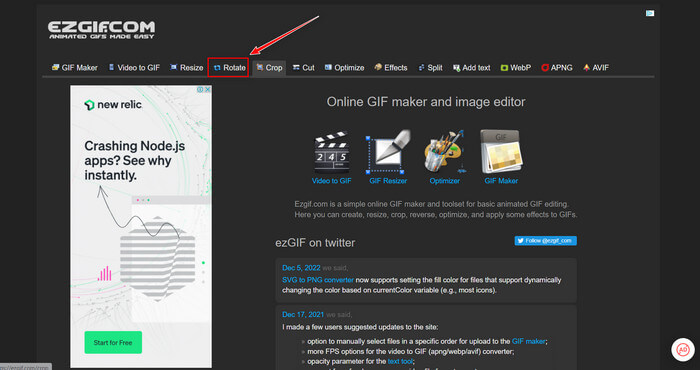
Langkah 1. Pilih Rotate pada Toolbar di bagian atas layar.
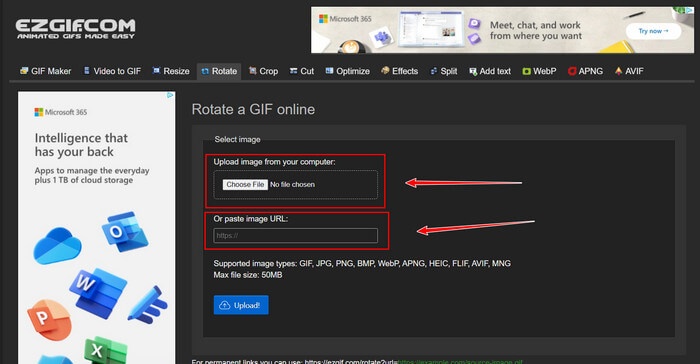
Langkah 2. Impor file dengan mengeklik Upload File atau salin URL GIF dan tempelkan pada antarmuka. Lalu klik Upload.
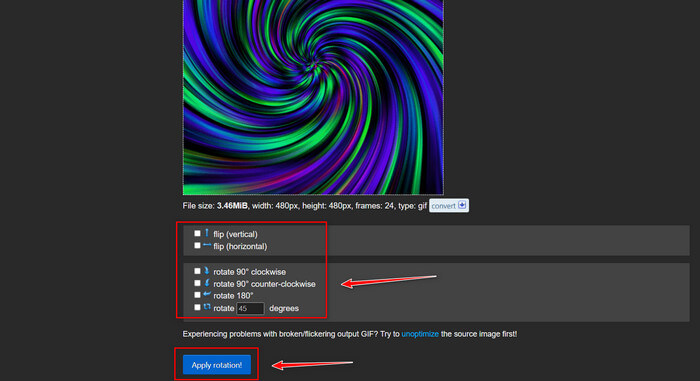
Langkah 3. Beri tanda centang pada arah yang akan Anda gunakan untuk memutar GIF. Anda juga dapat memasukkan derajat tertentu sehingga Anda dapat memiringkan atau memutar GIF sesuai preferensi Anda. Lalu, klik Apply Rotation dan klik ikon Save untuk mengunduh GIF yang sudah disesuaikan.
Bagian 3. FAQ tentang Memutar dan Membalik GIF
Bisakah saya memutar GIF di iPhone saya?
Dibandingkan dengan ponsel Android, tidak mungkin memutar GIF menggunakan iPhone. Anda hanya dapat memutar GIF di iPhone dengan mengunduh aplikasi pihak ketiga secara online.
Bisakah Anda mengubah GIF video iPhone?
Di App Store, ada beberapa aplikasi pihak ketiga yang memungkinkan Anda membuat GIF dari video, seperti MP4 to GIF. Anda mungkin sudah mencoba satu atau lebih di antaranya di perangkat Anda. Perbedaannya dengan teknik ini adalah kita akan menggunakan aplikasi bawaan Shortcuts di iPhone atau iPad Anda. Jika Anda belum tahu, Shortcuts memberikan akses ke alat yang tidak tersedia secara native di iOS dan iPadOS.
Bagaimana Anda tidak dapat menggunakan GIF pada pengaturan iPhone?
Gulir ke bawah halaman aplikasi Pengaturan dan ketuk 'Aksesibilitas'. Di bagian atas layar, ketuk 'Motion' dan pastikan 'Reduce Motion' tidak dipilih. Jika demikian, nonaktifkan dan lihat apakah GIF berfungsi kembali.
Kesimpulan
Sepanjang artikel, kita tahu bahwa format GIF perlu diputar dan dibalik orientasinya, yang diperlukan dalam mengedit video. Ada banyak cara untuk melakukannya, baik gratis maupun berbayar, offline maupun online; alat web dan perangkat lunak ini menekankan pengeditan ke tingkat berikutnya. Namun jika Anda ingin mengakses perangkat lunak pengeditan sehingga koneksi internet tidak mengganggu penggunaannya, unduh Video Converter Ultimate dan gunakan sebagai editor yang andal juga untuk format klip video lainnya. Perangkat ini membantu Anda mengedit klip video secara profesional, terutama dengan memutar dan membalik GIF.
-
 Putar GIF dengan GIF Animasi Terbaik di Windows & Mac
 Ingin tahu rahasia GIF loop terbaik? Ingin membuatnya? Jika demikian, Anda berada di tempat yang tepat. Jadi, pelajari cara membuat loop dengan looper terbaik yang tersedia.
-
 4 Cara Terbaik untuk Menghapus Tanda Air dari GIF [Online & Offline]
 Perlu menghapus tanda air dari GIF? Dengan alat di artikel ini, Anda akan mempelajari berbagai gaya dengan penghapus tanda air berbeda yang tersedia di platform Anda.
-
 4 Pembesar GIF Offline dan Online Teratas yang Tidak Boleh Anda Lewatkan
 Posting ini untuk Anda jika Anda mencari pembesar GIF terbaik. Kami mencantumkan pembesar GIF online dan offline berkinerja terbaik untuk komputer Anda.
