


 Video Converter Ultimate
 Perekam Layar
 Perbaikan Video
3 Cara Menambahkan Background ke Foto Online, di iPhone, Android, dan Komputer
While editing a picture, you often need to remove the original background and add a different one to it. For the picture with a transparent background, you can easily change the background using an image editor. While in most cases, you have to remove the current background first, and then add a new one to the photo. Are you looking for a good image editor app to add background to a photo?
Posting ini memberi tahu 3 metode efektif untuk menambahkan latar belakang ke foto. Baik Anda ingin menambahkan latar belakang putih ke foto secara langsung secara online, menambahkan latar belakang ke foto di iPhone, atau mengubah latar belakang gambar di perangkat Android, Anda dapat mengikuti metode khusus untuk melakukannya.

Bagian 1. Cara Gratis Menambahkan Latar Belakang ke Foto Online
To quickly add a background to a photo, you can try some online image editors first. Here we strongly recommend the easy-to-use Free Background Remover Online for you to remove the original background of your picture and add a different background to it. This free image background changing tool supports all frequently-used image formats like JPG, PNG, GIF, and more. It gives you a simple way to add white background to a photo or replace the current background with a different picture.
Step 1. Open your web browser like Chrome, Safari, Yahoo, IE, or Firefox, and go to this free photo background changer site. When you get to the page, you can simply click on the Upload Portrait button to select and add your photo for later editing.

Step 2. With advanced AI technology, it will automatically select the main object of your uploaded picture. Then you can use the Keep or Erase feature to do further editing.
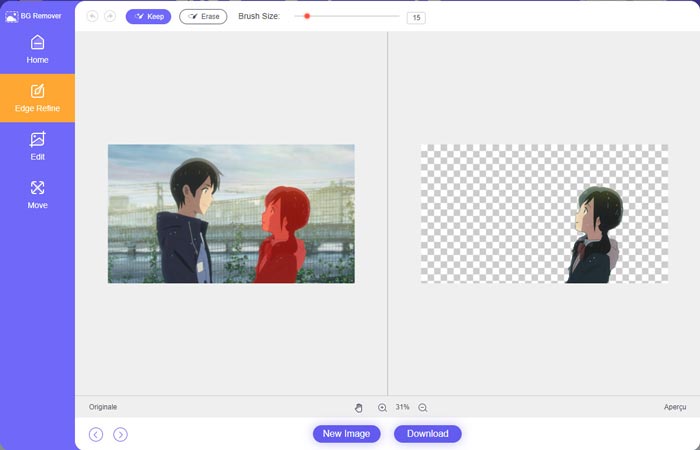
Step 3. Click the Edit option on the left, and then you can choose to change the background color, or add a background to the photo. During this step, you can also rely on its Crop feature to customize the image size according to your need.
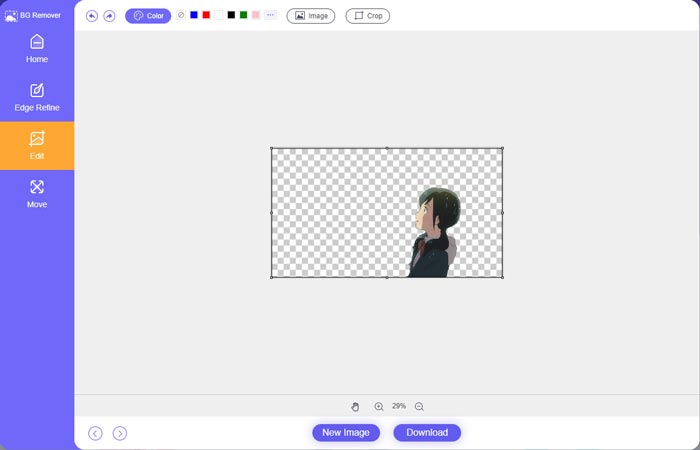
Step 4. After you add a suitable background to the photo, you can click on the Download button to save it on your computer. Your edited image file will be saved in PNG format by default.
Bagian 2. Bagaimana Menambahkan Latar Belakang ke Foto Menggunakan Adobe Photoshop
Adobe Photoshop adalah salah satu editor gambar paling terkenal yang membawa banyak fitur bagi Anda untuk mengedit gambar, efek kustom, dan melakukan operasi lainnya. Jika Anda telah menginstal Photoshop di komputer Anda, Anda dapat memilih untuk menambahkan latar belakang ke foto di Photoshop.
Step 1. Open the Photoshop software on your computer and add your photo to it. You can freely download the latest Photoshop version from the official Adobe website. Note that Adobe only offers a 7-day free trial for you to use Photoshop.
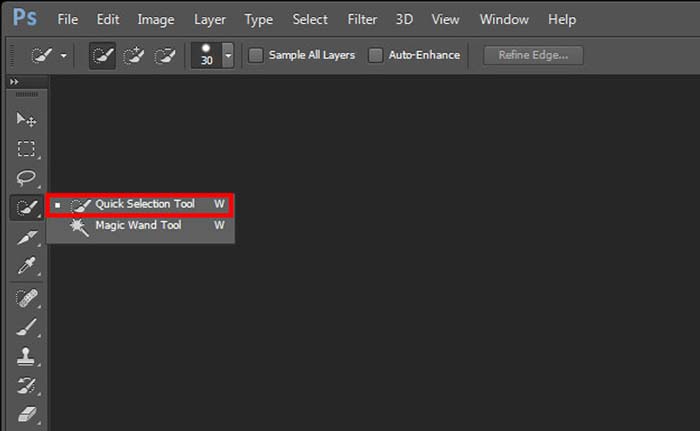
Step 2. When your photo is loaded to Photoshop, you can click on the icon of Quick Selection Tool or Magic Wand Tool on the left toolbox to select the background you want to change.
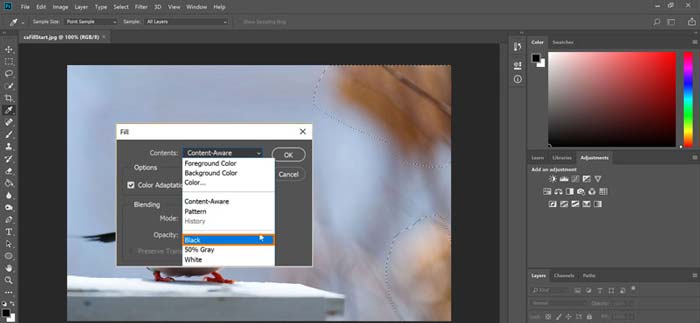
Step 3. After selecting the photo background, you can right-click on it and choose the Fill option. Now you can simply add white background to the photo or change the background to another color like black, blue, gray, or another color you need.
Step 4. If you want to add a new picture as the background, you should remove the selected background first. You can press the Delete key on your keyboard to get rid of the current background. Then you can add the image file to Photoshop and drag its layer under the background layer. By doing so, you can easily replace the original background with a new picture.
Step 5. After you add a background to a photo in Photoshop, you can click on the top File menu and then choose the Save As option from the drop-down list. Select the right image format for this photo and save it on your computer.
Bagian 3. Cara Menambahkan Latar Belakang ke Foto di iPhone dan Ponsel Android
Saat Anda ingin menambahkan latar belakang ke foto di iPhone, iPad, atau ponsel Android, Anda perlu menemukan aplikasi editor latar belakang gambar yang bagus.
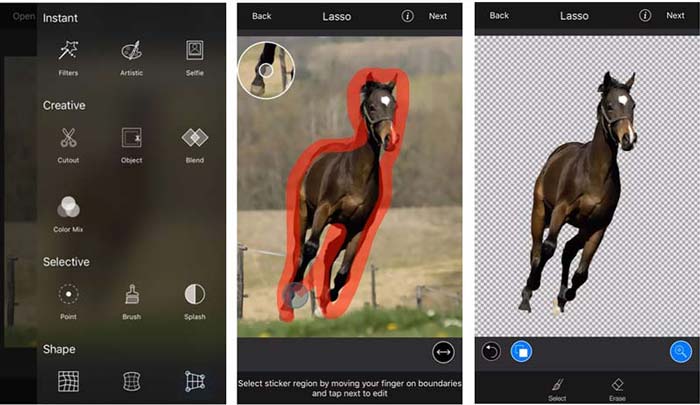
LightX is an all-featured photo editor app for both iOS and Android users. It offers a convenient way to remove unwanted background, add new background to photo, add different effects, create high-quality selfies, and more directly on your phone. Many advanced image editing tools are designed in LightX app, such as color mixing, customized photo saturation, contrast, hue, curves, and more. You can download it from the App Store or Google Play Store.
Step 1. Install and open the LightX app on your iPhone, iPad, or Android phone. Give this app the authority to access the photos on your device. Add your photo to it for further background editing.
Step 2. To remove the current photo background and change it to something else, you can swipe left to arise many different options. Under the Creative, you can choose the Cutout feature to add background to the photo. Now you need to manually select the main object and erase the original background.
Step 3. After removing the background, you can tap Next in the top-right corner to move on. Then you can use its Crop feature to resize the picture. Tap Done to confirm your operation. After that, you can tap the BG Image on the bottom screen to add a different background to the photo. You can freely adjust the effects of the new background according to your need.
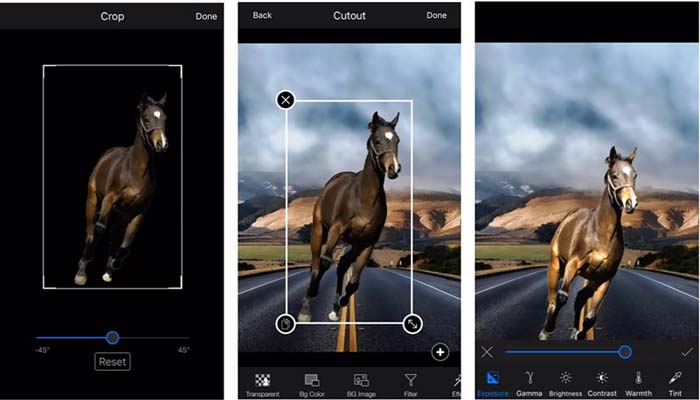
Baik Anda menggunakan perangkat iOS atau Android, Anda dapat mengikuti langkah serupa untuk menambahkan latar belakang ke foto menggunakan aplikasi LightX. Perhatikan bahwa, sebagai pengguna iOS, Anda harus membayar $3.99 untuk aplikasi penambahan latar belakang ini. Jika Anda pengguna Android, Anda dapat menginstalnya dari Google Play Store. Untuk meningkatkan ke versi premium, Anda harus membayar harga yang sama.
Terkait:
Apa Itu Resolusi Video: Wawasan Mendalam tentang Resolusi & Lainnya
6 Favorite Choice Snapchat Animated Snapchat Filters on Snapchat
Bagian 4. FAQ tentang Cara Menambahkan Latar Belakang ke Foto
Bagaimana cara menambahkan latar belakang yang berbeda ke foto di Mac saya?
You can use the first 2 methods to simply change your photo background on a Mac. Besides the recommended Free Background Remover Online and Adobe Photoshop, you can also rely on some other image editors to add a new background to your photo.
Bagaimana cara mengubah wallpaper di iPhone?
iOS menawarkan cara sederhana untuk mengubah wallpaper di iPhone atau iPad. Anda dapat membuka aplikasi Pengaturan, ketuk opsi Wallpaper, lalu ketuk Pilih Wallpaper Baru.
Bisakah saya menambahkan latar belakang ke foto langsung di iPhone saya?
Tidak. iPhone tidak menawarkan cara langsung untuk mengubah latar belakang foto langsung. Anda hanya diperbolehkan untuk memotongnya, menerapkan filter, menyesuaikan efek, dan mengubahnya menjadi gambar diam.
Kesimpulan
Posting ini membagikan 3 metode berguna untuk menambahkan latar belakang ke foto. Bila Anda perlu menghapus latar belakang foto asli dan menambahkan yang baru ke dalamnya, Anda dapat memilih editor gambar pilihan Anda untuk melakukannya.
-
 3 Cara Teratas untuk Menambahkan Filter pada GIF dengan Editor GIF Terbaik [Favorit]
 Apakah Anda ingin tahu cara menambahkan filter ke GIF agar lebih baik? Di blog ini, Anda akan dengan mudah mempelajari berbagai teknik untuk menambahkan filter ke GIF Anda.
-
 3 Cara termudah untuk Menambahkan Tanda Air ke GIF Online & Offline
 Menambahkan tanda air ke GIF bisa semudah 1-2-3 jika Anda menggunakan alat yang tepat dengan benar. Alat di pasar terlalu luas, tetapi kami akan menyajikan tiga alat yang dapat Anda andalkan.
-
 5 Cara Terbaik Mengubah Gambar menjadi GIF Animasi [Diperbarui 2022]
 Butuh gambar konverter ke GIF? Artikel ini akan memberikan lima konverter terbaik yang dapat kita temukan di pasar. Jadi, mari cari tahu alat-alat ini dengan membaca artikel ini.
