


 Video Converter Ultimate
 Perekam Layar
 Perbaikan Video
 Unduhan Aman
Adobe Resize Images - Cara termudah untuk Mengubah Ukuran Gambar Online dan Offline
Jika Anda ingin mengubah ukuran gambar di Adobe, kami memiliki solusi yang Anda cari. Adobe adalah nama terkenal untuk aplikasi pengeditan gambar dan video. Adobe memiliki banyak aplikasi tempat Anda bisa meningkatkan kualitas, memotong, mengedit, dan banyak lagi; sebut saja! Adobe memiliki hampir semua aplikasi untuk pengeditan video dan foto. Namun, tahukah Anda bahwa Adobe juga memiliki aplikasi untuk mengubah ukuran gambar? Betul sekali! Adobe Express adalah alat daring untuk mengubah ukuran gambar. Dan jika Anda ingin mengubah ukuran secara offline, Anda bisa menggunakan Adobe Photoshop. Di bawah ini kami akan membahas alat-alat tersebut dan mengajarkan cara mengubah ukuran gambar menggunakan Adobe Express dan Adobe Photoshop.
Bagian 1. Cara Mengubah Ukuran Gambar di Adobe Express Online
Jika Anda suka menggunakan pengubahan ukuran gambar online, ada banyak alat yang dapat Anda cari di internet. Namun, mencari di internet terkadang bukan pilihan terbaik karena ada alat yang tidak memberikan kualitas hasil yang bagus. Juga, banyak orang mencari di Adobe Photoshop online mengubah ukuran gambar. Masalahnya adalah Adobe Photoshop tidak memiliki versi online. Jadi, kami akan menyajikan alat Adobe lain untuk mengubah ukuran gambar.
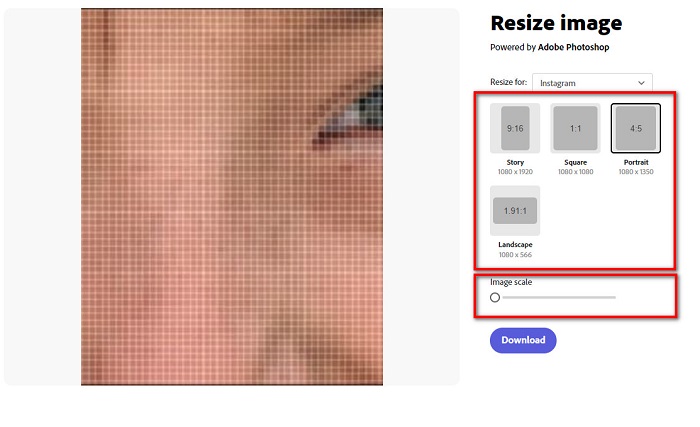
Adobe Express mungkin adalah pengubah ukuran gambar online terbaik yang bisa Anda temukan di internet. Aplikasi daring ini memungkinkan Anda mengubah ukuran gambar dengan memilih preset skala dari opsi yang tersedia. Anda dapat memilih antara 9:16 (Story), 1:1 (Square), 4:5 (Portrait), dan 1.91:1 (Landscape). Selain itu, tampilannya sederhana sehingga menjadikannya aplikasi yang mudah digunakan. Anda juga dapat mengatur skala gambar secara manual dengan menahan dan menyeret penggeser. Lebih jauh lagi, jika Anda ingin mengubah ukuran gambar untuk Instagram, Facebook, Twitter, atau Pinterest, Adobe Express akan membantu Anda. Namun, tidak seperti aplikasi pengeditan Adobe lainnya, alat ini tidak memiliki fitur pengeditan lain.
Cara mengubah ukuran gambar menggunakan Adobe Express:
Langkah 1. Buka browser Anda dan cari pengubah ukuran gambar Adobe Express di kotak pencarian. Lalu, klik tombol Upload your Photo pada antarmuka utama untuk mengunggah gambar yang ingin Anda ubah ukurannya.
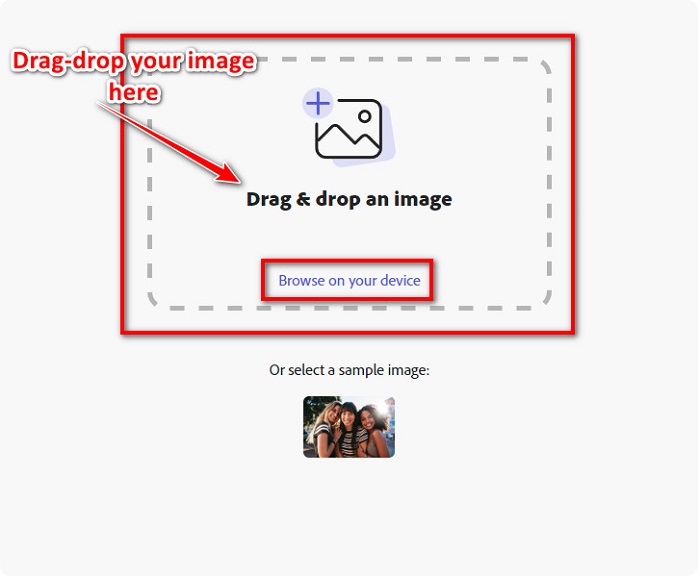
Langkah 2. Lalu, seret dan jatuhkan gambar Anda dari folder di komputer. Anda juga bisa cukup mengklik tombol Browse on your device untuk mengunggah gambar.
Langkah 3. Terakhir, pilih untuk keperluan apa Anda ingin mengubah ukuran dengan mengklik panah tarik-turun di samping Resize for. Lalu, pilih ukuran yang Anda inginkan pada sisi kiri gambar di antarmuka. Anda juga bisa mengubah ukuran gambar secara manual dengan menahan dan menyeret penggeser di bawah preset ukuran.
Langkah 4. Klik tombol Download untuk mengunduh gambar yang telah diubah ukurannya.
Bagian 2. Bagaimana Mengubah Ukuran Gambar Menggunakan Adobe Photoshop Offline
Meskipun demikian, ada baiknya menggunakan alat online karena memungkinkan Anda menghemat ruang di perangkat Anda, tetapi masih merupakan pilihan terbaik untuk menggunakan alat offline. Sebagian besar pengubah gambar offline berisi banyak fitur pengeditan. Selain itu, keuntungan menggunakan alat offline adalah Anda tidak perlu mengakses internet untuk mengubah ukuran gambar. Di bagian ini, kami akan menyajikan resizer video offline paling luar biasa.
Adobe Photoshop adalah aplikasi pengeditan foto terbaik yang dapat Anda miliki di PC Anda. Aplikasi pengeditan foto ini memiliki banyak alat dan fungsi yang dapat Anda gunakan untuk mengedit gambar. Selain itu, Anda dapat menggunakan alat ini untuk mengubah ukuran gambar apa pun. Aplikasi ini memungkinkan Anda meningkatkan gambar digital, gambar ilustrasi, lukisan, dan animasi yang bisa Anda gunakan untuk keperluan bisnis. Selain itu, banyak profesional menggunakan aplikasi pengeditan gambar ini karena fungsinya dan kualitas yang dihasilkannya.
Terlebih lagi Anda dapat menggunakan aplikasi ini untuk menambahkan teks, membuat 3D, dan menambahkan ketajaman pada gambar Anda. Tetapi kelemahan dari Adobe Photoshop adalah Anda harus membeli aplikasi sebelum menggunakannya. Dan itu juga sulit digunakan, terutama untuk pemula. Meskipun demikian, aplikasi ini sepadan dengan harganya, dan Anda pasti akan menikmati menggunakan aplikasi ini.
Cara mengubah ukuran gambar menggunakan Adobe Photoshop offline:
Langkah 1. Unduh Adobe Photoshop ke perangkat Anda. Lalu ikuti proses instalasi aplikasi, dan jalankan di perangkat Anda.
Langkah 2. Buka gambar Anda di Photoshop, lalu pergi ke menu Image di kiri atas antarmuka. Kemudian pilih Image Size.
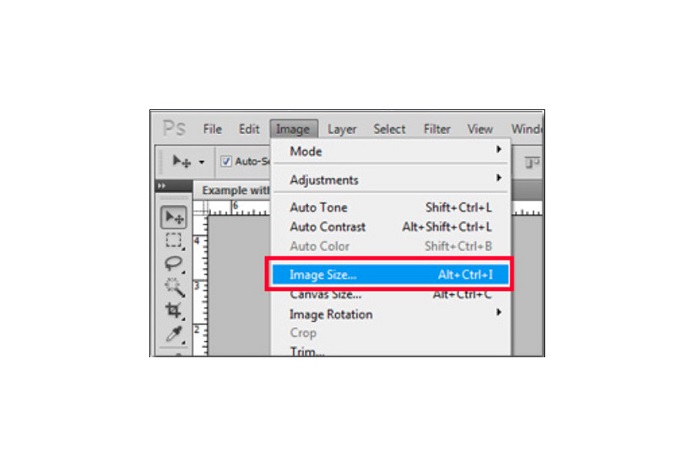
Langkah 3. Selanjutnya, sebuah jendela baru akan muncul, di mana Anda perlu mencentang kotak di samping Constrain Proportions.
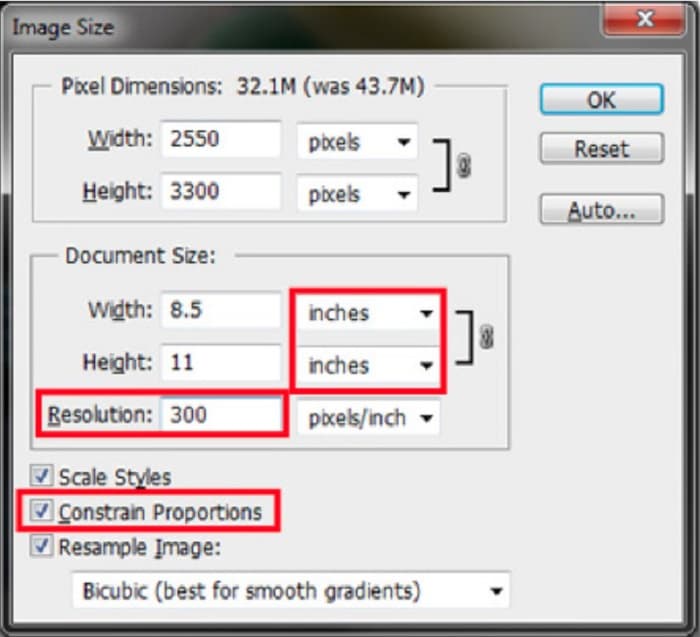
Langkah 4. Dan di bawah Document Size, pilih inci sebagai satuan pengukuran Anda. Pastikan resolusinya tidak lebih rendah dari 200 piksel per inci.
Langkah 5. Ketik width (lebar) dan height (tinggi) yang Anda inginkan untuk gambar Anda. Lalu klik tombol OK untuk menyimpan perubahan.
Langkah 6. Terakhir, simpan file Anda di komputer.
Sekarang setelah Anda mempelajari cara mengubah ukuran gambar menggunakan pengubah ukuran foto Adobe terbaik, kami akan menunjukkan alternatif pengubah ukuran gambar yang dapat digunakan.
Bagian 3. Alternatif untuk Adobe Photoshop dalam Mengubah Ukuran Gambar
Karena Adobe Photoshop bukanlah alat yang mudah digunakan, kami mencari alternatif yang dapat Anda gunakan untuk mengubah ukuran gambar Anda. Jadi, kami akan menyajikan aplikasi perangkat lunak yang dapat Anda unduh di perangkat Windows atau Mac Anda. Kami juga akan mengajari Anda cara mengubah ukuran gambar menggunakan aplikasi utama ini.
FVC Free Image Resizer adalah pengubah ukuran gambar online hebat lainnya yang dapat Anda gunakan jika ingin mengubah ukuran gambar Anda. Anda juga bisa menggunakan aplikasi pengubah ukuran gambar untuk memperbaiki kualitas foto, dan itulah yang dilakukan FVC Free Image Resizer. Alat daring ini dapat memperbesar gambar Anda hingga 2x, 4x, 6x, dan 8x. Selain itu, alat ini mendukung semua format gambar, seperti JPG, JPEG, PNG, dan BMP. Yang lebih hebat lagi dari aplikasi ini adalah antarmuka perangkat lunaknya yang mudah digunakan. Selain itu, alat ini menggunakan teknologi AI yang secara otomatis mendeteksi bagian gambar yang buram, lalu meningkatkannya.
Cara mengubah ukuran gambar menggunakan FVC Free Image Upscaler:
Langkah 1. Cari FVC Free Image Upscaler di browser Anda, lalu buka halaman utama aplikasi. Tekan tombol Upload Photo pada antarmuka utama untuk mengunggah gambar yang ingin Anda ubah ukurannya.

Langkah 2. Setelah mengunggah gambar Anda, pilih tingkat pembesaran yang Anda inginkan untuk foto Anda. Anda dapat memilih antara 2x, 4x, 6x, dan 8x. Semakin besar angkanya, semakin baik kualitasnya.
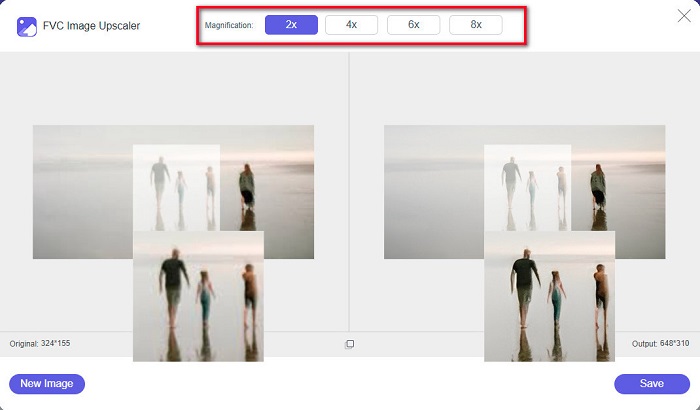
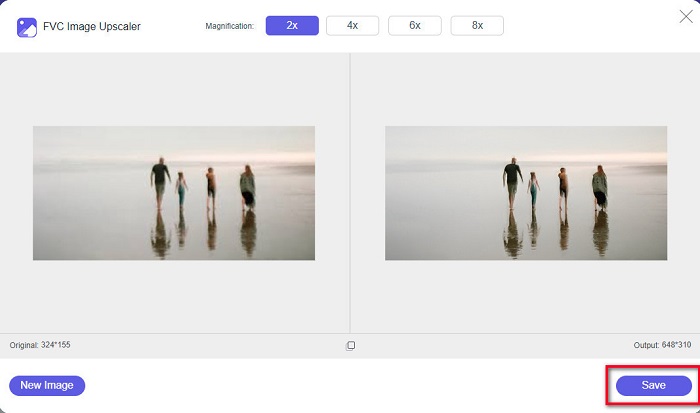
Langkah 3. Lalu, klik tombol Save untuk menyimpan hasilnya ke perangkat Anda.
Bagian 4. FAQ tentang Cara Mengubah Ukuran Gambar di Adobe Photoshop
Apakah Adobe mengubah ukuran gambar tanpa kehilangan?
Menggunakan Adobe Photoshop, Anda dapat mengubah ukuran gambar tanpa kehilangan kualitas. Selain itu, menghasilkan output berkualitas tinggi.
Format file apa yang didukung Adobe Photoshop?
Adobe Photoshop menerima hampir semua format gambar yang dikenal, seperti JPG, JPEG, PNG, BMP, TIFF, EPS, PDF, dan banyak lagi.
Berapa harga adobe photoshopnya?
Anda dapat membeli Adobe Photoshop seharga $19.99 per bulan. Anda dapat menggunakan uji coba gratis 30 hari untuk menguji aplikasi terlebih dahulu.
Kesimpulan
Sekarang setelah pertanyaan Anda tentang mengubah ukuran gambar di Adobe terjawab, Anda dapat mengubah ukuran gambar menggunakan Adobe Express atau Adobe Photoshop. Aplikasi mana pun yang Anda pilih di antara alat yang disebutkan di atas, Anda dapat berhasil mengubah ukuran gambar. Namun jika Anda menginginkan cara yang lebih mudah dan efisien untuk mengubah ukuran dan meningkatkan kualitas gambar, gunakan FVC Free Image Upscaler.
-
 Cara Mempertajam Gambar Online dan Offline Dengan 4 Cara Mudah
 Ada banyak cara yang bisa Anda lakukan jika ingin mempertajam gambar. Kami akan membahas di bawah ini cara terbaik dan termudah untuk mempertajam gambar secara online dan offline.
-
 Restorasi Foto Lama Online dan Offline [Langkah Mudah]
 Ingin mengembalikan foto lama? Dengan tools ini, Anda akan mengetahui proses restorasi foto lama. Baca posting ini untuk mempelajari metode yang paling mudah.
-
 Cara Mengubah Ukuran Foto untuk Facebook [Langkah Cepat dan Mudah]
 Jika Anda kesulitan mengunggah gambar berukuran besar di Facebook, kami punya solusi untuk Anda. Selesaikan artikel ini untuk mempelajari cara mengubah ukuran foto untuk Facebook.
