


 Video Converter Ultimate
 Perekam Layar
 Perbaikan Video
 Unduhan Aman
3 Cara Mudah Mengompres Foto untuk Email [Panduan]
Email merupakan platform yang bagus untuk mengirim pesan dengan lampiran foto dan berkas lain yang dibutuhkan. Namun, beberapa pengguna mengalami kesulitan dalam mengirim foto berkas besar karena waktu unggahnya lambat, pengirimannya gagal, atau melebihi batas ukuran lampiran yang ditetapkan oleh penyedia email. Untuk menghindari masalah ini, mengubah ukuran foto sebelum mengirimnya sangatlah penting.
Dengan demikian, dalam artikel ini, kami akan memandu Anda melalui 3 metode tentang cara mengompres foto untuk email, sehingga lampiran foto Anda mudah dikirim dan diterima tanpa mengorbankan kualitas.

Bagian 1. Manfaat Mengompres Foto untuk Email
Secara umum, mengompresi foto memiliki banyak manfaat, termasuk untuk penggunaan email. Berikut ini adalah hal-hal yang dapat Anda nikmati saat mengubah ukuran foto untuk email:
• Karena kompresi gambar berarti mengubah ukuran foto menjadi lebih kecil, Anda dapat dengan mudah mengirim beberapa lampiran foto dalam satu email dibandingkan dengan foto yang tidak dikompres.
• Sering kali, penyedia email memberlakukan batas ukuran lampiran yang dapat Anda kirim. Dengan mengompres foto untuk email, Anda dapat tetap berada dalam batas tersebut, memastikan email Anda terkirim tanpa masalah. Ini sangat berguna saat mengirim email ke banyak penerima atau ketika menyertakan jenis lampiran lain bersama foto Anda.
• Saat foto dikompres, artinya foto akan memakan lebih sedikit ruang, sehingga Anda dapat memanfaatkan kuota penyimpanan email dengan lebih baik.
• Lampiran email berukuran besar terkadang dapat ditandai oleh server email, yang mengakibatkan kegagalan pengiriman atau email ditandai sebagai spam. Mengompres foto untuk email membantu menghindari masalah ini, memastikan lampiran email Anda sampai ke penerima yang dituju tanpa kendala.
• Dalam situasi tertentu ketika pengguna menggunakan ponsel untuk memeriksa email mereka, foto yang telah dikompres lebih mudah diunduh dan dilihat di perangkat seluler dibandingkan yang tidak dikompres.
Bagian 2. Kompres Foto untuk Email dengan Mengubah Format Gambar
Jika Anda ingin mengompres foto untuk email, metode pertama yang dapat Anda coba adalah dengan menggunakan alat pengubah gambar. Dengan ini, alat ini akan mengubah gambar Anda ke format yang Anda inginkan, dan proses konversi juga mengoptimalkan foto Anda ke ukuran yang diinginkan dan lebih mudah dikelola.
FVC Free Image Converter adalah alat konverter gratis yang memungkinkan pengguna mengonversi foto mereka ke berbagai format file gambar, seperti JPG, PNG, dan GIF. Jadi, jika Anda mengirim file gambar melalui email dalam format yang menyimpan lebih banyak data sehingga ukuran file menjadi lebih besar, Anda pasti dapat memanfaatkan alat ini. Selain itu, alat ini ideal ketika Anda ingin mengirim banyak file besar karena dapat mengonversi hingga 40 gambar sekaligus secara batch. Berikut cara menggunakan alat ini untuk mengompres foto Anda untuk email:
Langkah 1. Pertama, di browser Anda, cari FVC Free Image Converter agar Anda dapat mengakses alat daring ini.
Langkah 2. Selanjutnya, pilih format file keluaran yang Anda inginkan pada opsi Convert to. Setelah itu, klik tombol Add Images untuk mengimpor gambar yang ingin Anda konversi.
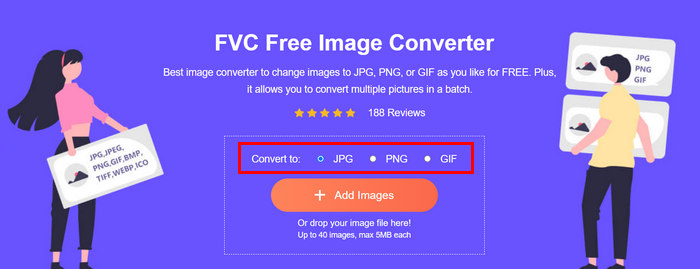
Langkah 3. Setelah selesai, klik tombol Download All.
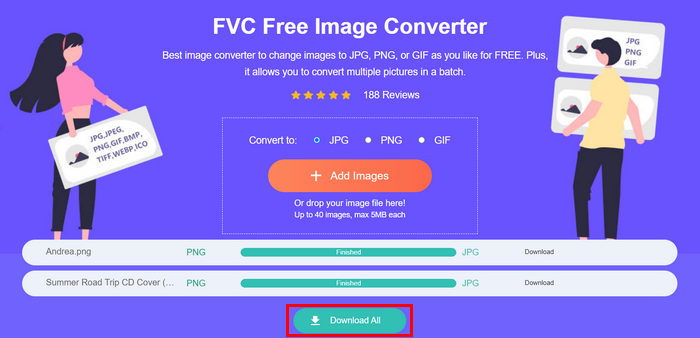 Dengan alat FVC Free Image Converter, dijamin foto Anda yang dikonversi kini terkompresi dan ukurannya diperkecil, yang sempurna untuk penggunaan email.
 Bagian 3. Mengecilkan Foto untuk Email dengan Alat Kompresi Online
FVC Free Image Compressor adalah alat kompresor online gratis yang memudahkan proses mengompres foto untuk email. Pengguna hanya perlu mengunggah atau mengimpor file gambar dan membiarkan alat ini mengompresnya secara otomatis. Jika Anda khawatir akan kehilangan kualitas, alat ini memanfaatkan optimasi terbaik dan algoritme kompresi tingkat lanjut. Hal ini akan memastikan kualitas gambar Anda tetap terjaga saat dikompres untuk email.
Selain itu, jika Anda harus mengompres gambar secara batch, alat ini memungkinkan Anda mengompres 40 gambar sekaligus. Terakhir, alat ini mendukung berbagai format gambar populer seperti JPEG, PNG, SVG, dan GIF animasi.
Langkah 1. Di perambanmu, akses situs resmi mereka.
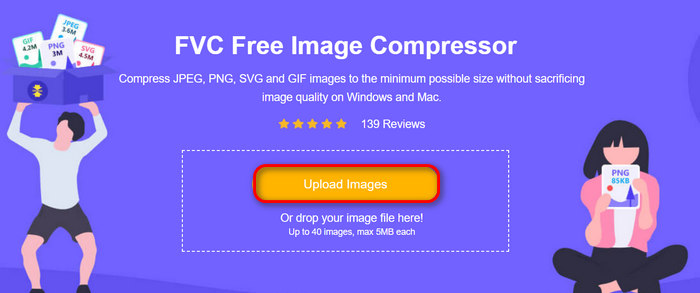
Langkah 2. Setelah itu, klik Upload Images untuk mengimpor gambar yang ingin Anda kompres untuk web Anda. Harap dicatat bahwa alat ini akan secara otomatis mengompres foto Anda setelah Anda memilihnya dan mengklik open.
Langkah 3. Setelah mengompres gambar Anda, Anda dapat meninjaunya dengan melihat ukuran barunya setelah kompresi. Terakhir, klik Download All untuk menyimpan gambar Anda.
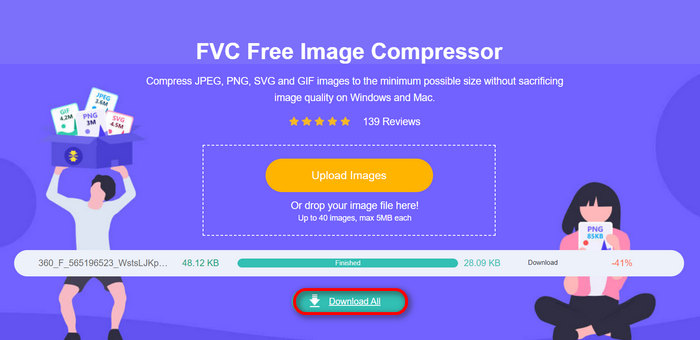
Metode ini benar-benar dapat membantu Anda mengompres foto untuk email tanpa harus melalui langkah-langkah rumit dan biaya berlangganan. Selain itu, antarmukanya yang mudah digunakan dan intuitif menjadikannya alat yang ideal untuk semua tingkat pengguna. Jadi, jika Anda ingin mengoptimalkan foto Anda untuk penggunaan email, cobalah metode ini sekarang.
Bagian 4. Ubah Ukuran Foto untuk Email ke Ukuran Tertentu
Jika Anda ingin mengubah ukuran foto untuk email ke ukuran tertentu, maka Anda dapat mencoba alat IMGonline. Alat kompresor gambar ini memungkinkan Anda mengubah ukuran gambar ke ukuran pilihan Anda. Berikut cara melakukannya:
Langkah 1. Di situs web mereka, klik tombol Choose File untuk menambahkan foto yang ingin Anda kompres.

Langkah 2. Selanjutnya, atur pengaturan untuk kompresi file JPEG. Masukkan ukuran yang Anda inginkan, dalam KB atau MB, sesuai pilihan Anda.

Langkah 3. Pada menu Size Reducing in Megapixel, pilih seberapa besar Anda ingin mengompres foto atau seberapa besar Anda ingin membatasi kompresi foto Anda.
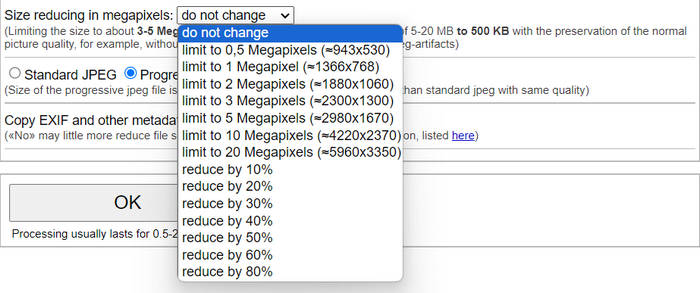
Langkah 4. Setelah itu, pilih antara Standard JPG atau Progressive JPG.

Langkah 5. Setelah selesai, cukup klik tombol OK.
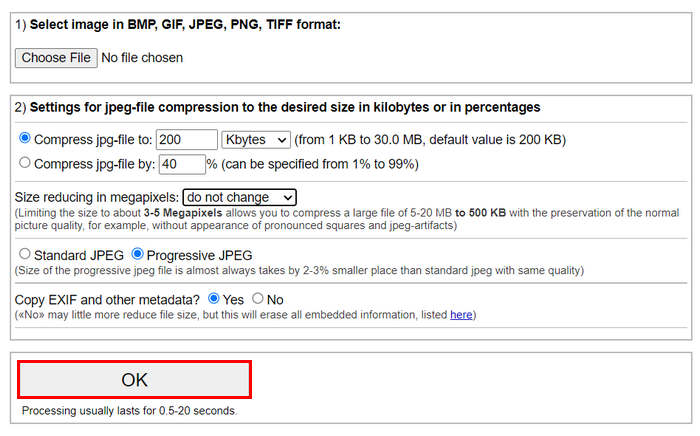
Sehubungan dengan pemilihan antara JPG standar dan JPG progresif, perlu diingat bahwa ukuran file jpeg progresif selalu berukuran 2-3% lebih kecil daripada jpeg standar dengan kualitas yang sama.
Bagian 5. Tanya Jawab tentang Mengompresi Foto untuk Email
Berapa ukuran yang harus saya ubah untuk foto saya untuk email?
Mengenai ukuran ideal untuk mengirim foto melalui email, meskipun tidak ada batasan, tetap saja, secara umum disarankan untuk mengubah ukuran foto Anda hingga maksimum 1024x768 piksel. Selain itu, menjaga ukuran gambar di bawah 1 MB membantu menghindari masalah dengan batasan lampiran dan memudahkan penerima untuk mengunduh dan melihat gambar.
Bagaimana cara mengompres gambar untuk Gmail?
Mengompres gambar untuk Gmail dapat dilakukan dengan berbagai metode. Salah satu cara termudah adalah menggunakan alat kompresi online seperti alat kompresor gambar gratis FVC. Untuk menggunakannya, Anda hanya perlu mengunggah file gambar, dan alat ini akan secara otomatis mengompresnya.
Jenis gambar apa yang terbaik untuk email?
Jenis gambar terbaik untuk email adalah JPEG dan PNG. JPEG banyak digunakan karena tingkat kompresinya yang baik dan keseimbangan antara ukuran file dan kualitas, sehingga ideal untuk foto dan gambar dengan banyak warna. PNG lebih disukai untuk gambar yang memerlukan transparansi atau yang berisi teks, logo, atau grafis dengan tepi tajam karena dapat mempertahankan kualitas yang lebih tinggi untuk elemen-elemen ini, meskipun ukuran filenya bisa lebih besar dibandingkan JPEG.
Kesimpulan
Sangat penting untuk mengetahui cara mengompres foto untuk email guna menghindari waktu unggah yang lambat, kegagalan pengiriman, dan batas ukuran lampiran. Dengan mengikuti metode yang telah dijelaskan secara komprehensif dalam artikel ini, Anda dapat memastikan bahwa lampiran foto Anda mudah dikelola serta cepat untuk dikirim dan diterima.
Apa yang Anda tunggu? Mulailah mengoptimalkan lampiran email Anda hari ini dengan 3 cara mudah ini.
-
 Foto yang Terlalu Terkompresi: Berikut Cara Memperbaikinya dengan Mudah
 Ingin tahu apa yang harus dilakukan jika gambar Anda terlalu terkompresi? Baca artikel ini dan pelajari mengapa masalah gambar ini terjadi dan pelajari 2 metode untuk memperbaikinya.
-
 Ubah Ukuran Gambar Menjadi 100KB: 3 Cara Terbaik untuk Kompresi yang Efisien
 Sedang mencari alat untuk membantu Anda mengubah ukuran gambar menjadi 100KB? Baca artikel ini dan pelajari 3 metode untuk mengecilkan gambar ke ukuran file yang diinginkan.
-
 Cara Mengompres Gambar di Word [Windows dan Mac]
 Ingin tahu bagaimana Anda dapat memanfaatkan Word untuk kompresi gambar? Panduan ini akan mengajarkan Anda cara mengompres gambar di Word agar kompresi berjalan lancar.
