


 Video Converter Ultimate
 Perekam Layar
 Perbaikan Video
 Unduhan Aman
3 Prosedur Utama untuk Menghapus Tanda Air Getty Images
Many people enjoy saving photos from the Getty Images stock library. However, unless you pay the royalty charge, images without watermarks cannot be saved directly. As a result, many clients wince at the high price. In this case, you can acquire a clear image by removing the Getty image watermark. Luckily, you are in this article. We will give you an easier way to learn how to remove Getty Image watermarks using online tools and downloadable applications. Read further to discover more!

Bagian 1: Alat Online untuk Menghapus Tanda Air Getty Images
One of the most excellent tools to remove Getty Image watermarks is FVC Free Watermark Remover. With this tool, Getty Image watermarks can be instantly deleted. Unlike the other tools, you can eliminate this watermark without paying any charges. So, if you want to remove the Getty Image watermark from a picture, you may use this watermark removal tool without worrying about whether or not your image is supported. Also, there are several tools you can use to remove Getty Image watermarks, like the watermark remover tools and the cropping tool.
Selain itu, foto Anda akan disimpan dalam format yang sama seperti aslinya jika watermark telah dihapus dengan benar. FVC Free Watermark Remover cocok untuk pemula karena memiliki desain yang intuitif, tombol sederhana, dan panduan pengguna yang mudah. Anda dapat dengan cepat menghapus tanda air dari foto dengan proses sederhana.
Anda dapat menggunakan tiga alat dalam alat penghapus tanda air, Lasso, Brush, dan Polygonal. Dalam prosedur ini, kita akan menggunakan alat Brush. Setelah itu, Anda juga akan mempelajari cara menggunakan alat potong untuk menghilangkan tanda air.
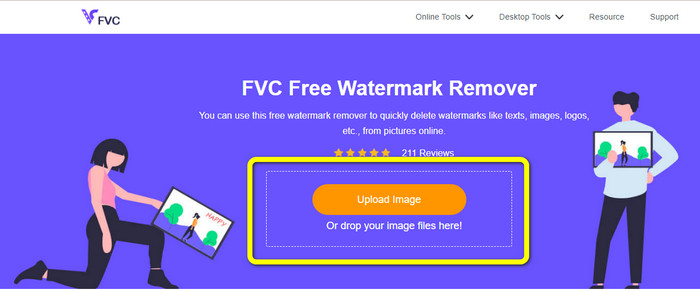
Step 1: Visit the FVC Free Watermark Remover website using your browser. Then click the Upload Image button to import the photo with a Getty images watermark.
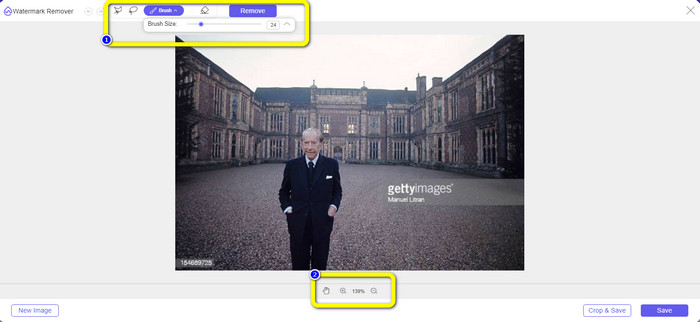
Step 2: After importing the image, you can choose the Brush tool to highlight the Getty Images watermarks. You can also alter the size of the brush to fit the watermarks. On the second box, you can use it to scale up and back the picture so that you can see the watermarks clearly.
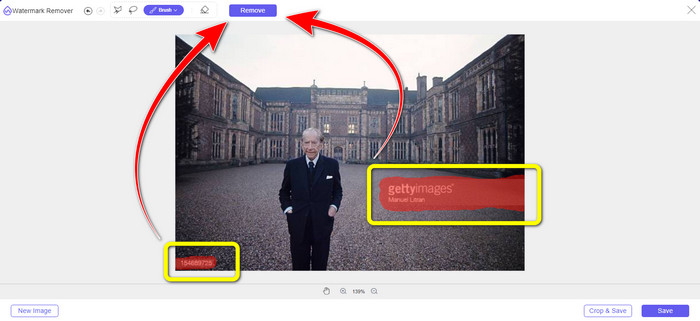
Step 3: After highlighting the Getty Images watermarks, you can proceed to remove them by clicking the Remove button. Afterward, wait for a few seconds for the removal process.
Step 4: For the next and last step, you can already download the photo without the Getty images watermarks by clicking the Save button.

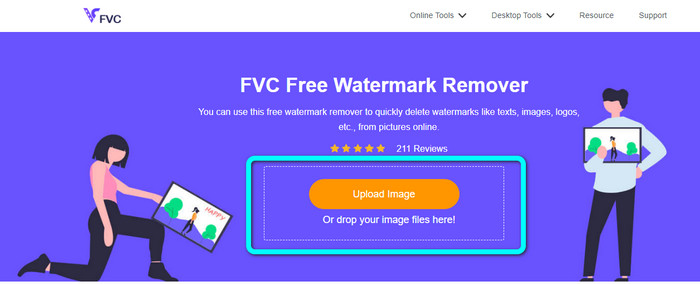
Step 5: In this step, you will learn how to use the Cropping tool. Upload the image with a Getty images watermark by hitting the Upload Image button. Your folder will show up on the screen. Choose your desired image file. Dropping the file into the box is another option for inserting an image file.
Step 6: On the side of the Save button, click the Crop&Save button to start cropping the image with a watermark.
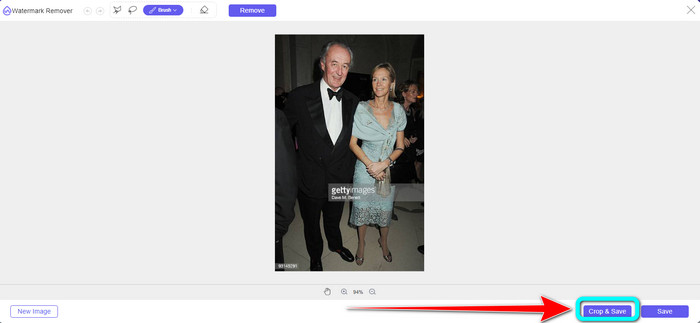
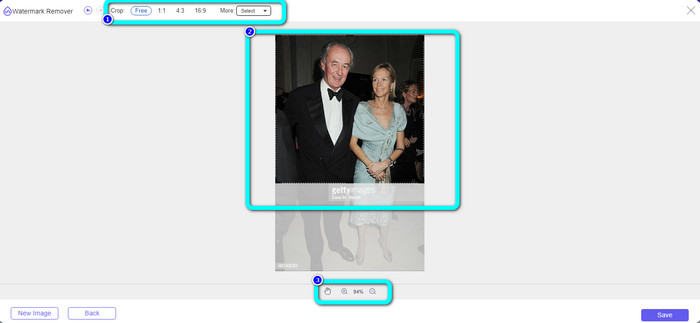
Step 7: You can choose any crop options in the first box. You can manually crop the photo on the second box using your mouse. And on the third box, you can zoom your photo by clicking the + and - icon.
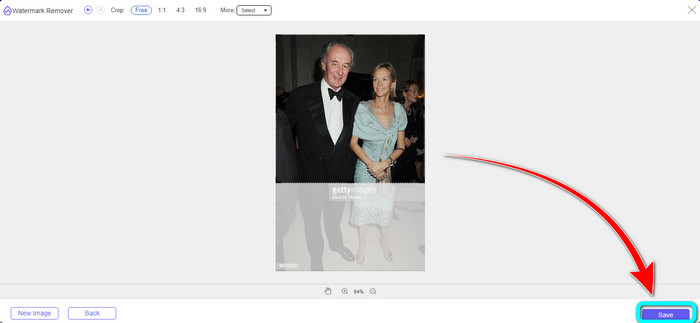
Step 8: After cropping your photo, you can already click the Save button to save your photo without the Getty Images watermarks.
Bagian 2: Aplikasi yang Dapat Diunduh untuk Menghapus Tanda Air Getty Images di Ponsel
Bagian ini akan mengajari Anda cara menghapus tanda air Getty Images dari foto Anda menggunakan Ponsel Anda. Aplikasi efektif yang bisa Anda manfaatkan ini adalah aplikasi Foto. Perangkat lunak ini mampu menghapus tanda air Getty Images. Anda dapat mengoperasikannya hanya dengan beberapa klik. Dengan cara ini, Anda tidak perlu mengunduh penghapus watermark lain di Google atau App Store. Selain itu, ini cocok untuk semua pengguna, apakah Anda pengguna tingkat lanjut atau non-profesional. Ini memiliki metode yang sederhana dan mudah dipahami. Jika Anda ingin mencoba aplikasi ini untuk menghapus tanda air Getty Images dari foto Anda, ikuti petunjuk sederhana di bawah ini.
Step 1: Launch the Photos application on your phone. Then, open the photo with the Getty Images watermark.
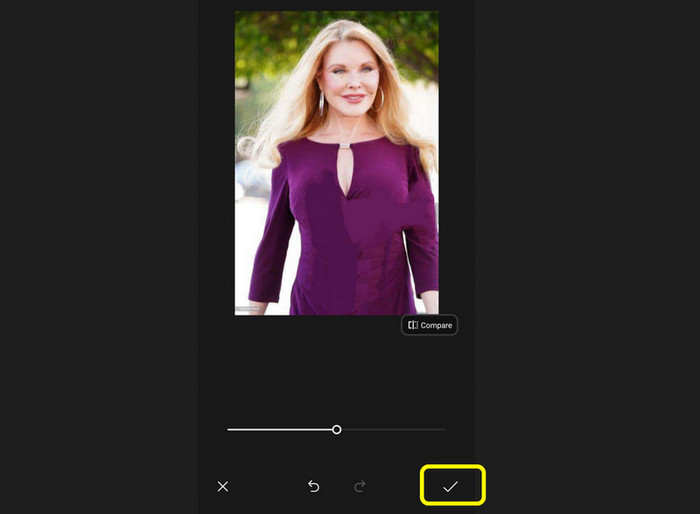
Step 2: After that, click the Edit button on the lower part of the interface and select the Eraser tool.
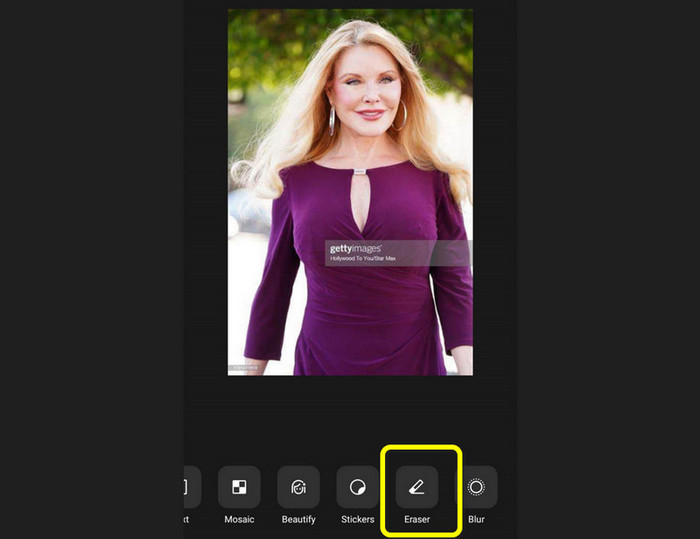
Step 3: Use the Eraser tool to remove the Getty Images watermark from the photo. If you are done, click the Check icon to save the photo.
Bagian 3: Hapus Tanda Air Getty Images Menggunakan Photoshop
Alat lain yang dapat Anda gunakan untuk menghapus tanda air Getty Image dari foto Anda adalah Adobe Photoshop. Ini adalah alat populer yang digunakan oleh fotografer, desainer grafis, editor, dll. Dengan aplikasi ini, Anda dapat menghapus semua objek yang mengganggu dari foto Anda. Selain itu, selain menghapus tanda air, Anda dapat menggunakan Photoshop untuk menyempurnakan gambar Anda menggunakan alat pengeditan seperti filter, koreksi warna, kecerahan, dan lainnya. Anda juga bisa membuat lebih banyak desain grafis dan ilustrasi, seperti terpal, brosur, flyer, kartu undangan, dll.
Namun, memanfaatkan Photoshop itu menantang, terutama bila Anda seorang pemula. Ini memiliki banyak alat canggih yang belum dapat dipahami pengguna. Jadi, disarankan untuk menggunakan alat yang lebih sederhana atau menonton tutorial. Selain itu, membeli Adobe Photoshop itu mahal. Itu hanya dapat menawarkan uji coba gratis tujuh hari.
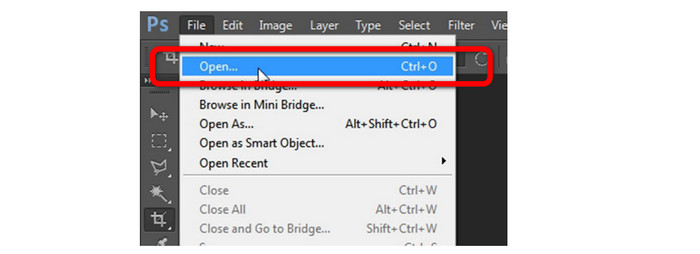
Step 1: After downloading Adobe Photoshop, click the File menu and choose the Open button to insert the photo with the Getty images watermarks.
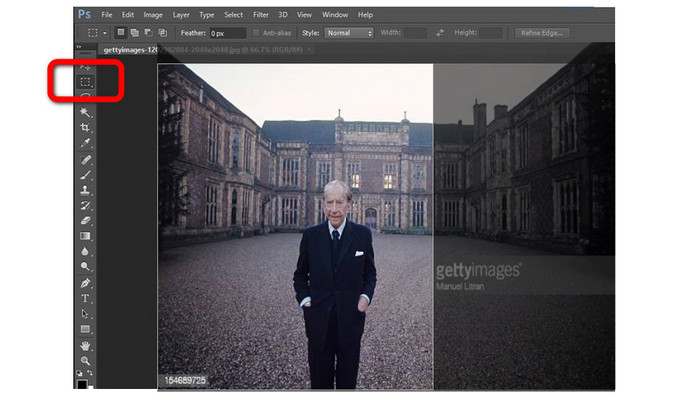
Step 2: The easiest way is to select the Cropping tool on the left side of the interface. Then crop the photo to eliminate the Getty Images watermarks.
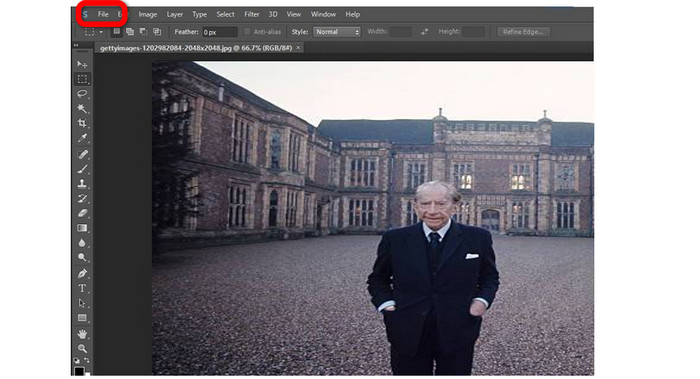
Step 3: You can already save your photo after cropping the image. You can press ctrl+S to save your picture.
Berhubungan dengan:
Complete Guides to Easily Remove iFunny Watermarks
Online and Offline Methods on How to Remove Alamy Watermarks
Bagian 4: FAQ tentang Menghapus Tanda Air Getty Images
1. Bisakah saya menggunakan Mac untuk menghapus tanda air Getty Images menggunakan Apowersoft Watermark Remover?
Unfortunately, no. Apowersoft Watermark Remover is only accessible on Windows PC. If you want to erase watermarks from your photo using a Mac, you can use the FVC Free Watermark Remover.
2. Bolehkah menggunakan Getty Images dengan watermark secara langsung?
Tentu saja tidak. Foto-foto ini dilindungi hak cipta. Jika Anda menggunakannya, Anda akan dihukum. Anda hanya dapat menggunakannya jika Anda memiliki izin pemiliknya.
3. Bagaimana cara memberi tanda air pada foto saya?
Photoshop dapat digunakan untuk menerapkan tanda air ke gambar Anda. Anda dapat membuat layer baru atau menambahkan teks ke gambar sebagai watermark Anda. Selain itu, Anda dapat menerapkan tanda air pada gambar menggunakan berbagai aplikasi pihak ketiga atau aplikasi foto bawaan di ponsel cerdas Anda.
Kesimpulan
These informative discussions gave you enough solutions to remove Getty Images watermarks from your photo. As you observed, some applications have limitations, and some are complicated to use. If that’s the case, you can use FVC Free Watermark Remover. It is easy to utilize and doesn’t have limitations when removing watermarks from your images.
-
 Cara Mudah Menghapus Tanda Air Reddit dari Gambar
 Jika Anda di sini, Anda mungkin mencari penghapus tanda air Reddit yang luar biasa. Dalam hal ini, kami akan menunjukkan kepada Anda metode termudah untuk menghapus tanda air Reddit
-
 5 Cara Menghilangkan Watermark B612 Menggunakan Alat Terbaik
 Ingin tahu cara menghapus tanda air B612 dari foto Anda? Anda dapat dengan mudah menghapus tanda air B612 dari gambar Anda menggunakan alat luar biasa ini
-
 Langkah Mudah Cara Menghilangkan Watermark Slider WOW [Soal]
 WOW Slider adalah aplikasi untuk membuat slideshow yang fantastis. Namun, itu menyematkan tanda air pada keluarannya. Baca di bawah untuk mempelajari cara menghapus tanda air WOW Slider
