


 Video Converter Ultimate
 Perekam Layar
 Perbaikan Video
 Unduhan Aman
Hapus Tanda Air dari JPG Online: 3 Metode Utama
Saat ini, menyimpan foto adalah cara terbaik untuk menjaga kenangan bersama orang-orang istimewa kita. Namun, ada kalanya foto Anda memiliki watermark. Untungnya, kami akan memberikan informasi yang sangat berguna tentang cara menghapus watermark dari file JPG secara online dengan bantuan beberapa aplikasi. File JPG adalah salah satu format gambar paling populer yang digunakan di kamera digital, sehingga beberapa foto Anda mungkin tersimpan dalam format JPG. Jika Anda termasuk orang yang ingin menghilangkan elemen yang tidak diinginkan dari gambar, terutama pada file JPG, Anda harus membaca bagian-bagian berikut dari artikel ini.

Bagian 1: Bisakah Tanda Air dari JPG Dihapus
Di era modern ini, menghapus objek yang mengganggu, seperti tanda air, logo, dan teks dari format file JPG tidaklah rumit jika Anda tahu apa yang harus dilakukan dan alat apa yang akan Anda gunakan. Tidak hanya pada file JPG tetapi juga dalam format file gambar lainnya. Yang harus Anda lakukan adalah mencari penghilang watermark yang sah secara online.
Bagian 2: Cara Menghapus Tanda Air dari JPG Online
Hapus Watermark dari JPG Menggunakan FVC Free Watermark Remover
Mengetahui cara menghapus watermark dari file JPG sangat bermanfaat karena kebanyakan orang tidak ingin melihat objek yang mengganggu di foto mereka. Jika Anda ingin mencari metode terbaik untuk menghapus watermark dari JPG secara gratis, Anda dapat menggunakan FVC Free Watermark Remover. Aplikasi ini memiliki proses unggah dan penghapusan yang cepat, sehingga pengguna tidak perlu menunggu terlalu lama saat menghapus watermark dari foto mereka. Aplikasi ini mendukung berbagai format file, seperti JPG/JPEG, PNG, BMP, dan lainnya. Selain itu, ada dua cara untuk menghapus watermark dari JPG Anda: dengan alat Crop (Pangkas) dan alat Penghapus Watermark. Setelah berhasil menghapus watermark, gambar Anda juga dapat disimpan dalam format yang sama dengan aslinya. Lebih jauh lagi, dengan panduan yang rinci, tombol yang sederhana, dan antarmuka yang mudah dipahami, alat online ini sangat cocok untuk pengguna non-profesional. Menggunakan alat ini tidak memerlukan akun, berbeda dengan beberapa perangkat lunak lainnya. Anda juga tidak perlu memasang aplikasi ini karena bisa langsung digunakan di peramban Anda. Terakhir, hanya Anda yang dapat melihat file Anda, sehingga Anda dapat memastikan file Anda aman dan terjaga.
Fitur
◆ Dapat memotong gambar sebelum atau sesudah menghapus tanda air.
◆ Menawarkan tiga alat penghapus, Lasso, Kuas, dan Poligonal, untuk menghilangkan objek yang mengganggu.
Pro
- Ini memiliki panduan terperinci dan antarmuka yang sederhana, yang bagus untuk pemula.
- Perangkat lunak online gratis, jadi tidak perlu membeli langganan.
- Memberikan proses penghapusan cepat.
- Simpan gambar dengan kualitas yang sama.
- File aman dan terjamin.
- Tidak perlu mengunduh aplikasinya karena sudah bisa langsung digunakan di browser.
Kontra
- Untuk mengoperasikan aplikasi, Anda memerlukan koneksi internet.
Mari hapus watermark dari JPG menggunakan FVC Free Watermark Remover. Ikuti langkah-langkah sederhana di bawah ini. Kami akan menggunakan alat penghapus tanda air. Pastikan area watermark diletakkan di bagian tengah foto.
Menggunakan Alat Polygonal
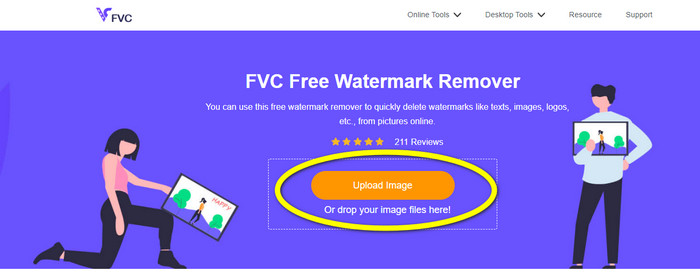
Langkah 1: Langkah pertama yang harus Anda lakukan adalah mengunjungi situs web FVC Free Watermark Remover. Tekan tombol Upload Image atau seret file JPG Anda untuk mengunggahnya ke alat ini.
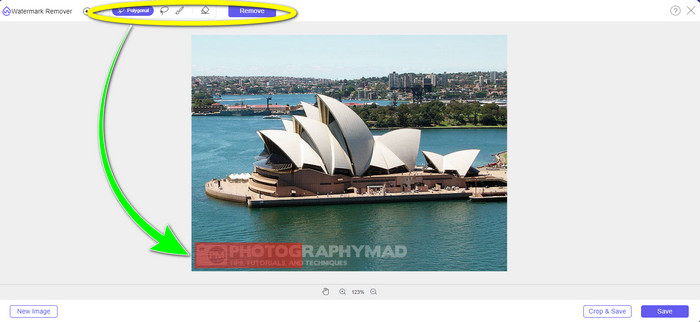
Langkah 2: Sorot watermark setelah mengunggah foto. Anda dapat menggunakan alat seperti Lasso, Polygonal, dan Brush untuk menyorotnya.
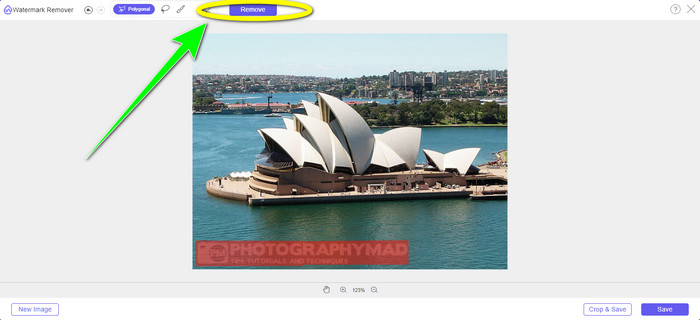
Langkah 3: Setelah menyorot semua watermark pada file JPG Anda, Anda dapat langsung menghapusnya dengan mengklik tombol Remove. Tunggu proses penghapusan selesai, lalu lanjutkan ke langkah berikutnya.
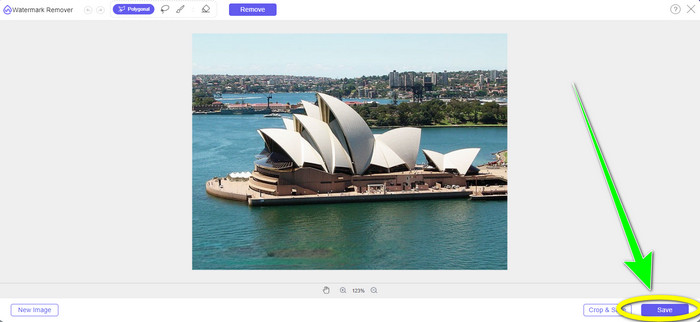
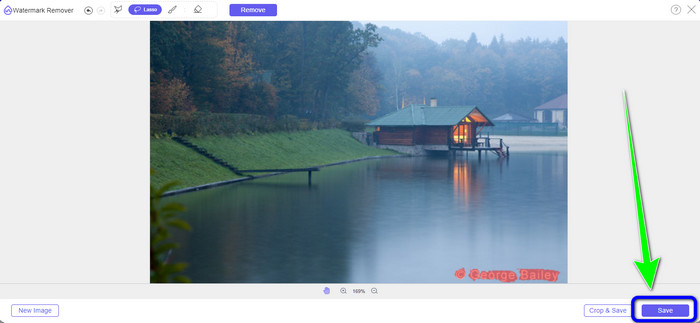
Langkah 4: Jika Anda sudah puas dengan hasil akhirnya, klik tombol Save untuk menyimpan file JPG Anda tanpa watermark.
Menggunakan Alat Brush
Langkah 1: Unggah file gambar JPG yang memiliki watermark yang ingin Anda hapus.
Langkah 2: Dari alat penghapus watermark, pilih alat Brush untuk menyorot watermark pada foto Anda. Anda juga dapat mengklik ikon + dan - di bagian bawah antarmuka untuk memperbesar atau memperkecil tampilan foto. Dengan bilah geser di bawah alat brush, Anda juga dapat mengubah ukuran kuas.
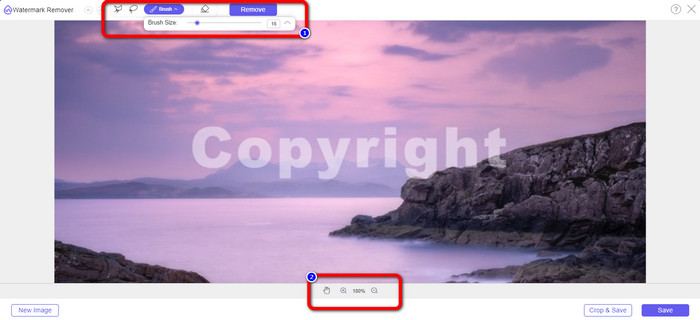
Langkah 3: Setelah memilih alat Brush, sorot semua watermark pada foto Anda.
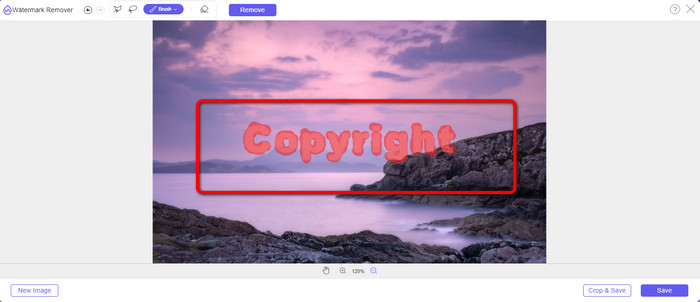
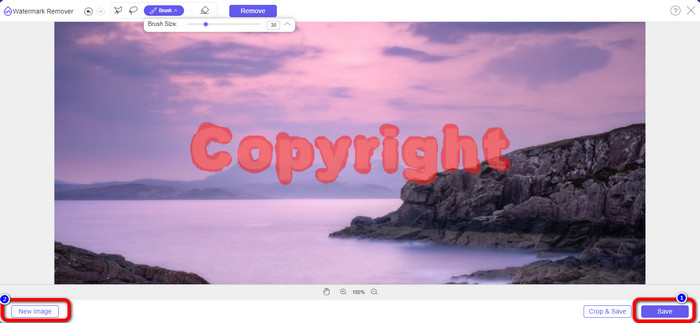
Langkah 4: Ketika Anda sudah selesai menyorot watermark, Anda dapat menghapusnya dengan mengklik tombol Save, dan foto akan tersimpan secara otomatis. Buka file tersebut dan lihat foto Anda tanpa watermark. Jika Anda ingin menghapus watermark dari foto lainnya, klik tombol New Image di bagian kiri bawah antarmuka.
Menggunakan Alat Lasso
Langkah 1: Unggah file gambar JPG yang memiliki watermark.
Langkah 2: Pilih Lasso sebagai alat penghapus watermark Anda.
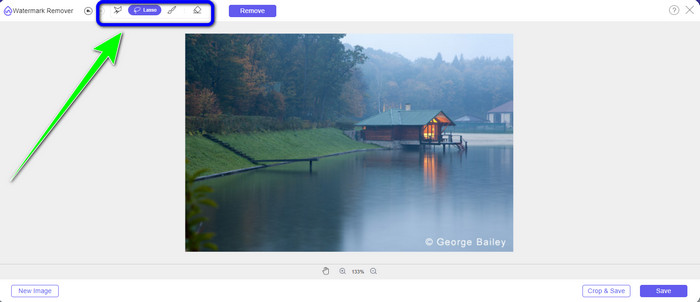
Langkah 3: Klik ikon + di bawah foto untuk melihat watermark dengan lebih jelas. Lalu, dengan menggunakan alat lasso, sorot watermark tersebut. Prosesnya mirip seperti menggunakan pensil sambil menekan tombol klik kiri. Anda juga dapat mengklik tombol Eraser di bagian atas antarmuka untuk memilih ulang area yang telah disorot.
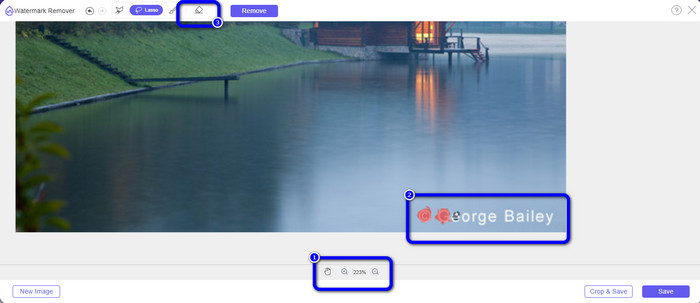
Langkah 4: Jika Anda sudah selesai menyorot watermark menggunakan alat Lasso, klik tombol Save untuk menyimpan foto. Setelah itu, lihat file gambar JPG tanpa watermark.
Menggunakan Alat Cropping
Saat menggunakan alat Pangkas, pastikan area tanda air dari jpg Anda berada di bagian tepi atau sudut.
Langkah 1: Unggah file gambar JPG.
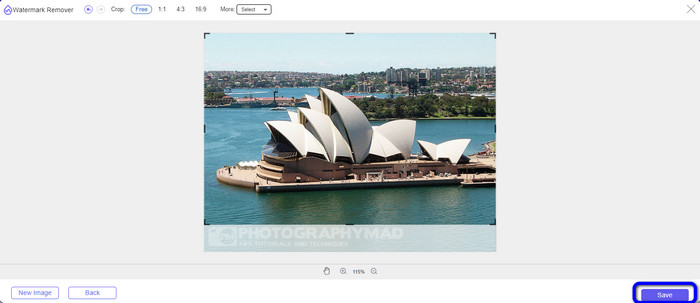
Langkah 2: Pilih tombol Crop & Save untuk melanjutkan ke proses pemangkasan.
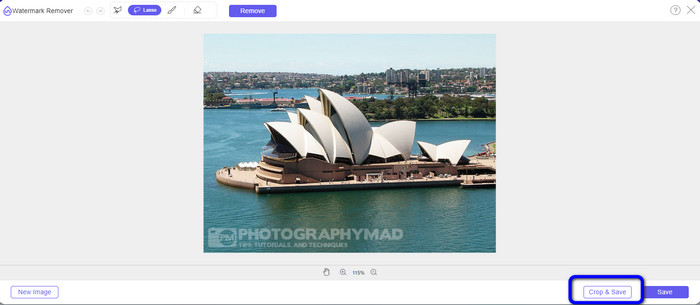
Langkah 3: Pada bagian ini, Anda sudah dapat memangkas foto. Anda juga dapat memilih area pada bagian atas antarmuka untuk memotong foto Anda.
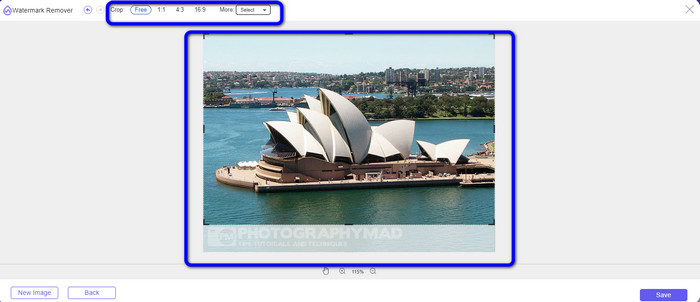
Langkah 4: Setelah selesai memangkas foto, Anda dapat mengklik tombol Save untuk menyimpannya.
Terkait dengan:
Cara Menghapus Orang dari Foto: Proses yang Mudah dan Cepat
Cara Mudah Menghapus Logo iSkysoft dari Video
Bagian 3: FAQ tentang Menghapus Tanda Air dari JPG
Apa yang terjadi jika Anda menghapus tanda air dari foto?
Setelah menghapus tanda air dari foto, gambar yang diedit akan dihapus sesegera mungkin. Itu karena modifikasi intens dari foto aslinya.
Apakah ada tanda air yang sulit dihilangkan?
Ya ada. Tanda air gambar penuh, seperti jenis yang digunakan oleh bisnis stok fotografi untuk melindungi foto, adalah satu-satunya pengecualian untuk aturan ini. Tidak mungkin untuk memberantas ini sepenuhnya. Jika Anda melakukannya, Anda akan melihat kualitas foto yang buruk setelah menghapus tanda air gambar penuh.
Bisakah saya menghapus tanda air dari JPG tanpa kehilangan kualitasnya?
Ya, bisa. Gunakan FVC Free Watermark Remover. Perangkat lunak online ini memungkinkan Anda menghapus elemen apa pun yang tidak diinginkan dari file gambar JPG tanpa mengurangi kualitasnya.
Kesimpulan
Artikel ini menunjukkan strategi terbaik yang dapat Anda ikuti untuk menghapus watermark dari JPG secara online. Selain itu, Anda telah mengetahui alat penghapus watermark yang sangat bagus, seperti Lasso, Polygonal, Brush, dan alat Crop. Semua alat ini bisa Anda temukan hanya pada aplikasi online yang andal, yaitu FVC Free Watermark Remover.
-
 Cara Tercepat untuk Menghapus Logo dari Video di Adobe Premiere Pro
 Cobalah cara mudah dan tercepat ini untuk menghapus logo dari video di Adobe Premiere Pro. Artikel ini akan menawarkan cara terbaik untuk mencoba menggunakan perangkat Anda.
-
 Cara Menghapus Logo dari Video Menggunakan Windows Movie Maker
 Jika Anda ingin mempelajari cara menghapus logo dari video menggunakan Windows Movie Maker dan cara alternatif lainnya, baca artikel ini. Kami punya cara mudah untuk Anda.
-
 Cara Menghapus Logo VideoScribe dari Video dengan Mudah
 Anda tidak perlu khawatir lagi menghapus logo VideoScribe dari video Anda. Artikel ini akan memberikan metode bebas masalah. Baca posting ini untuk mempelajari lebih lanjut.
