


 Video Converter Ultimate
 Perekam Layar
 Perbaikan Video
 Unduhan Aman
Tingkatkan Gambar ke 4k Menggunakan Upscaler Terpanas di Pasar
Meng-upscale gambar ke 4K menjadi fitur yang banyak dicari di berbagai perangkat lunak, baik profesional maupun non-profesional. Banyak pengguna percaya bahwa resolusi lebih tinggi seperti 4K akan membuat gambar mereka lebih detail, tajam, jernih, dan terlihat lebih baik. Namun, Anda akan benar-benar merasakan manfaat gambar 4K jika menggunakannya untuk iklan luar ruang, mencetak spanduk berkualitas tinggi, menampilkannya di layar digital besar, kebanyakan sinematografi digital, dan lain-lain. PPI atau resolusi gambar berfungsi untuk memproyeksikan jumlah piksel yang tepat sesuai dengan lebar dan tinggi gambar. Ingin tahu cara mengubah foto Anda menjadi 3840 x 2160? Atau Anda lebih memilih DCI 4K, yaitu 4096 x 2160? Artikel ini memuat informasi yang Anda perlukan untuk mencapai resolusi UHD yang dikenal sebagai 4K.

Bagian 1. Cara Meningkatkan Gambar ke 4k Gratis Dengan Solusi Terbaik [Layanan Web]
FVC Free Image Upscaler adalah peng-upscale gambar 4K paling sederhana yang bisa Anda gunakan untuk mendapatkan resolusi 4K. Alat ini bukan hanya meng-upscale gambar Anda, tetapi juga menyesuaikan PPI pada foto agar sesuai dengan resolusi yang Anda pilih. Ini adalah alat upscaler, yang berarti gambar yang Anda unggah di sini tidak akan pernah ditarik berlebihan atau kehilangan kualitas, berkat teknologi AI terbaik yang disematkan FVC di dalamnya. Perlu demonstrasi cara menggunakannya? Jika ya, ikuti langkah-langkah lengkap yang kami sertakan di bawah ini dan mulai meng-upscale gambar yang Anda inginkan.
Langkah 1. Klik tautan ini untuk membuka alatnya di tab baru. Anda akan diarahkan ke alat resmi yang akan Anda gunakan untuk mengubah gambar yang ingin Anda upscale.
Langkah 2. Tekan Upload Photo untuk menambahkan file JPG, JPEG, PNG, GIF, BMP, atau SVG yang ingin Anda upscale ke resolusi 4K.
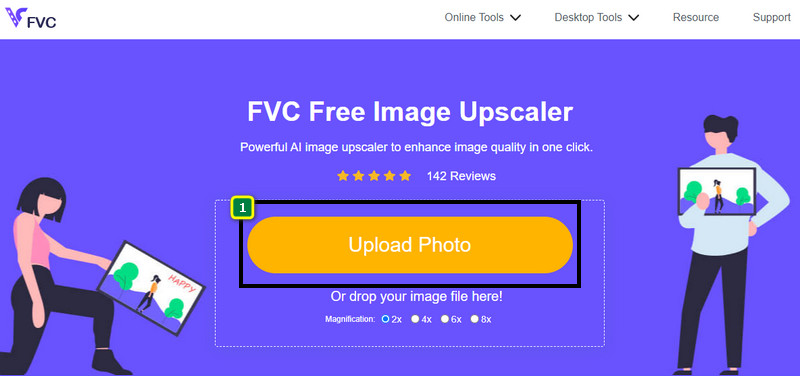
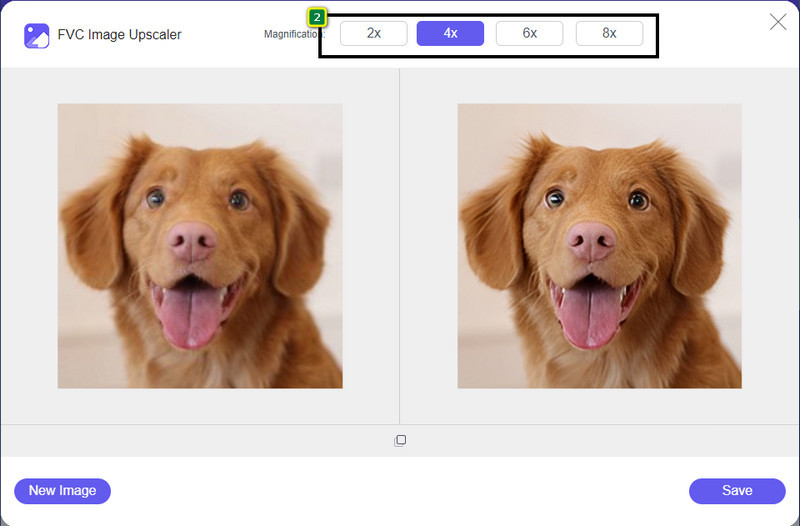
Langkah 3. Setelah itu, gambar yang Anda unggah akan dimuat ke dalam alat. Lalu, pilih opsi 2x, 4x, 6x, atau 8x di bagian atas untuk mencapai resolusi 4K.
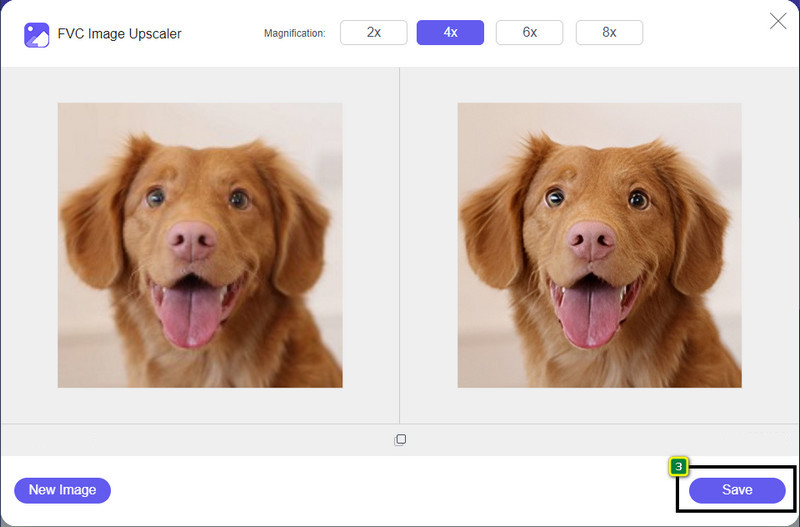
Langkah 4. Untuk mengekspor gambar 4K yang sudah Anda tingkatkan di sini, klik tombol Save; gambar akan otomatis tersimpan ke folder file Anda.
Bagian 2. Cara Meningkatkan Gambar ke 4k Offline di Windows Default Graphic Editor [Gratis]
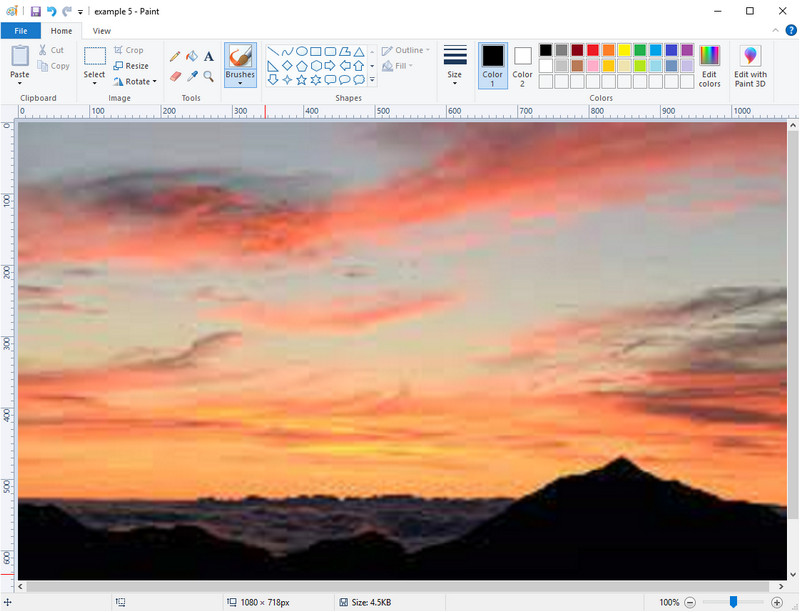
Paint adalah editor grafis bawaan di Windows yang dapat Anda gunakan untuk meng-upscale gambar ke 4K dengan mengubah dimensinya. Perangkat lunak ini populer di kalangan pengguna Windows karena banyaknya hal yang dapat dilakukan di sini. Anda bisa memulai kanvas kosong dan melukis seperti di kanvas biasa, tetapi secara digital. Paint memiliki fitur pengunci sehingga ketika Anda menyesuaikan tinggi gambar, lebarnya akan ikut menyesuaikan, atau sebaliknya. Selain itu, Anda bisa menggunakan persentase untuk mengubah dimensi gambar.
Meskipun Anda dapat menggunakan alat ini sebagai editor Anda, itu masih tidak cukup di bidang pengeditan lainnya. Misalnya, itu tidak mendukung mode skala abu-abu. Jadi, jika Anda ingin menggunakan alat ini, ikuti langkah-langkah yang kami tambahkan.
Langkah 1. Klik ikon Windows di layar Anda dan ketik nama alatnya, Paint.
Langkah 2. Setelah terbuka, klik File, lalu Open, dan tambahkan file gambar yang ingin Anda upscale. Anda juga bisa menyeret dan menjatuhkan (drag and drop) gambar ke dalam alat ini jika mau.
Langkah 3. Buka opsi Resize dan klik Pixel. Ubah ukuran tinggi atau lebar ke standar 4K.
Lebih baik jika Anda mengubah satu pengukuran; tidak masalah apakah itu tinggi atau lebar dan selalu centang rasio aspek utama agar pas. Beberapa gambar direntangkan jika Anda mengubah ukurannya menjadi 4k.
Langkah 4. Setelah itu, klik tombol Save untuk mengunduh gambar yang sudah Anda upscale di sini.
Bagian 3. Cara Meningkatkan Gambar ke 4k Menggunakan Perangkat Lunak Profesional di Windows & Mac [Berbayar]
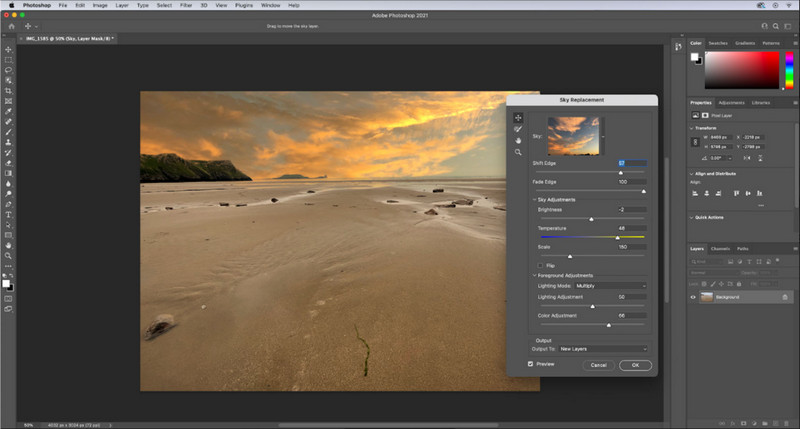
Adobe Photoshop memungkinkan penggunanya merasakan level baru dalam pengeditan dan peng-upscale gambar, tetapi kali ini kita akan fokus pada fungsi upscaling-nya. Tidak bisa dipungkiri bahwa ini adalah pilihan perangkat lunak tingkat ahli karena kemampuannya yang sangat mendalam dalam pengeditan gambar. Selain itu, alat ini membuat data PPI baru pada gambar saat Anda meng-upscale-nya dengan bantuan algoritma yang diterapkan pada file Anda. Anda dapat mengubah resolusi ke 4K tanpa membuat gambar menjadi melar atau pecah-pecah (pixelated).
Namun, Anda perlu membeli paket jika Anda telah menggunakan uji coba gratis yang disediakan aplikasi ini. Meskipun Anda harus membayar, secara keseluruhan perangkat lunak ini sangat baik untuk digunakan oleh editor profesional dan tingkat menengah. Untuk pemula, Anda dapat mempelajari cara meningkatkan gambar ke 4k dengan instruksi di bawah ini.
Langkah 1. Unduh versi resmi perangkat lunak ini dari Adobe, tetapi jika Anda sudah memiliki aplikasinya, Anda bisa langsung membukanya untuk mulai digunakan.
Langkah 2. Untuk mengunggah gambar yang ingin Anda upscale, klik File lalu Open, dan sebuah jendela folder akan muncul di layar. Pilih nama file gambar dan tekan Open untuk mengunggah gambar.
Langkah 3. Di bagian atas, klik opsi Image lalu pilih Image Size.
Langkah 4. Sebuah kotak dialog akan muncul untuk menyesuaikan ukuran height, width, dan resolution gambar Anda.
Untuk hasil yang lebih halus, Anda perlu mencentang kotak Resample dan klik tombol drop-down. Alih-alih memilih Automatic, pilih Bicubic Enlargement karena ini adalah metode yang membuat hasil pembesaran gambar menjadi lebih baik. Klik OK untuk menyimpan penyesuaian yang telah Anda ubah.
Langkah 5. Untuk mengunduh gambar yang Anda upscale ke 4K, klik File lalu pilih Save.
Terkait:
Panduan Sederhana Cara Menambahkan Watermark ke Video di Photoshop dengan Cepat
Tingkatkan Kualitas Gambar dengan Metode Cepat dan Mudah Ini
Bagian 4. FAQ tentang Cara Meningkatkan Gambar ke 4k
Apakah ada batasan untuk meningkatkan gambar ke 4k?
Ada batasan yang harus Anda ikuti. Misalnya, jika monitor Anda hanya dapat memproses 1080p, maka lebih baik menggunakan ukuran standar 1080p daripada 4k karena upscaling yang Anda tambahkan tidak akan berlaku.
Apakah gambar saya akan menjadi lebih baik setelah ditingkatkan menjadi 4k?
Jangan berharap keajaiban terjadi, tetapi Anda akan melihat hasilnya jika Anda membuka gambar ke tampilan yang benar, seperti TV 4k, misalnya.
Mengapa gambar saya menjadi buram setelah melihatnya di TV 4k?
Gambar cenderung melebar ketika dimensi dan PPI tidak memenuhi standar televisi digital yang Anda gunakan, terutama 4k. Anda mencegah hal ini jika Anda meningkatkan gambar menjadi resolusi 4k dengan aplikasi yang kami tambahkan di sini.
Kesimpulan
Secara umum, Anda memerlukan upscaler gambar 4k untuk menyesuaikan gambar ke resolusi 4k. Anda dapat dengan mudah melakukannya dengan alat yang kami tambahkan di sini dan tutorialnya. Anda dapat mulai menggunakan layanan online untuk meningkatkan gambar yang Anda inginkan, dan Anda akan kagum dengan hasilnya.
-
 Restorasi Foto Lama Online dan Offline [Langkah Mudah]
 Ingin mengembalikan foto lama? Dengan tools ini, Anda akan mengetahui proses restorasi foto lama. Baca posting ini untuk mempelajari metode yang paling mudah.
-
 Penambah 7 Piksel Teratas untuk Semua Peramban Web yang Harus Anda Gunakan
 Jika Anda ingin mengetahui penambah piksel terbaik untuk digunakan, Anda sebaiknya memeriksa posting ini. Artikel ini mencantumkan tujuh penambah piksel foto terbaik untuk semua browser web.
-
 Aplikasi Pengubah Ukuran Foto Terbaik Online, Offline, Android, dan iPhone
 Apa saja aplikasi pengubah ukuran foto terbaik? Klik halaman untuk mempelajari lima aplikasi pengubah ukuran foto paling kuat yang dapat Anda gunakan untuk meningkatkan atau mengubah ukuran file Anda.
