


 Video Converter Ultimate
 Perekam Layar
 Perbaikan Video
 Unduhan Aman
Konversikan AAC ke MP3 dan Sebaliknya dengan Alat Terbaik untuk Semua Platform
File audio telah menjadi komponen penting dari masyarakat modern. Kami bergantung pada berbagai jenis file audio, seperti musik, podcast, buku audio, dan memo suara, untuk tujuan hiburan, pendidikan, dan komunikasi. Mengingat banyaknya format audio yang ada, terbukti sulit untuk menemukan file yang kompatibel secara universal dengan semua perangkat kami. AAC dan MP3 adalah dua format kompresi audio yang umum digunakan.
Postingan ini akan menunjukkan proses mengonversi AAC ke MP3 dan MP3 ke AAC, sehingga Anda dapat mengoptimalkan file audio agar sesuai dengan berbagai perangkat dan platform. Konten ini akan mencakup analisis mendalam tentang kelebihan masing‑masing format, alat konversi yang paling efektif, serta panduan lengkap untuk membantu Anda mengoptimalkan file audio. Jika Anda memerlukan kompresi file untuk menghemat ruang atau meningkatkan kompatibilitas, silakan lanjutkan membaca.

Bagian 1. Perbandingan AAC vs. MP3
Untuk mendapatkan keputusan tentang format mana yang akan diambil atau tidak, berikut adalah tabel perbandingan yang akan membantu Anda.
| AAC | MP3 | |
| Kualitas | Kualitas umumnya lebih baik daripada MP3 dengan bitrate lebih rendah | Kualitas lebih rendah dari AAC dengan bitrate lebih rendah |
| Ukuran file | Ukuran file lebih kecil dari MP3 pada bitrate yang sama | Ukuran file lebih besar dari AAC pada bitrate yang sama |
| Kisaran kecepatan bit | Biasanya berkisar antara 8-230kbps | Biasanya berkisar antara 8-320 kbps |
| Kesesuaian | Didukung secara luas di sebagian besar perangkat dan perangkat lunak modern | Didukung secara luas di sebagian besar perangkat dan perangkat lunak, tetapi beberapa perangkat lama mungkin tidak mendukung |
| Tingkat sampel | Biasanya berkisar antara 8-96 kHz | Biasanya berkisar antara 8-48kHz |
Bagian 2. Panduan untuk Mengonversi AAC ke MP3 atau MP3 ke AAC di Windows dan Mac
1. FVC Video Converter Ultimate
FVC Video Converter Ultimate adalah perangkat lunak yang kuat dan mudah digunakan yang dirancang untuk konversi video. Alat ini memungkinkan Anda mengonversi file video maupun audio ke berbagai format. Anda juga dapat mengonversi AAC ke MP3 dan MP3 ke AAC, beserta beragam format audio dan video lainnya, dengan mudah.
Selain itu, ia menyediakan berbagai fungsi tambahan, termasuk pemrosesan batch, tingkat konversi yang cepat, dan antarmuka yang ramah pengguna yang memfasilitasi kemudahan penggunaan. Plus, perangkat lunak ini mendukung berbagai format input dan output, termasuk format audio populer seperti AAC, MP3, WAV, FLAC, dan banyak lagi. Anda juga dapat menyesuaikan pengaturan konversi Anda, seperti bitrate, sample rate, dan saluran, untuk mencapai kualitas keluaran yang diinginkan. Lihat cara kerja pengonversi AAC ke MP3 ini.
Langkah 1. Dapatkan perangkat lunaknya
Silakan unduh Video Converter Ultimate dari situs resminya dengan memilih penginstal dari opsi yang disediakan. Selanjutnya, lanjutkan melalui semua petunjuk untuk mencapai instalasi yang berhasil. Silakan lanjutkan untuk menjalankan program dan melakukan eksplorasi fitur-fiturnya.
Free DownloadUntuk Windows 7 atau yang lebih baruUnduhan Aman
Free DownloadUntuk MacOS 10.7 atau yang lebih baruUnduhan Aman
Langkah 2. Unggah file audio
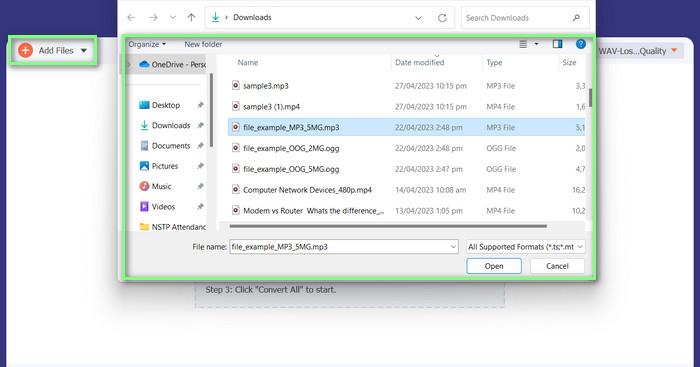
Untuk mengunggah video, ketuk Add Files atau ikon tanda plus, lalu cari file audio di penyimpanan Anda. Untuk mengimpor video ke dalam perangkat lunak, silakan klik dua kali file tersebut. Cara lainnya adalah dengan menyeret langsung video dari folder Anda dan meletakkannya ke dalam program.
Langkah 3. Ubah format audio dan konversi
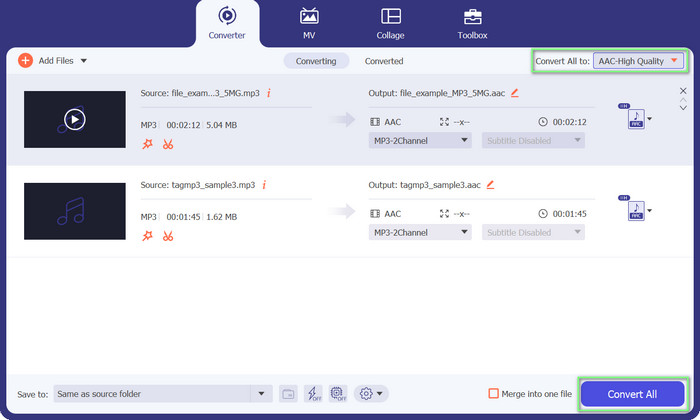
Terlihat jelas bahwa format file audio tersebut adalah MP3. Sekarang kita akan mengonversinya ke AAC. Silakan buka opsi Convert All to yang terletak di pojok kanan atas antarmuka alat. Selanjutnya, masuk ke tab Audio dan cari format AAC. Setelah itu, mulai proses konversi dengan memilih opsi Convert All.
Pro
- Ini memiliki konversi batch file.
- Itu dapat mengubah bitrate, frekuensi, dan jumlah saluran trek audio.
- Muncul dengan editor metadata file audio.
Kontra
- Dukungan terbatas untuk beberapa format file yang lebih tidak jelas.
2. Pengonversi MP3 Online Gratis
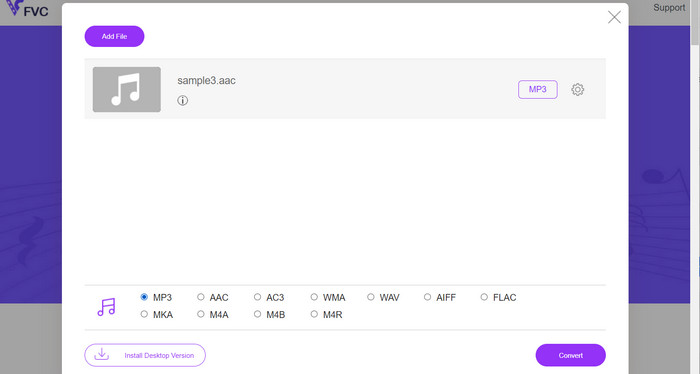
Dengan Free MP3 Converter Online, Anda dapat mengonversi file audio ke berbagai format, termasuk yang populer seperti AAC dan MP3. Perlu Anda ketahui, Anda sebenarnya dapat menyesuaikan pengaturan konversi. Artinya, Anda bisa mengatur bitrate, sample rate, dan channel untuk mendapatkan kualitas keluaran yang tepat seperti yang Anda inginkan. Cukup menarik, bukan? Selain itu, Anda bisa mengonversi AAC ke MP3 dan MP3 ke AAC tanpa mengeluarkan biaya untuk perangkat lunak karena ini adalah alat gratis. Sudah melihat panduan cara menggunakan konverter AAC ke MP3 online ini? Caranya sangat mudah!
Langkah 1. Buka halaman Free MP3 Converter Online oleh FVC di https://www.freevideoconverter.online/audio-converter.
Langkah 2. Pilih file AAC yang ingin Anda ubah dengan mengeklik tombol Add Files to Convert. Anda juga dapat menyeret dan meletakkan file ke area yang telah disediakan pada halaman.
Langkah 3. Setelah file diunggah, pilih MP3 dari pilihan drop‑down di bawah Audio format sebagai format file yang Anda inginkan.
Langkah 4. Atau, Anda bisa mengeklik ikon Settings untuk mengubah pengaturan seperti bitrate, sample rate, dan opsi channel untuk keluaran. Untuk memulai proses konversi, klik tombol Convert.
Pro
- Ini mendukung berbagai format audio input dan output.
- Gratis untuk digunakan.
Kontra
- Tidak ada fitur pengeditan audio tingkat lanjut, seperti normalisasi volume.
3.FFmpeg
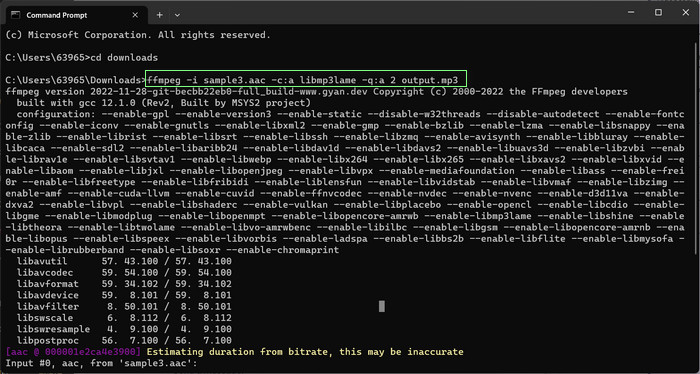
Jika Anda menyukai program gratis pengonversi AAC ke MP3, Anda tidak boleh melewatkan FFmpeg. Alat ini sangat bagus untuk memproses audio dan video. Anda dapat menggunakannya untuk mengonversi AAC ke MP3 dan MP3 ke AAC dengan mudah. Hai! Jika Anda merasa nyaman menggunakan baris perintah, Anda akan menyukai seberapa banyak fleksibilitas dan penyesuaian yang dapat Anda peroleh dengan konversi audio menggunakan alat ini. Yang mengatakan, lihat tutorial konversi AAC ke MP3 FFmpeg di bawah ini:
Langkah 1. Buka terminal di komputer Anda. Arahkan ke folder tempat file audio input berada dengan menggunakan perintah cd.
Langkah 2. Gunakan perintah berikut untuk mengonversi AAC ke MP3: ffmpeg -i input.aac -c:a libmp3lame -q:a 2 output.mp3
Perintah ini akan mengambil file input.aac dan mengubahnya menjadi file output.mp3 menggunakan codec libmp3lame, dengan pengaturan kualitas 2. Anda dapat menyesuaikan pengaturan kualitas sesuai kebutuhan untuk mencapai kualitas keluaran yang diinginkan.
Gunakan perintah berikut untuk mengonversi MP3 ke AAC: ffmpeg -i input.mp3 -c: a aac -b: a 128k output.aac
Perintah ini akan mengambil file input.mp3 dan mengubahnya menjadi file output.aac menggunakan codec AAC, dengan bitrate 128k. Anda dapat menyesuaikan bitrate sesuai kebutuhan untuk mencapai kualitas keluaran yang diinginkan.
Pro
- Dapat diakses oleh semua orang.
- Tingkat fleksibilitas dan penyesuaian yang tinggi.
Kontra
- Ini menuntut beberapa pengetahuan teknis untuk digunakan secara efektif.
4. iTunes
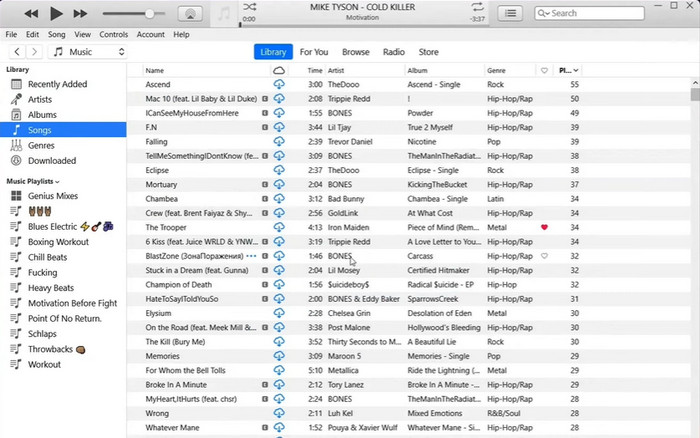
Konversi file audio dari satu format ke format lainnya, seperti MP3 ke AAC dan AAC ke MP3, merupakan kemampuan bawaan iTunes. Fungsi utamanya adalah manajemen dan pemutaran musik, tetapi juga dapat digunakan untuk menonton video dan mendengarkan podcast dan buku audio.
Langkah 1. Jalankan iTunes di komputer Anda. Lalu pilih opsi Preferences dari menu Edit.
Langkah 2. Untuk membuka Import Settings di jendela Preferences, pergi ke tab General dan pilih tombol Import Settings.
Langkah 3. Di dalam antarmuka Import Settings, Anda dapat memilih opsi AAC Encoder atau MP3 Encoder dari menu drop‑down Import Using, bergantung pada format yang diinginkan untuk konversi.
Langkah 4. Pilih opsi OK untuk menutup jendela Import Settings. Pilih file MP3 atau AAC yang ingin Anda konversi dari pustaka iTunes Anda.
Langkah 5. Untuk menghasilkan versi AAC/MP3 dari file tersebut, pengguna harus membuka menu File dan memilih opsi Convert, kemudian pilih Create AAC/MP3 version sesuai dengan pengaturan impor mereka. Begitulah mudahnya mengonversi AAC ke MP3 di iTunes.
Pro
- Ini berfungsi lebih baik sebagai pengonversi AAC ke MP3 di Mac.
- Antarmuka yang ramah pengguna.
Kontra
- Ini adalah perangkat lunak intensif sumber daya.
Bagian 3. Cara Mengonversi AAC ke MP3 atau MP3 ke AAC di iOS dan Android
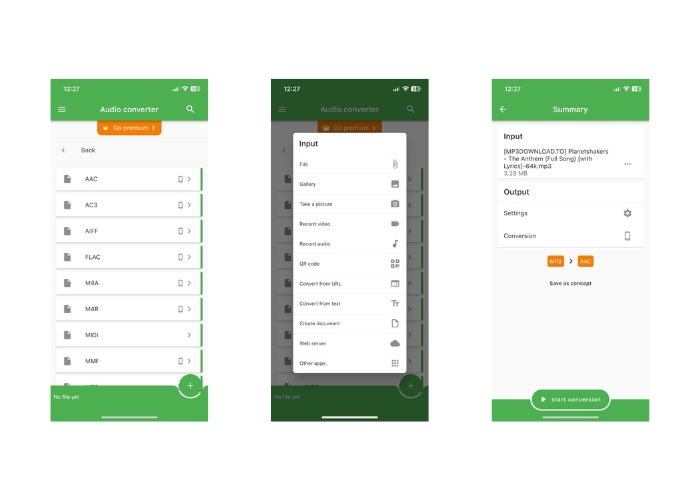
File Converter dapat diakses di sistem operasi iOS dan Android dan memfasilitasi konversi berbagai format file audio, seperti AAC dan MP3. Jadi, jika Anda mencari pengonversi AAC ke MP3 Android atau iOS, tidak perlu mencari lagi. Perangkat lunak ini menawarkan pengalaman yang ramah pengguna dan menghadirkan antarmuka yang disederhanakan untuk memfasilitasi konversi file yang cepat dan efektif.
Langkah 1. Instal aplikasi File Converter di perangkat iOS atau Android Anda.
Langkah 2. Jalankan aplikasi dan pilih opsi Audio converter dari daftar jenis konversi. Selanjutnya, pilih format keluaran sebagai AAC dari daftar opsi yang tersedia.
Langkah 3. Jika Anda ingin menyesuaikan bitrate atau pengaturan konversi lainnya, Anda dapat melakukannya dengan mengetuk tombol Settings.
Start 4. Setelah memilih format keluaran dan pengaturannya, ketuk tombol start conversion untuk memulai proses konversi.
Bacaan Lanjutan:
Konversi FLAC ke MP3 untuk Menjaga Kualitas Audio
5 Pemotong MP3 untuk Memotong Audio Apa Pun dengan Mudah [Pembaruan 2023]
Bagian 4. FAQ tentang Konversi MP3 dan AAC
Apakah legal untuk mengonversi file audio berhak cipta?
Secara umum tidak sah untuk mengonversi file audio berhak cipta tanpa izin dari pemegang hak cipta.
Apakah ada batasan untuk menggunakan alat konversi gratis?
Beberapa alat konversi gratis mungkin memiliki batasan pada ukuran atau jumlah file yang dapat Anda konversi dan mungkin juga memiliki opsi penyesuaian yang terbatas.
Bisakah saya mengonversi file audio ke format lain selain AAC dan MP3?
Ya, ada beberapa format file audio lain yang bisa Anda konversi, antara lain WAV, FLAC, OGG, dan lainnya.
Kesimpulan
Kemampuan untuk mengonversi antara format AAC dan MP3 dapat menjadi sangat penting dalam situasi yang melibatkan berbagai pemutar media dan perangkat. Ada banyak alat yang dapat digunakan untuk konversi AAC ke MP3 atau MP3 ke AAC, masing‑masing dengan kelebihan dan kekurangannya sendiri.
-
 5 Editor Metadata AAC Khusus yang Harus Anda Ketahui [2023]
 Pelajari editor metadata AAC pilihan paling umum yang dapat Anda gunakan tersedia di artikel ini. Semua alat telah dipilih dan ditinjau secara mendalam untuk memberi Anda fakta.
-
 Cara Mengonversi MP3 ke M4A untuk Meningkatkan Kualitas Suara
 Tingkatkan kualitas file musik Anda dengan mengonversi MP3 ke M4A dengan tip dan trik ahli kami. Panduan kami menawarkan petunjuk langkah demi langkah dan perangkat lunak yang direkomendasikan.
-
 Pengonversi MP3 ke AIFF yang luar biasa untuk Windows dan Mac
 Tutorial ini akan memandu Anda melalui setiap tahap mengonversi MP3 ke AIFF menggunakan alat tepercaya. Kunjungi mereka untuk mengetahui lebih lanjut.
