


 Video Converter Ultimate
 Perekam Layar
 Perbaikan Video
 Unduhan Aman
Pengonversi MP3 ke M4A Teratas: Konversi Audio Cepat dan Mudah
Apakah Anda merasa tidak puas ketika mendengarkan audio berkualitas rendah yang tidak mampu menampilkan keindahan lagu favorit Anda? Saatnya meningkatkan pengalaman audio Anda dengan kekuatan konversi MP3 ke M4A! Dengan mengonversi file audio ke M4A, Anda dapat membuka potensi sesungguhnya dari perpustakaan musik Anda dan merasakan sendiri perbedaannya. Dalam panduan ini, kami akan menjelaskan manfaat konversi MP3 ke M4A dan memberikan rekomendasi perangkat lunak konverter terbaik untuk memastikan proses konversi yang mulus. Bersiaplah untuk mengubah pengalaman audio Anda dan menikmati musik seperti belum pernah Anda rasakan sebelumnya.

Bagian 1. Cara Terbaik untuk Mengonversi MP3 ke M4A
Berikut adalah beberapa konverter audio terbaik dari MP3 ke M4a. Ada cara offline, yaitu aplikasi desktop, dan alat online lainnya, yaitu program berbasis web. Lihat mereka untuk mempelajari lebih lanjut.
1. Video Converter Ultimate
Video Converter Ultimate adalah perangkat lunak serbaguna yang menawarkan beragam fitur untuk konversi audio dan video. Untuk kebutuhan mengonversi MP3 ke M4A, Video Converter Ultimate merupakan pilihan yang tepat, karena menyediakan proses yang sederhana dan mudah bagi pengguna untuk mengonversi file audio mereka. Alat ini mendukung berbagai format audio, dan teknologi codec audio canggihnya memastikan keluaran berkualitas tinggi. Baik Anda perlu mengonversi file audio untuk keperluan pribadi maupun profesional, Video Converter Ultimate membuat prosesnya cepat sehingga Anda dapat fokus pada hal yang paling penting: menikmati file audio berkualitas tinggi Anda.
Langkah 1. Dapatkan program dan pasang
Untuk memulai, pilih salah satu tombol Free Download lalu ikuti petunjuk di layar untuk menyimpan file ke komputer Anda. Langkah berikutnya adalah menjalankan aplikasinya dan membiasakan diri dengan kontrolnya yang intuitif.
Free DownloadUntuk Windows 7 atau yang lebih baruUnduhan Aman
Free DownloadUntuk MacOS 10.7 atau yang lebih baruUnduhan Aman
Langkah 2. Tambahkan file audio
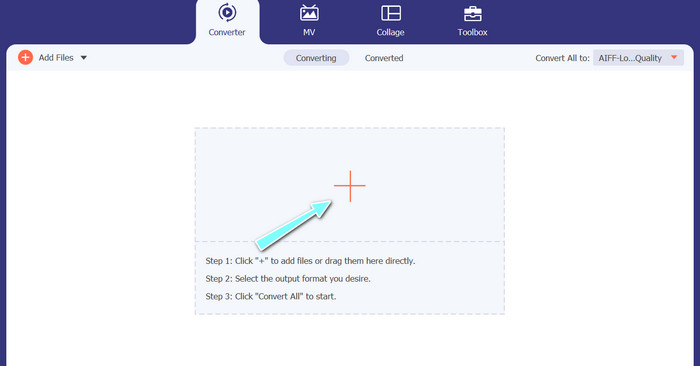
Berikutnya, pilih tanda plus dari antarmuka utama dan arahkan ke lokasi file audio yang ingin Anda konversi. Setelah file diunggah, pratinjau akan muncul di antarmuka pengguna. Jika Anda ingin mengonversi MP3 ke M4A secara batch, Anda dapat mengunggah satu folder berisi banyak file.
Langkah 3. Pilih format keluaran
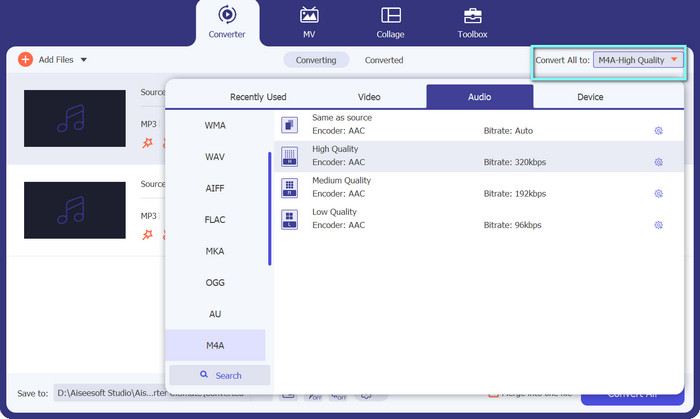
Selanjutnya, pilih format keluaran dengan mengklik tab Audio di menu Profile (terletak di bagian kanan atas alat). Anda dapat mengonversi ke atau dari MP3 menggunakan format MP3 atau M4A.
Langkah 4. Simpan keluaran
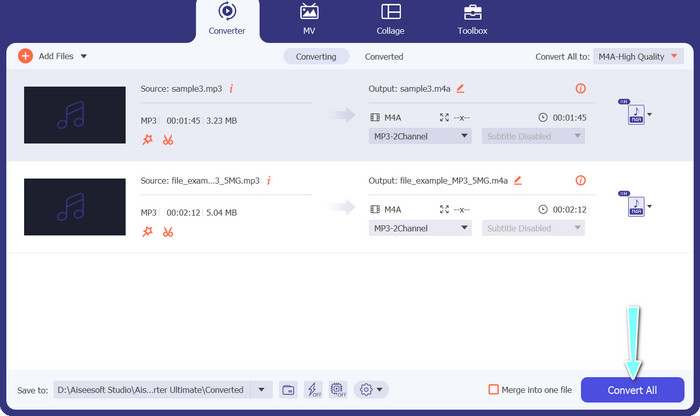
Di bagian bawah layar, pilih folder tujuan. Saat Anda siap memulai konversi, klik tombol Convert All.
2. Pengonversi Video Daring Gratis
Tidak ada ruang tersisa untuk memasang program lain? Jangan khawatir, karena Anda bisa memilih alat online untuk membantu mengonversi file tanpa perlu mengunduh program. Aplikasi berbasis web Free Video Converter Online memungkinkan Anda mengonversi langsung dari browser. Selain itu, alat ini mendukung banyak format, baik untuk file video maupun audio. Ditambah lagi, Anda dapat melakukan proses konversi secara massal dengan alat online ini. Di atas itu semua, menyesuaikan keluaran file audio merupakan fitur hebat lain dari alat ini. Simak cara kerja konverter MP3 ke M4A online ini.
Langkah 1. Untuk mulai menggunakan Free Video Converter Online, pertama-tama buka peramban web favorit Anda dan kunjungi situs tersebut secara langsung.
Langkah 2. Lalu, pilih file MP3 yang ingin Anda konversi ke M4A dengan mengklik tombol Add Files to Convert.
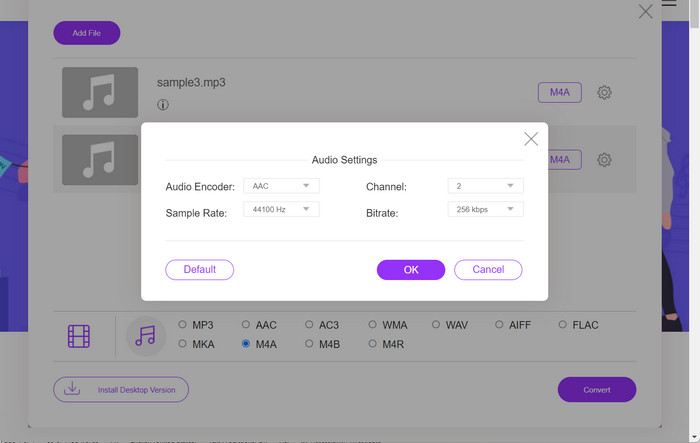
Langkah 3. Dari opsi format Audio, pilih M4A sebagai file keluaran yang Anda inginkan. Kualitas keluaran atau bitrate file M4A juga dapat diubah.
Langkah 4. Klik tombol Convert untuk mulai melakukan proses konversi. Begitulah cara mengonversi MP3 ke M4A secara online.
Bagian 2. Konversi MP3 ke M4A di Windows
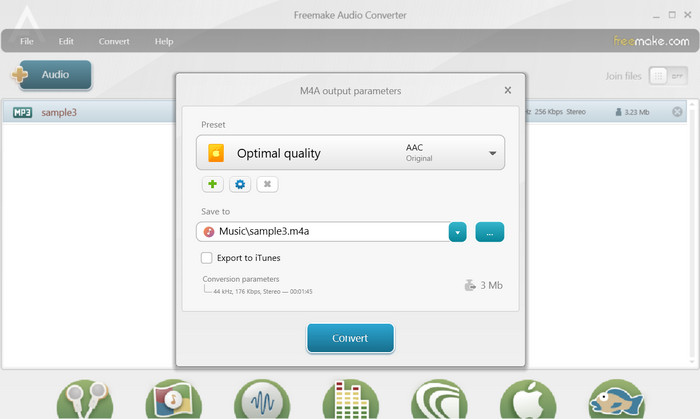
Freemake Audio Converter adalah program gratis dan mudah digunakan yang memungkinkan pengguna mengonversi file audio ke berbagai format, termasuk M4A, MP3, WAV, dan lainnya. Dengan antarmuka drag-and-drop yang sederhana, pengguna dapat dengan mudah menambahkan file MP3 mereka dan mengonversinya menjadi M4A tanpa pengaturan atau konfigurasi yang rumit. Alat ini juga memiliki serangkaian opsi penyesuaian, yang memungkinkan pengguna menyesuaikan parameter seperti bitrate dan sample rate untuk mendapatkan kualitas keluaran yang diinginkan. Secara keseluruhan, ini adalah salah satu pengonversi MP3 ke M4A terbaik yang dapat Anda gunakan.
Langkah 1. Unduh dan pasang Freemake Audio Converter di komputer Windows Anda.
Langkah 2. Jalankan program dan klik tombol +Audio untuk menambahkan file MP3 Anda ke dalam program.
Langkah 3. Pilih ke M4A dari daftar format yang tersedia di bagian bawah jendela program. Gunakan menu drop-down untuk memilih pengaturan kualitas yang diinginkan untuk file keluaran Anda.
Langkah 4. Pilih folder keluaran tempat Anda ingin menyimpan file yang telah dikonversi. Terakhir, klik tombol Convert untuk memulai proses konversi.
Bagian 3. Konversi MP3 ke M4A di Mac
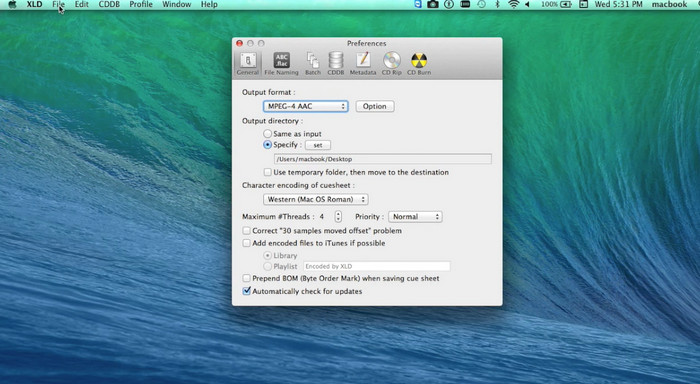
XLD adalah program gratis dan mudah digunakan yang memungkinkan pengguna Mac mengonversi file audio ke berbagai format, termasuk M4A, MP3, FLAC, dan lainnya. Dengan antarmuka drag-and-drop yang sederhana, pengguna dapat dengan mudah menambahkan file MP3 mereka dan mengonversinya menjadi M4A tanpa pengaturan atau konfigurasi yang rumit. XLD juga menawarkan berbagai opsi penyesuaian, yang memungkinkan pengguna menyesuaikan parameter seperti bitrate dan sample rate untuk mencapai kualitas keluaran yang diinginkan.
Langkah 1. Unduh dan pasang XLD di komputer Mac Anda.
Langkah 2. Jalankan program dan klik tombol Open untuk menambahkan file MP3 Anda ke dalam program.
Langkah 3. Pilih M4A dari daftar format yang tersedia di preferensi program. Anda dapat menggunakan menu drop-down untuk memilih pengaturan kualitas yang diinginkan untuk file keluaran Anda.
Langkah 4. Berikutnya, pilih folder keluaran tempat Anda ingin menyimpan file yang telah dikonversi. Terakhir, tekan tombol Convert untuk memulai proses konversi. Inilah cara mengonversi MP3 ke M4A di Mac secara gratis.
Bagian 4. Konversi MP3 ke M4A di Android
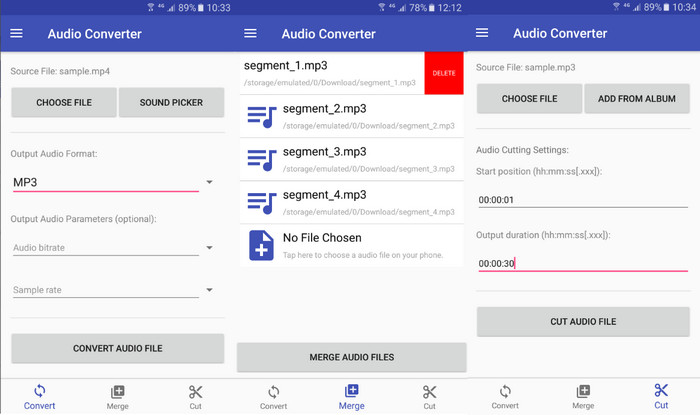
Dalam hal mengonversi file audio, perangkat lunak Android Audio Converter yang gratis dan langsung dari Online-Convert.com sulit dikalahkan. Pengguna cukup menarik dan melepas file MP3 mereka ke antarmuka program untuk memulai proses konversi ke M4A. Kualitas keluaran file audio dapat disesuaikan dengan mengubah pengaturan seperti bitrate dan sampling rate di Audio Converter. Berikut langkah-langkah mengubah MP3 ke M4A di Android:
Langkah 1. Unduh dan pasang Audio Converter dari Online-Convert.com melalui Google Play Store di perangkat Android Anda. Jalankan aplikasinya dan ketuk tombol Convert Audio.
Langkah 2. Lalu, pilih MP3 sebagai format input dan M4A sebagai format output.
Langkah 3. Sekarang, ketuk tombol Select Files untuk menambahkan file MP3 Anda ke aplikasi. Terakhir, ketuk tombol Start Conversion untuk memulai proses konversi. Semudah itu! Sekarang Anda telah mempelajari cara mengonversi MP3 ke M4A di Android.
Bagian 5. Konversi MP3 ke M4A di iOS
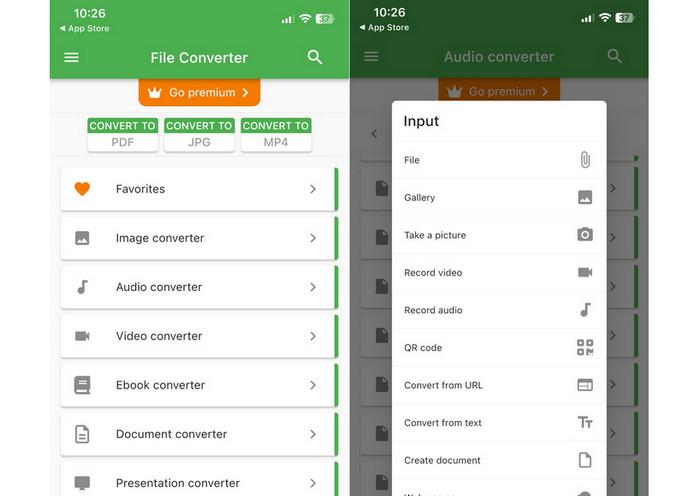
File audio, seperti MP3, dapat dikonversi ke format M4A yang lebih portabel dan lossless dengan bantuan File Converter Free, perangkat lunak iOS yang gratis dan mudah. Desainnya yang sederhana memudahkan siapa saja untuk memuat file MP3 dan mengonversinya menjadi M4A tanpa harus mengutak-atik pengaturan atau penyiapan apa pun.
Langkah 1. File Converter Free dapat ditemukan di App Store dan dapat diunduh serta digunakan secara gratis. Jalankan program lalu ketuk tab Audio.
Langkah 2. Pilih MP3 untuk format input dan output, dan M4A untuk format AAC Apple. Pilih kualitas file keluaran yang diinginkan menggunakan menu drop-down. Untuk mengimpor MP3 ke dalam program, pilih tombol Add File.
Langkah 3. Untuk memulai proses konversi, klik tombol Convert.
Bagian 6. FAQ tentang Konversi MP3 ke M4A
Bisakah saya mengonversi MP3 ke M4A menggunakan Windows Media Player?
Ya, Anda dapat mengonversi MP3 ke M4A menggunakan Windows Media Player, tetapi diperlukan beberapa langkah tambahan karena M4A bukan format yang didukung secara native di Windows Media Player. Atau, Anda bisa langsung menggunakan sebuah alternatif Windows Media Player.
Apakah mengonversi MP3 ke M4A akan menyebabkan hilangnya kualitas audio?
Mengonversi MP3 ke M4A dapat mengakibatkan sedikit penurunan kualitas audio karena perbedaan algoritme kompresi yang digunakan oleh kedua format tersebut.
Bisakah saya mengonversi M4A kembali ke MP3?
Ya, banyak program dan alat konversi audio yang memungkinkan Anda mengonversi M4A ke MP3 jika diperlukan. Namun, perlu diingat bahwa konversi antarformat berkali-kali dapat menyebabkan penurunan kualitas.
Kesimpulan
Konversi MP3 ke M4A adalah proses yang bermanfaat bagi siapa pun yang ingin meningkatkan kualitas dan kompatibilitas file audio mereka. Dengan mengikuti langkah dan tips yang diuraikan dalam pembahasan ini, Anda dapat dengan mudah mengonversi file MP3 ke M4A dan menikmati audio berkualitas tinggi di perangkat apa pun.
-
 Gratis & Online | Cara Mengonversi MP4 ke M4A di Windows / Mac
 Bagaimana cara mengonversi MP4 ke M4A secara online? Bisakah saya mengekstrak audio dari file MP4? Baca posting ini, dan Anda akan mendapatkan semua jawaban tentang konversi dari MP4 ke M4A.
-
 Alat Terbaik yang Dapat Anda Gunakan untuk Batch Mengonversi File MP3 ke M4R
 Mencari konverter yang dapat mengubah file MP3 Anda menjadi nada dering M4R untuk iPhone atau iPad Anda secara berkelompok? Baca artikel untuk menemukan beberapa yang terbaik.
-
 5 Pemotong MP3 untuk Memotong Audio dengan Mudah [2023 Diperbarui]
 Apakah Anda memerlukan pemotong MP3 untuk memotong audio? Dalam hal ini, baca artikel ini karena kami menyediakan alat yang dapat Anda andalkan yang menyediakan pemotongan audio yang mudah.
