


 Video Converter Ultimate
 Perekam Layar
 Perbaikan Video
 Unduhan Aman
Mengonversi MP3 ke OGG untuk Mencapai Ukuran File Lebih Kecil dan Kualitas Suara Luar Biasa
Dalam beberapa tahun terakhir, konversi MP3 ke OGG menjadi lebih populer karena manfaat yang diberikannya. Meskipun file MP3 sangat populer, kualitas suaranya seringkali dikorbankan untuk membuat file menjadi lebih kecil. Ini berarti detail dan ketajaman hilang. File OGG, di sisi lain, memiliki kualitas suara yang lebih baik dan ukuran file yang lebih kecil. Ini menjadikannya pilihan yang bagus untuk orang-orang yang ingin mendapatkan hasil maksimal dari perpustakaan musik mereka.
An MP3 to OGG converter is needed to change MP3 files to OGG. Users can easily change their MP3 files to OGG format by using a converter. This gives them better sound quality without having to reduce the file size. In this day and age of high-quality audio streaming, any music lover who wants to improve their listening experience needs an MP3 to OGG converter.

Bagian 1. Cara Terbaik untuk Mengonversi MP3 ke OGG
FVC Video Converter Ultimate is a versatile software tool that allows users to convert video and audio files in various formats. Among its many capabilities, FVC is an excellent MP3 to OGG converter, allowing users to easily transform their music from MP3 to OGG format with just a few clicks.
Selain itu, ini memungkinkan pengguna menyesuaikan kualitas output untuk mencapai keseimbangan sempurna antara kualitas suara dan ukuran file, memastikan musik mereka terdengar hebat di mana pun diputar. Apakah Anda seorang penggemar musik atau hanya ingin mengoptimalkan koleksi audio Anda, FVC Video Converter Ultimate adalah pilihan yang sangat baik untuk semua kebutuhan konversi Anda. Cobalah hari ini dan rasakan sendiri perbedaan kualitas suaranya.
Step 1. Get the app and add MP3 files
Download and install FVC Free Video Converter from the official website. Launch the program and click on the Plus sign button to import the MP3 file that you want to convert.
Free DownloadUntuk Windows 7 atau yang lebih baruUnduhan Aman
Free DownloadUntuk MacOS 10.7 atau yang lebih baruUnduhan Aman
Step 2. Choose OGG as the output format
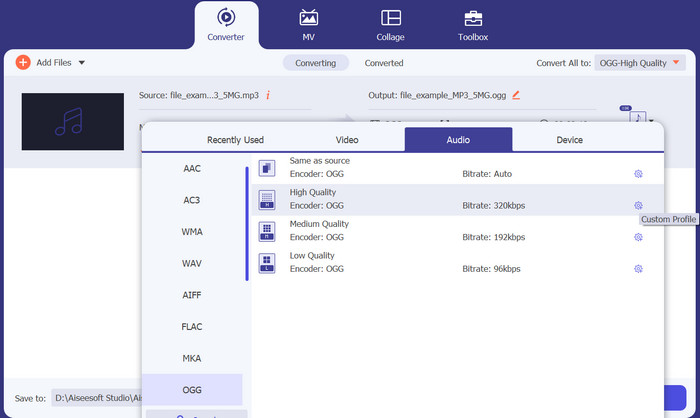
Select OGG as the output format by clicking on the Profile dropdown menu and choosing OGG from the list of available formats. If needed, you can also adjust the output settings by clicking on the Settings button. This will allow you to customize parameters such as bit rate, sample rate, and channels.
Step 3. Specify the output destination
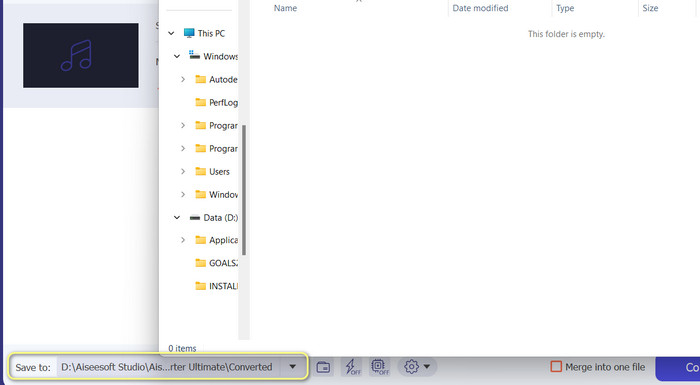
Choose the output folder where you want to save the converted file by clicking the Browse button next to the Output Folder field.
Step 4. Convert MP3 to OGG files
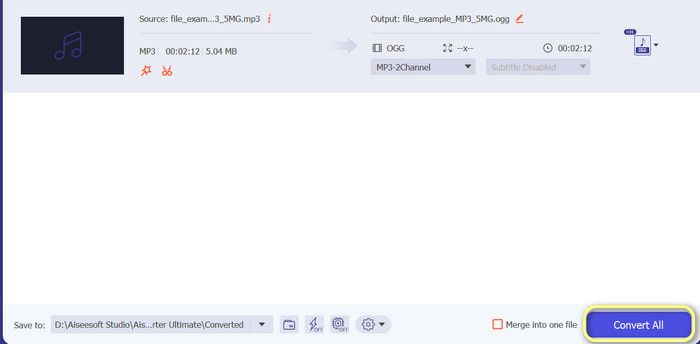
Once you're satisfied with your settings, hit the Convert All button to begin the conversion process.FVC Free Video Converter will begin converting your MP3 file to OGG format. The progress bar will show you how far along the conversion process is, and you can also see an estimated time remaining.
Pro
- Sesuaikan pengaturan output audio.
- Kecepatan konversi cepat.
- Ini menawarkan banyak utilitas untuk kebutuhan yang berbeda.
Kontra
- Fitur terbatas ditawarkan untuk pengguna gratis.
- Mungkin memerlukan beberapa sumber daya komputer yang lebih tinggi untuk akselerasi perangkat keras.
Bagian 2. Cara Mengonversi MP3 ke OGG Menggunakan Konverter Audio Gratis
123apps Online Audio Converter adalah alat canggih yang memudahkan untuk mengubah MP3 ke OGG secara online. Dengan antarmuka yang mudah digunakan, pengguna dapat dengan cepat menambahkan file MP3 dan memilih untuk mengonversinya ke format OGG. Konverter juga memungkinkan pengguna mengubah pengaturan keluaran, seperti bit rate dan sample rate, untuk mendapatkan kualitas file OGG yang mereka inginkan. Proses konversi cepat dan mudah, dan pengguna bisa mendapatkan file yang diubah langsung dari situs web. Selain itu, Pengonversi Audio Online berfungsi dengan banyak file audio yang berbeda, menjadikannya alat yang berguna bagi orang yang perlu mengonversi audio dengan berbagai cara. Sementara itu, ikuti petunjuk di bawah ini untuk mempelajari cara mengubah MP3 ke OGG langsung dari situs webnya.
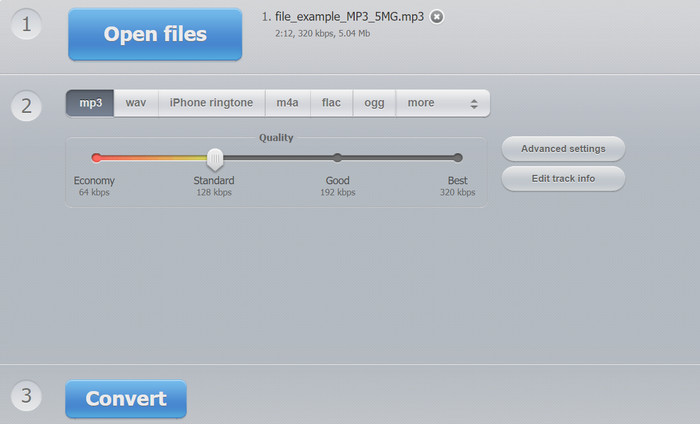
Step 1. Open your web browser and navigate to the Online Audio Converter website by 123apps. Click the Open files button to select the MP3 file that you want to convert.
Step 2. Choose OGG as the output format from the dropdown menu. Optionally, you can customize the output settings such as bitrate, sample rate, and channel. This step is optional but can be helpful if you wish to control the quality of the output file.
Step 3. Click the Convert button to start the conversion process. This may take a few moments, depending on the size of your file and the speed of your internet connection. Lastly, click the Download button to save the OGG file to your computer.
Pro
- Ini mendukung konversi batch.
- Tidak ada batasan untuk ukuran file unggahan.
Kontra
- Situs web menampilkan iklan.
- Koneksi internet selalu dibutuhkan.
Bagian 3. Cara Mengonversi MP3 ke OGG dengan Audacity
Ada juga konverter Audacity MP3 ke OGG. ya, Anda tidak salah dengar. Program ini adalah perangkat lunak pengedit audio sumber terbuka yang menawarkan kemampuan untuk mengonversi file dari MP3 ke OGG. Selain konversi, Audacity juga menyediakan serangkaian alat pengeditan dan efek yang memungkinkan pengguna memodifikasi dan menyempurnakan file audio mereka, menjadikannya alat serbaguna untuk pengeditan audio dan tugas konversi.
Selain itu, Audacity tersedia untuk sistem operasi Windows, macOS, dan Linux, membuatnya dapat diakses. Dengan fitur canggih dan kemudahan penggunaannya, Audacity adalah pilihan tepat bagi siapa saja yang ingin mengonversi file MP3 ke format OGG. Pelajari cara kerja program ini dengan melihat panduan di bawah ini.
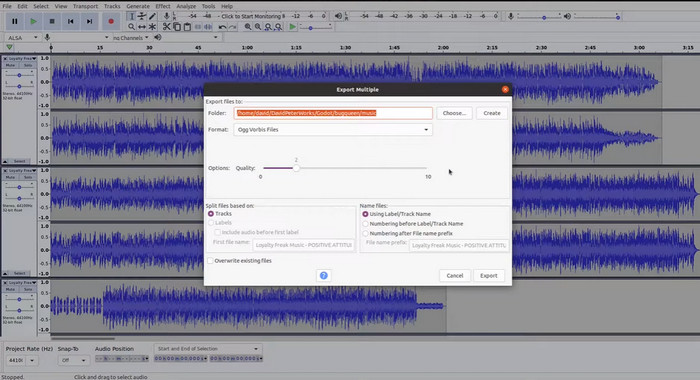
Step 1. Get Audacity and install it on your computer. Open Audacity and then open the MP3 file you want to change. You can do this by hitting File and Open, then finding the MP3 file on your computer and clicking it.
Step 2. Click File and then Export once the MP3 file is open in Audacity. Choose OGG Vorbis Files as the file type in the Export Audio dialog box.
Step 3. By moving the Quality slider, you can set your OGG file to the level you want. Higher quality settings will make the file size bigger, while lower quality settings will make the file size smaller but may hurt the quality of the music
Step 4. Click Save to save the OGG file to a place on your computer that you choose. Click OK to finish changing the format.
Pro
- Itu dapat mengonversi MP3 ke OGG secara batch.
- Itu dapat diinstal pada Windows, macOS, dan OS Linux.
Kontra
- Komunitas pendukung yang berdedikasi tidak mendukung program ini.
- Tidak ada ekspor MP3 langsung.
Bacaan Lanjutan:
Alat Terbaik yang Bisa Kamu Gunakan untuk Konversi Batch File MP3 ke M4R
2 Best Ways to Edit OGG Metadata You Should Try for Free
Bagian 4. Cara Mengonversi MP3 ke OGG Menggunakan FFmpeg
FFMPEG adalah pilihan tepat bagi pengguna yang perlu mengonversi file MP3 ke format OGG dan memerlukan kontrol dan fleksibilitas tingkat tinggi atas proses konversi. Itu dapat menangani berbagai format audio dan video, dan mendukung berbagai codec dan pengaturan yang dapat digunakan untuk menyempurnakan format keluaran untuk memenuhi persyaratan tertentu. Selain itu, karena FFMPEG adalah alat baris perintah, alat ini dapat diakses di berbagai sistem operasi, termasuk Windows, macOS, dan Linux yang mengonversi MP3 ke OGG. Ikuti langkah-langkah untuk FFmpeg mengkonversi MP3 ke instruksi OGG di bawah ini.
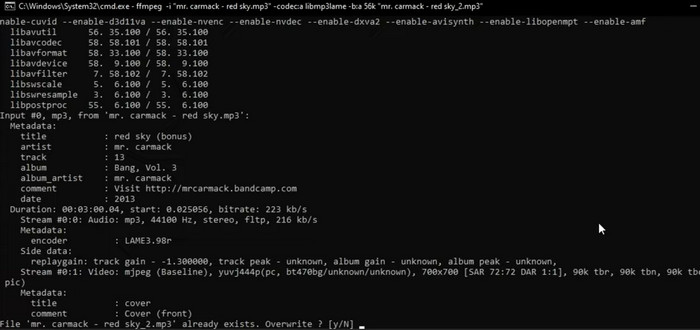
Step 1. Open your computer's terminal or command line. Find the location where the MP3 file you want to convert is stored.
Step 2. Type ffmpeg -i input.mp3 output.ogg, where input.mp3 is the name of your MP3 file, and output.ogg is the name you want to give your OGG file. To run the command, press Enter.
Step 3. Wait for FFMPEG to finish the process of converting. When the conversion is done, you should see a message that says the conversion went well. Now, save your new OGG file in the same folder as your original MP3 file.
Pro
- Ini memberi pengguna fleksibilitas dan kontrol tingkat tinggi.
- Itu mengkonversi file dengan cepat dan efisien.
- Kompatibilitas lintas platform.
Kontra
- Sebagian besar pengguna merasa tidak nyaman menggunakan alat baris perintah.
- Butuh beberapa waktu untuk mempelajari cara menggunakannya secara efektif.
Bagian 5. Cara Mengonversi MP3 ke OGG dengan VLC Media Player
Pemutar media VLC adalah alat multimedia canggih yang banyak digunakan untuk memutar berbagai jenis file media. Namun, banyak pengguna mungkin tidak mengetahui bahwa perangkat lunak ini juga dapat berfungsi sebagai pengonversi MP3 ke OGG yang efektif. Dengan alat konverter bawaannya, pemutar media VLC dapat dengan cepat dan mudah mengonversi file MP3 ke format OGG, memungkinkan pengguna untuk menikmati musik favorit mereka dalam berbagai format. Baik Anda ingin mengonversi satu file atau sekumpulan file, pemutar media VLC menyediakan solusi sederhana dan ramah pengguna untuk semua kebutuhan konversi audio Anda. Pelajari cara mengubah MP3 menjadi OGG menggunakan langkah-langkah berikut:
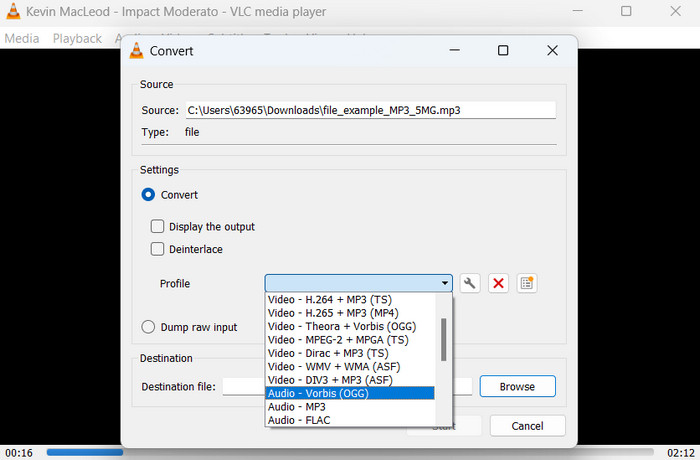
Step 1. To play a video, launch VLC and select Media from the player's menu bar. The Convert /Save option will appear in a dropdown menu; select it.
Step 2. In the File Selection area, select the MP3 file you want to convert by clicking the Add button. When you're ready to convert or save the file, it's time to hit the Convert / Save button.
Step 3. Click the Profile dropdown menu and choose Audio - Vorbis (OGG) as your desired profile.
Step 4. To provide a new location and filename for the converted file, click the 'Browse' button to the right of the Destination file section. The conversion can be kicked off by clicking the Start button at the window's bottom.
Pro
- Ini mendukung berbagai format.
- Sederhana dan ramah pengguna.
Kontra
- Opsi pengeditan terbatas.
- Kemungkinan kehilangan kualitas audio.
Bagian 6. FAQ tentang MP3 ke OGG
Apakah ada perbedaan kualitas suara antara file MP3 dan OGG?
Ya, ada perbedaan kualitas suara antara file MP3 dan OGG. File OGG cenderung memiliki kualitas suara yang lebih baik karena algoritme kompresinya yang lebih baik, tetapi perbedaan kualitas suaranya mungkin tidak dapat dikenali oleh pendengar rata-rata.
Berapa lama untuk mengonversi file MP3 ke OGG?
Waktu yang diperlukan untuk mengonversi berkas MP3 ke OGG bergantung pada ukuran berkas dan kecepatan komputer Anda. Biasanya, dibutuhkan beberapa menit untuk mengonversi satu file, tetapi ini dapat bervariasi berdasarkan berbagai faktor.
Bisakah konverter MP3 ke OGG digunakan di perangkat seluler?
Ya, ada juga pengonversi MP3 ke OGG untuk perangkat seluler. Konverter ini dapat diunduh sebagai aplikasi dari toko aplikasi masing-masing untuk perangkat Android dan iOS.
Kesimpulan
Converting from MP3 to OGG is possible via various means. The converters that were discussed each have their own set of benefits and drawbacks. Some are more intuitive and simple to use, while others provide more flexibility and powerful features. Which converter a user chooses to employ ultimately hinges on their individual requirements.
-
 Pemutar OGG Luar Biasa untuk Windows dan Mac Yang Tidak Harus Anda Lewatkan
 Saat Anda ingin memutar audio favorit Anda dalam format OGG, terutama saat penyimpanannya lebih sedikit. Anda dapat mempelajari lebih lanjut tentang 5 pemain OGG terbaik dari artikel ini.
-
 Cari tahu tentang Cara Mengonversi MP3 ke Format WAV
 Apakah Anda ingin tahu cara mengubah MP3 ke WAV? Tentukan alat mana yang menghasilkan konversi kualitas terbaik yang bisa Anda dapatkan.
-
 4 Metode Terbaik untuk Memperbaiki & Mengedit Metadata MP3 di Windows dan Mac
 Ingin tahu rahasia mengedit metadata MP3 dengan mudah? Blog ini akan mengajarkan Anda berbagai teknik dengan berbagai alat yang Anda akses dengan mudah.
