


 Video Converter Ultimate
 Perekam Layar
 Perbaikan Video
 Unduhan Aman
Konverter Opus ke MP3 Terbaik: Tinjauan dan Perbandingan Komprehensif
Jika Anda ingin musik Anda kompatibel di lebih banyak perangkat, pertimbangkan untuk beralih dari Opus ke MP3. Format audio MP3 didukung secara universal, sehingga Anda dapat memutar file MP3 hampir di perangkat apa pun. Untuk memastikan musik Anda dapat diakses di sebanyak mungkin perangkat, ubahlah file Opus Anda ke MP3.
Sebaliknya, kelebihan format Opus dapat dimanfaatkan jika Anda mengonversi MP3 ke Opus. Opus sering dianggap ideal untuk streaming, game online, dan komunikasi suara karena audio berkualitas tinggi, kompresi efisien, dan latensi minimal. Jika Anda mengonversi MP3 ke Opus, Anda dapat mengurangi ukurannya tanpa kehilangan kualitas suara yang luar biasa. Yang mengatakan, Anda akan menemukan di sini alat yang dapat Anda gunakan untuk menyelesaikan konversi Anda. Lihat di bawah ini.

Bagian 1. Konversi OPUS ke MP3 atau MP3 ke OPUS Online
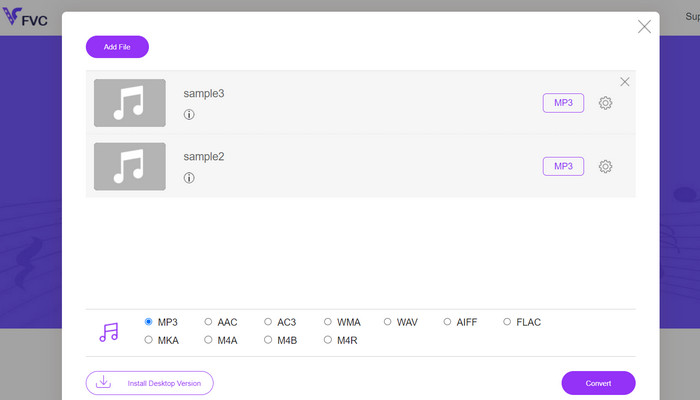
Hampir semua format video dan audio yang paling umum dapat dikonversi ke format pilihan Anda dengan bantuan Free Audio Converter Online, sebuah aplikasi konverter multimedia berbasis web. Meski berbasis web, Anda tetap bisa mengonversi banyak video sekaligus. Program online ini lebih serbaguna daripada kelihatannya, karena tidak hanya mengonversi file tetapi juga memungkinkan pengguna menyesuaikan banyak parameter audio. Aplikasi online ini tidak hanya memiliki antarmuka yang intuitif, proses konversinya sendiri juga hampir tidak memerlukan pengetahuan teknis. Anda dapat merujuk langkah-langkah di bawah ini untuk mempelajari cara kerja konverter Opus ke MP3 online terbaik ini.
Fitur Utama
◆ Konversi Format File: Mendukung berbagai format populer seperti MP3, WAV, AAC, FLAC, OGG, dan banyak lagi.
◆ Konversi Batch: Fitur ini memungkinkan Anda mengonversi seluruh folder atau sekelompok file audio sekaligus.
◆ Opsi Kustomisasi: Ini memberikan opsi penyesuaian tambahan, seperti menyesuaikan bitrate audio, laju sampel, konfigurasi saluran, atau bahkan memotong atau membelah file audio.
Langkah 1. Pertama, buka halaman Free Audio Converter Online dari FVC di https://www.freevideoconverter.online/audio-converter.
Langkah 2. Pilih file Opus yang ingin Anda ubah dengan menekan tombol Add Files to Convert. Sebagai alternatif, Anda dapat menyeret dan melepaskan file ke mana pun Anda inginkan di halaman.
Langkah 3. Setelah Anda mengunggah file, cukup pilih MP3 dari menu di bawah format Audio untuk menentukan format file yang Anda inginkan. Anda juga dapat mengonversi Opus ke MP3 secara batch dengan mengunggah beberapa file sekaligus.
Langkah 4. Anda cukup mengklik ikon Settings untuk menyesuaikan bitrate, sample rate, dan opsi kanal untuk hasil keluarannya. Kemudian klik tombol Convert untuk memulai proses.
Bagian 2. Konversi OPUS ke MP3 atau MP3 ke OPUS Offline
1. Video Converter Ultimate
Jika Anda ingin mengonversi file video ke MP3 atau format audio lainnya, maka Video Converter Ultimate adalah pilihan yang tepat. Alat ini tidak terbatas pada konversi ke MP3 saja; ia juga bekerja dengan beragam jenis file seperti WAV, WMA, AAC, FLAC, OGG, dan RA. Aplikasi ini gratis dan mudah digunakan. Selain itu, proses konversi file audio sangat cepat sehingga Anda bisa mendapatkan file hasil konversi dalam waktu singkat.
Video dapat dikonversi ke berbagai format video dan format audio lainnya. Anda tidak perlu menjadi ahli teknologi untuk mengaturnya; ditambah, hanya membutuhkan waktu beberapa menit. Konversi file dengan cepat dan nikmati UI yang intuitif.
Fitur Utama
◆ Konversi Berkualitas Tinggi: Perangkat lunak memastikan keluaran berkualitas tinggi dengan mempertahankan kualitas video dan audio asli selama konversi. Ini mendukung konversi lossless untuk format tertentu, memastikan penurunan kualitas yang minimal.
◆ Konversi Batch: Video Converter Studio memungkinkan konversi batch, memungkinkan Anda mengonversi banyak file secara bersamaan.
◆ Prasetel Khusus Perangkat: Perangkat lunak ini menawarkan berbagai prasetel khusus perangkat, membuatnya mudah untuk mengonversi video untuk perangkat tertentu seperti smartphone, tablet, konsol game, dan lainnya. Ini memastikan kompatibilitas dan kualitas pemutaran yang optimal.
Langkah 1. Untuk memastikan alat ini sesuai dengan kebutuhan Anda, cobalah dulu versi percobaannya secara gratis. Setelah itu, instal program di komputer Anda dan jelajahi antarmukanya.
Free DownloadUntuk Windows 7 atau yang lebih baruUnduhan Aman
Free DownloadUntuk MacOS 10.7 atau yang lebih baruUnduhan Aman
Langkah 2. Klik ikon Add Files atau Plus, lalu cari file audio di komputer Anda untuk mengunggahnya. Cukup klik ganda file tersebut untuk memulai proses impor ke dalam program. Menyeret dan melepaskan video dari penjelajah file komputer ke dalam perangkat lunak juga merupakan opsi lain.
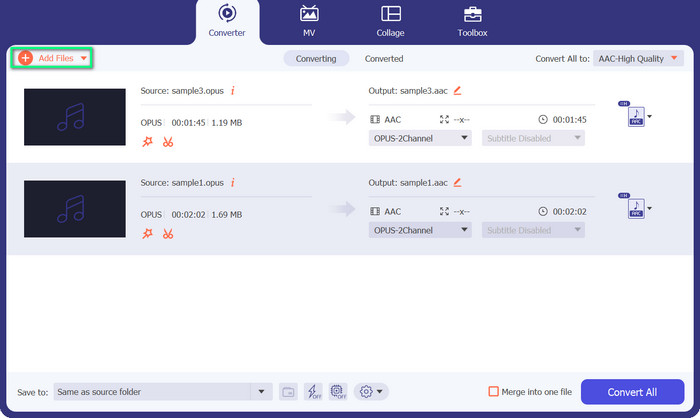
Langkah 3. Format MP3 atau Opus dari file akan langsung terlihat. Sekarang kita akan mengubah file Opus menjadi MP3. Tombol Convert All to dapat ditemukan di pojok kanan atas alat. Kemudian, cari format Opus atau MP3 di menu Audio. Setelah itu, pilih Convert All untuk memulai proses konversi.
2.VLC
VLC adalah pemutar media multifaset yang menggabungkan fungsi konversi audio dan video terintegrasi. Alat ini dapat diandalkan untuk mengonversi Opus ke MP3 dan format lainnya karena dukungannya untuk berbagai format, antarmuka yang ramah pengguna, dan opsi penyesuaian. VLC menawarkan proses konversi yang efisien dan efektif dengan ketidaknyamanan minimal, memungkinkan peningkatan kompatibilitas, berbagi file, dan kenikmatan musik multi-perangkat.
Fitur Utama
◆ Kompatibilitas Lintas Platform: VLC tersedia untuk berbagai sistem operasi, termasuk Windows, macOS, Linux, Android, iOS, dan lainnya. Anda dapat menikmati fitur-fiturnya di berbagai perangkat dan platform.
◆ Konversi Audio dan Video: VLC menyediakan kemampuan konversi bawaan, memungkinkan Anda mengonversi file audio dan video dari satu format ke format lainnya.
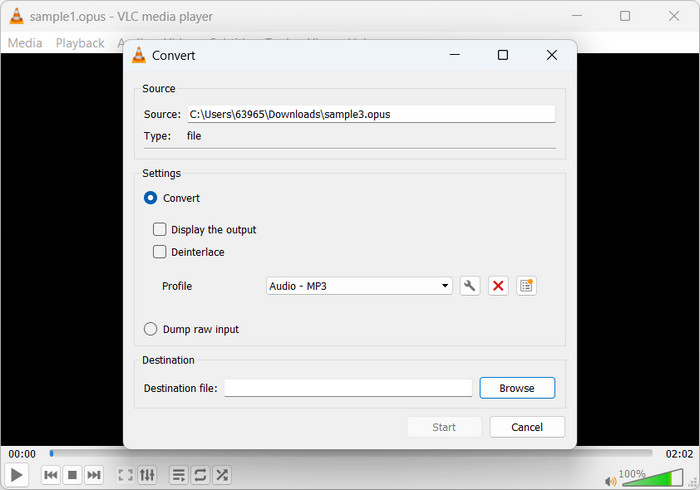
Langkah 1. Jalankan pemutar media pilihan Anda. Untuk mengonversi atau menyimpan media, buka menu utama Media lalu klik Convert/Save.
Langkah 2. Pilih file Opus yang ingin Anda konversi dengan mengklik tombol Add di tab File dan menelusurinya. Cukup tekan tombol Convert/Save.
Langkah 3. Pilih Audio - MP3 sebagai format keluaran profil di tab Profile. Untuk mengubah bitrate atau sample rate, serta parameter audio lainnya, Anda dapat memilih sebuah profil lalu klik opsi Edit selected profile.
Langkah 4. Pilih lokasi tempat Anda ingin menyimpan file MP3 setelah dikonversi. Untuk memulai proses konversi, gunakan tombol Start. Begitulah cara mengonversi Opus ke MP3 di VLC.
3.FFmpeg
FFmpeg adalah rangkaian perangkat lunak sumber terbuka dan alat baris perintah yang digunakan untuk pengelolaan data multimedia. Perangkat lunak ini menawarkan beragam pustaka dan program untuk mengelola beragam format audio, video, dan streaming. FFmpeg memfasilitasi konversi Opus ke MP3 pada sistem Linux.
Fitur Utama
◆ Dukungan Format Multimedia: FFmpeg mendukung berbagai format multimedia, termasuk audio, video, dan protokol streaming.
◆ Kustomisasi dan Otomasi: FFmpeg menawarkan opsi penyesuaian yang luas melalui parameter baris perintah, memungkinkan Anda menyempurnakan proses konversi sesuai dengan kebutuhan spesifik Anda.
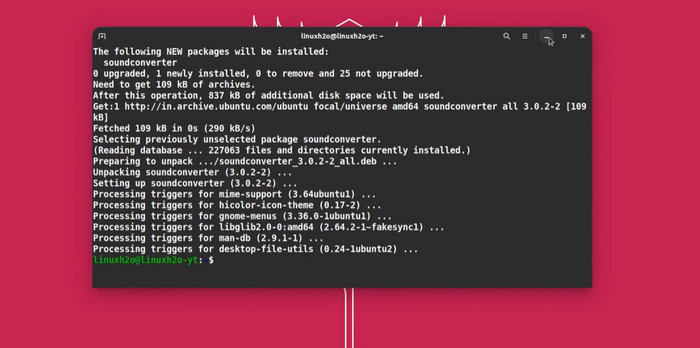
Langkah 1. Instal di Linux. Manajer paket distribusi Linux Anda dapat digunakan untuk memasang FFmpeg. Di Ubuntu, Anda bisa menjalankan sudo apt-get install ffmpeg.
Langkah 2. Buka Terminal – Linux Terminal. Gunakan perintah cd untuk berpindah ke direktori tempat file Opus Anda berada. Jika file Opus berada di folder Music di direktori home Anda, gunakan cd ~/Music. Konversi Opus ke MP3 FFmpeg mengonversi Opus ke MP3 dengan perintah berikut: input.opus ffmpeg -c: a libmp3lame output.mp3
Ganti input.opus dengan file Opus Anda dan output.mp3 dengan nama file MP3 Anda.
Langkah 3. Jalankan FFmpeg. FFmpeg akan membaca file Opus, menerapkan libmp3lame, dan menyimpan file MP3. Waktu konversi bergantung pada ukuran dan kompleksitas file Opus. Terminal akan menampilkan kemajuan proses konversi. Begitulah cara FFmpeg mengonversi Opus ke MP3.
Bacaan Lanjutan:
Tutorial Praktis Cara Mengonversi Video ke Format MP3
Alat Terbaik yang Bisa Kamu Gunakan untuk Konversi Batch File MP3 ke M4R
Bagian 3. OPUS vs. MP3
Sekarang, inilah perbandingan mendetail dari kedua format audio tersebut dalam hal rasio kompresi, kualitas audio, kompleksitas, dan lisensi.
| Karya | MP3 | |
| Rasio kompresi | Rasio kompresi tinggi, menawarkan ukuran file yang lebih kecil | Rasio kompresi sedang, menghasilkan ukuran file yang lebih besar |
| Kualitas Audio | Kualitas audio yang luar biasa, bahkan pada bitrate rendah | Kualitas audio bagus, tetapi mungkin menunjukkan artefak yang terlihat pada bitrate rendah |
| Kompleksitas | Codec yang relatif kompleks dibandingkan dengan MP3 | Codec yang lebih sederhana, dipahami dan diterapkan secara luas |
| Lisensi | Opus adalah codec audio yang terbuka dan bebas royalti | MP3 memiliki persyaratan lisensi paten untuk penggunaannya |
Bagian 4. FAQ tentang Konverter OPUS dan MP3
Dalam skenario apa Opus lebih disukai daripada MP3?
Opus lebih disukai dalam skenario yang memerlukan latensi rendah, audio berkualitas tinggi dengan kecepatan bit rendah, seperti komunikasi suara, konferensi video, streaming, dan aplikasi waktu nyata yang sangat penting untuk menjaga kejelasan dan meminimalkan penundaan.
Bisakah Opus dan MP3 mencapai transparansi?
Opus berpotensi mencapai transparansi, artinya audio terkompresi tidak dapat dibedakan dari aslinya. MP3, bagaimanapun, biasanya tidak mencapai transparansi, dan artefak mungkin terlihat, terutama pada kecepatan bit yang lebih rendah.
Kapan MP3 biasa digunakan?
MP3 umumnya digunakan untuk pemutaran musik umum, podcast, distribusi audio, dan berbagai aplikasi lain yang menginginkan keseimbangan kualitas audio yang baik dan ukuran file yang wajar. Ini memiliki sejarah panjang kompatibilitas dan dukungan luas.
Kesimpulan
Mengonversi Opus ke MP3 bermanfaat ketika kompatibilitas MP3 dan dukungan luas dibutuhkan. Opus menyediakan kualitas audio tinggi dan kompresi yang efisien pada bitrate rendah, tetapi MP3 adalah format audio yang sudah dikenal dan didukung secara luas di berbagai perangkat serta perangkat lunak. Mengonversi Opus ke MP3 meningkatkan kompatibilitas dan memudahkan pemutaran di berbagai perangkat dan platform.
-
 5 Pemotong MP3 untuk Memotong Audio dengan Mudah [2023 Diperbarui]
 Apakah Anda memerlukan pemotong MP3 untuk memotong audio? Dalam hal ini, baca artikel ini karena kami menyediakan alat yang dapat Anda andalkan yang menyediakan pemotongan audio yang mudah.
-
 Konversikan MP3 ke OGG dan Nikmati Kualitas Suara Superior
 Ingin meningkatkan kualitas suara file musik Anda sekaligus mengurangi ukurannya? Konverter MP3 ke OGG adalah solusi sempurna. Lihat mereka di pos ini.
-
 FLAC vs. MP3: Format File Audio Yang Merajai Tertinggi
 Posting ini akan membandingkan perbedaan utama antara FLAC vs. MP3. Itu termasuk kualitas suaranya, ukuran file, kompatibilitas, dan banyak lagi.
