


 Video Converter Ultimate
 Perekam Layar
 Perbaikan Video
 Unduhan Aman
Cara Mengonversi WAV ke MP3 dengan 5 Konverter Gratis Teratas
WAV, sebagai format utama yang digunakan pada sistem Windows untuk audio dan CD mentah dan tidak terkompresi, berukuran besar. Di ujung WAV, MP3 dikompresi dan berukuran kecil. Selain itu, ini lebih dapat diterima daripada WAV dalam streaming atau pemain lain.
Dengan pemikiran tersebut, Anda datang ke tempat yang tepat.
Halaman ini adalah panduan rinci untuk mengkonversi WAV ke MP3 dengan 5 konverter gratis teratas.

Bagian 1. Gratis Konversi WAV ke MP3 Online
Ada banyak program konverter yang tersedia dan urutan nomor 1 dalam daftar adalah Free Audio Converter. Ini adalah alat online untuk mengubah WAV ke MP3. Dibandingkan dengan konverter WAV ke MP3 online lainnya, freeware ini 100% gratis tanpa iklan apa pun di komputer Windows dan Mac. Anda dapat memperoleh manfaat dari perangkat lunak pengonversi WAV ke MP3 ini sebagai berikut:
- 1. Konversi WAV ke MP3 tanpa batas ukuran atau jumlah.
- 2. Gratis mengkonversi WAV ke MP3 tanpa mendaftar.
- 3. Batch mengubah WAV ke MP3 untuk menghemat waktu Anda.
- 4. Sesuaikan bitrate untuk mengompresi ukuran file keluaran.
- 5. Ekstrak audio latar belakang dari video YouTube dan film lainnya.
Langkah-langkah transcoding WAV ke MP4 cukup mudah.
Langkah 1. Buka situs ini di komputer Anda. Klik Add Files to Convert lalu unduh dan instal peluncur konverter, yang dapat menggabungkan seluruh proses konversi dengan proses pengunduhan.
Unduh Versi Desktop untuk mengonversi file secara batch.
Langkah 2. Setelah instalasi berhasil, dialog Open akan muncul dan Anda harus memilih file WAV di komputer Anda untuk ditambahkan ke freeware ini.
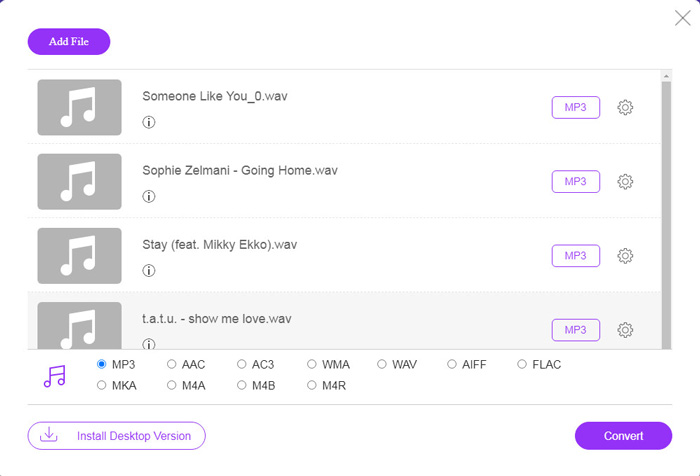
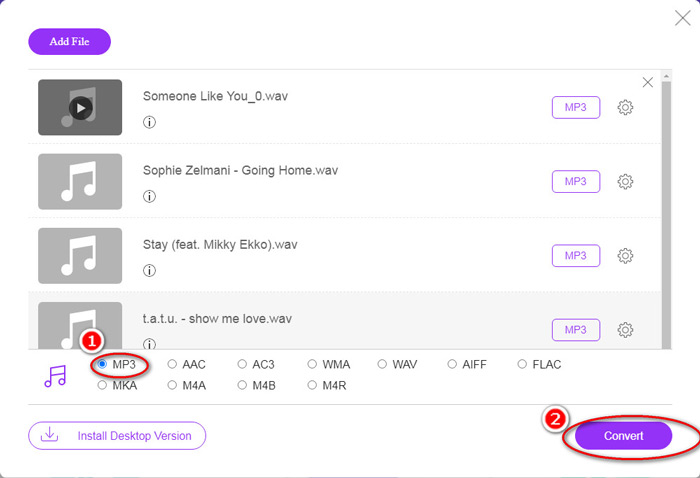
Langkah 3. Centang kotak MP3 di bagian bawah sebagai format keluaran, lalu klik Convert untuk memilih jalur tujuan penyimpanan file MP3 yang sudah dikonversi. Kemudian klik Convert lagi untuk mulai mengonversi WAV ke MP3 secara online.
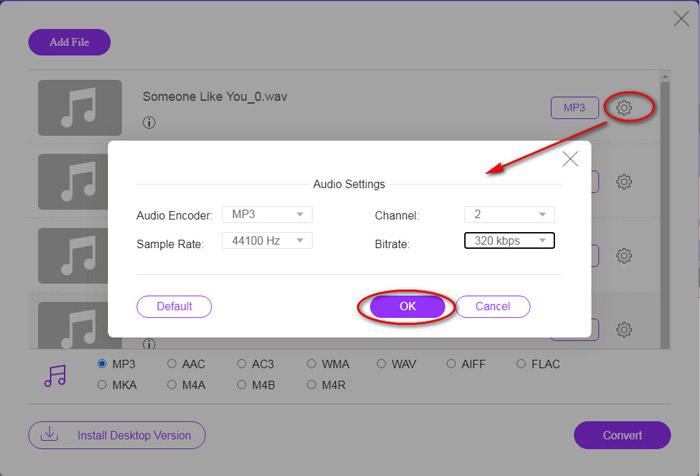
Jika Anda ingin mengompres file MP3, cukup klik ikon roda gigi dan sesuaikan nilai bitrate dari 96 menjadi 320 kbps.
Keuntungan tambahan dari metode ini adalah Anda dapat mengonversi video ke MP3 untuk mengekstrak musik latar apa pun secara gratis.
Bagian 2. Gratis Konversi WAV ke MP3 di iTunes
iTunes adalah aplikasi gratis lain untuk mengubah WAV ke MP3. Dengan program ini, Anda dapat dengan mudah mengkonversi WAV ke MP3, AAC, AIFF, dan Apple Lossless. Sebaliknya, ini dapat mengubah MP3, AAC, AIFF, dll., Menjadi WAV.
Ikuti langkah-langkah sederhana yang disebutkan di bawah ini untuk mengetahui caranya.
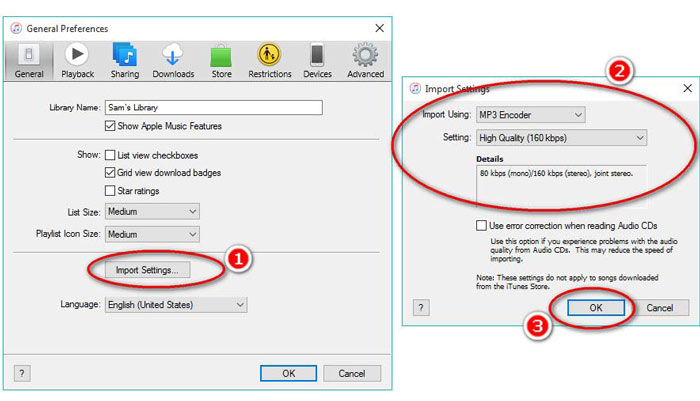
Langkah 1. Jalankan iTunes di komputer Windows atau Mac. Klik Edit di menu lalu pilih Preferences. Klik Import Settings untuk mengatur pengaturan keluaran MP3.
Pilih MP3 Encoder dari opsi drop-down Import Using.
Pilih kualitas MP3 dari opsi drop-down Settings (dari 16 hingga 320 kbps).
Klik OK untuk menyimpan dan menutup pengaturan.
Langkah 2. Seret dan jatuhkan file WAV ke iTunes Library. Pilih lagu WAV yang ingin Anda konversi ke MP3, pilih File di menu, pilih Convert, lalu Create MP3 Version.
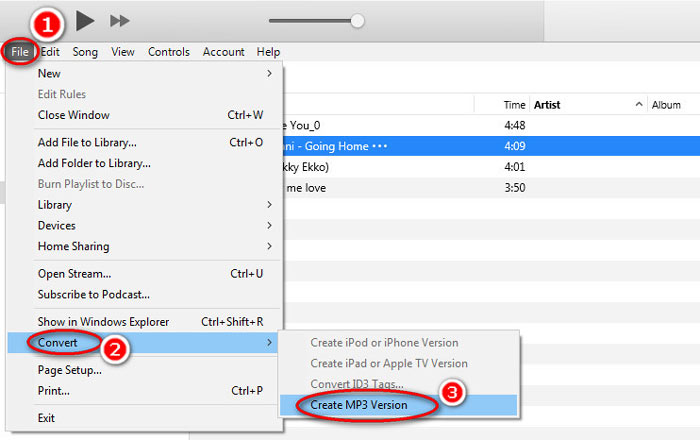
Selesai! File lagu MP3 baru akan muncul di pustaka Anda di sebelah file WAV asli. Anda dapat membedakan kedua versi tersebut dengan mengklik kanan file dan memilih Get Info.
Langkah 3. Lalu Anda dapat menyalin lagu MP3 yang telah dibuat (klik kanan lagu dan pilih Copy) di iTunes Library dan menempelkannya ke lokasi lain di komputer Anda.
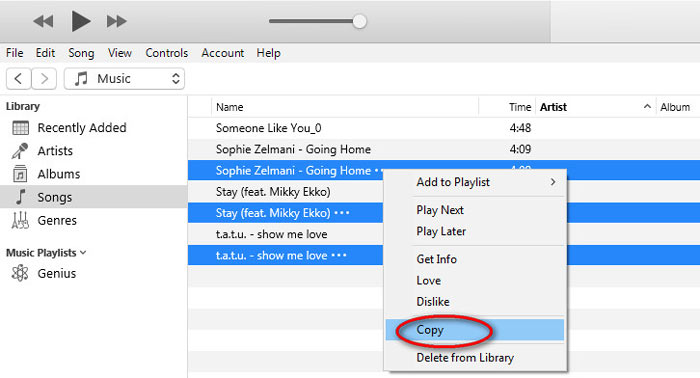
Penting untuk diingat bahwa iTunes tidak menangani file musik hak cipta apa pun.
Bagian 3. Gratis Konversi WAV ke MP3 melalui Windows Media Player
Windows Media Player, sebagai pemutar internal di komputer Windows, dapat membuka file WAV secara langsung. Di sini, ia melakukan konversi MP3. Selain konversi WAV ke MP3, ini juga mendukung CD yang berisi konversi audio WAV ke MP3.
Berikut cara memulainya:
Langkah 1. Jalankan Windows Media Player di komputer Anda, lalu temukan file WAV yang Anda muat di bilah sisi. Klik Organize dari panel kiri layar dan lanjutkan ke Options.
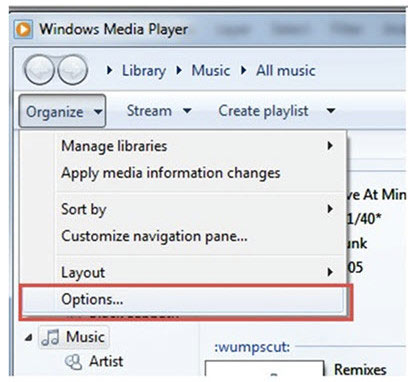
Langkah 2. Arahkan ke tab Rip Music, dan pilih MP3 di bawah Format dalam bagian Rip settings.
Langkah 3. Jika perlu, sesuaikan kualitas audio dan klik Apply untuk mulai mengubah WAV ke MP3.
Kemudian Windows Media Player akan memulai proses konversi dan file MP3 yang sudah dikonversi akan disimpan di lokasi yang ditentukan di menu Rip music to this location dalam tab Rip Music.
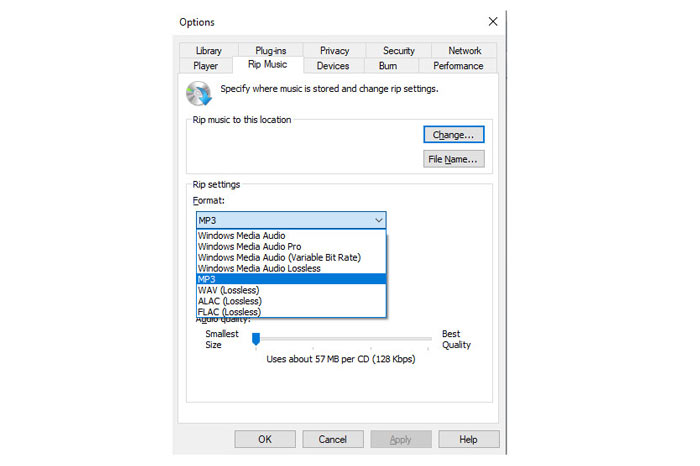
Hanya ada satu catatan penting: Metode membuat WAV ke MP3 ini hanya tersedia untuk pengguna Windows 10/8/7 karena Windows Media Player hanya berjalan di komputer Windows.
Bagian 4. Gratis Konversi WAV ke MP3 dengan VLC
VLC, Anda mungkin telah menggunakannya sebagai pemutar media untuk membuka file WAV. Namun, ini juga dapat berfungsi sebagai konverter WAV seperti Windows Media Player. Langkah-langkah untuk mengubah WAV ke MP3 berbeda dengan langkah-langkah di Windows Media Player.
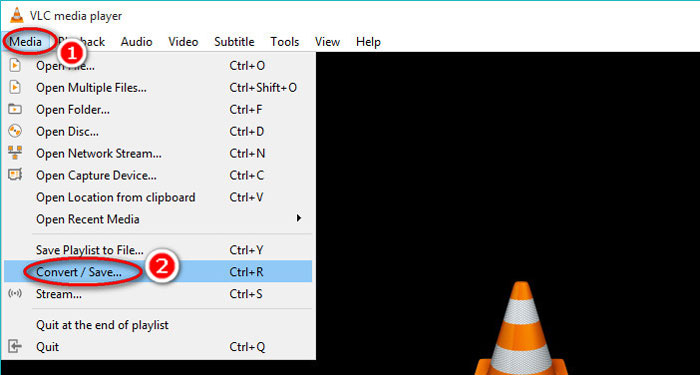
Langkah 1. Jalankan VLC di komputer Anda, lalu cari Media di menu bagian atas, dan pilih Convert / Save untuk membuka jendela Open Media.
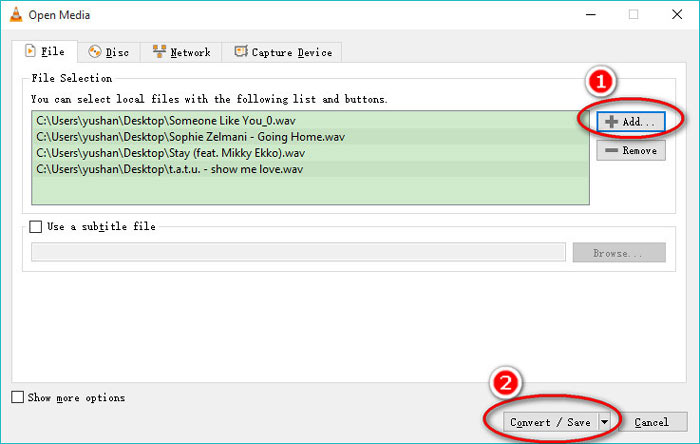
Langkah 2. Di jendela Open Media, klik Add untuk mengimpor file WAV yang ingin Anda ubah ke MP3. Klik Convert/Save untuk melanjutkan.
Langkah 3. Klik panah bawah di samping Profile untuk memilih MP3 sebagai file keluaran.
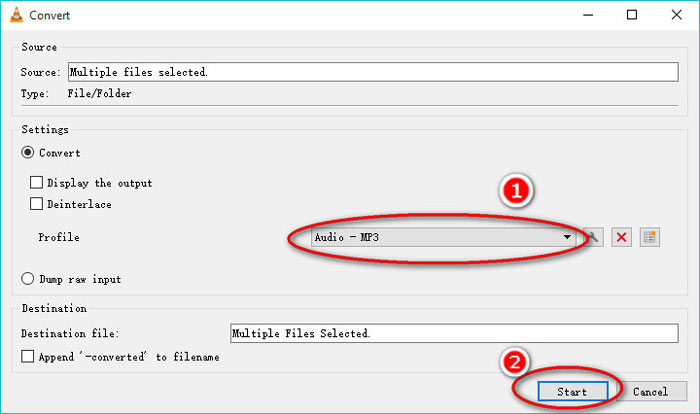
Saat menggunakan VLC, Anda juga diperbolehkan mengonversi audio ke Vorbig (OGG), FLAC, dan CD. Anda dapat menemukan file MP3 yang dikonversi berada di folder yang sama dengan file WAV aslinya.
Perlu diperjelas: Meskipun VLC dapat digunakan di komputer dan ponsel, fitur konversi hanya tersedia untuk pengguna komputer, dan Anda tidak dapat mengonversi WAV ke MP3 di iPhone atau ponsel Android.
Bagian 5. Gratis Konversi WAV ke MP3 dengan Audacity
Audacity adalah perangkat lunak pengedit audio gratis yang harus Anda kenal. Selain fitur pengeditan yang kuat, Audacity juga dapat membantu Anda mengekspor WAV ke MP3.
Mari kita sederhanakan prosesnya.
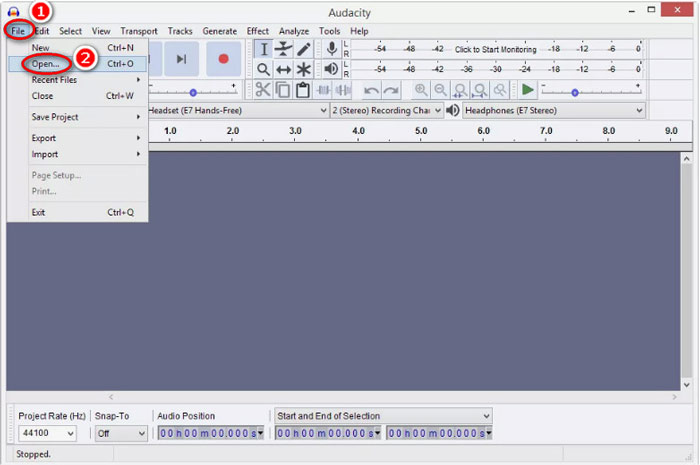
Langkah 1. Unduh Audacity di komputer Windows atau Mac Anda. Buka menu File di bagian atas, lalu pilih Open untuk memilih file WAV yang tersimpan di komputer Anda.
Langkah 2. Sekali lagi, klik File, pilih Export dan Export as MP3.
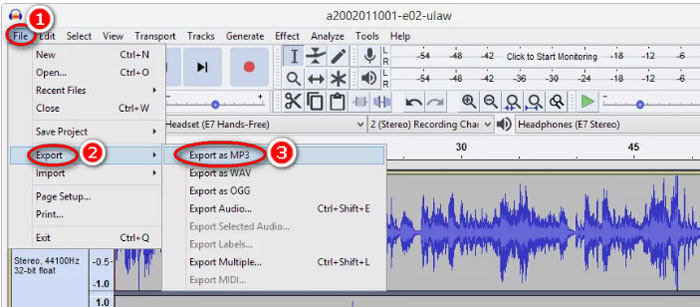
Langkah 3. Pilih lokasi untuk menyimpan file MP3 yang dikonversi, sunting tag metadata jika perlu, lalu klik OK untuk mulai mengubah WAV ke MP3.
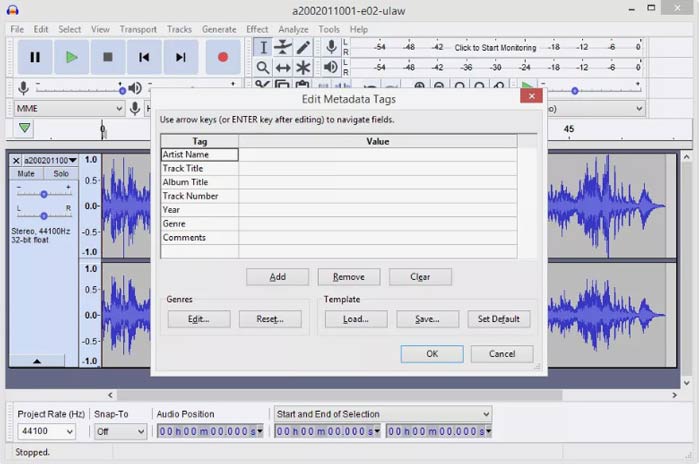
Satu hal yang harus Anda perhatikan bahwa Audacity tidak mengizinkan konversi batch, dan Anda harus mengonversi WAV ke MP3 satu per satu.
WAV vs.MP3
WAV, juga dikenal sebagai format WAVE, didasarkan pada Resource Interchange File Format (RIFF). Ini dikembangkan oleh Microsoft dan IBM bersama-sama pada awal 1990-an. Ini adalah opsi untuk menyimpan audio mentah dan tidak terkompresi di Microsoft Windows. Dengan demikian, file WAV lebih sering diputar di komputer Windows.
Format MP3 dirilis pada tahun 1993 oleh Moving Picture Experts Group (MPEG). Itu adalah standar untuk menyimpan musik karena dapat memampatkan audio ke ukuran yang jauh lebih kecil daripada format tidak terkompresi lainnya. Ini masih banyak digunakan saat ini, terutama untuk mendistribusikan audio online.
Bagian 6. Tanya Jawab tentang Mengubah WAV ke MP3
WAV VS MP3, Mana yang Lebih Baik?
Pilihan yang lebih baik tergantung pada kebutuhan Anda.
1. Dari segi ukuran file, WAV berukuran lebih besar daripada MP3.
2. Dari segi kualitas audio, WAV bersifat lossless dan tidak terkompresi sedangkan MP3 adalah format lossy, dan WAV memiliki kualitas audio yang lebih baik daripada MP3.
3. Dari segi kompatibilitas, MP3 banyak digunakan pada layanan streaming dan pemutar, sedangkan WAV umumnya digunakan pada sistem Windows dan CD.
Apakah mengonversi WAV ke MP3 menurunkan kualitas?
Iya. Saat mengonversi file WAV lossless menjadi file MP3 lossy, kualitasnya akan turun.
Bisakah Anda mendengar perbedaan antara MP3 dan WAV?
Jika Anda membandingkan file MP3 dengan bitrate rendah dengan file WAV dengan bitrate tinggi, Anda akan mendengar sedikit perbedaan. Namun, setelah Anda mendengarkan file MP3 dengan bitrate tinggi dan file WAV dengan bitrate rendah, Anda mungkin tidak mendapatkan perbedaan di telinga Anda.
Haruskah saya mengupload MP3 atau WAV ke YouTube?
WAV disarankan untuk mengunggah YouTube. Karena setelah Anda mengupload file video atau audio ke YouTube, maka file yang diupload akan dikompres kembali. Untuk menjamin kualitas audio terbaik, WAV lossless lebih disarankan dibandingkan dengan MP3.
Kesimpulan
Baik WAV dan MP3 adalah file audio yang sering Anda temui. Karena ukuran WAV yang besar dan kompatibilitas yang kurang populer, banyak dari Anda yang ingin mengonversi WAV ke MP3. Halaman ini mengumpulkan 5 konverter WAV ke MP3 gratis teratas untuk membantu Anda mengubah WAV ke MP3 di komputer.
Konverter WAV ke MP3 gratis mana dari daftar ini yang akan Anda coba terlebih dahulu?
Apakah Anda ingin konversi online gratis?
Atau mungkin Anda ingin mentranskode WAV ke MP3 di Windows Media Player?
Bagaimanapun, beri tahu saya di bagian komentar di bawah.
-
 Bagaimana cara mengonversi MP4 ke WAV Online secara Gratis
 Berusaha keras untuk mengonversi MP4 ke WAV? Tidak tahu konverter mana yang dapat membantu Anda dengan sempurna tanpa membayar sepeser pun? Baca posting ini dan semua pertanyaan Anda akan dijawab.
-
 Cara Mengonversi MP3 ke MP4 dengan Gambar di Windows 10 dan Mac
 Bagaimana cara mengonversi MP3 ke MP4 dalam kualitas tinggi? Posting ini menunjukkan 3 metode efisien dan gratis untuk mengubah MP3 ke MP4 dengan gambar di Windows dan Mac.
-
 Dari 50MB hingga 5MB - Cara Mengompres File MP4 dalam Hitungan Detik
 Video MP4 terlalu besar untuk diunggah? Ingin memperkecil ukuran video? Berikut adalah 3 cara efisien untuk mengompres file MP4 ke ukuran yang lebih kecil tanpa batas.

