


 Video Converter Ultimate
 Perekam Layar
 Perbaikan Video
Cara Mengonversi Format WebM ke MP3 dalam 3 Metode Berbeda
WebM dirancang untuk memuat audio dan video yang akan diunggah atau digunakan di situs web. Selain itu, format ini mendukung aliran media berkualitas setinggi mungkin yang bisa Anda gunakan. Format WebM dikompresi dengan VP8 atau VP9 untuk video, Vorbis atau OPUS untuk audio, dan WebVTT untuk trek teks. Format ini memiliki struktur yang mirip dengan format Matroska yang dikembangkan seperti .mkv. Sama seperti format Matroska, Anda pada dasarnya tidak bisa memutar langsung file WebM yang diunduh di pustaka musik Anda karena kompleksitas codec‑nya. Dan sebagian besar pemutar media pihak ketiga tidak mendukung codec Vorbis atau OPUS. Jadi, Anda harus mempertimbangkan kembali untuk mengonversi WebM ke MP3 atau format audio lainnya. Di daftar berikut ini, terdapat berbagai metode yang digunakan untuk mengonversi file WebM ke format baru beserta langkah‑langkahnya.

Bagian 1. 3 Metode Terbaik yang Digunakan untuk Mengonversi WEBM ke MP3
Metode 1. Konversi Offline melalui FVC Video Converter Ultimate
Jika masalah Anda adalah proses konversi, gunakan saja konverter WebM ke MP3 offline yang luar biasa yang dikembangkan oleh FVC. FVC Video Converter Ultimate telah digunakan banyak pengguna di seluruh web sebagai pilihan utama mereka untuk mengonversi format file. Selain itu, alat ini mendukung berbagai jenis konversi yang mungkin Anda perlukan. Bukan hanya itu, ia juga memiliki banyak fitur lain yang bisa Anda gunakan dengan panduan yang sederhana namun efektif. Untuk mengetahui lebih lanjut cara mengonversi file WebM Anda, ikuti langkah‑langkah di bawah ini untuk mendapatkan hasil konversi yang sempurna.
Langkah 1. Unduh dan instal konverter ke drive PC atau Mac Anda. Lalu ubah pengaturannya dan klik Finish untuk melanjutkan.
Unduh GratisUntuk Windows 7 atau yang lebih baruUnduhan Aman
Unduh GratisUntuk MacOS 10.7 atau yang lebih baruUnduhan Aman
Langkah 2. Jika ultimate converter sudah dijalankan dan tampil di layar Anda, maka tampilannya akan seperti ini. Klik tombol add untuk memilih file WebM dari folder file Anda.
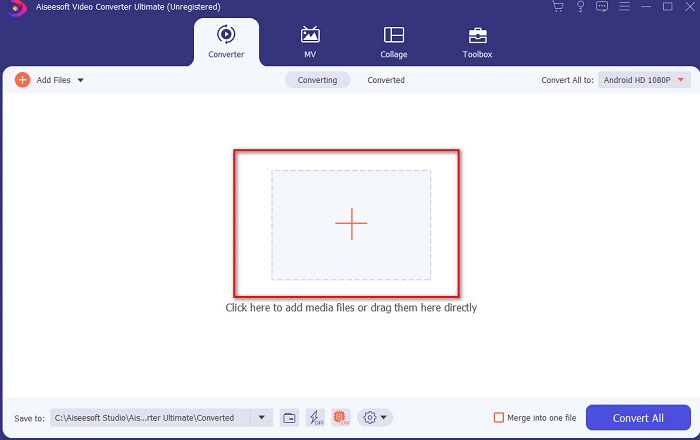
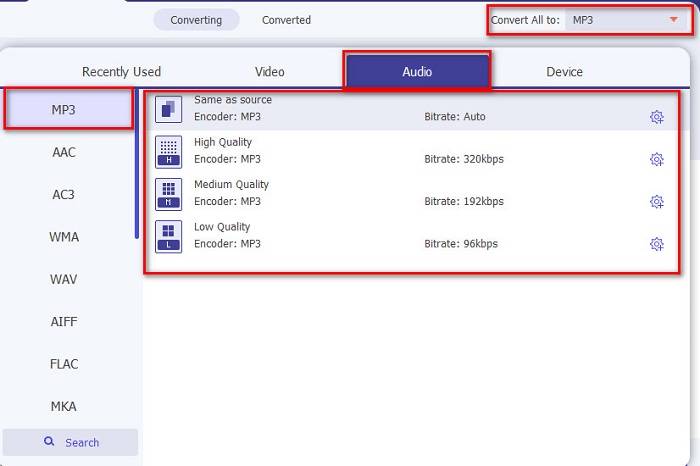
Langkah 3. Setelah memasukkan file, tekan opsi Convert All dan pilih format akhir yang Anda inginkan. Misalnya, jika Anda ingin mengubah file WebM menjadi MP3 maka pilih format MP3.
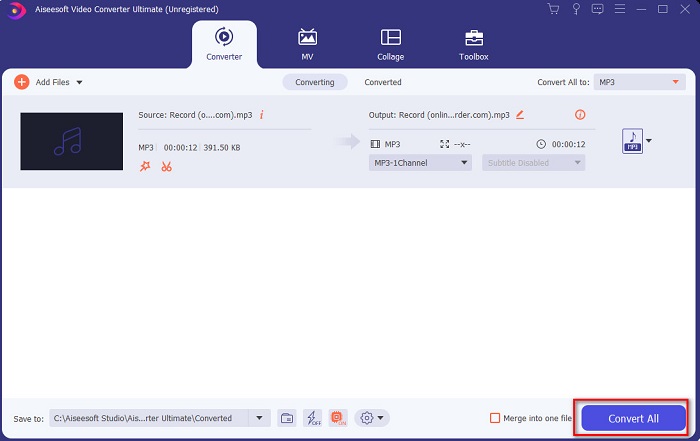
Langkah 4. Sekarang Anda siap memulai proses konversi dengan mengklik Convert All.
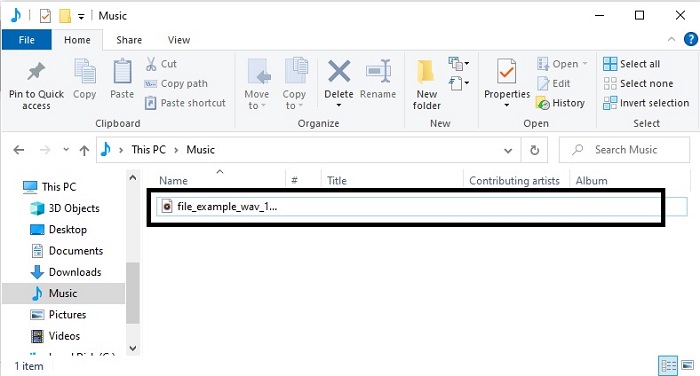
Langkah 5. Sebuah folder file akan ditampilkan setelah proses konversi selesai. Klik file yang sudah dikonversi dan dengarkan audio yang sama seperti di WebM tetapi dengan format yang berbeda.
Metode ke-2. Konversi Online melalui Konverter Audio Gratis FVC
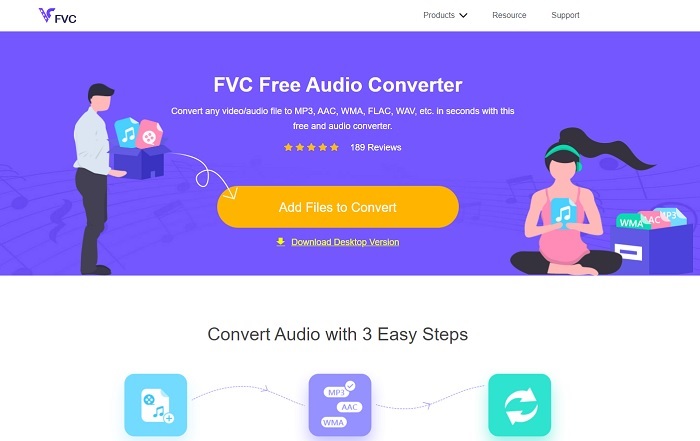
Pertimbangkan untuk mengonversi WebM ke MP3 secara online yang gratis dan tanpa batasan. FVC Free Audio Converter adalah metode kedua karena ini adalah yang terbaik kedua di daftar ini. Selain itu, jika Anda tidak ingin mengunduh konverter, maka ini adalah alat web yang paling tepat. Meskipun demikian, sebelum Anda bisa menggunakan alat ini, ada proses mengunduh dan menginstal, tetapi hanya untuk launchernya saja yang berukuran sangat kecil. Walaupun tampilannya menarik, alat ini hanya mendukung format dan fitur yang terbatas, tidak selengkap ultimate converter. Untuk mengetahui lebih lanjut cara mengonversi dengan bantuan alat ini, wajib membaca petunjuk di bawah dan mengikutinya sesuai urutan.
Langkah 1. Klik tautan ini untuk masuk ke situs utama mereka dan melakukan konversi secara online.
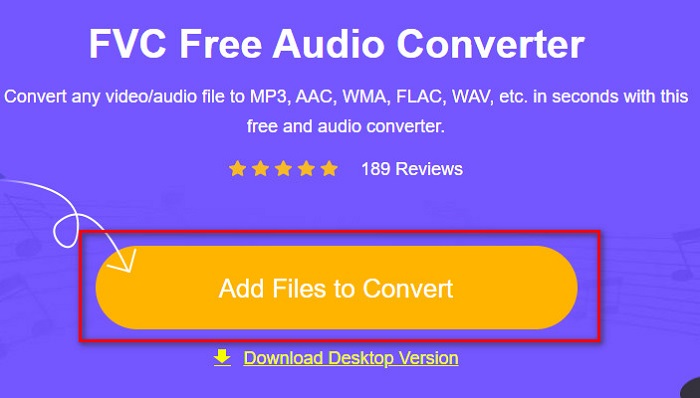
Langkah 2. Tekan Add Files to Convert dan buka launchernya untuk memulai konverter online.
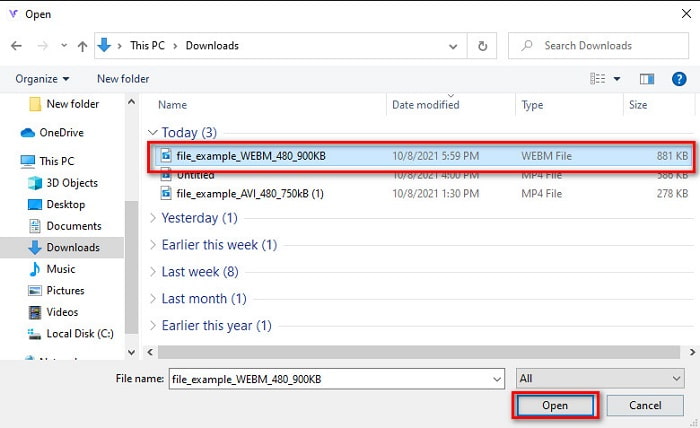
Langkah 3. Pilih file WebM yang ingin Anda konversi dan klik Open untuk memuatnya.
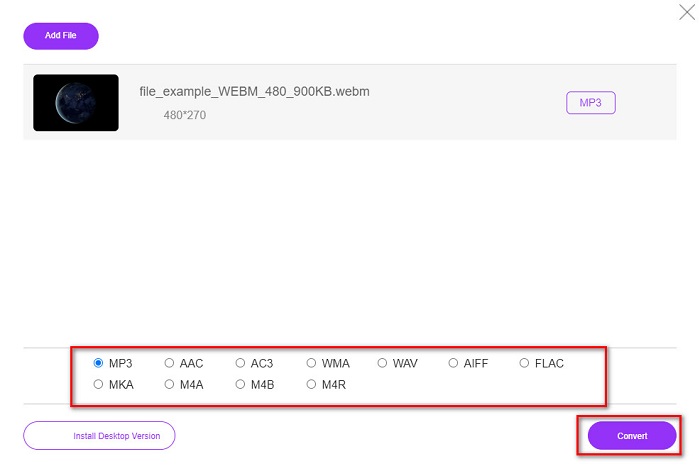
Langkah 4. Lalu di bagian bawah antarmuka mini, pilih format yang ingin Anda jadikan hasil konversi. Sebagai contoh, jika Anda ingin mengonversi WebM ke MP3 maka klik MP3. Setelah itu, klik Convert untuk memulai proses konversi.
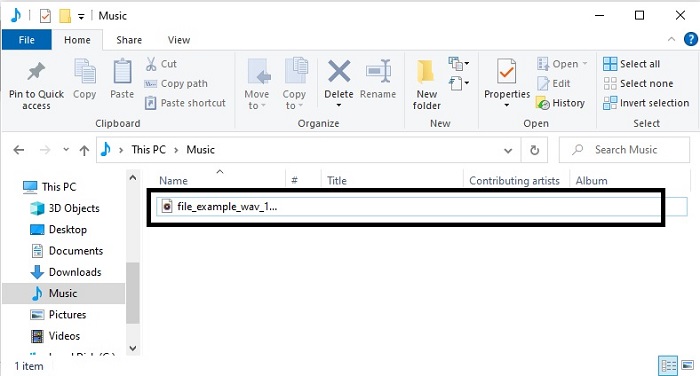
Langkah 5. Untuk menemukan file WebM yang sudah dikonversi, Anda harus mengklik ikon folder. Maka pengelola file akan otomatis terbuka di layar dan menampilkan lokasi file Anda.
Metode ke-3. Konversi melalui VLC Media Player
VLC Media Player dikenal sebagai salah satu pemutar media yang paling banyak digunakan di internet. Selain itu, alat ini mendukung hampir semua format, data terenkode, dan codec. Namun jika Anda menggunakan konverter WebM ke MP3 gratis ini, bersiaplah menghadapi proses konversi yang lebih lambat dan pilihan format yang lebih sedikit. Walaupun bukan pilihan terbaik untuk konversi, tetap layak untuk mencoba pengalaman konversi yang disediakan alat ini. Ikuti langkah‑langkah di bawah untuk mempelajari cara mengonversi di VLC.
Langkah 1. Unduh dan instal VLC ke drive komputer Anda.
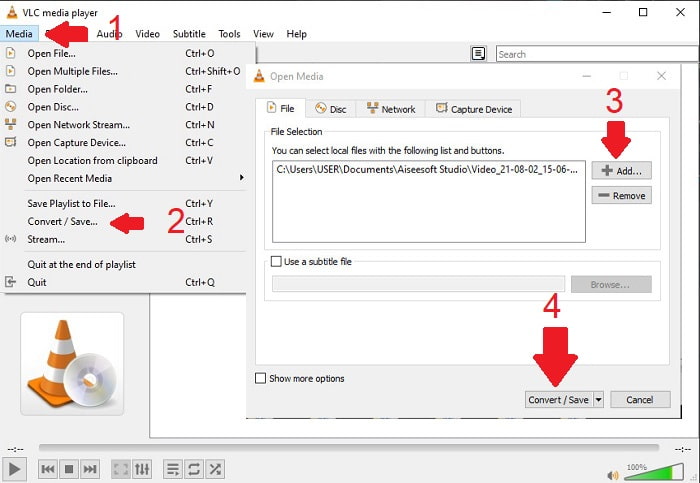
Langkah 2. Lalu klik Media dan cari Convert/Save. Berikutnya, untuk menambahkan file klik tombol Add lalu klik lagi Convert/Save.
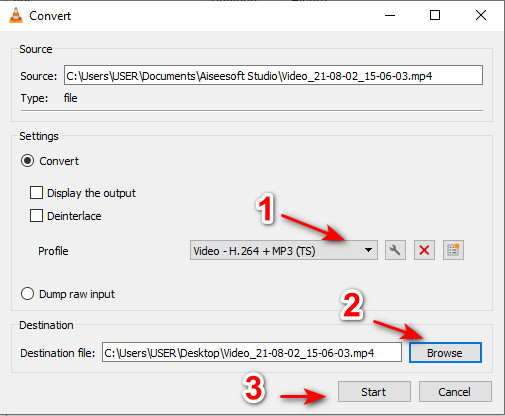
Langkah 3. Pilih format yang Anda inginkan pada Profile, tekan Browse untuk menentukan lokasi penyimpanan file yang sudah dikonversi dan klik Start untuk memulai proses.
Bagian 2. FAQ tentang WebM ke MP3
Bagaimana cara mengonversi M2TS ke MP3?
Anda dapat menggunakan Video Converter Ultimate untuk mengonversi M2TS ke MP3 dan kemudian mentransfernya ke Android. Hanya dengan mengunduh alat ini Anda dapat mengubah tugas konversi yang tampaknya mustahil menjadi mungkin. Untuk mengetahui lebih lanjut tentang cara mengonversi M2TS ke MP3, klik tautan ini dan lanjutkan ke artikel baru lainnya.
Manakah format video yang lebih baik, WebM atau MP4?
Kami tidak dapat membantah bahwa kedua format mendukung file multi-media. Tetapi file WebM lebih efektif dioptimalkan untuk web daripada MP4. Meskipun format MP4 dapat digunakan, WebM masih jauh lebih besar daripada MP4. Jika Anda ingin menyimpan file video dan audio di perangkat atau desktop Anda, maka MP4 jauh lebih baik daripada WebM.
Mengapa file hasil konversi saya jauh lebih besar daripada file aslinya?
Ada satu alasan sederhana mengapa ukuran file hasil konversi jauh lebih besar daripada file aslinya. Hal ini karena Anda mengatur kualitas resolusi ke tinggi, bukan ke sedang atau rendah. Namun sebagian besar konverter tidak memungkinkan Anda mengubah resolusi ke tinggi, sedang, atau rendah, berbeda dengan Video Converter Ultimate. Sebagai alternatif, Anda bisa mengompres video berukuran besar dengan menggunakan alat kompresor video.
Kesimpulan
Sebagai kesimpulan, kini mudah bagi kita untuk memahami bahwa file WebM adalah format terbaik untuk dipakai ketika mengunggah atau berbagi di situs web atau platform. Karena format ini menyediakan kualitas video dan audio tertinggi yang Anda inginkan. Namun jika Anda ingin menyimpan berkas audio dari WebM, maka wajib mengonversinya dengan bantuan Video Converter Ultimate. Alat luar biasa ini sudah membantu banyak pengguna dan bisa menjadi solusi bagi Anda juga. Dengan demikian, pencarian Anda sudah berakhir karena Anda telah menemukan ultimate converter, dan sekarang saatnya untuk menggunakannya dengan terlebih dahulu mengunduhnya.
-
 8 Cara Mengonversi Audio MP4 ke MP3 (Konversi Batch & Ukuran Besar)
 Jika Anda ingin mengekstrak audio MP3 dari video MP4, Anda dapat memeriksa artikel ini dan mendapatkan 8 solusi. Ada cara online dan offline untuk mengonversi MP4 ke MP3 di ponsel atau komputer Anda dengan mudah.
-
 WMV ke MP3 – Cara Mengonversi Video ke Audio Gratis [Desktop/Online]
 Saat menonton video WMV, Anda akan menemukan bagian audio yang menarik. Jadi, Anda ingin memainkannya di pemutar MP3 Anda. Tapi jelas pemutar Anda tidak mendukung format WMV. Itu membuat Anda bertanya-tanya apakah ada cara untuk mengonversi WMV ke MP3.
-
 WebM ke MP4 | Gratis Konversi WebM ke MP4 (Online dan Desktop)
 Bagaimana cara menonton file WebM tanpa browser web? Anda perlu mengonversi WebM ke MP4. Berikut adalah 10 konverter WebM ke MP4 gratis teratas untuk mengubah WebM ke MP4 online dan di komputer Mac dan Windows.
