


 Video Converter Ultimate
 Perekam Layar
 Perbaikan Video
 Unduhan Aman
Konversikan 3GP ke MP4 dengan Konverter yang Efisien dan Ramah Pengguna
Kebutuhan untuk mengonversi format file telah tumbuh secara signifikan. Satu konversi khusus yang sangat penting adalah mengonversi file 3GP ke format MP4. Sementara file 3GP populer di masa lalu, mereka sering menimbulkan masalah kompatibilitas pada perangkat dan platform modern. Sebaliknya, format MP4 menawarkan kompatibilitas universal, pemutaran berkualitas tinggi, dan dukungan yang lebih luas di berbagai perangkat dan platform.
Untuk memenuhi kebutuhan mengonversi 3GP ke MP4 secara mulus, kami telah meninjau dan menyusun dengan cermat daftar alat konversi yang andal. Alat‑alat ini menyediakan solusi yang efisien dan tepercaya untuk mengubah video 3GP Anda menjadi format MP4 yang sangat kompatibel. Ikuti kami menelusuri alat‑alat konversi berperingkat tinggi ini dan temukan bagaimana alat tersebut dapat meningkatkan pengalaman menonton video Anda dengan memastikan kualitas pemutaran yang optimal serta kompatibilitas di berbagai platform dan perangkat.

Bagian 1. Pengonversi 3GP ke MP4 Terbaik
1. Video Converter Ultimate
Video Converter Ultimate adalah program yang sangat baik untuk mengonversi video ke 3GP dan MP4, serta format audio lainnya. Perangkat lunak ini memiliki fungsi konversi batch yang memungkinkan Anda mengonversi banyak file audio sekaligus. Selain itu, aplikasi ini memungkinkan pengguna mengoptimalkan kualitas output dengan mengubah parameter seperti frame rate, bitrate, dan resolusi. Bacalah tutorial singkat yang telah kami siapkan di bawah ini jika Anda ingin mempelajari cara mengonversi 3GP ke MP4.
Fitur Utama
◆ Perangkat lunak FVC Video Converter Ultimate dirancang untuk menghasilkan video keluaran dan file audio yang unggul, berfokus pada menjaga kualitas asli file yang dikonversi semaksimal mungkin.
◆ Antarmuka aplikasi dirancang agar ramah pengguna dan intuitif, memfasilitasi kemudahan navigasi untuk pengguna pemula dan lanjutan.
◆ FVC Video Converter Ultimate adalah alat perangkat lunak yang menunjukkan kecepatan dan kemanjuran tinggi, memfasilitasi konversi cepat dari berbagai format file.
Langkah 1. Dapatkan Aplikasi Konverter 3GP ke MP4
Pertama, klik opsi Unduh Gratis yang sesuai di bawah ini untuk mulai mengunduh program ke perangkat Anda. Selanjutnya, ikuti petunjuk di layar untuk mengaktifkan perangkat lunak. Setelah terpasang, Anda dapat meminta bantuan terkait antarmuka pengguna.
Free DownloadUntuk Windows 7 atau yang lebih baruUnduhan Aman
Free DownloadUntuk MacOS 10.7 atau yang lebih baruUnduhan Aman
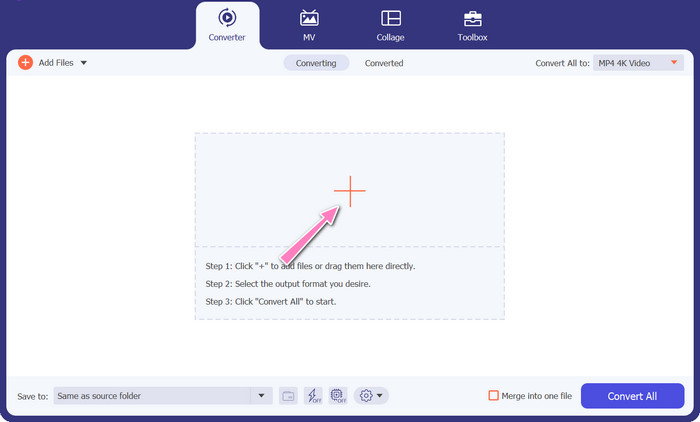
Langkah 2. Unggah file film 3GP
Langkah kedua adalah mengimpor file film yang ingin Anda edit dengan menekan ikon Tambah di layar utama. Setelah itu, pratinjau file yang diimpor akan dimuat. Jika Anda ingin mengonversi banyak file sekaligus, cukup unggah foldernya. Pilih direktori yang berisi semua file audio Anda.
Langkah 3. Pilih format keluaran
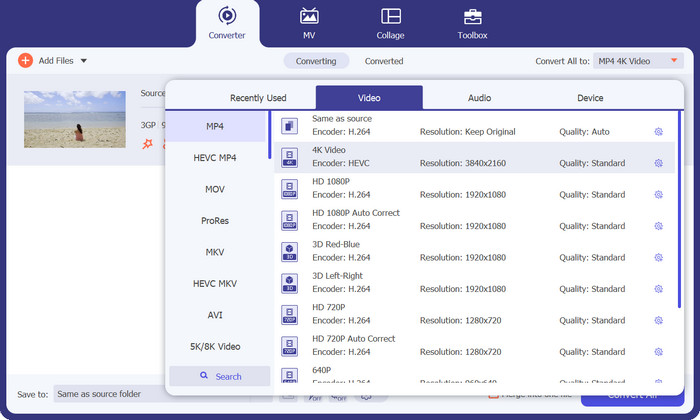
Ketiga, tekan tombol Konversi Semua ke di bagian atas antarmuka program untuk memilih format baru bagi hasil akhirnya. Pilih MP4 dari menu tarik‑turun Output Video. Anda memiliki kendali atas kualitas file keluaran dengan mengubah sample rate dan bitrate‑nya.
Langkah 4. Mulai proses konversi
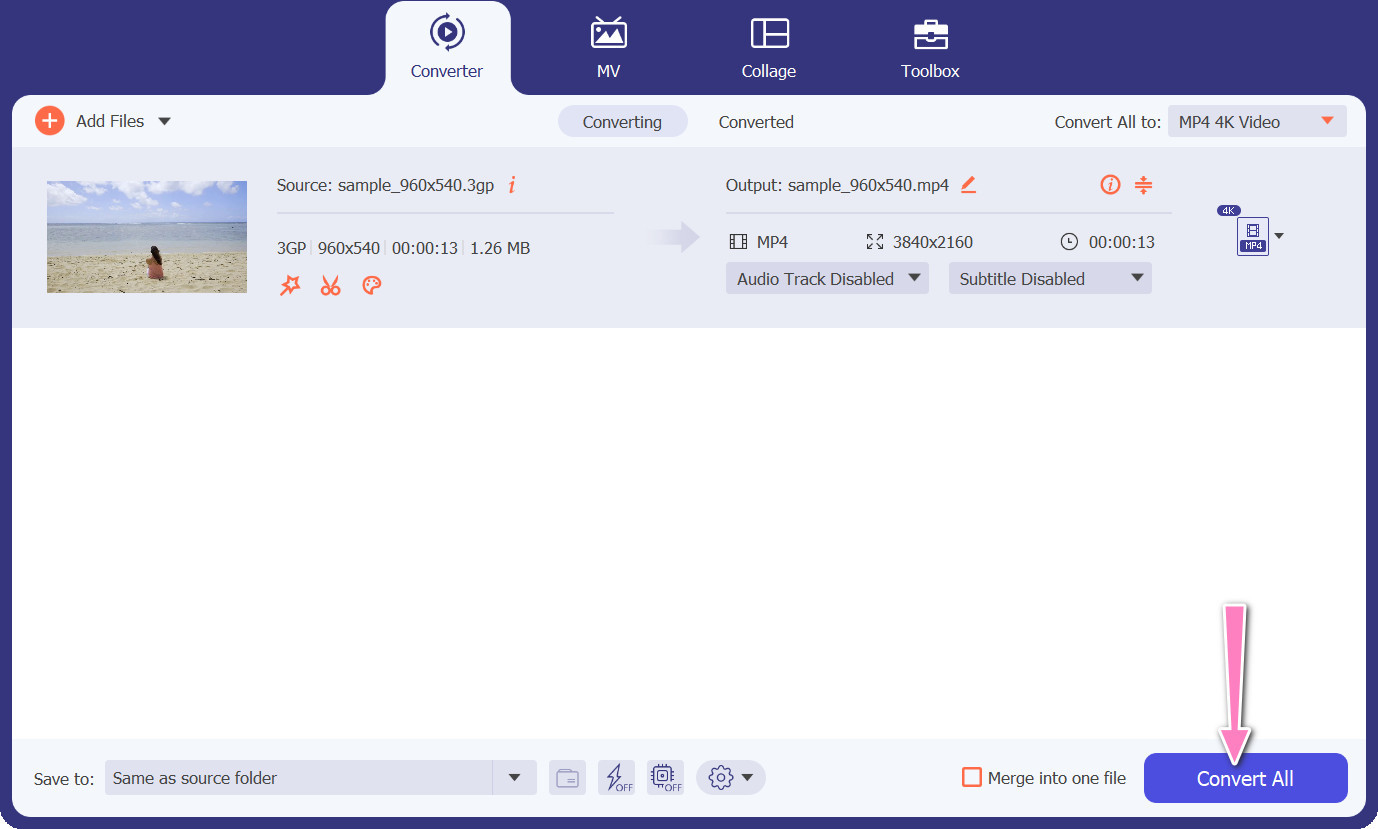
Keempat, mulai proses konversi dengan menekan tombol Konversi Semua di bawah. Folder keluaran kemudian akan terbuka sehingga Anda dapat memeriksa ulang file yang telah dikonversi.
2. Pengonversi MP4 Online Gratis
Penggunaan Free MP4 Converter Online merupakan alternatif yang layak dibanding memasang program desktop, sehingga menawarkan solusi yang praktis. Konverter 3GP ke MP4 online ini bekerja dengan sangat mulus, sekaligus memastikan perlindungan dan kerahasiaan data pribadi selama proses konversi. Selain itu, fungsi konversi massal perangkat lunak ini dapat dimanfaatkan dengan cara yang mirip dengan program desktop.
Fitur Utama
◆ Gratis MP4 Converter Online memungkinkan Anda untuk menyesuaikan pengaturan output sesuai dengan preferensi Anda. Anda dapat menyesuaikan parameter seperti codec video, resolusi, kecepatan bit, dan kecepatan bingkai untuk mencapai kualitas dan ukuran file yang diinginkan.
◆ Free MP4 Converter Online mendukung konversi batch, memungkinkan Anda mengunggah dan mengonversi beberapa file 3GP ke MP4 secara bersamaan. Ini menghemat waktu dan tenaga saat menangani banyak file.
◆ Pengonversi MP4 Online Gratis menghargai privasi pengguna dan menggunakan langkah-langkah untuk melindungi file yang Anda unggah. Mereka sering memberikan opsi untuk menghapus file setelah konversi atau menyimpannya dengan aman untuk jangka waktu terbatas.
Langkah 1. Langkah awal adalah membuka situs utama Free MP4 Converter Online dengan mengklik tautan yang disediakan. Arahkan ke opsi Add Files to Convert yang terletak di antarmuka utama dan lanjutkan dengan mengunggah file audio Anda.

Langkah 2. Setelah dijalankan, tampilan dokumen awal akan disajikan di antarmuka. Pilih format keluaran yang Anda inginkan dengan menggulir ke bawah dari panel yang sama.
Langkah 3. Lanjutkan dengan memilih tombol Convert untuk mengubah 3GP ke MP4. Untuk mengonversi file tambahan, Anda perlu mengulangi kembali instruksi yang disebutkan di atas dari awal.

3. Semua Pengonversi Video
Program desktop yang banyak digunakan Any Video Converter memiliki mitra berbasis web gratis. Dimungkinkan untuk mengonversi 3GP ke MP4, dan memiliki banyak pengaturan canggih dan pemrosesan batch. Pengeditan video dan pembakaran DVD hanyalah dua tambahan yang tersedia dalam edisi perangkat lunak.
Fitur Utama
◆ Any Video Converter memungkinkan Anda menyesuaikan resolusi video, bitrate, frame rate, dan kualitas audio. Ini mengoptimalkan video keluaran sesuai spesifikasi Anda.
◆ Any Video Converter memungkinkan Anda memotong, memotong, menggabungkan, dan menambahkan efek ke video. Subtitel dan tanda air mempersonalisasi video.
◆ Any Video Converter mendukung pengimporan dan penyematan subtitle ke dalam video Anda. Anda dapat menambahkan file subtitle eksternal atau memasukkan subtitle secara manual untuk membuat video Anda lebih mudah diakses atau multibahasa.
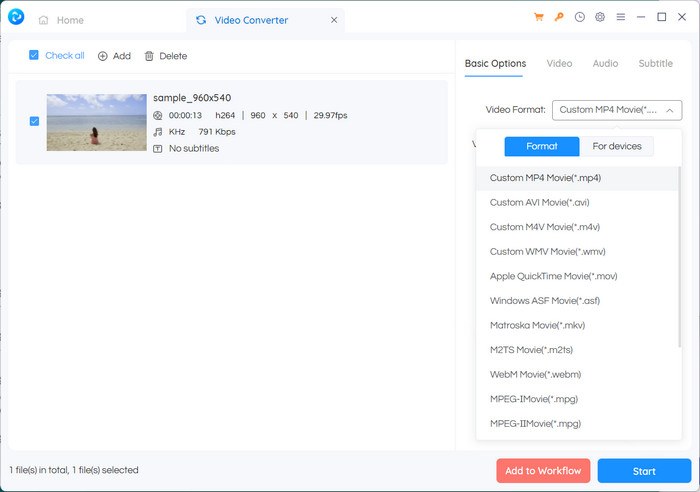
Langkah 1. Pertama, pasang Any Video Converter. Unduh Any Video Converter dari situs resminya dan instal di komputer Anda dengan mengikuti petunjuk di layar. Luncurkan Any Video Converter.
Langkah 2. Klik tombol Add Video(s) di dalam perangkat lunak. Jelajahi dan pilih file 3GP yang ingin Anda konversi ke MP4. Selanjutnya, klik Open untuk menambahkan file yang dipilih ke dalam antrean konversi.
Langkah 3. Di bagian Profile, pilih MP4 sebagai format keluaran yang diinginkan. Anda mungkin memiliki beberapa opsi MP4 yang dapat dipilih sesuai preferensi dan kebutuhan Anda. Pilih yang paling sesuai dengan keinginan Anda.
Langkah 4. Centang atau klik tombol Start untuk memulai proses konversi.
Bacaan Lanjutan:
Gabungkan 3GP – Cara Mengombinasikan Berbagai Klip Video dari Smartphone Anda
Cara Mengonversi 3GP ke MOV dengan Berbagai Metode [2023]
Bagian 2. FAQ tentang Konverter 3GP ke MP4
Apa perbedaan antara 3GP dan MP4?
MP4 mendukung lebih banyak perangkat dan platform daripada 3GP. Codec: MP4 mendukung lebih banyak codec audio dan video untuk fleksibilitas dan kualitas encoding yang lebih baik. Fitur: 3GP tidak mendukung subtitle, bab, atau banyak trek audio, sedangkan MP4 mendukung. Karena algoritme kompresi yang lebih efisien, file MP4 lebih kecil dari file 3GP tetapi memiliki kualitas yang setara atau superior.
Apakah ada keuntungan khusus menggunakan MP4 melalui 3GP untuk streaming online?
Kualitas video MP4 yang lebih baik, teknik kompresi yang canggih, dan kompatibilitas yang lebih luas menjadikannya pilihan yang lebih disukai untuk platform streaming online, memberikan pengalaman menonton yang lebih baik bagi pengguna.
Bisakah saya mengonversi video MP4 ke format 3GP jika diperlukan?
Ya, tersedia konverter video yang memungkinkan Anda mengonversi video MP4 ke format 3GP jika diperlukan, meskipun dapat mengakibatkan penurunan kualitas dan kemampuan multimedia yang terbatas.
Kesimpulan
Meskipun 3GP populer di masa lalu, terutama untuk perangkat seluler, format ini memiliki dukungan yang lebih terbatas terhadap fitur‑fitur lanjutan dan mungkin tidak terlalu kompatibel dengan platform modern. MP4, di sisi lain, mendukung lebih banyak codec video, codec audio, subtitle, dan fitur lanjutan seperti bab, menu, dan beberapa trek audio. Untungnya, Anda memiliki banyak pilihan untuk menentukan konverter 3GP ke MP4 terbaik sesuai kebutuhan Anda. Secara keseluruhan, jika Anda dapat memilih antara 3GP dan MP4 untuk file video, disarankan untuk memilih MP4 karena kualitasnya yang lebih baik, kompatibilitas yang lebih luas, serta beragam fitur dan fungsionalitas yang lebih lengkap.
-
 Cara Mengompres Video 3GP ke Ukuran yang Lebih Kecil dengan Proses Batch
 Untuk mencadangkan video 3GP di ponsel cerdas Anda, berikut adalah 2 cara yang paling sering digunakan untuk mengompres file 3GP ke ukuran yang jauh lebih kecil dengan proses batch dari artikel.
-
 Solusi Penting untuk Mengonversi 3GP ke MKV Tanpa Rugi
 Lihat tutorial langkah demi langkah tentang cara mengonversi 3GP ke MKV tanpa kehilangan kualitas. Jika Anda ingin mengonversi file, bersiaplah untuk memenuhi metode yang mencengangkan ini.
-
 3 Pemain 3GP Gratis Terbaik untuk Komputer dan Seluler yang Harus Anda Ketahui
 Jika Anda ingin memutar film 3GP dengan mudah tanpa penginstalan atau konversi codec video, Anda dapat mempelajari lebih lanjut tentang 3 pemutar 3GP terbaik di Windows, Mac, Android, dan iPhone di artikel ini.
