


 Video Converter Ultimate
 Perekam Layar
 Perbaikan Video
 Unduhan Aman
3 Metode Terbaik untuk Mengonversi H.264 ke MP4 dengan Mudah [2024]
Apakah Anda kesulitan memutar video dalam format H.264 karena masalah ketidakcocokan? Anda tidak sendirian. Banyak pengguna mengalami masalah yang sama dan memilih untuk mengonversi file ke format yang didukung secara luas oleh berbagai perangkat seperti MP4.
Jadi, jika Anda termasuk salah satunya dan sedang mencari cara untuk mengonversi file ini agar dapat diputar dengan mulus di perangkat Anda, artikel ini akan memberi Anda metode terbaik untuk dengan mudah mengonversi H.264 ke MP4. Siap membuat video Anda kompatibel di hampir semua perangkat? Mari kita mulai!

Bagian 1: Apakah H.264 Sama dengan MP4?
Baik H.264 maupun MP4 merupakan format video, tetapi keduanya memiliki tujuan yang berbeda. H.264, yang juga dikenal sebagai AVC (Advanced Video Coding), adalah standar kompresi video yang umum digunakan untuk merekam, mengompresi, dan mendistribusikan konten video definisi tinggi. Di sisi lain, MP4 (MPEG-4 Bagian 14) adalah format kontainer yang dapat menyimpan berbagai jenis data, termasuk video, audio, subtitel, dan gambar diam.
Sementara H.264 secara khusus merujuk pada teknologi kompresi video, MP4 mencakup konten multimedia yang lebih luas. Dalam istilah yang lebih sederhana, H.264 seperti metode pengodean yang digunakan untuk mengompresi data video, sedangkan MP4 seperti wadah yang menampung video terkompresi bersama dengan komponen multimedia lainnya.
Bagian 2: Cara Cepat dan Mudah Mengonversi H.264 ke MP4
Cara tercepat dan termudah untuk mengonversi H.264 ke MP4 adalah dengan menggunakan FVC Video Converter Ultimate. Perangkat lunak desktop ini dirancang untuk menangani berbagai file video dan audio seperti MP4, MKV, MOV, AVI, FLV, WMV, WEBM, M4V, TS, MXF, MPG, 3GP, VOB, dan banyak lagi. Dengan ini, Anda memiliki beragam opsi format yang dapat dipilih untuk mengonversi file H.264 Anda. Selain itu, alat ini juga memiliki profil kustom yang dapat Anda gunakan untuk mengedit pengaturan output seperti codec video, resolusi, frame rate, bitrate, dan lainnya. Terakhir, Anda dapat menjamin proses konversi yang cepat dan kualitas keluaran tanpa kehilangan karena ini mendukung resolusi hingga 4K dengan kecepatan konversi 30× dibandingkan dengan alat konverter lainnya.
Langkah 1. Pertama, unduh alat perangkat lunak tersebut dan instal di komputer Anda.
Unduh GratisUntuk Windows 7 atau yang lebih baruUnduhan Aman
Unduh GratisUntuk MacOS 10.7 atau yang lebih baruUnduhan Aman
Langkah 2. Di tab Converter, klik tombol Add Files dan impor file H.264 Anda.
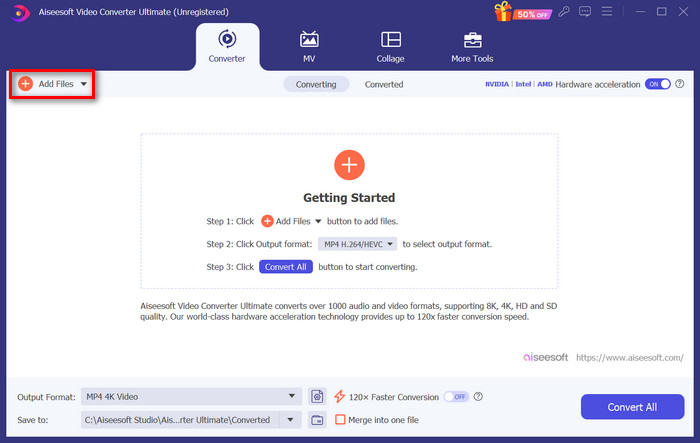
Langkah 3. Setelah file video H.264 diimpor, pilih MP4 dari daftar format dengan mengklik tombol Output format.
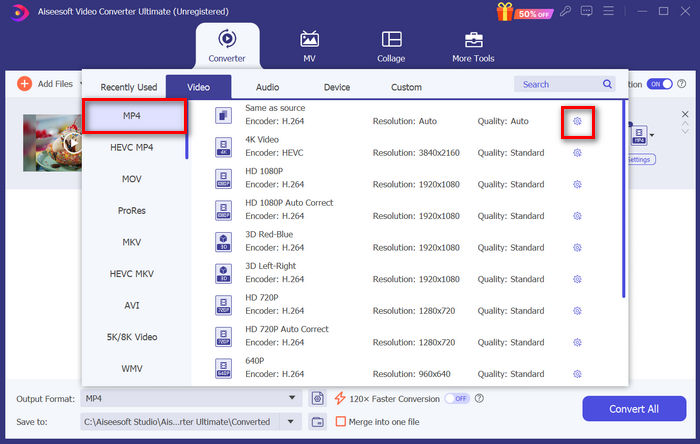
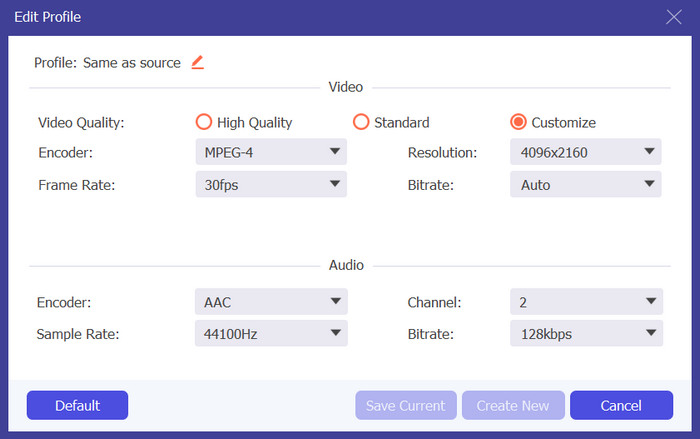
Sementara itu, jika Anda ingin menyesuaikan Custom Profile, buka kotak dialog Settings. Dari sana, Anda dapat mengedit codec video, kualitas, nama file, dan sebagainya. Jika sudah selesai, cukup klik tombol Create New untuk menyimpannya.
Langkah 4. Jika sudah selesai, cukup klik tombol Convert All.
Dengan FVC Video Converter Ultimate, konversi H.264 ke MP4 dapat dilakukan dengan cepat tanpa menghabiskan banyak waktu dan tenaga Anda. Selain itu, Anda dapat mengonversi format lain seperti H.265, dan AVCHD ke MP4. Di luar itu, Anda juga dapat yakin bahwa kualitas output tetap tinggi selama proses berlangsung.
Bagian 3: Mengonversi H.264 ke MP4 Menggunakan FFmpeg
FFmpeg adalah alat baris perintah yang digunakan untuk mengelola berkas multimedia, yang menawarkan berbagai kemampuan mulai dari pemutaran hingga konversi dan penyuntingan. Dengan fitur-fiturnya yang serbaguna, alat ini memungkinkan pengguna untuk mengonversi H.264 ke format MP4 secara efisien, menyediakan solusi praktis bagi mereka yang terbiasa dengan antarmuka baris perintah.
Langkah 1. Pertama, Anda perlu mendapatkan file executable FFmpeg di komputer Anda.
Langkah 2. Selanjutnya, buka jendela command-line di folder yang berisi executable tersebut. Sebuah jendela terminal akan muncul.
Langkah 3. Setelah itu, tambahkan file H.264 yang ingin Anda konversi ke MP4.
Langkah 4. Terakhir, masukkan perintah: ./ffmpeg.exe -i inputfilename.mkv outputfilename.mp4 lalu tekan Enter.
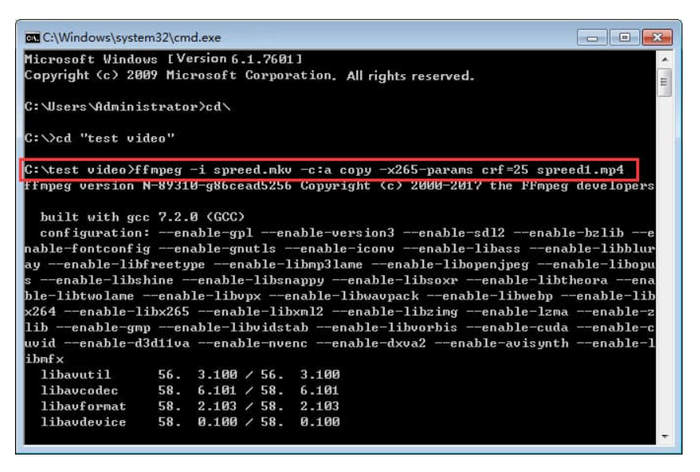
Jika Anda terbiasa dengan baris perintah, FFmpeg dapat bekerja paling baik di pihak Anda saat mengonversi H.264 ke MP4. Namun, jika tidak, Anda akan merasa alat ini sulit dinavigasi, yang merupakan salah satu kekurangannya dalam hal kegunaan bagi pengguna baru.
Bagian 4: Konversi H.264 ke MP4 Online
Jika Anda mencari alat untuk mengonversi H.264 ke MP4 secara online, alat terbaik yang dapat Anda gunakan adalah FVC Free Video Converter Online. Alat ini menawarkan cara yang cepat dan sangat intuitif untuk mengonversi file H.264 ke format yang Anda inginkan, karena Anda hanya perlu mengimpor file dan memilih format yang diinginkan, dan sisanya berjalan secara otomatis.
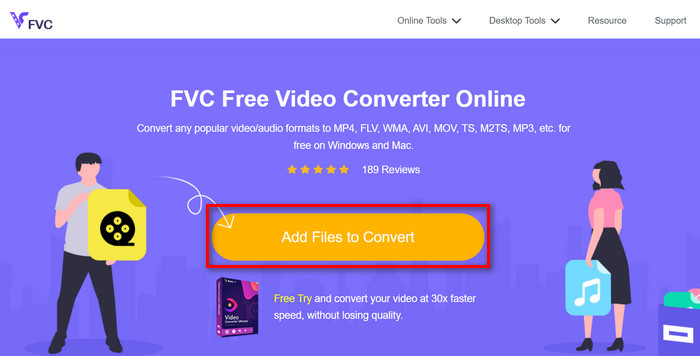
Langkah 1. Pertama, Anda perlu mengimpor file H.264 yang ingin Anda konversi dengan mengklik tombol Add Files to Convert.
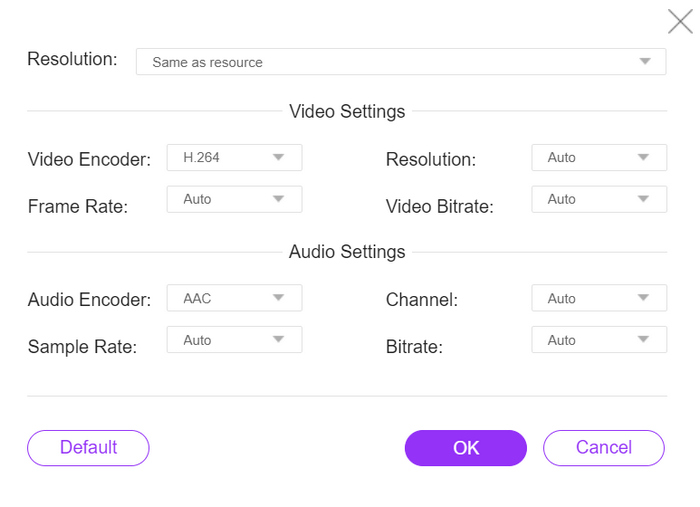
Langkah 2. Sekarang, untuk format output, pilih MP4. Selain itu, jika Anda ingin mengatur resolusi, encoder video, bitrate, dan lainnya secara manual, cukup klik ikon Gear di samping format output. Jika sudah, klik tombol OK.
Langkah 3. Terakhir, untuk memulai proses konversi, klik tombol Convert.
Anda tidak perlu khawatir mengenai kualitas keluaran berkas H.264 yang dikonversi, karena alat ini mendukung resolusi video hingga 1080P. Selain itu, kecepatan konversi tidak akan memakan waktu lama karena alat ini 30x lebih cepat dibandingkan dengan alat konverter lainnya.
Bagian 5. FAQ tentang Konversi H.264 ke MP4
H264 vs mp4, mana yang lebih baik?
Dalam hal kompatibilitas, MP4 tampaknya lebih baik, mengingat orang-orang sering memilih untuk mengonversi H.264 ke MP4 untuk meningkatkan dukungan perangkat dan pengalaman pemutaran. Namun, kedua format tersebut memiliki kelebihan dan memiliki tujuan yang berbeda secara efektif.
Bisakah saya mempertahankan kualitas asli video H.264 saya saat mengonversi ke MP4?
Ya, Anda dapat mempertahankan kualitas asli video H.264 saat mengonversi ke MP4, terutama jika Anda menggunakan alat konversi yang memiliki reputasi baik seperti FVC Video Converter Ultimate atau FFmpeg. Alat-alat ini menawarkan opsi untuk menyesuaikan pengaturan seperti resolusi, bitrate, dan codec untuk memastikan keluaran berkualitas tinggi.
Pemutar video mana yang kompatibel dengan format H.264?
Banyak pemutar video yang mampu memutar format H.264, termasuk VLC Media Player, Windows Media Player, dan QuickTime Player.
Kesimpulan
Selesai! Sekarang Anda sudah memiliki semua alat dan metode untuk mengonversi H.264 ke MP4 dengan mudah. Baik Anda lebih menyukai perangkat lunak desktop, alat command-line, atau konverter online, pilihannya ada di tangan Anda. Mulailah sekarang dan pastikan kompatibilitas dengan perangkat apa pun!
-
 Konverter MPG ke MP4 Gratis Terbaik pada tahun 2024 (Ulasan Mendalam)
 Mengapa Anda perlu mengubah MPG ke MP4? Dapatkan jawabannya di posting ini dan ketahui pengonversi MPG ke MP4 peringkat tinggi di pasar.
-
 Audio ke MP4: Mengubah File Audio Apapun ke Format MP4
 Konversikan lagu, podcast, dan rekaman favorit Anda ke dalam format MP4 untuk perpaduan unik antara audio dan visual. Temukan cara mengonversi WMA ke MP4 atau audio lain ke format video.
-
 5 Konverter FLV ke MP4 Terbaik Gratis dan Berbayar (Ulasan 2024)
 Tetap di posting ini dan pelajari tentang pembaruan mengenai file FLV dan MP4. Selain itu, kami telah menyusun konverter FLV ke MP4 yang paling andal.
