


 Video Converter Ultimate
 Perekam Layar
 Perbaikan Video
 Unduhan Aman
MP4 ke M4V - 4 Konverter MP4 ke M4V Efisien yang Jangan Pernah Anda Lewatkan
Bisakah Anda mengubah ekstensi file dari MP4 ke M4V secara langsung? Apa perbedaan antara MP4 dan M4V? Saat Anda mengganti nama MP4 menjadi M4V, Anda mungkin dapat memutar file M4V dengan sebagian besar pemutar media tanpa masalah. Tetapi mengubah ekstensi file tidak benar-benar mengubah file menjadi M4V. Pelajari lebih lanjut tentang 4 konverter MP4 ke M4V yang efisien dari artikel dan pilih yang diinginkan yang sesuai.

Langkah 1: 4 Metode untuk Mengonversi MP4 ke M4V di Windows / Mac
Metode 1: Cara Mengonversi MP4 ke M4V Online Gratis
Ketika Anda ingin mengonversi MP4 ke M4V secara online dan gratis tanpa batasan apa pun, FVC Free Online Video Converter adalah konverter video serbaguna untuk mengonversi sebagian besar format video, menyetel parameter video/audio, dan bahkan tetap mempertahankan kualitas video asli dengan mudah.
- 1. Konversi MP4 ke M4V, AVI, MKV dan banyak lagi lainnya dengan kualitas asli.
- 2. Sesuaikan kecepatan bingkai, codec video, kualitas video, codec audio, dan lainnya.
- 3. Menyediakan antarmuka yang sederhana dan intuitif untuk mengkonversi file video dalam beberapa klik.
- 4. Memungkinkan Anda mengonversi video tanpa tanda air, batasan ukuran, dll.
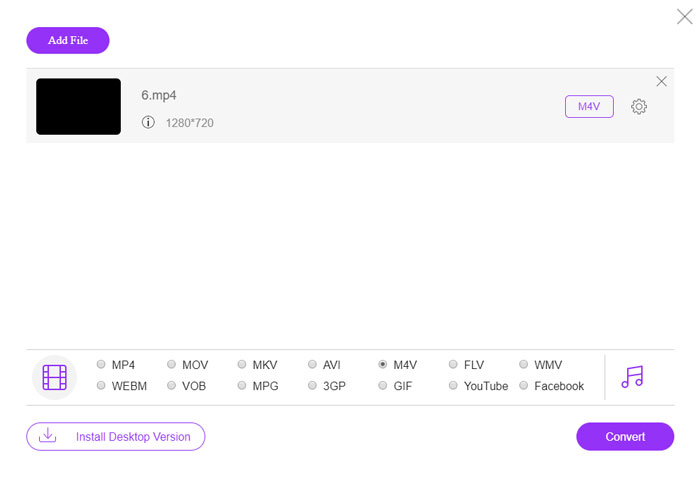
Langkah 1. Buka konverter MP4 ke M4V online, Anda dapat mengeklik tombol Add Files to Convert untuk memuat file MP4 yang ingin Anda konversi. Anda harus mengunduh penginstal konverter video untuk pertama kalinya.
Unduh Versi Desktop untuk mengonversi file secara batch.

Langkah 2. Pilih format file M4V dari antarmuka pengguna. Bila Anda perlu menyesuaikan pengaturan video, Anda dapat mengatur encoder video, resolusi, bitrate video, frame rate, sample rate dan pengaturan lainnya sesuai kebutuhan.

Langkah 3. Setelah itu, Anda dapat mengeklik tombol Convert untuk mengonversi MP4 ke M4V. Proses ini mungkin memerlukan beberapa detik untuk mendapatkan file yang diinginkan, yang kemudian dapat Anda simpan ke komputer atau bagikan ke situs web media sosial.
Metode 2: Cara Mengonversi MP4 ke M4V dengan VLC Media Player
VLC Media Player adalah pengonversi MP4 ke M4V sumber terbuka yang memungkinkan Anda mengonversi video di Windows dan Mac. Ini berfungsi untuk sebagian besar format dan codec, yang mana Anda dapat mengonversi video antara format yang berbeda. Inilah proses rinci yang harus Anda ketahui.
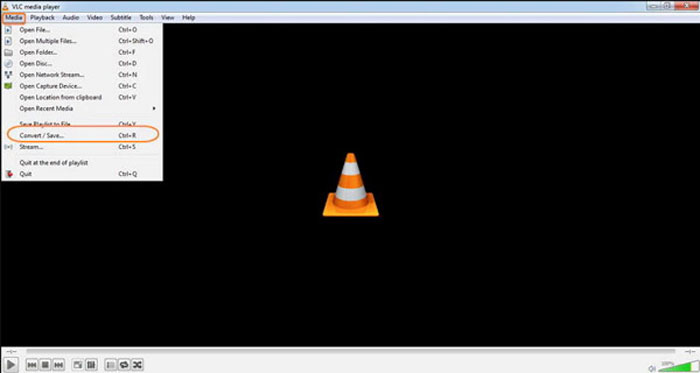
Langkah 1. Buka VLC Media Player di komputer Anda, pilih menu Media dan pilih opsi Convert/Save untuk masuk ke kotak dialog Media. Setelah itu, Anda dapat mengeklik tombol Add untuk menelusuri file.
Langkah 2. Setelah Anda mengimpor video, Anda dapat mengeklik tombol Convert/Save atau langsung menekan Enter pada keyboard. Setelah itu, Anda dapat memilih M4V sebagai format keluaran dan menyesuaikan parameter lainnya.
Langkah 3. Pilih nama file tujuan, yaitu file yang sudah dikonversi dan disimpan. Klik opsi Browse untuk memilih lokasi. Cukup berikan nama seperti final dan klik Save sebelum mengeklik tombol Start untuk mengonversi MP4 ke M4V.
Metode 3: Cara Mengonversi MP4 ke M4V melalui FFmpeg
FFmpeg adalah konverter MP4 ke M4V yang memungkinkan Anda mentranskode video dengan codec. Jika Anda terbiasa dengan codec, Anda dapat mengubah file video dengan kualitas aslinya. Pelajari lebih lanjut tentang metode untuk mengkonversi MP4 ke M4V seperti di bawah ini.
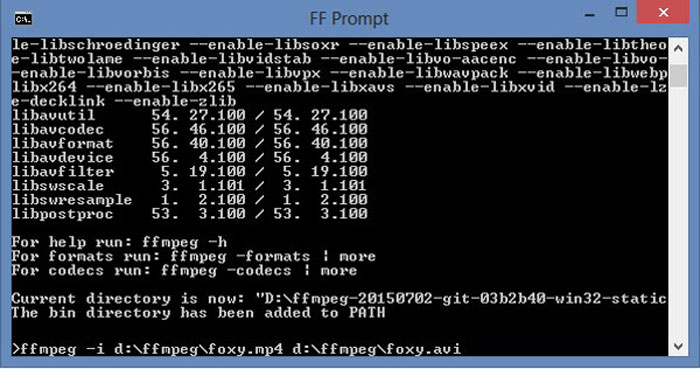
Langkah 1. Buka jendela Command Prompt di PC Windows Anda dan instal FFmpeg dengan baris perintah untuk memasang konverter video gratis ini. FFmpeg memiliki serangkaian perintah lengkap untuk mentranskode video.
Langkah 2. Masukkan perintah berikut untuk mengonversi MP4 ke M4V. Selain itu, Anda juga dapat menyesuaikan codec video, frame rate dan pengaturan lainnya untuk mendapatkan video yang diinginkan.
ffmpeg \-i input.mp4 \
-vcodec copy \
-acodec copy \
output.m4v
Metode 4: Cara Mengonversi MP4 ke M4V dengan HandBrake
HandBrake adalah pengonversi MP4 ke M4V sumber terbuka lainnya. Ini tidak hanya memungkinkan Anda untuk mentranskode file video, tetapi juga menghapus perlindungan DRM pada Windows dan Mac Anda. Tentu saja, Anda juga dapat mengekstrak file video dari disk DVD sesuai kebutuhan Anda.
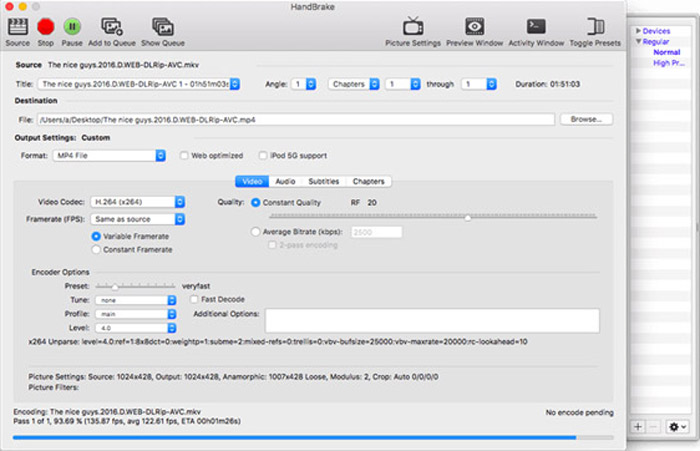
Langkah 1. Unduh dan instal HandBrake, lalu jalankan program di komputer Anda. Pilih opsi Source di bagian atas untuk memilih video MP4 ke dalam program.
Langkah 2. Arahkan ke opsi Output Settings, atur format sebagai file MP4. Tentu saja, Anda juga dapat menyesuaikan codec video, kualitas, FPS, bitrate, preset dan opsi encoder lainnya.
Langkah 3. Setelah itu, Anda dapat mengeklik tombol Start untuk mengonversi MP4 ke M4V dengan mudah. Setelah mendapatkan file M4V yang diinginkan, Anda cukup menyimpan video ke iTunes atau mentransfernya ke perangkat iOS.
MP4 vs. M4V
Dirilis oleh Moving Picture Experts Group (MPEG) pada tahun 2001, format MP4 dapat membantu Anda menyimpan data video, audio, subtitle, dan gambar dalam trek terpisah. Ini adalah kependekan dari MPEG-4 Part 14. Plus, ini adalah salah satu format paling populer yang digunakan untuk streaming dan berbagi video.
M4V dikembangkan oleh Apple, yang juga menggunakan MPEG 4. File M4V sering digunakan untuk menyimpan video yang diunduh dari Apple iTunes store, seperti video musik, episode TV, dll. Anda mungkin menemukan beberapa file M4V dilindungi dari salinan karena menggunakan Perlindungan hak cipta DRM FairPlay Apple.
Langkah 2: Tanya Jawab tentang Mengonversi MP4 ke M4V
1. Apa Perbedaan antara MP4 dan M4V?
Seperti yang disebutkan di atas, perbedaan utama antara MP4 dan M4V adalah pembatasan DRM Fairplay. Format file M4V adalah format wadah video yang dikembangkan oleh Apple untuk menyandikan file video di iTunes Store-nya. Saat Anda perlu memutar video untuk perangkat iOS atau MacBook Anda, Anda dapat mengonversi MP4 ke M4V sebagai gantinya.
2. Dapatkah Anda Menggunakan Metode yang Sama untuk Mengonversi M4V ke MP4?
Tidak. Karena perlindungan DRM dari iTunes Store, Anda tidak dapat langsung mengonversi M4V ke MP4. Anda hanya bisa mengubah ekstensi file MP4 menjadi M4V, yang dapat berfungsi pada sebagian besar pemutar media. Namun perlindungan DRM pada M4V hanya memungkinkan Anda memutar video di perangkat yang telah diotorisasi saja. Anda perlu menggunakan konverter video profesional untuk menghapus perlindungan tersebut.
3. Dapatkah saya mengonversi MP4 ke M4V dengan QuickTime Player di Mac?
Iya. Karena QuickTime Player tidak mendukung M4V sebagai format output, saat Anda perlu mengonversi MP4 ke M4V dengan QuickTime Player, Anda perlu menginstal beberapa plugin untuk mendapatkan video yang diinginkan di MacBook Anda secara gratis dengan mudah.
Kesimpulan
Saat Anda perlu mengimpor video ke iTunes Library untuk perangkat iOS lain, Anda harus mengonversi MP4 ke M4V. Pelajari lebih lanjut tentang 4 metode yang paling sering digunakan untuk mengonversi file M4V dengan mudah. Jika Anda hanya perlu mengkonversi video MP4 secara online dengan kualitas video asli, FVC Free Online Video Converter adalah pilihan terbaik yang harus Anda pertimbangkan.
-
 Cara Mengonversi M4V ke MP4 dengan / Tanpa DRM
 Posting ini adalah panduan terperinci untuk mengonversi M4V ke MP4 untuk pemain apa pun. Anda dapat mengubah M4V ke MP4, bahkan file M4V yang dilindungi, sehingga Anda dapat memutar video M4V tanpa batas.
-
 Apa Perbedaan Antara MP3 dan MP4
 MP3 atau MP4, mana yang lebih baik? Apa perbedaan antara MP3 dan MP4? Artikel ini akan membandingkan MP3 dengan MP4 dari semua aspek yang dapat Anda gambar.
-
 Bagaimana mengkonversi MP4 ke WMV untuk Mac / Windows
 Posting ini membagikan cara mengonversi video MP4 ke format WMV di Mac atau Windows. Kami juga akan menawarkan Anda beberapa opsi, termasuk perangkat lunak desktop dan konverter online berbasis web. Siap untuk mengetahui alat konversi MP4 ke WMV terbaik?

