


 Video Converter Ultimate
 Perekam Layar
 Perbaikan Video
 Unduhan Aman
Cara Mengonversi MP4 ke WebM dengan Kualitas Tinggi - Berikut 4 Metode Terbaik yang Harus Anda Ketahui
Jika Anda ingin mengunggah video MP4 besar ke situs web HTML 5 dan Chromecast, bagaimana cara mengonversi MP4 ke WebM dengan kualitas asli? WebM berisi video VP8, VP9, AV1, Vorbis atau Opus, yang kompatibel dengan semua browser web HTML5 utama, seperti Google Chrome, Firefox, dan Opera. Pelajari lebih lanjut tentang 4 konverter MP4 ke WebM yang efisien dan pilih yang diinginkan sesuai dengan kebutuhan Anda.

Bagian 1: 2 Metode untuk Mengonversi MP4 ke WebM Online Gratis
Top 1: Cara Mengonversi MP4 ke WebM dengan Pengonversi Video Online Gratis
FVC Pengonversi MP4 ke WebM Daring Gratis memungkinkan Anda mengonversi sebagian besar format video dan menyesuaikan pengaturan video/audio hanya dengan beberapa klik. Selain itu, Anda juga dapat mengonversi banyak format tanpa tanda air atau batasan ukuran. Proses konversi aman dan stabil sehingga tidak ada data yang hilang.
- 1. Mendukung konversi batch yang dapat mengkonversi banyak video atau audio.
- 2. Menyediakan antarmuka yang sederhana dan intuitif untuk mengonversi file MP4 hanya dalam 3 langkah.
- 3. Konversi yang aman dan stabil sehingga tidak ada data yang hilang selama konversi.
- 4. Edit bitrate video, sampel, kecepatan bingkai, serta resolusi sesuai keinginan.
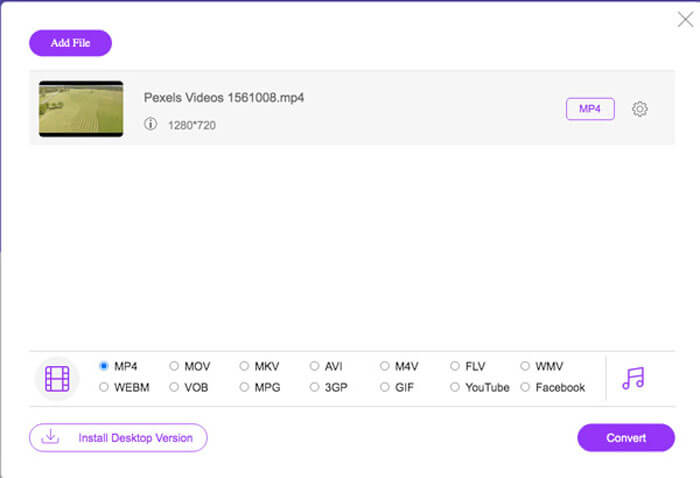
Langkah 1. Buka pengonversi MP4 ke WebM daring, Anda dapat mengunduh file PKG ke komputer Anda. Setelah itu, Anda dapat mengklik tombol Add Files to Convert untuk memuat file MP4 ke dalam program.
Unduh Versi Desktop untuk mengonversi file secara batch.

Langkah 2. Anda dapat memilih opsi WebM sebagai format keluarannya. Saat ingin menyesuaikan pengaturan, Anda dapat mengklik ikon Gear untuk mengatur encoder video, frame rate, bitrate video, dan pengaturan lainnya.
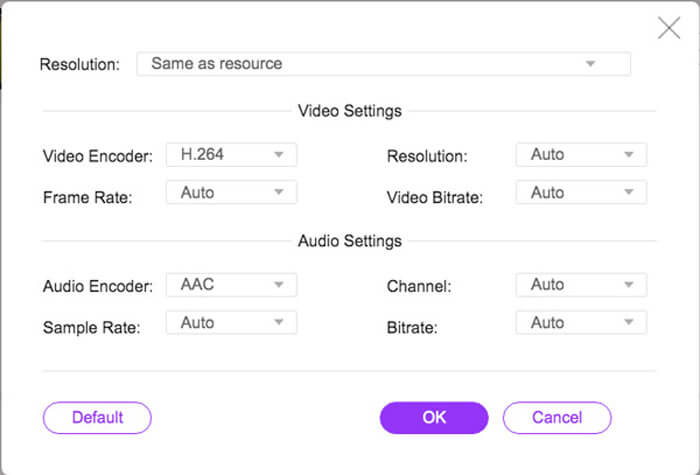
Langkah 3. Jika Anda puas dengan file keluaran, Anda dapat mengklik tombol Convert untuk mengonversi MP4 ke WebM secara online. Hanya butuh beberapa detik untuk mengonversi file MP4 dan menyimpannya ke komputer Anda.
2 Teratas: Cara Mengonversi MP4 ke WebM Online melalui CloudConvert
CloudConvert adalah file MP4 online gratis lainnya ke konverter WebM yang mengonversi sebagian besar format video. Ini juga memungkinkan Anda untuk mengunggah video dari penyimpanan lokal Anda, serta layanan cloud. Anda dapat menggunakannya secara gratis, tetapi dibatasi hingga 25 menit waktu konversi maksimum per file.
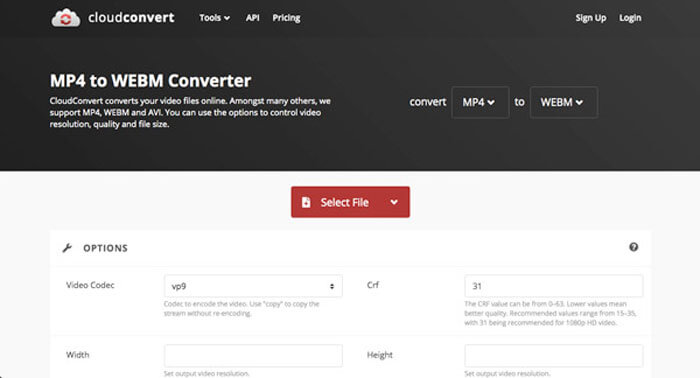
Langkah 1. Kunjungi CloudConvert.com lalu klik tombol Select File dari berbagai saluran, seperti From my Computer, By URL, From Google Drive, From Drop, dan From OneDrive.
Langkah 2. Pilih MP4 sebagai format input dan WebM sebagai format output. Selain itu, Anda juga dapat menyesuaikan pengaturan, seperti FPS, codec audio, rasio aspek, codec video, dan lainnya.
Langkah 3. Setelah itu, Anda dapat mengklik tombol Convert untuk mengonversi MP4 ke WebM sesuai kebutuhan. Lalu Anda dapat mengunduh WebM yang telah dikonversi ke komputer Anda atau mengunggahnya ke layanan cloud sesuai kebutuhan.
Bagian 2: 2 Metode untuk Mengkonversi MP4 ke WebM di PC / Mac
Top 3: Cara Mengonversi MP4 ke WebM dengan FFmpeg
Jika Anda terbiasa dengan codec, atau hanya menggunakan FFmpeg untuk mengonversi MP4 ke WebM secara gratis, Anda dapat menggunakan VP8 atau VP9 untuk mendapatkan video yang sesuai dengan ukuran yang lebih kecil. Pastikan saja FFmpeg Anda dikompilasi dengan dukungan untuk libvpx dan libvorbis.
Langkah 1. Jika Anda ingin mengompilasi dari sumber, Anda harus menggunakan flag berikut sebelum mengonversi MP4 ke WebM.
--with-fdk-aac --with-ffplay --with-freetype --with-frei0r --with-libass --with-libvo-aacenc --with-libvorbis --with-libvpx --with-opencore- amr --with-openjpeg --with-opus --with-rtmpdump --with-speex --with-theora --with-toolsLangkah 2. Setelah itu, Anda dapat mengompilasi file MP4 Anda menggunakan FFmpeg dengan codec yang sesuai dengan kebutuhan Anda.
ffmpeg -i fvc.mp4 -vcodec libvpx -acodec libvorbis "fvc.webm"
4 Teratas: Cara Mengonversi MP4 ke WebM melalui Handbrake
Handbrake adalah pengonversi MP4 ke WebM open source untuk Mac dan Windows yang memungkinkan Anda mengubah format video dan audio ke format apa pun, termasuk MP4, WebM, serta preset. Inilah proses rinci yang harus Anda ketahui.
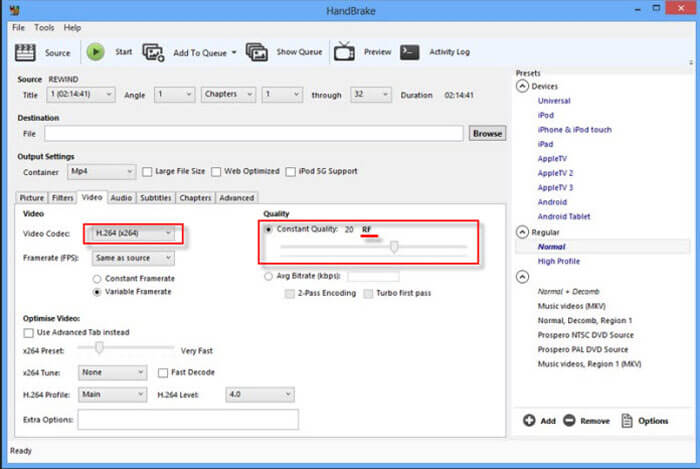
Langkah 1. Unduh dan instal pengonversi MP4 ke WebM di komputer Anda, lalu jalankan program dan pilih file MP4 yang ingin Anda konversi untuk konversi batch.
Langkah 2. Pilih format video yang perlu Anda ekspor di tab format, seperti format WebM. Selain itu, Anda juga dapat menyesuaikan pengaturan video dan audio untuk mendapatkan keluaran WebM yang diinginkan.
Langkah 3. Klik tombol 'Convert' untuk mengonversi MP4 ke WebM. Setelah Anda menyelesaikan proses konversi, Anda dapat mempelajari lebih banyak detail tentang video dalam file tersebut dengan program ini. (Lihat cara mengonversi WebM ke MP4)
MP4 vs. WebM
Dirilis oleh Moving Picture Experts Group (MPEG) pada tahun 2001, format MP4 dapat membantu Anda menyimpan data video, audio, subtitle, dan gambar dalam trek terpisah. Ini adalah kependekan dari MPEG-4 Part 14. Plus, ini adalah salah satu format paling populer yang digunakan untuk streaming dan berbagi video.
WebM adalah format sumber terbuka dan bebas royalti yang dirancang untuk mengirimkan video di web. Ini menggunakan struktur wadah yang mirip dengan MKV, yang berarti dapat menyimpan data video dan audio. Dan banyak browser web seperti Chrome, Edge, dan Firefox mendukung format ini secara default.
Bagian 3: Tanya Jawab tentang Mengonversi MP4 ke WebM dengan Mudah
1. Apa itu Format File WebM?
WebM adalah format file media audiovisual yang pertama kali diperkenalkan oleh Google. Aliran video dari format file ini dikompresi menggunakan codec video VP8 atau VP9. Dibandingkan dengan MP4, ukurannya relatif kecil dan kecepatan pemuatannya cepat. Tetapi format file WebM tidak kompatibel dengan semua browser saat Anda mengonversi MP4 ke WebM.
2. WebM VS MP4, Mana yang Lebih Baik?
Apa perbedaan antara WebM dan MP4? Kualitas WebM dan MP4 ditentukan oleh codec. Secara umum, output MP4 berkualitas tinggi dengan ukuran yang lebih besar. Tentu saja, WebM juga dapat menawarkan kualitas tinggi, tetapi ukurannya relatif kecil. Perbedaan utamanya adalah file WebM tidak kompatibel dengan smartphone, seperti iPad atau iPhone.
3. Bagaimana Cara Memutar File WebM di Smartphone?
Untuk memutar file WebM di iPhone atau ponsel Android Anda, Anda dapat mengunduh VLC Media Player, MX Player, atau pemutar media lainnya terlebih dahulu. Tentu saja, Anda juga dapat mengonversi WebM ke MP4 yang kompatibel dengan sebagian besar perangkat.
Kesimpulan
Jika Anda ingin mengupload video besar ke YouTube, Vimeo, dan situs kompatibel HTML5 lainnya, Anda dapat mempelajari selengkapnya tentang 4 konverter MP4 ke WebM gratis yang sering digunakan dari artikel. Jika Anda ingin mentranskode MP4 dengan kualitas asli, FVC Free Online Video Converter selalu menjadi pilihan terbaik yang dapat Anda pertimbangkan.
-
 Cara Mengonversi MP3 ke MP4 dengan Gambar di Windows 10 dan Mac
 Bagaimana cara mengonversi MP3 ke MP4 dalam kualitas tinggi? Posting ini menunjukkan 3 metode efisien dan gratis untuk mengubah MP3 ke MP4 dengan gambar di Windows dan Mac.
-
 Dari 50MB hingga 5MB - Cara Mengompres File MP4 dalam Hitungan Detik
 Video MP4 terlalu besar untuk diunggah? Ingin memperkecil ukuran video? Berikut adalah 3 cara efisien untuk mengompres file MP4 ke ukuran yang lebih kecil tanpa batas.
-
 Cara Mengonversi MP4 ke M4A di Windows / Mac (Gratis & Online)
 Bagaimana cara mengonversi MP4 ke M4A secara online? Bisakah saya mengekstrak audio dari file MP4? Baca posting ini, dan Anda akan mendapatkan semua jawaban tentang konversi dari MP4 ke M4A.

