


 Video Converter Ultimate
 Perekam Layar
 Perbaikan Video
 Unduhan Aman
Metode Tidak Menantang untuk Mengonversi MTV ke MP4 dengan Mudah
Saat ini, banyak pengguna bertanya bagaimana cara mengonversi file video MTV ke format lain. Ini adalah hari yang tepat bagi Anda karena kami akan menunjukkan metode paling efektif yang dapat Anda gunakan untuk mengonversi berbagai file video. Anda juga akan menemukan dua aplikasi yang layak digunakan dalam artikel ini yang dapat membantu Anda mengubah file. Jadi, baca artikel ini sekarang juga dan pelajari proses terbaik untuk mengonversi MTV ke MP4.

Bagian 1: Mengapa Perlu Melakukan Konversi?
Ratusan platform berurusan dengan file video di era digital saat ini, dan masing-masing memiliki preferensi sendiri. Anda mungkin merekam video, tetapi sekarang Anda harus mengonversinya agar sesuai dengan persyaratan platform lain. Berikut adalah tiga alasan terbaik mengapa Anda perlu melakukan konversi.
1. Kompatibilitas perangkat dengan format file.
Saat mentransfer file dari satu perangkat digital ke perangkat digital lainnya, Anda mungkin sering mengalami masalah kompatibilitas perangkat. Bisa jadi karena gadget tertentu menyukai satu format file daripada yang lain dan tidak mendukung yang lain. Misalnya, kamera digital mungkin menyimpan file videonya dalam format yang mungkin memerlukan bantuan pemutar video ponsel Anda untuk dapat membacanya. Dalam situasi ini, Anda perlu mengonversi video Anda ke format lain seperti MOV ke MP4 atau MP4 ke MP3, karena MP4 saat ini merupakan format yang menerima banyak dukungan.
2. Ukuran filenya besar.
Ukuran file harus sering diturunkan saat mentransfer video melalui Internet. Misalnya, jika Anda memiliki ukuran file yang besar dan tidak dapat membukanya, solusi terbaik adalah mengonversi video ke format file lain untuk mengompresnya dan memperkecil ukuran file.
3. Untuk meningkatkan bitrate video.
Bitrate adalah jumlah bit per detik. Ini digunakan untuk menentukan ukuran dan kualitas file video. Kualitas file video meningkat dengan meningkatnya bitrate. Namun, bitrate yang lebih tinggi memerlukan ukuran file yang lebih besar, yang memperlambat kemampuan video untuk menyangga platform online. Jadi, mengonversi video Anda ke file bitrate sedang sangat penting untuk memutarnya dengan cepat dan membuatnya lebih memuaskan bagi pemirsa.
Bagian 2: Cara Mudah Mengonversi MTV ke MP4
Jika Anda menginginkan pengonversi MTV ke MP4 yang diunduh gratis, gunakan Video Converter Ultimate. Anda dapat mengonversi file video dalam jumlah tak terbatas tanpa membayar apa pun. Dalam hal mengonversi banyak file secara bersamaan, pengonversi offline ini dapat diandalkan. Karena mengonversi file 30 kali lebih cepat daripada pengonversi lainnya, Anda juga dapat mengonversi file secara instan. Selain itu, konverter ini memiliki antarmuka yang ramah pengguna yang dapat diakses oleh semua pengguna dan memudahkan penggunaan program ini. Selain itu, Anda dapat mengedit atau mengubah video MTV Anda di sini. Video Anda dapat diedit sesuai panjang yang Anda inginkan, diputar 360 derajat, menambahkan efek, dan banyak lagi. Selain opsi ini, Anda juga dapat menggunakan video atau gambar untuk membuat GIF.
Fitur
◆ Mengkonversi lebih dari 100 format video yang berbeda, seperti MTV, MP4, M4V, MKV, WMV, MOV, AVI, FLV, SWF, MTS, AMV, dan 3GP.
◆ Menyediakan metode konversi batch.
◆ Menawarkan alat untuk mengedit video, termasuk pembuat GIF, pemangkas, kompresor, pemangkas, pemangkas, dan pembalik.
Gunakan proses mendetail untuk mempelajari cara mengonversi MTV ke MP4 dengan mudah menggunakan FVC Video Converter Ultimate.
Langkah 1: Unduh dan instal Video Converter Ultimate. Klik tombol Download di bawah ini. Jalankan aplikasinya setelah proses instalasi selesai.
Unduh GratisUntuk Windows 7 atau yang lebih baruUnduhan Aman
Unduh GratisUntuk MacOS 10.7 atau yang lebih baruUnduhan Aman
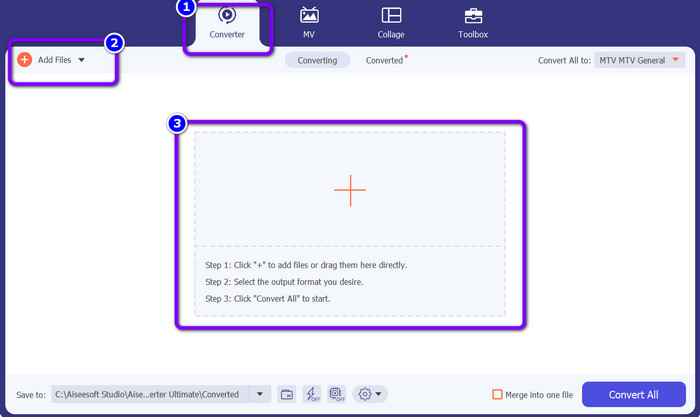
Langkah 2: Masuk ke panel Converter. Lalu, klik tombol Add Files atau simbol Plus untuk mengimpor file video MTV.
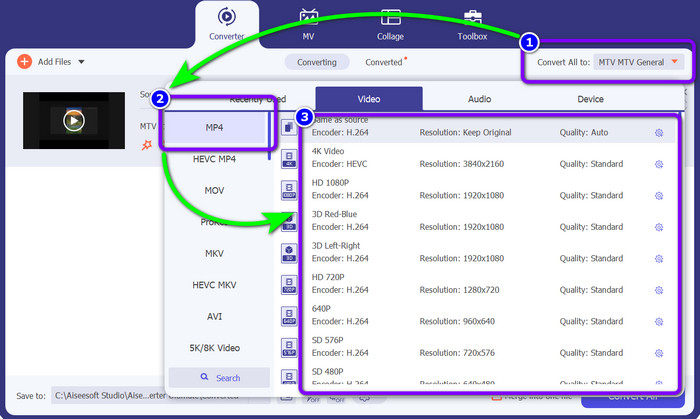
Langkah 3: Buka tombol Convert All to dan pilih file MP4 dari opsi format. Lalu, pilih kualitas yang Anda inginkan.
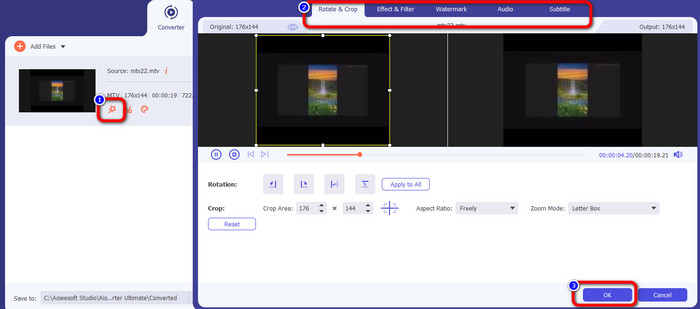
Langkah 4: Jika Anda ingin mengedit video, pergi ke ikon Edit. Setelah itu, antarmuka baru akan muncul di layar. Di antarmuka tersebut, Anda dapat memutar dan memotong video, serta menambahkan watermark, filter, dan lainnya. Setelah selesai mengedit video, klik tombol OK.
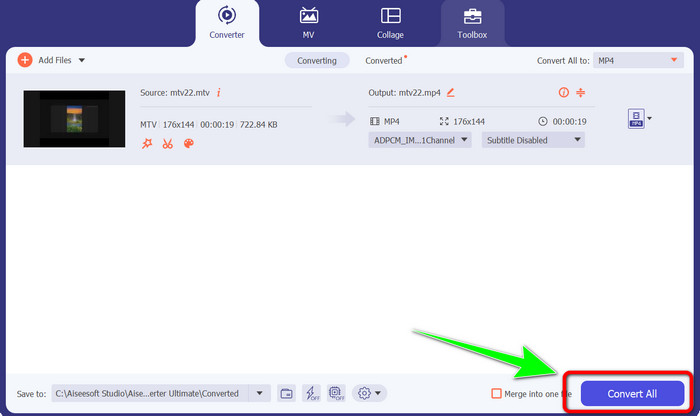
Langkah 5: Terakhir, klik tombol Convert All untuk mengonversi file MTV ke format MP4. Tunggu beberapa saat hingga proses konversi selesai dan simpan video Anda di lokasi yang telah ditentukan.
Bagian 3: Metode Terbaik untuk Mengonversi MTV ke MP4 Online
Ingin tahu cara mengonversi MTV ke MP4 secara online? Maka gunakan FVC Free Video Converter Online. Berkat antarmukanya yang ramah pengguna dan sederhana, Anda dapat dengan mudah mengonversi video Anda. Salah satu keunggulannya adalah kemampuan konversi batch, yang memungkinkan Anda mengonversi banyak file sekaligus. Dengan demikian, Anda tidak perlu menghabiskan banyak waktu. Program ini juga memungkinkan Anda mengubah bitrate, frame rate, dan resolusi video. Resolusi dapat diubah hingga 1920x1080. Jadi Anda bisa memastikan dapat memutar video berkualitas tinggi. Selain itu, Anda juga dapat mengonversi file audio. Program ini kompatibel dengan banyak jenis file, termasuk FLAC, MP3, AAC, AC3, WMA, MKA, dan WAV. Anda juga dapat mengubah bitrate dan sample rate audio. Selain itu, FVC Free Video Converter Online tersedia di semua sistem operasi melalui berbagai browser, termasuk Microsoft Edge, Mozilla Firefox, Safari, dan Google Chrome. Dengan demikian, Anda tidak akan menemui masalah, terutama saat menentukan di mana akan menggunakan konverter online ini.
fitur
◆ Konversi banyak format video secara bersamaan.
◆ Mampu mengubah resolusi video, bitrate, dan frame rate.
◆ Format audio seperti MP3, FLAC, MKA, AAC, AC3, dan lainnya dapat dikonversi.
◆ Ini dapat mengubah bitrate dan sample rate audio.
Ikuti panduan sederhana di bawah ini untuk mengonversi MTV ke MP4 dengan mudah menggunakan FVC Free Video Converter Online di browser Anda.
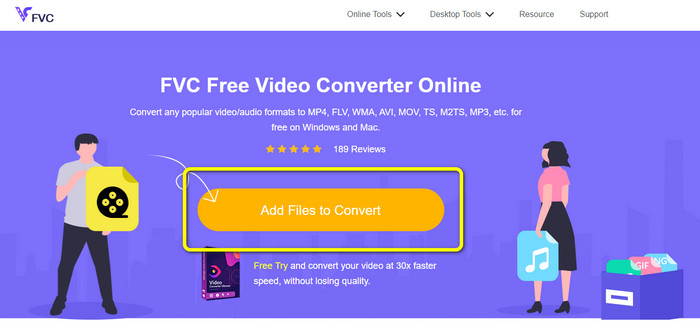
Langkah 1: Buka situs resmi FVC Free Video Converter Online di browser apa pun. Lalu, klik tombol Add Files to Convert untuk melampirkan file MTV yang ingin Anda konversi.
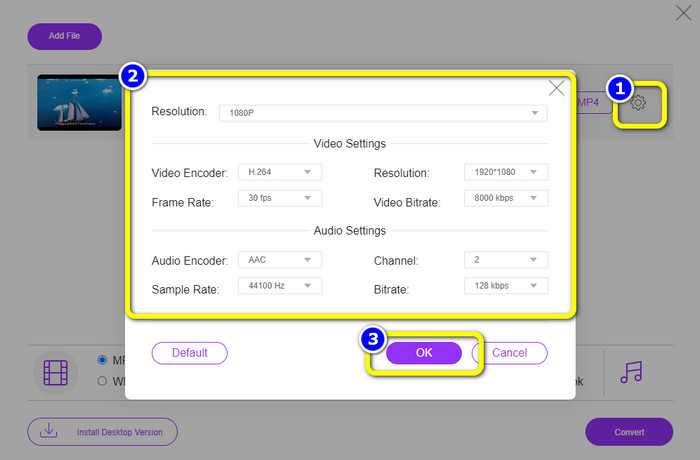
Langkah 2: Klik ikon Setting untuk mengedit pengaturan video Anda. Anda dapat mengatur resolusi hingga 1080p. Selain itu, Anda diperbolehkan mengubah sample rate, bitrate, dan frame rate audio serta video. Lalu klik OK.
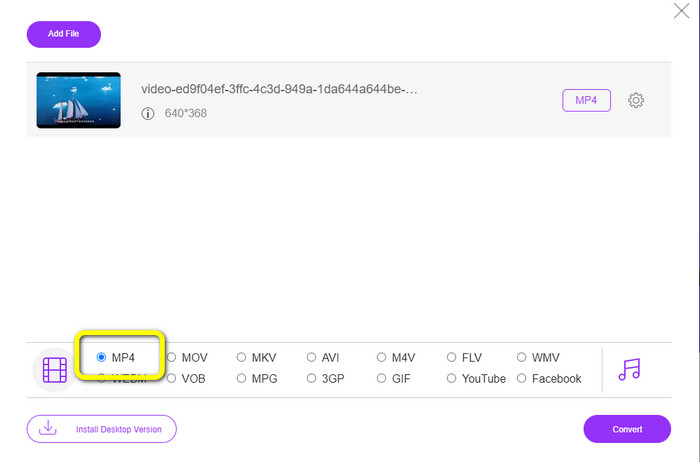
Langkah 3: Setelah itu, ubah format output dengan memilih format file MP4 dari opsi format di bagian bawah antarmuka.
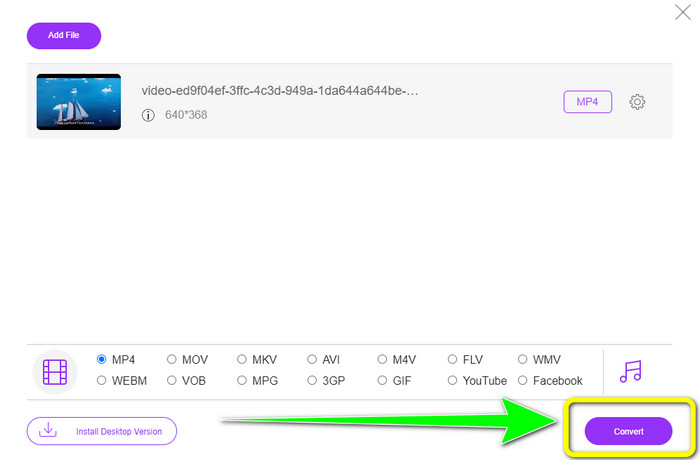
Langkah 4: Klik tombol Convert untuk melanjutkan proses konversi. Lalu pilih folder tujuan tempat Anda ingin menyimpan file video.
Bacaan lebih lanjut
2 Konverter Terbaru untuk Mengonversi MTV ke WMV tanpa Kehilangan Kualitas
Dengan Mudah Mengonversi MTV ke MKV Menggunakan Converter Terbaik Ini
Bagian 4: FAQ tentang Konversi MTV ke MP4
1. Apa itu file MTV?
File MTV adalah video yang disimpan dalam format MTV, unik untuk beberapa pemutar video 'MP4' portabel China. Ini memiliki audio MP3 dan menampilkan serangkaian gambar dengan kecepatan bingkai 12 per detik saat diputar ulang. File MTV sebanding dengan file AMV tetapi dengan format yang berbeda.
2. Bagaimana cara membuka file MTV?
Anda dapat membuka file MTV menggunakan Video LAN, VLC Media Player, atau Online Media Technologies AVS Media Player.
3. Mana yang lebih baik, MKV atau MP4?
Dalam hal kompatibilitas, MP4 lebih baik daripada file MKV. MP4 memiliki kompatibilitas yang lebih luas, dan Anda dapat memutar file ini di platform apa pun.
Kesimpulan
Mengonversi MTV ke MP4 menjadi mudah setelah Anda mengetahui alat yang tepat. Artikel ini telah memberikan metode terbaik untuk mengonversi MTV ke MP4 dengan mudah menggunakan aplikasi online dan offline. Selain itu, masing-masing memiliki fitur unik yang dapat Anda nikmati. Jadi, jika Anda ingin mengonversi lebih banyak file video dengan mudah dan instan, gunakan Video Converter Ultimate dan FVC Free Video Converter Online.
-
 2 Cara Efektif Mengonversi MTV ke MOV di Mac [2023]
 Ingin mengonversi file MTV Anda menjadi MOV dan menggunakannya di Mac Anda? Jadi, mari kita lihat 2 konverter yang dapat Anda gunakan untuk mengonversi file .mtv Anda menjadi format .mov baru.
-
 Pengonversi MTV ke FLV Bebas repot untuk Mengubah MTV ke FLV
 Mencoba konverter baru yang mengubah MTV ke FLV? Baca artikel ini untuk mengetahui konverter MTV ke FLV yang merupakan konverter paling terkemuka di antara konverter lainnya.
-
 2 Prosedur Luar Biasa untuk Mengonversi AMV ke MP4 dengan Cepat
 Ketahui cara mengonversi AMV ke MP4 menggunakan konverter video ini. Anda juga akan mempelajari instruksi AMV dan MP4 yang paling mudah diakses dan terperinci
