


 Video Converter Ultimate
 Perekam Layar
 Perbaikan Video
 Unduhan Aman
3 Cara Gratis untuk Mengonversi File VOB ke MP4 di Windows / Mac / Online
VOB dikenal sebagai format file Objek Video DVD. Dengan demikian, cakram DVD menyimpan aliran video, audio dan subtitle sebagai format VOB secara default. Sedangkan untuk MP4, ini adalah format kontainer yang populer untuk menyimpan data video, audio dan subtitle. Perbandingan terbesar antara VOB VS MP4 adalah kompatibilitasnya. Hampir semua perangkat dan pemutar portabel dapat memutar video MP4. Itulah alasan terbesar untuk mengonversi format VOB ke MP4.
Selain itu, file VOB selalu dalam ukuran file yang besar. Untuk menghemat ruang penyimpanan dan memperbaiki masalah ketidakcocokan, mengonversi VOB ke MP4 adalah pilihan yang baik. Anda dapat menyimpan konten video yang sama dengan kualitas yang cukup baik dan ukuran file yang jauh lebih kecil. Hasilnya, Anda dapat memutar video VOB di ponsel atau komputer Anda langsung setelah mengonversi ke format MP4.

Bagian 1: Bagaimana Mengkonversi VOB ke MP4 Online dalam Batch
Apakah ada konverter VOB ke MP4 online yang mendukung konversi batch? Tentu saja. Ada FVC Free Online Video Converter yang memungkinkan pengguna melakukan konversi batch VOB ke MP4 secara gratis secara online. Tidak ada batasan durasi maksimum. Anda tidak perlu khawatir tentang ukuran file yang terlalu besar. Jadi, jika Anda sedang mencari konverter VOB ke MP4 online tanpa batasan, FVC Free Online Video Converter bisa menjadi pilihan pertama Anda.
- • Batch mengkonversi file VOB ke MP4 dengan tetap menjaga kualitas aslinya.
- • Tidak ada batasan ukuran file. Anda dapat mengonversi file VOB besar ke MP4 secara gratis.
- • Sesuaikan resolusi video, kecepatan sampel, kecepatan bingkai, dan lainnya sebelum mengekspor VOB ke format MP4.
- • Tidak ada tanda air. Video MP4 Anda yang telah dikonversi akan sepenuhnya bebas tanda air.
Langkah 1: Klik Add Files to Convert dan instal peluncurnya. Di jendela yang muncul, telusuri dan tambahkan file VOB Anda.
Langkah 2: Di bagian bawah konverter video online, atur MP4 sebagai format video keluarannya.
Langkah 3: Klik ikon gear di samping untuk menyesuaikan pengaturan video keluaran.
Langkah 4: Klik Convert untuk mengonversi VOB ke MP4 secara online secara gratis.
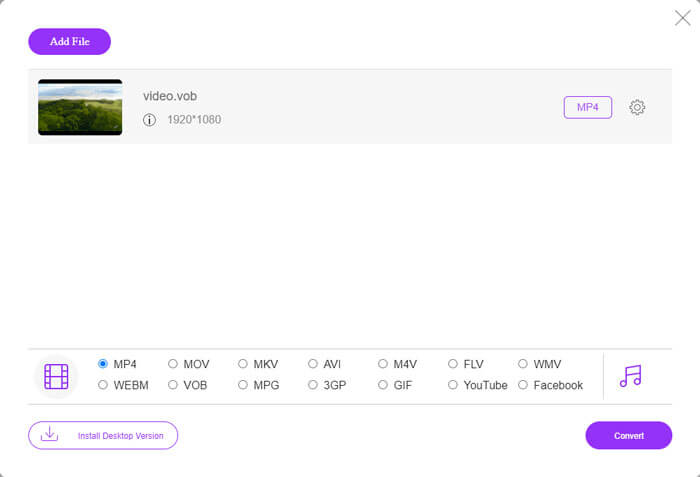
Konverter MP4 online gratis ini juga dapat mengubah format lain seperti M2TS, MTS, MOV, MKV, WMV, TS, dll., ke MP4.
Ia juga memiliki versi desktop untuk Anda coba:
Unduh GratisUntuk Windows 7 atau yang lebih baruUnduhan Aman
Unduh GratisUntuk MacOS 10.7 atau yang lebih baruUnduhan Aman
Bagian 2: Bagaimana mengkonversi VOB ke MP4 di Windows (dengan VLC)
VLC dapat menjadi aplikasi pengonversi VOB ke MP4 gratis Anda untuk pengguna Windows, Mac, iOS dan Android. Anda dapat mengonversi file VOB ke MP4 di ponsel atau komputer Anda dengan mudah. Di sini akan menunjukkan kepada Anda cara mengonversi VOB ke MP4 di Windows 10 menggunakan VLC Media Player.
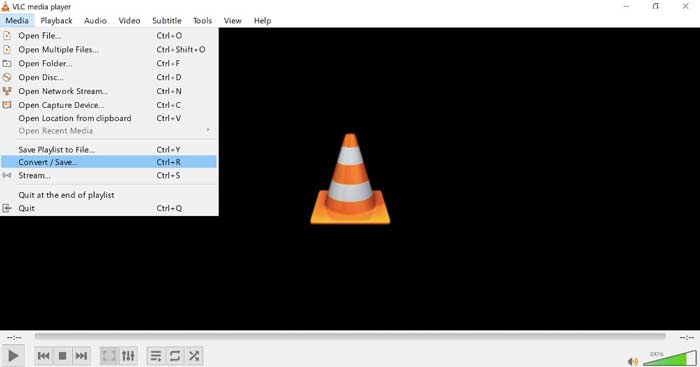
Langkah 1: Jalankan VLC. Pilih Convert/Save dari daftar Media di bagian atas.
Langkah 2: Klik Add di jendela Open Media. Telusuri dan impor video VOB ke VLC.
Langkah 3: Pilih Convert dari Convert/Save di sudut kanan bawah.
Langkah 4: Dari bagian Profile, atur MP4 sebagai format video keluarannya.
Langkah 5: Klik Start untuk mulai mengubah file VOB ke MP4 dengan VLC.
Bagian 3: Bagaimana mengkonversi VOB ke MP4 di Mac (dengan HandBrake)
HandBrake adalah pengonversi video sumber terbuka yang dapat mengonversi VOB ke MP4 secara gratis di Windows, Mac dan Linux. Ini didukung untuk mengonversi beberapa file VOB ke MP4 secara bersamaan. Padahal kecepatan konversi videonya tidak cepat.
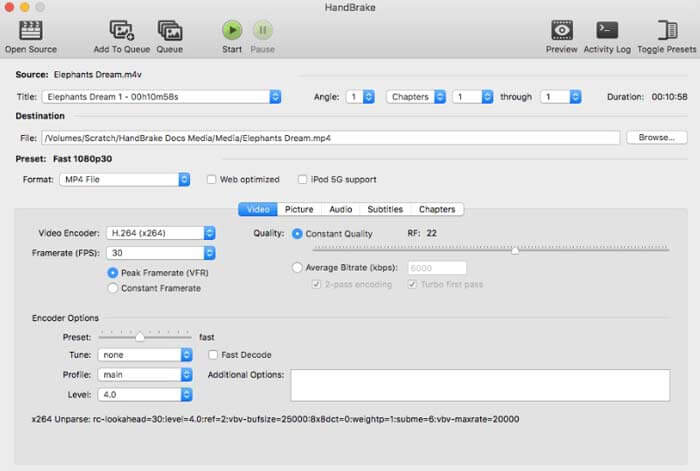
Langkah 1: Jalankan HandBrake. Klik Open Source untuk menambahkan file DVD VOB.
Langkah 2: Klik Browse untuk mengatur folder tujuan yang baru.
Langkah 3: Di bawah bagian Preset, pilih MP4 dari daftar Format.
Langkah 4: Atur pengaturan keluaran video lainnya.
Langkah 5: Klik Start untuk mengonversi VOB ke MP4 di Mac dengan HandBrake.
-
Bagian 4: Tanya Jawab tentang Mengubah VOB ke MP4
Bagaimana cara mengubah VOB ke MP4 menggunakan FFmpeg?
FFmpeg adalah konverter VOB yang bagus untuk pengguna Windows dan Mac. Namun, FFmpeg tidak ramah digunakan dan diterapkan bagi pemula. Jika Anda terbiasa dengan perintah baris, Anda dapat mengetik ffmpeg -i input -acodec libfaac -vcodec mpeg4 -b 1200k -mbd 2 -flags+mv4+aic -trellis 2 -cmp 2 -subcmp 2 -metadata title=filename output.mp4 di jendela FFmpeg. Lalu tekan tombol Enter untuk mengonversi VOB ke MP4 dengan FFmpeg.
Bisakah Anda mengonversi VOB ke MP4 menggunakan Windows Media Player?
Tidak. Windows Media Player hanya dapat menjadi pemutar VOB Anda. Anda dapat memutar file VOB di Windows Media player. Ngomong-ngomong, pertama kali Anda memutar file VOB di Windows, Anda akan diminta untuk mengunduh codec.
Bagaimana cara memainkan file VOB di iPhone dan Android?
VOB pada awalnya tidak didukung oleh ponsel. Anda perlu menginstal pemutar VOB, seperti VLC Media Player. Atau Anda dapat mengubah VOB ke format lain untuk mengompres ukuran file secara efektif. Misalnya, Anda dapat membuat file VOB dari MP4 untuk memutar ulang iPhone dan Android.
Apa pengonversi VOB ke MP4 terbaik? Orang yang berbeda memiliki jawaban yang berbeda. Beberapa orang ingin mengonversi VOB ke MP4 secara batch tanpa kehilangan kualitas, sementara yang lain lebih fokus pada antarmuka yang intuitif, fitur-fitur canggih, dan banyak lagi. Apapun, jika Anda tidak ingin menginstal apa pun, tetapi Anda masih perlu mengonversi file VOB besar ke MP4, FVC Free Online Video Converter adalah pilihan tepat Anda. Anda dapat mengonversi file VOB ke MP4 secara online tanpa batas dan tanda air.
Lebih Banyak Bacaan-
 Cara Mengkonversi M2TS ke MP4 tanpa Mengurangi Kualitas
 Ingin mengonversi video dari camcorder HD ke MP4 umum? Berikut adalah 5 cara sederhana dan gratis untuk mengubah file M2TS menjadi MP4 di Windows dan Mac.
-
 Cara Mengonversi MOV ke MP4 tanpa Kehilangan Kualitas
 Ingin mengonversi file MOV (Apple QuickTime Movie) ke MP4? Posting ini membagikan 4 metode gratis untuk mengonversi file video MOV Anda ke format MP4 di Windows 10/8/7 / XP dan Mac OS X.
-
 Cara Mengedit dan Mengkonversi File M2TS Secara Gratis
 Bagaimana cara mengedit file M2TS secara gratis? Apakah ada cara untuk mengonversi file M2TS? Dalam panduan ini, kami akan menunjukkan kepada Anda editor M2TS gratis terbaik untuk membantu Anda mengedit dan mengonversi file M2TS dengan mudah.
-
