


 Video Converter Ultimate
 Perekam Layar
 Perbaikan Video
 Unduhan Aman
5 Cara Memperbaiki Windows Media Player Tidak Bekerja di Windows 7/8/10
Windows Media Player telah berhenti bekerja. Masalah menyebabkan program berhenti bekerja dengan benar. Itu juga akan memutar audio tetapi bukan video. Bagaimana cara memperbaiki masalah ini?
Ketika Windows Media Player berhenti bekerja, Anda mungkin menerima kesalahan "Window Media Player telah berhenti bekerja" tanpa informasi khusus tentangnya, atau Anda diberitahu bahwa "Jenis file tidak didukung". Bahkan tidak ada petunjuk, dan klik Anda tidak berfungsi.
There are many reasons causing Windows Media Player not working. The most common problem is that the files are not supported, and it will lead to playing videos without images, or audio, or subtitles. Otherwise, the causes will be very various without any specific prompt. In this case, you have to check all the problems listed in the following article to fix this complex error. But you can also choose the best way to use an alternative video player to watch any video without issues and limitations.

Bagian 1: Pemutar Media Alternatif Terbaik yang Tidak Boleh Anda Lewatkan
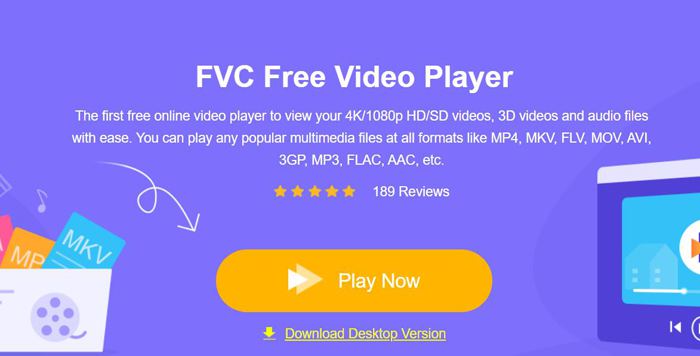
To avoid Windows Media Player not working, you’d better choose a professional alternative. FVC Free Video Player is a free online video player that will solve all of the problems you may encounter when using Window Media Player. It supports playing videos without the limitation of format and resolution. And without downloading any other software, you can play all video formats smoothly.
- 1. Mendukung pemutaran hampir semua format, termasuk file FLV, MKV, RMVB, dan DVD atau Blu-ray.
- 2. Putar video dengan kualitas tinggi yang mencapai resolusi 4K.
- 3. Mampu menyesuaikan trek audio dan subtitle dalam berbagai bahasa.
- 4. Ambil tangkapan layar kapan saja saat memutar video.
Step 1: Navigate to the website of FVC Free Video Player on any browser. Then click the Play Now button to install the launcher. After a few minutes, click the Play Now button again to start the FVC Free Video Player.
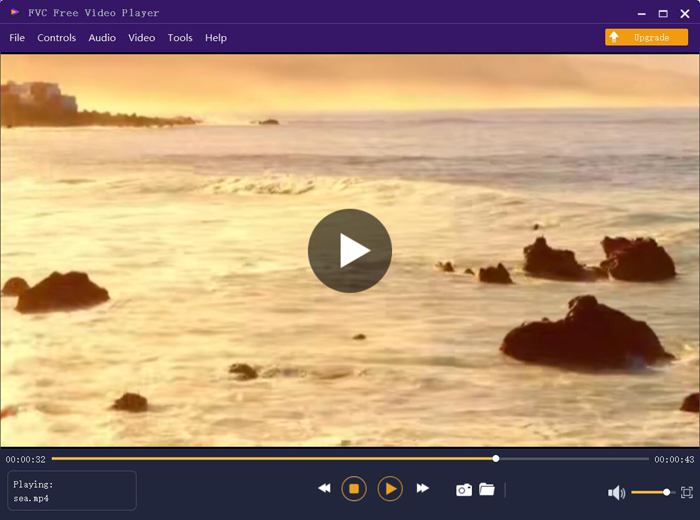
Step 2: Click the Open Files button to choose the desired video. Then it will start playing automatically. In the Control menu, you can see the hotkeys to adjust the volume. And you can also choose the audio or video tracks according to your need. Moreover, if you click the Tools button and choose the Effect option, you can even adjust the hue, brightness, contrast, saturation, and gamma.
Bagian 2: Bagaimana Memperbaiki Window Media Player Tidak Bekerja pada Windows 7/8/10
Seperti yang disebutkan sebelumnya, banyak alasan yang dapat menyebabkan Windows Media Player tidak berfungsi, dan ada 3 metode untuk memperbaiki masalah ini dalam situasi yang berbeda.
Metode 1: Luncurkan pemecah masalah Window Media Player
Ketika Windows Media Player Anda tidak merespons setelah diklik, cara ini akan membantu Anda menyelesaikannya.
Step 1: Press the Windows and R buttons on your keyboard to start the Run program. Then you should copy and paste msdt.exe -id WindowsMediaPlayerConfigurationDiagnostic in the search bar. Click the OK button to locate to the troubleshooter of Windows Media Player Settings. Then click the Next button to start it.
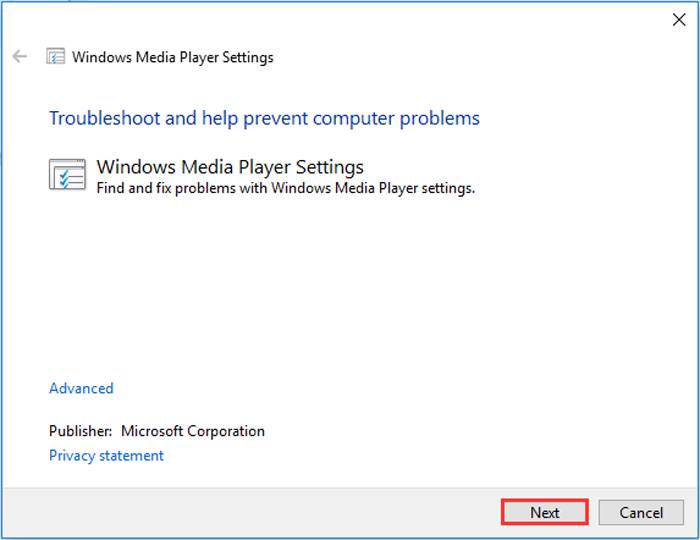
Step 2: After the window pops up, click the Apply this fix button to reset Windows Media Player to the default settings. Then you can try restarting Windows Media Player.
Metode 2: Instal dekoder lain di Windows Media Player
Jika Windows Media Player Anda tidak berfungsi dengan beberapa video atau audio khusus, Anda dapat mengunduh dekoder yang merespons untuk memutar video ini.
Step 1: Open Microsoft Store on your computer. Click the Search button, and then input the Video Extension in the search bar. You can download the desired video expansion on your computer.
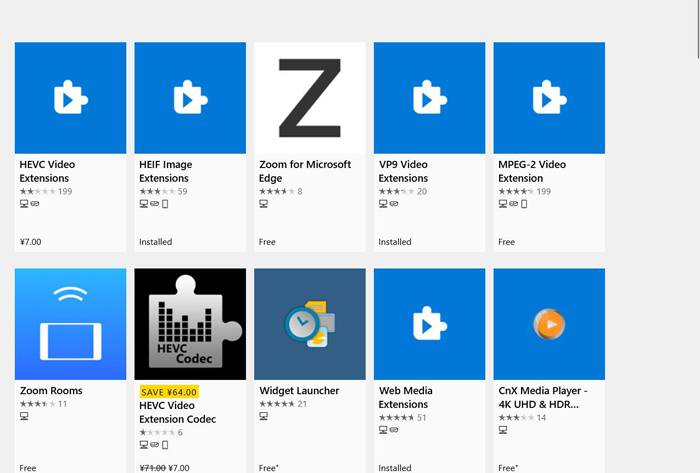
Step 2: After the installation, reopen the videos through Windows Media Player. But you should note that there are still many formats not supported, including FLV, RMVB, etc.
Metode 3: Instal ulang Windows Media Player.
Jika metode yang disebutkan tidak berhasil, Anda harus mencoba menginstal ulang perangkat lunak saat Windows Media Player berhenti bekerja.
Step 1: Press Windows and R buttons on your keyboard to open the Run program. Then type optionalfeatures.exe in the search bar. Click the OK button to open or close a function. Then you can cancel the tick of Windows Media Player.
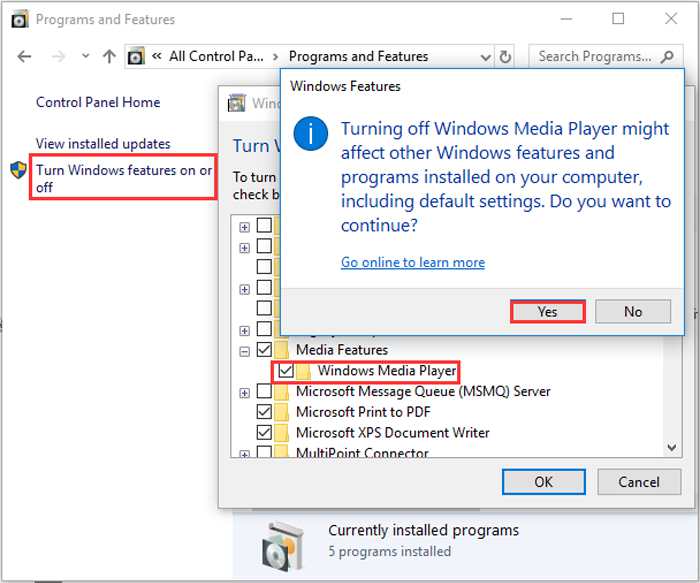
Step 2: Restart your computer and repeat the previous operation. Then tick the Windows Media Player. After that, reboot your computer again, and the software will be installed automatically on your computer.
Kecuali untuk masalah ini, Windows Media Player juga memiliki banyak kelemahan. Anda tidak dapat menyesuaikan kecepatan pemutaran video, dan tombol pintas selalu tidak berguna. Jadi mengapa tidak memilih pemutar video online gratis untuk menyelesaikan semua masalah?
Bagian 3: FAQ Windows Media Player Tidak Bekerja
1. Mengapa file video FLV tidak dapat diputar di Windows Media Player?
Although Windows Media Player supports installing multiple decoders to playback videos in some uncommon formats, FLV format is not supported. In this case, you can try downloading Windows Media Player alternatives or converting the video formats.
2. Mengapa Window Media Player saya tidak berfungsi setelah pembaruan Windows 10?
Mungkin Windows Media Player rusak setelah pembaruan. Anda dapat mencoba metode 3 yang disebutkan untuk menginstal ulang Windows Media Player.
3. Bagaimana cara memilih trek subtitle di Window Media Player?
Sayangnya, tidak ada opsi untuk memilih subtitle, video, dan trek audio yang berbeda di Windows Media Player. Anda dapat memilih alternatif lain untuk memutar video.
Kesimpulan
Alasan yang menyebabkan Windows Media Player tidak berfungsi akan sangat kompleks, yang membuatnya sulit untuk memperbaiki masalah ini. Dengan demikian, Anda cukup mengunduh pemutar media alternatif terbaik - Pemutar Video Gratis FVC untuk memutar video dengan lancar dengan kualitas tinggi. Dengan cara ini, Anda dapat mencegah Windows Media Player tidak berfungsi selamanya.
-
 Cara Memutar DVD di Windows Media Player pada tahun 2021
 Mengapa DVD saya tidak dapat diputar di Windows Media Player? Bagaimana cara memutar DVD pada pemutar media Windows 7? Posting ini membagikan 3 cara untuk memutar DVD dengan atau tanpa WMP.
-
 6 Solusi Terverifikasi untuk Memperbaiki Video yang Tidak Dapat Diputar di Chrome
 Untuk memperbaiki masalah video tidak dapat diputar di Chrome, yang perlu Anda lakukan hanyalah membaca pemecahan masalah kami dan melakukan solusi terverifikasi satu per satu.
-
 5 Solusi Berfungsi 100% untuk Memperbaiki Video yang Tidak Dapat Diputar di iPad
 Video Anda tidak diputar di iPad? Berikut adalah lima solusi untuk membantu Anda menyingkirkan masalah ini dan kemudian Anda dapat menikmati video favorit Anda di handset dengan mudah.
