


 Video Converter Ultimate
 Perekam Layar
 Perbaikan Video
 Unduhan Aman
Konversi DVD Anda ke File ISO dengan Mudah [Panduan Cepat]
DVD rentan terhadap kerusakan yang tidak dapat dipulihkan setelah pecah. Hal ini disebabkan oleh permukaannya yang sensitif terhadap goresan dan benturan fisik lainnya, yang dapat mengganggu data yang tersimpan di dalamnya. Untuk memiliki berkas cadangan, cara terbaik adalah dengan membuat berkas ISO dari berkas tersebut.
File ISO adalah salinan digital lengkap dari sebuah DVD yang berisi semua data, menu, dan struktur file dalam satu file tunggal. Pengguna dapat dengan mudah mengakses kontennya tanpa khawatir akan kerusakan fisik yang dapat menyebabkan hilangnya konten media selamanya. Dengan demikian, dalam artikel ini, pelajari cara mudah mengonversi DVD ke ISO dan dapatkan panduan mengenai alat yang bisa Anda gunakan sesuai dengan sistem operasi perangkat komputer Anda.

| Konverter DVD ke ISO | Platform yang Didukung | Kecepatan Konversi | Dekripsi DVD | Kemudahan penggunaan | Kualitas Keluaran |
| AnyMP4 DVD Ripper | • Jendela • macOS | Sangat cepat | Iya | Sangat Mudah | Luar biasa |
| WinX DVD Ripper Platinum | • Jendela • macOS | Cepat | Iya | Mudah | Baik |
| Utilitas Disk | • macOS | Tidak | Iya | Menantang | Baik |
| PowerISO | • Jendela • macOS • Sistem Operasi Linux | Cepat | Iya | Sedang | Baik |
Bagian 1. Metode Terbaik untuk Mengonversi DVD ke ISO
Metode terbaik untuk mengkonversi DVD ke ISO adalah dengan menggunakan AnyMP4 DVD Ripper. AnyMP4 DVD Ripper memungkinkan Anda untuk mengkonversi DVD fisik menjadi file gambar ISO dengan cepat dan mudah. Dengan membuat salinan digital yang persis sama dari DVD Anda, ia mempertahankan semua konten asli, termasuk menu, subtitle, dan trek audio, dan Anda juga dapat mengeditnya sesuai kebutuhan.
Fitur utama:
1. Mendukung lebih dari 500 format dan perangkat, seperti MP4, MKV, MOV, FLV, AVI, dan banyak lagi.
2. Mendukung semua jenis DVD seperti DVD buatan sendiri, komersial, DVD berisi 99 judul, dan DVD lainnya.
3. Pengaturan output yang dapat disesuaikan seperti encoder, sample rate, channel, dan bitrate.
4. Mendukung semua jenis DVD, termasuk DVD buatan sendiri, komersial, dan DVD berisi 99 judul atau DVD latihan, serta DVD ISO dan Folder.
5. Perangkat DVD bawaan mencakup pemangkasan, pemotongan, tanda air, dan efek.
Langkah-langkah cara menyalin DVD ke Video lalu membuat file ISO:
Langkah 1. Pertama, Anda perlu mengunduh dan menginstal AnyMP4 DVD Ripper di perangkat komputer Anda. Perlu dicatat bahwa perangkat lunak ini tersedia untuk macOS dan Windows.
Unduh GratisUntuk Windows 7 atau yang lebih baruUnduhan Aman
Unduh GratisUntuk MacOS 10.7 atau yang lebih baruUnduhan Aman
Sebelum langkah berikutnya, Anda harus memasukkan DVD ke dalam driver DVD di komputer Anda dan tunggu beberapa menit hingga terdeteksi.
Langkah 2. Kemudian, AnyMP4 DVD Ripper akan menganalisis DVD Anda secara otomatis, Anda dapat mengklik tombol "Output Format" untuk memilih format keluaran.

Langkah 3. Klik "Rip All" untuk mulai mengonversi DVD Anda ke format ISO.
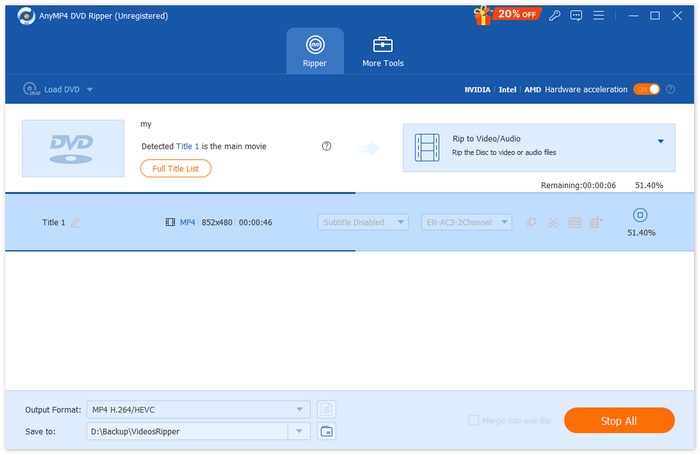
Fitur konversi DVD ke ISO pada AnyMP4 DVD Ripper menyediakan cara mudah dan andal untuk membuat salinan digital persis dari DVD Anda. Dengan antarmuka yang sederhana dan pemrosesan yang cepat, ini adalah solusi praktis bagi siapa pun yang ingin mendigitalkan dan mengelola koleksi DVD mereka dengan aman.
Bagian 2. Konversi DVD ke ISO di Windows
Jika Anda menggunakan Windows, alat terbaik untuk mengonversi DVD ke ISO adalah WinX DVD Ripper Platinum. Alat ini memungkinkan pengguna untuk mengekstrak konten media dari DVD dan mengonversinya menjadi berkas ISO, bahkan yang memiliki proteksi salinan dan kode wilayah.
Langkah-langkah cara menyalin DVD ke Video lalu membuat file ISO:
Langkah 1. Di WinX DVD Ripper Platinum Anda, klik ikon DVD Disc untuk memuat DVD yang ingin Anda buat sebagai file ISO.
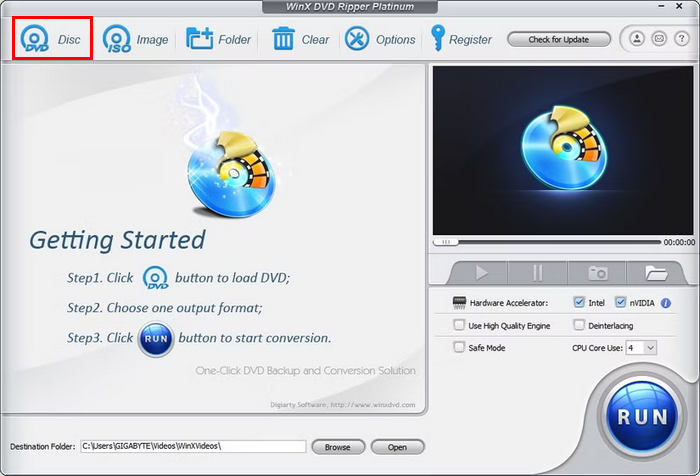
Langkah 2. Setelah informasi DVD dimuat, jendela Output Profile akan muncul. Dari sana, pilih Output Profile, lalu pilih DVD Backup Profile, klik DVD Backup, dan terakhir pilih Clone DVD to ISO Image.
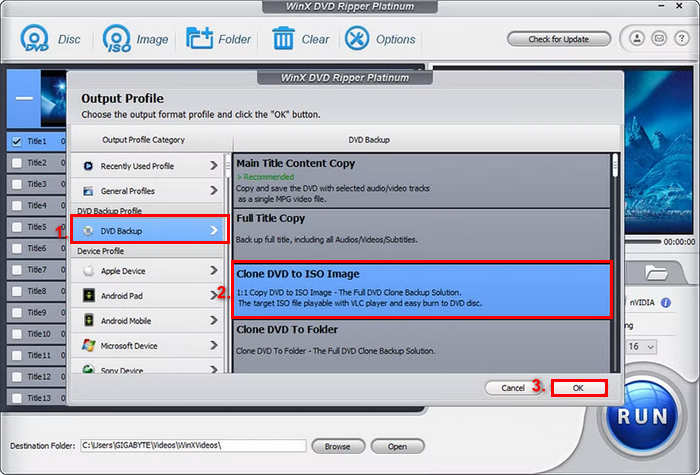
Langkah 3. Sekarang, pilih folder tempat Anda ingin menyimpan file image DVD ISO yang telah dikonversi. Terakhir, klik tombol RUN untuk mulai menyalin image ISO dari DVD.
Meskipun alat ini dapat membuat file ISO dari DVD, antarmukanya dapat terasa membingungkan bagi sebagian pengguna. Selain itu, diperlukan langganan berbayar untuk dapat menikmati fitur ini sepenuhnya. Atau, Anda bisa mencoba sebuah pemutar ISO untuk menonton.
Bagian 3. Cara Mengonversi DVD ke File ISO di Mac
Jika Anda menggunakan Mac, Disk Utility adalah pilihan terbaik untuk mengonversi DVD ke ISO. Alat ini merupakan aplikasi bawaan macOS yang memungkinkan pengguna mengelola perangkat penyimpanan dan membuat citra disk. Salah satu fiturnya adalah mengonversi DVD ke berkas ISO. Fitur ini memungkinkan pengguna membuat cadangan digital DVD mereka secara akurat.
Langkah-langkah cara mengonversi DVD ke ISO di Mac:
Langkah 1. Di Mac Anda, masukkan DVD ke dalam drive dan tunggu hingga dimuat.
Langkah 2. Selanjutnya, buka Disk Utility, dan setelah terbuka, temukan DVD Anda di bilah sisi kiri lalu pilih.
Langkah 3. Sekarang, klik tab File, pilih New Image, lalu pilih New Image from the Disk Name.
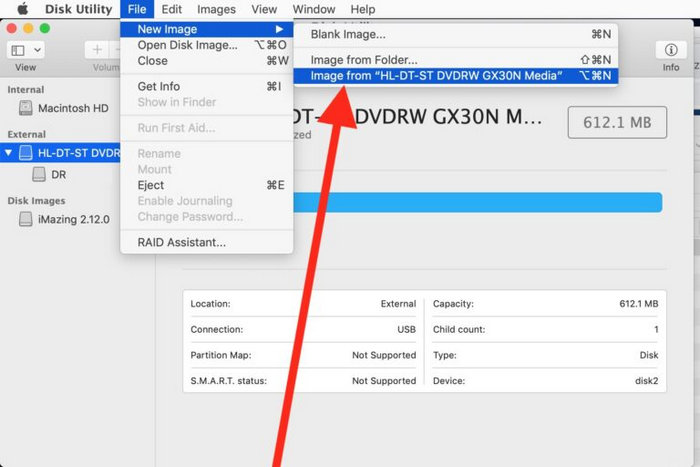
Langkah 4. Setelah itu, pilih lokasi dan nama tempat Anda ingin menyimpan image disk, lalu klik tombol Save.
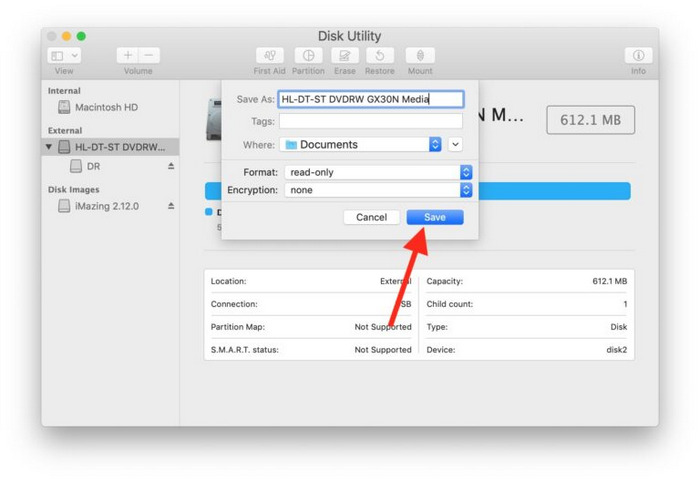
Proses ini di Mac akan mengubah DVD Anda menjadi format berkas DMG, bukan berkas ISO. Untuk melakukannya, Anda perlu menggunakan Terminal dengan menjalankan perintah khusus yang akan mengonversi berkas DMG menjadi berkas ISO.
Bagian 4. Konversi DVD ke ISO di Linux
PowerISO adalah perangkat lunak pencitraan dan pemrosesan citra disk. Alat ini memungkinkan pengguna untuk menyalin DVD mereka dengan mudah untuk membuat berkas ISO. Selain itu, aplikasi ini mendukung berbagai format citra, sehingga pengguna memiliki lebih banyak pilihan selain format ISO.
Langkah-langkah cara mengonversi DVD ke ISO di Linux:
Langkah 1. Pertama, Anda perlu memasang alat ini di perangkat Anda.
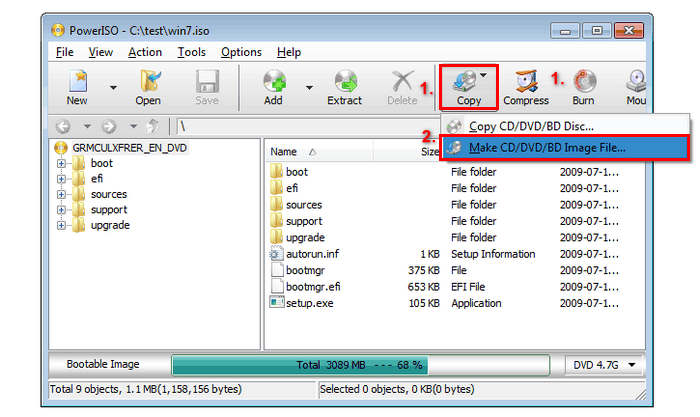
Langkah 2. Selanjutnya, jalankan PowerISO, klik tombol Copy pada toolbar, lalu pilih Make CD / DVD / BD Image File.
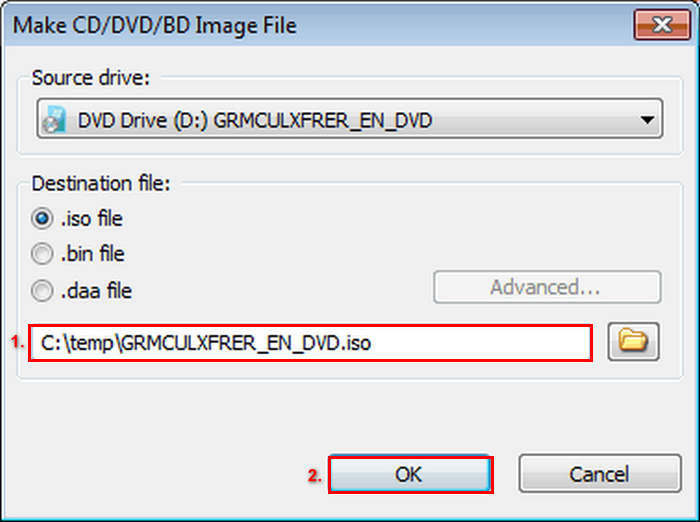
Langkah 3. Terakhir, pilih drive DVD yang berisi disc yang ingin Anda konversi, lalu pilih ISO sebagai file tujuan. Terakhir, klik OK untuk membuat file ISO dari disc yang dipilih.
Pembuat berkas ISO ini benar-benar hebat dalam hal mengonversi DVD Anda ke ISO. Prosesnya sangat mudah, dan langkah-langkahnya mudah diikuti. Namun, versi gratisnya membatasi ukuran berkas yang bisa Anda buat.
Bacaan Tambahan: Lihat di sini untuk mengetahui cara mengonversi ISO ke MP4.
Bagian 5. FAQ tentang Mengonversi DVD ke ISO
Apa itu berkas ISO?
Berkas ISO adalah salinan digital lengkap dari DVD yang memuat semua data, menu, dan struktur berkas dalam satu berkas. Berkas ini memungkinkan pengguna mengakses konten tanpa memerlukan cakram fisik, sehingga terlindungi dari potensi kerusakan.
Bisakah saya mengonversi DVD yang dilindungi ke ISO?
Ya. Beberapa perangkat lunak DVD ripping, seperti WinX DVD Ripper Platinum, dapat mengonversi DVD yang dilindungi hak cipta menjadi berkas ISO. Namun, tidak semua perangkat lunak mendukung hal ini, jadi penting untuk memilih perangkat lunak yang dapat menangani enkripsi.
Selain ISO, format apa lagi yang terbaik untuk menyalin DVD?
Selain ISO, MP4 merupakan pilihan utama untuk menyalin DVD karena kompatibilitasnya di berbagai perangkat dan kompresi yang efisien. Video Converter Ultimate yang dipilih FVC direkomendasikan untuk mengonversi DVD ke MP4, menawarkan keluaran berkualitas tinggi, konversi batch, dan alat pengeditan.
Kesimpulan
Mengonversi DVD ke ISO adalah cara yang efektif untuk melestarikan koleksi media Anda, melindunginya dari kerusakan fisik sekaligus memastikan kemudahan akses. Dengan metode yang disebutkan dalam artikel ini, Anda dapat dengan mudah membuat file ISO dari DVD, baik Anda menggunakan macOS, Windows, maupun Linux. Pilih alat terbaik untuk sistem operasi Anda dan mulai sekarang juga, sehingga DVD favorit Anda tetap aman dan mudah diakses selama bertahun-tahun ke depan.
-
 Rip DVD ke AVI: 3 Perangkat Lunak Ripper DVD Terbaik [Ulasan]
 Ingin menyalin DVD Anda ke AVI agar lebih mudah diputar dan disimpan? Baca ulasan terperinci kami tentang konverter DVD ke AVI terbaik untuk menemukan alat yang tepat bagi Anda.
-
 [Solusi] VLC Tidak Memutar DVD, Cara Memperbaikinya
 Bisakah VLC memutar DVD? Mengapa VLC tidak memutar DVD saya? Bagaimana cara mendapatkan VLC untuk memutar DVD di Windows 10? Posting ini membagikan 3 tips untuk memperbaiki VLC tidak memutar masalah DVD.
-
 Semua yang Perlu Anda Ketahui tentang Format Pemutar DVD
 Ini adalah panduan yang menawarkan pengetahuan tentang format pemutar DVD termasuk cara membuka file Anda dengan format pemutar DVD dan cara mengonversi ke format lain.
