


 Video Converter Ultimate
 Perekam Layar
 Perbaikan Video
 Unduhan Aman
Konversi DVD Anda ke MKV dengan Mudah dengan 5 Konverter MKV ini
Dengan semua platform streaming dan konten video digital, menonton film dan video tidak pernah semudah ini. Dulu, orang-orang perlu membeli cakram fisik untuk menonton atau memutar film favorit mereka. Namun sekarang, cakram-cakram ini disimpan atau ditumpuk di tempat lain karena ada cara yang lebih praktis untuk menonton film.
Jika Anda ingin mendigitalkan cakram fisik Anda sehingga dapat menontonnya di perangkat apa pun, lanjutkan membaca artikel ini. Kami memiliki lima alat konverter format MKV terbaik yang dapat Anda pelajari dan gunakan untuk dengan mudah mengonversi DVD ke MKV. MKV adalah format yang sangat populer dan didukung luas. Dengan mengonversi DVD ke format ini, Anda dapat mendigitalkan cakram Anda dan mengikuti tren saat ini. Sudah siap untuk perubahan ini? Jika ya, mari kita mulai!

| Konverter MKV | Platform yang Didukung | Format yang Didukung | Fitur untuk Kecepatan dan Performa | Kecepatan Konversi | Harga |
| AnyMP4 DVD Ripper | • Jendela • macOS | Lebih dari 500 format keluaran didukung. | • Kecepatan 50× lebih cepat berdasarkan teknologi akselerasi GPU; • Kinerja ripping yang luar biasa tanpa kehilangan kualitas. | Sangat cepat | Gratis Lisensi Bulanan: $14.50 Lisensi Seumur Hidup: $49.96 Lisensi bisnis: $119.00 |
| MakeMKV | • Jendela • macOS •Linux | • Hanya MKV | Tidak ada | Cepat | Gratis $50.00 |
| HandBrake | • Jendela • macOS | • MP4 • M4V • MKV • MOV • MPG atau MPEG • AVI • WMV | Dekoding yang dipercepat GPU untuk kecepatan pemutaran yang ditingkatkan. | Sedang | Gratis |
| VLC Media Player | • Jendela • macOS •Linux | • MP4 • MOV • AVI • Format FLV • WMV • MKV • WAV • MP3 • AAC • AC3 | Akselerasi perangkat keras GPU untuk decoding perangkat keras pada sistem operasi Windows, macOS, Linux, Android, dan iOS. | Sedang | Gratis |
| Konverter Video DumboFab Ultimate | • Jendela • macOS | • MP4 • MKV • AVI • MOV • WMV • Format FLV • WebM • TS • MPG | Didukung oleh Intel, NVIDIA, dan AMD. | Cepat | Lisensi 1 Tahun: $39.95 Lisensi Seumur Hidup: $59.95 Lisensi Keluarga: $105.95 |
Bagian 1. Mengapa Mengonversi DVD ke MKV Menggunakan Konverter MKV
Karena konten DVD disimpan dalam cakram fisik, Anda hanya dapat memutarnya di pemutar DVD atau perangkat dengan drive DVD. Keterbatasan ini bisa merepotkan, terutama karena banyak perangkat modern tidak lagi memiliki drive DVD. Oleh karena itu, berikut adalah alasan mengapa Anda perlu mengonversi DVD ke MKV:
• Mengonversi DVD ke MKV memberikan fleksibilitas digital. Artinya, Anda dapat menonton video di berbagai perangkat, termasuk laptop, TV pintar, tablet, dan ponsel pintar. Karena berkasnya digital, Anda tidak lagi memerlukan pemutar DVD atau drive untuk memutarnya.
• DVD fisik rentan terhadap goresan, kerusakan, dan keausan umum, yang dapat membuatnya tidak dapat diputar seiring waktu. Mengonversi DVD ke MKV adalah cara teraman untuk memiliki cadangan yang dapat Anda simpan dengan mudah dan akses selama bertahun-tahun.
• Terakhir, mengonversi DVD ke MKV berarti mengekstrak konten media dari cakram fisik ke format digital. Dengan ini, pengguna dapat menyimpan koleksi besar di hard drive atau penyimpanan cloud, sehingga perpustakaan mereka mudah diakses tanpa perlu rak atau ruang penyimpanan fisik.
Bagian 2. 5 Alat untuk Mengonversi DVD ke MKV dengan Mudah
Ada banyak alat andal yang tersedia untuk mengonversi DVD ke format MKV. Alat-alat ini menyederhanakan prosesnya, menawarkan opsi yang mudah digunakan untuk mencadangkan dan menyimpan koleksi media Anda secara digital. Berikut lima konverter format MKV terbaik:
AnyMP4 DVD Ripper
Yang pertama dalam daftar adalah AnyMP4 DVD Ripper. Alat ini mendukung lebih dari 500 format keluaran, seperti MKV dan DVD. Selain itu, mengonversi berkas media apa pun, seperti DVD buatan sendiri, DVD komersial, DVD rusak, DVD 99 judul, dll., bisa sangat mudah. Lebih lanjut, alat ini memastikan kualitas DVD Anda disalin dengan rasio 1:1 tanpa kehilangan kualitas apa pun. Terakhir, teknologi Blu-Hyper dan akselerasi perangkat kerasnya memastikan video definisi tinggi pun terkonversi dengan cepat, memberikan pengalaman yang lancar dan efisien.
Fitur Utama:
• Mengonversi DVD ke video digital untuk pemutaran PC dan perangkat iOS/Android.
• Mendukung lebih dari 500 format, seperti MP4, MKV, MOV, FLV, AVI, dan banyak lagi.
• Pengaturan keluaran yang dapat disesuaikan seperti subtitle, penambahan trek audio, pemotongan, pemutaran, dll.
• Antarmuka pengguna sangat mudah, hanya memerlukan 4 langkah saja untuk menyalinnya.
Berikut cara mengonversi DVD ke MKV menggunakan AnyMP4 DVD Ripper:
Langkah 1. Pertama, Anda perlu menginstal AnyMP4 DVD Ripper di perangkat Anda dan memasukkan DVD ke dalam drive DVD di komputer Anda, lalu tunggu beberapa menit hingga terdeteksi.
Unduh GratisUntuk Windows 7 atau yang lebih baruUnduhan Aman
Unduh GratisUntuk MacOS 10.7 atau yang lebih baruUnduhan Aman
Langkah 2. Kemudian, perangkat lunak akan mendeteksi DVD Anda secara otomatis; jika tidak, Anda dapat mengeklik "Load DVD" untuk mengunggahnya secara manual.
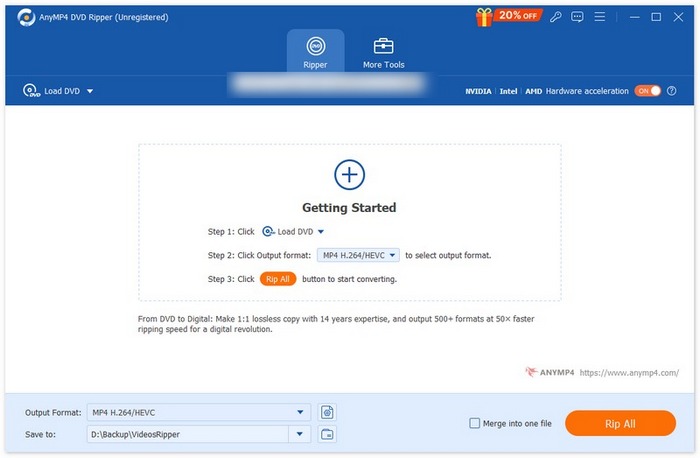
Langkah 3. Klik tombol tarik-turun di samping "Output Format" dan pilih format yang Anda inginkan.

Langkah 4. Klik "Rip All" untuk mulai melakukan ripping.
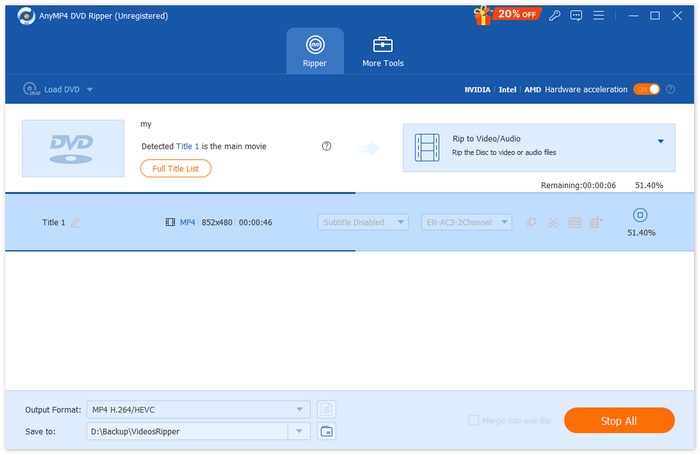
Kesimpulan:
AnyMP4 DVD Ripper benar-benar salah satu konverter format MKV terbaik hingga saat ini. Mengonversi DVD ke MKV sangat mudah, dan kecepatan konversinya sangat tinggi berkat pemrosesan berbasis GPU dan CPU. Terakhir, pengguna dapat memastikan kualitas video mereka tetap terjaga.
MakeMKV
MakeMKV, sesuai namanya, adalah konverter yang mengubah Blu-ray atau DVD ke format MKV. Konverter MKV ini sangat populer karena kemampuannya mempertahankan hampir semua kualitas asli, termasuk trek audio, subtitel, dan metadata, dari DVD asli setelah dikonversi ke format MKV.
Fitur Utama:
• Membaca cakram DVD dan Blu-ray.
• Memelihara semua trek video dan audio, informasi bab, dan semua meta-informasi.
• Tidak diperlukan perangkat lunak tambahan untuk konversi atau dekripsi.
Berikut cara mengonversi DVD ke MKV menggunakan:
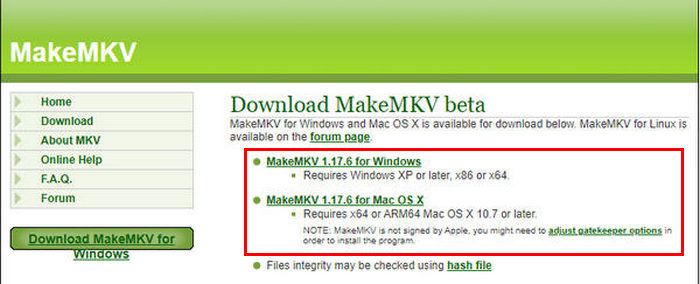
Langkah 1. Pertama, Anda perlu mengunjungi situs resmi MakeMKV dan klik tautan unduhan sesuai dengan sistem operasi Anda.
Langkah 2. Setelah itu, jalankan alatnya lalu klik Open Files atau Open Disc untuk mengimpor video Anda.
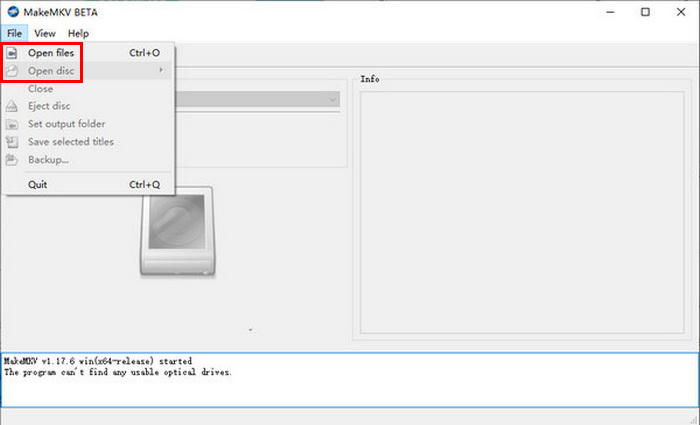
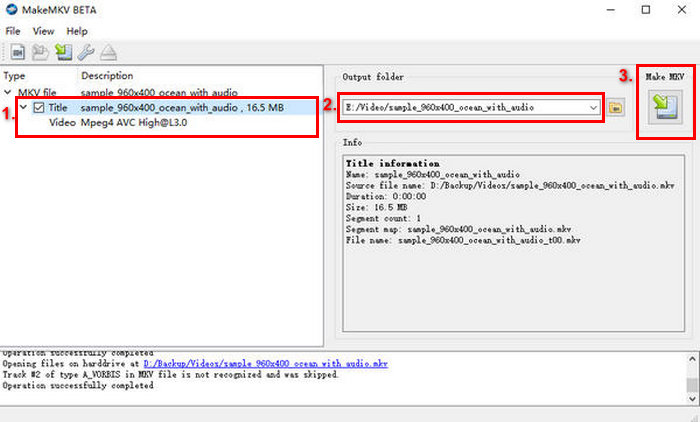
Langkah 3. Sekarang, pilih judul yang ingin Anda simpan sebagai file MKV serta trek yang ingin Anda pertahankan. Setelah itu, pilih folder tempat Anda ingin menyimpan file tersebut dan klik ikon MakeMKV untuk mulai melakukan transcoding.
Kesimpulan:
Dengan MakeMKV, prosesnya mudah, tetapi antarmukanya mungkin agak membingungkan bagi sebagian orang, terutama pemula. Selain itu, sifatnya yang hanya sebagai konverter format MKV menghilangkan fleksibilitas ketika beberapa pengguna mungkin lebih suka mengonversi DVD mereka ke format lain.
HandBrake
HandBrake adalah alat konversi video sumber terbuka yang populer dan mendukung berbagai format video yang paling sering digunakan. Dengan dukungan luas untuk beragam format audio dan video, HandBrake memudahkan dan mengefisienkan Anda untuk mengonversi DVD ke MKV.
Fitur Utama:
• Mengonversi DVD menjadi berkas video digital seperti MKV dan banyak lagi.
• Mendukung format video dan audio seperti MP4, MKV, FLV, MOV, AVI, dan WebM untuk video dan AAC, MP3, FLAC, M4A, ALAC, WAV, dan AC3 untuk audio.
• Memungkinkan penyesuaian kualitas video, resolusi, dan ukuran file.
Berikut cara mengonversi DVD ke MKV menggunakan HandBrake:
Langkah 1. Pertama, Anda perlu mengunduh dan menginstal HandBrake di komputer Anda.
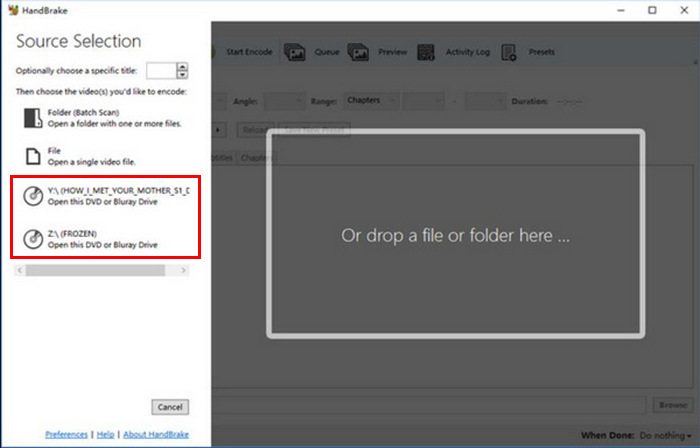
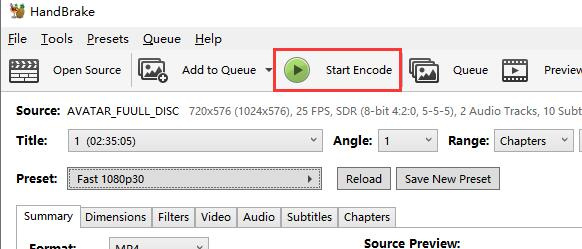
Langkah 2. Selanjutnya, jalankan alat tersebut, masukkan DVD ke DVD-ROM, dan pilih DVD Anda di bawah Source Selection. Alat akan mulai memindai judul film DVD.
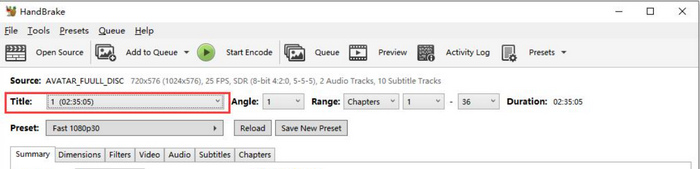
Langkah 3. Setelah DVD terbuka, pilih judul yang ingin Anda rip dengan membuka menu tarik-turun Title.
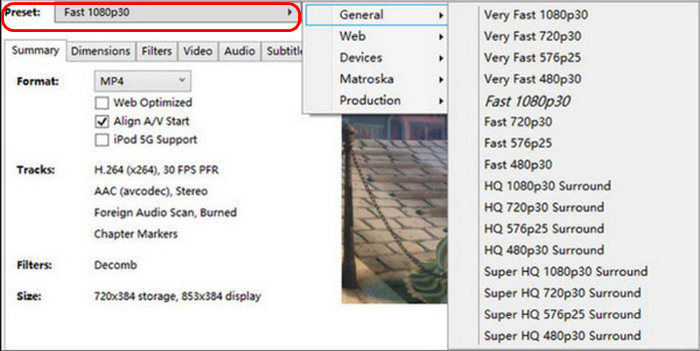
Langkah 4. Selanjutnya, Anda perlu menentukan kualitas file keluaran Anda. Anda hanya perlu mengeklik tombol Preset dan menyesuaikan pengaturannya. Di bawahnya, Anda akan melihat opsi Format, klik dan pilih MKV sebagai format keluaran Anda.
Langkah 5. Setelah itu, klik tombol Start Encode di bagian atas jendela untuk mengonversi DVD Anda ke MKV.
Kesimpulan:
Karena HandBrake gratis dan bersumber terbuka, alat ini sangat hebat dalam mengonversi DVD ke MKV. Namun, dengan alat ini, Anda perlu memasang input plug-in untuk mengonversi DVD yang dilindungi hak cipta ke MKV.
VLC Media Player
VLC adalah aplikasi pemutar media yang banyak digunakan dan tidak hanya dikenal sebagai pemutar media, tetapi juga karena fitur-fiturnya yang bermanfaat. Dengan pemutar media ini, pengguna juga dapat mengonversi DVD ke MKV. VLC dapat membaca DVD dan cakram Blu-ray, dan selain dapat diputar, pengguna dapat mengekstrak konten dari cakram tersebut dan mengonversinya ke format berkas video digital seperti MKV.
Fitur Utama:
• Membaca dan mengonversi konten dari cakram DVD dan Blu-ray.
• Memungkinkan pemilihan trek audio, subtitle, dan bab tertentu selama konversi.
• Mendukung berbagai codec untuk konversi lancar ke format MKV.
Berikut cara mengonversi DVD ke MKV menggunakan VLC:
Langkah 1. Pertama, Anda perlu mengunduh dan menginstal VLC di perangkat Anda. Setelah itu, muat DVD.
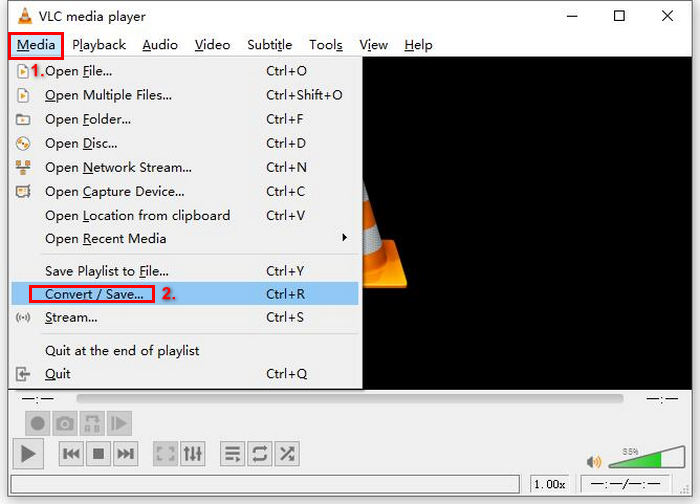
Langkah 2. Selanjutnya, buka tab Media dan pilih opsi Convert/ Save dari daftar.
Langkah 3. Setelah itu, klik Disc dari tab atas, aktifkan opsi DVD, dan pilih DVD yang ingin Anda rip di Disc device.
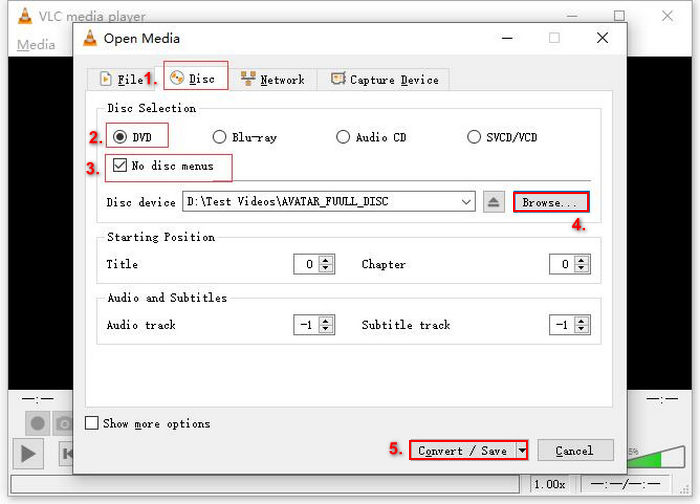
Langkah 4. Sekarang, klik tombol Convert/ Save dan atur format keluaran dengan mengeklik menu tarik-turun profil di bawahnya.
Langkah 5. Secara bawaan, VLC akan memilih untuk merip DVD ke Video - H.264 + MP3 (MP4). Jika tidak ada MKV dalam opsi tersebut, klik tombol roda gigi di sebelahnya, pilih MKV, lalu simpan.
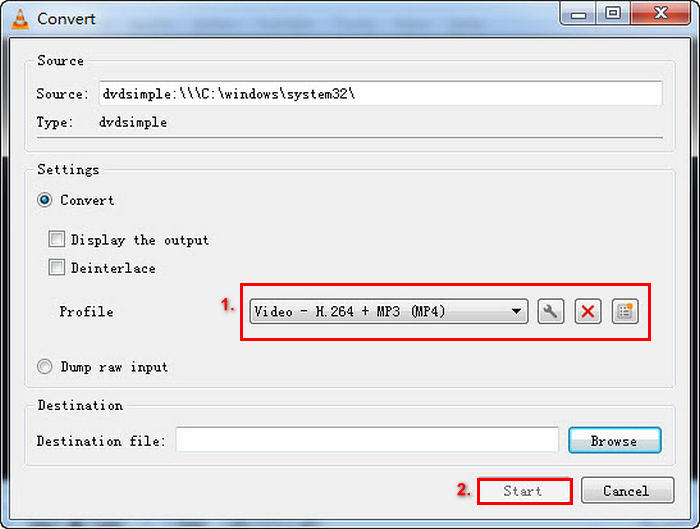
Langkah 6. Setelah itu, di bagian Destination di bawah, klik Browse, pilih folder, dan beri nama file keluarannya.
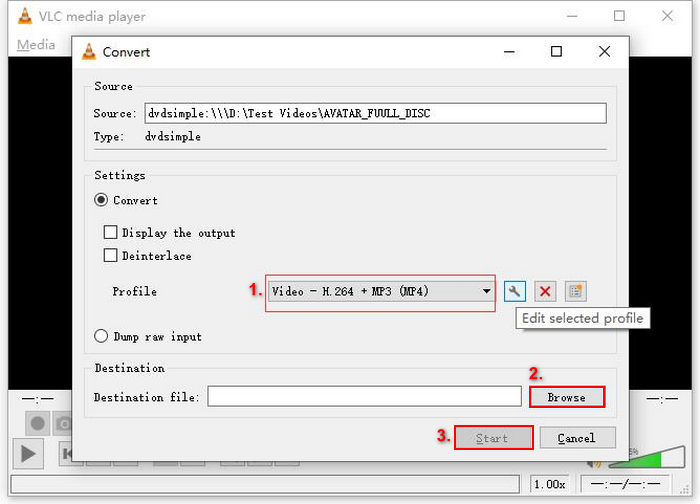
Langkah 7. Jika semuanya sudah diatur, klik tombol Start untuk merip DVD dengan VLC.
Kesimpulan:
Meskipun VLC dapat membaca konten DVD dan mengonversinya ke MKV, prosesnya memakan waktu lama dan mungkin kurang ideal bagi pemula karena antarmukanya yang rumit. Selain itu, format MKV tidak tersedia secara langsung dalam opsi bawaan, sehingga pengguna harus memilihnya secara manual dengan menyesuaikan pengaturan. Hal ini dapat menambah kebingungan bagi mereka yang belum terbiasa dengan perangkat lunak ini.
Konverter Video DumboFab Ultimate
DumboFab Video Converter Ultimate adalah perangkat lunak media lengkap yang memungkinkan pengguna mengonversi berbagai video. Ini termasuk mengonversi DVD ke MKV. Keunggulan alat ini dibandingkan konverter format MKV lainnya adalah kemampuannya menangani berbagai jenis DVD, seperti rilis baru, cakram bekas, dan DVD regional, sambil tetap mempertahankan kualitas konten asli yang terbaik.
Fitur Utama:
• Konversi DVD ke MKV tanpa kehilangan apa pun, termasuk audio HD dan subtitle.
• Mendukung berbagai jenis DVD, termasuk rilisan baru, cakram 99 judul, DVD goresan, dan format regional.
• Menawarkan opsi untuk menyesuaikan resolusi, bitrate, dan codec untuk kualitas video dan ukuran file yang disesuaikan.
Berikut cara mengonversi DVD ke MKV menggunakan DumboFab Video Converter Ultimate:
Langkah 1. Pertama, unduh dan instal aplikasi perangkat lunak di komputer Anda.
Langkah 2. Selanjutnya, masukkan DVD ke drive DVD di komputer Anda lalu jalankan alat tersebut. Setelah itu, klik tombol Load Disc untuk mengimpor konten DVD.
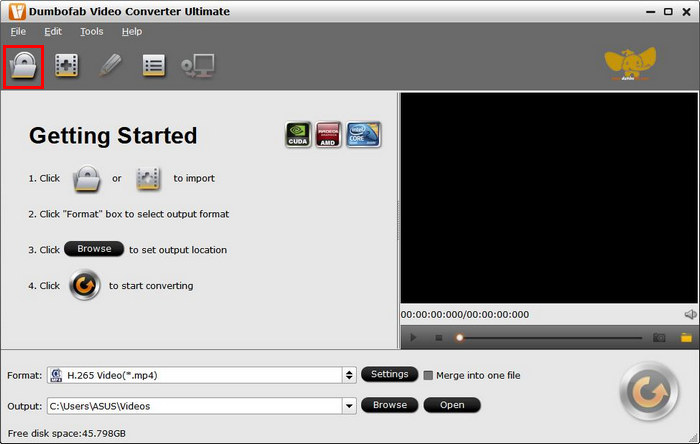
Setelah konten DVD diimpor ke alat tersebut, alat tersebut akan secara otomatis melewati proteksi salinan.
Langkah 3. Sekarang, klik Multi-track Video dan pilih MKV dari daftar opsi.
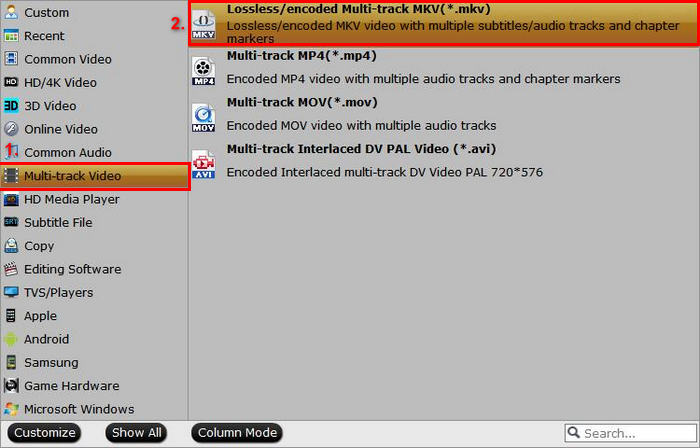
Langkah 4. Terakhir, klik tombol Browse untuk memilih folder tempat Anda ingin menyimpan video keluaran. Setelah selesai, klik Convert dan mulai proses konversi DVD ke MKV.

Kesimpulan:
DumboFab Video Converter Ultimate adalah konverter DVD-ke-MKV yang sangat menjanjikan karena dapat menangani berbagai jenis DVD dan dapat dengan mudah dikonversi ke MKV. Proses konversinya juga sangat cepat karena menggunakan teknologi pemrosesan canggih. Ini juga merupakan alat konverter terbaik, tetapi prosesnya mungkin membutuhkan proses pembelajaran yang rumit karena antarmukanya yang kompleks.
Bagian 3. FAQ tentang Konversi DVD ke MKV
Bisakah saya mengonversi DVD yang dilindungi hak cipta ke MKV?
Ya. Beberapa konverter, seperti MakeMKV dan DumboFab Video Converter Ultimate, dapat menangani proteksi salinan. Namun, alat seperti HandBrake mungkin memerlukan plugin tambahan untuk melewati proteksi ini.
Apa keuntungan menggunakan format MKV?
MKV adalah format serbaguna yang mendukung banyak trek audio dan subtitel, sehingga ideal untuk film dengan berbagai pilihan bahasa. Format ini juga memungkinkan video berkualitas tinggi tanpa kompresi yang signifikan.
Apakah ada penurunan kualitas saat mengonversi DVD ke MKV?
Kebanyakan konverter format MKV yang andal, seperti MakeMKV dan AnyMP4 DVD Ripper, mempertahankan kualitas asli DVD. Namun, jika Anda menggunakan konverter yang mengompres video secara signifikan, Anda mungkin mengalami penurunan kualitas.
Kesimpulan
Mengonversi DVD ke MKV adalah cara yang bagus untuk melestarikan konten media dari DVD. Dengan alat seperti AnyMP4 DVD Ripper, MakeMKV, HandBrake, VLC Media Player, dan DumboFab Video Converter Ultimate, Anda dapat dengan mudah mendigitalkan koleksi Anda. Cukup pilih konverter MKV yang sesuai dengan kebutuhan Anda dan mulai ubah DVD Anda menjadi file MKV berkualitas tinggi sekarang juga!
-
 Rip DVD ke AVI: 3 Perangkat Lunak Ripper DVD Terbaik [Ulasan]
 Ingin menyalin DVD Anda ke AVI agar lebih mudah diputar dan disimpan? Baca ulasan terperinci kami tentang konverter DVD ke AVI terbaik untuk menemukan alat yang tepat bagi Anda.
-
 Cara Menyalin DVD dengan HandBrake: Panduan Pemula [2025]
 Jika Anda bertanya-tanya bagaimana cara menyalin DVD dengan HandBrake, Anda berada di halaman yang tepat. Artikel ini akan mengajarkan Anda cara-cara dan menawarkan alternatif yang dirancang khusus untuk Anda.
-
 Cara Streaming Film DVD dari PC/Mac ke TV melalui Chromecast
 Tidak tahu cara menonton film DVD di TV melalui Chromecast? Artikel ini menunjukkan cara termudah untuk mentransmisikan film DVD Anda dari PC ke TV melalui Chromecast.
