


 Video Converter Ultimate
 Perekam Layar
 Perbaikan Video
 Unduhan Aman
Perekam Suara OGG Terbaik Membantu Merekam OGG di Semua Platform
OGG adalah format file audio terbaik dibandingkan MP3. Format audio open-source ini dikembangkan dan dikelola oleh Xiph.org. Jenis format ini banyak digunakan oleh industri gim sebagai format audio mereka karena kualitas suaranya lebih baik dan ukuran kompresinya jauh lebih kecil. Namun, sebagian pengguna merasa kesulitan karena beberapa perekam tidak mendukung format ini, mengingat format audio standar yang umum dipakai adalah MP3. Daftar di bawah ini berisi perekam OGG terbaik yang mendukung format tersebut. Untuk mengetahui langkah dan informasi yang lebih detail, bacalah dengan saksama agar Anda memahami fitur berbagai alat yang dapat memenuhi kebutuhan Anda sebagai pengguna dan mungkin di masa depan sebagai pelanggan mereka.

Bagian 1. Perangkat Lunak Perekam OGG Terbaik untuk Pengguna PC dan Mac
Dalam daftar di bawah ini adalah perekam OGG terbaik yang tersedia di semua fungsi yang berbeda dengan langkah dan informasi.
Perekam Audio Gratis FVC
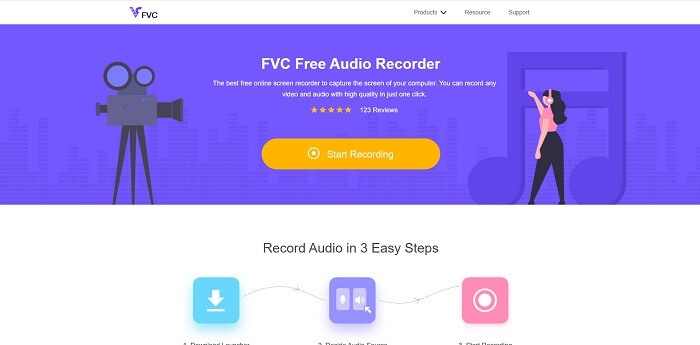
Sebuah alat yang dikhususkan untuk merekam dalam format audio. FVC Free Audio Recorder dikenal sebagai salah satu alat online terbaik yang dapat Anda temukan di web. Alat open-source ini dapat membantu Anda merekam audio yang Anda butuhkan di mana saja selama terhubung ke internet. Selain itu, ini juga pilihan yang baik untuk menjadi perekam OGG Anda. Untuk memberikan penjelasan yang lebih lengkap mengenai alat yang luar biasa ini, lanjutkan membaca dan ikuti langkah-langkah cara melakukan perekaman audio.
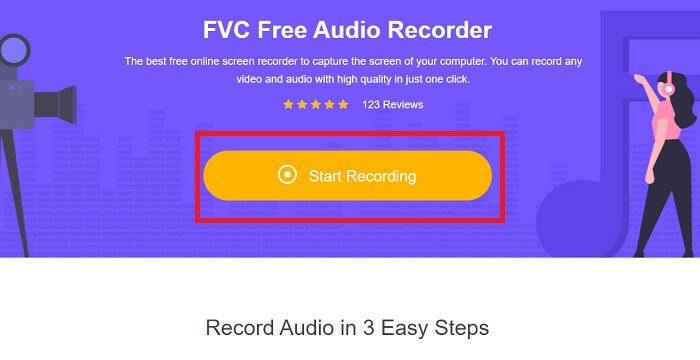
Langkah 1. Klik tautan ini untuk masuk ke halaman web alat tersebut. Klik Start Recording dan luncurkan alatnya.
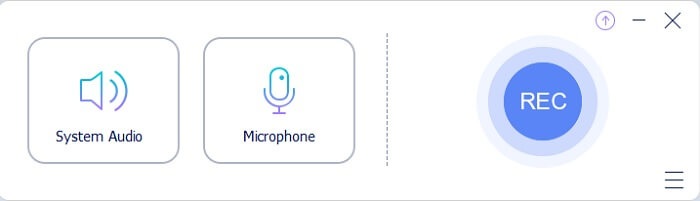
Langkah 2. Sebuah toolbar mengambang seperti ini akan muncul di layar.
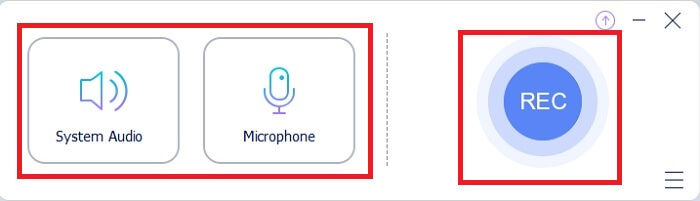
Langkah 3. Aktifkan Speaker untuk menambahkan suara sistem dan Mic untuk menambahkan suara Anda. Klik tombol bulat untuk mulai merekam.
Langkah 4. Setelah mengklik tombol rekam, Anda akan menjumpai tampilan seperti ini yang berarti perekaman sudah dimulai.
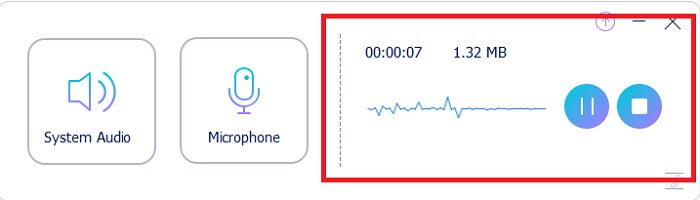
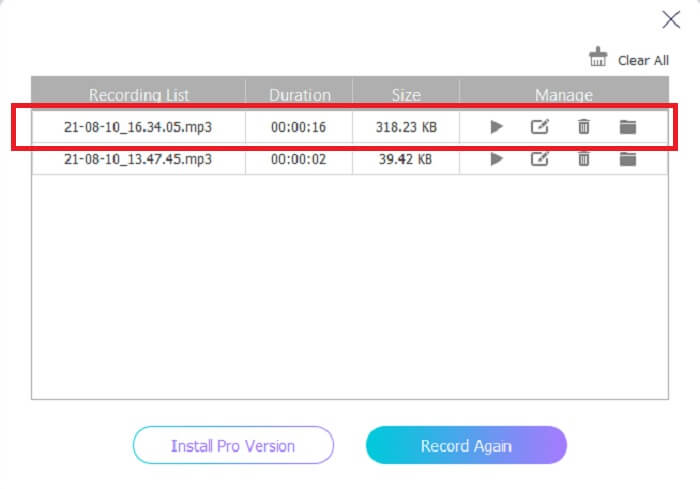
Langkah 5. Jika perekaman sudah selesai, klik tombol Stop dan hasilnya akan otomatis tersimpan ke perangkat Anda. Riwayat daftar rekaman akan tampil di layar Anda. Nikmati hasil rekaman dengan kualitas terbaik.
Pro
- User-friendly karena instruksi yang tepat.
- Ini menghasilkan format audio terkompresi sehingga juga ramah penyimpanan.
- Open-source sehingga tersedia bagi siapa saja yang ingin menggunakan alat ini.
Kontra
- Ini membutuhkan koneksi internet sebelum Anda dapat menggunakannya.
- Tidak ada pembatalan bising seperti premium.
Bagian 2. Perekam OGG Berguna Lainnya untuk Semua Sistem Operasi
1. Perekam Layar FVC
Jika Anda menganggap alat di atas sudah cerdas, untuk memberi gambaran yang lebih spesifik, jika Galileo Galilei adalah bapak sains modern, maka alat ini adalah bapak sistem perekaman modern. FVC Screen Recorder adalah perekam terbaik, baik untuk format audio maupun video. Alat ini memberikan salah satu kualitas keluaran terbaik dan penggunaannya sangat mudah. Berbeda dengan alat lain, program ini dirancang untuk memberikan pengalaman terbaik bagi pengguna. Jadi sekarang, jika Anda termasuk pengguna yang merasa sulit merekam audio, ikuti langkah-langkah sederhana di bawah ini dan perhatikan setiap tahapannya.
Langkah 1. Unduh alat ini sesuai dengan spesifikasi sistem operasi Anda. Proses unduh dan pemasangan hanya memakan waktu beberapa detik. Ubah Preference sesuai keinginan Anda lalu klik Finish untuk melanjutkan.
Unduh GratisUntuk Windows 7 atau yang lebih baruUnduhan Aman
Unduh GratisUntuk MacOS 10.7 atau yang lebih baruUnduhan Aman
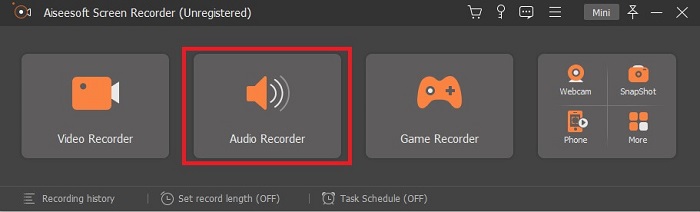
Langkah 2. Di toolbar, klik Audio Recorder.
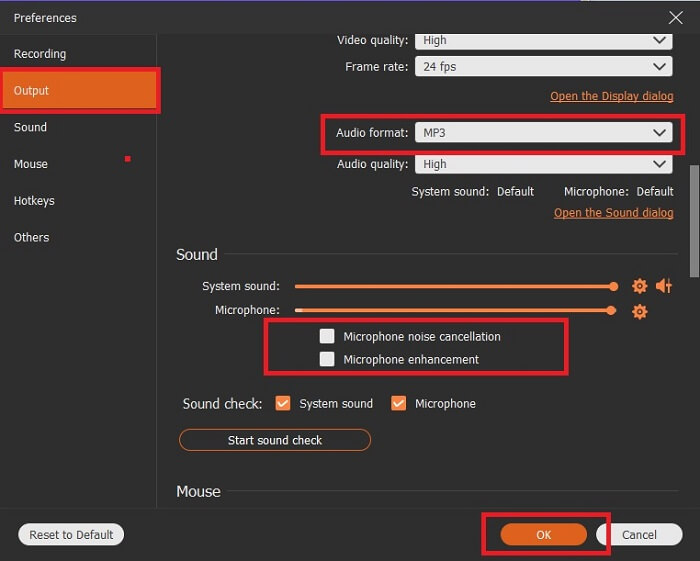
Langkah 3. Cari ikon Gear untuk menyesuaikan opsi lainnya. Masuk ke bagian Output untuk mengubahnya ke format MP3, WMA atau format lain apa pun yang Anda inginkan dengan menggulir roda mouse. Opsi lain yang dapat Anda gunakan saat merekam antara lain Noise cancelling dan Microphone enhancement. Klik OK untuk melanjutkan.
Langkah 4. Setelah menyesuaikan pengaturan, di toolbar buka Speaker dan Microphone untuk menambahkan keluaran audio ke rekaman Anda. Setelah semuanya siap, klik tombol berbentuk bulat untuk mulai merekam.
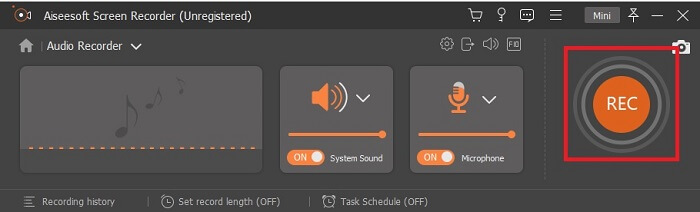
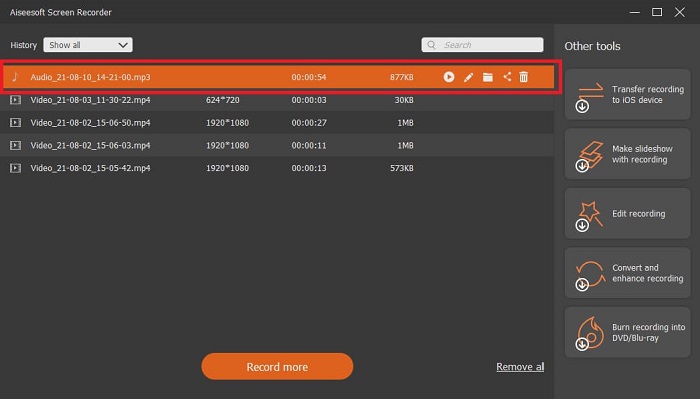
Langkah 5. Jika Anda ingin mengakhiri perekaman, klik tombol berbentuk kotak untuk menghentikan. Klik Save dan Next untuk melanjutkan. Lalu putar hasil rekaman Anda dengan perekam suara OGG di platform media apa pun.
Pro
- Anda dapat merekam kapan saja di mana saja dengan alat ini dengan audio yang jernih.
- Ini memberikan pengalaman hebat bagi pengguna yang sudah menggunakan alat ini.
- Rekaman all-in-one.
Kontra
- Bayar untuk digunakan.
- Perlu 2,4 MB penyimpanan Anda.
2. Screencast-O-Matic
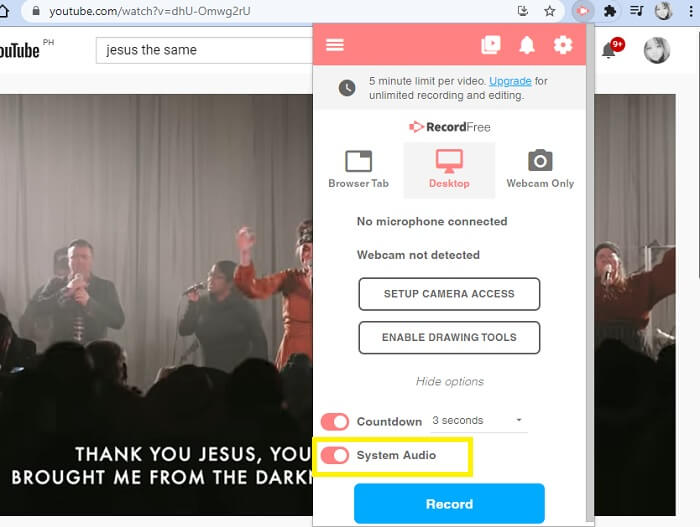
Alat perekaman layar terbaik lainnya yang akan melakukan pekerjaan itu. Screencast-O-Matic adalah salah satu alat terbaik yang akan Anda temukan di web. Itu membuat rekaman Anda mudah dan efisien. Ini juga memiliki alat online jika Anda mengunjungi situs web online tetapi akan memakan waktu satu atau dua menit untuk proses menyelesaikan alat online itu sendiri. Jadi, jika Anda bukan penggemar mengantri maka ini bukan pilihan terbaik untuk Anda. Tetapi jika Anda suka menunggu maka itu sangat berharga sampai akhir.
Pro
- Lebih mudah digunakan daripada Camtasia.
- Bekerja sebagai organisasi, bukan sebagai individu dengan kata sandi keamanan.
- Sangat menarik dan ini adalah perekam yang oke.
Kontra
- Antarmuka alat tepat sasaran tetapi monokromatik sehingga diharapkan berwarna hambar yang membuatnya kurang menarik untuk digunakan.
- Ini hanya memungkinkan pengguna untuk merekam maksimum 15 menit dalam versi gratis.
3. BagikanX
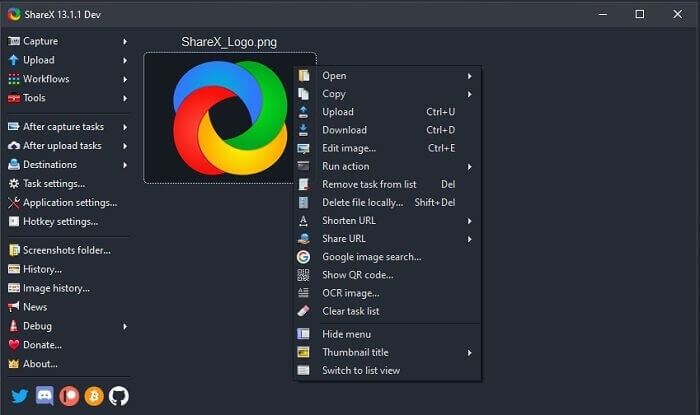
Salah satu alat yang mungkin Anda temui di web saat mencari perekam layar. Alat ini hanya tersedia untuk sistem operasi Windows. Artinya, jika Anda pengguna Mac atau Linux, alat ini tidak akan berfungsi di OS Anda karena tidak mendukung program tersebut. Share dengan mudah dapat menempati peringkat 20 besar perekam layar terbaik yang tersedia di web, karena mendukung lebih dari 80 tujuan (destination) untuk mengirim atau membagikan hasil rekaman akhir.
Pro
- Alat yang dapat disesuaikan.
- Menyediakan alat pengeditan sendiri jika diperlukan.
- Ubah tombol pintas untuk mempermudah perekaman.
Kontra
- Luar biasa untuk seseorang yang baru mengenal alat ini. Ini adalah rasa sakit di pantat untuk belajar menggunakan alat ini.
- Tidak tersedia untuk pengguna mac.
Bagian 3. Bagan Perbandingan
| Fitur | Perekam Audio Gratis FVC | Perekam Layar FVC | Screencast-O-Matic | BagiX |
| Rekaman audio |  | | | |
| Pembatalan Kebisingan |  | | | |
| Peningkatan Mikrofon | | | | |
| Kompleksitas Alat | Instruksi perekaman online on-point. | Mudah digunakan karena sudah tertera di alat apa tujuannya dan bagaimana kinerjanya. | Ini adalah alat yang mudah digunakan dengan detail yang lebih sedikit. | Kompleksitas alat ini sulit bagi pengguna baru. |
| Platform yang Tersedia | Semua Sistem Operasi. | Semua Sistem Operasi. | PC Windows, Mac, dan Chromebook. | Windows 7 SP1 atau yang lebih baru. |
| Format audio yang tersedia | MP3 dan OGG | MP3, WMA, AAC, M4A, FLAC, OGG, Opus dan banyak lagi. | Tidak dapat merekam audio secara terpisah. | MP3 dan WAV |
| Kisaran harga | Alat daring gratis | Selama 1 bulan: $25.00 Selama setahun: $31.20 Untuk Lisensi Seumur Hidup: $55.20 | Ini memiliki versi gratis. Untuk solo premium. Mewah $1.65/bulan Perdana $4.00/bulan Untuk rencana tim. Anda dapat mengatur tim deluxe atau tim premier. | program gratis dan sumber terbuka. |
Bagian 4. FAQ tentang Perekam OGG
Bagaimana cara membuat file OGG dengan perekam suara?
Gunakan perekam audio seperti pada daftar di atas. Untuk informasi lebih detail baca artikel di atas untuk informasi dan langkah-langkah cara merekam dengan format output audio untuk OGG.
Manakah format audio terbaik? MP3 atau OGG?
OGG adalah format file audio terbaik. Namun pengguna cenderung menggunakan MP3 karena lebih standar dibandingkan OGG. Namun demikian, OGG berisi metadata dengan penyimpanan lebih sedikit dan output audio terbaik, misalnya nama artis dan data trek.
Mengapa format OGG saya tidak dapat diputar di pemutar media saya?
Beberapa pemutar media tidak mendukung jenis format ini. Jadi, Anda dapat menggunakan FVC Free Online Video Converter sebagai konverter Anda. Alat ini memungkinkan pengguna untuk mengonversi file OGG ke MP3 atau format audio lain yang Anda inginkan agar dapat diputar. Atau Anda bisa menggunakan FVC Free Video Player atau pemutar OGG lainnya untuk memutar jenis format ini, karena alat ini mampu memutar hampir semua jenis format audio dan video yang berbeda.
Kesimpulan
Di akhir diskusi, Anda kini telah memperoleh pengetahuan baru hanya dengan membacanya dan memilih alat mana yang sesuai dengan kebutuhan Anda. Pilihan yang berbeda tercantum dalam artikel ini dengan langkah-langkah dan beberapa informasi tentang alat ini. Ikuti saja langkah-langkahnya dan beri waktu untuk membacanya agar Anda memahaminya. Anda harus memilih dengan bijak.
Namun sebagai contoh, FVC Screen Recorder sudah memenuhi kebutuhan pengguna. Sebagai pengguna, Anda harus memprioritaskan kebutuhan dan keinginan Anda dalam sebuah perekam. Misalnya, apakah perekam mudah digunakan, bagus untuk merekam audio, tersedia di hampir semua platform, jika berbayar apakah harganya terjangkau namun kualitas hasilnya tetap terbaik. Semua contoh tersebut ada di FVC Screen Recorder. Jangan puas dengan yang biasa saja karena Anda pantas mendapatkan lebih.
-
 Ulasan Snagit 2025 – Kelebihan, Kekurangan, dan Alternatif Terbaik
 Apa alternatif terbaik untuk Snagit? Apakah ada alat penangkap layar seperti Snagit? Posting ini akan mengulas Snagit dan membagikan alternatif terbaik untuk Snagit untuk menangkap layar.
-
 QuickTime Screen Recording - Rekam Video dengan Audio di Mac & PC
 Layar perekaman dengan audio di Mac sangat berguna. Pemutar bawaan, QuickTime Player dapat melakukannya. Baca postingannya dan ketahui cara menangkap layar dengan suara di Mac dan PC.
-
 Ulasan DU Recorder 2025: Keamanan, Harga, Fungsi, Penggunaan, dan Peringkat
 DU Recorder adalah perekam layar dan audio untuk iPhone dan Android. Apakah itu layak diunduh? Apakah ini aman? Baca ulasan lengkap untuk melihat apakah aplikasi tersebut tepat untuk Anda.
