


 Video Converter Ultimate
 Perekam Layar
 Perbaikan Video
 Unduhan Aman
Perekam Peluncuran Web - 4 Cara Gratis untuk Menangkap Aktivitas di Layar tanpa Mengunduh
Apakah ada cara mudah untuk merekam video, seperti video game populer, log panggilan video, video konferensi, dan menyimpannya sebagai koleksi Anda? Perekam peluncuran web gratis selalu menjadi pilihan awal untuk merekam video layar, yang merupakan layanan berbasis web untuk merekam aktivitas di layar. Pelajari lebih lanjut tentang perekam peluncuran web yang luar biasa untuk meluncurkan fitur perekaman layar secara online.

Bagian 1: 4 Perekam Peluncuran Web Online Gratis Terbaik
Top 1: Perekam Layar Gratis FVC
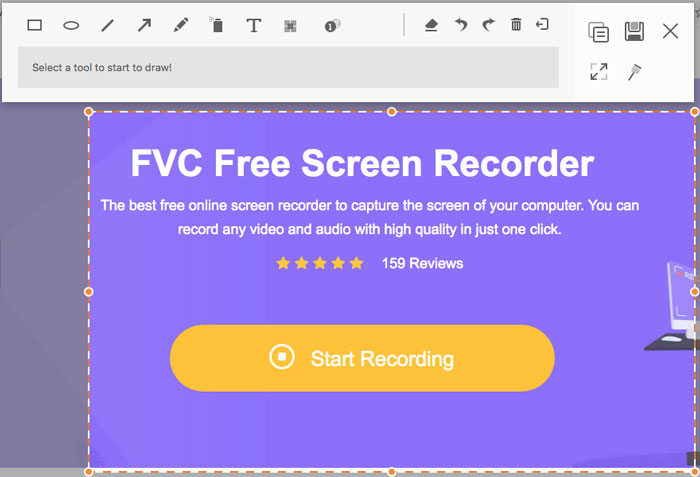
FVC Free Screen Recorder adalah peluncur perekam layar web gratis yang dapat digunakan di browser apa pun. Alat ini memungkinkan Anda merekam video dan audio apa pun tanpa menambahkan watermark. Anda dapat menyesuaikan area perekaman, seperti layar penuh atau hanya sebagian area untuk perekaman video. Selain itu, rekaman dapat diekspor ke berbagai format file, seperti MP4 dan WMV.
1. Perekam layar online gratis tanpa registrasi atau batasan lainnya.
2. Tambahkan baris dan teks waktu nyata untuk membuat anotasi pada rekaman layar.
3. Masukkan audio webcam dan mikrofon ke dalam screencast Anda.
4. Lihat semua file rekaman sebelumnya dari daftar riwayat rekaman.
2 Teratas: Screencast-O-Matic
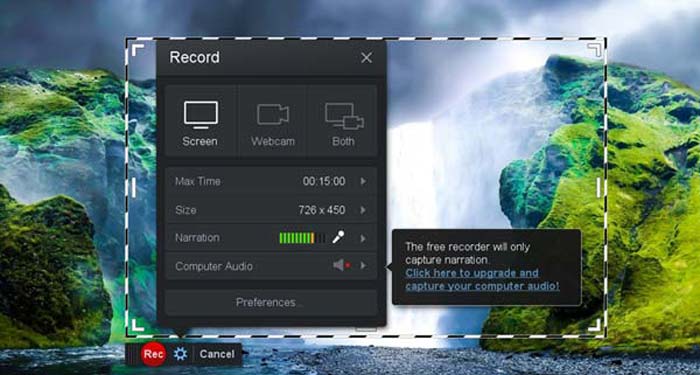
Screencast-O-Matic adalah perekam layar berbasis web yang dapat dengan mudah merekam area mana pun di layar Anda. Alat ini memungkinkan Anda mengunggah video langsung ke platform hosting video. Selain itu, Anda dapat menggunakan fitur seperti alat naskah, penulisan teks otomatis (automated caption), dan berbagai fitur lainnya.
Pro
- 1. Sesuaikan area perekaman, seperti seluruh layar atau sebagian.
- 2. Unggah rekaman ke Screencast-O-Matic, Google Drive, dll.
- 3. Tambahkan narasi audio, musik stok dan teks, dan lebih mudah.
Kontra
- 1. Kualitas hasil rekaman kurang bagus.
- 2. Perekam layar online ini memiliki batasan waktu.
3 Teratas: Clipchamp
Clipchamp adalah peluncur perekam web online gratis yang sangat praktis. Anda dapat menggunakannya untuk merekam dan mengunggah video, serta dapat mengompres video tanpa mengurangi kualitas aslinya. Alat ini juga dilengkapi dengan banyak fungsi, seperti dukungan mikrofon eksternal, berbagai pilihan resolusi, dan lain-lain.
Pro
- 1. Rekam seluruh layar, area perekaman preset, atau yang disesuaikan.
- 2. Memungkinkan Anda untuk mengkonversi video yang direkam ke format video populer lainnya.
- 3. Dapat merekam video dengan narasi dan voice-over dari mikrofon.
Kontra
- 1. Harus mengupgrade ke versi Pro untuk memiliki fungsionalitas penuh.
- 2. Tidak dapat mengedit rekaman dalam perpustakaan media online secara langsung.
Bagian 2: Cara Menangkap Layar dengan Perekam Peluncuran Web
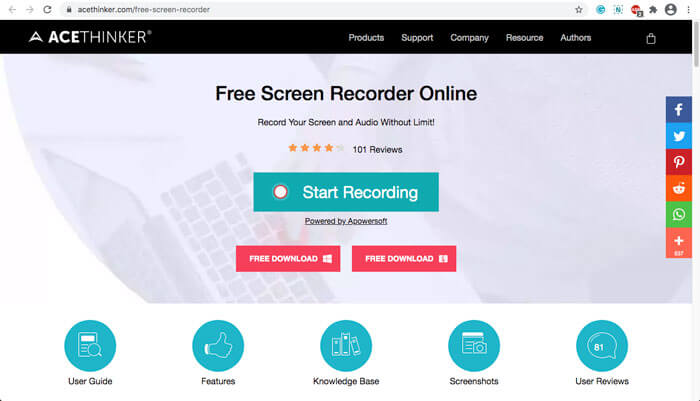
Ketika membahas cara merekam video layar dengan peluncur perekam web, ambil saja FVC Free Screen Recorder sebagai contoh. Pelajari lebih lanjut proses detailnya seperti di bawah ini.
Langkah 1: Saat Anda perlu merekam layar secara gratis, buka peluncur perekam web dan klik tombol Start Recording di beranda. Sistem akan mengunduh launcher untuk peluncur perekam web. Instal program tersebut dan jalankan di komputer Anda.
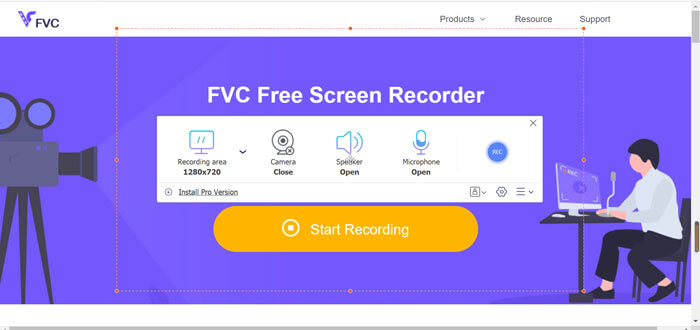
Langkah 2: Setelah aplikasi dijalankan, Anda dapat melihat pengaturan perekaman pada aplikasi tersebut. Di sini, Anda dapat mengklik opsi Recording area untuk memilih perekaman layar penuh atau sebagian layar, atau menyalakan menu Speaker untuk merekam file audio. Untuk merekam video dengan narasi, cukup aktifkan opsi Webcam.
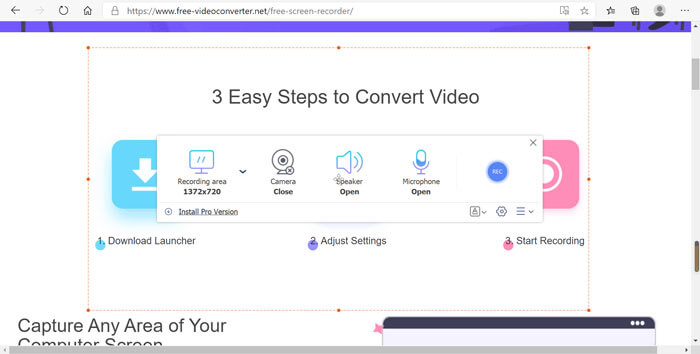
Langkah 3: Jika Anda perlu mengubah lebih banyak pengaturan file, cukup temukan ikon Gear di pojok kanan bawah peluncur perekam web untuk menyesuaikan opsi. Di jendela pengaturan yang muncul, Anda dapat mengubah lokasi penyimpanan file rekaman dan format file keluarannya.
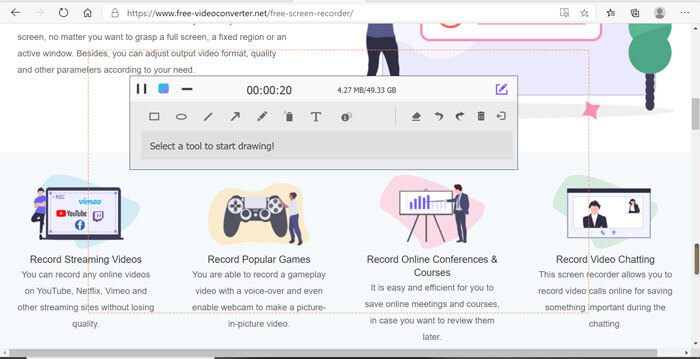
Langkah 4: Kemudian klik tombol REC untuk mulai merekam. Ketika perekaman selesai, klik tombol Stop untuk mengakhiri seluruh proses. Klik ikon tiga garis di bagian bawah peluncur perekam web untuk membuka dan mengelola daftar video yang telah direkam.
Bagian 3: Tanya Jawab tentang Perekam Peluncuran Web
1. Bagaimana Saya Dapat Merekam Layar dengan Webcam?
Saat peluncur perekam web diaktifkan, Anda dapat menemukan dan mengaktifkan fungsi webcam di antarmuka, lalu sesuaikan ukuran jendela webcam, kembali ke antarmuka utama dan klik ikon REC, sehingga Anda dapat mulai merekam gambar melalui webcam bawaan.
2. Mengapa Rekaman Layar Saya Tidak Ada Suara?
Ada opsi untuk suara sistem dan mikrofon di antarmuka utama program. Anda mungkin lupa menyalakannya sebelum merekam. Sebelum merekam, pastikan bahwa opsi ini diaktifkan sehingga Anda dapat merekam video dengan suara.
3. Bagaimana cara mengunggah Video Saya ke YouTube?
Mulai perekam peluncuran web gratis, temukan dan klik ikon tiga baris di sudut kanan bawah antarmuka. Kemudian temukan video yang ingin Anda unggah dari daftar rekaman pop-up dan klik ikon bagikan di bawah. Terakhir, pilih video dari platform media, dan video yang direkam dapat dengan mudah dibagikan ke platform apa pun.
Kesimpulan
Sebagai ringkasan, artikel ini memperkenalkan 4 perekam peluncuran web online gratis paling populer di pasaran, dan memperkenalkan secara rinci metode perekaman video FVC Free Screen Recorder, salah satu aplikasi online terbaik. Ini dapat membantu Anda merekam video dan audio secara gratis tanpa merusak kualitas.
-
 6 Perekam WAV Terbaik yang Tidak Boleh Anda Lewatkan di Desktop dan Online
 Perangkat lunak perekaman WAV terbaik yang kami bagikan dalam artikel ini memiliki berbagai fitur berguna, yang membantu Anda menangkap audio dan suara seperti profesional.
-
 QuickTime Screen Recording - Rekam Video dengan Audio di Mac & PC
 Layar perekaman dengan audio di Mac sangat berguna. Pemutar bawaan, QuickTime Player dapat melakukannya. Baca postingannya dan ketahui cara menangkap layar dengan suara di Mac dan PC.
-
 Review DU Recorder 2021: Keamanan & Harga & Fungsi & Penggunaan & Peringkat
 DU Recorder adalah perekam layar dan audio untuk iPhone dan Android. Apakah itu layak diunduh? Apakah ini aman? Baca ulasan lengkap untuk melihat apakah aplikasi tersebut tepat untuk Anda.
