


 Video Converter Ultimate
 Perekam Layar
 Perbaikan Video
 Unduhan Aman
Cara Screenshot Facebook: 6 Cara yang Bisa Dilakukan
As an avid user of social media platforms like Facebook, I know that sharing information has become an integral part of the overall social media experience. As always, when looking for something interesting, you need to be able to share news from your mutual friends, and the best way to do it is by taking a Facebook screenshot. Regardless of the context of the screenshot, doing it is very easy. Through this guide, we will delve into different ways to take a screenshot on Facebook using different devices, varying from mobile to desktop devices. In the process of knowing how to do it, we also included the use of a reliable third-party software tool that can do all screenshot-type regardless of the device you are using. To find more information on the software tool, read this article until the end and take Facebook screenshots like a pro.

Bagian 1. Metode untuk Screenshot Facebook di Berbagai Perangkat
Sebelum menyelami metode screenshot postingan Facebook, Anda perlu terlebih dahulu memutuskan atau mengetahui perangkat apa yang akan Anda gunakan. Untuk yang satu ini, kami memutuskan untuk memisahkan setiap perangkat dan memiliki panduan langkah demi langkah mulai dari Windows, Mac, iPad/iPhone, Samsung Galaxy, dan Android. Perangkat yang berbeda mungkin memiliki sedikit perbedaan dalam hal mengambil screenshot, apalagi untuk menggunakannya di platform media sosial seperti Facebook.
Windows
Untuk Windows, ada beberapa cara untuk mengambil tangkapan layar di Facebook, baik pengguna menggunakan Windows 7 atau yang lebih baru. Mengikuti langkah-langkah di bawah ini akan memastikan Anda mengambil tangkapan layar secara efektif menggunakan metode yang paling sederhana. Selain itu, langkah-langkah di bawah ini menggunakan fitur Snipping Tool Windows untuk mengambil tangkapan layar Facebook.
Step 1. From your Windows Start Menu, search and open the Snipping Tool software.
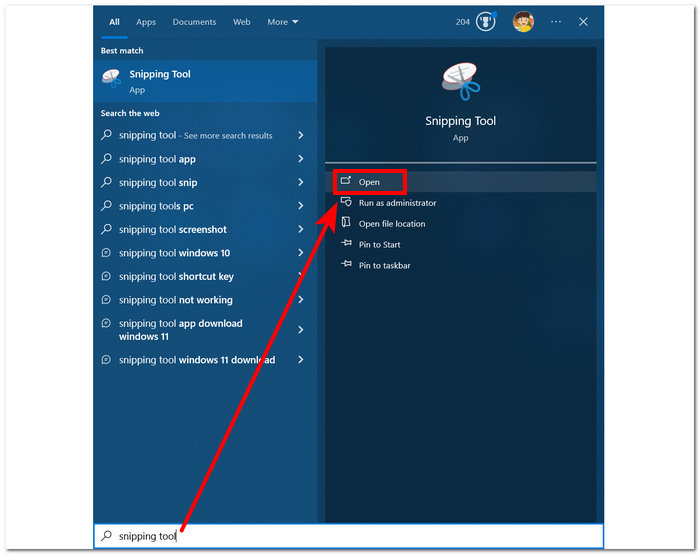
Perangkat lunak Snipping Tool sudah terinstal di Windows Anda.
Step 2. Once the Snipping Tool software is open, proceed to click on the Mode drop-down button to access the snipping features. For this case, you can select the Rectangular Snip.
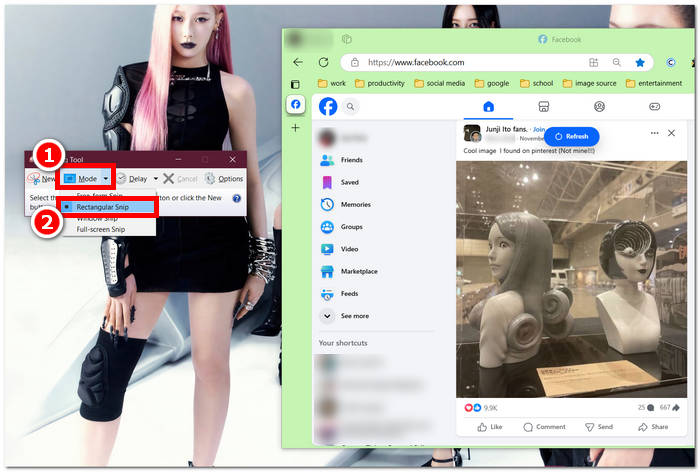
Jika Anda ingin area dengan bentuk khusus pada cuplikan layar, pilih Free-form Snip. Jika Anda ingin area cuplikan layar persegi panjang, pilih Rectangular Snip. Jika Anda ingin mengambil cuplikan layar dari jendela atau tab tertentu, pilih Window Snip. Untuk mengambil cuplikan layar seluruh layar Windows, pilih Full-screen Snip.
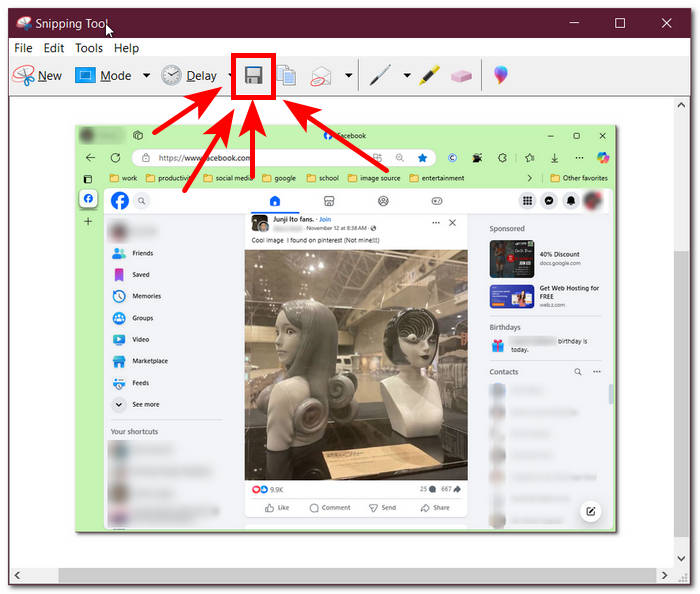
Step 3. Once you click on the Rectangular Snip, you can select the area on your Facebook web that you want to include in your screenshot. Once you've done this, a Snipping Tool window will appear containing your selected screenshot. Within that, you can customize your screenshot by adding text, highlights, annotating words, and more.
Step 4. To finish the process, click the Save button in the upper part of the Snipping Tool window.
Mac
Mengambil tangkapan layar konten Facebook mungkin berbeda untuk perangkat Mac dibandingkan dengan cara pengguna melakukannya dengan Windows. Namun, untuk yang satu ini, kami hanya akan memberi tahu pengguna untuk mengikuti perintah tombol pintas dasar pada papan ketik Mac mereka.
Step 1. Using your Mac devices, open your Safari web browser and proceed to the Facebook website.
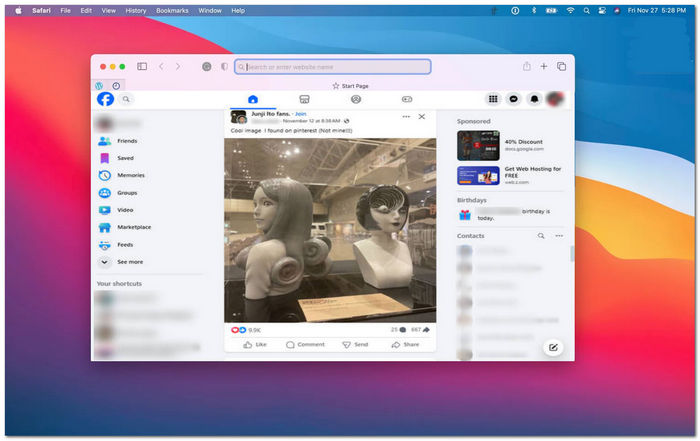
Step 2. On your Mac keyboard, to screenshot your Facebook webpage, hold down the following command + shift + 4.
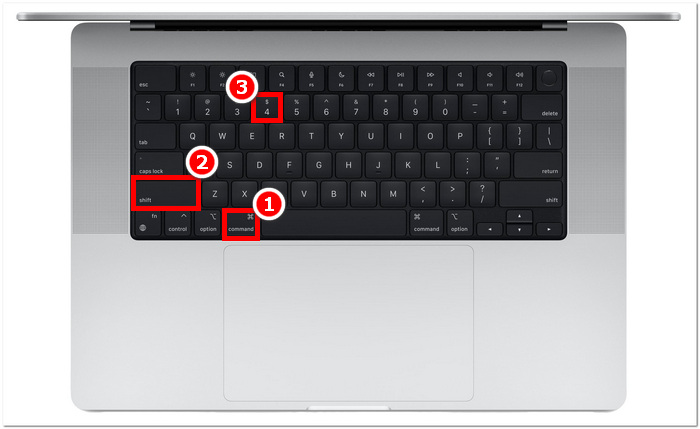
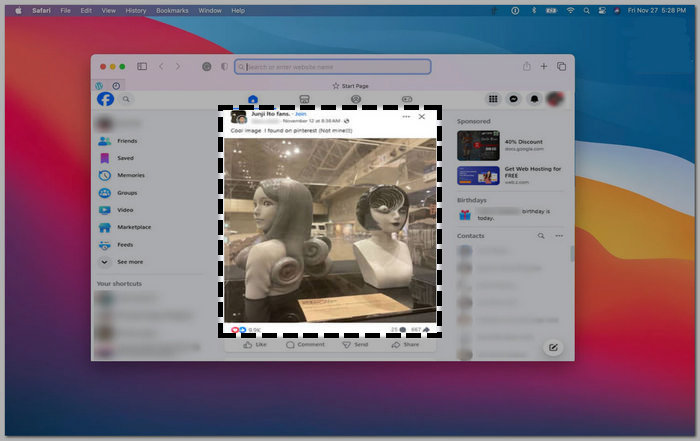
Step 3. Using your cursor, click, hold, and drag onto the area you want to capture.
Step 4. Release the cursor to instantly screenshot the Facebook consent using your Mac’s Safari web browser.
Bahasa Indonesia:iPad dan iPhone
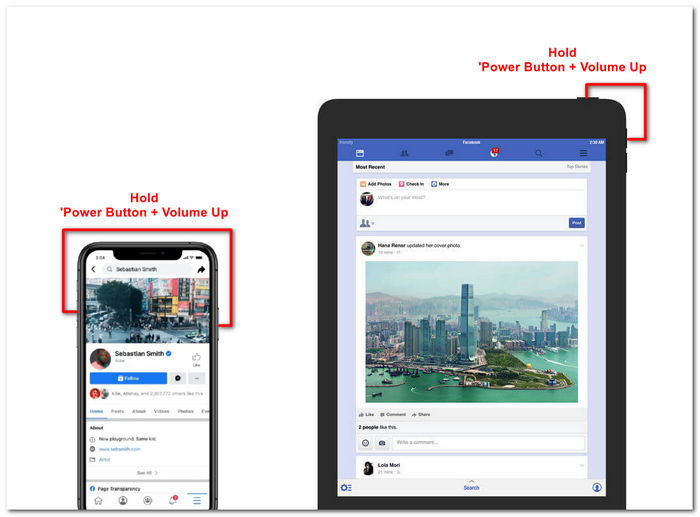
Mengambil tangkapan layar mudah dilakukan pada perangkat genggam seperti iPad atau iPhone, karena kedua perangkat tersebut hanya menggunakan tombol daya dan volume atas. Baik Anda menggunakan iPad atau iPhone, Anda dapat mengikuti langkah-langkah di bawah ini.
Step 1. Open your iPhone or iPad’s Facebook App and browse through your feed to find a post or perhaps a screenshot of Facebook story content.
Step 2. Once you are all set, take a screenshot of Facebook content; hold your device's Power Button + Volume Up button to capture it and have it saved in your Photos App.
Samsung Galaxy
Jika Anda menggunakan perangkat Samsung Galaxy dan tidak tahu cara mengambil tangkapan layar di aplikasi Facebook Anda, langkah-langkah berikut akan membantu Anda.
Step 1. Through your Samsung Galaxy device, open your Facebook App and look for content within the platform you want to save as a screenshot to your device.
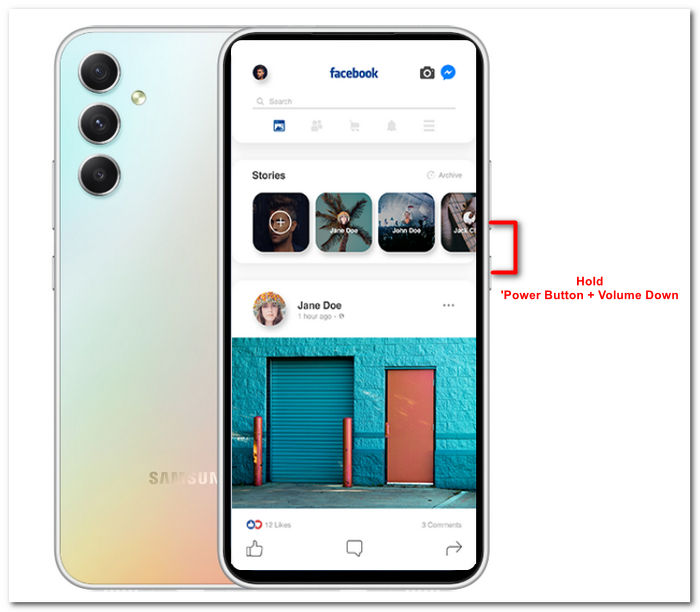
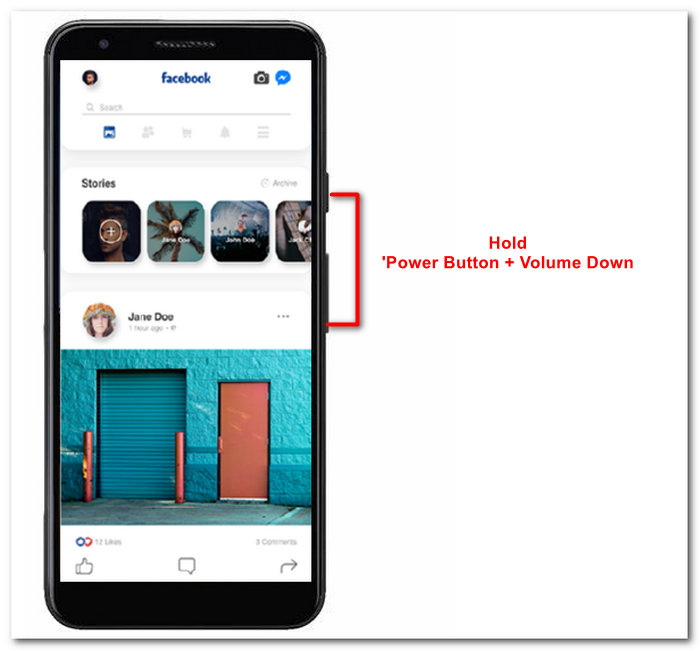
Step 2. Once you find the Facebook content you want to capture, hold your Power Button + Volume Down to screenshot it effectively.
It can also help you how to screenshot Samsung-specific models, like S23. You can use it to solve all your screenshot problems.
Android
Proses mengambil tangkapan layar berbeda antara perangkat Android dan iOS, karena Android menggunakan tombol Volume Turun, bukan tombol Volume Naik. Untuk mengambil tangkapan layar Facebook dengan mudah, ikuti proses di bawah ini.
Step 1. Open the Facebook mobile app on your Android device and browse your timeline for content you want to save as a screenshot in your Gallery.
Step 2. Once you find one, hold your mobile’s Power Button and Volume Down to screenshot it and save it directly in your Gallery App.
Bagian 2. Perekam Layar Hebat untuk Menangkap Semua yang Ada di Desktop
If you are looking for a more convenient way to take screenshots on your Facebook with a feature that allows you to instantly make edits, annotate, highlight, crop, and more in the screenshot, then you might like using the FVC-picked screen recorder. This free-to-use screen record tool can double function as a tool to record your screen in real time and take a snapshot for easy and quick sharing of content. Moreover, this comprises four screenshot settings to cater to all types of screen capture needs, no matter whether you want to screenshot on Mac or Dell. and using it in the likes of Facebook is beneficial. To learn more about these screenshot features offered by FVC-picked screen record, it is best to show you how to do it.
Step 1. On your desktop, download and install the FVC-picked screen recorder software, then start the application.
Unduh GratisUntuk Windows 7 atau yang lebih baruUnduhan Aman
Unduh GratisUntuk MacOS 10.7 atau yang lebih baruUnduhan Aman
Step 2. Access your Facebook web using any of your preferred web browsers. In the screen recording tool, click on the Snapshot drop-down menu, then select a screenshot type to capture your Facebook screen.
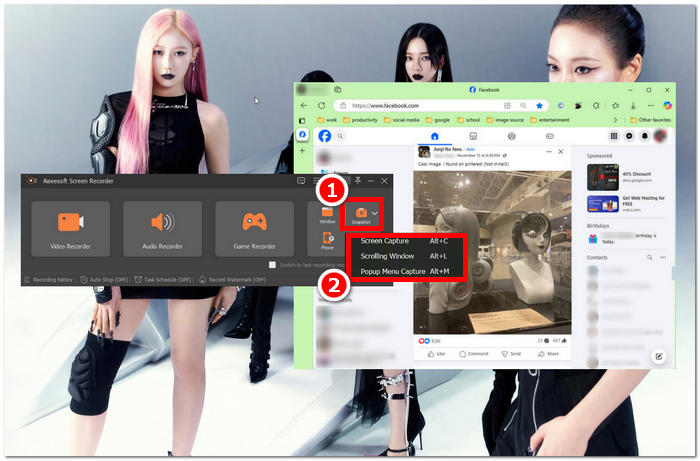
Anda dapat menyimpan tangkapan layar dari seluruh beranda menggunakan Screen Capture. Fungsi Scrolling Window mengambil cuplikan layar dari seluruh beranda, dari atas ke bawah. Pengguna dapat memilih bagian dari halaman web saat mengambil tangkapan layar yang disesuaikan dengan Popup Menu Capture.
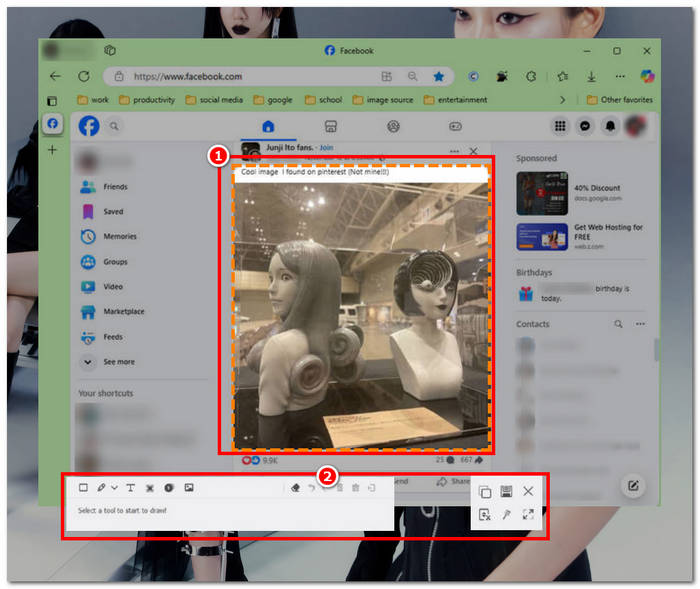
Step 3. In your Facebook timeline, click, hold, and drag your cursor on the area of the Facebook content you wish to capture as a screenshot.
Step 4. Once done, you can utilize the tools below to edit your screenshots before you can download them to your desktop download folder.
Bagian 3. FAQ tentang Screenshot di Facebook
Dapatkah orang melihat jika saya mengambil tangkapan layar profil, postingan, atau foto mereka?
Tidak, pengguna lain tidak akan diberi tahu jika Anda mengambil tangkapan layar profil Facebook mereka. Hanya Anda yang dapat melihatnya kecuali Anda membagikan tangkapan layar tersebut kepada mereka.
Apakah tangkapan layar Messenger dapat dideteksi?
Tidak, karena menimbulkan masalah keamanan dan pelanggaran data, Facebook tidak memberi tahu pengguna lain bahwa Anda baru saja mengambil tangkapan layar percakapan Anda.
Apakah legal untuk mengambil tangkapan layar konten Facebook?
Tangkapan layar konten Facebook tidaklah ilegal, karena postingan publik bersifat publik dan dapat dilihat oleh semua orang. Akan tetapi, menggunakan konten atau postingan seseorang untuk keuntungan pribadi tanpa izinnya adalah ilegal.
Kesimpulan
Taking screenshots of Facebook content is a great way to store and quickly share it with another user. While it is greatly helpful, learning how to do it, especially using other devices, from desktop to mobile, is also helpful. Through this guide, you learn different approaches to taking a Facebook screenshot using any available device you may have. While it is very convenient, the ability to edit and highlight instantly the screenshot using the FVC-picked screen recorder is the best way to take when you want to crop or highlight a certain part of the screenshot so that you won’t have to edit them later.
-
 Cara Mengambil Screenshot di Alcatel untuk Memanfaatkan Momen
 Kesulitan mengambil tangkapan layar di perangkat Alcatel Anda? Cobalah solusi perangkat lunak ponsel dan desktop ini dan simpan layar Anda untuk dilihat secara offline.
-
 Cara Screenshot di Minecraft: Tangkapan Layar Game Paling Mudah
 Pelajari cara termudah untuk mengambil tangkapan layar di Minecraft. Cobalah alat bawaan dan perangkat lunak perekam layar untuk menyimpan kreasi Minecraft Anda.
-
 Cara Mengambil Tangkapan Layar di Chromebook [Panduan Langkah demi Langkah]
 Temukan cara mudah mengambil tangkapan layar di Chromebook Anda dengan panduan langkah demi langkah yang komprehensif ini. Dipandu dan dapatkan tangkapan layar sempurna sekarang!
