


 Video Converter Ultimate
 Perekam Layar
 Perbaikan Video
 Unduhan Aman
Prosedur Lengkap untuk Mengonversi File AVI ke Format M4V
Format kontainer multimedia AVI, yang merupakan singkatan dari Audio Video Interleaved, adalah fitur dari perangkat lunak video Windows. Format ini memungkinkan pemutaran serentak data audio dan video yang digabungkan dalam satu file. Dengan kemampuan uniknya, termasuk kontrol tersinkronisasi dan tampilan waktu nyata, AVI dengan cepat menjadi salah satu format video yang paling banyak digunakan. Namun, jika Anda ingin memutar video di Mac, Anda harus mengonversi AVI ke M4V karena M4V adalah format Apple yang dapat diputar di iTunes, Apple QuickTime Player, dan perangkat iOS. Terkadang Anda mungkin ingin mengonversi file .avi di Mac ke format universal seperti M4V. Dalam situasi ini, mengonversi AVI ke M4V dianjurkan agar dapat berfungsi dengan baik di Mac OS. Kami akan menunjukkan kepada Anda metode terbaik untuk mengonversi AVI ke M4V menggunakan aplikasi online dan offline.

Bagian 1: Pengantar AVI dan M4V
| AVI | M4V | |
| Nama file | Audio Video Interleave | Video MPEG-4 |
| Ekstensi File | .avi | .m4v |
| Keterangan | Format file AVI adalah salah satu wadah multimedia paling populer yang pernah dibuat. Singkatan AVI, yang merupakan singkatan dari audio video interleaved, awalnya dibuat tersedia untuk umum oleh Microsoft pada tahun 1992 sebagai komponen kerangka kerja multimedia mereka, "video untuk Windows". File AVI dengan ekstensi nama file .avi dapat memiliki konten video dan audio yang disinkronkan karena merupakan format kontainer. Dengan demikian, penulis dapat mengedit dan menyandikan urutan audio-video atau urutan video menggunakan standar. | Apple membuat ekstensi file M4V, yang sangat mirip dengan ekstensi file MP4, untuk konten toko iTunes. Perangkat Apple adalah satu-satunya yang dapat memutar file M4V. Untuk diputar di perangkat Apple, format video lain seperti MP4 dan MOV dapat dikonversi ke M4V. Perbedaan utama antara format file M4V dan MP4 adalah bahwa yang pertama mendukung Perlindungan Hak Cipta DRM, yang melarang pelanggaran hak cipta pelanggaran konten media. Komputer harus memberikan izin dengan masuk ke akun iTunes untuk membeli file media untuk memutar file M4V yang dilindungi DRM. Namun, jika file tidak dilindungi DRM, pengguna cukup mengganti nama ekstensi file M4V menjadi MP4 agar kompatibel dengan perangkat non-Apple. |
| Dikembangkan oleh | Microsoft | Perusahaan Apple. |
| Program Terkait | VLC Media Player Pemutar QuickTime Apple Adobe Premier Pro 2020 Windows Media Player | KMPlayer Pemutar Media Klasik Pemutar Zoom \Pemutar Media VLC |
| Kategori File | Video | Video |
| Jenis MIME | video/x-video | video/x-m4v |
Bagian 2: Cara Terbaik untuk Mengonversi AVI ke M4V
Ingin mengonversi AVI ke M4V secara gratis? Anda dapat menggunakan FVC Free Video Converter Online. Alat ini dapat dengan mudah mengonversi format file AVI Anda ke M4V. Selain itu, alat ini mendukung lebih banyak format video, seperti FLV, MP4, MOV, WMA, dan lainnya. Jika Anda berencana mengonversi banyak file AVI ke berbagai format file, Anda dapat menggunakan aplikasi ini karena mendukung proses konversi batch. Anda juga dapat mengedit video sebelum mengonversi, seperti mengubah frame rate, resolusi, dan bit rate. Selain itu, FVC Free Video Converter Online dapat mengonversi file audio seperti MP3, AAC, AC3, FLAC, dan lain-lain.
fitur
◆ Konversi berbagai format file video, seperti M4V, AVI, MP4, MOV, VOB, FLV, WMV, dll.
◆ Dapat mengubah resolusi video, bit rate, dan frame rate.
◆ Konversi file audio seperti MP3, AAC, AC3, FLAC, dll.
Ikuti panduan sederhana di bawah ini untuk mengonversi AVI ke M4V dengan mudah.
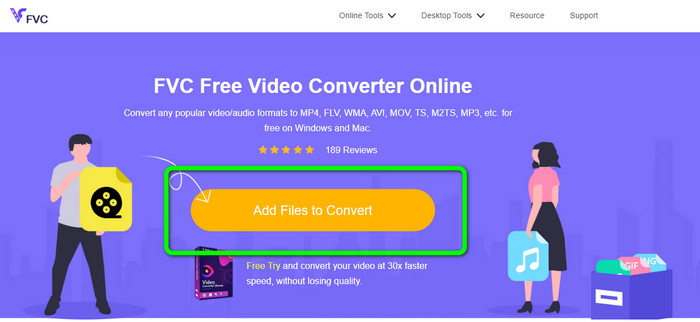
Langkah 1: Pertama, buka browser Anda dan kunjungi situs web FVC Free Video Converter Online. Tekan tombol Add Files to Convert untuk mengunggah file AVI Anda.
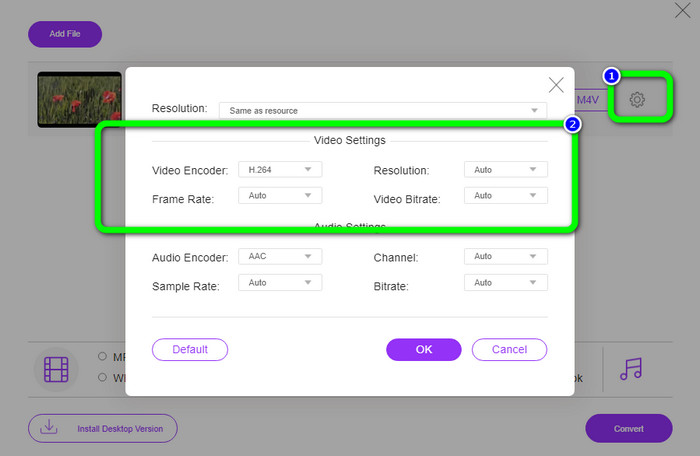
Langkah 2: Jika Anda ingin mengubah resolusi, frame rate, dan bit rate video, klik ikon Settings di bagian kiri antarmuka. Jika sudah selesai mengubah, tekan OK.
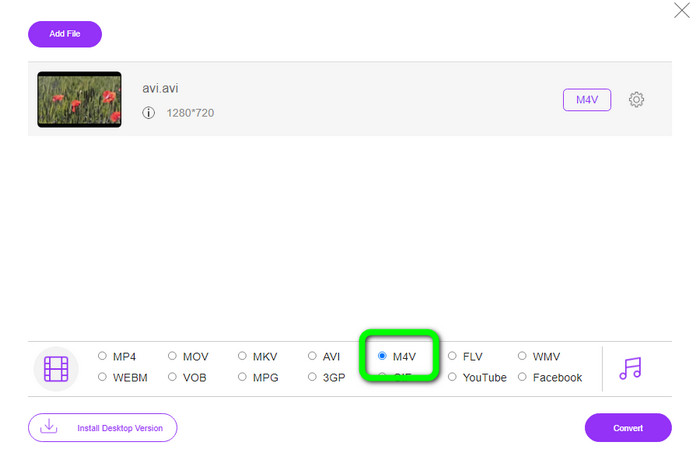
Langkah 3: Lalu, di bagian bawah antarmuka, pilih file M4V sebagai format keluaran Anda.
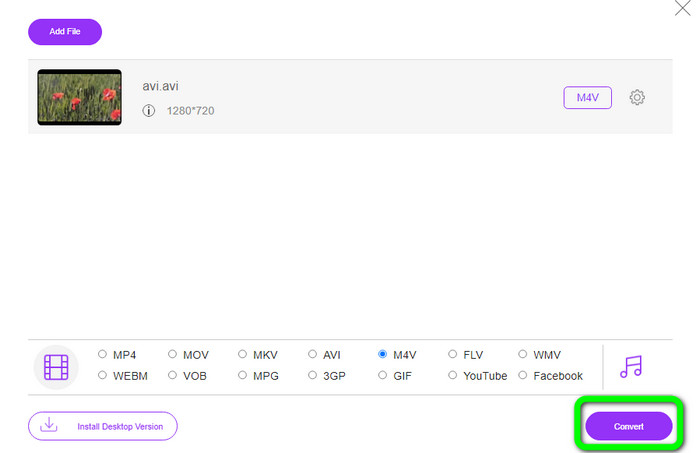
Langkah 4: Terakhir, untuk menyimpan file video Anda, klik tombol Convert. Tunggu proses konversi dan unduh hasil akhirnya.
Bagian 3: Metode Mudah untuk Mengonversi AVI ke M4V di Windows dan Mac
Converter hebat lain yang dapat Anda gunakan adalah FVC Video Converter Ultimate. Alat ini dapat mengonversi AVI ke M4V di Windows. Alat ini dapat mengonversi file Anda secara instan karena memiliki proses konversi ultra-cepat, 30x lebih cepat. Selain itu, Anda dapat mengonversi banyak file sekaligus karena mendukung konversi batch. Ditambah lagi, alat offline ini memiliki metode dasar dengan antarmuka intuitif yang cocok untuk pemula. Selain itu, alat offline ini tidak hanya dapat diakses di Windows, tetapi juga tersedia di Mac. Lebih jauh, Anda juga dapat melakukan beberapa penyesuaian pada video saat mengonversi. Anda dapat mengedit video dengan menyempurnakan, memotong, menambahkan filter, dan lainnya.
Fitur
◆ Mengonversi 100+ file video, termasuk M4V, MP4, AVI, FLV, MKV, MOV, VOB, WMV, dan banyak lagi.
◆ Membuat Kolase dengan templat dan filter gratis tersedia.
◆ Menawarkan pembuat Video Musik.
◆ Edit video menggunakan video enhancer, trimmer, penghapus watermark, compressor, dan sebagainya.
◆ Konversi format file gambar, seperti BMP, JPG, PNG, dll.
◆ Mempercepat dan memperlambat video.
Gunakan panduan terperinci di bawah ini untuk mengetahui cara mengonversi AVI ke M4V di Windows dan Mac menggunakan FVC Video Converter Ultimate. Kami akan menggunakan versi Windows.
Langkah 1: Unduh FVC Video Converter Ultimate di Windows atau Mac Anda dengan mengeklik tombol unduh.
Unduh GratisUntuk Windows 7 atau yang lebih baruUnduhan Aman
Unduh GratisUntuk MacOS 10.7 atau yang lebih baruUnduhan Aman
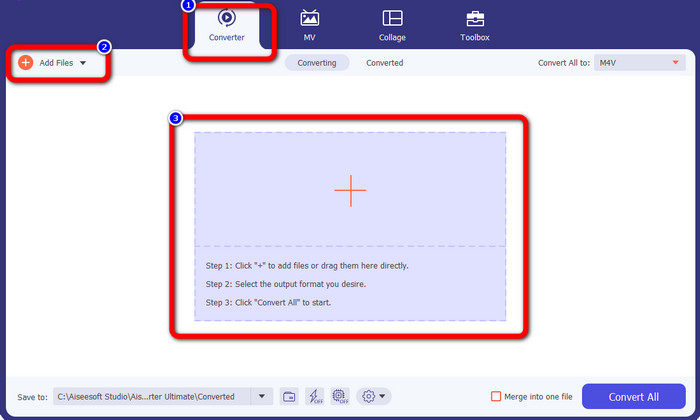
Langkah 2: Buka panel Converter setelah membuka aplikasi. Lalu, ada tiga opsi untuk memasukkan file AVI Anda. Pertama, Anda bisa mengeklik tombol Add File pada kotak kedua. Opsi kedua adalah mengeklik tanda Plus pada kotak ketiga. Terakhir, seret dan jatuhkan file langsung ke bagian tengah.
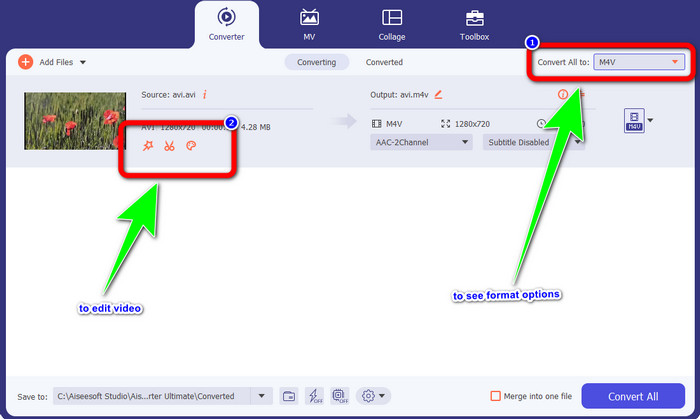
Langkah 3: Setelah menambahkan file AVI, klik tombol Convert All to untuk melihat opsi format, lalu pilih format file M4V. Kemudian, jika Anda ingin mengedit video, Anda dapat pergi ke kotak kedua. Anda bisa menggunakan berbagai alat untuk mengedit video, seperti menambahkan filter, memutar dan memotong video, memotong bagian tertentu, dan lainnya.
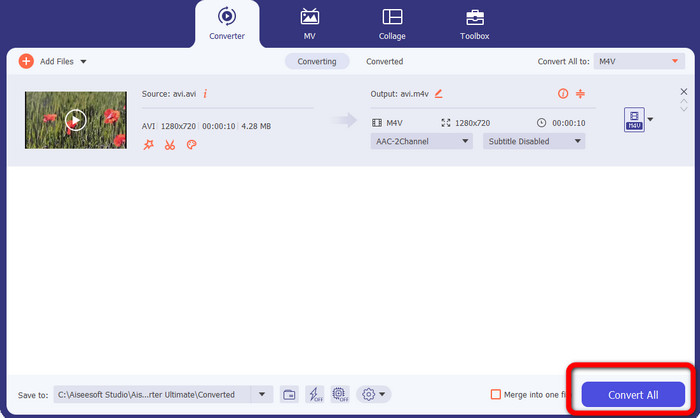
Langkah 4: Untuk langkah terakhir, klik tombol Convert. Tunggu proses konversi yang cepat dan simpan video yang telah dikonversi.
Bagian 4: Cara Mengkonversi AVI ke M4V Menggunakan Handbrake
Handbrake adalah converter lain untuk mengonversi AVI ke M4V secara gratis. Alat ini dapat mengonversi berbagai file seperti WEBM, M4V, MP4, MKV, dan lain-lain. Dengan panduan dari alat ini, Anda dapat dengan mudah mengonversi banyak file. Namun, Handbrake cukup rumit digunakan. Anda perlu memiliki pengetahuan yang cukup tentang converter ini. Selain itu, proses instalasinya membingungkan. Anda harus melakukan banyak prosedur sebelum menggunakannya, yang memakan waktu bagi pengguna.
Langkah 1: Unduh Handbrake ke komputer Anda.
Langkah 2: Pilih format file AVI yang ingin Anda konversi.
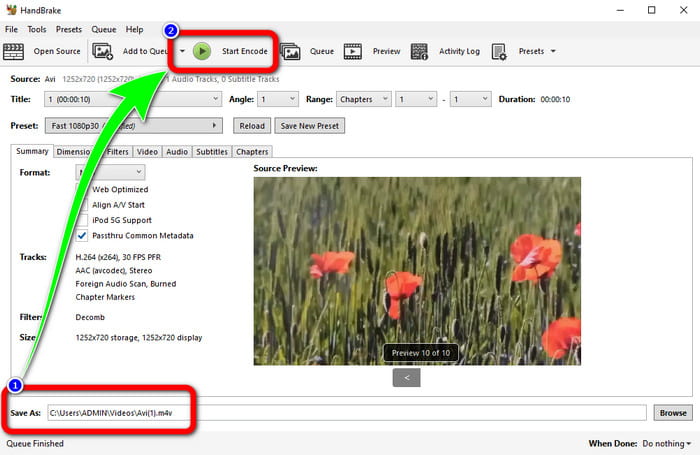
Langkah 3: Masuk ke bagian format dan pilih M4V. Lalu mulai proses konversi dengan mengeklik tombol Start.
Bagian 5: FAQ tentang Konversi AVI ke M4V
1. Bagaimana cara mengonversi AVI ke M4V di Mac?
Anda dapat menggunakan FVC Video Converter Ultimate. Konverter ini dapat dengan mudah mengonversi AVI Anda ke M4V menggunakan Mac Anda.
2. Seberapa besar file AVI?
Karena video AVI tidak dikompresi, video tersebut menggunakan lebih banyak ruang hard disk. Misalnya, rekaman video AVI 352x288 satu jam dapat menggunakan ruang hard disk hingga 33 GB (3300 MB).
3. Apakah file AVI bersifat universal?
Ya. Meskipun format AVI telah banyak digantikan oleh format yang lebih modern seperti MP4, MOV, atau WMV, orang masih menggunakan AVI karena portabilitasnya. Hampir semua komputer atau perangkat dapat memutar file AVI.
Kesimpulan
Panduan ini menunjukkan kepada Anda metode-metode terbaik untuk mengonversi file AVI ke M4V menggunakan tiga converter. Namun, jika Anda menginginkan proses konversi yang sangat cepat, gunakan FVC Video Converter Ultimate. Dan jika Anda menginginkan metode yang lebih sederhana, gunakan FVC Free Video Converter Online.
-
 5 Pemain M4V Teratas untuk Windows / Mac / Android / iOS yang Harus Anda Ketahui
 Saat Anda tidak dapat memutar video M4V di QuickTime Player, Anda harus mempelajari lebih lanjut dari 5 pemutar M4V terbaik untuk Windows, Mac, Android, dan iOS dari artikel ini
-
 AVI VS MP4 - Perbedaan dan Persamaan antara Format AVI dan MP4
 Manakah format video yang lebih baik, AVI atau MP4? Jika Anda ingin mendapatkan perbandingan detailnya, Anda dapat melihat artikel AVI VS MP4 ini. Anda dapat mengetahui perbedaan dan persamaan antara AVI dan MP4 dalam banyak aspek
-
 3 Program Konverter Video yang Digunakan untuk Mengonversi iTunes M4V ke AVI di Mac
 Tidak tahu cara mengonversi MKV ke format AVI? Saat kami melanjutkan membaca artikel ini, kami akan mengetahui 3 alat yang dapat membantu Anda mengonversi format file ini
