


 Video Converter Ultimate
 Perekam Layar
 Perbaikan Video
Cara Mengonversi DivX ke WMV Dengan Mudah: Metode Offline dan Online
DivX adalah codec kompresi video yang mengompres video ke ukuran yang diinginkan pengguna. File WMV adalah file Windows Media Video yang dapat mengompres format kompresi video milik Microsoft. Perlu diingat bahwa DivX dan WMV tidak selalu kompatibel. Meskipun sebagian besar video saat ini dikodekan dalam DivX dan disimpan dalam format WMV, terkadang diperlukan untuk mengonversi DivX ke format WMV tergantung situasinya. Untungnya, kami menyediakan konverter DivX ke WMV yang Anda perlukan untuk menyelesaikan pekerjaan ini dengan cepat – baik secara offline maupun online.

Bagian 1. Metode Luar Biasa untuk Digunakan dalam Mengonversi DivX ke WMV [Offline]
Video Converter Ultimate mungkin menjadi pilihan utama jika Anda mencari perangkat lunak yang dapat menyelesaikan seluruh proses dalam satu kali jalan dan menawarkan fitur tambahan untuk kebutuhan penyuntingan lainnya. Bukan hanya mendukung banyak format file video, perangkat lunak ini juga memungkinkan Anda mengedit video dan audio lebih lanjut dari segi kualitas, serta mempersonalisasi klip dengan menambahkan efek. Perangkat lunak ini adalah konverter serba guna. Berikut adalah langkah-langkah yang perlu Anda ikuti untuk menggunakan program ini:
Langkah 1: Instal perangkat lunak ke desktop Anda dengan mengklik salah satu tombol Unduh Gratis di bawah ini sesuai dengan sistem operasi Anda. Tunggu hingga file .exe selesai diunduh, lalu buka untuk memulai proses instalasi. Setelah selesai menginstal perangkat lunak, klik Mulai Sekarang dan jalankan perangkat lunak tersebut.
Unduh GratisUntuk Windows 7 atau yang lebih baruUnduhan Aman
Unduh GratisUntuk MacOS 10.7 atau yang lebih baruUnduhan Aman
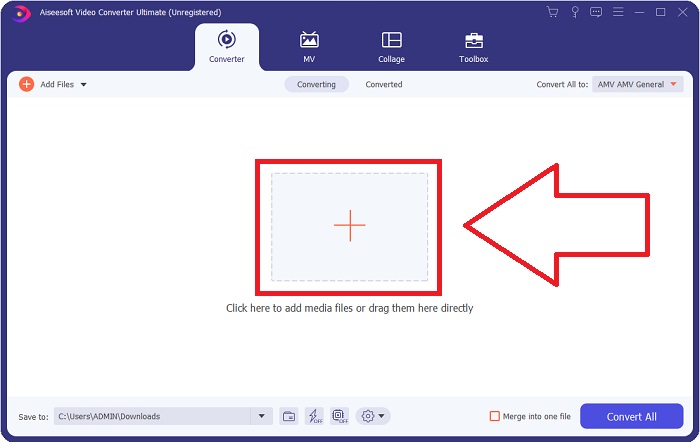
Langkah 2: Sebuah jendela akan terbuka dengan antarmuka yang memiliki tombol + di tengah. Klik tombol tersebut untuk mengimpor file video yang ingin Anda konversi, atau Anda cukup menyeret dan meletakkan (drag and drop) file dengan mudah.
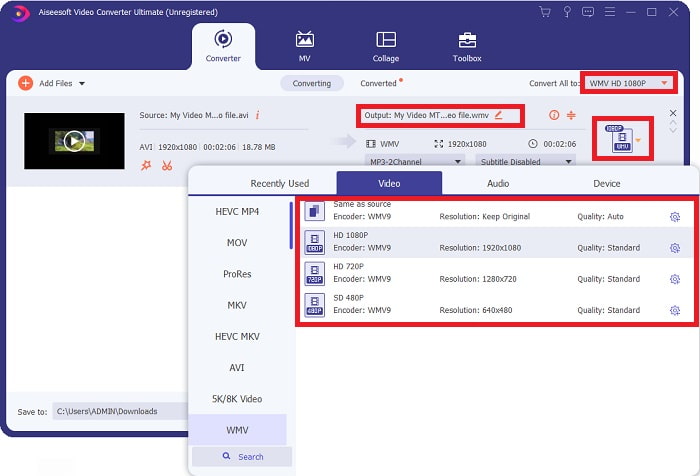
Langkah 3: Setelah selesai mengimpor file, Anda akan melihat format saat ini dari file video Anda di sisi kanan file. Klik pada bagian tersebut, dan semua format yang tersedia akan muncul. Anda dapat menggulir ke bawah atau mengetik WMV di bilah pencarian untuk memilihnya. Selain itu, akan ada pilihan kualitas video di sisi kanan tab.
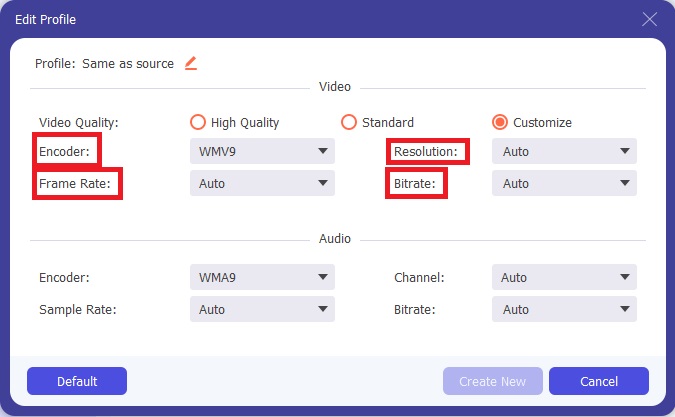
Langkah 4: Untuk lebih banyak opsi, Anda dapat mengklik ikon roda gigi di samping kualitas video yang Anda pilih, dan antarmuka lain akan muncul. Dari sana Anda dapat mengedit resolusi, frame rate, bitrate, dan banyak lagi sesuai kebutuhan Anda. Jika Anda puas dengan semua penyesuaian, klik tombol Buat Baru di pojok kanan bawah untuk menyimpan perubahan.
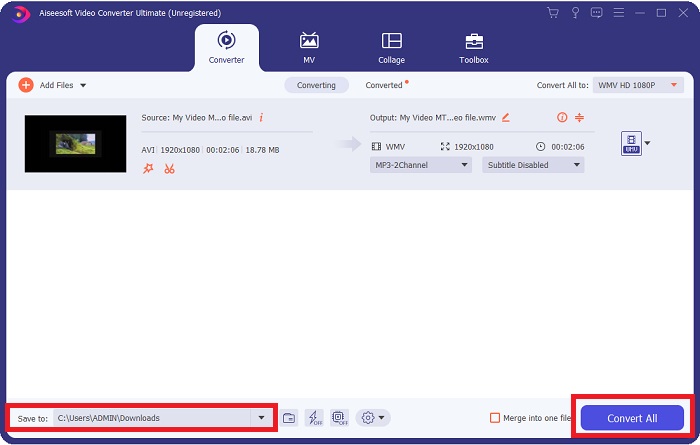
Langkah 5: Jika Anda sudah selesai mengatur pengaturan video sesuai keinginan, klik tombol Konversi Semua di pojok kanan bawah untuk memulai proses konversi dan tunggu hingga selesai.
Bagian 2. Metode Lain yang Digunakan dalam Mengonversi DivX ke WMV [Online]
Anda dapat menyimpan konverter video setiap saat tanpa harus menginstal perangkat lunak apa pun. Namun, Anda juga dapat mengonversi video dengan cepat dan mudah tanpa menginstal apa pun. Video Converter Ultimate memiliki mitra online yang dapat Anda gunakan dalam satu sapuan. Itu masih menawarkan opsi tambahan dan mendukung banyak format. Untuk menggunakan alat web ini, ikuti langkah-langkah sederhana ini:
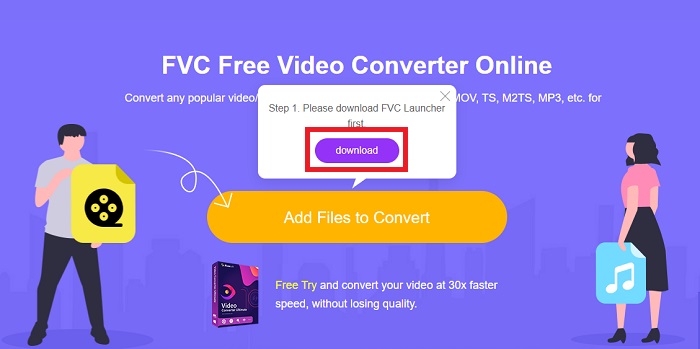
Langkah 1: Anda dapat memulainya dengan mengklik tautan ini, dan Anda akan diarahkan ke alat online tersebut. Dari sana, Anda akan menemukan tombol Tambah File untuk Dikonversi di tengah. Klik tombol itu untuk mengunduh peluncur (launcher) yang Anda perlukan agar dapat dengan mudah mengimpor file video Anda.
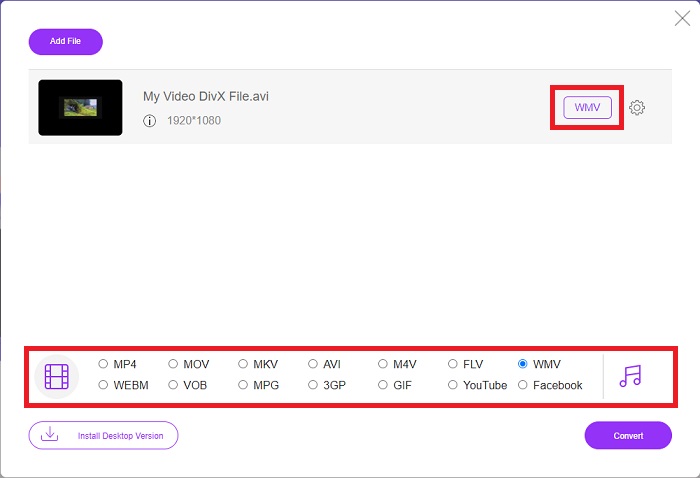
Langkah 2: Jika peluncur sudah selesai diunduh, klik kembali tombol yang sama untuk mengimpor file yang ingin Anda konversi. Sekarang Anda dapat memilih WMV dari daftar format di bagian bawah jendela.
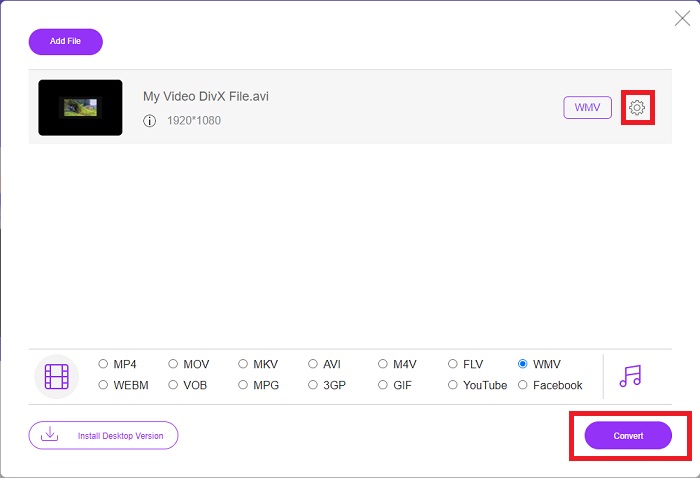
Langkah 3: Anda juga dapat menemukan ikon roda gigi di sebelah kanan untuk melakukan perubahan terkait resolusi, frame rate, dan lainnya sebagaimana pada perangkat lunaknya. Untuk menyimpan perubahan yang dibuat, klik OK, dan Anda sekarang dapat memulai proses konversi. Klik tombol Konversi di pojok kanan bawah dan tunggu hingga selesai.
Terkait:
Bagian 3. DivX Vs. WMV: Informasi yang Harus Anda Ketahui
Untuk perbandingan antara dua format yang disebutkan, Anda dapat membaca di luar bagian ini untuk mengetahui semua informasi penting:
DivX adalah merek codec video yang dibuat oleh DivX, LLC. Codec video ini bekerja paling baik dengan aplikasi Windows, meskipun pengguna juga dapat menemukannya di konsol game, jam alarm, stereo kendaraan, dan perangkat lainnya. MPEG-4 Part 2, HEVC Ultra HD, dan H.264/MPEG-4 AVC DivX Plus High Definition video codec adalah tiga codec DivX utama yang digunakan saat ini.
Di sisi lain, WMV (Windows Media Video) adalah seperangkat codec video dan format pengkodean yang dirilis oleh Microsoft sebagai bagian dari kerangka kerja Windows Media mereka. Tujuannya untuk bersaing dengan format RM pada aplikasi internet streaming. Tujuannya adalah untuk menyimpan film terkompresi dan bahkan mengirimkan Blu-ray/DVD.
| Video Ekspres Digital (DivX) | Windows Media Video (WMV) | |
| Ekstensi File | .divx | .wmv |
| Pengembang | DivX Networks Inc. | Microsoft |
| Program Pendukung | Pemutar DVD/Blu-ray Jam Alarm Stereo Mobil X-Box 360 | Pemutar Media VLC MPplayer Pemutar Media Klasik Pemutar Media Windows |
Bagian 4. FAQ tentang Konversi DivX ke WMV
Apakah DivX masih digunakan?
DIVX (Digital Video Express) adalah format video digital yang dihentikan yang merupakan upaya gagal di Amerika Serikat untuk mengembangkan alternatif yang layak untuk penyewaan video.
Apa batasan WMV?
Karena WMV adalah format Windows, menemukan pemutar media Apple atau Linux dapat memutar film WMV. WMV belum menjadi format video streaming utama karena alasan ini.
Manakah yang memiliki rekaman definisi tinggi?
Meskipun WMV dan DivX dapat merekam pada 1280x720, yang satu harus memiliki kualitas yang lebih tinggi dari yang lain. Codec ini dapat merekam pada beberapa tingkat kualitas pada resolusi yang tepat, tetapi kecepatan bit bervariasi untuk membuat file yang lebih kecil. Meskipun gambar WMV lebih unggul, DivX membuat file lima kali lebih cepat dan 50 persen lebih kecil.
Kesimpulan
Semua hal dipertimbangkan, memiliki konverter di samping Anda dianjurkan sehingga pada saat membutuhkannya, Anda tidak perlu melalui semua kesulitan untuk menemukan yang layak secara online. Video Converter Ultimate dan rekan alat online-nya direkomendasikan untuk konsumen atau pembuat video karena mereka menawarkan lebih banyak daripada konverter lainnya. Plus, ini memberi Anda yang paling nyaman karena memiliki antarmuka yang bahkan dapat dinavigasi oleh pemula dengan mudah.
-
 4 Cara Mengkonversi DivX ke MOV Gratis [Online & Offline]
 Apakah Anda kesulitan dengan keterbatasan DivX, atau Anda tidak memiliki pemutar media untuk mengakses video dalam format ini? Jika Anda ingin mengonversinya ke format MOV, lanjutkan membaca artikel ini untuk mengisi kekosongan.
-
 2 Konverter Bersertifikat yang Digunakan untuk Mengonversi File DivX ke Format FLV [2022]
 Apakah Anda ingin tahu cara mengonversi file DivX Anda ke FLV? Kemudian baca artikel ini untuk mengetahui cara melakukannya dan konverter yang tersedia yang dapat Anda gunakan.
-
 Panduan Sederhana tentang Cara Mengubah GIF Anda ke WMV di Windows/Mac
 Apakah Anda ingin tahu cara mengonversi GIF ke format WMV? Kemudian ikuti artikel ini karena menampilkan berbagai solusi yang dapat Anda pilih.
