


 Video Converter Ultimate
 Perekam Layar
 Perbaikan Video
Konverter Mini DV ke AVI yang Fenomenal Tersedia di Windows & Mac OS
Tujuan utama file DV adalah untuk menyimpan video digital dari kamera video atau camcorder buatan Panasonic dan Sony pada akhir tahun 1995. Codec dan format tape ini menjadi terkenal karena peralihannya dari produksi analog ke digital. Namun saat ini, Anda tidak dapat memutar file DV di pemutar media bawaan Anda atau bahkan membagikannya secara online. Jadi, jika Anda ingin memutar file ini, Anda harus mempertimbangkan untuk mengonversinya ke format yang lebih didukung dan mudah diputar seperti AVI. Selain itu, penjelasan di bawah ini akan membantu Anda memahami DV, mengonversi file DV ke AVI, dan memutarnya di pemutar media jika Anda tidak ingin mengonversinya.

Bagian 1. Pertempuran Format: DV VS AVI
File DV dan AVI hampir mirip karena kedua format ini dapat berisi video dan audio. Namun, tujuan mereka dan cara mereka menyimpan file media jauh dari satu sama lain. Dalam hal ini, mari kita tentukan apa perbedaan antara DV dan AVI dengan membandingkan 3 kemampuan unik mereka.
Kompatibilitas Format
AVI mendapat dukungan yang lebih luas dan merupakan salah satu format yang paling kompatibel untuk memutar dan menyunting video. Format ini dapat memuat pemutaran video dalam format yang tersinkronisasi. Sebaliknya, file DV tidak didukung oleh banyak editor video dan pemutar media di PC maupun Mac. Karena itu, inilah salah satu alasan mengapa Anda memerlukan konverter mini DV ke AVI.
Kompresi yang Didukung
AVI adalah format file lossless untuk penyimpanan file media yang kuat dan canggih. Namun, format ini akan memakan banyak penyimpanan hard disk Anda karena tidak terkompresi. Sementara DV menggunakan kompresi lossy untuk videonya, tetapi file audio tidak terkompresi. Alasan mengapa formatnya lossy adalah karena menggunakan DCT sebagai basis frame-by-frame yang digunakan untuk mengompresi video.
Fidelitas Audio
File DV kesetiaan audio mendukung antara kualitas audio rata-rata dan terbaik karena menggunakan audio PCM sampling hingga 48 kHz dengan panjang kata 20 bit. AVI memang menggunakan PCM yang tidak terkompresi dan kualitas audionya luar biasa. Namun, akan lebih baik jika Anda menggunakan DV sebagai encoder untuk mencapai DV-AVI yang dikompres.
Sekarang kita mengerti apa format ini, sekarang waktu yang tepat untuk mengkonversi DV ke AVI di Mac atau PC Anda dengan membaca tutorial yang disediakan di bawah ini.
Bagian 2. Alat Konverter Fenomenal Terbaik untuk Mengonversi DV ke AVI di Mac dan Windows
FVC Video Converter Ultimate
Apakah Anda kesulitan memilih konverter yang menghasilkan keluaran yang luar biasa? Jika demikian, kami menyarankan Anda menggunakan FVC Video Converter Ultimate. Perangkat lunak ini menjadi salah satu pilihan paling populer bagi pengguna yang sering mengonversi format. Selain itu, kata ultimate bukan hanya sekadar nama, tetapi juga tercermin dari kinerja yang diberikannya. Secara umum, format ini sangat membantu siapa saja yang membutuhkan bantuan dalam masalah konversi. Sebelum kita melanjutkan ke langkah-langkahnya, mari kita ketahui terlebih dahulu keunggulan yang akan Anda dapatkan jika mengunduh perangkat lunak ini.

Video Converter Ultimate
30000+ Unduhan- Konversikan file video DV Anda ke dalam 200+ format yang tersedia.
- Mendukung semua Sistem Operasi seperti PC & Mac.
- Kotak alatnya mencakup fitur-fitur canggih seperti membuat GIF, mengedit video, menggabungkan, dan banyak lagi.
- Antarmuka intuitif untuk semua orang.
- Ini mendukung konversi 30x lebih cepat dibandingkan dengan konverter lain secara online atau offline.
Unduh GratisUntuk Windows 7 atau yang lebih baruUnduhan Aman
Unduh GratisUntuk MacOS 10.7 atau yang lebih baruUnduhan Aman
Jadi tanpa basa-basi lagi, mari kita lanjutkan ke tutorial di bawah ini, dan mari kita convert DV ke AVI tanpa kehilangan kualitas videonya.
Langkah-langkah Mengonversi DV ke AVI dengan FVC Video Converter Ultimate:
Langkah 1. Tekan tombol Unduh yang ada di bawah ini, pilih OS yang sedang Anda gunakan. Instal perangkat lunak ke drive Anda dan klik Start Now untuk melanjutkan ke langkah berikutnya.
Unduh GratisUntuk Windows 7 atau yang lebih baruUnduhan Aman
Unduh GratisUntuk MacOS 10.7 atau yang lebih baruUnduhan Aman
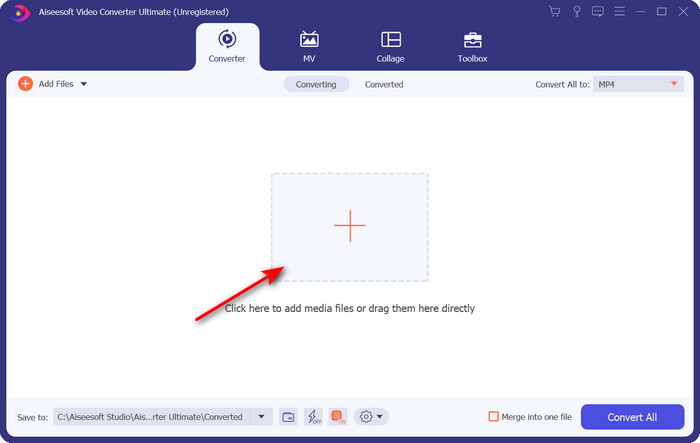
Langkah 2. Buka perangkat lunak dan klik tombol + yang terletak di tengah antarmuka alat. Sebuah folder akan muncul, dan untuk mengunggah file .dv, klik Open.
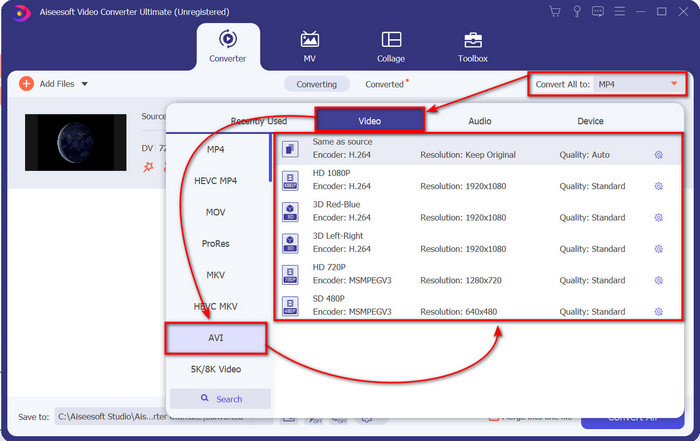
Langkah 3. Untuk mengubah file .dv menjadi .avi, klik tombol drop-down dan cari format AVI.
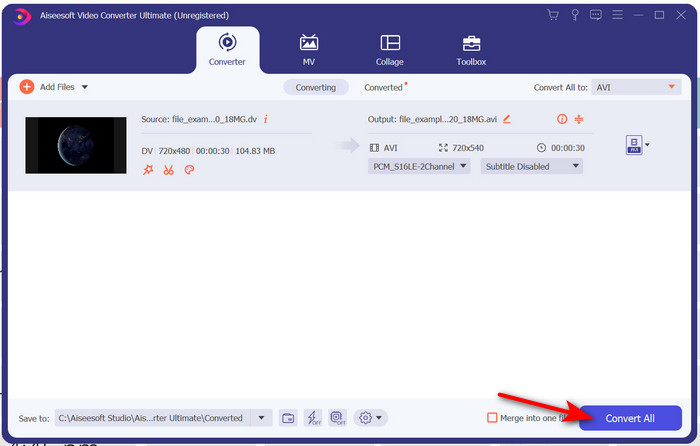
Langkah 4. Setelah Anda memilih formatnya, sekarang saat yang tepat untuk mengubah DV ke AVI dengan mengeklik Convert All.
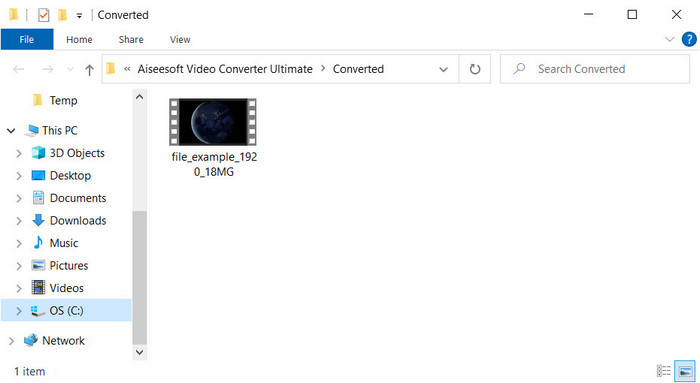
Langkah 5. Mengonversi file akan memakan waktu kurang dari satu menit, jadi menunggu lama tidak diperlukan. Folder lain akan muncul dengan file yang sudah dikonversi.
Bagian 3: Putar File DV Anda dengan Pemutar Video DV yang Tersedia di PC & Mac
Pemutar Blu-ray
Tidak ingin mengonversi mini DV ke AVI? Maka cobalah menggunakan pemutar media yang mendukung format ini, yaitu Blu-ray Player. Pemutar media ini mendukung lebih dari 300 format dan codec untuk memutar video di desktop Anda tanpa hambatan. Selain itu, pemutar media ini memiliki fitur paling canggih yang seharusnya dimiliki sebuah pemutar media untuk membuat pengalaman menonton Anda menjadi lebih baik. Anda juga dapat menggunakan CD, DVD, atau disk Blu-ray untuk memutar video di komputer Anda; pada dasarnya, semua orang dapat menggunakan pemutar media portabel ini. Jadi sekarang, jika Anda tidak ingin repot mengonversi file .dv, ikuti langkah-langkah berikut untuk memutar videonya.
Langkah-langkah Memutar File DV dengan Bantuan Blu-ray Player:
Langkah 1. Untuk mengunduh pemutar media ini, klik tombol di bawah ini, lalu instal pemutar dan jalankan.
Unduh GratisUntuk Windows 7 atau yang lebih baruUnduhan Aman
Unduh GratisUntuk MacOS 10.7 atau yang lebih baruUnduhan Aman
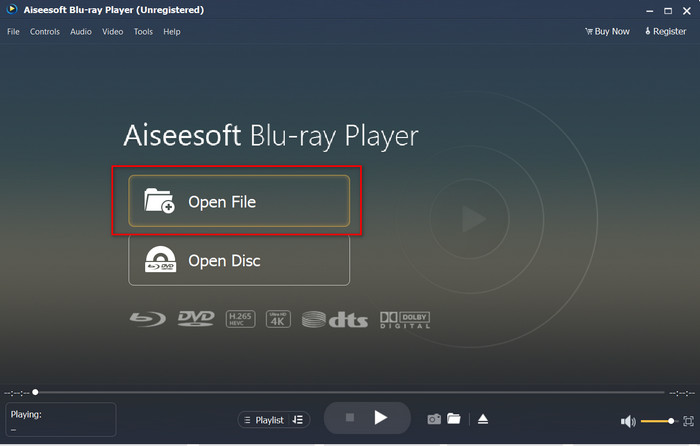
Langkah 2. Klik Open File, lalu cari file .dv di folder Anda dan tekan Open.
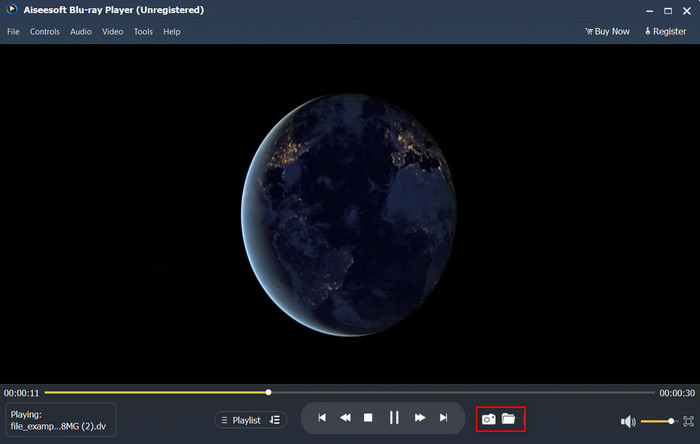
Langkah 3. File DV akan otomatis diputar di desktop Anda. Selain itu, klik tombol camera jika Anda ingin mengambil tangkapan layar dari apa yang sedang Anda tonton. Lalu, jika Anda ingin melihat snapshot yang sudah diambil, klik tombol folder.
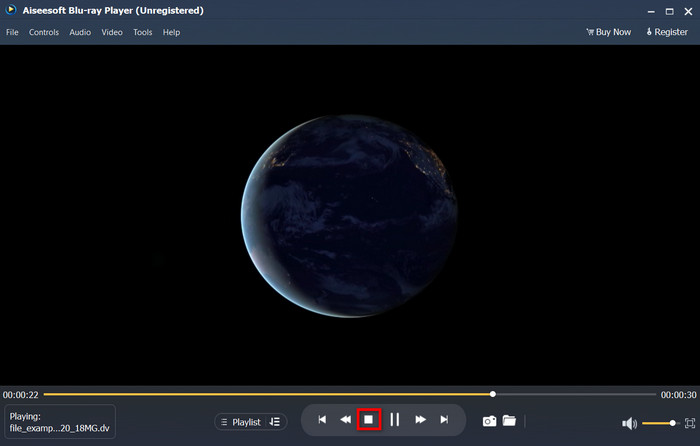
Langkah 4. Jika Anda ingin berhenti menonton file .dv, klik tombol cube.
Langkah 5. Untuk menonton file lain dalam format yang berbeda, ikuti langkah 2 dan 3, lalu nikmati video berkualitas tinggi.
Terkait:
Bagian 4. FAQ tentang Konversi DV ke AVI
Apakah mengonversi file DV kehilangan kualitasnya?
Mengubah format apa pun menjadi versi baru seharusnya tidak mengurangi kualitas format video asli. Namun, beberapa konverter tidak mendukung konversi kualitas video 1080 atau 4k karena akan memakan waktu. Jadi, jika tidak ingin kehilangan kualitas, maka gunakan FVC Video Converter Ultimate. Harapkan tidak kurang karena perangkat lunak ini tidak akan menyentuh kualitas Anda dan akan memberi Anda pilihan untuk membuatnya lebih tinggi atau mempertahankannya.
Bisakah saya memutar .dv di VLC?
Untuk hari ini, VLC tidak mendukung file .dv untuk dimainkan; namun, jika Anda mengompres AVI dan menggunakan DV-AVI, Anda dapat memutar video di VLC.
Format apa pengganti terbaik untuk DV?
Jika Anda ingin mengetahui pengganti terbaik untuk file DV, coba gunakan file MP4. Format ini dikenal sebagai format multifungsi karena kompatibel dengan semua desktop dan perangkat jika ingin memutar video atau mengeditnya. Tapi kualitas MP4 dan DV jauh berbeda jika kita membandingkannya. Namun demikian, MP4 dari segi kompatibilitas adalah format media terbaik yang dapat Anda gunakan sebagai pengganti.
Kesimpulan
Sebagai rangkuman, kami hanya menyajikan satu konverter DV ke AVI karena ini adalah satu-satunya perangkat lunak yang berkinerja baik dalam mengonversi jenis file ini. Saat terus membaca artikel ini, kami menemukan cara lain untuk memutar file .dv dengan menggunakan pemutar DV ini. Selain itu, kami menghadirkan dua alat untuk menjalankan fungsinya, apakah Anda ingin memutar .dv atau mengonversi filenya. Jadi sekarang, jika Anda memilih FVC Video Converter Ultimate, maka harapkan kualitas keluaran yang fenomenal dalam waktu yang relatif singkat. Namun jika Anda memutuskan untuk memutar file DV, maka pilihan utama Anda haruslah Blu-ray Player.
-
 5 Pilihan Terbaik untuk Mengubah Format MPEG ke AVI [Online & Offline]
 Apakah Anda kesulitan mencari konverter untuk MPEG? Kemudian coba baca artikel ini saat kita mempelajari cara mengubah format MPEG ke AVI dengan langkah-langkah terperinci.
-
 4 Pengonversi Luar Biasa ke Gratis Mengonversi WMV ke AVI Online [2021]
 Apakah Anda mencari konverter WMV ke AVI? Dan jika demikian, coba baca artikel ini saat kami menyaring semua alat yang dapat kami temukan di web untuk membantu Anda dalam tugas tersebut.
-
 4 Konverter Online dan Offline Terbaru untuk Mengonversi Format F4V ke AVI
 Apakah Anda tidak tahu konverter apa yang harus Anda gunakan untuk mengonversi F4V ke AVI atau format video lainnya? Kemudian baca artikel ini saat kita mempelajari cara mengonversi dengan alat yang tersedia.
